

The chat’s menu
The three dots at the top right open the menu.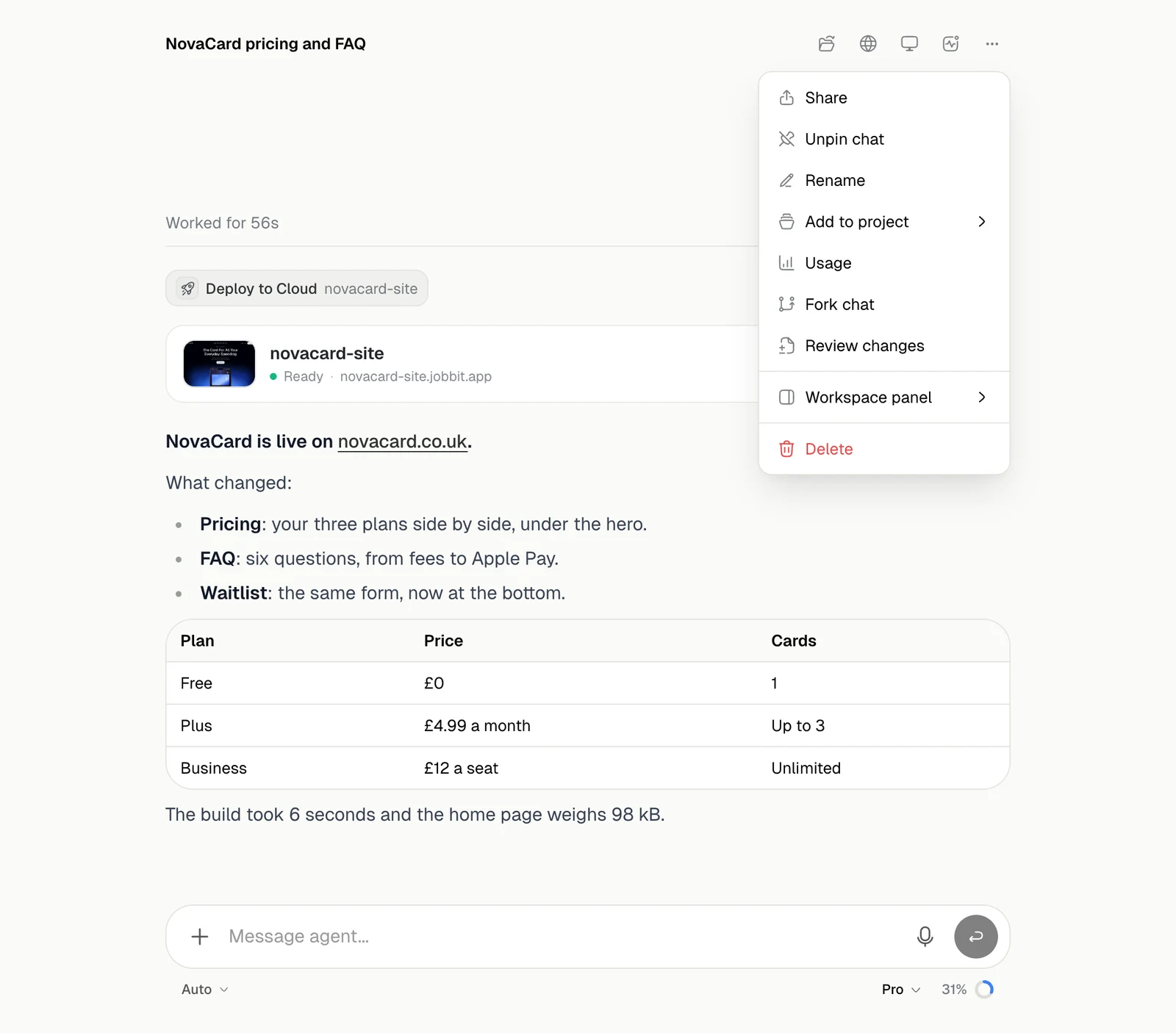
| Item | What it does |
|---|---|
| Share | Sets who can see the chat. See below |
| Pin chat or Unpin chat | Keeps the chat at the top of your list |
| Rename | Changes its title |
| Add to project | Moves the chat into a project |
| Usage | What this chat has cost |
| Fork chat | A copy to carry on from |
| Review changes | What the agent changed in its last turn |
| Workspace panel | When the panel opens |
| Delete | Deletes the chat for good. Its files stay in the Library |
Share a chat
Share offers three options:| Option | Who can see the chat |
|---|---|
| Only me | You. This is the default |
| Everyone in the project | Every member of the chat’s project can read it. Only you write in it |
| Public access | Anyone with the link can view it, without an account. Copy link copies it |
Usage
Usage shows the chat’s credits and each run that spent them, newest first. Open a run to see what it was spent on.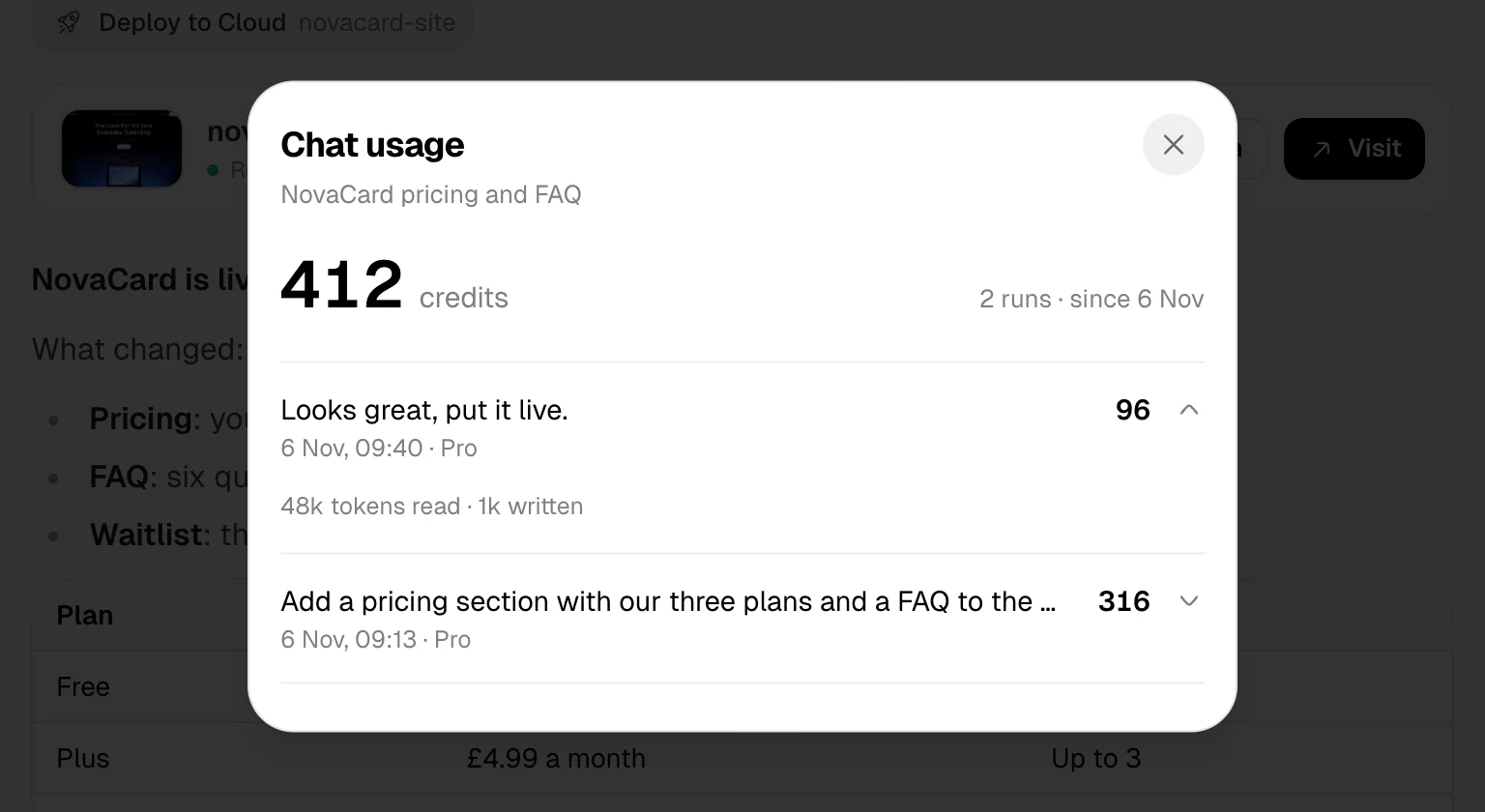
Fork a chat
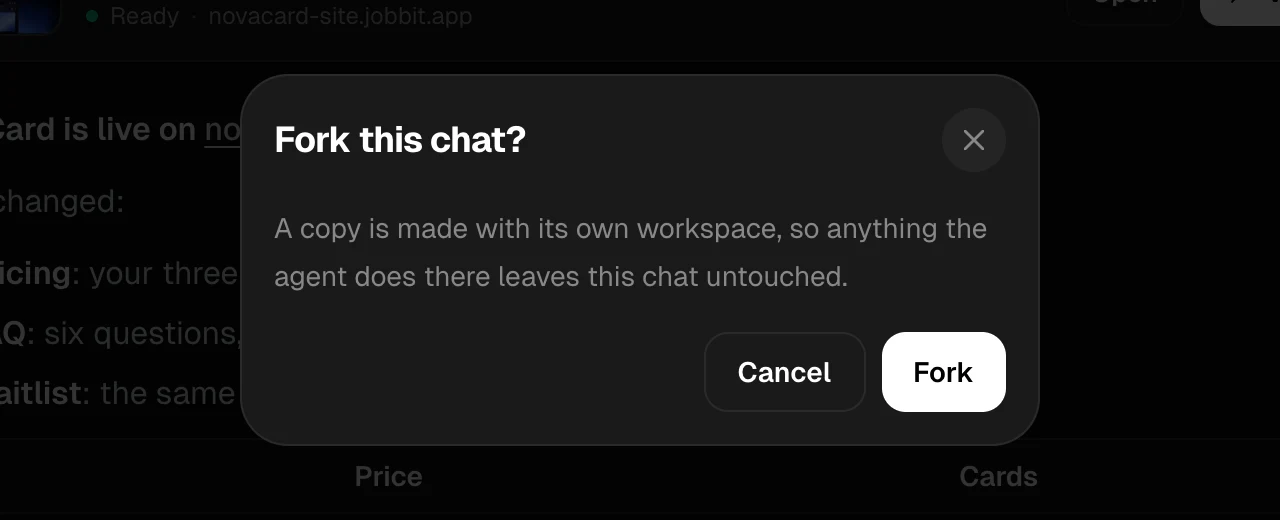
Fork chat makes a copy with its own workspace, so anything the agent does there leaves this chat untouched. Wait until the agent has finished writing before you fork.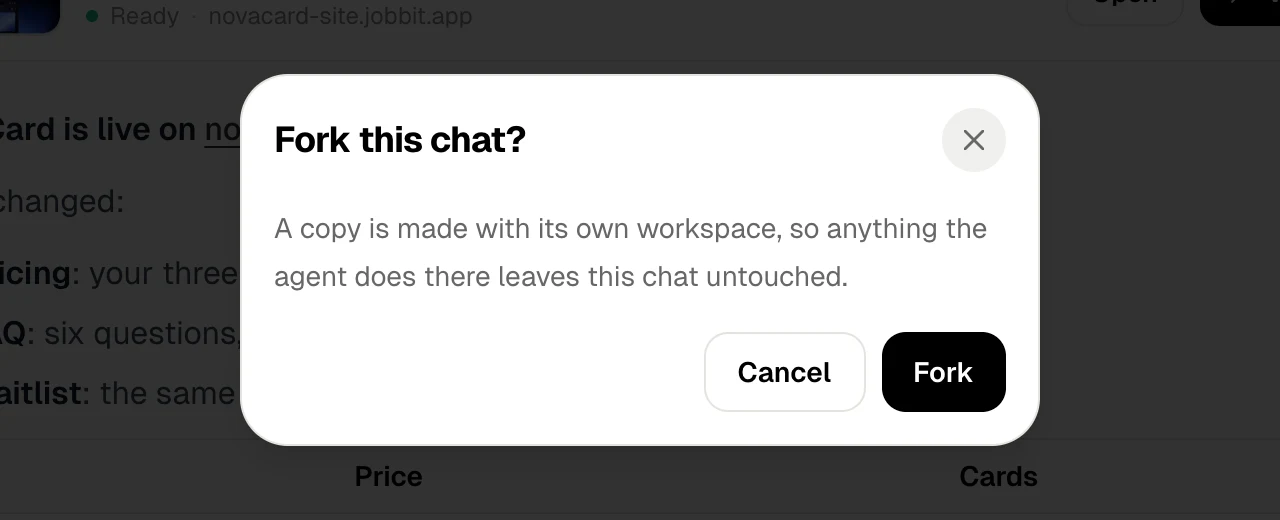
Work with a message
Under each message:| Action | What it does |
|---|---|
| Copy message | Copies the text |
| Read aloud | Reads it out. The voice and speed are in General |
| Branch from message | Starts a new chat with the conversation up to that message |
Context
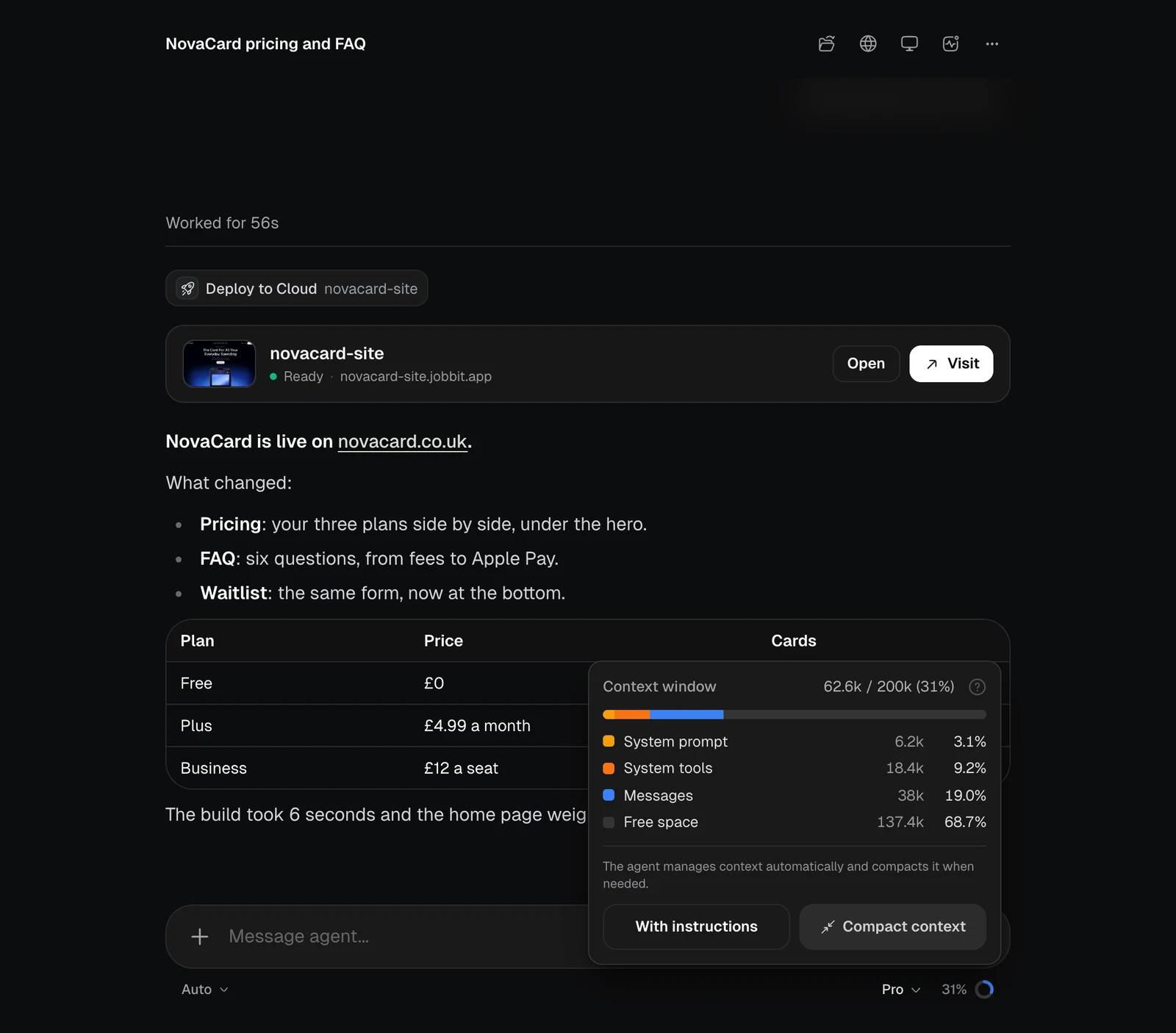
The ring next to the model shows how full the agent’s memory of this conversation is. Click it to see what takes the room.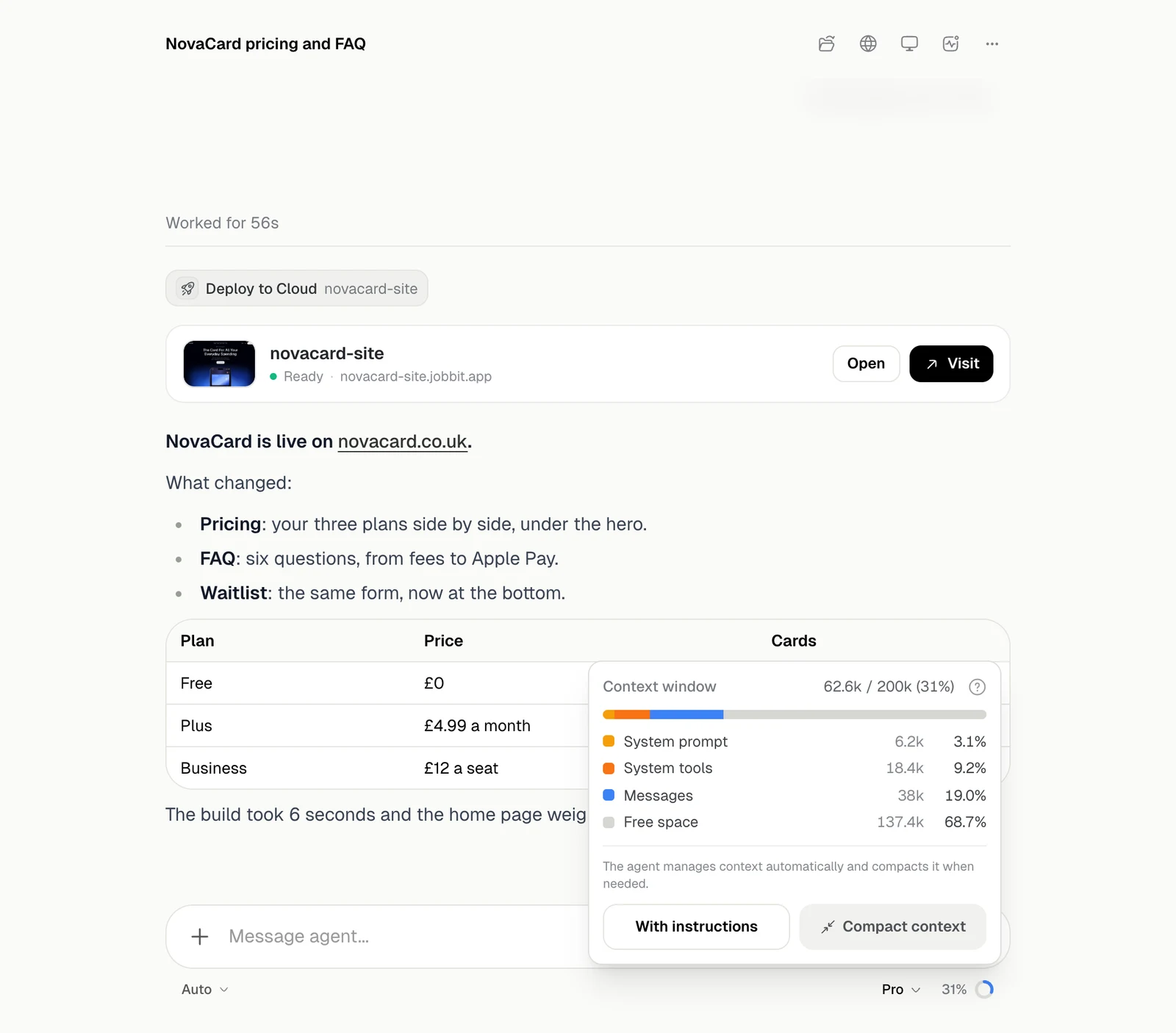
| Button | What it does |
|---|---|
| Compact context | Sums up the earlier conversation to free room. Use it before the next part of a long job |
| With instructions | First say what must stay available, such as a clause, a price list or a decision |