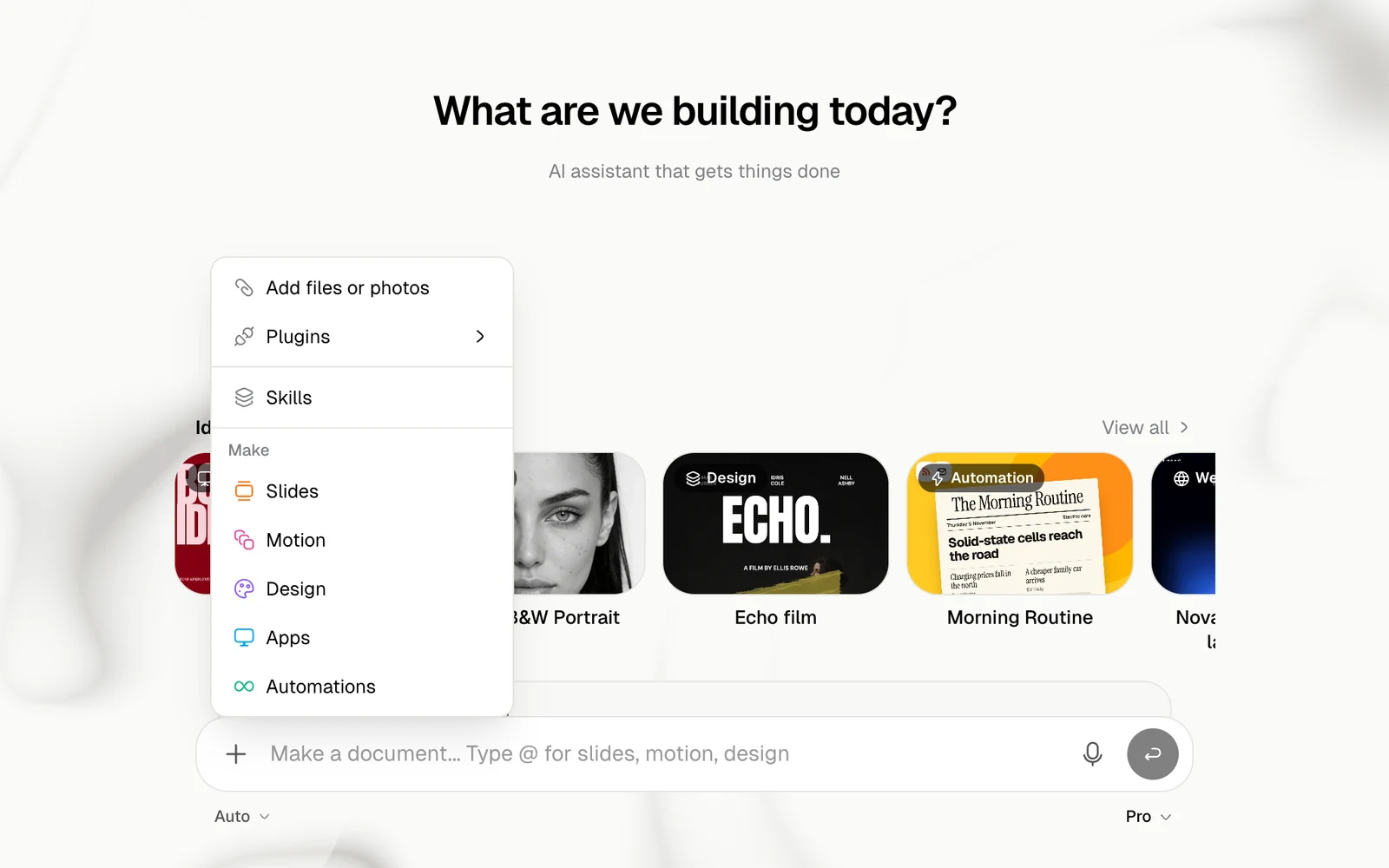
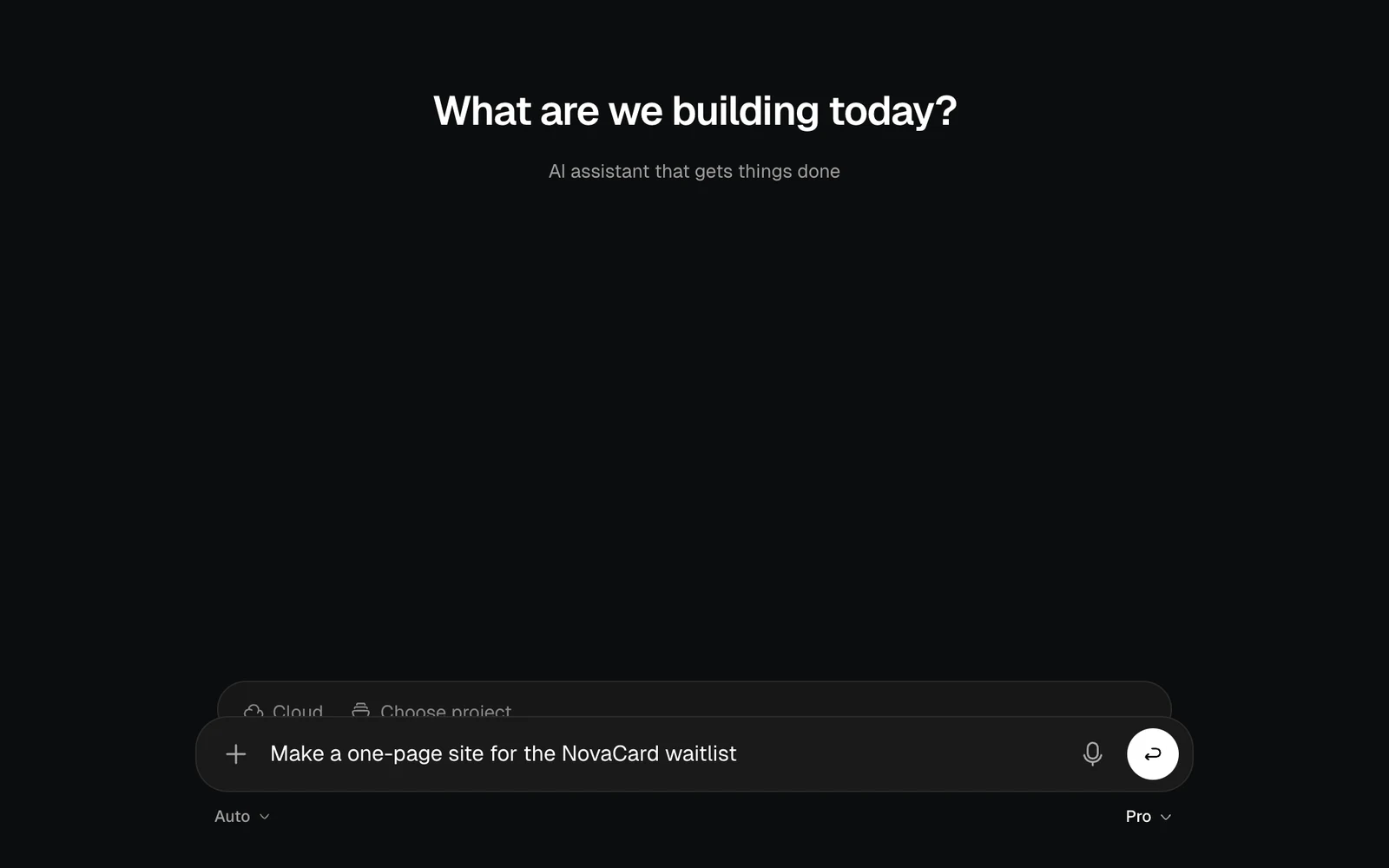
Start from the home page, or write in any chat. Say what you want as the result, and give the details you care about. The agent works out the steps.
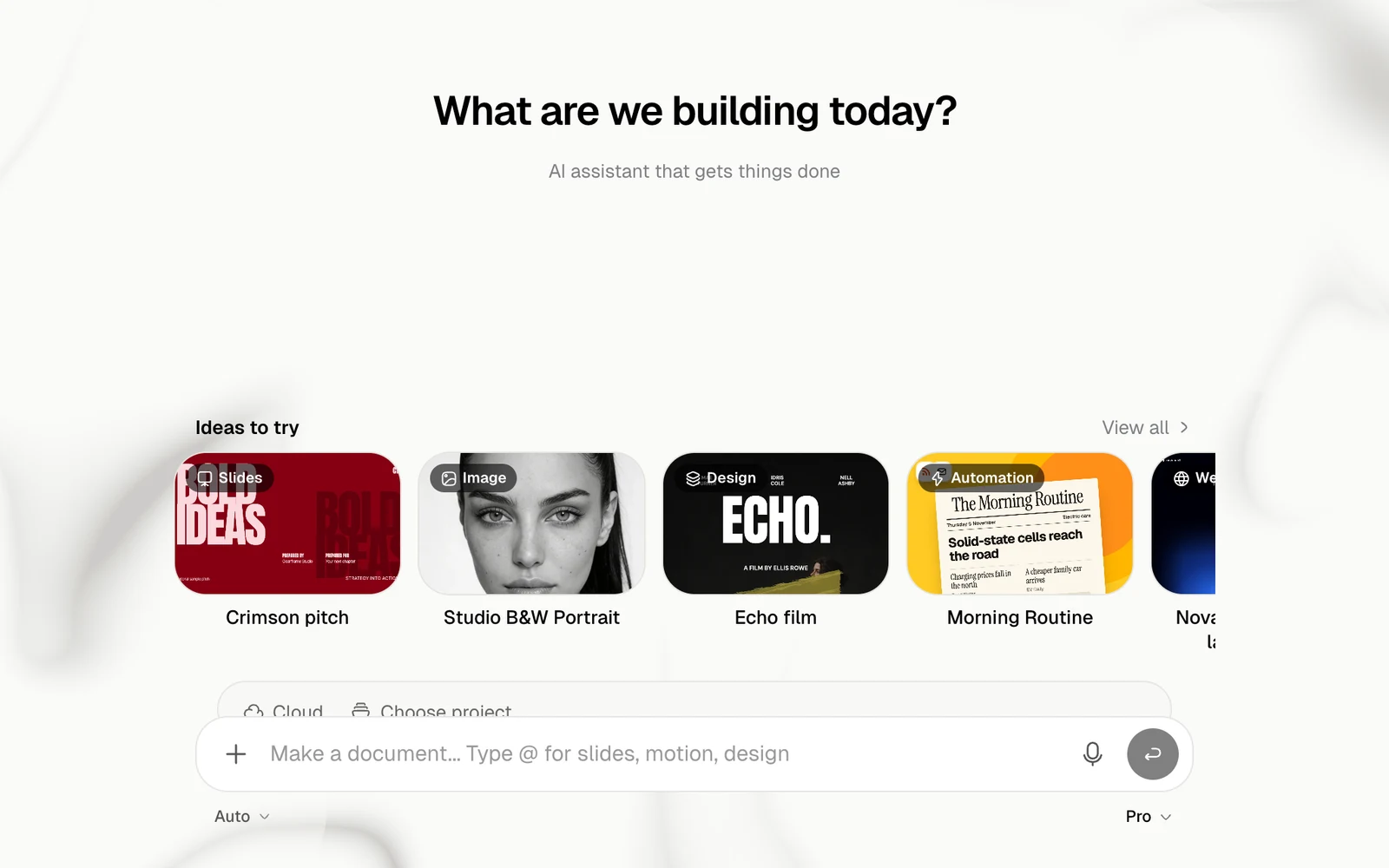
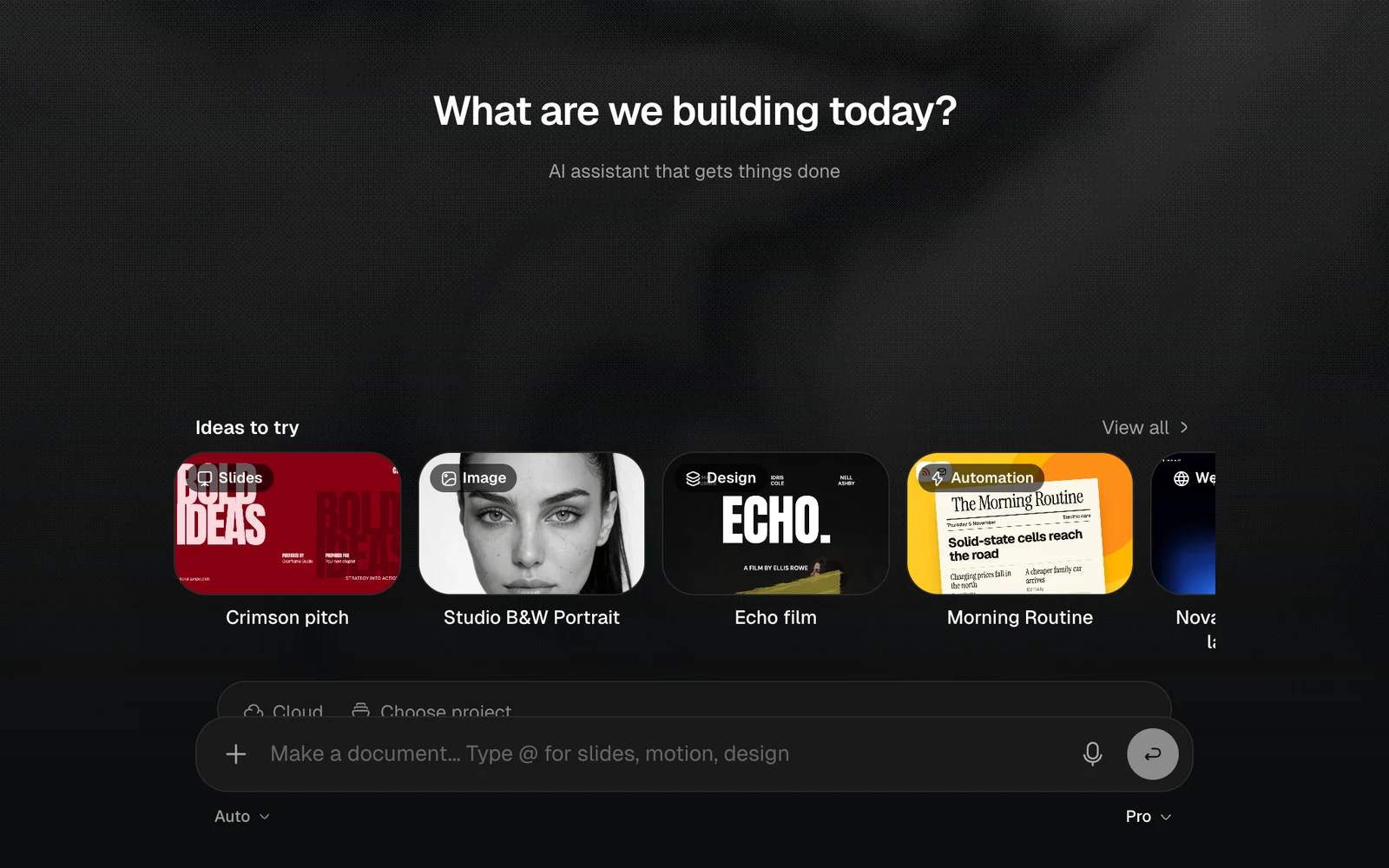
The Jobbit home page with Ideas to try and the message box, light themeThe Jobbit home page with Ideas to try and the message box, dark theme
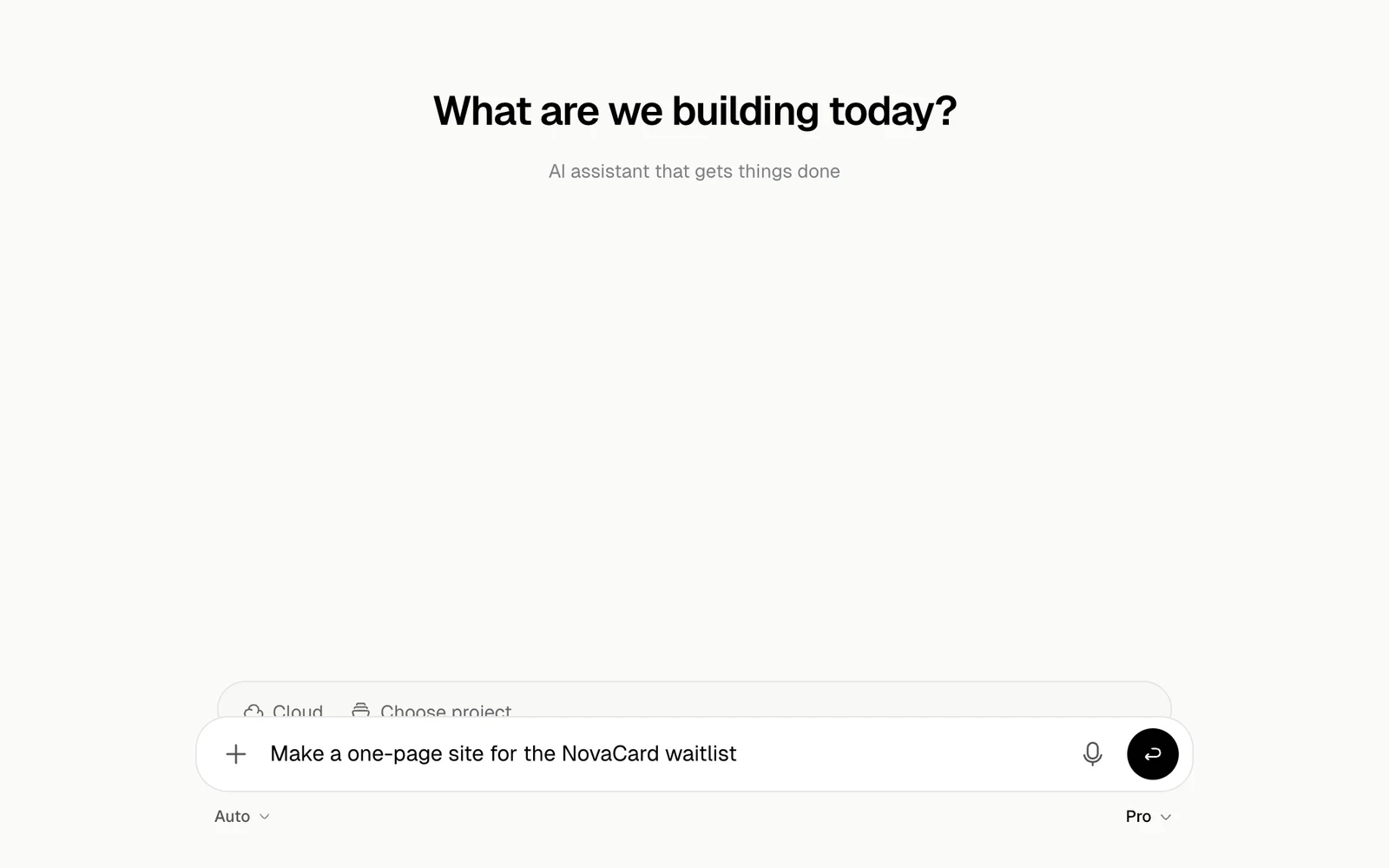
The message box with a request typed in, light themeThe message box with a request typed in, dark theme
Ideas to try are ready-made tasks to start from. View all opens the full list of templates.

Write a good request

You do not need to name a tool. Describe the result, and the decision or work it should support.
Research three payroll tools for a UK startup with 20 employees. Compare pricing,
onboarding, integrations and support. Return a short recommendation with sources
and a spreadsheet with the comparison.
Include these when they matter:
  • Who will use the result
  • What the agent should rely on, and which sources to leave out
  • The format or file type you need
  • Time, budget, region or compliance limits
  • What should be checked before the task counts as done

The message box

ControlWhat it does
+Attach files, reach your plugins and skills, or say what kind of thing to make
DictateThe microphone writes what you say into the box as you speak. Edit it, then send
CloudWhere the task runs, above the box on the home page
Choose projectPuts the chat in a project, above the box on the home page
AutoThe mode, under the box on the left
ProThe model and effort, under the box on the right
Inside a chat, a ring next to the model shows how full the agent’s context is. See Context.

Attach and add

+ opens the menu.
The plus menu with Add files or photos, Plugins, Skills and the Make list, light themeThe plus menu with Add files or photos, Plugins, Skills and the Make list, dark theme
ItemWhat it does
Add files or photosAttaches files of up to 2 GB each. You can also paste them or drop them onto the box
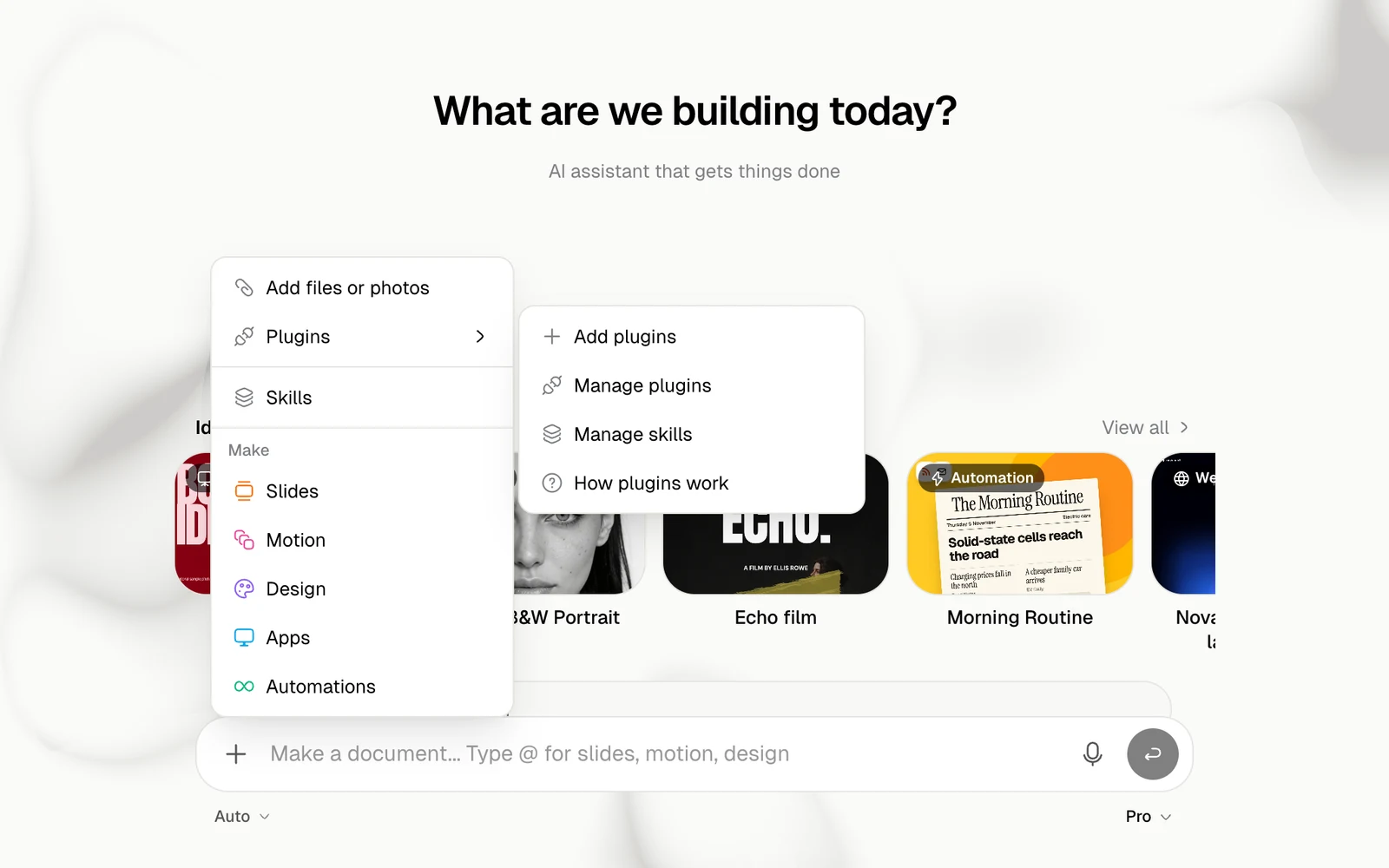
PluginsAdd plugins, Manage plugins, Manage skills and How plugins work
SkillsOpens your skills
MakeSlides, Motion, Design, Apps or Automations: tells the agent what kind of thing you want
The Plugins submenu with Add plugins, Manage plugins, Manage skills and How plugins work, light themeThe Plugins submenu with Add plugins, Manage plugins, Manage skills and How plugins work, dark theme
Picking something under Make puts a tag such as @Slides at the start of your message. Write the rest after it.

The message box with an @Slides tag, light themeThe message box with an @Slides tag, dark theme

Mention with @

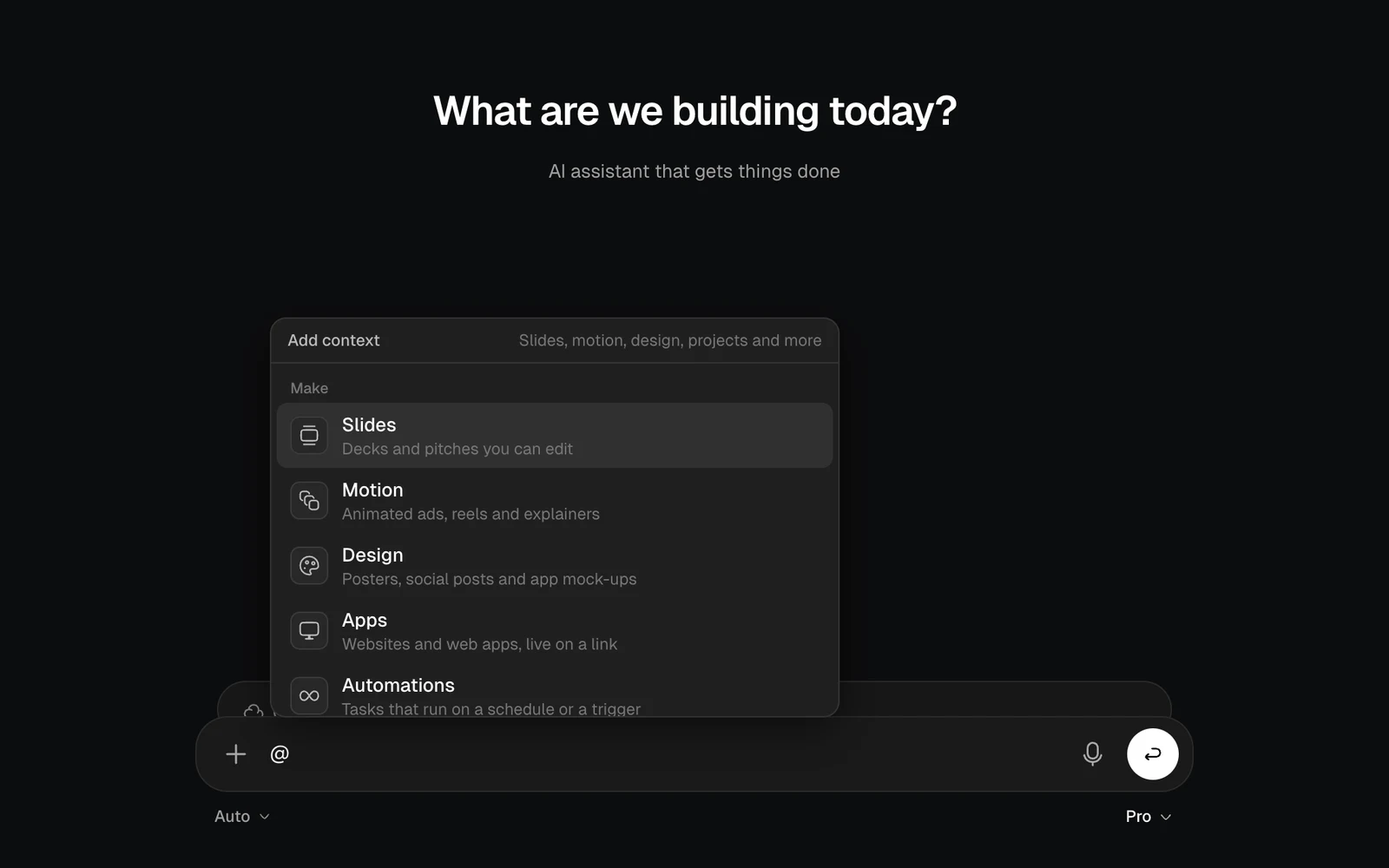
Type @ to point the agent at something of yours.
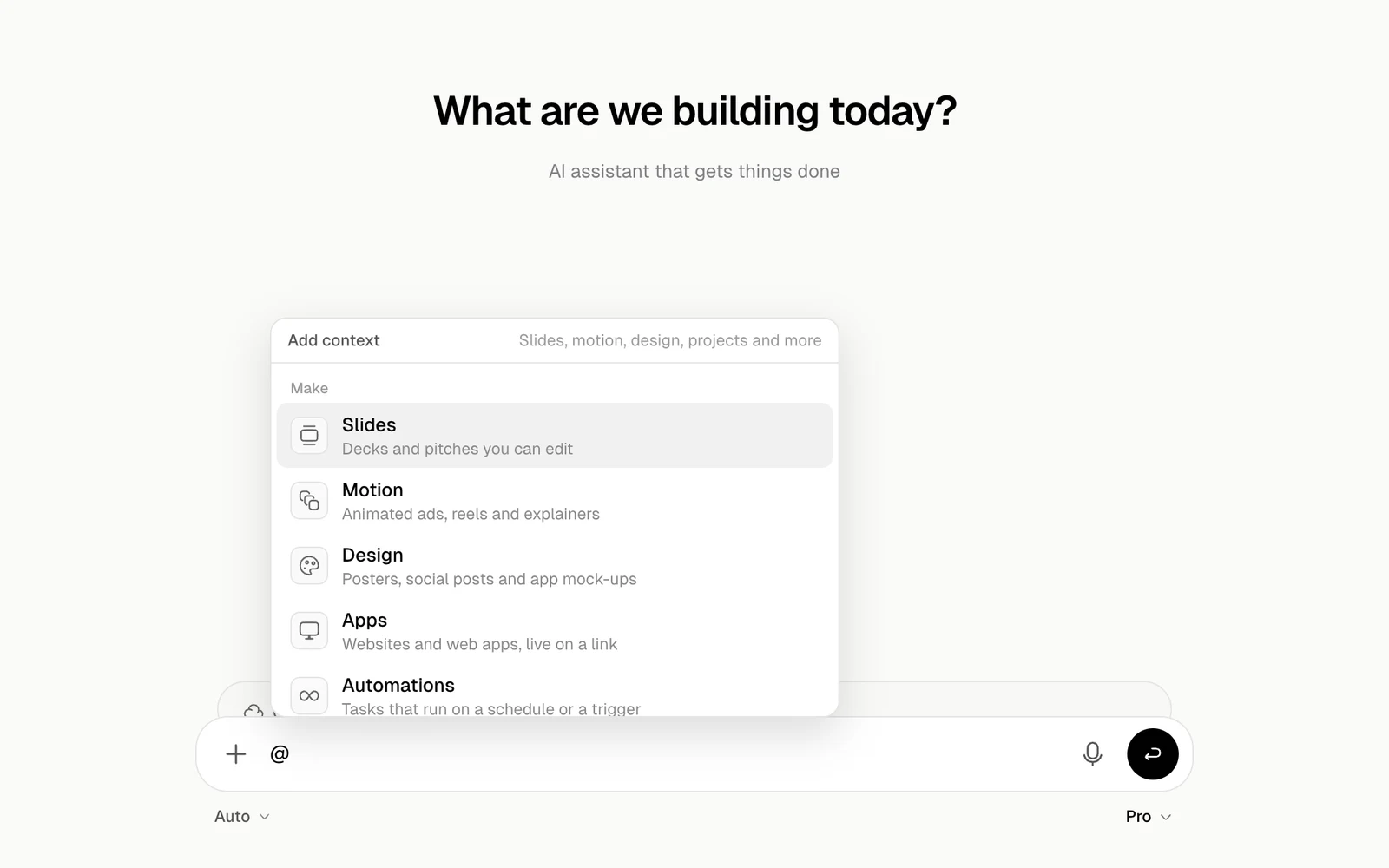
The Add context list with Make, Projects, Deploys, Plugins and Skills, light themeThe Add context list with Make, Projects, Deploys, Plugins and Skills, dark theme
GroupWhat it does
MakeThe kind of thing to make, as in the + menu
ProjectsLends a project’s files and notes to this conversation, without moving the chat into it
DeploysPoints the agent at one of your apps
PluginsTells the agent to use a connected service, such as Gmail
SkillsRuns one of your skills
When GitHub is connected, you can mention a repository too.

Choose a project

Choose project lists your projects. A chat in a project can use the project’s files, notes and keys, and shows up on the project’s page. See Projects.
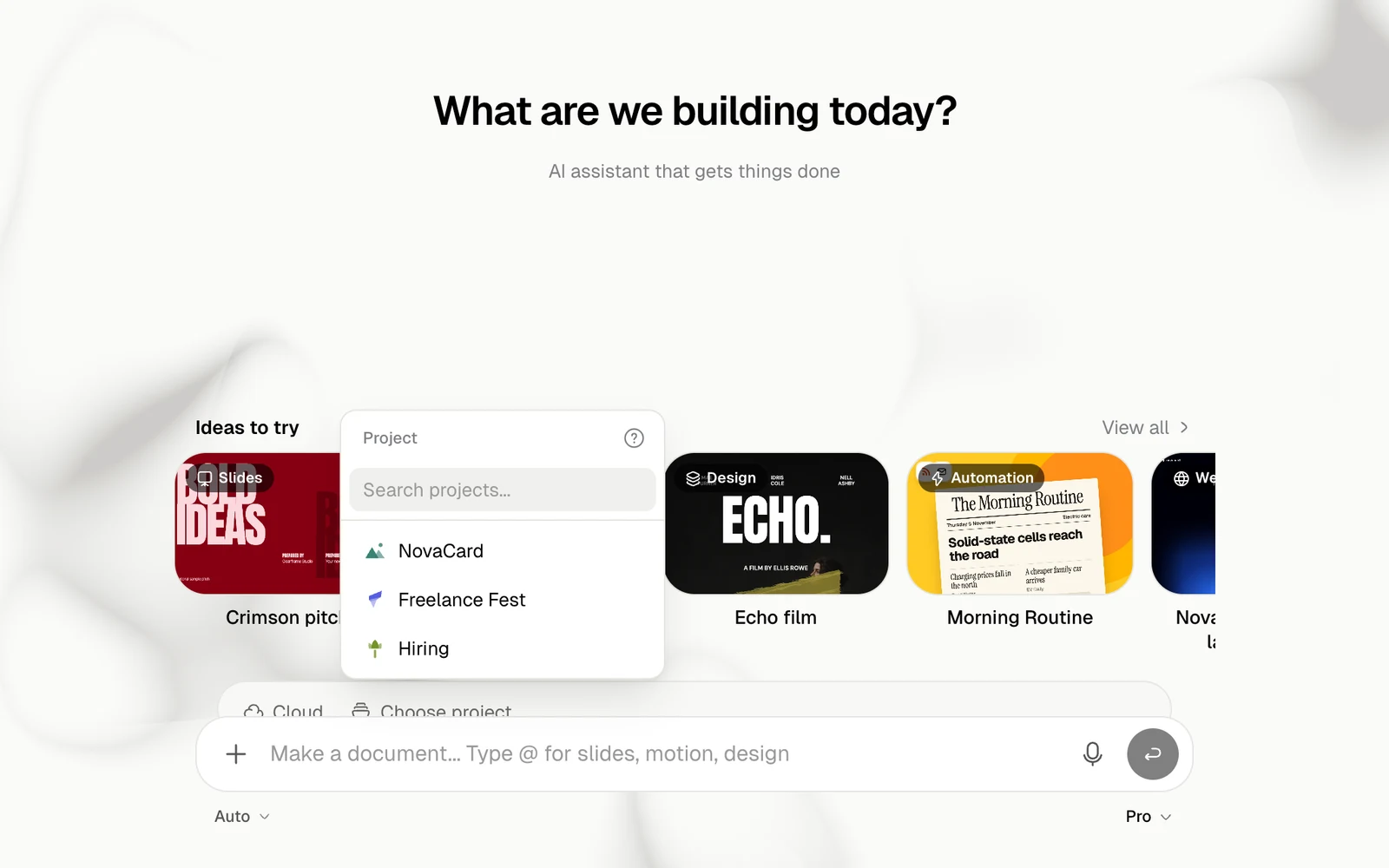
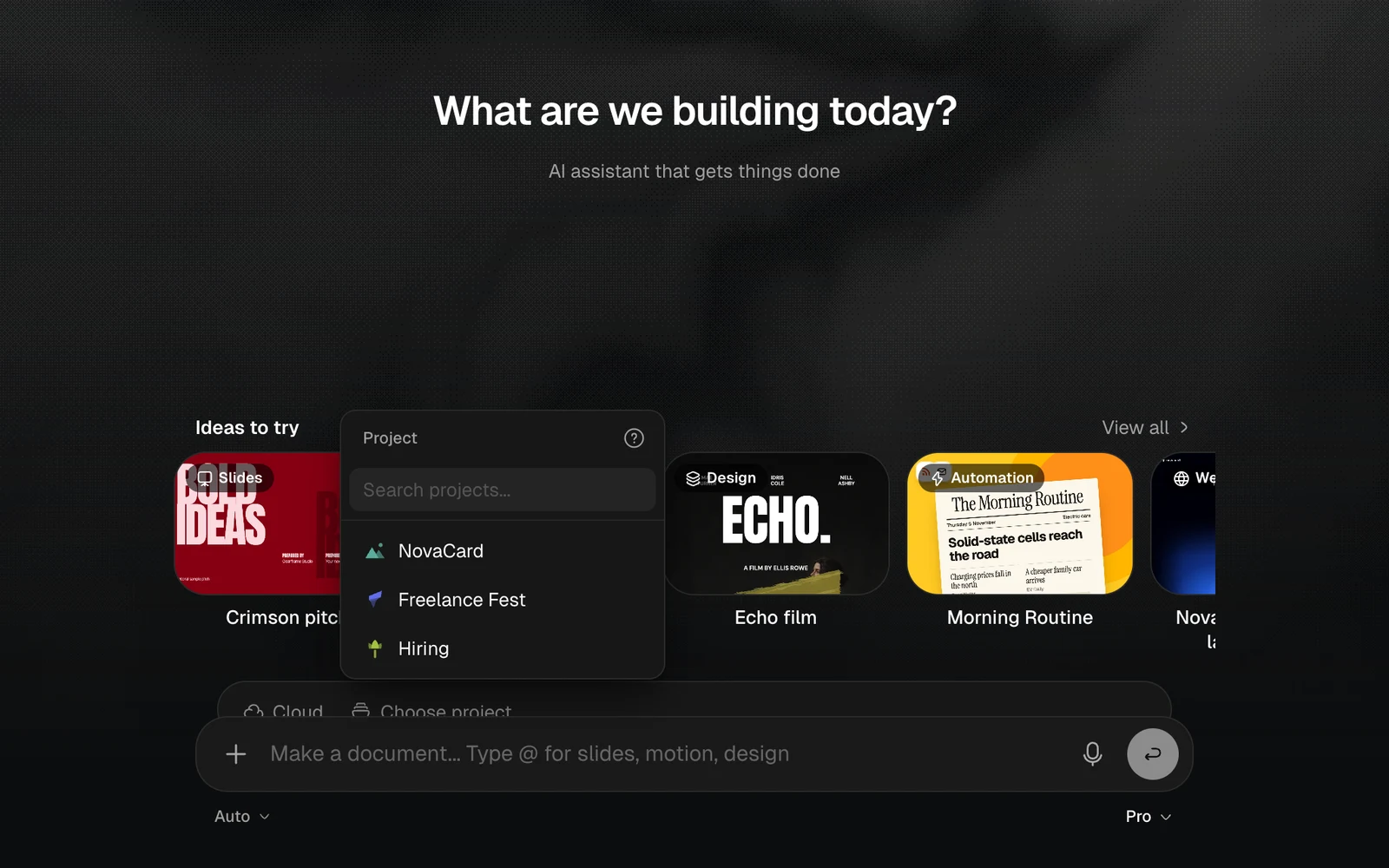
The Choose project list with NovaCard, Freelance Fest and Hiring, light themeThe Choose project list with NovaCard, Freelance Fest and Hiring, dark theme

Where it runs

Tasks run in the Cloud, on Jobbit’s servers.
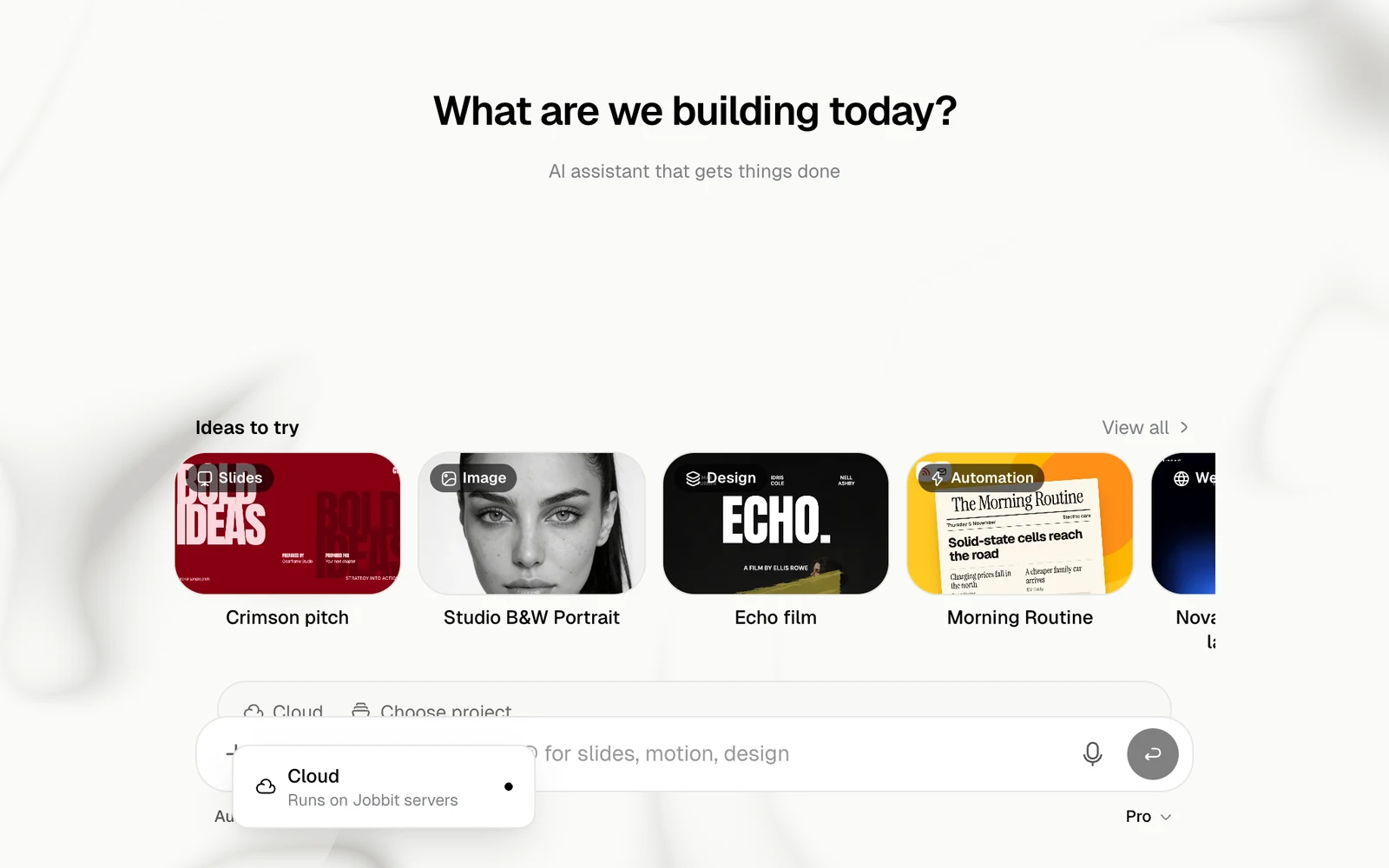
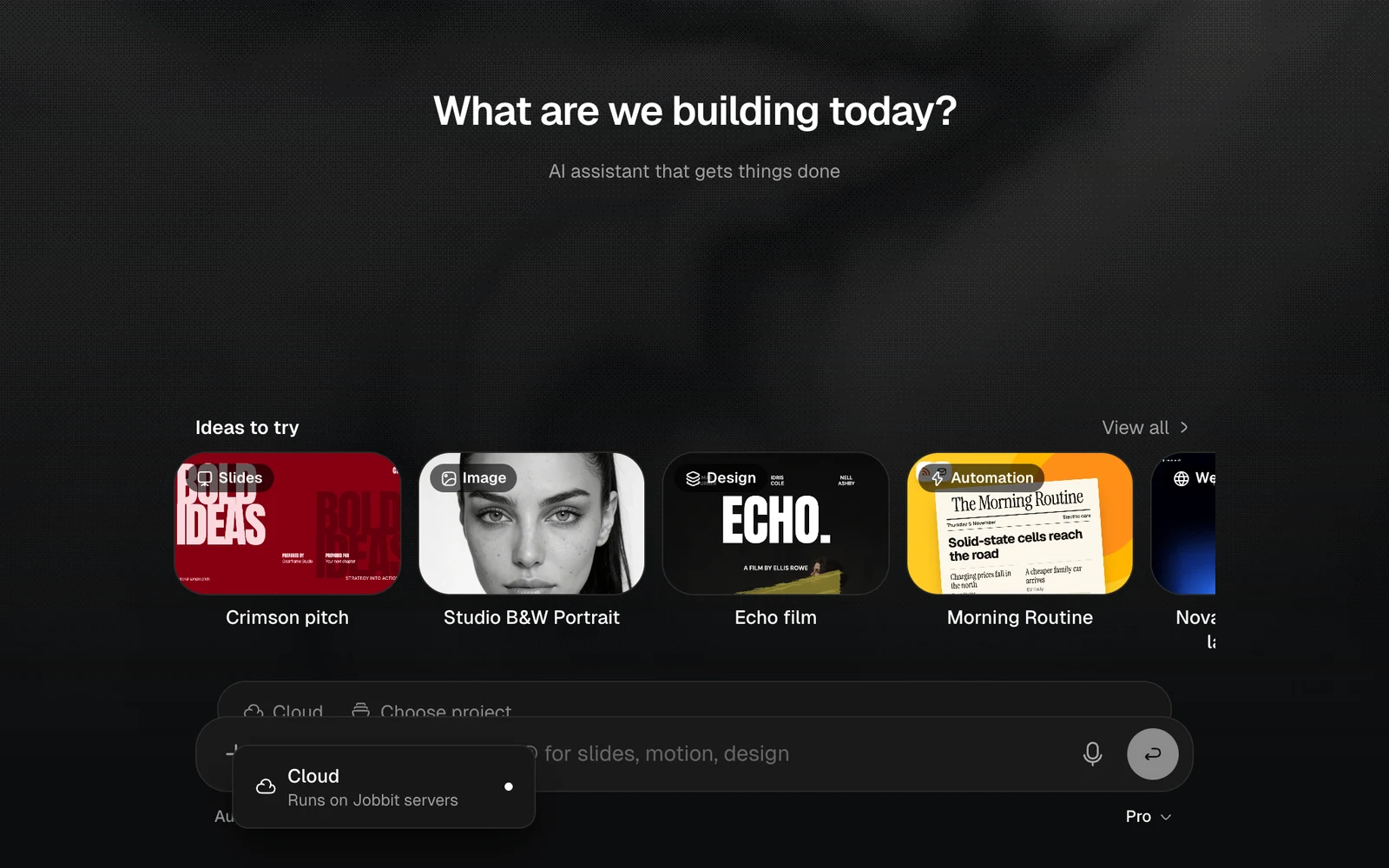
The runtime menu with Cloud, Runs on Jobbit servers, light themeThe runtime menu with Cloud, Runs on Jobbit servers, dark theme