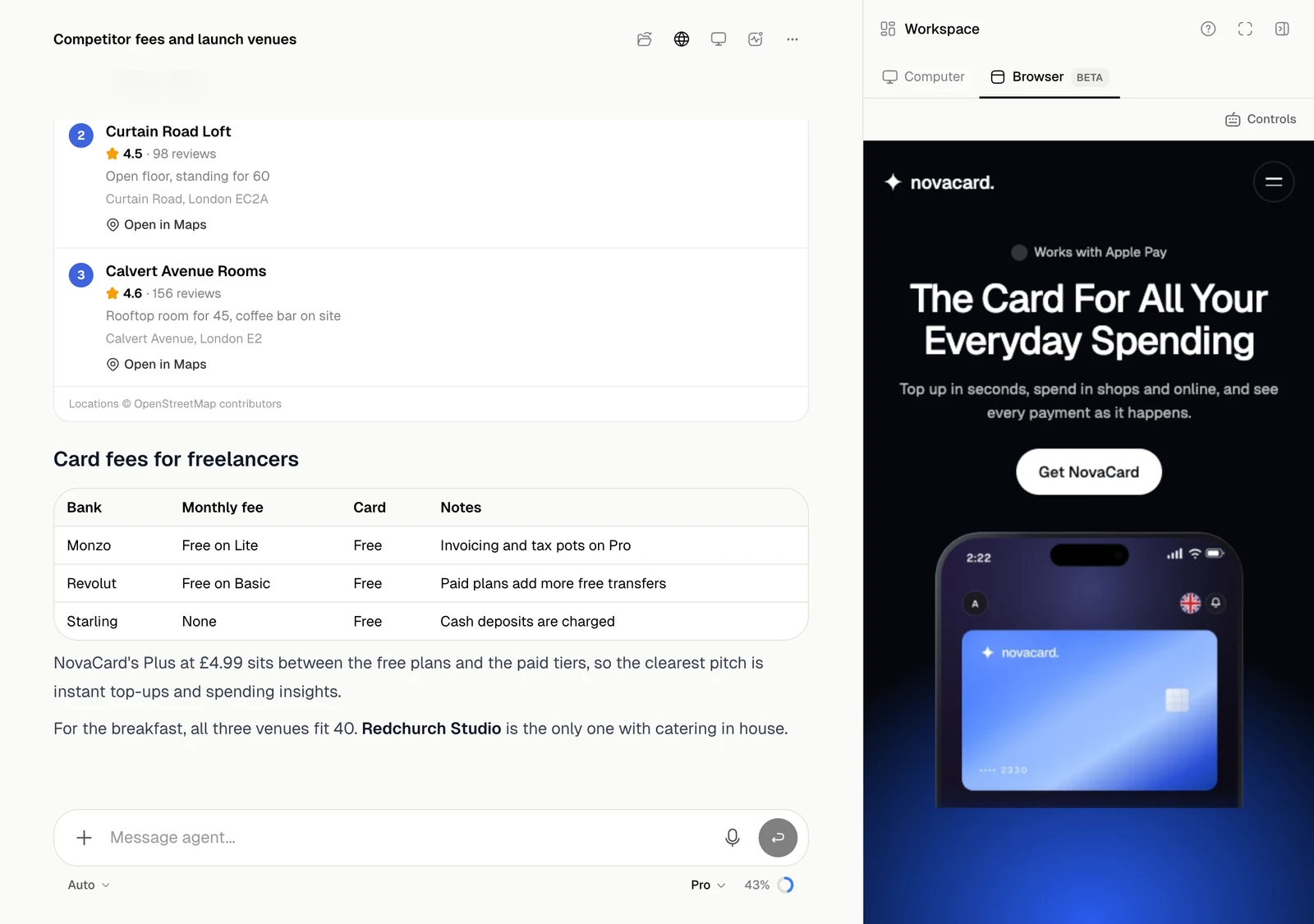
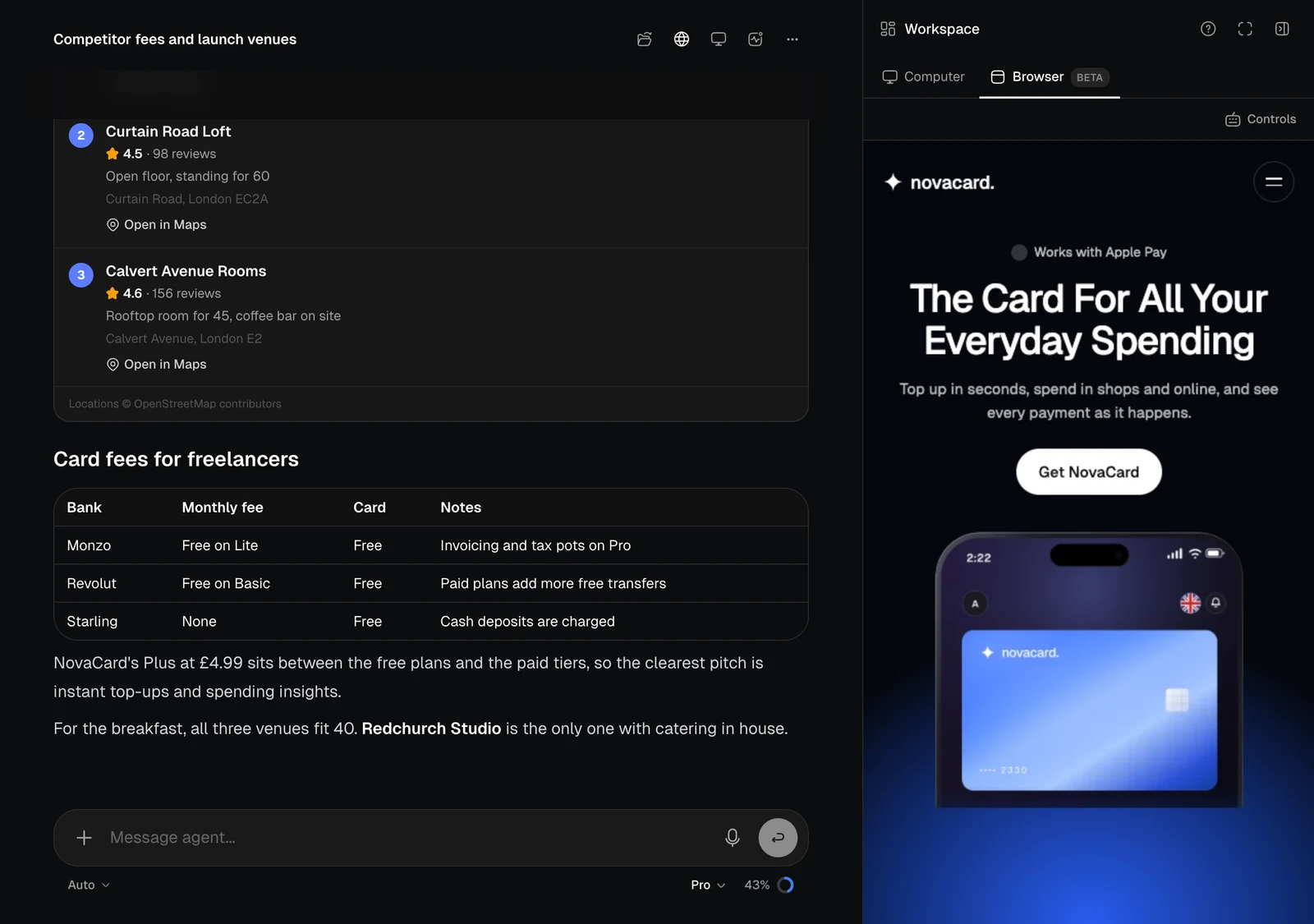
The agent has a real browser. It opens sites, clicks, fills in forms, takes screenshots and checks how a page looks on a computer or a phone. Open Browser in the header to watch it live.
The Workspace panel on the Browser tab, showing a live web page, light themeThe Workspace panel on the Browser tab, showing a live web page, dark theme
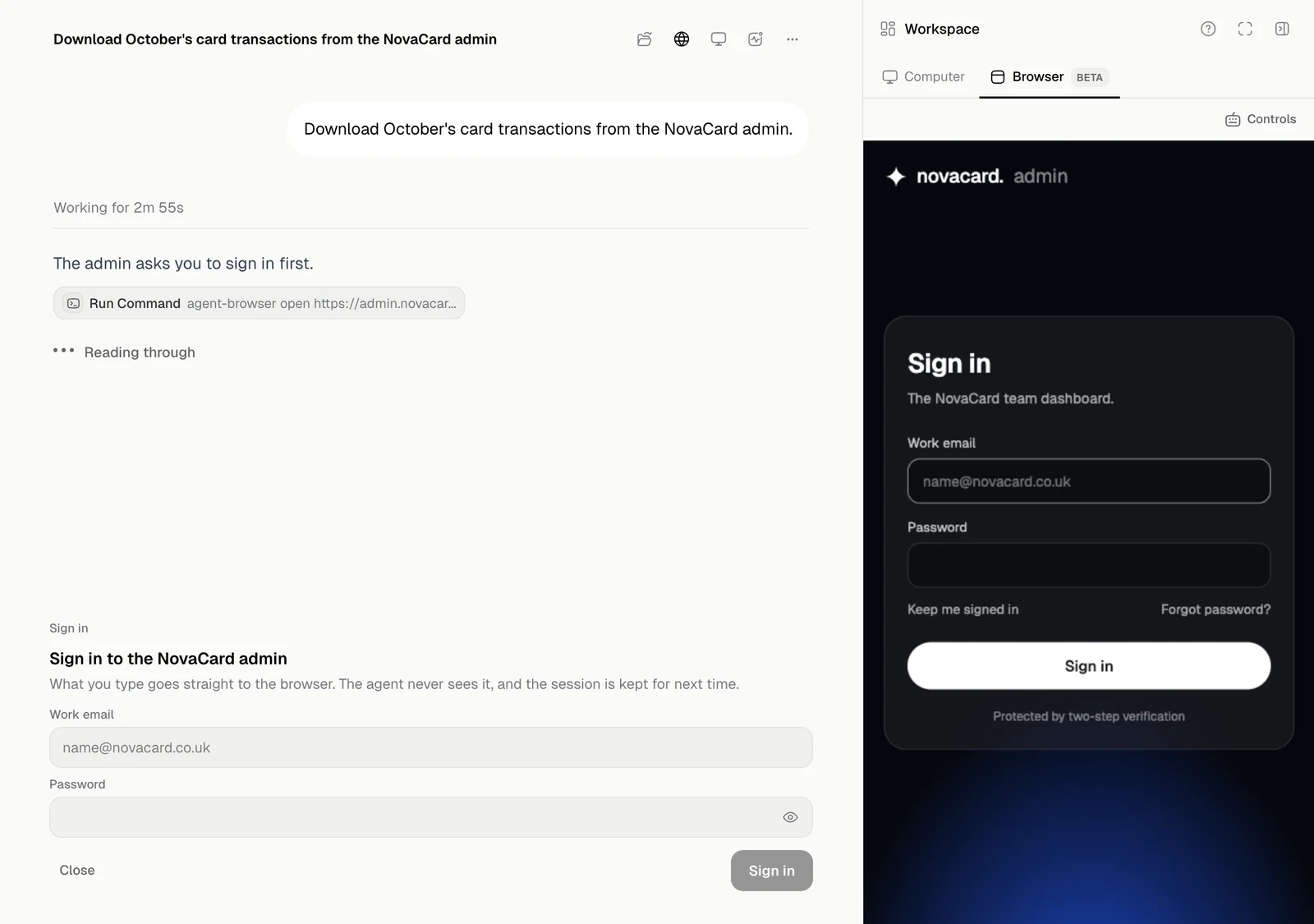
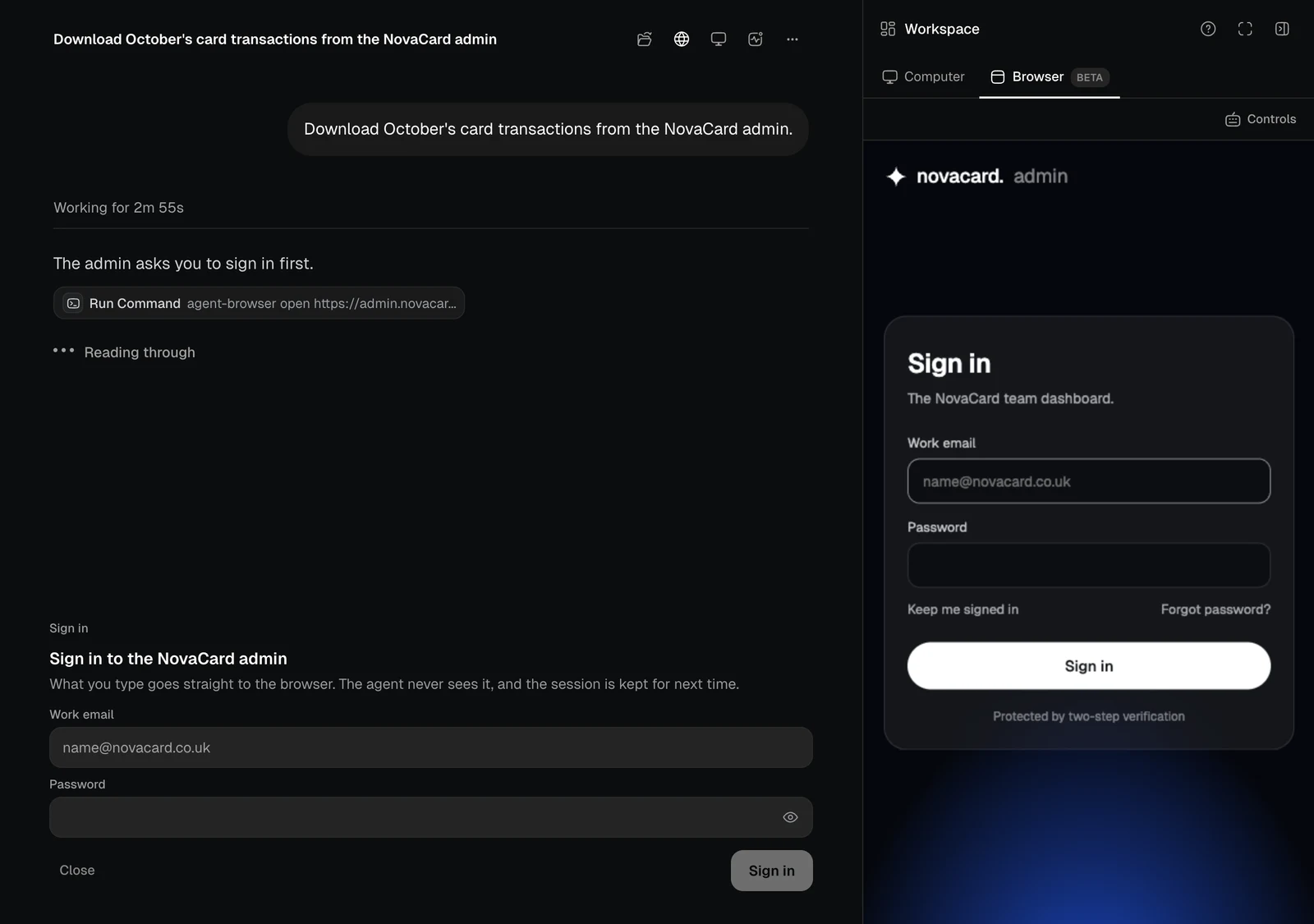
You can click and type on the page yourself at any time. When the agent needs you to sign in, a card shows the site’s fields, or you can use the page itself.
The Sign in card next to the live browser, light themeThe Sign in card next to the live browser, dark theme
Sites the browser is signed in to are listed in Settings › Browser, where you can sign it out of any of them.

Controls

Controls at the top of the panel has everything a keyboard or a window would give you.
ControlWhat it does
Type in the browserBrings up your keyboard
Open an addressGoes to a web address, or searches for words
Paste textPuts text from your computer where the cursor is
Copy from the browserCopies what you copied on the page
Select textSelects and copies text from the page
KeysEsc, Tab, Enter, Backspace, Home, End and others
SoundLets you hear what the browser plays
Desktop viewFull websites, drawn smaller
Data saverA coarser picture for a slow connection
Browser dataSaved sign-ins and site data
Reload the pageLoads the page again
Put to sleepStops the browser. Your sign-ins are kept
The browser also sleeps when nobody has used it for a while. Wake it up starts it again. When a download finishes you can Save to chat or download it to your device. When a page asks for a file, you choose one from your device.