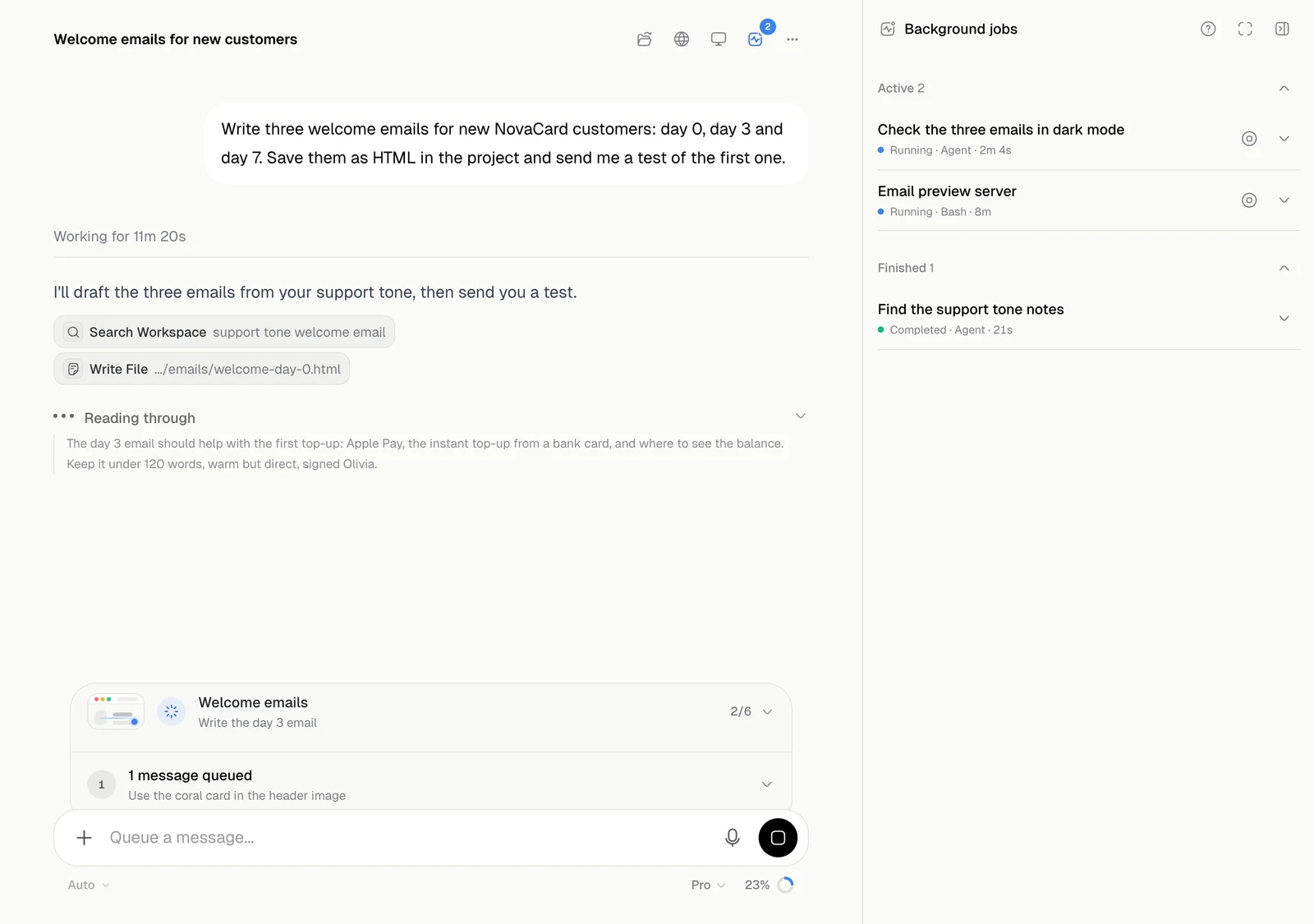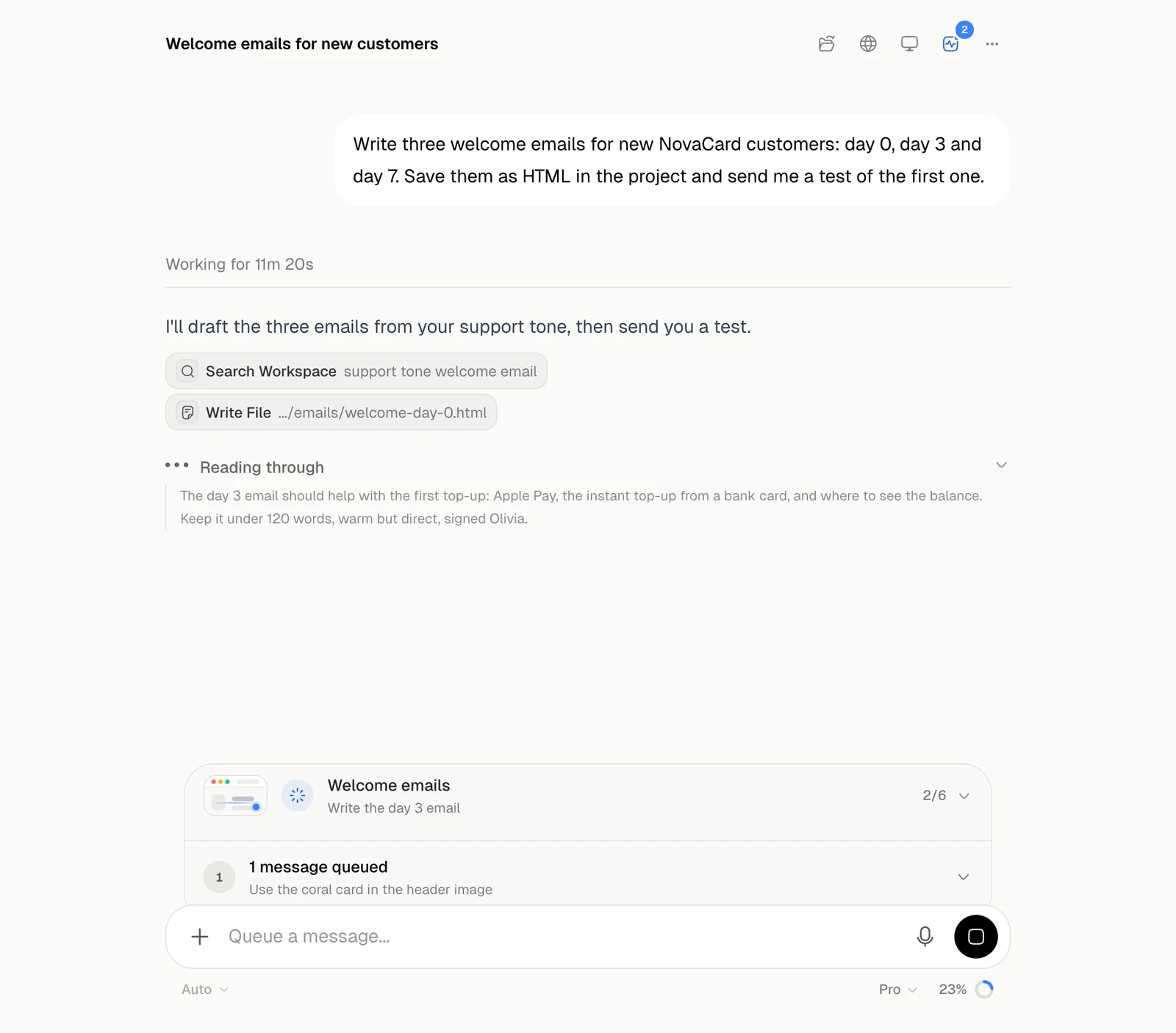
| On the screen | What it is |
|---|---|
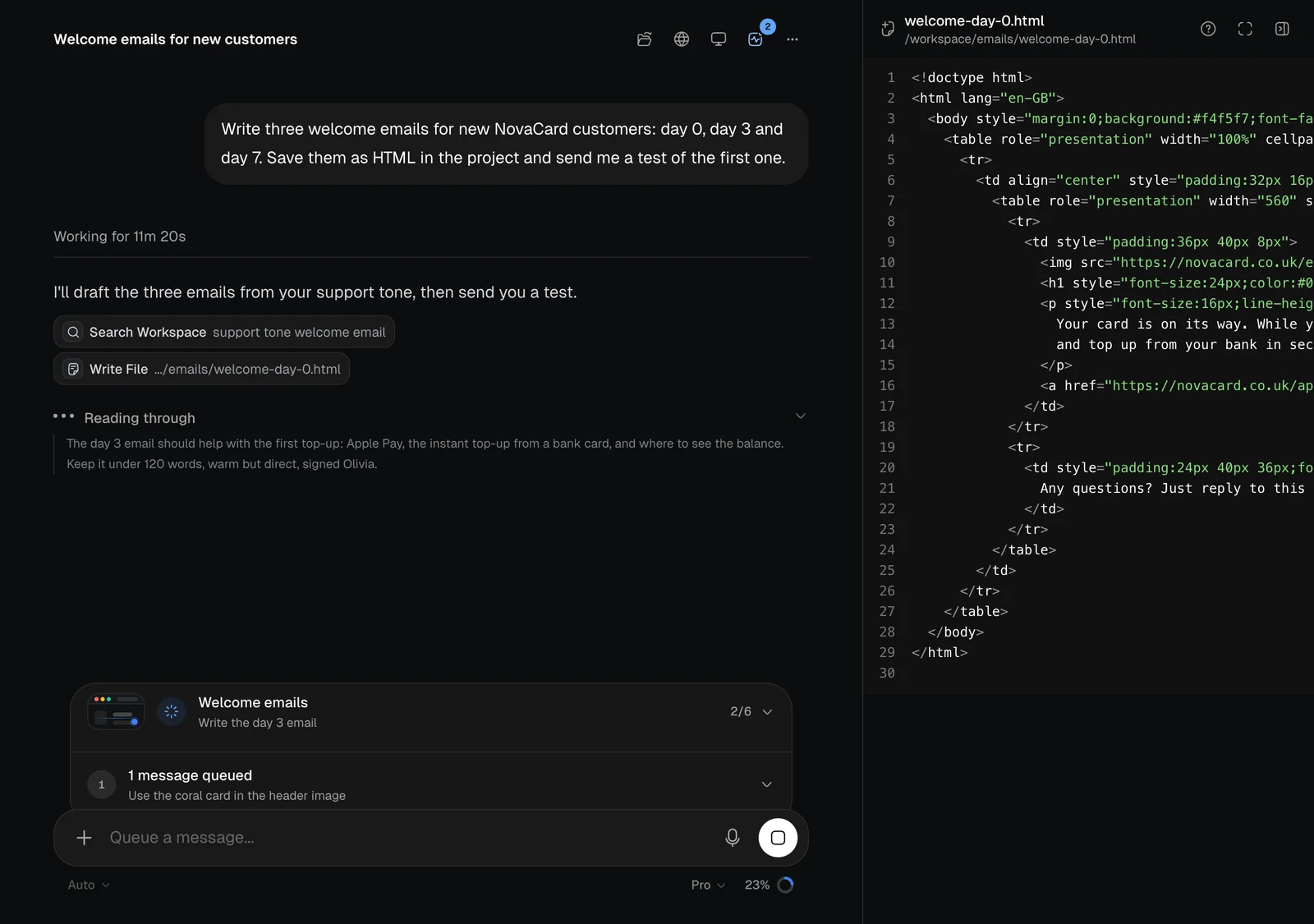
| Working for 11m 20s | The time this run has taken. It becomes Worked for when it ends |
| Badges | The tools used so far. Click one to see what it did |
| The line with three dots | What the agent is thinking now. The arrow opens or closes it |
| The checklist | The steps of a longer task |
| The square button | Stops the run |
The checklist
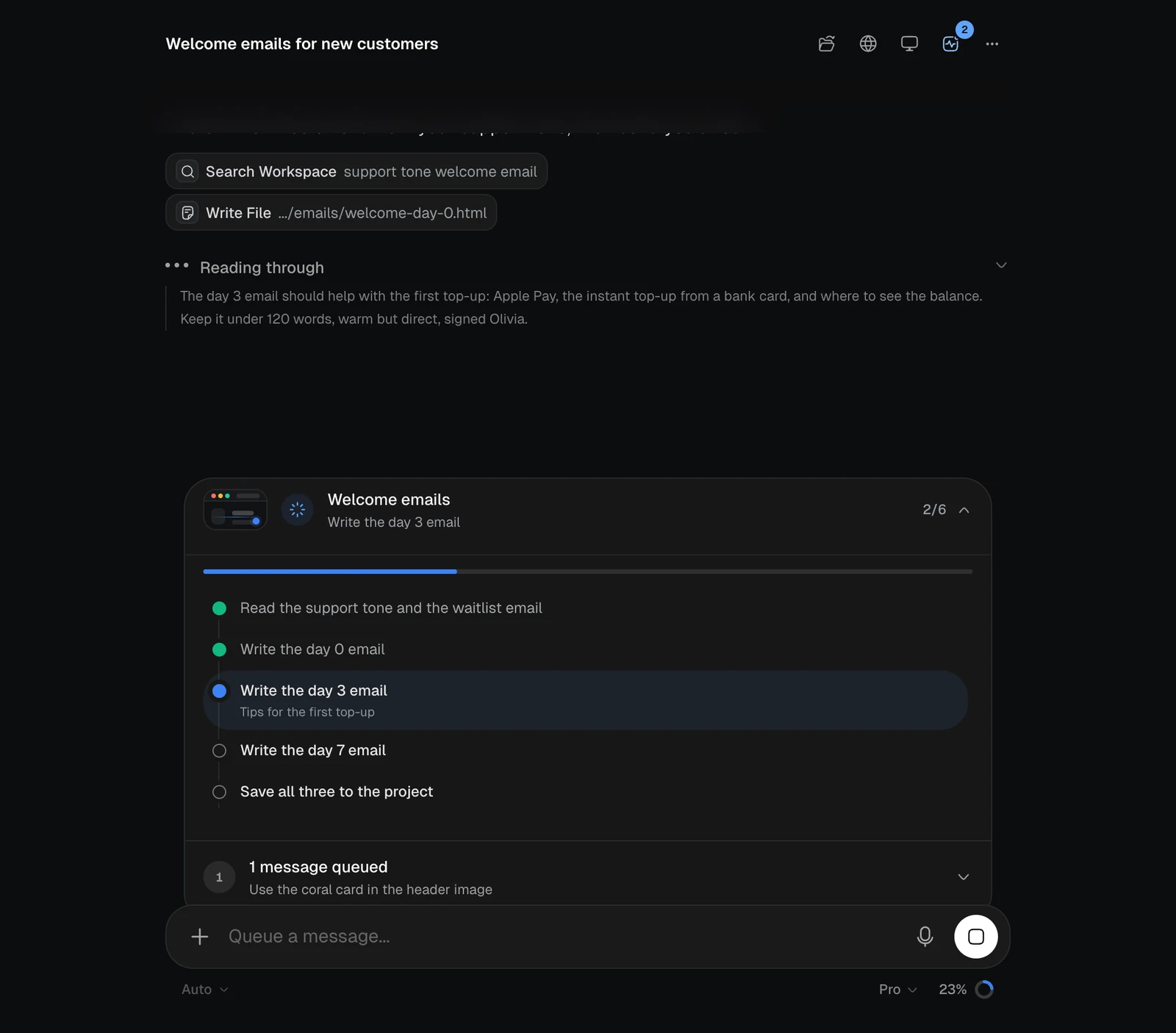
For longer work the agent keeps a checklist and ticks it off as it goes. The card above the message box shows the current step and how far along it is. Click it to see every step.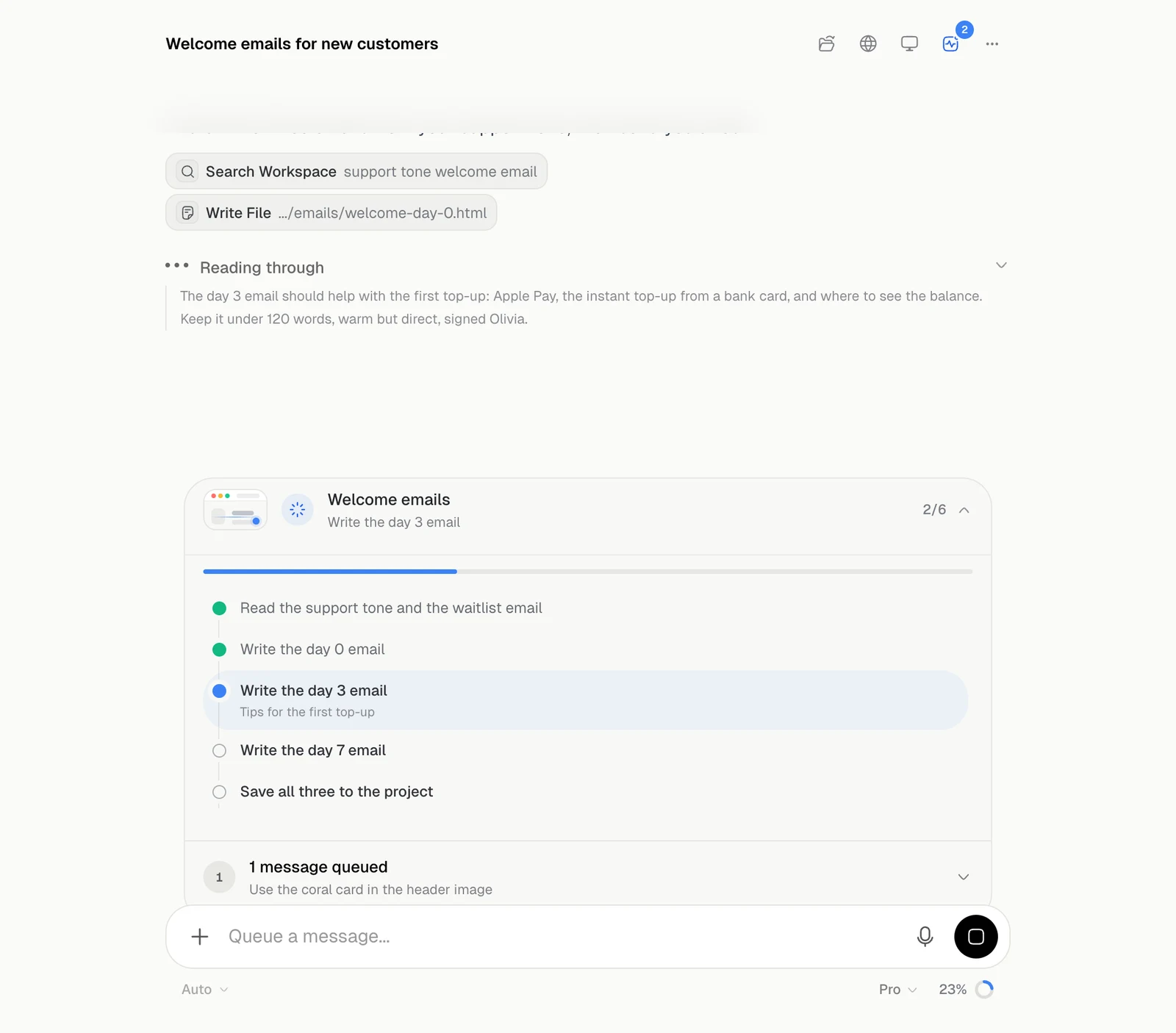
Add a message while it works
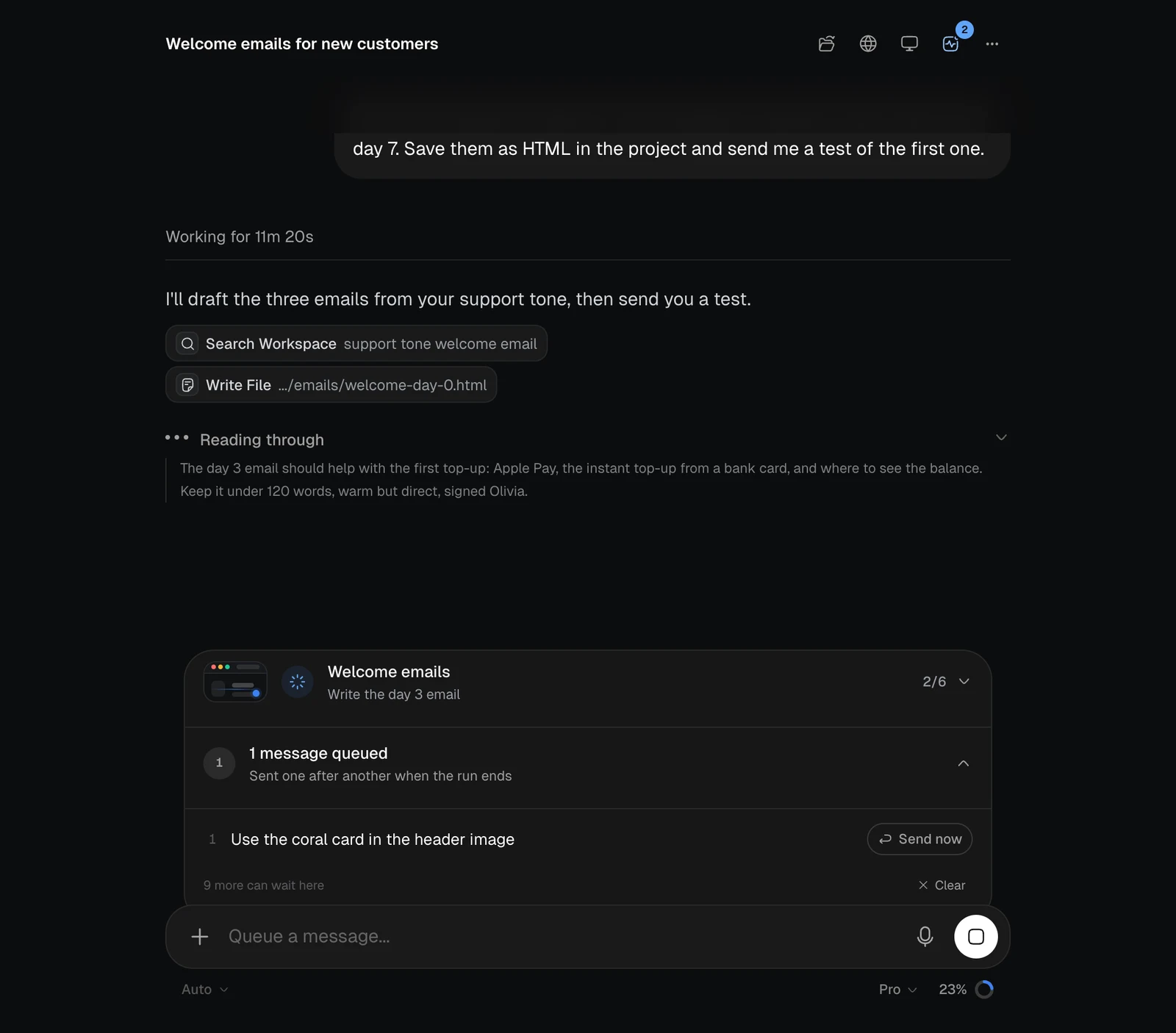
The box says Queue a message… during a run. What you send waits in a queue, and goes out one message after another when the run ends. Up to 10 can wait.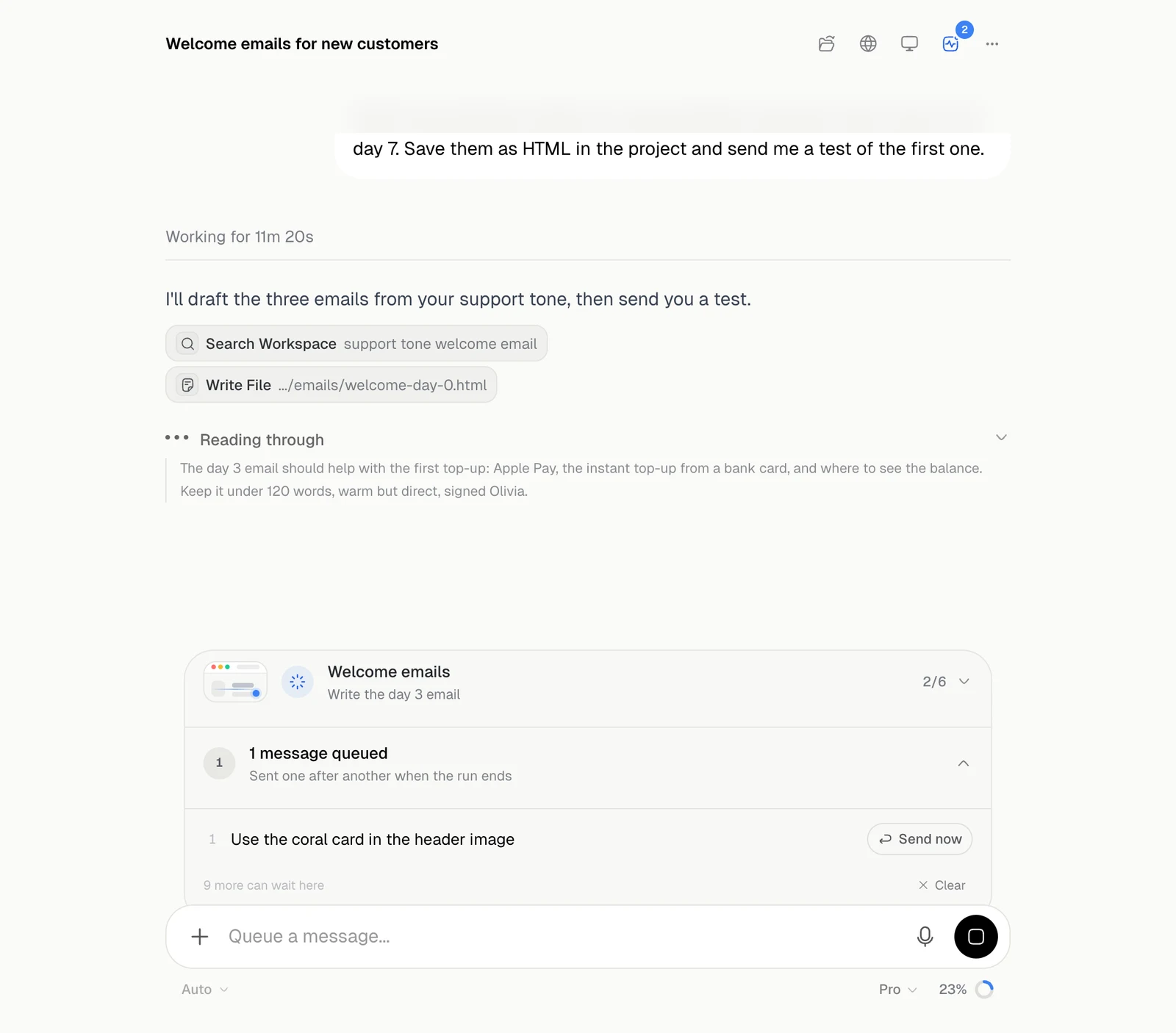
| Action | What it does |
|---|---|
| Edit | Moves the message back into the box |
| Remove | Takes it out of the queue, after asking |
| Send now | Sends it straight away. It asks first, because this stops what the agent is doing |
| Clear | Empties the queue, after asking |
Watch a file being written
Click a Write File or Edit File badge to open the file in the panel. It fills in as the agent writes.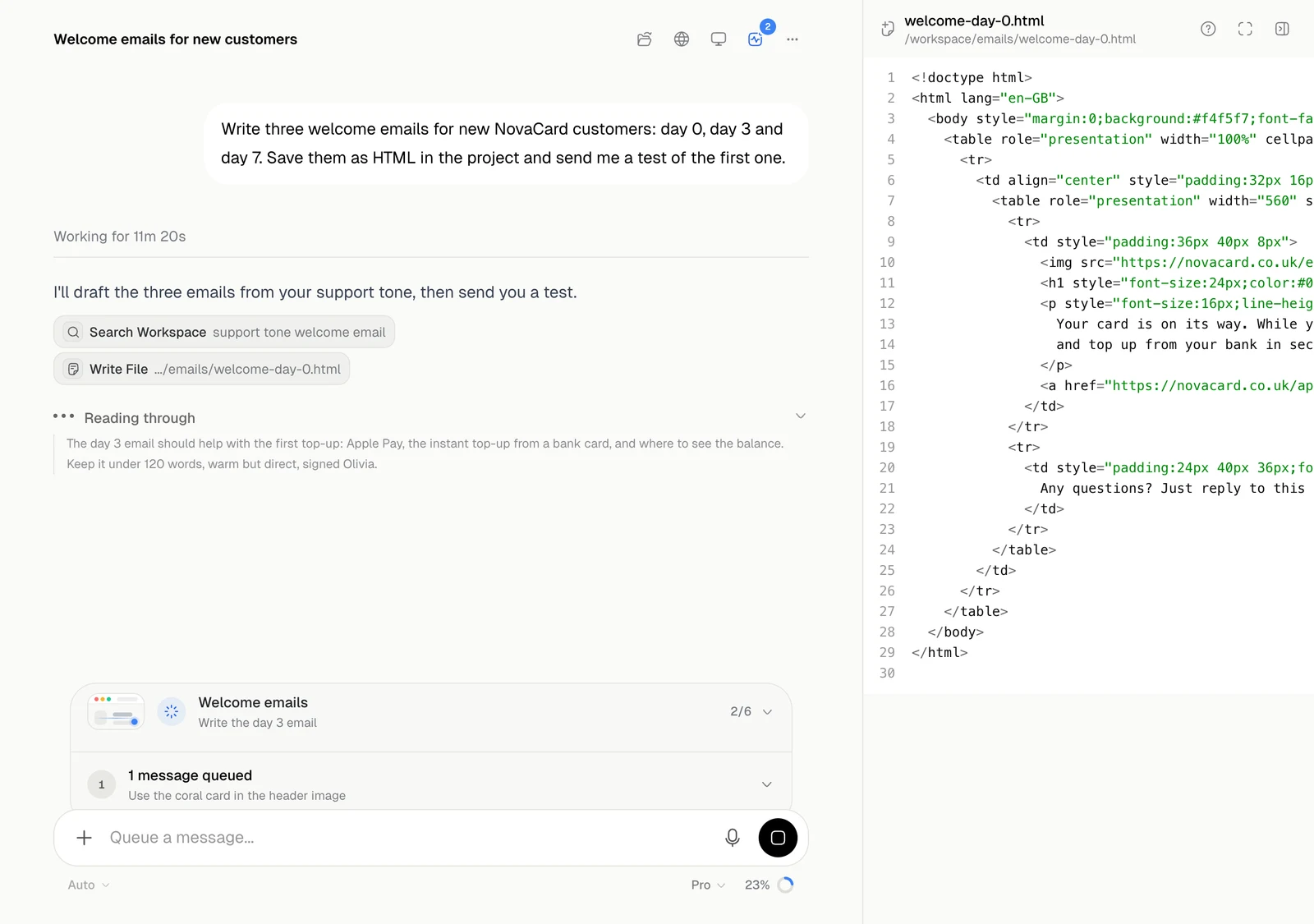
Background jobs
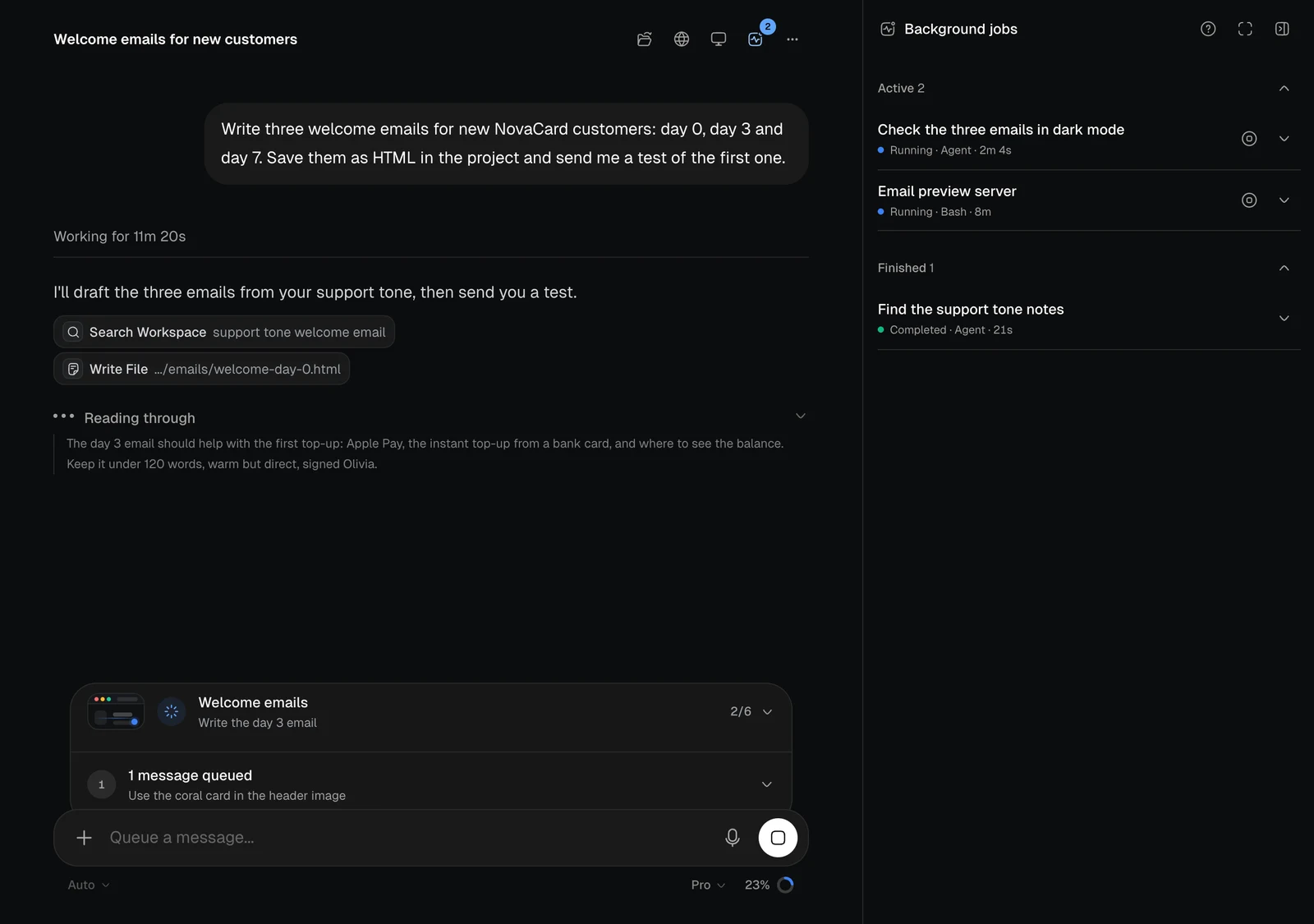
The agent can run long commands, such as a build or a server, and hand parts of a task to helper agents that work alongside it. A number on the Background jobs button in the header says how many are running.