
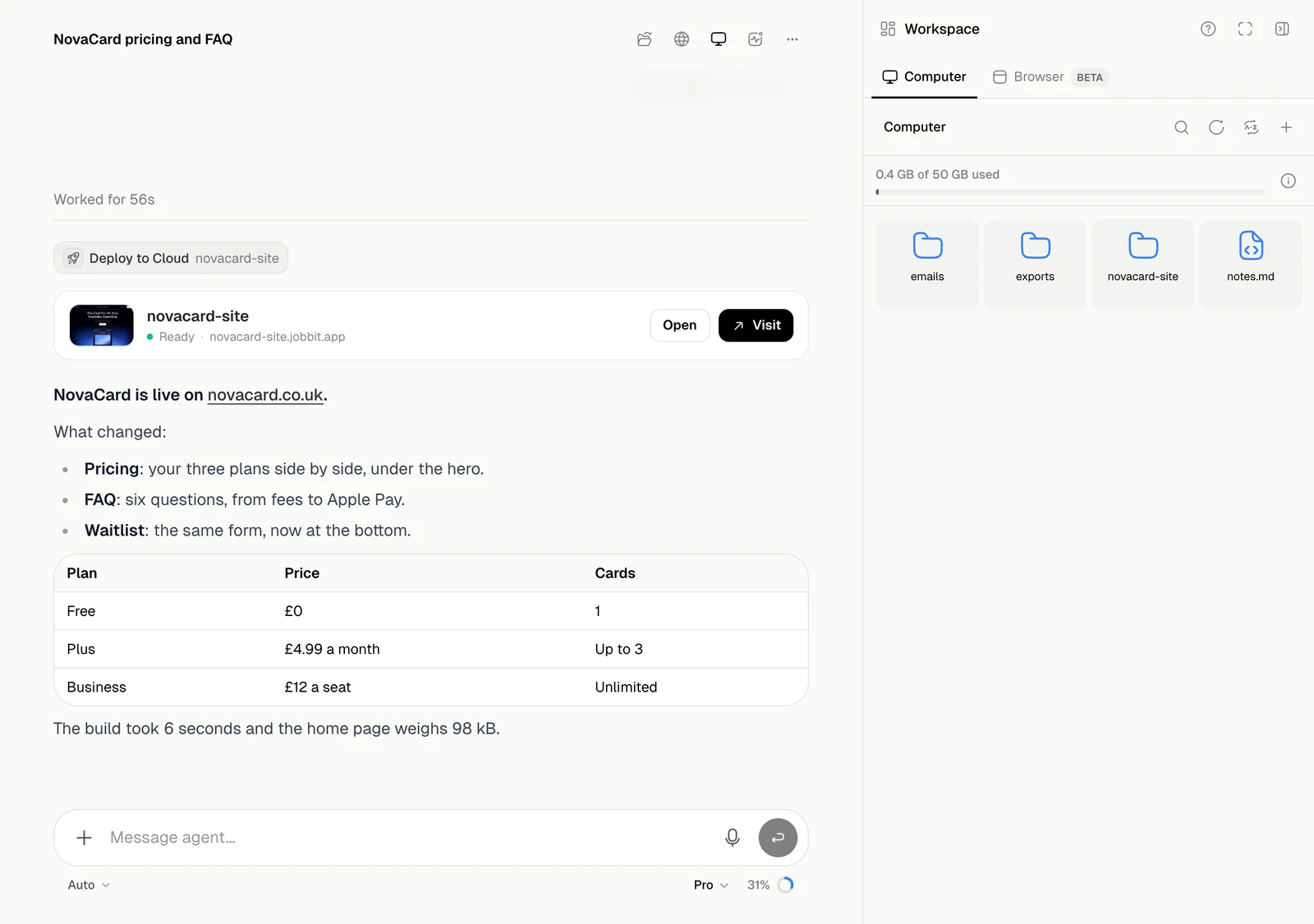
Each chat has its own computer, where the agent writes code, runs commands and keeps files. They stay between your messages. Open Computer in the header. It can take a moment if the computer has been asleep.
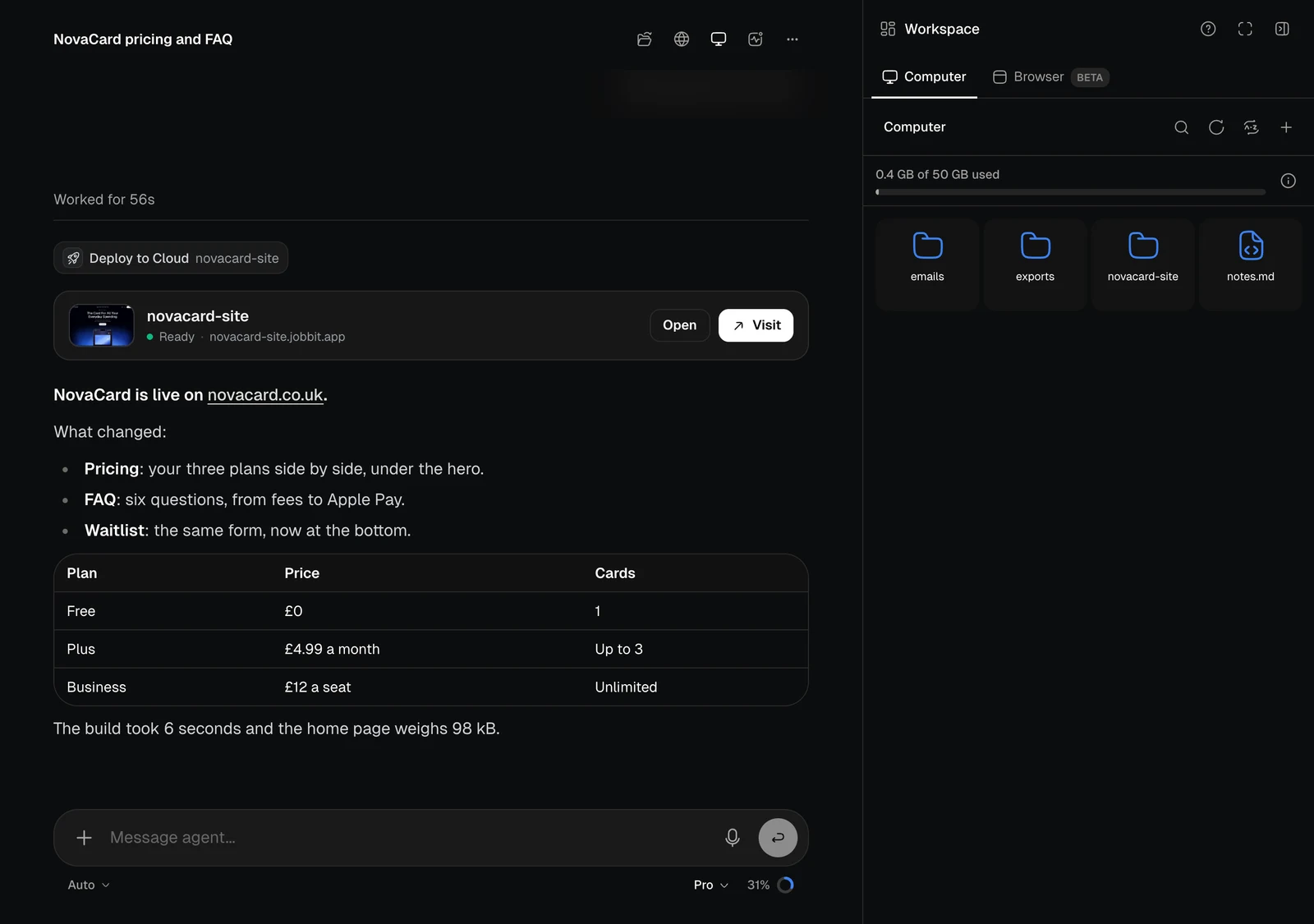
The Computer panel with folders, a file and a storage bar, light themeThe Computer panel with folders, a file and a storage bar, dark theme
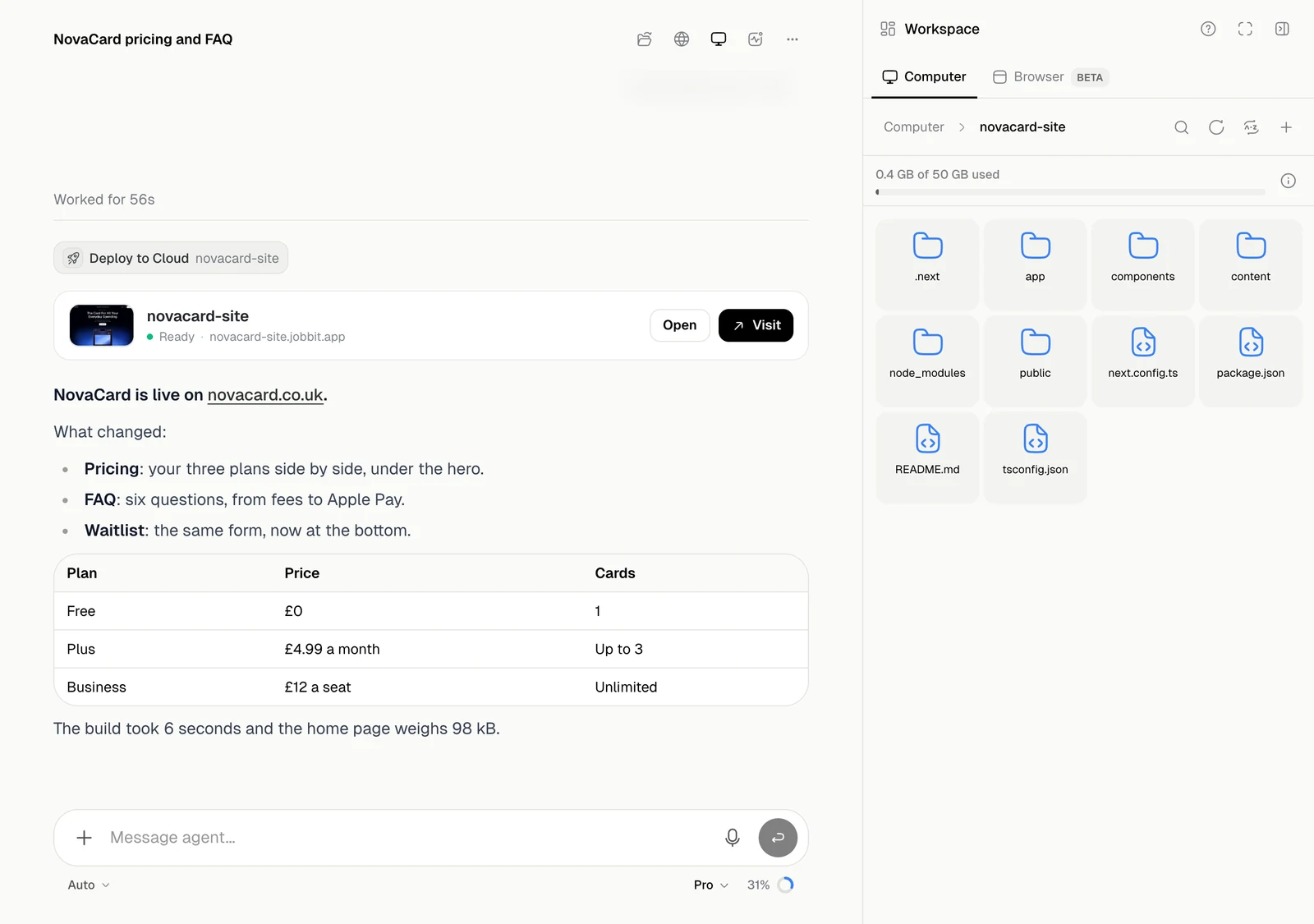
Folders open with a click, and the path at the top takes you back up.
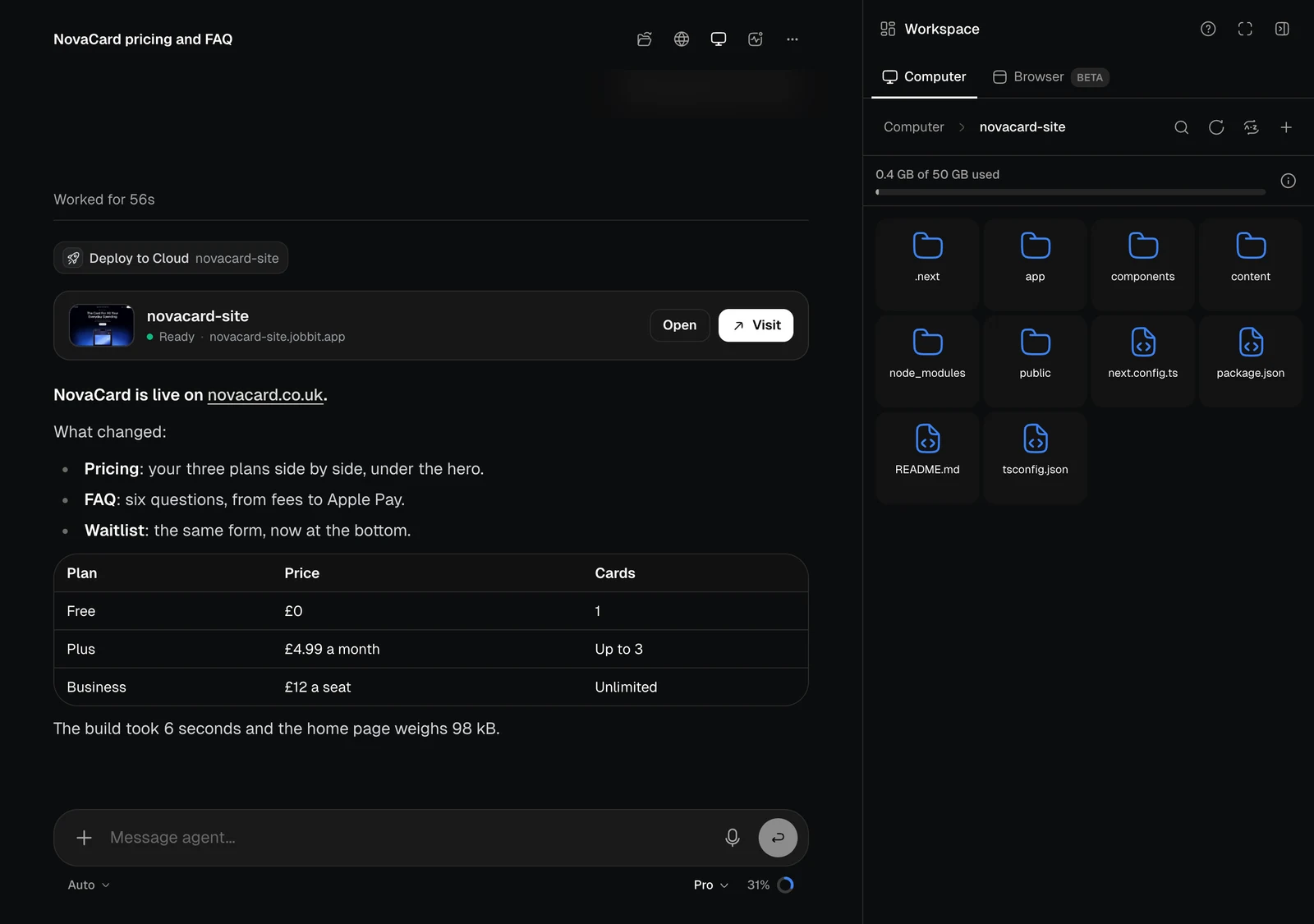
The Computer panel inside a folder of a web project, light themeThe Computer panel inside a folder of a web project, dark theme
ButtonWhat it does
SearchFinds a file in this folder
RefreshReloads the list
Sort and viewSorts by Name, Size or Date modified, and shows Icons or a List
+New folder or Upload files. You can also drop files onto the panel

Work with a file

A file opens in a preview. Right-click a file or folder for its menu:
ActionWhat it does
Preview or OpenShows the file, or goes into the folder
DownloadSaves it to your device
RenameChanges its name
DuplicateMakes a copy
Move to…Moves it to another folder
DeleteRemoves it
You can also drag files into a folder. Select several with the circle on each one, and the bar at the bottom downloads, moves or deletes them together.

Space

PlanSpace for each chat
Free10 GB
Go20 GB
Plus30 GB
Pro50 GB
Max50 GB
The bar at the top shows how much is used. Near the limit, the chat warns you. A run that keeps growing well past it is stopped, and a new run is refused while the computer is far over. Delete files here, or ask the agent to clean up.