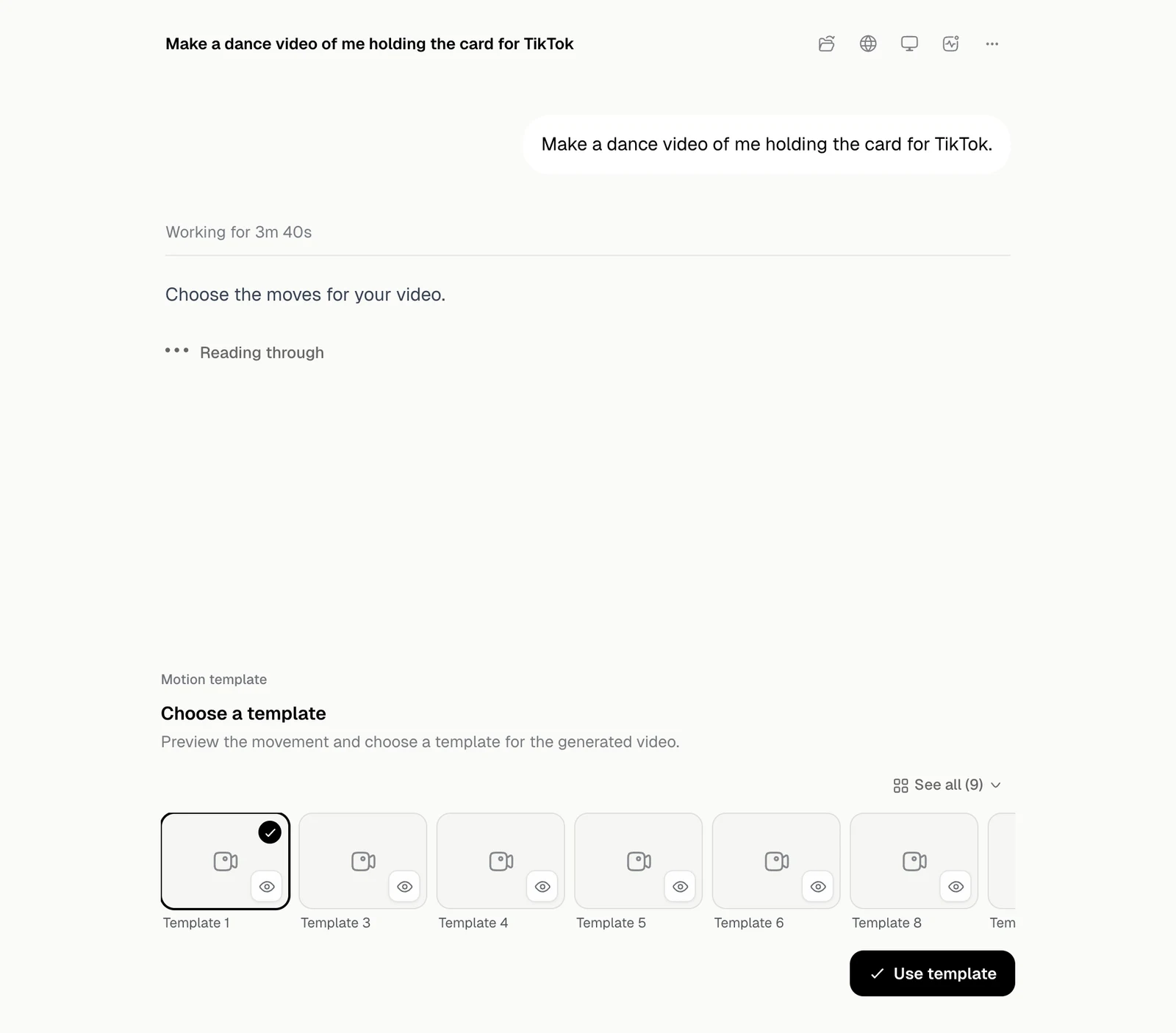
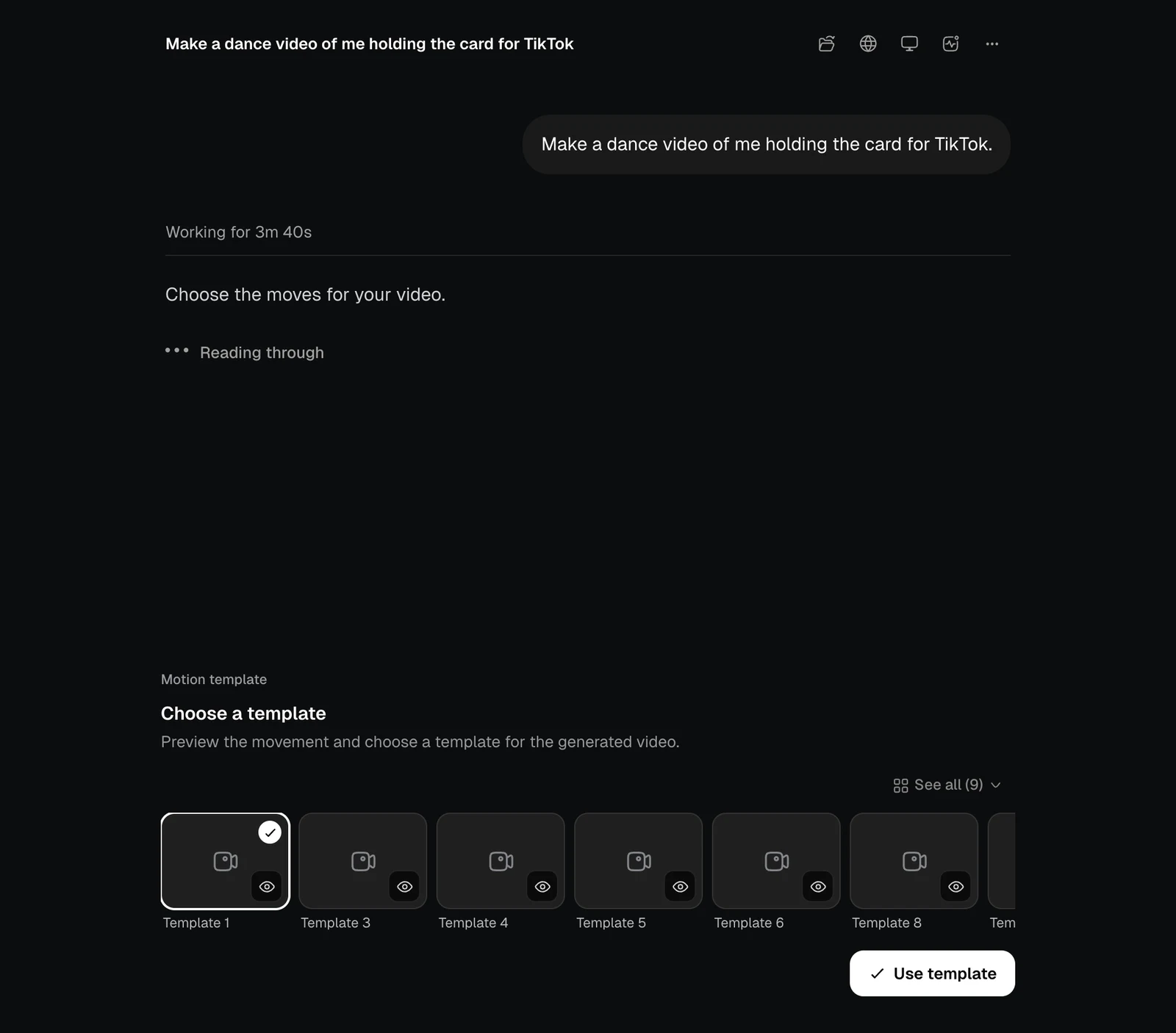
When the agent needs you, it shows a card above the message box and waits.
CardWhen you see it
ApprovalBefore an action your permissions say to ask about
QuestionWhen a choice really matters
PlanIn Plan mode, before any work starts
PickersFor a deck style, a voice, a photo style or a motion template
Sign inWhen a site needs your login
KeyWhen it needs an API key or a token

Approve an action

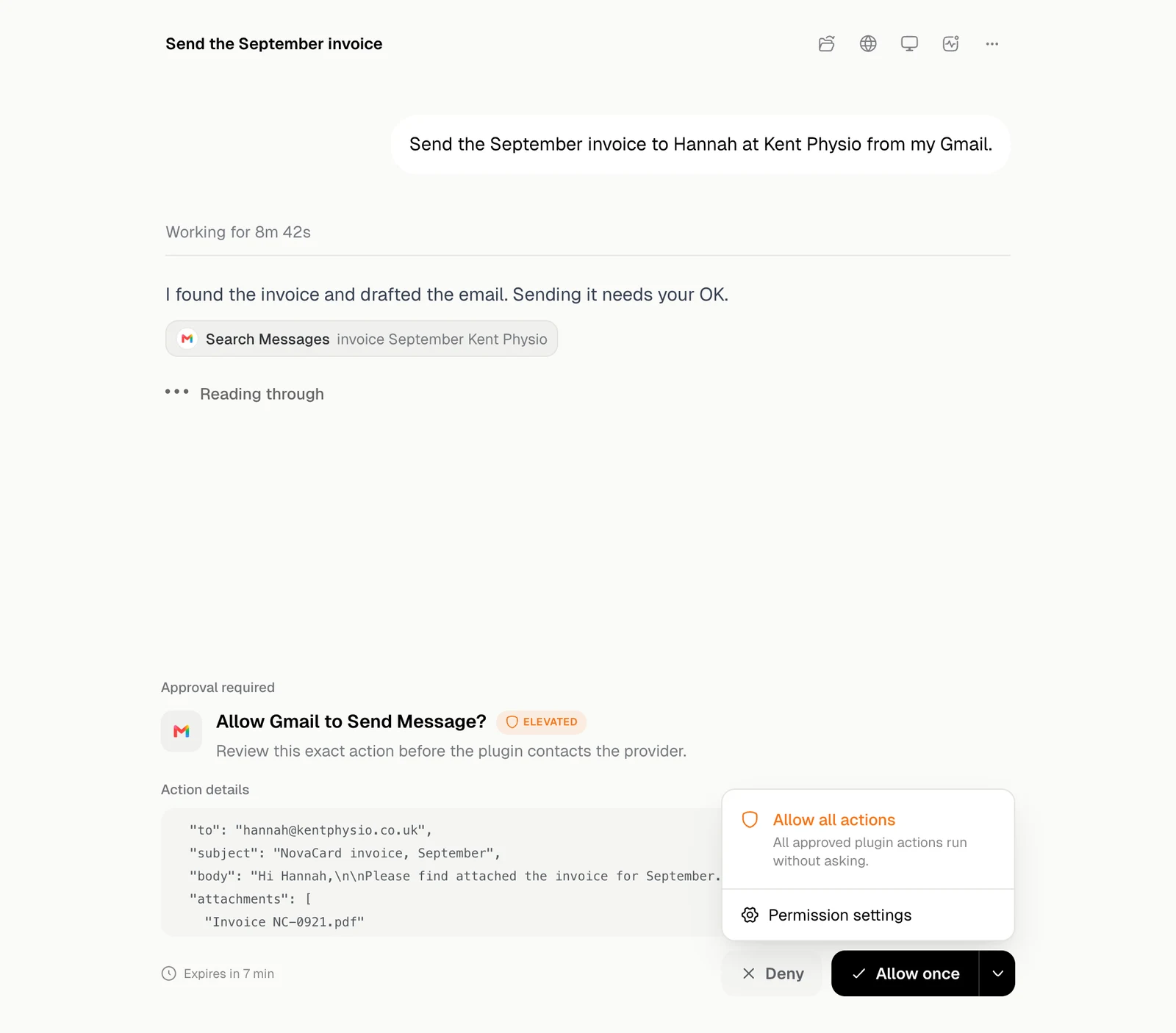
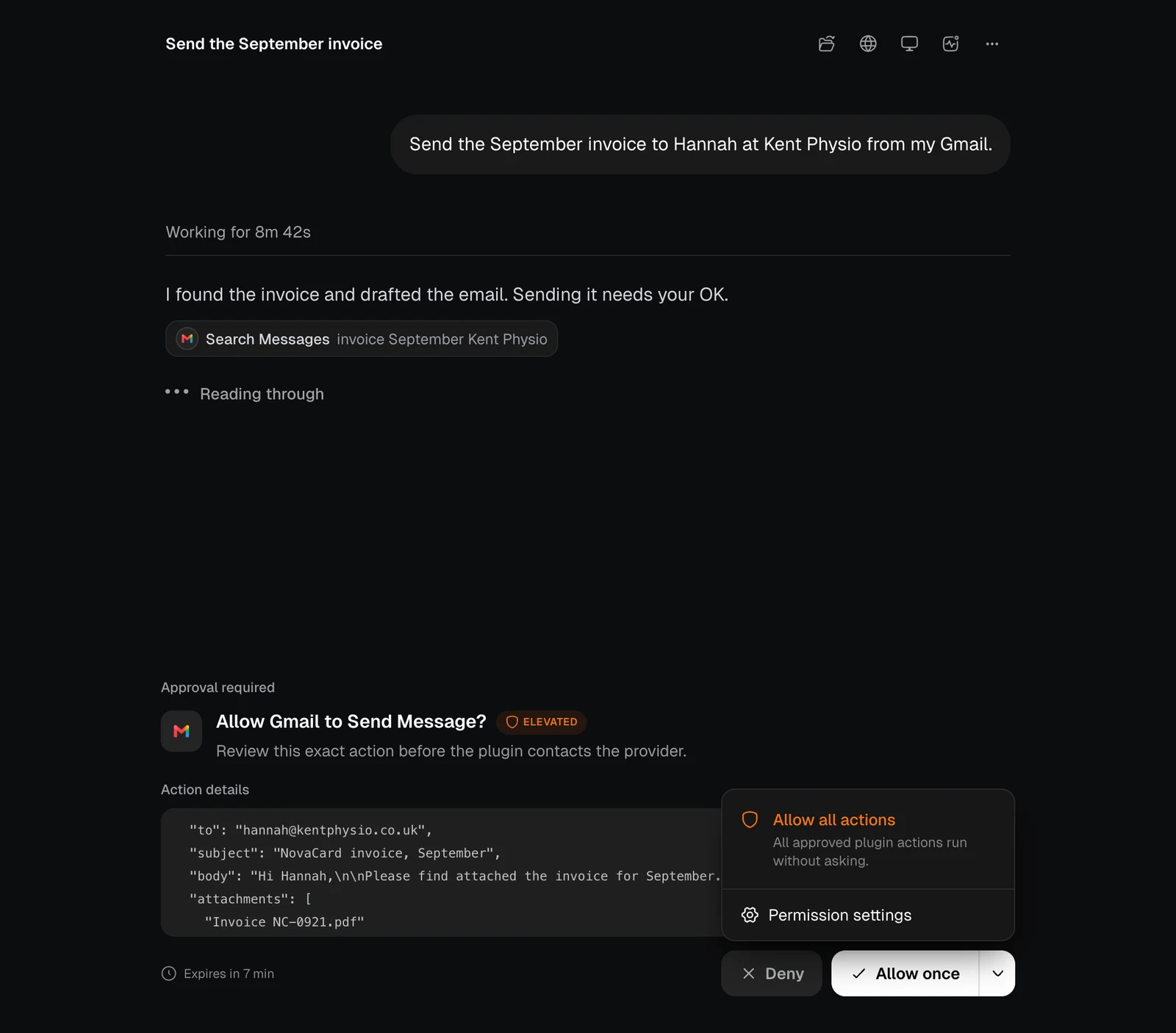
The card shows the exact action, with its details, before anything is sent. Here the agent wants to send an email from Olivia’s Gmail.
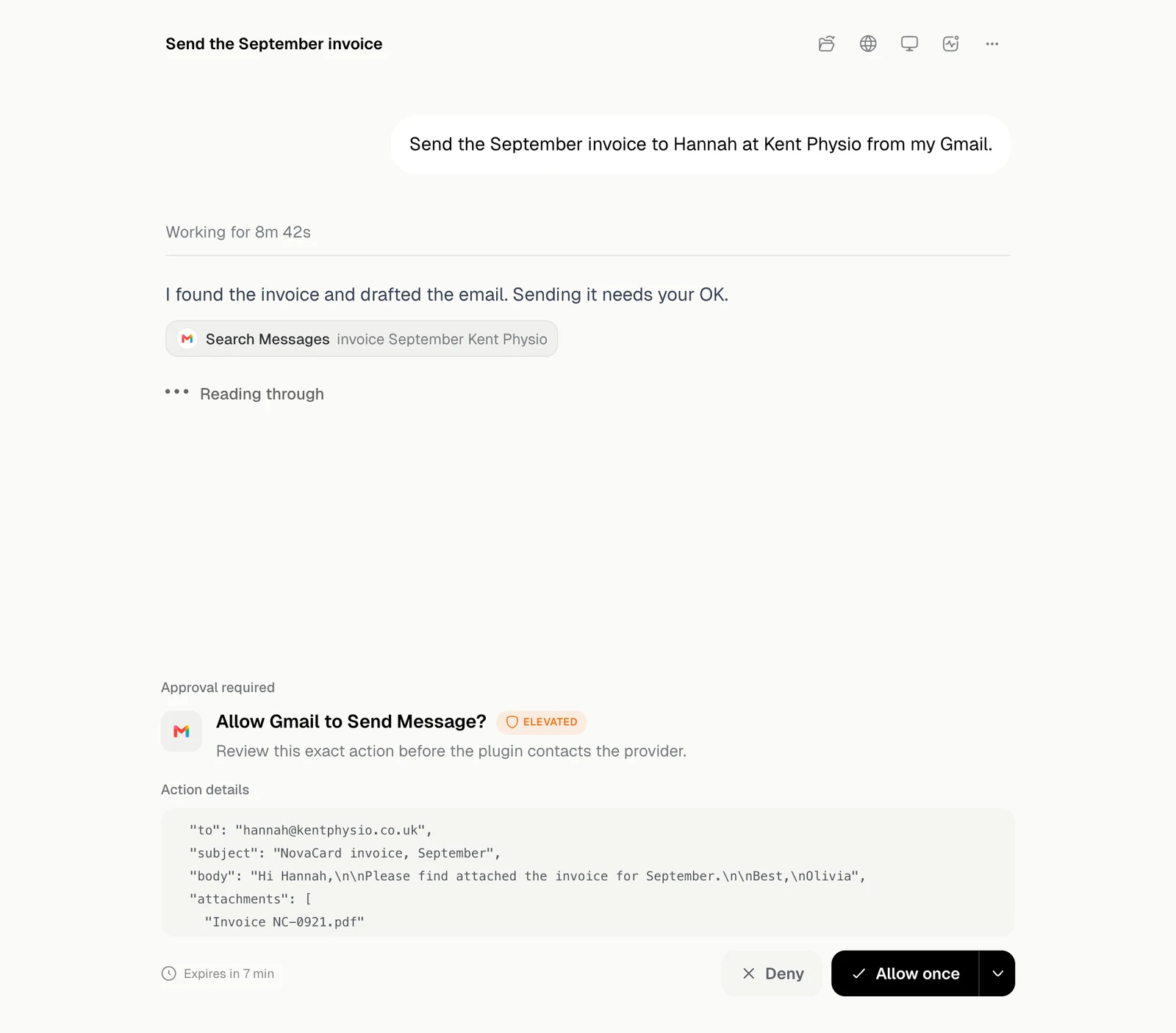
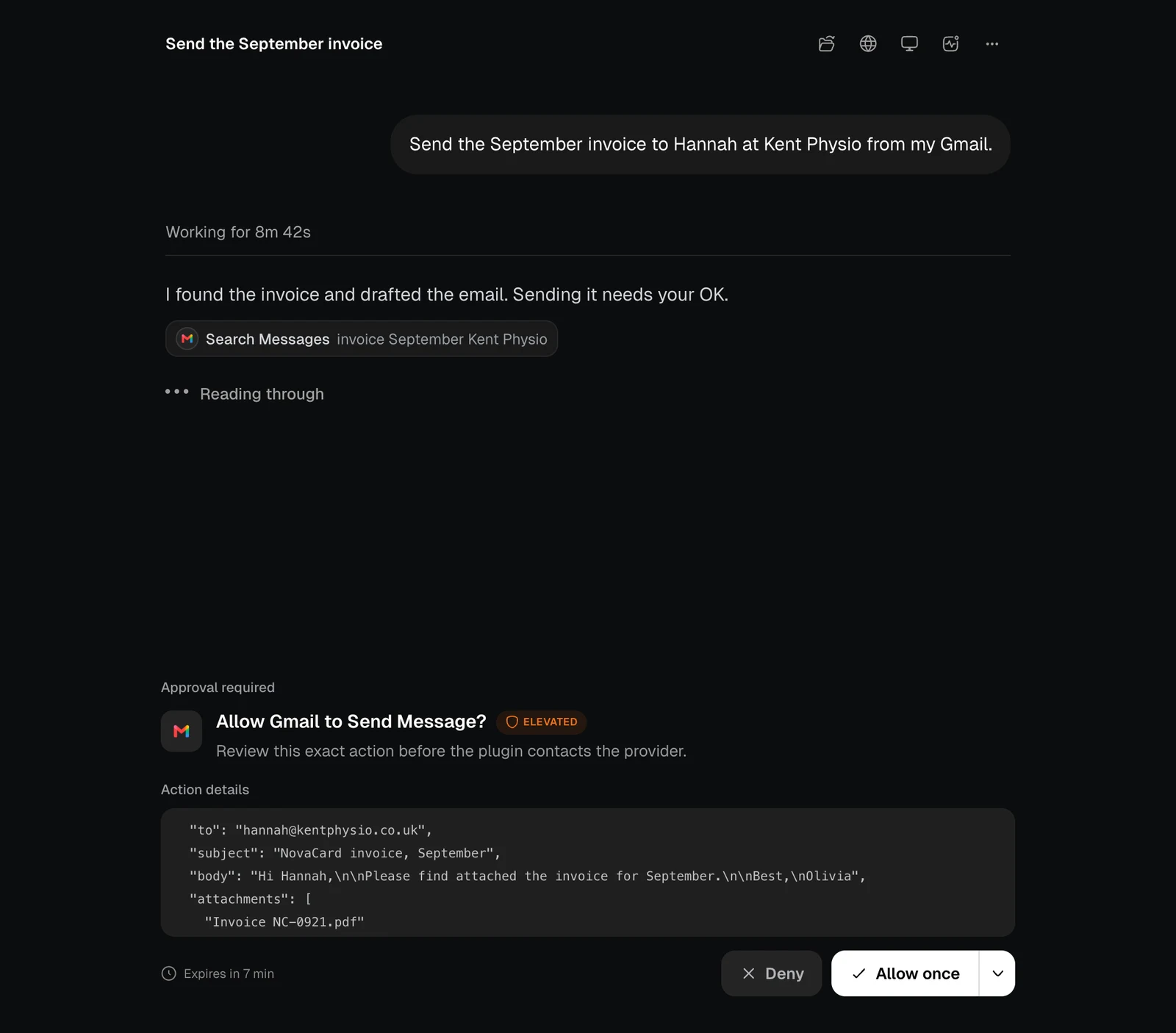
The approval card asking to allow Gmail to send a message, with the action details, light themeThe approval card asking to allow Gmail to send a message, with the action details, dark theme
Allow once lets this one action through, and Deny refuses it. For Jobbit’s own actions the button says Allow. A card expires after 10 minutes, and the countdown is at the bottom left. Elevated marks an action that goes further than reading or a routine change. The arrow beside Allow once allows the action and changes your standing rule at the same time.
The approval options menu with Allow all actions and Permission settings, light themeThe approval options menu with Allow all actions and Permission settings, dark theme
OptionWhat it does from now on
Allow read actionsRead actions run without asking
Allow low-risk actionsRoutine actions run by themselves. Elevated actions still ask
Allow all actionsAll approved plugin actions run without asking
Permission settingsOpens the rules behind this card
The menu only offers the options that would change something. The rules are in Permissions for Jobbit’s own actions and in each plugin’s permissions.

Answer a question

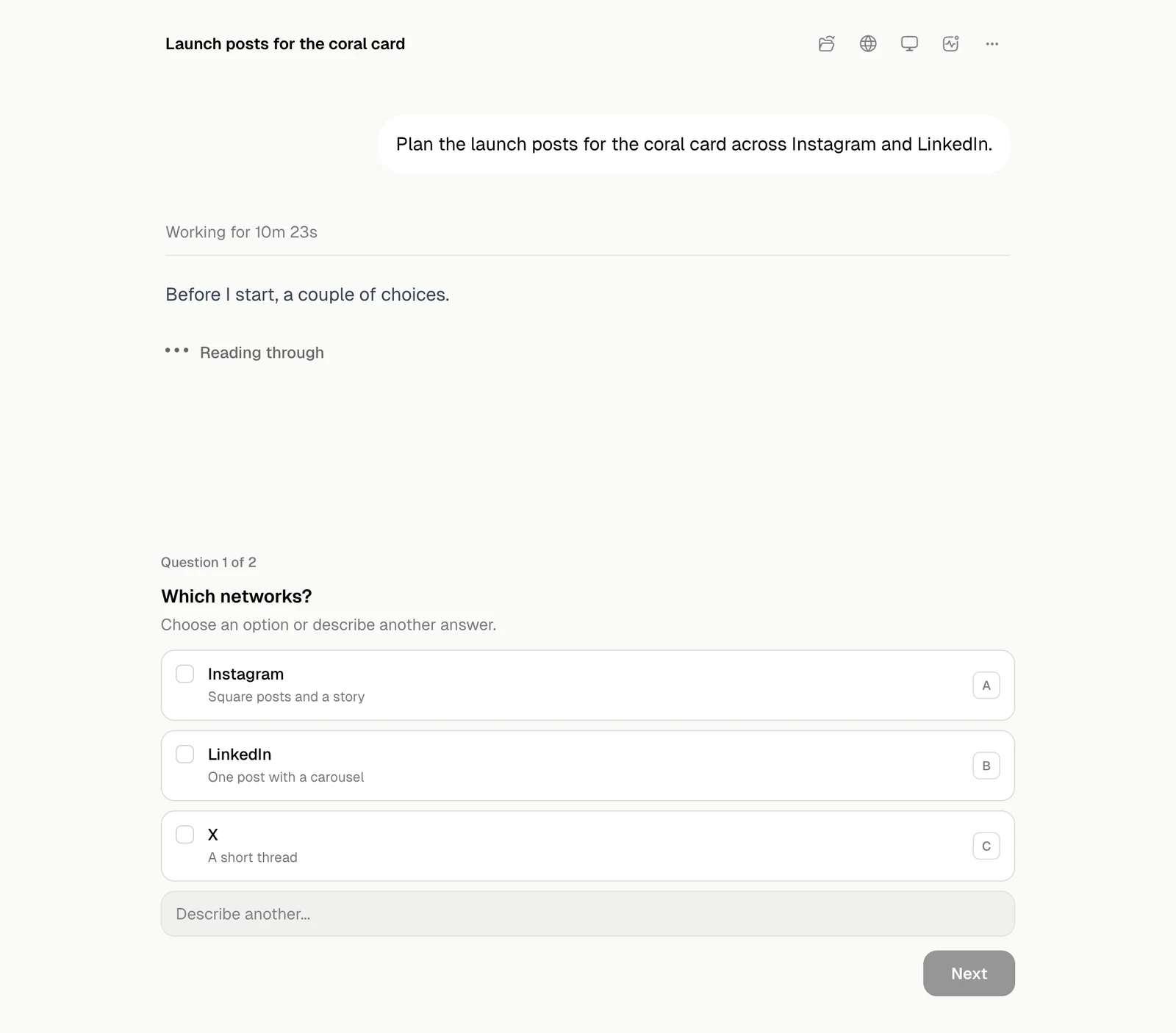
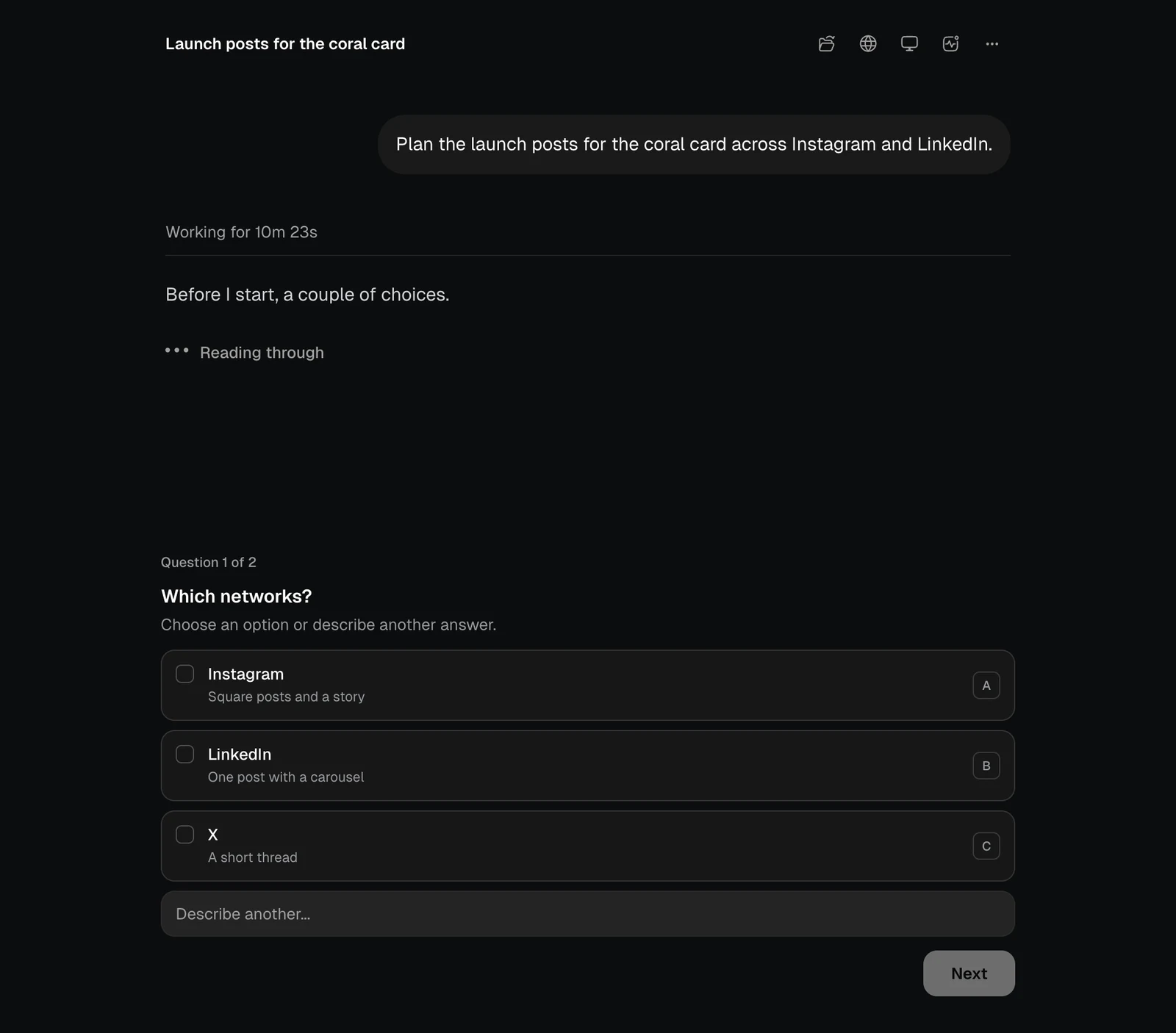
The agent gives you options. Click one, or write your own answer under Describe another…, then Confirm.
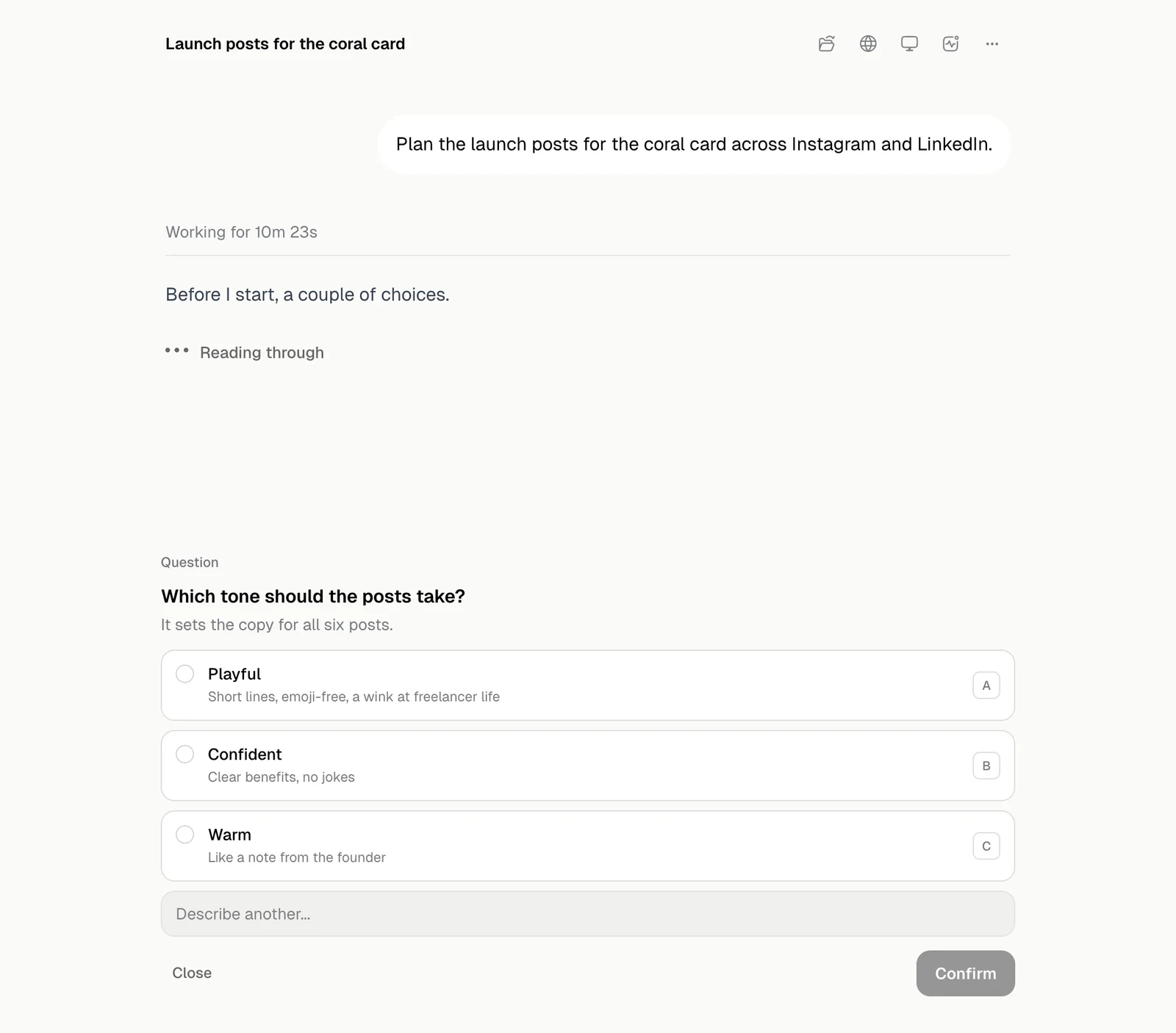
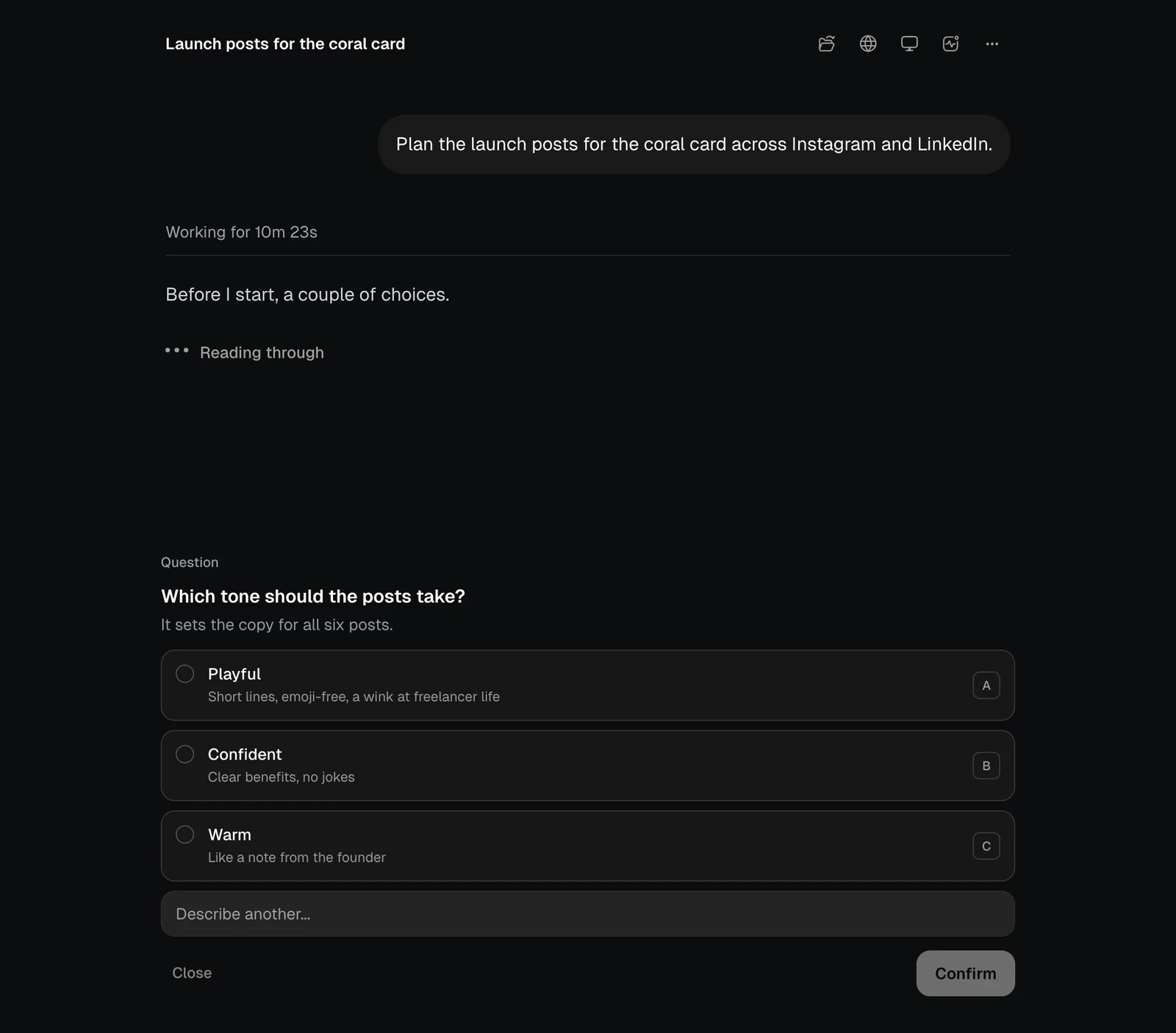
A question card with three options and a Describe another field, light themeA question card with three options and a Describe another field, dark theme
With several questions, Question 1 of 2 shows where you are and Next moves on.
A question card numbered 1 of 2 with a Next button, light themeA question card numbered 1 of 2 with a Next button, dark theme
Close dismisses the card without answering.

Approve a plan

In Plan mode the plan arrives on a card. Nothing is carried out until you approve it.
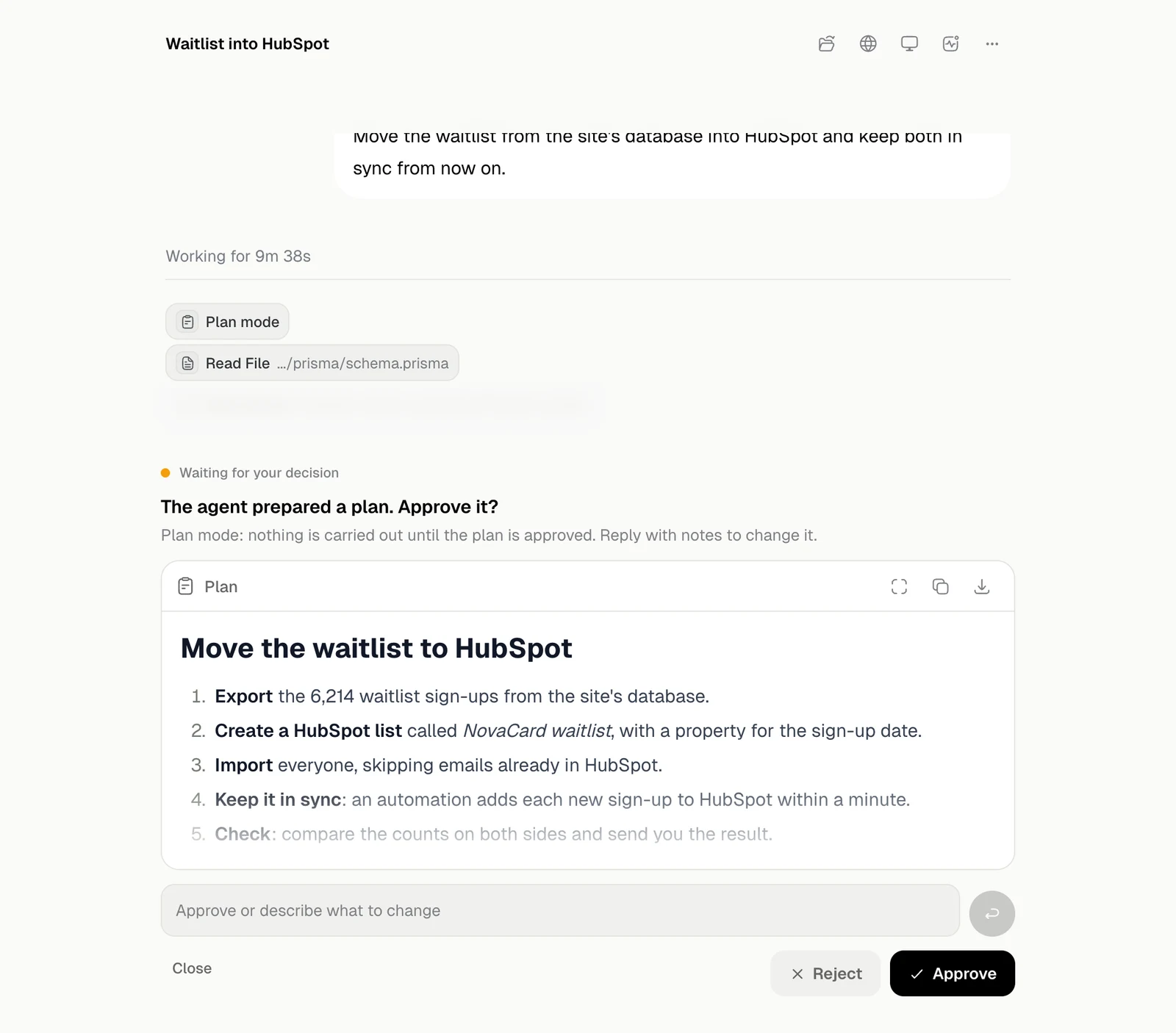
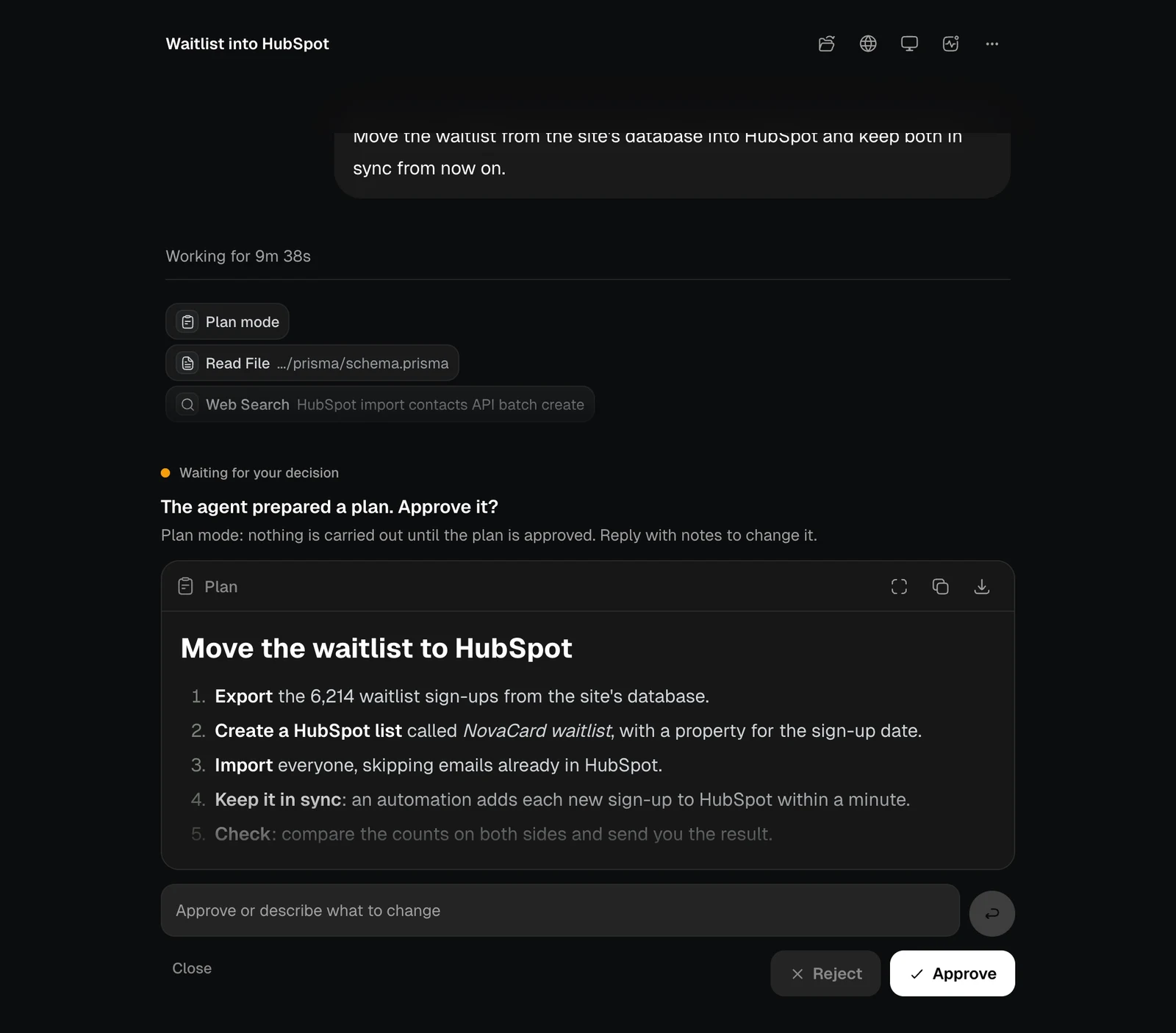
The plan approval card with the steps, a field for changes, Reject and Approve, light themeThe plan approval card with the steps, a field for changes, Reject and Approve, dark theme
The buttons on the card open the plan in the workspace, copy it or download it as Markdown.
ActionWhat it does
ApproveThe agent starts carrying it out
RejectThe agent revises the plan
The field under the planWrite what to change, and the agent rewrites the plan

Pick a style or a voice

For some jobs the agent shows you the options to look at, rather than describing them.
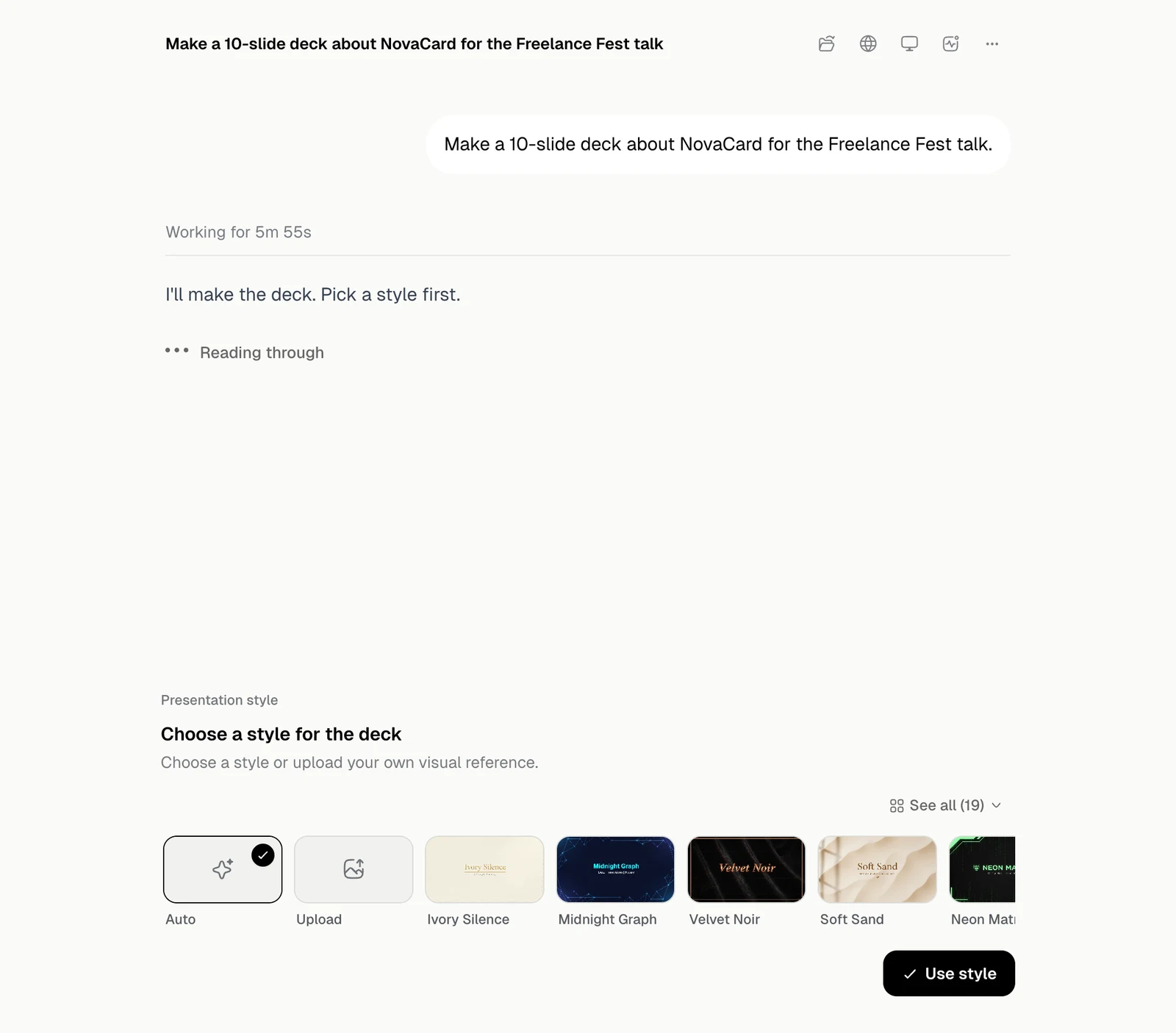
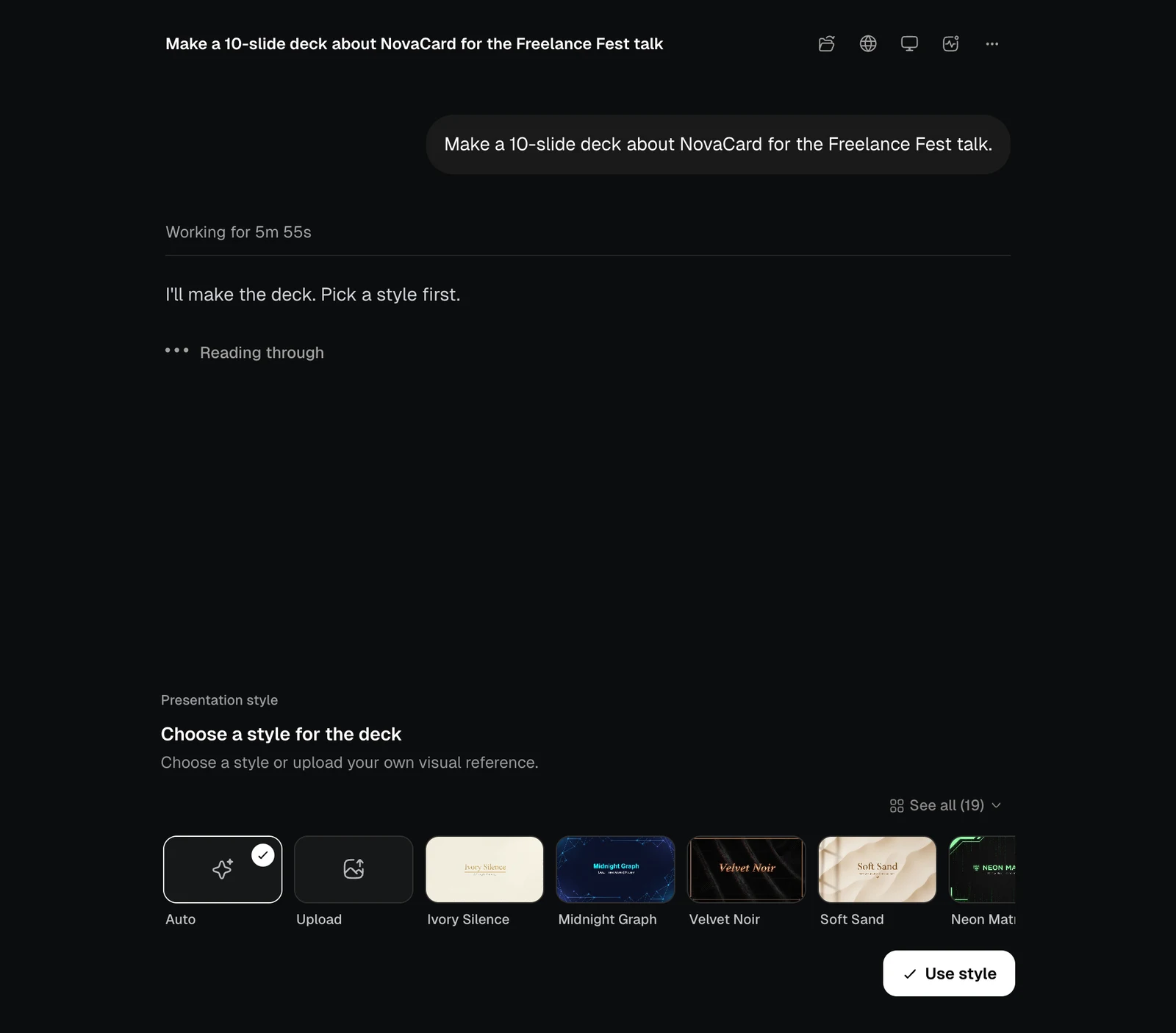
The presentation style picker with Auto, Upload and named styles, light themeThe presentation style picker with Auto, Upload and named styles, dark theme
Choose Auto to let the agent decide, or Upload to give it a visual reference of your own.
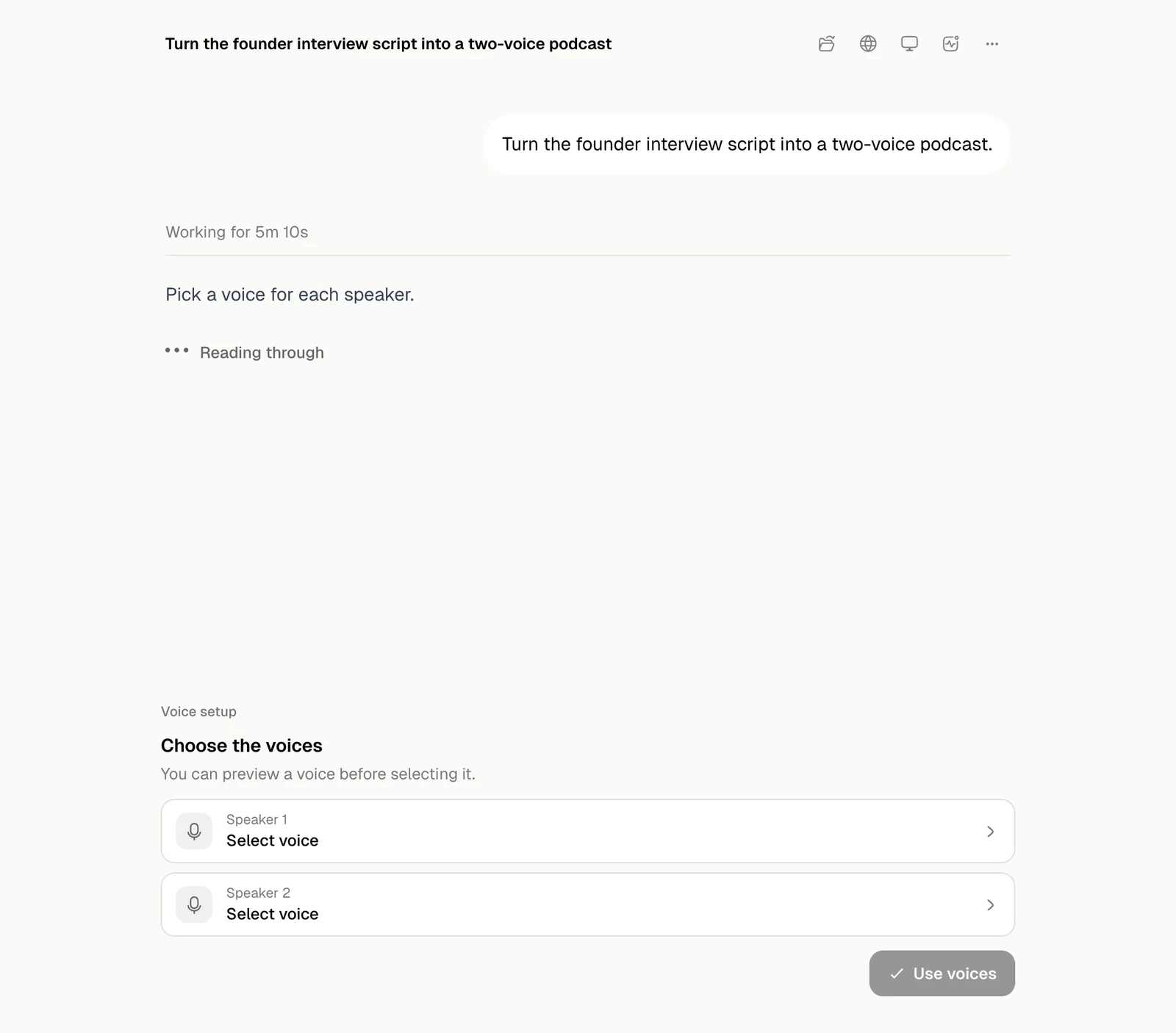
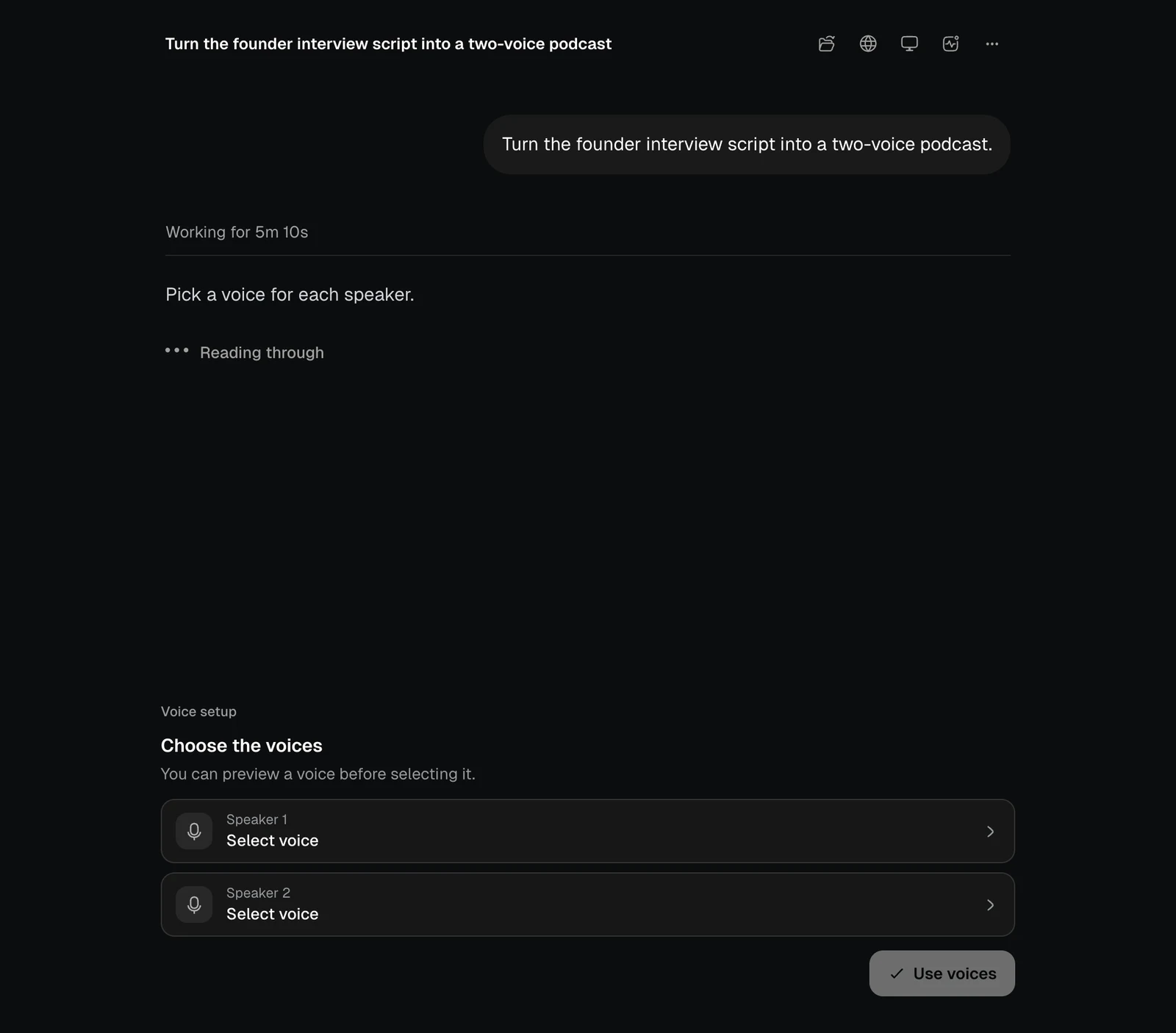
The voice picker with a row for each speaker, light themeThe voice picker with a row for each speaker, dark theme
You can listen to a voice before you select it.
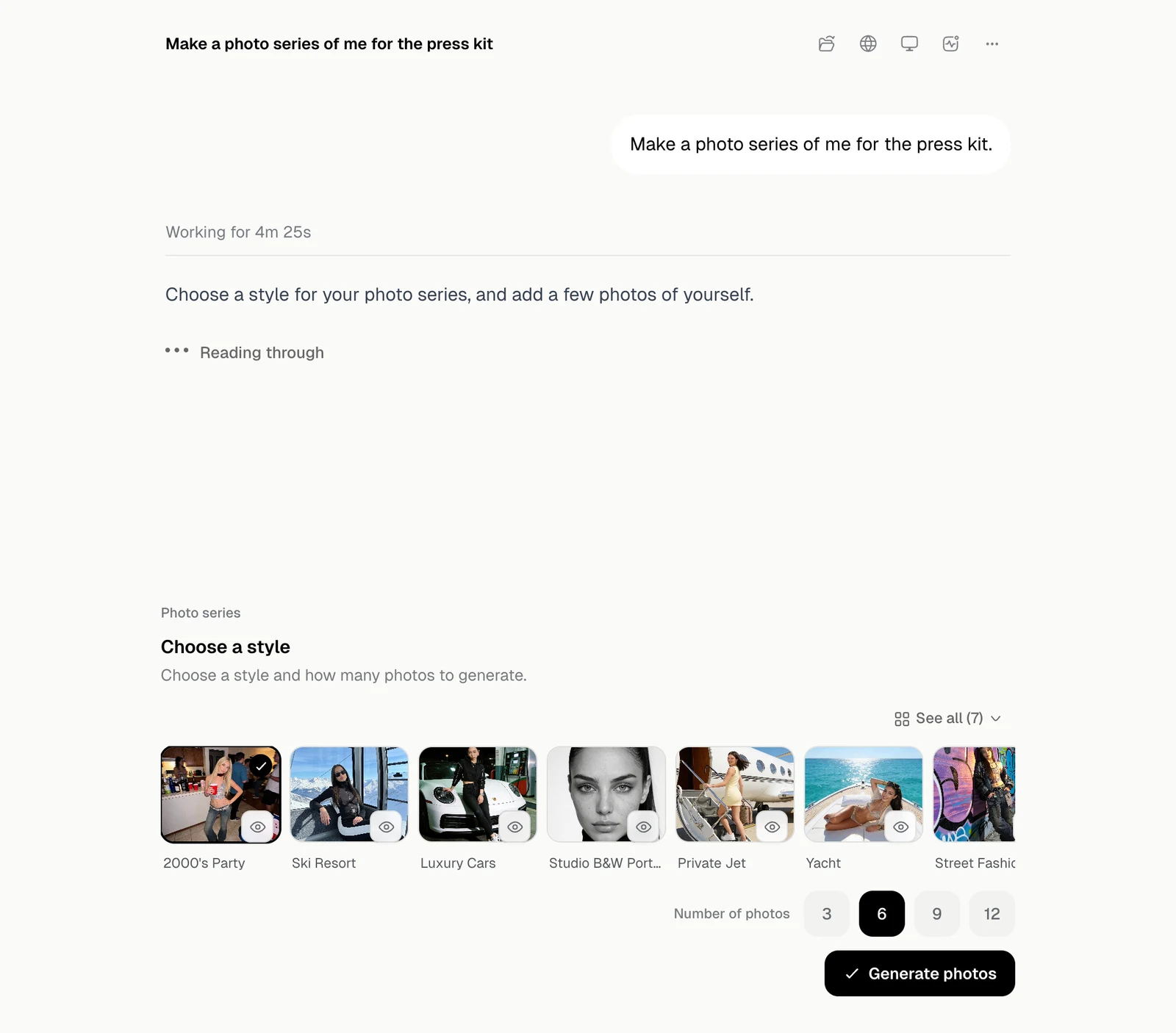
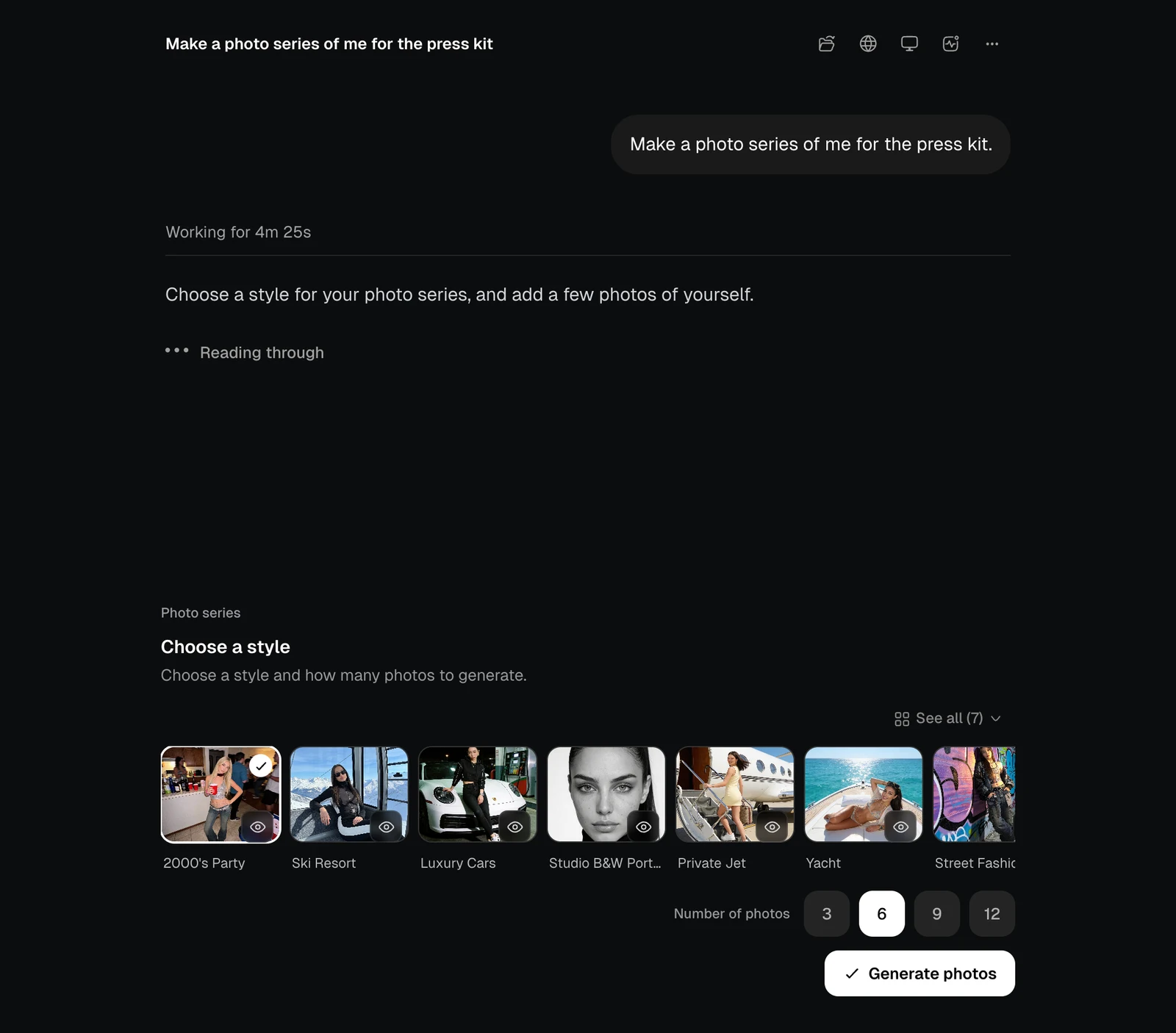
The photo series picker with styles and a choice of 3, 6, 9 or 12 photos, light themeThe photo series picker with styles and a choice of 3, 6, 9 or 12 photos, dark theme
The motion template picker with a row of templates, light themeThe motion template picker with a row of templates, dark theme

Sign in to a site

When a site needs your login, a card shows the site’s own fields and the agent’s browser opens beside the chat.
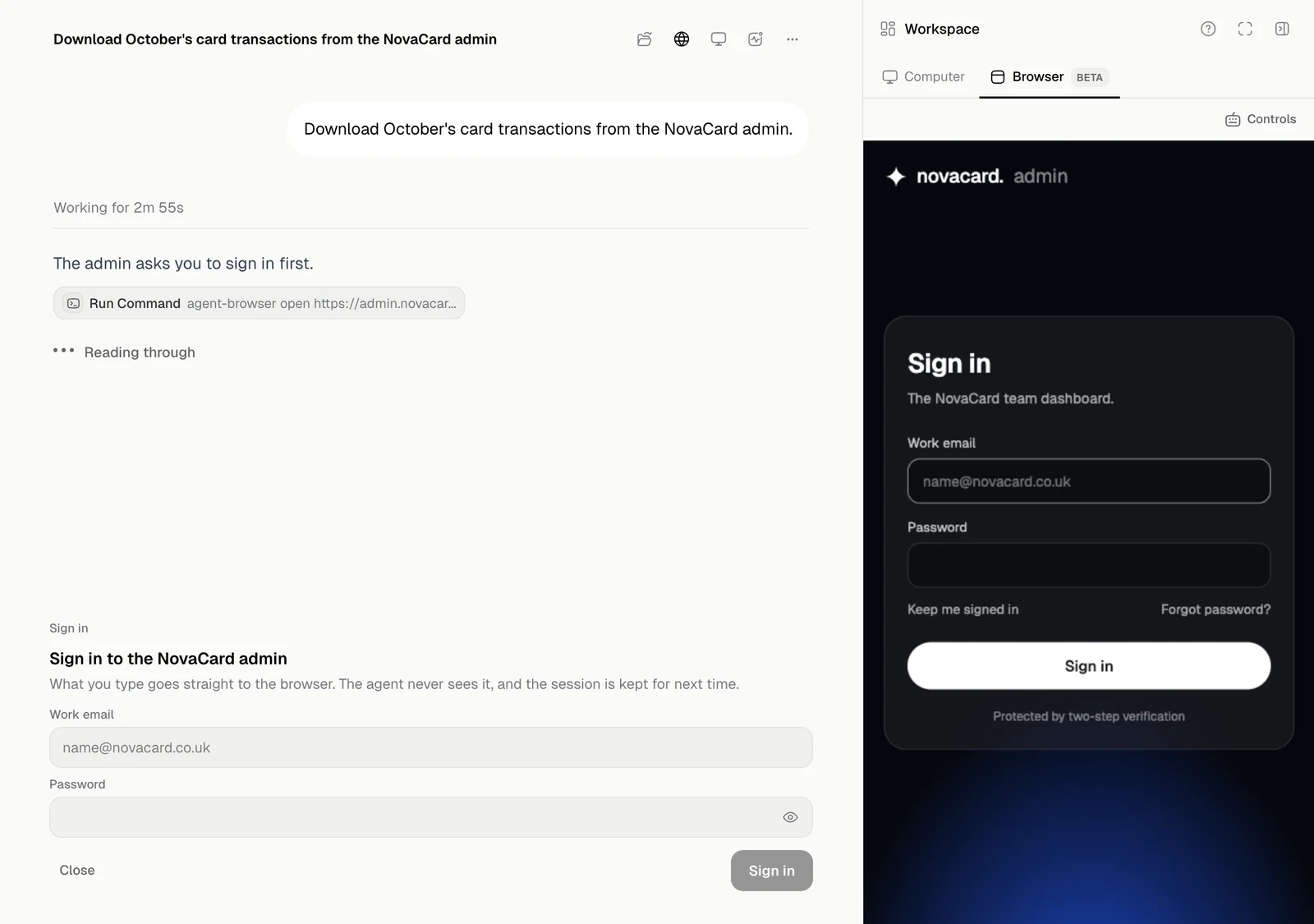
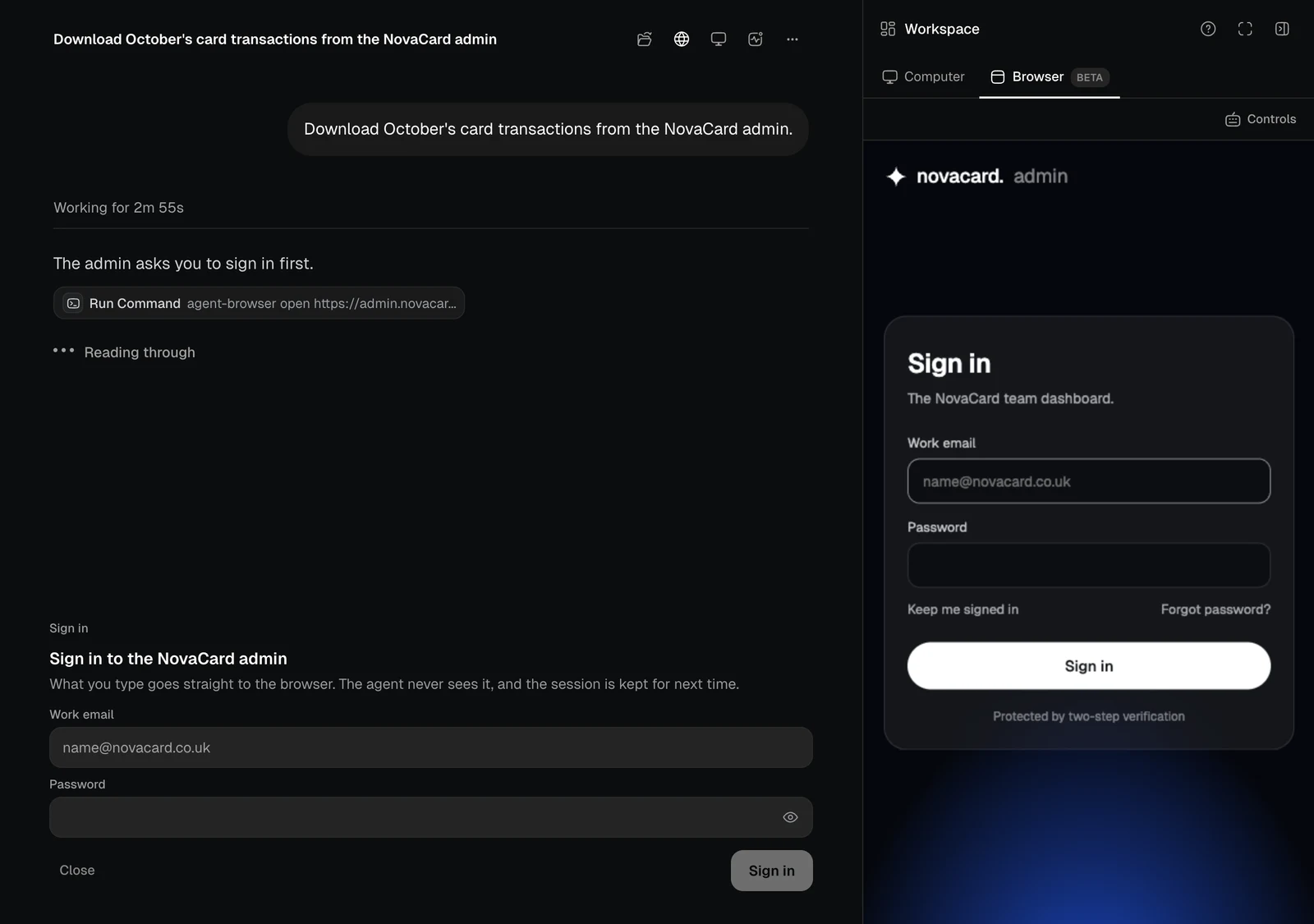
The Sign in card with email and password, next to the live browser showing the same form, light themeThe Sign in card with email and password, next to the live browser showing the same form, dark theme
What you type goes straight to the browser. The agent never sees it, and the session is kept for next time. You can also sign in on the page itself in the panel. Your sign-ins are listed in Settings › Browser.

Give it a key

When the agent needs an API key or a token, it shows a card to type it into, so it never goes in a message. The value goes straight into encrypted storage and the agent never sees it. You can see the finished card in Automations.