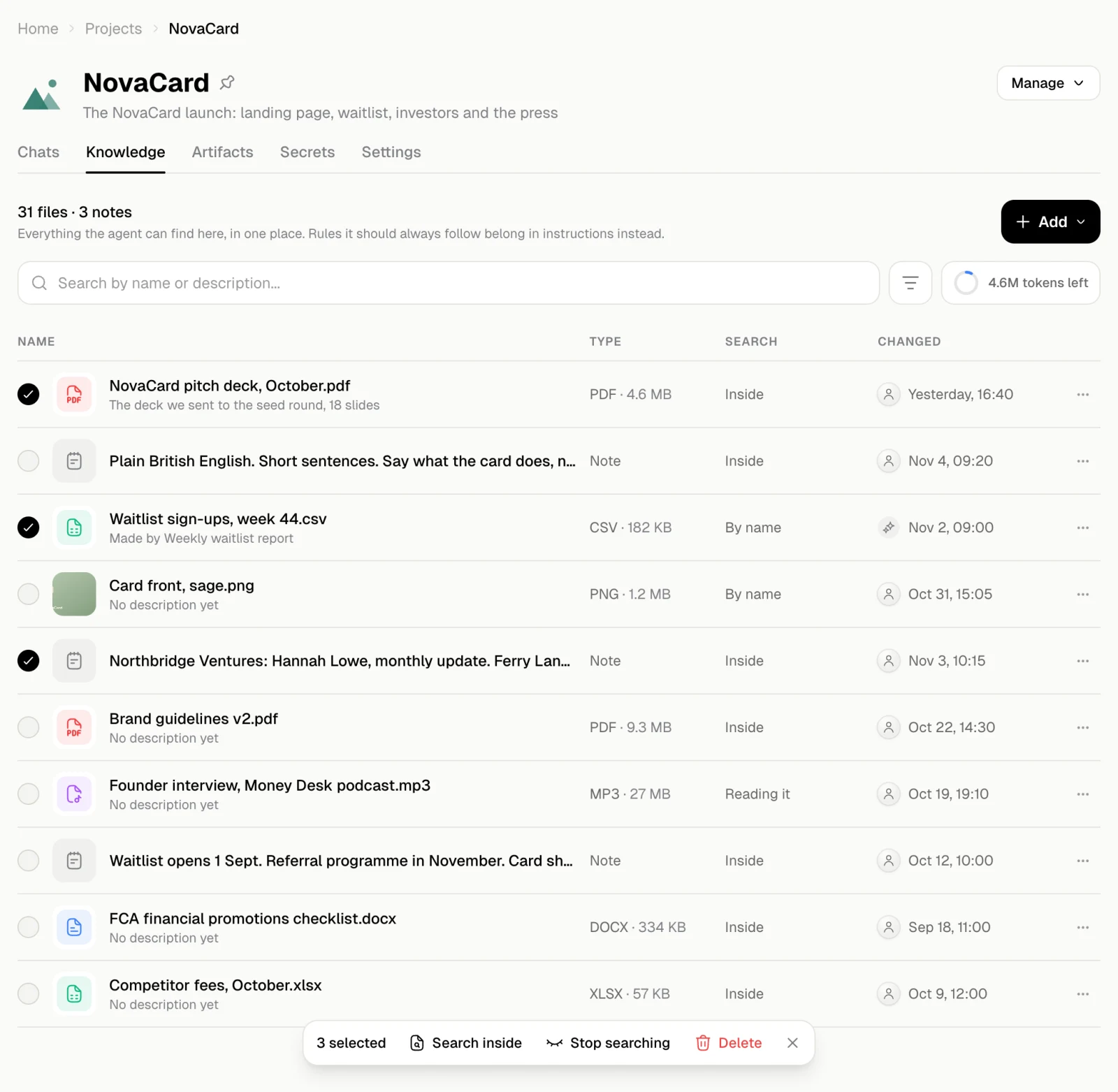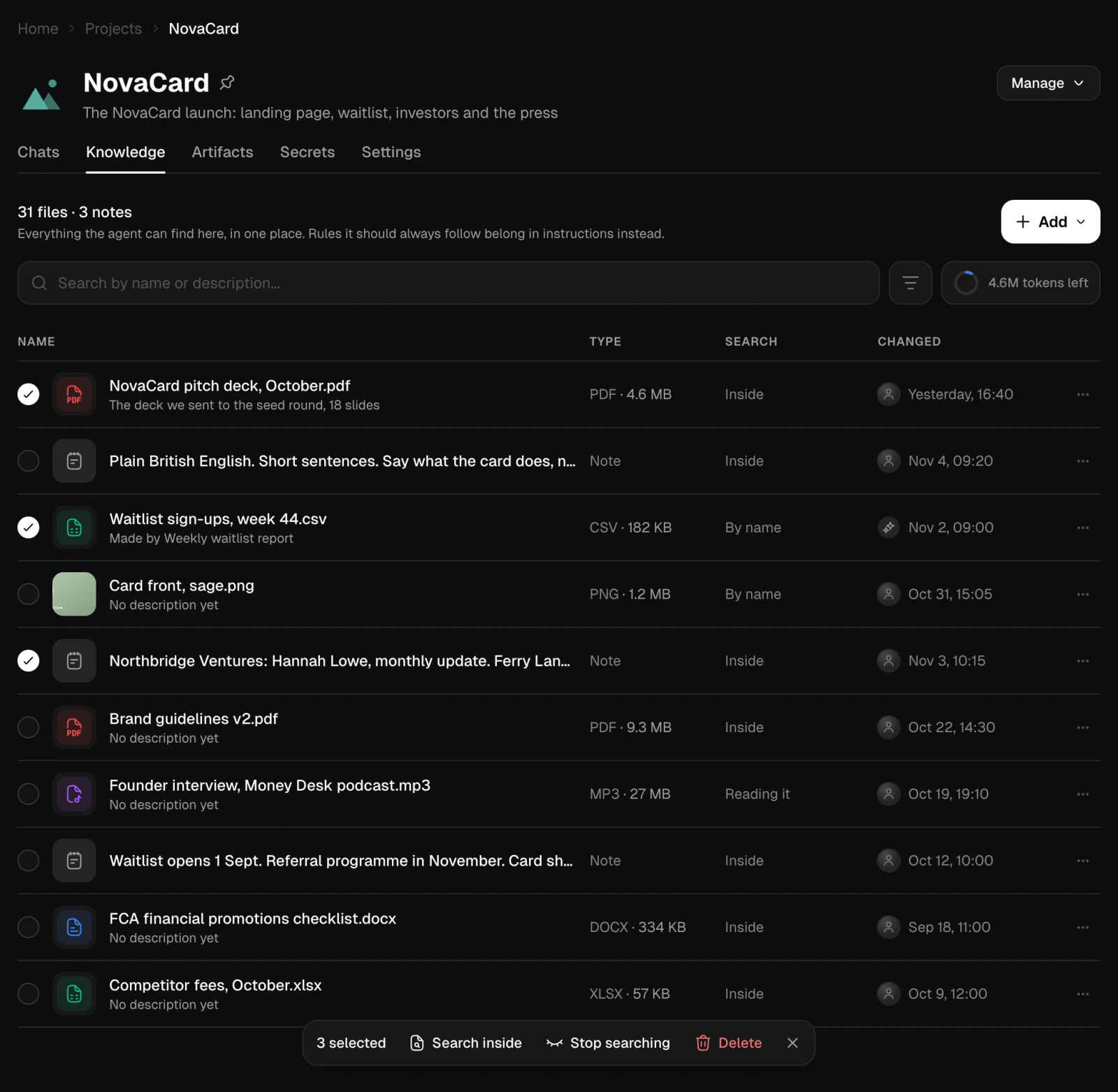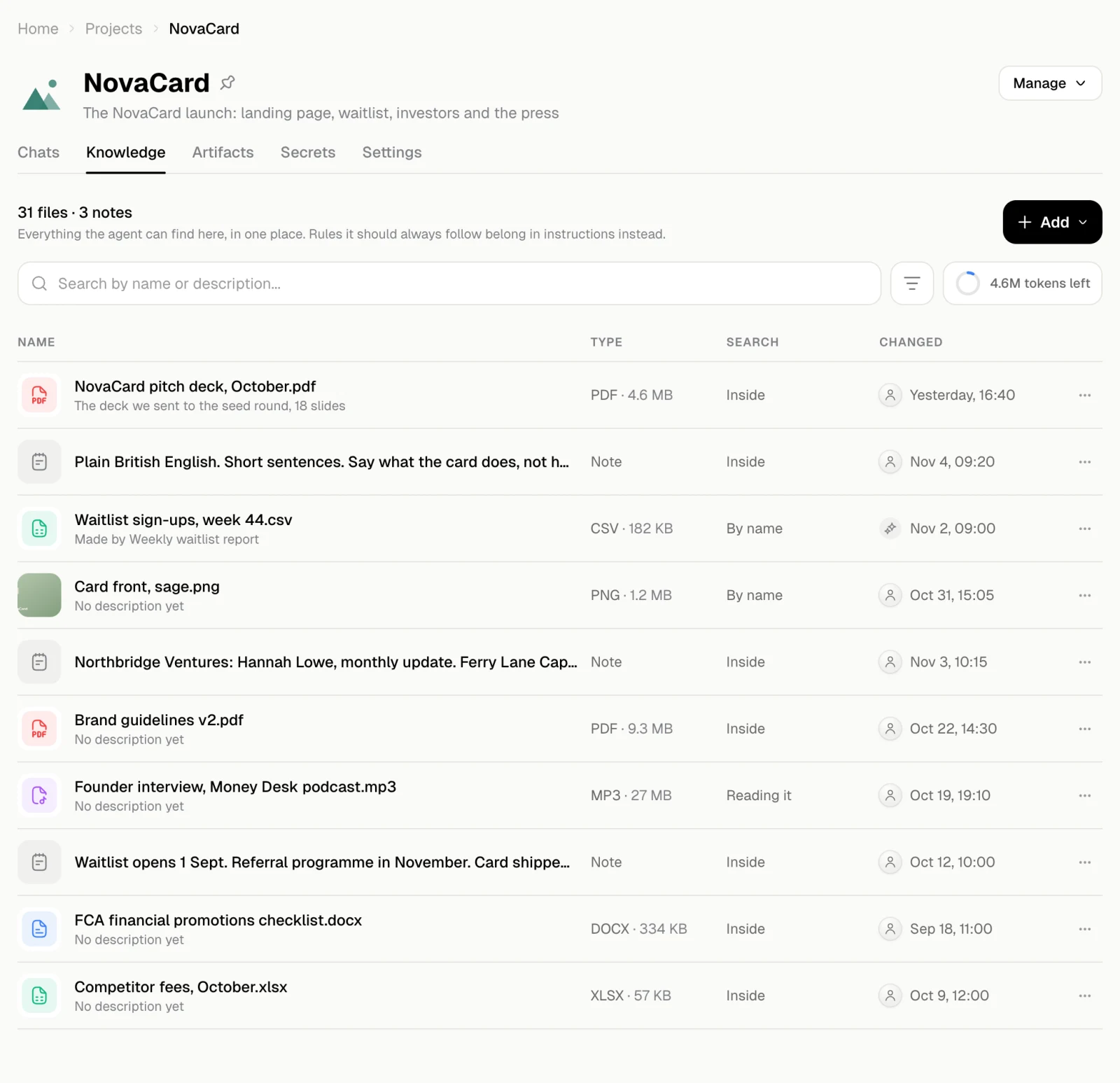
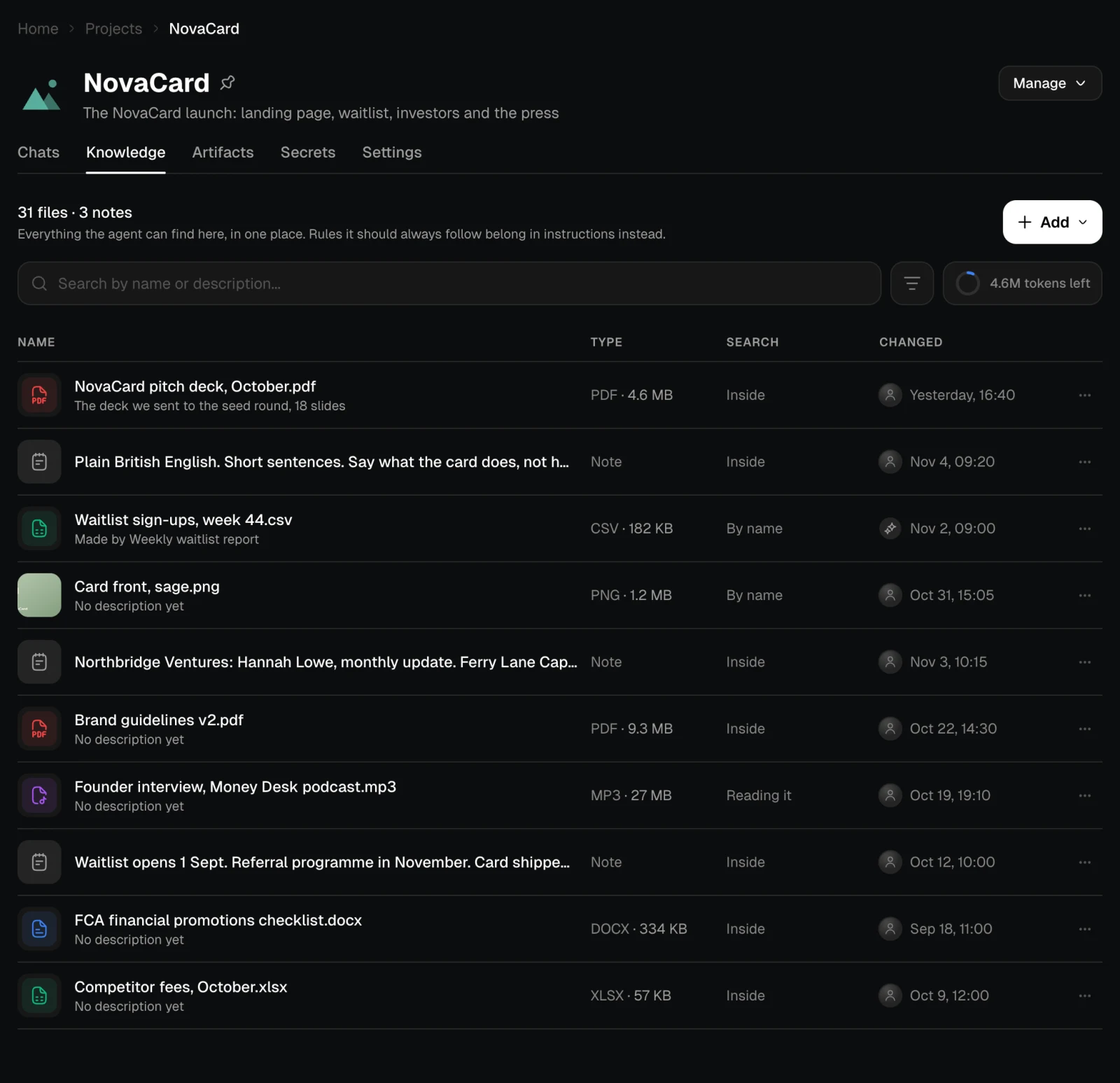
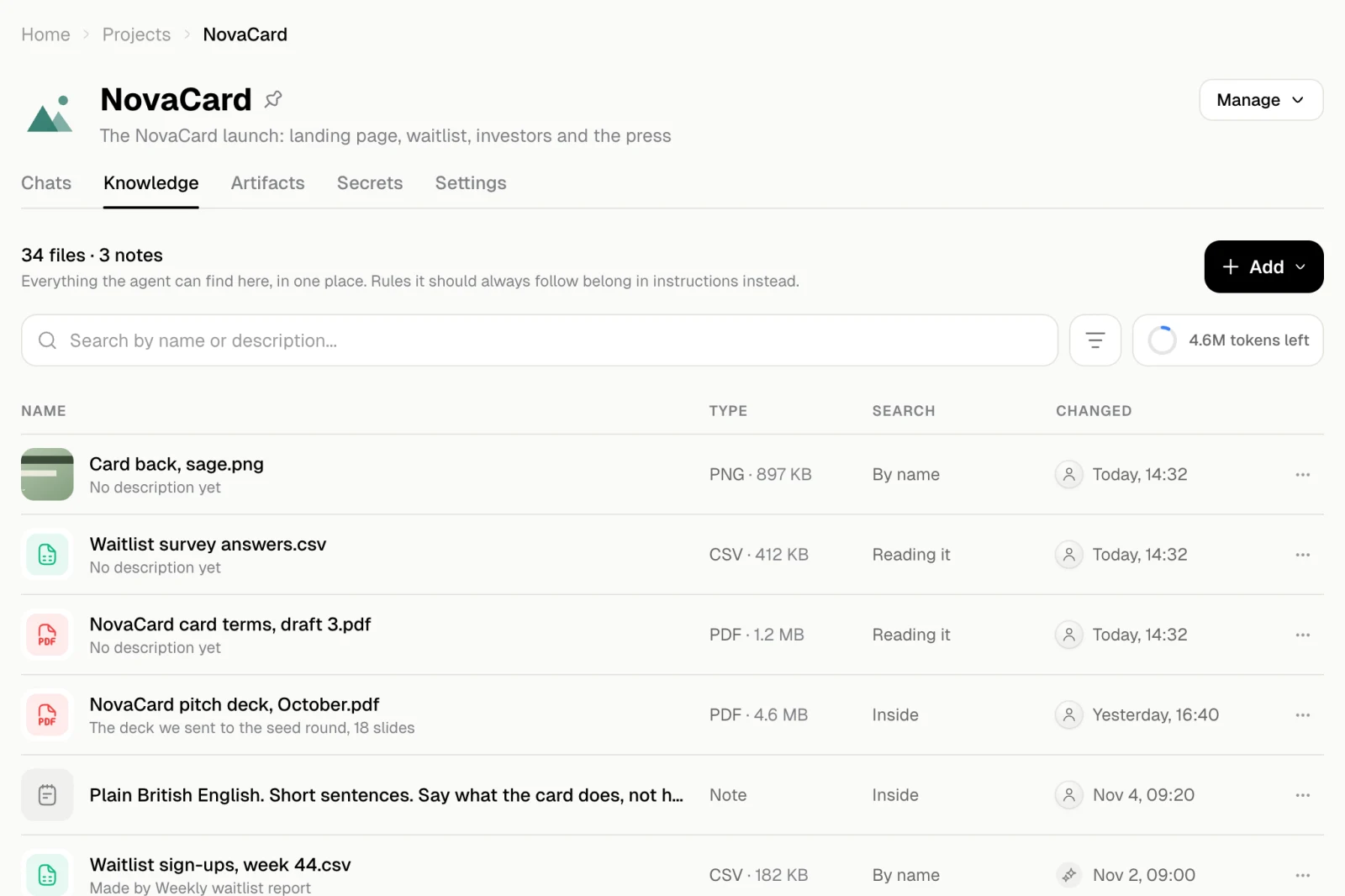
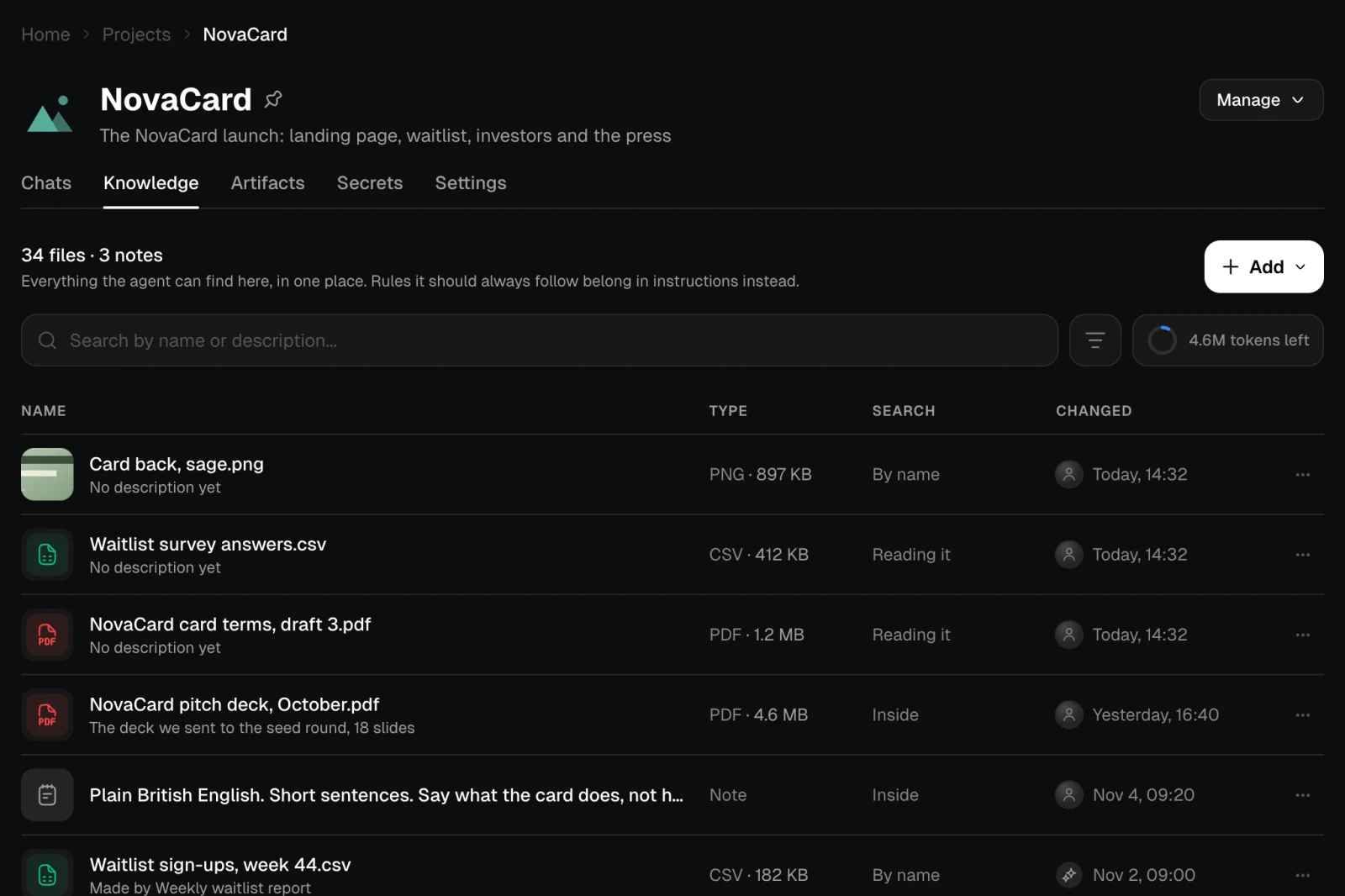
| Column | What it shows |
|---|---|
| Name | The file name or the start of the note, with its description |
| Type | The kind of file and its size, or Note |
| Search | How the agent finds it: Inside when it can search the text itself, By name when it only knows what the file is about, Reading it while the text is being read |
| Changed | Who changed it last, and when |
Add files
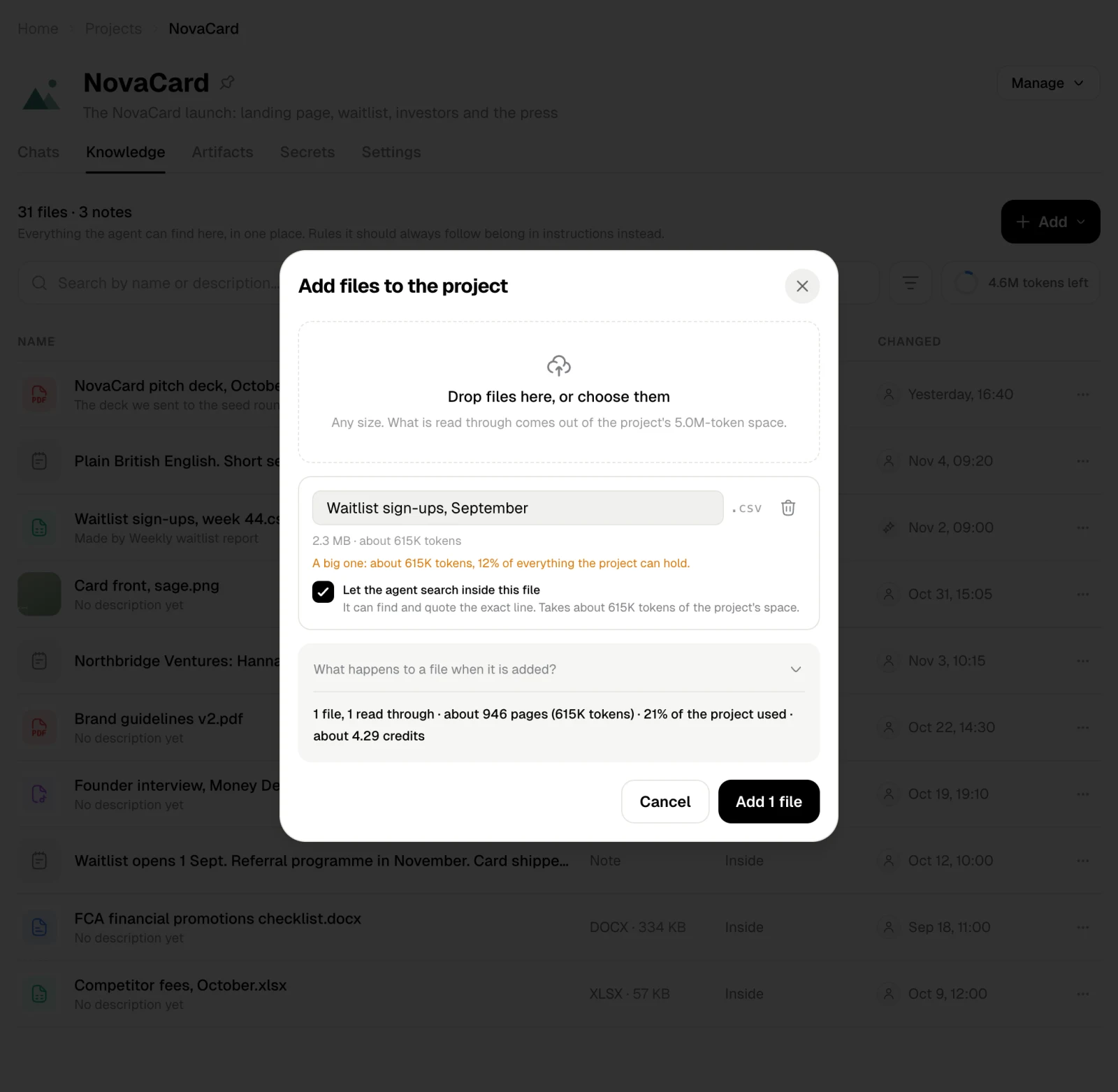
Add › Upload files, then drop files in or choose them. Each file shows its size, and you can rename it before it is added.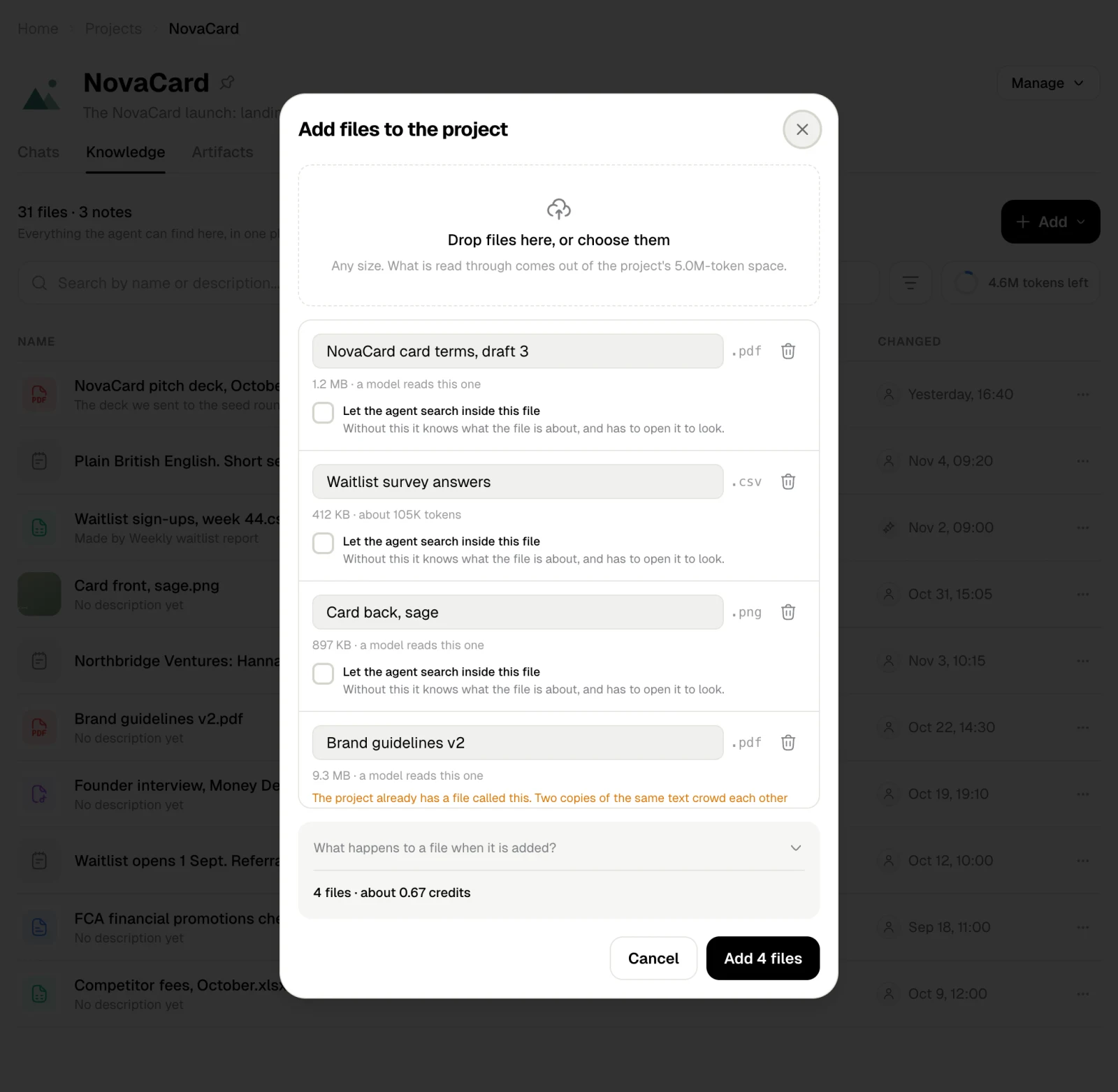
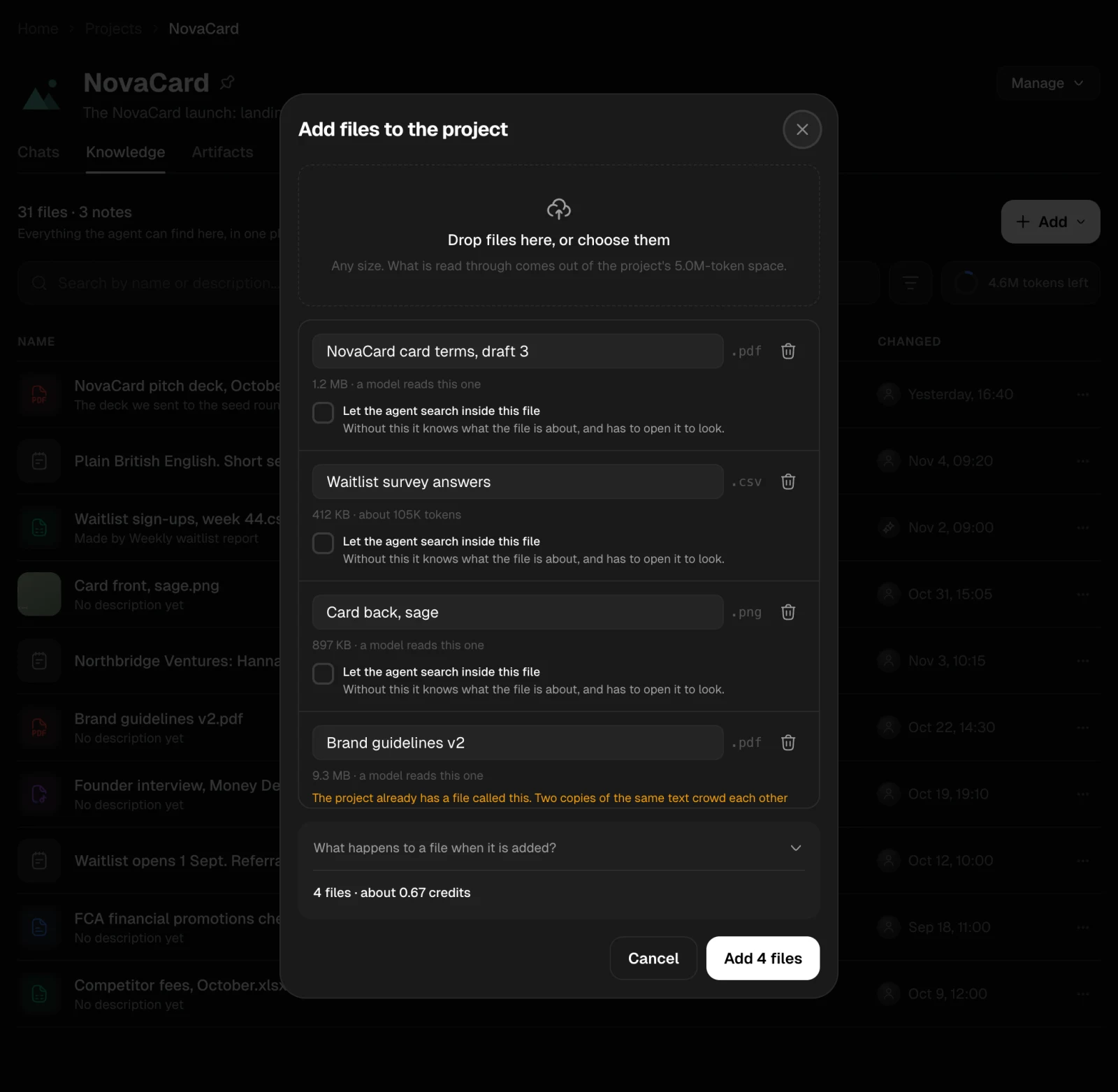
Let the agent search inside a file
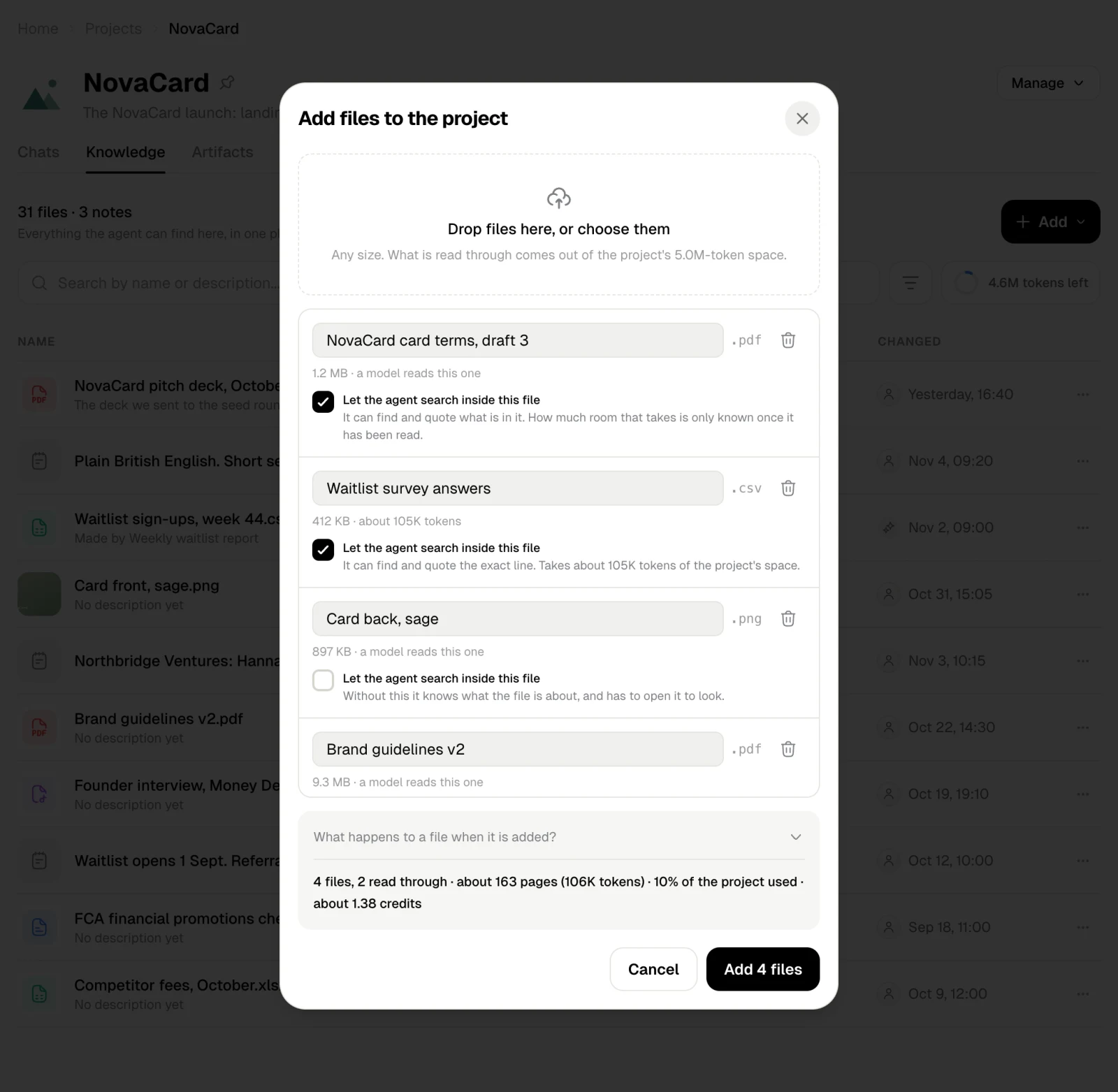
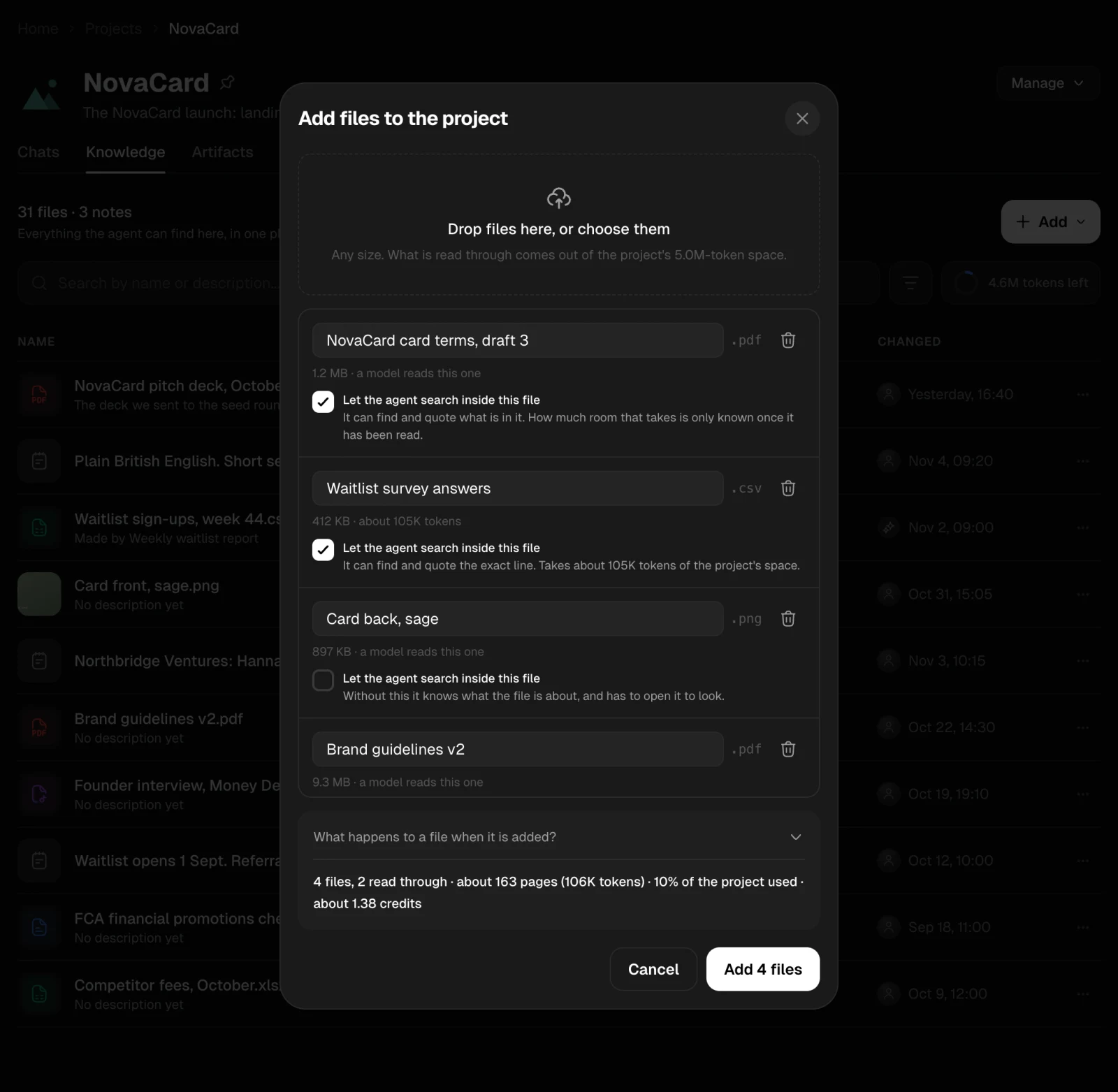
Tick Let the agent search inside this file and its text is read through as well, cut up and indexed, so the agent can find the exact line and quote it without opening the whole file.- Reading a file costs credits by the token and takes up part of the project’s space.
- For text files, such as CSV, the dialog shows about how many tokens it takes. For PDFs, pictures and recordings, a model reads the file, and how much room it takes is known once it has been read.
- The line at the bottom adds it up: how many files, how many will be read through, about how many pages, how much of the project’s space will be used, and about how many credits it costs.

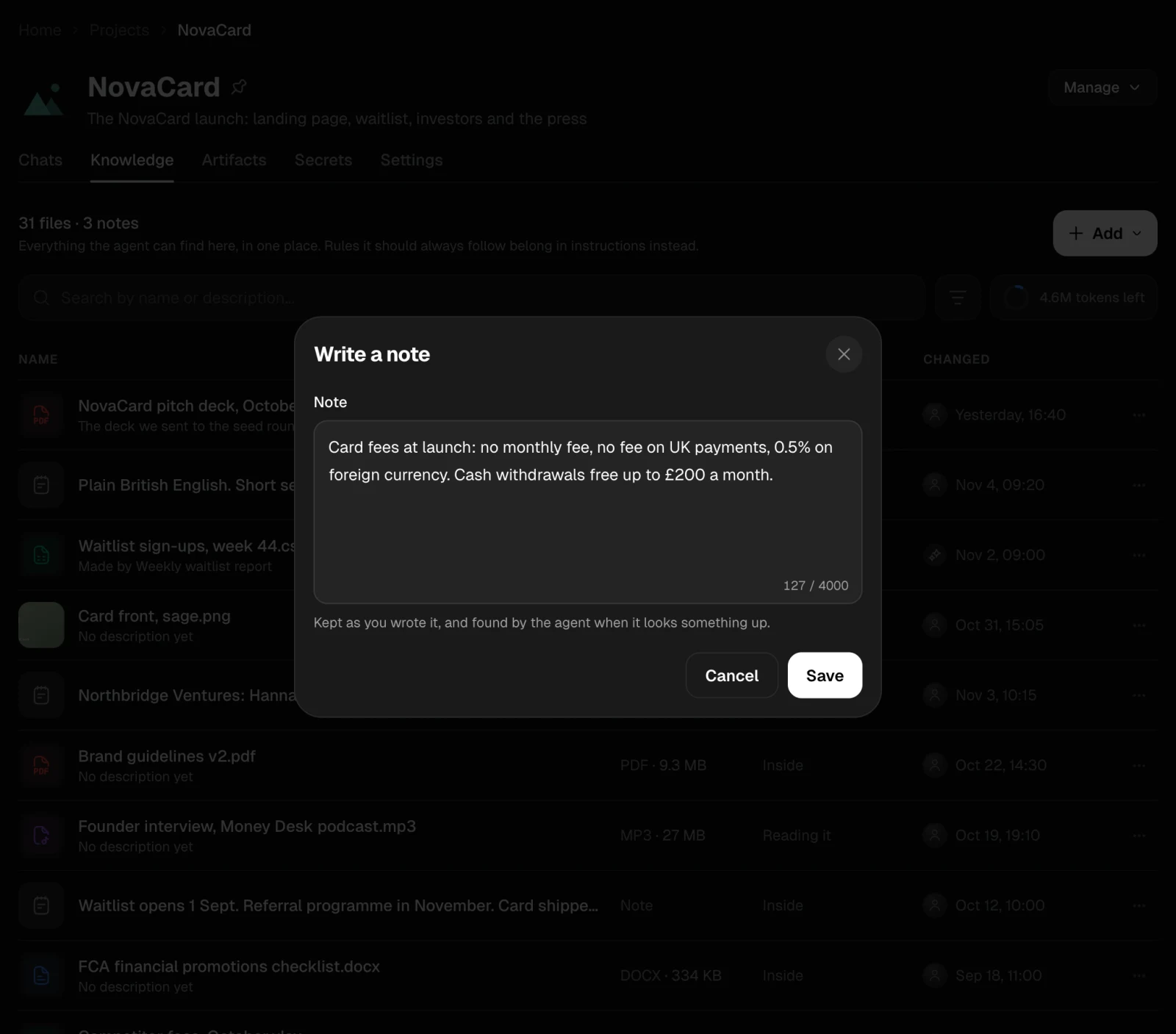
Write a note
Add › Write a note keeps a short fact or decision as you wrote it, such as fees, contacts or the launch plan. The agent finds notes when it looks something up.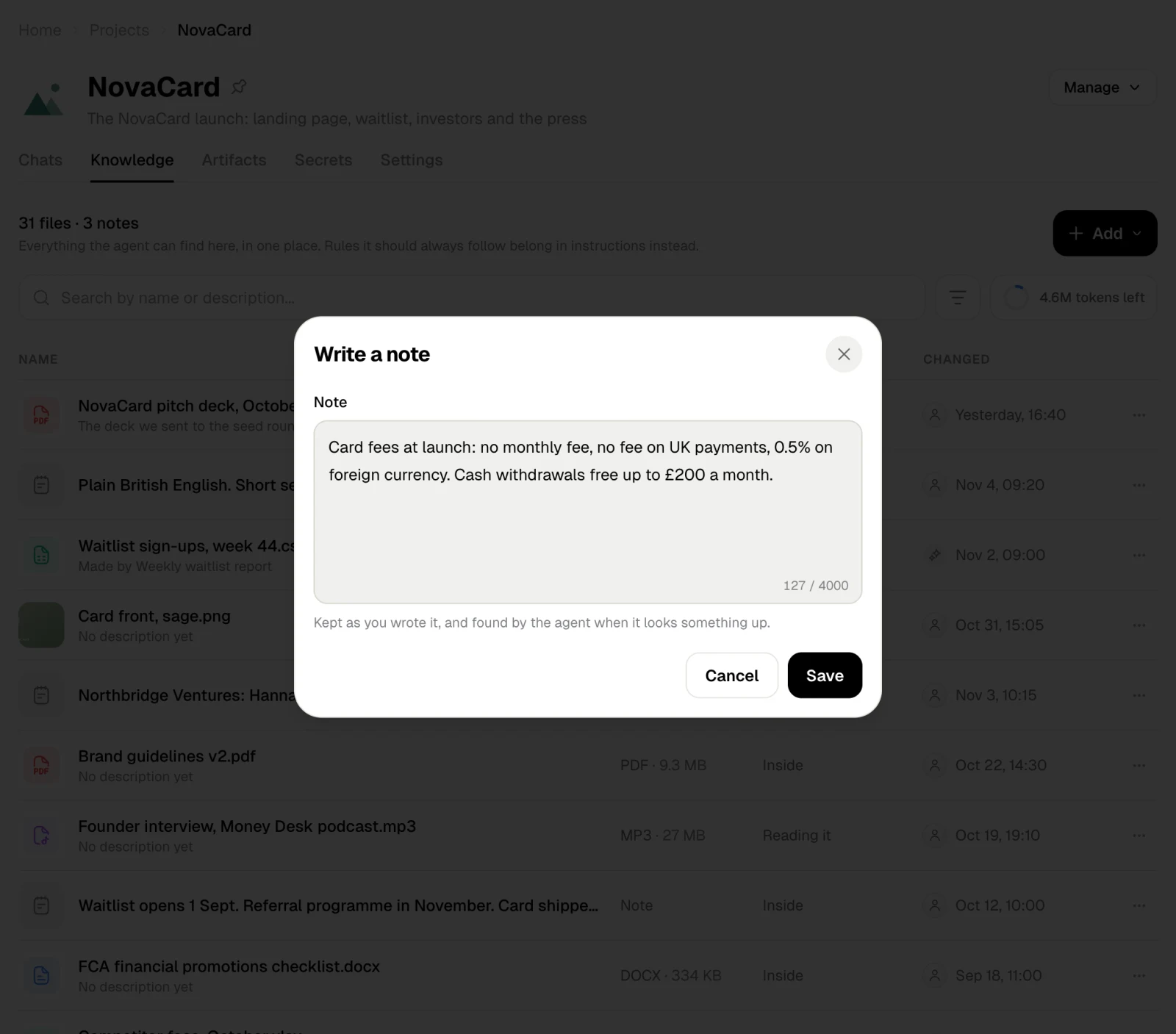
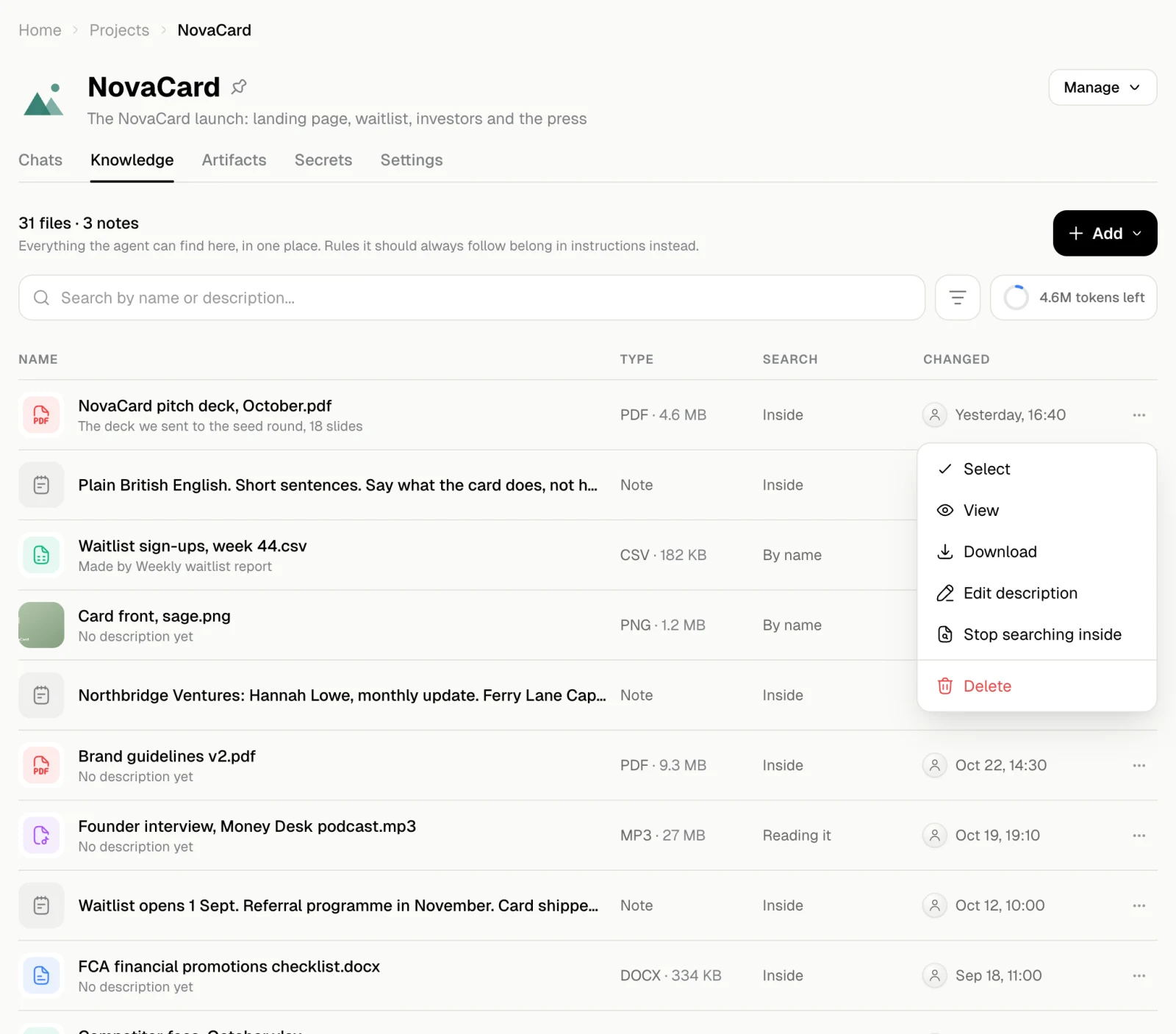
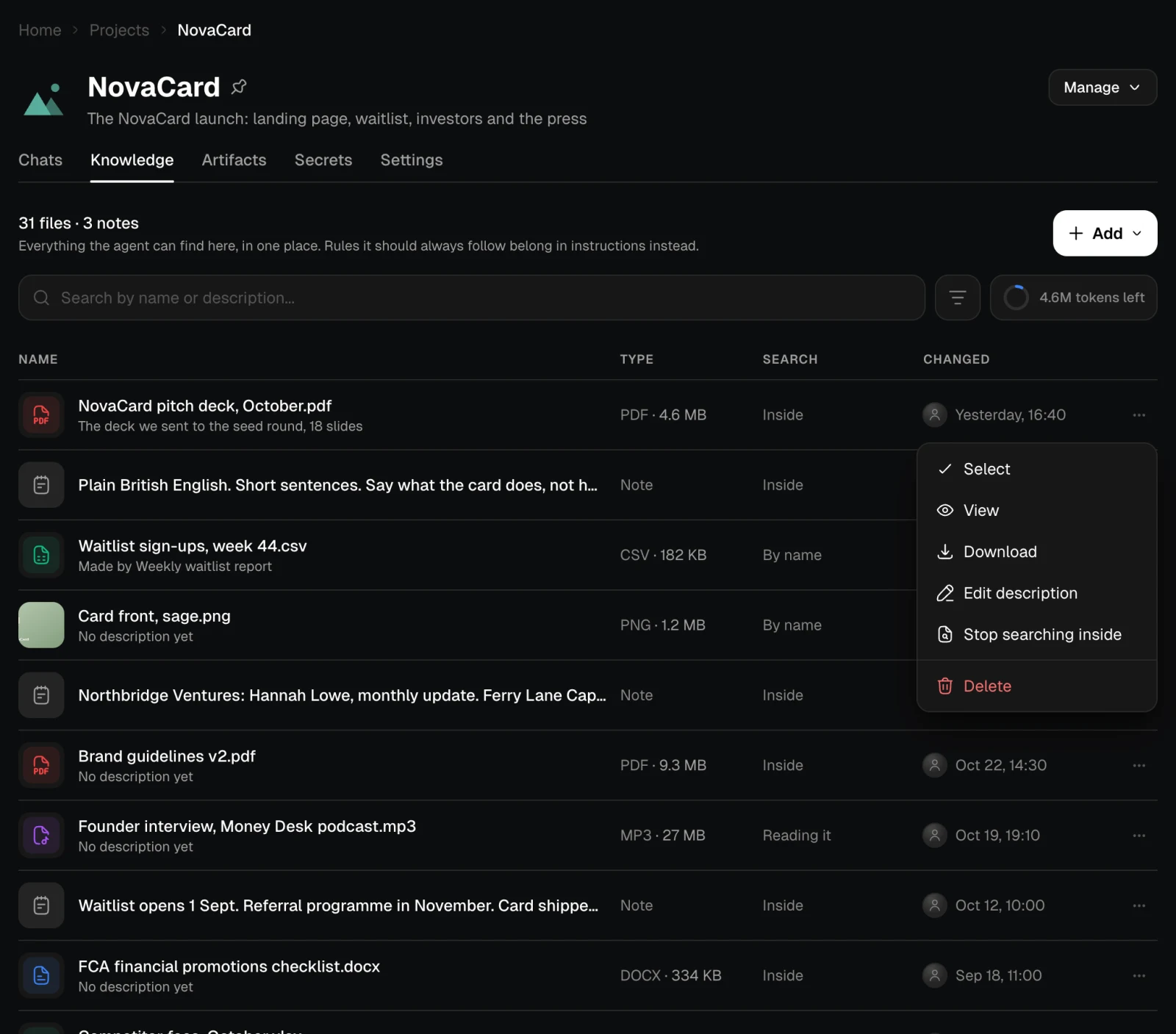
A file’s menu
| Action | What it does |
|---|---|
| Select | Starts picking several files at once |
| View | Opens the file to look at |
| Download | Downloads the file |
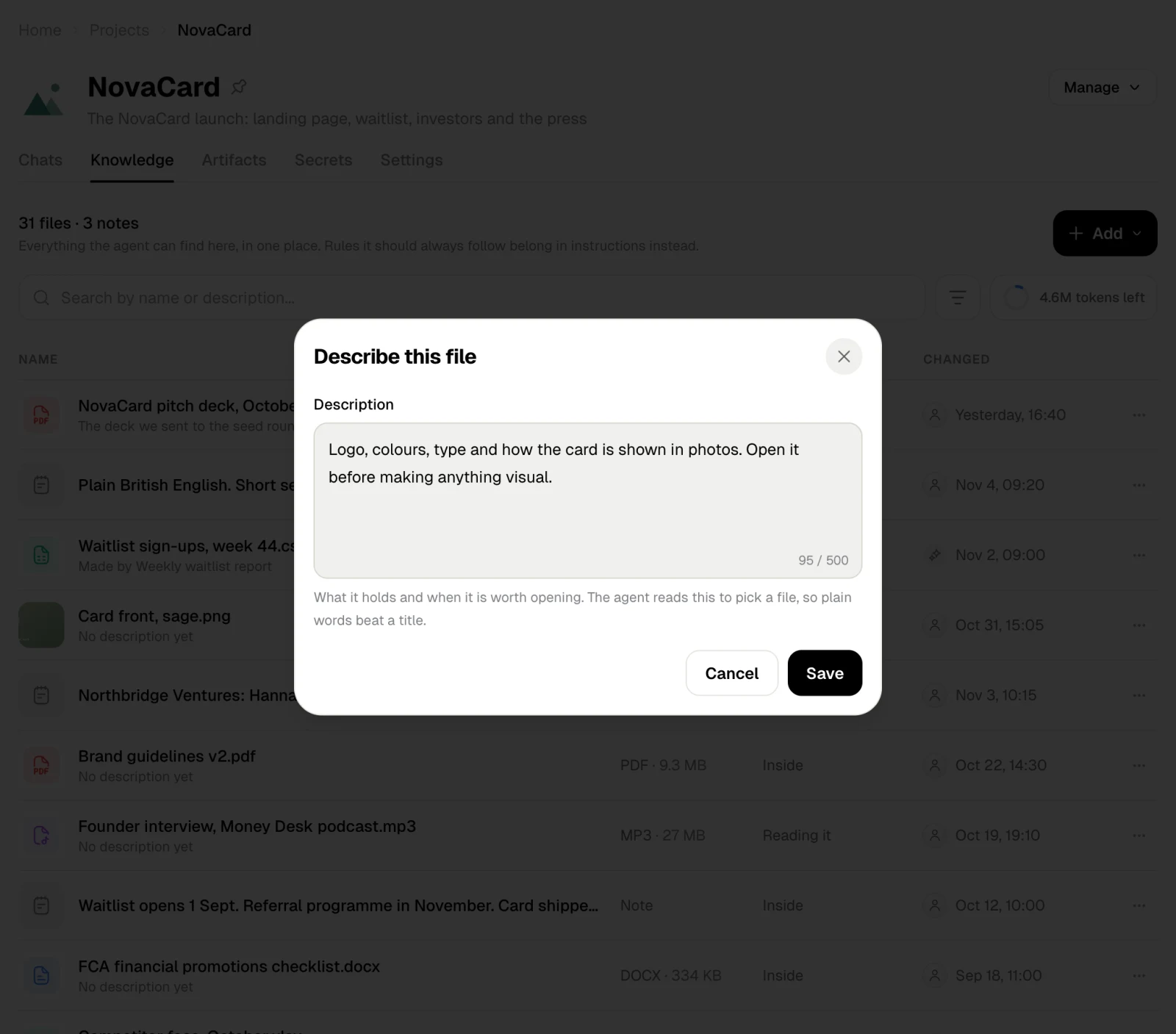
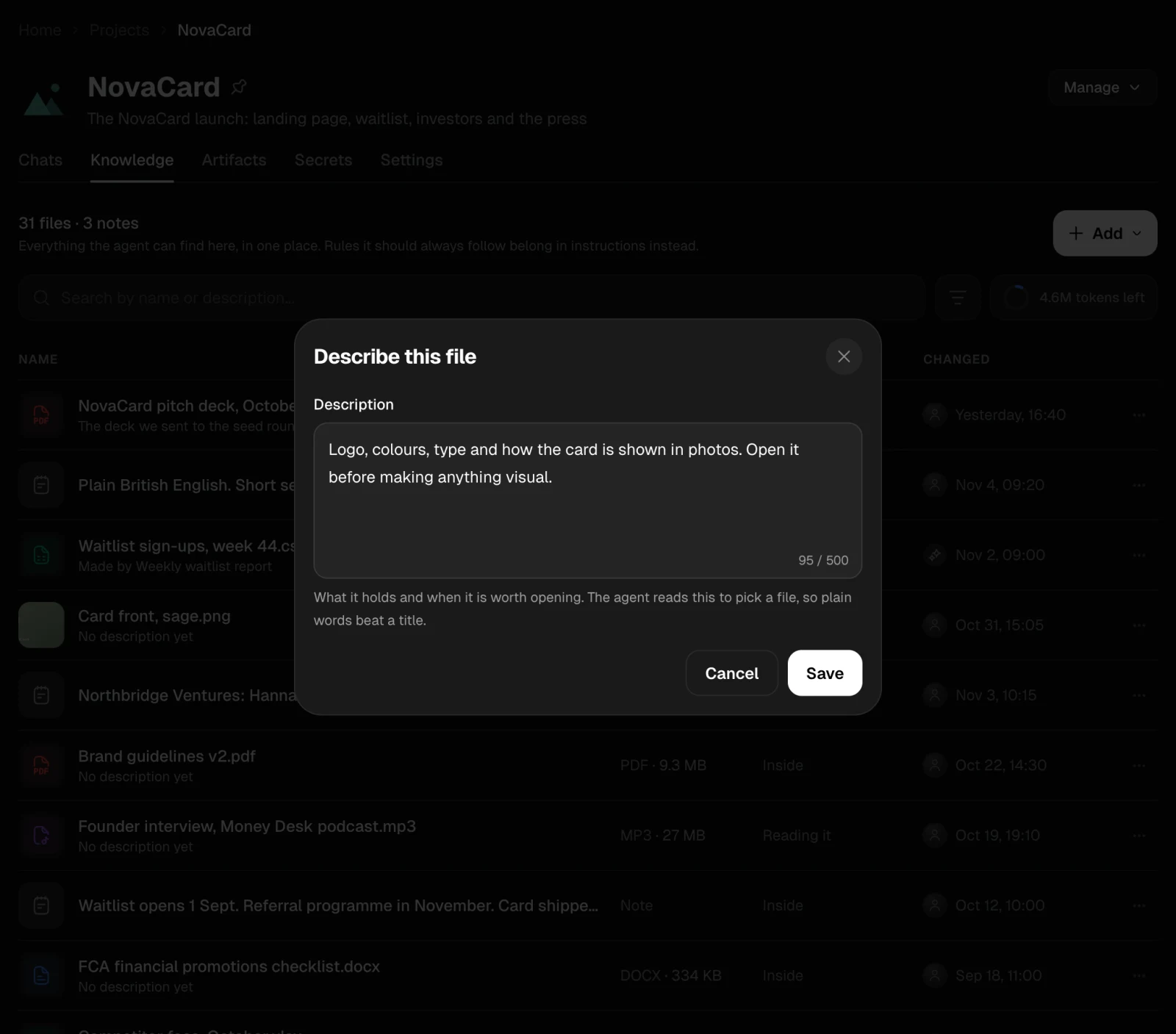
| Edit description | What the file holds and when it is worth opening. The agent reads this to pick a file, so plain words beat a title |
| Search inside this file / Stop searching inside | Reads the file’s text and charges for it. Stopping forgets what was read and frees its space; the file stays, findable by its description. Turning it back on reads it again, and is charged again |
| Delete | Takes the file out of the project, with everything read out of it. Chats that already used it keep what they took |
Several files at once
Tick the box on a file’s icon, or Select in its menu, and tick more. The bar at the bottom works on all of them: Search inside, Stop searching or Delete.