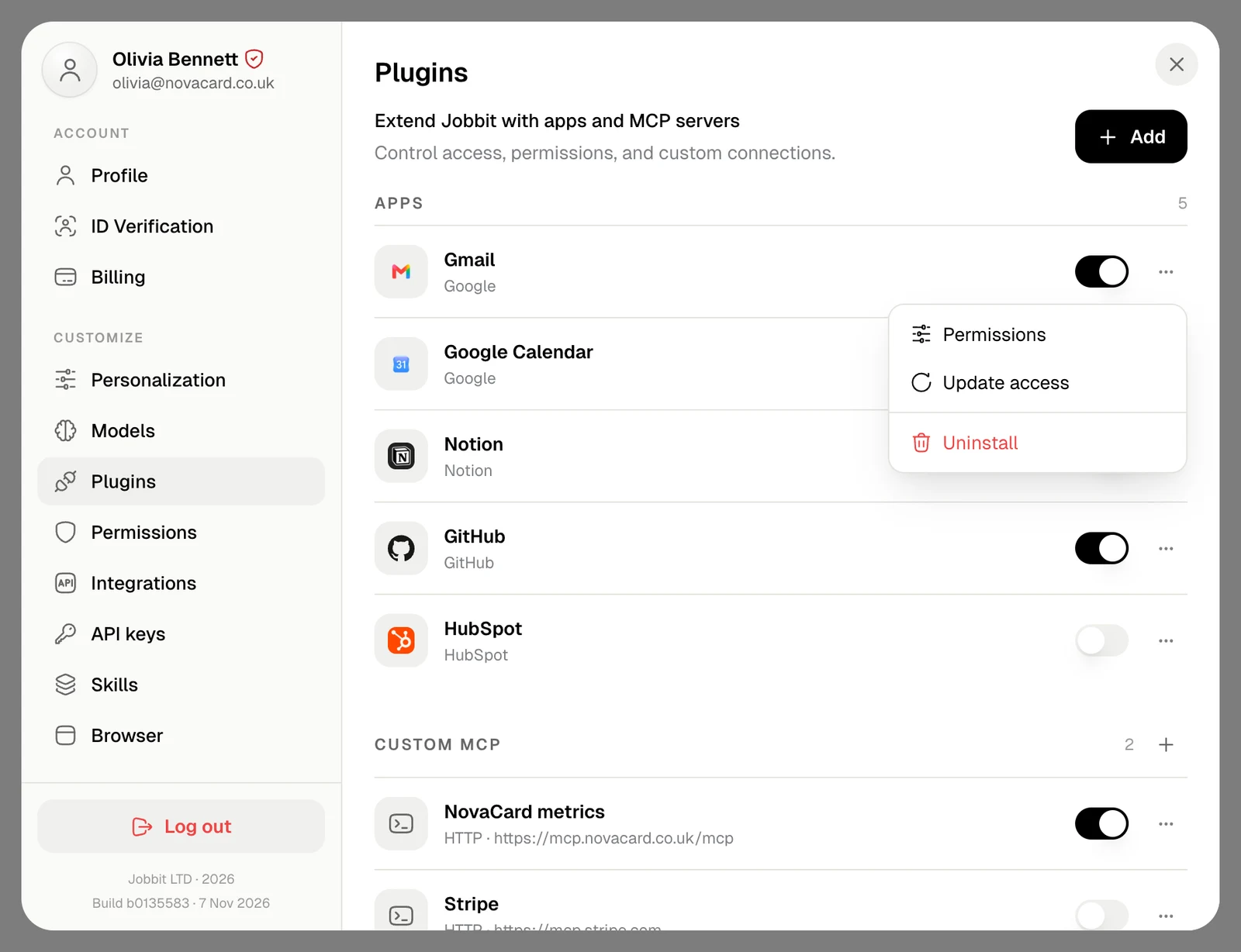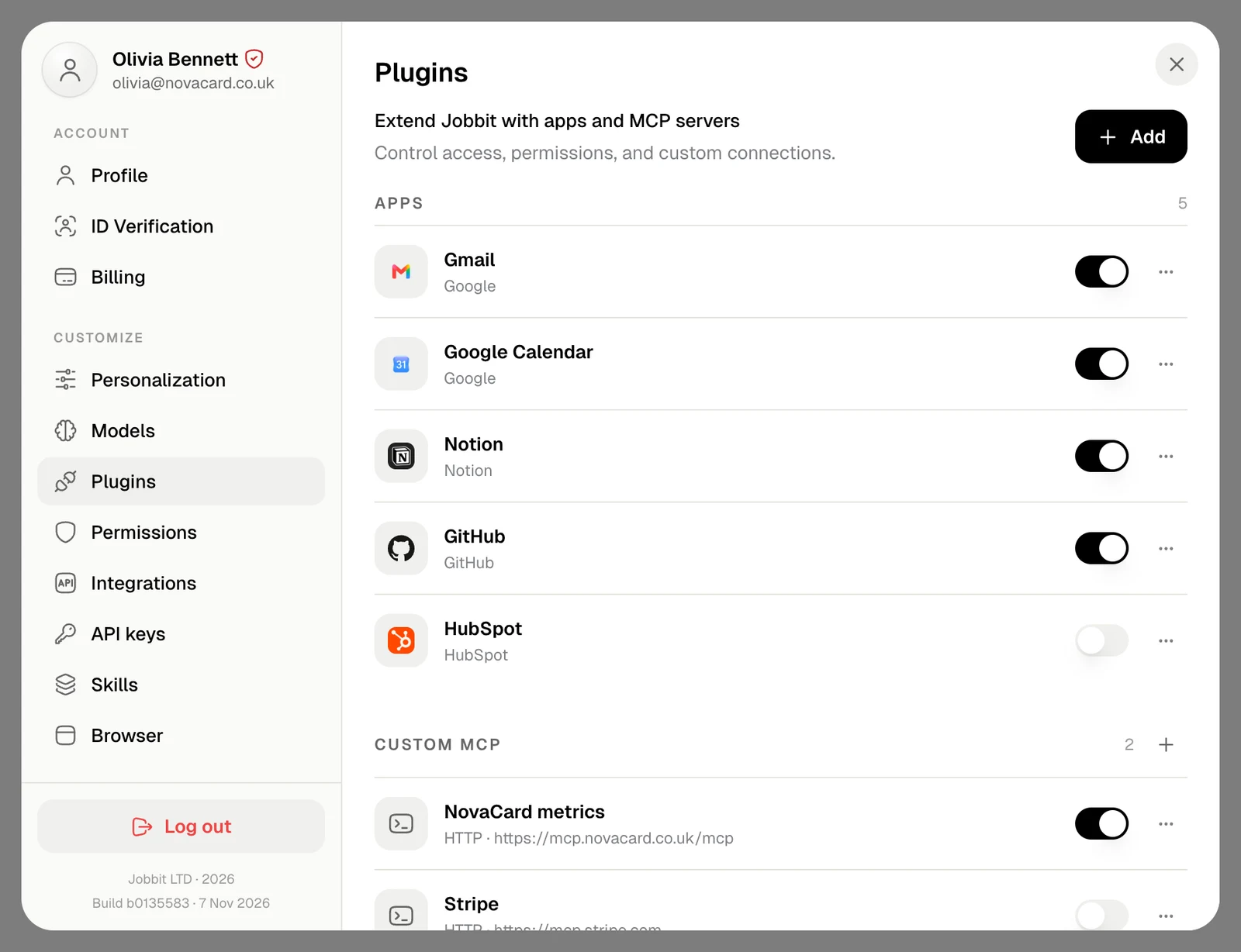
Your installed plugins are listed in Settings › Customize › Plugins, under Apps. Your own MCP servers are under Custom MCP, see Custom MCP.
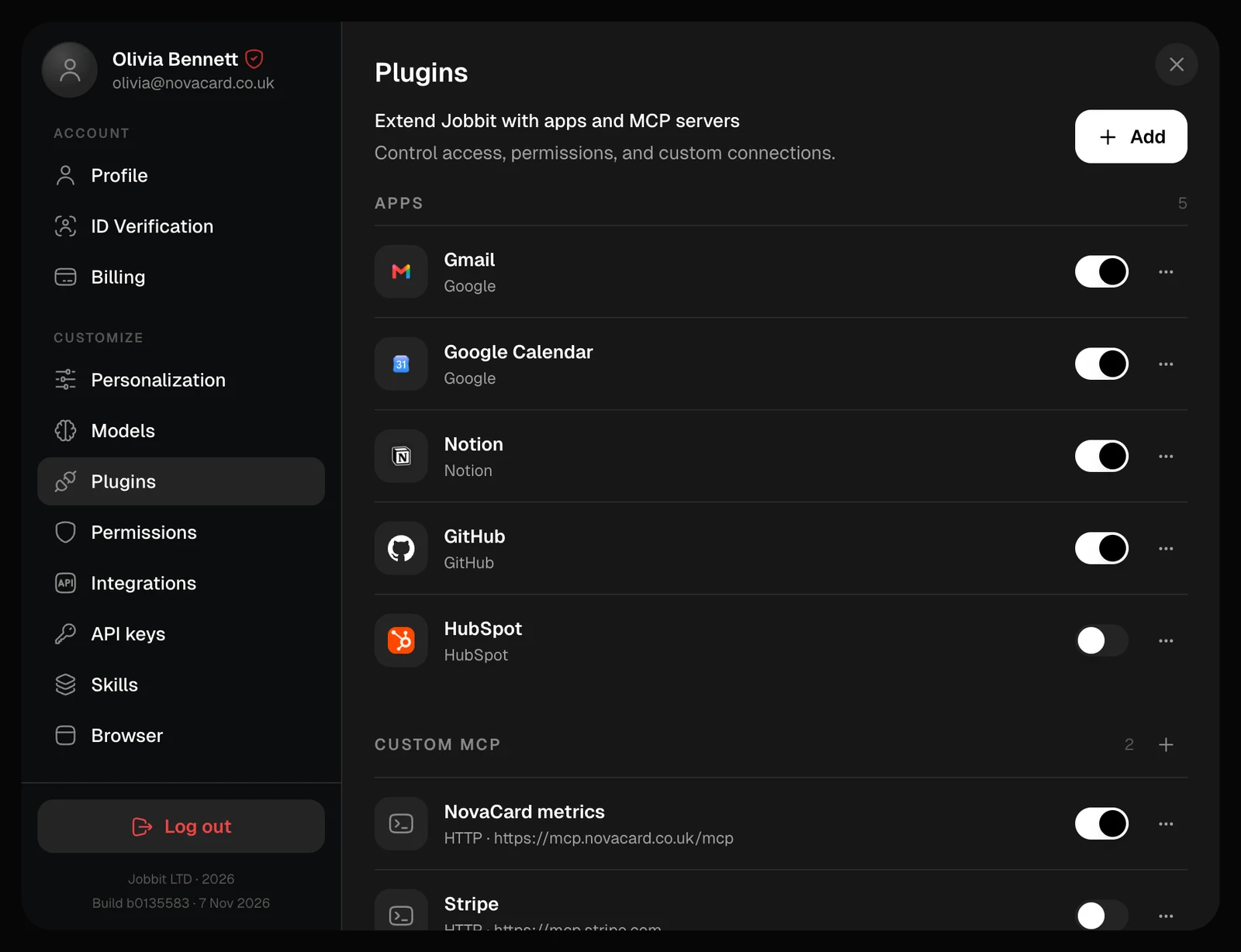
Plugins in Settings with Apps and Custom MCP, light themePlugins in Settings with Apps and Custom MCP, dark theme
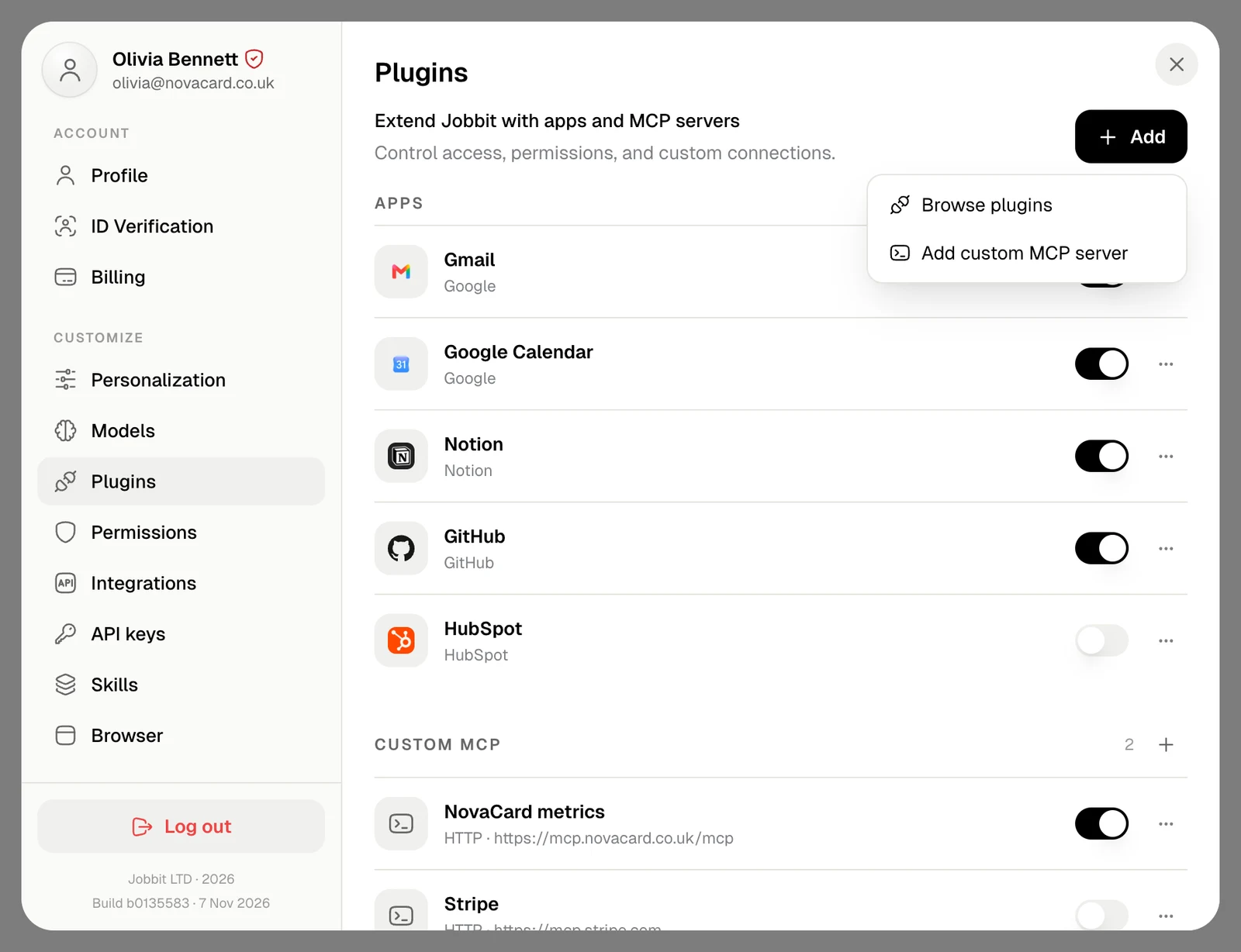
Add at the top opens the plugins page with Browse plugins, or a new server with Add custom MCP server.
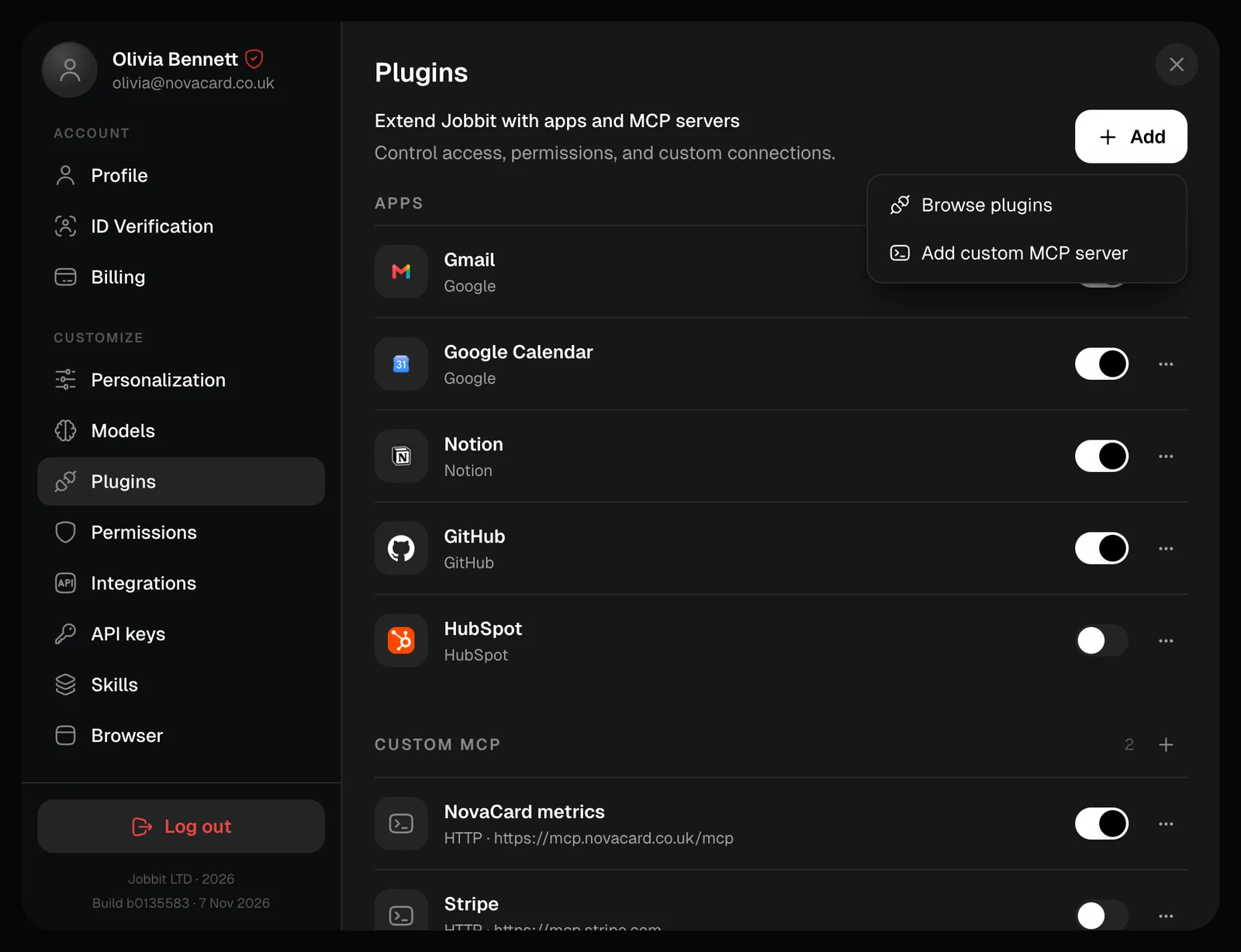
The Add menu with Browse plugins and Add custom MCP server, light themeThe Add menu with Browse plugins and Add custom MCP server, dark theme

Turn a plugin off

The switch on a row turns the plugin off and on. A plugin that is off stays installed with its settings, but the agent does not use it until you turn it back on.

The plugin’s menu

The ⋯ menu on a row:
ActionWhat it does
PermissionsWhen the agent asks you before it acts in this plugin. See Permissions
Update accessOpens the service’s sign-in again, to approve new access or sign in once more
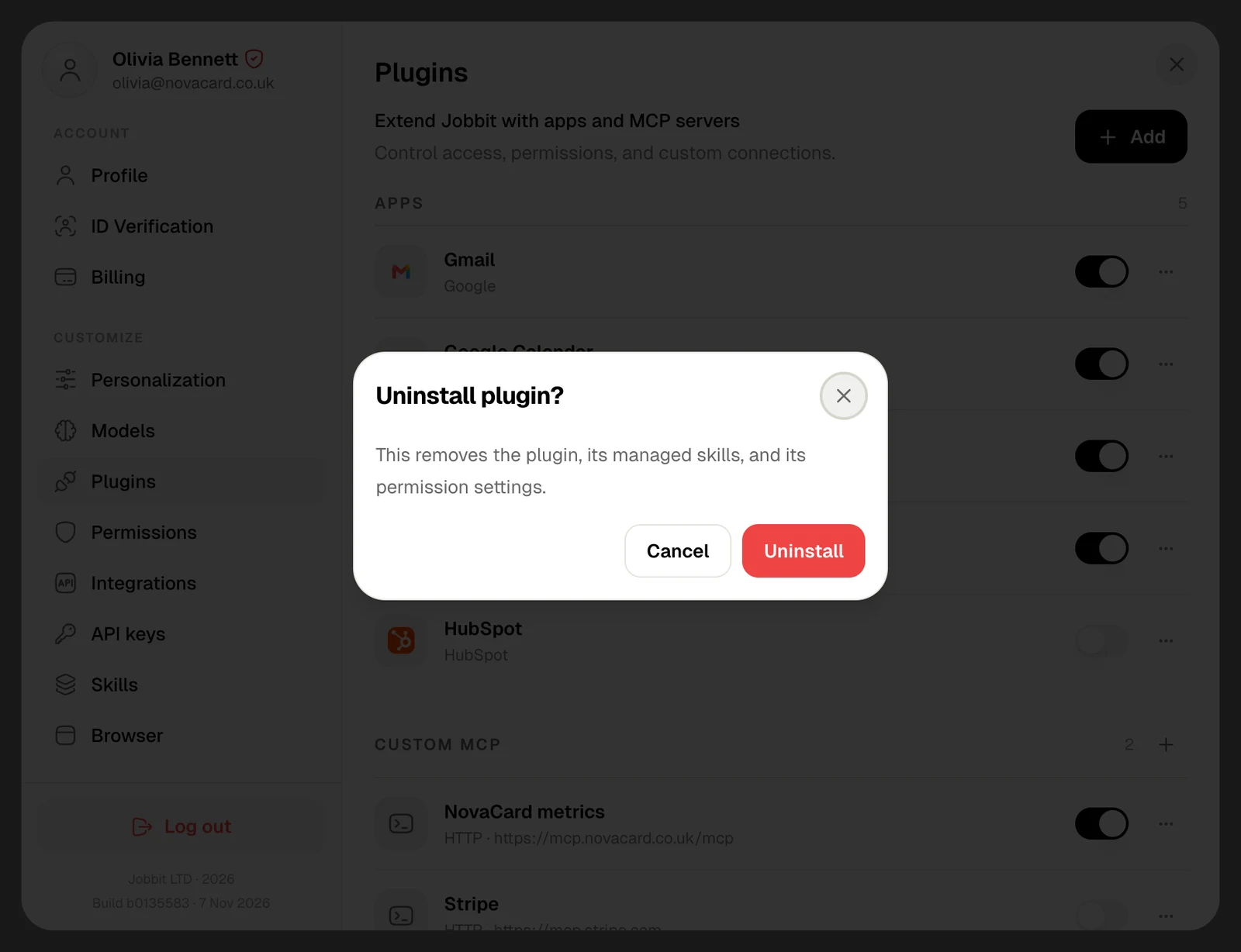
UninstallRemoves the plugin, the skills that came with it and its permission settings, after you confirm
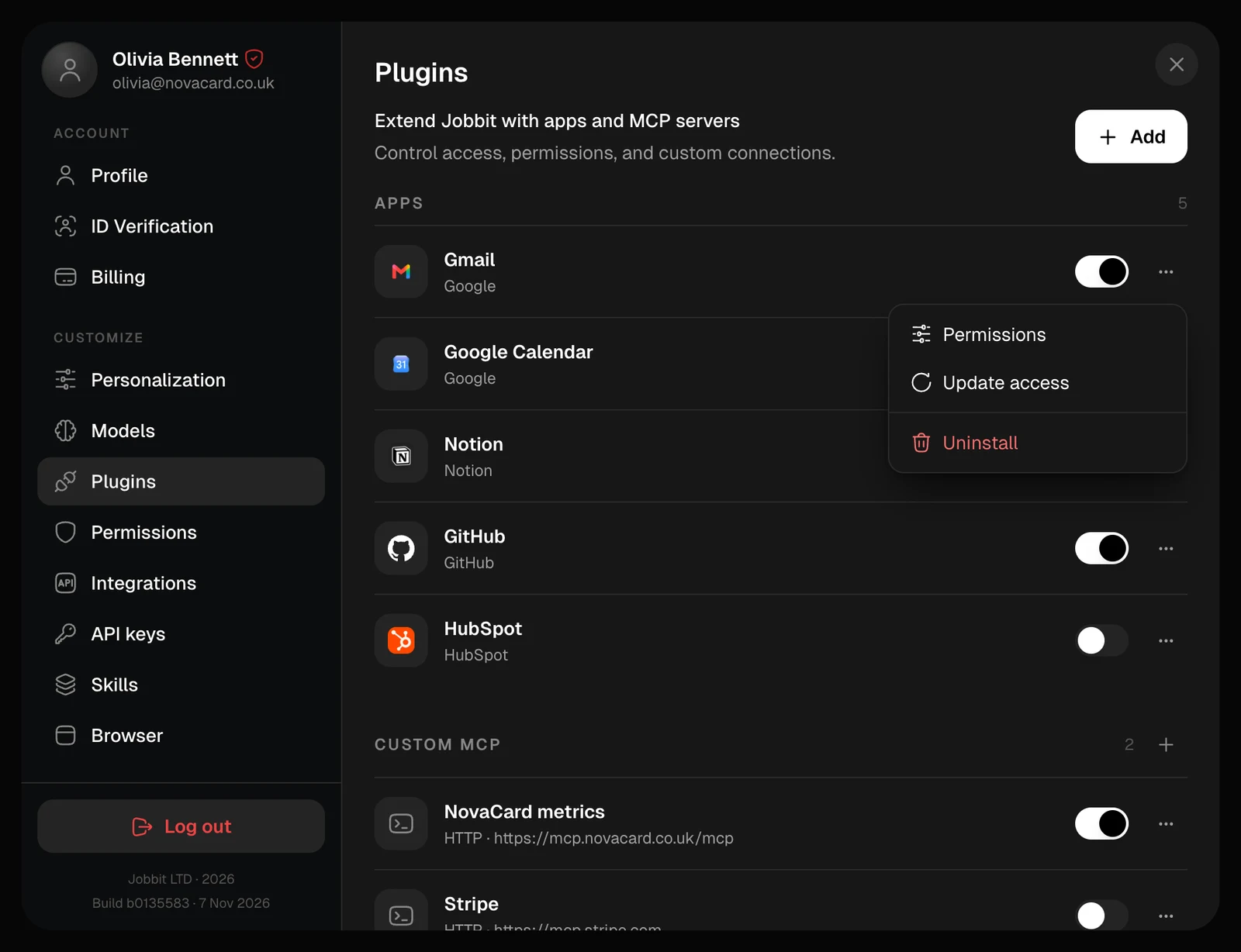
The plugin menu with Permissions, Update access and Uninstall, light themeThe plugin menu with Permissions, Update access and Uninstall, dark theme
A plugin marked Reconnect needs you to sign in to the service again before the agent can use it. Choose Update access and sign in.
The Uninstall plugin window, light themeThe Uninstall plugin window, dark theme

From the plugin’s page

An installed plugin’s page on the plugins page has the same actions under Manage: Turn off or Turn on, Permissions, Update access and Uninstall. Try in chat next to it starts a chat with the plugin.
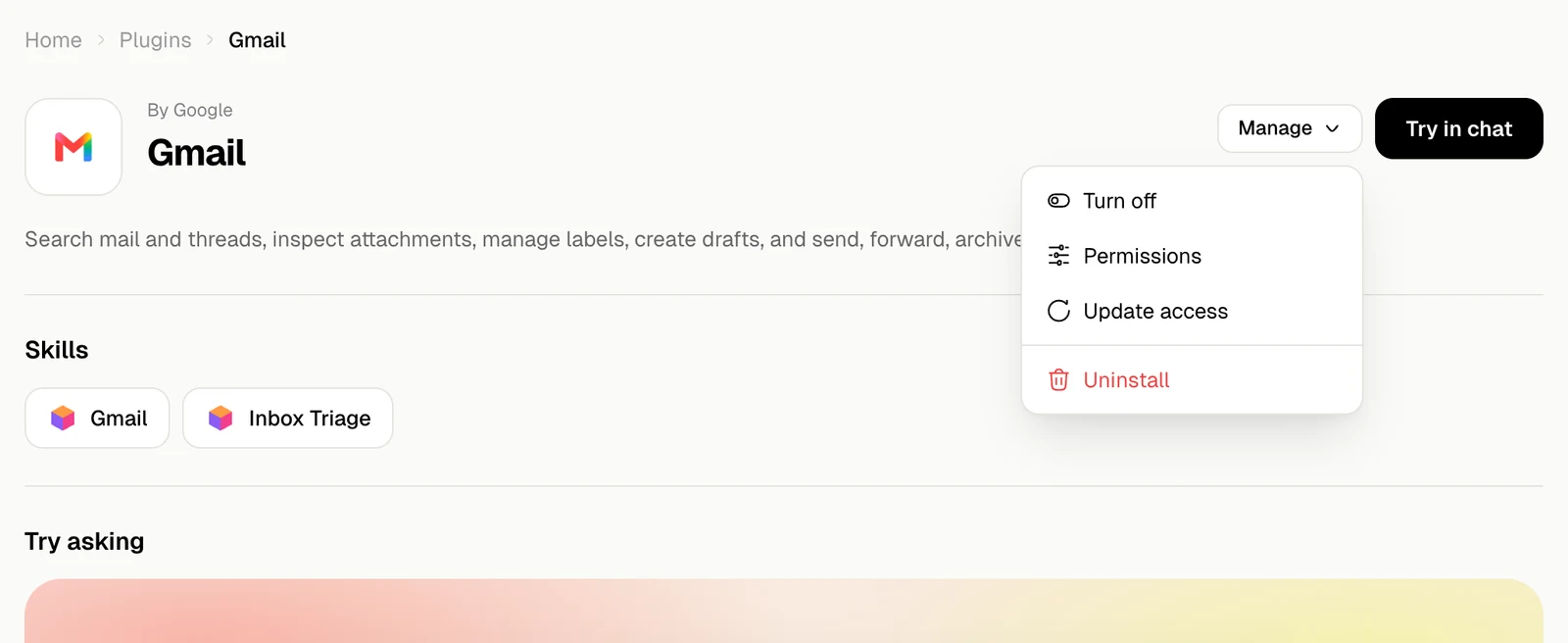
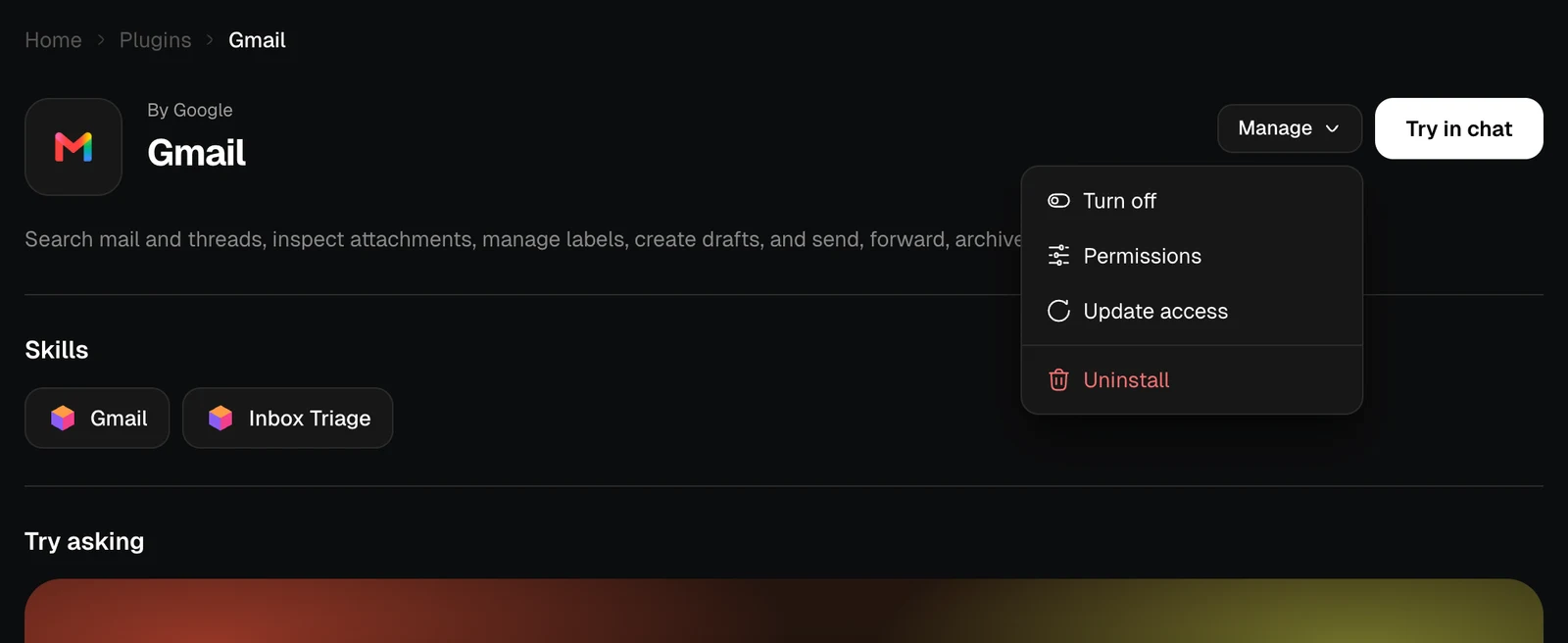
The Manage menu on a plugin page, light themeThe Manage menu on a plugin page, dark theme