A skill is a set of instructions, with files if needed, for one kind of work: how you write the investor update, your brand check, your support tone. The agent reads a skill when a task matches its description. You do not have to call it. Open your skills in Settings › Customize › Skills, or on their own page: account menu › Customize › Skills.
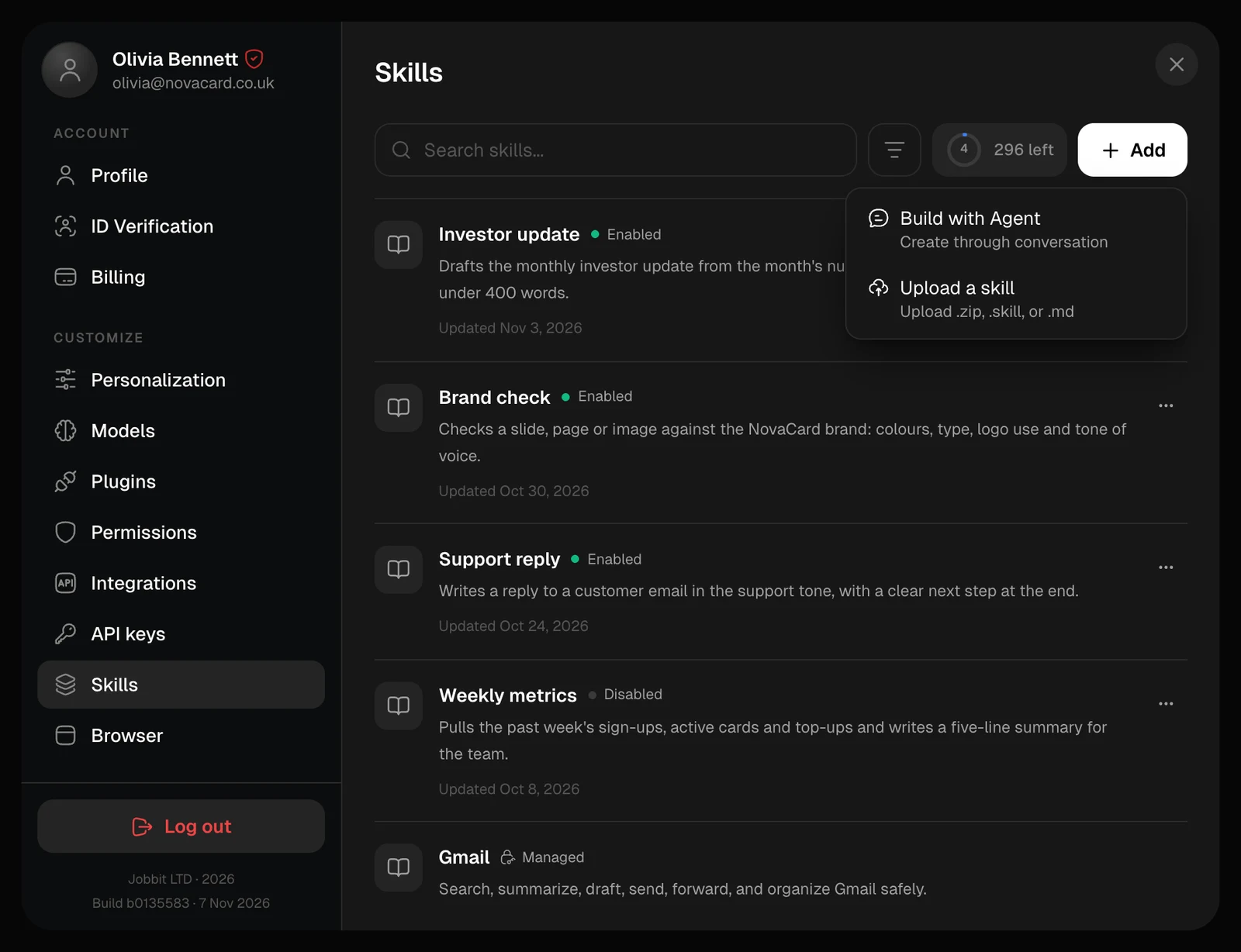
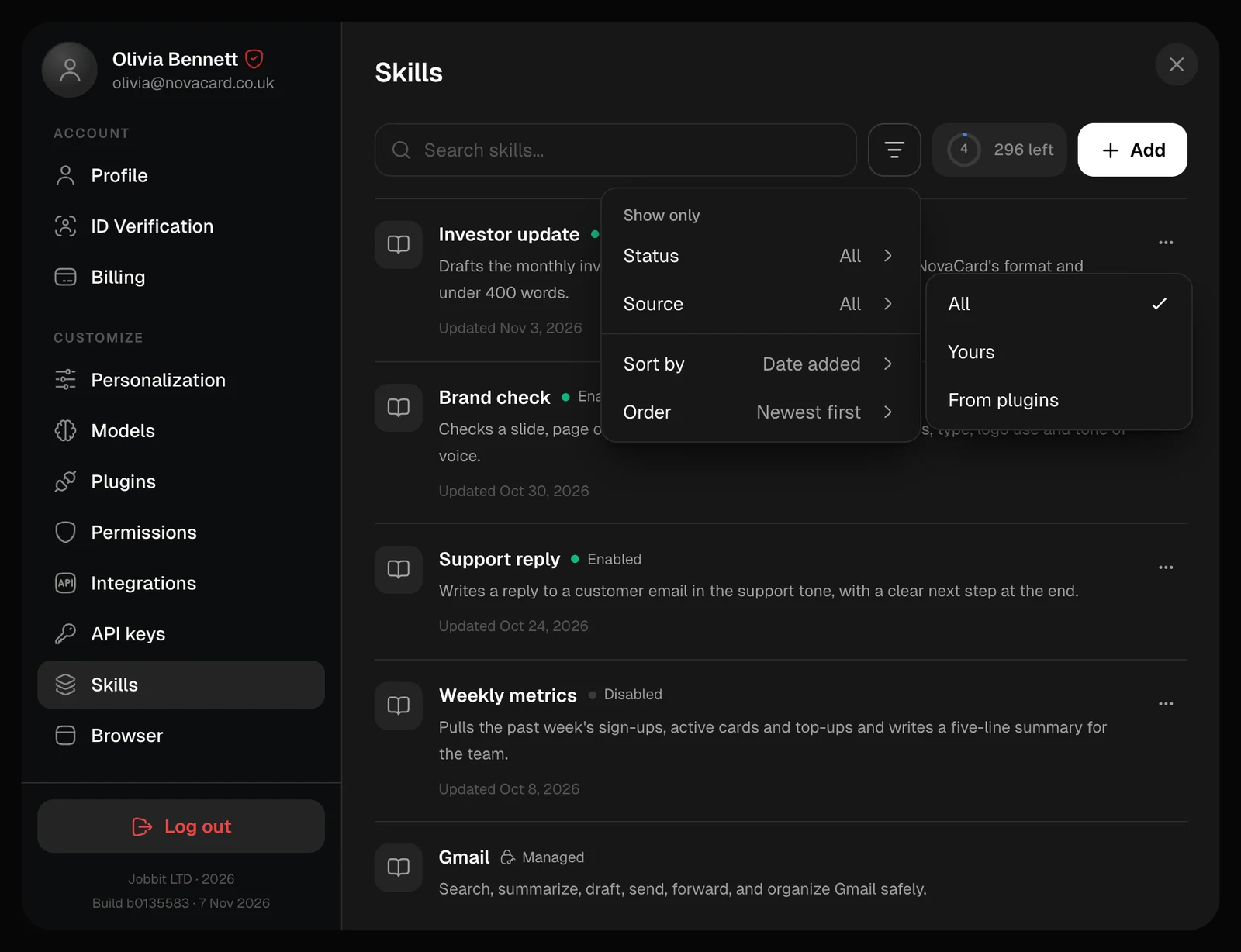
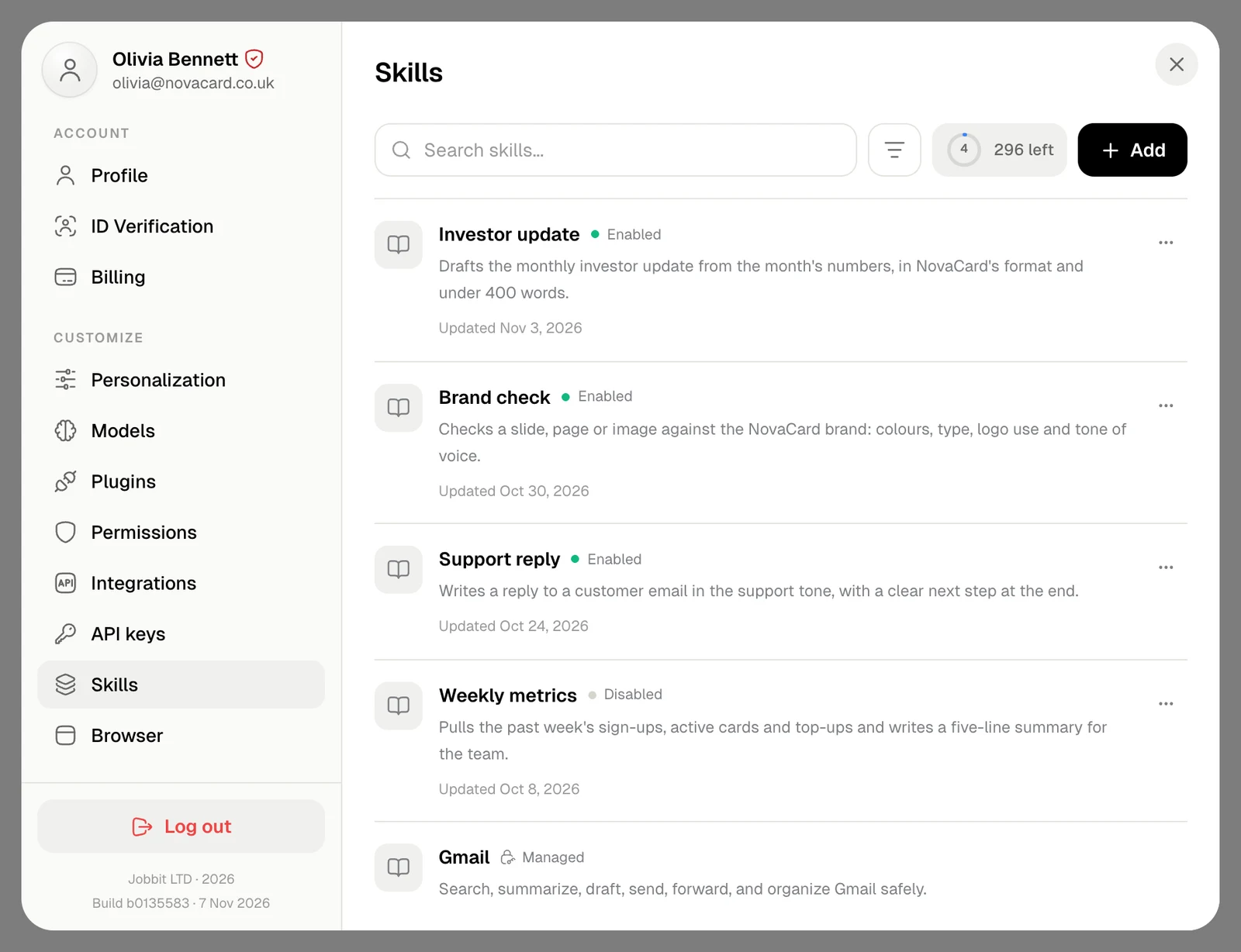
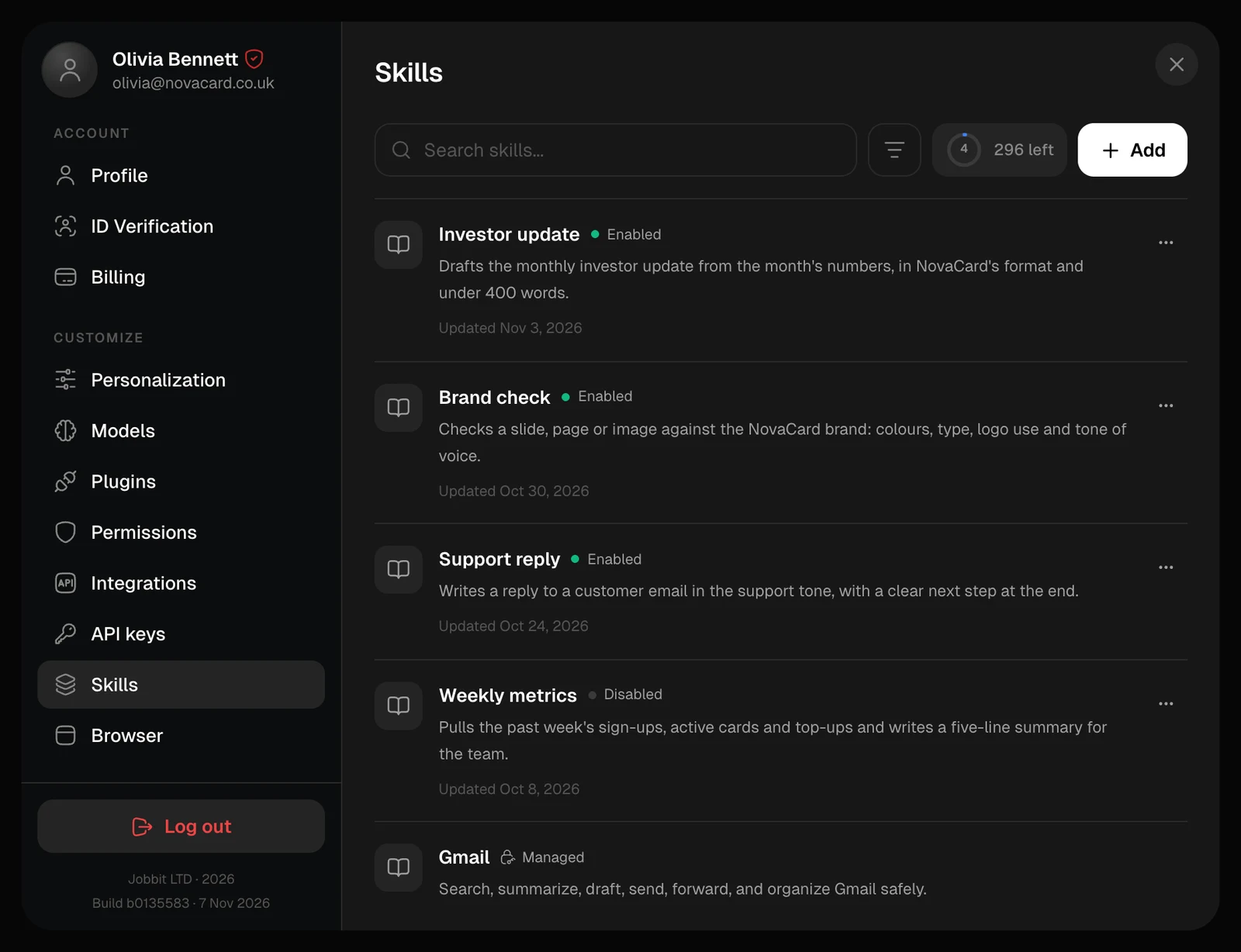
Skills in Settings with four personal skills and a managed one, light themeSkills in Settings with four personal skills and a managed one, dark theme
Each skill shows whether it is Enabled or Disabled, what it does and when it was last updated. Skills marked Managed came with a plugin: they are read-only and leave when you uninstall the plugin. You can keep up to 300 skills of your own, and up to 50 of them enabled at once. The ring next to Add shows how many places are left.

Add a skill

Add offers two ways:
  • Build with Agent opens a chat where the agent asks what the skill should do and writes it with you.
  • Upload a skill takes a file you already have.
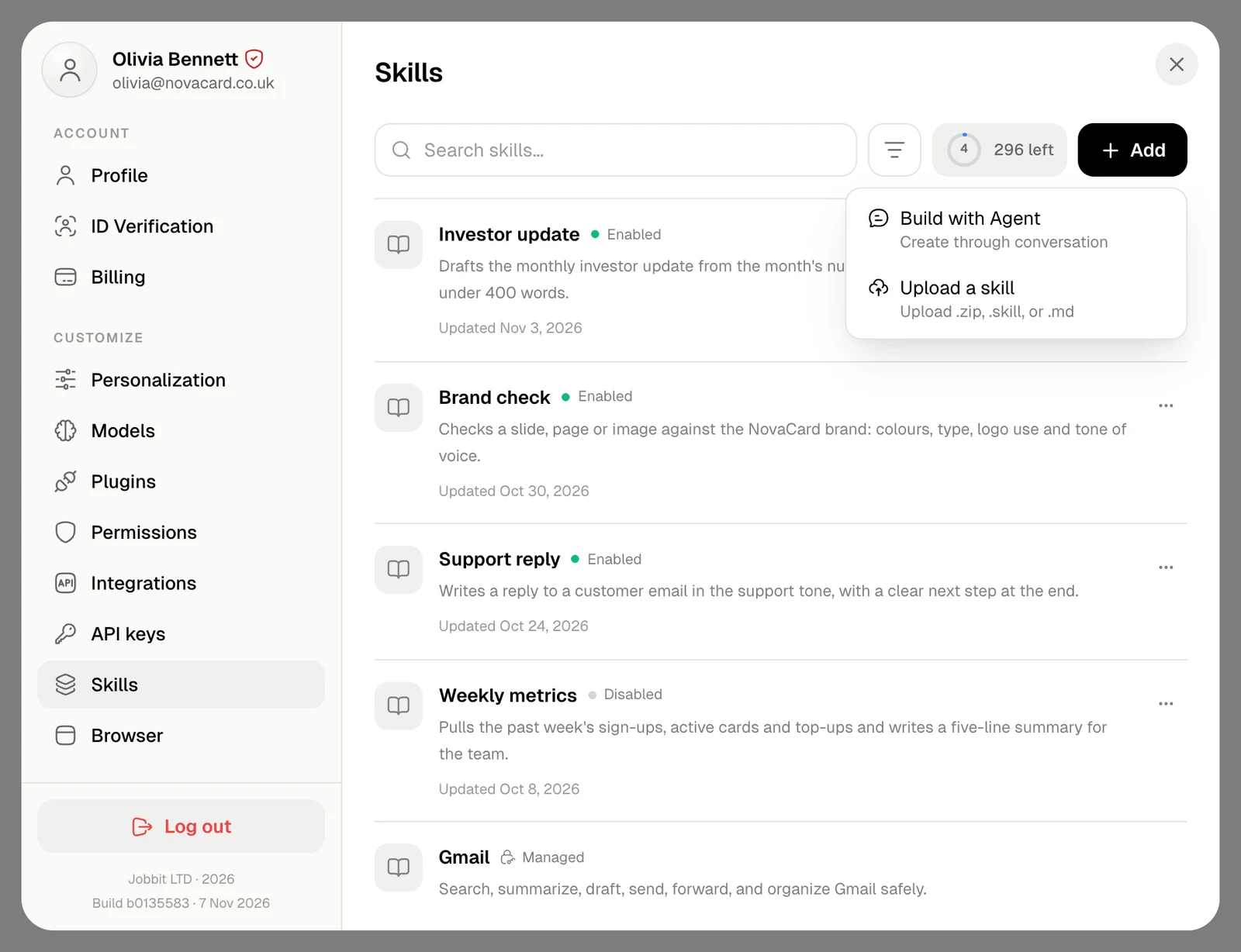
The Add menu with Build with Agent and Upload a skill, light themeThe Add menu with Build with Agent and Upload a skill, dark theme

Upload a skill

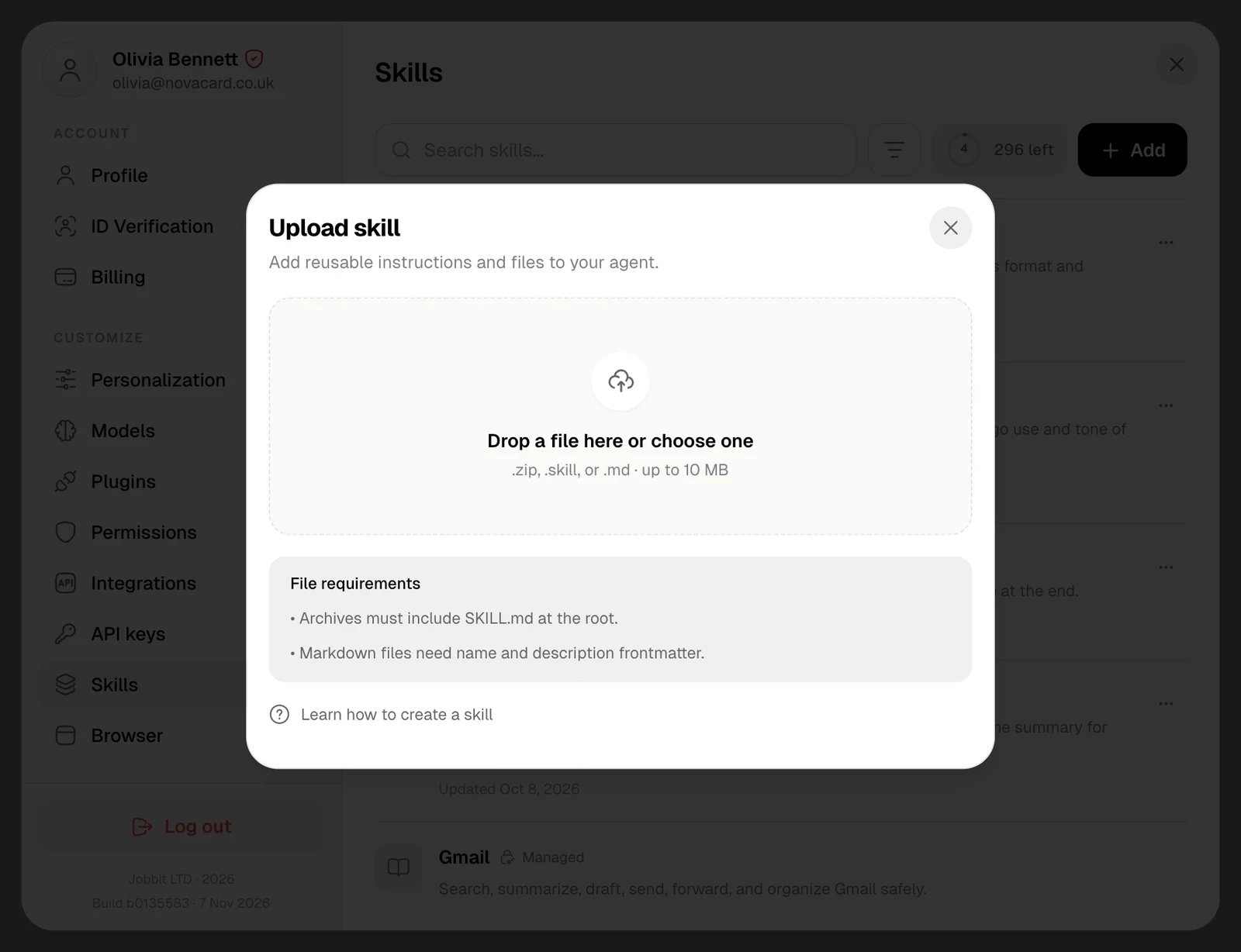
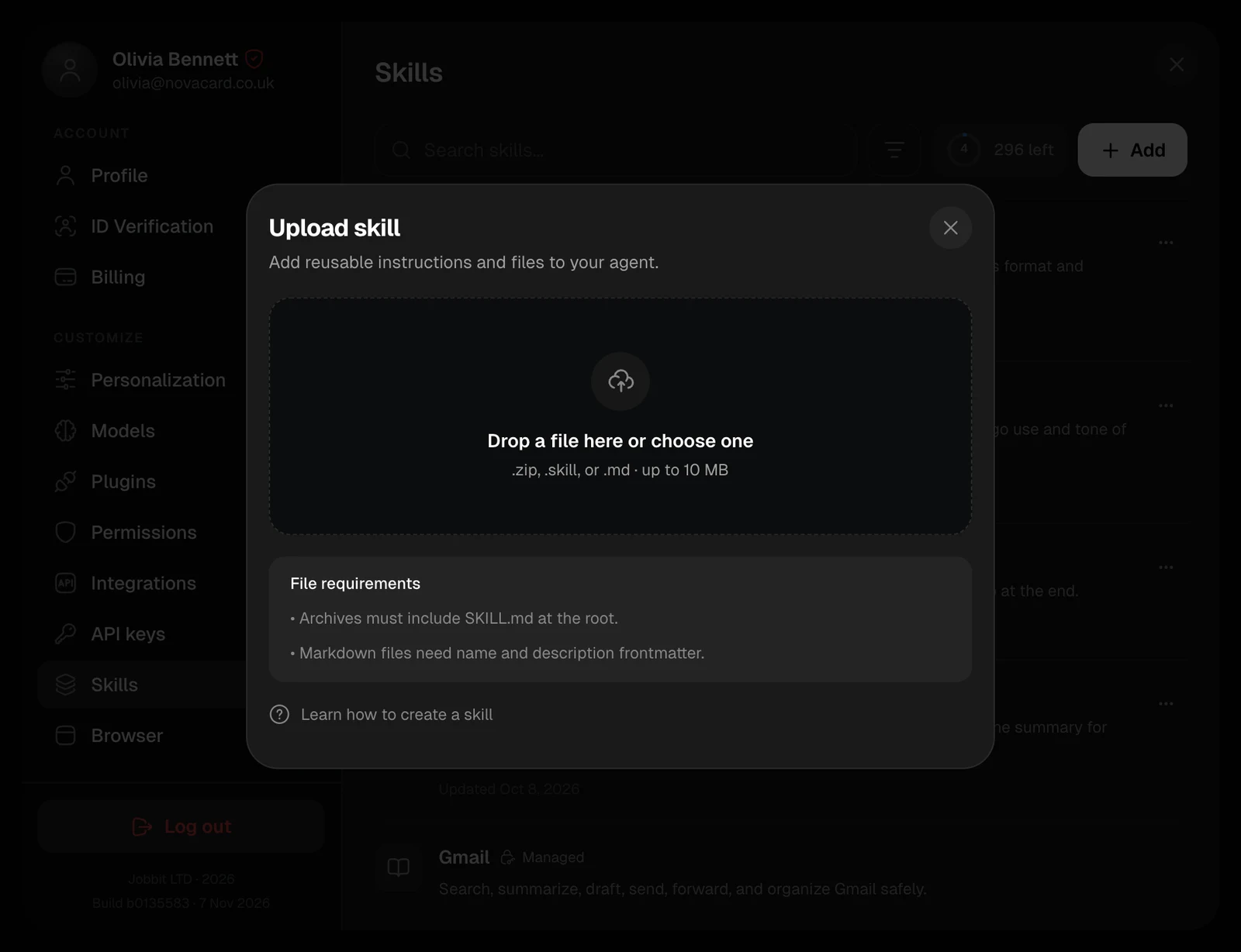
Drop a file on the window or choose one: a .zip, .skill or .md file, up to 10 MB.
  • An archive needs a SKILL.md at its root. Other files in it, such as templates or scripts, come along.
  • A Markdown file needs name and description in its front matter.
The Upload skill window with the drop area and file requirements, light themeThe Upload skill window with the drop area and file requirements, dark theme
A SKILL.md starts like this:
SKILL.md
---
name: investor-update
description: Drafts the monthly investor update from the month's numbers, in NovaCard's format and under 400 words.
---

# Investor update

Write the NovaCard investor update for the month that just ended.
...
The description is what the agent matches tasks against, so say plainly what the skill is for. Uploading a skill with the same name as one you have replaces it. A new skill is enabled, unless 50 are enabled already.

Open a skill

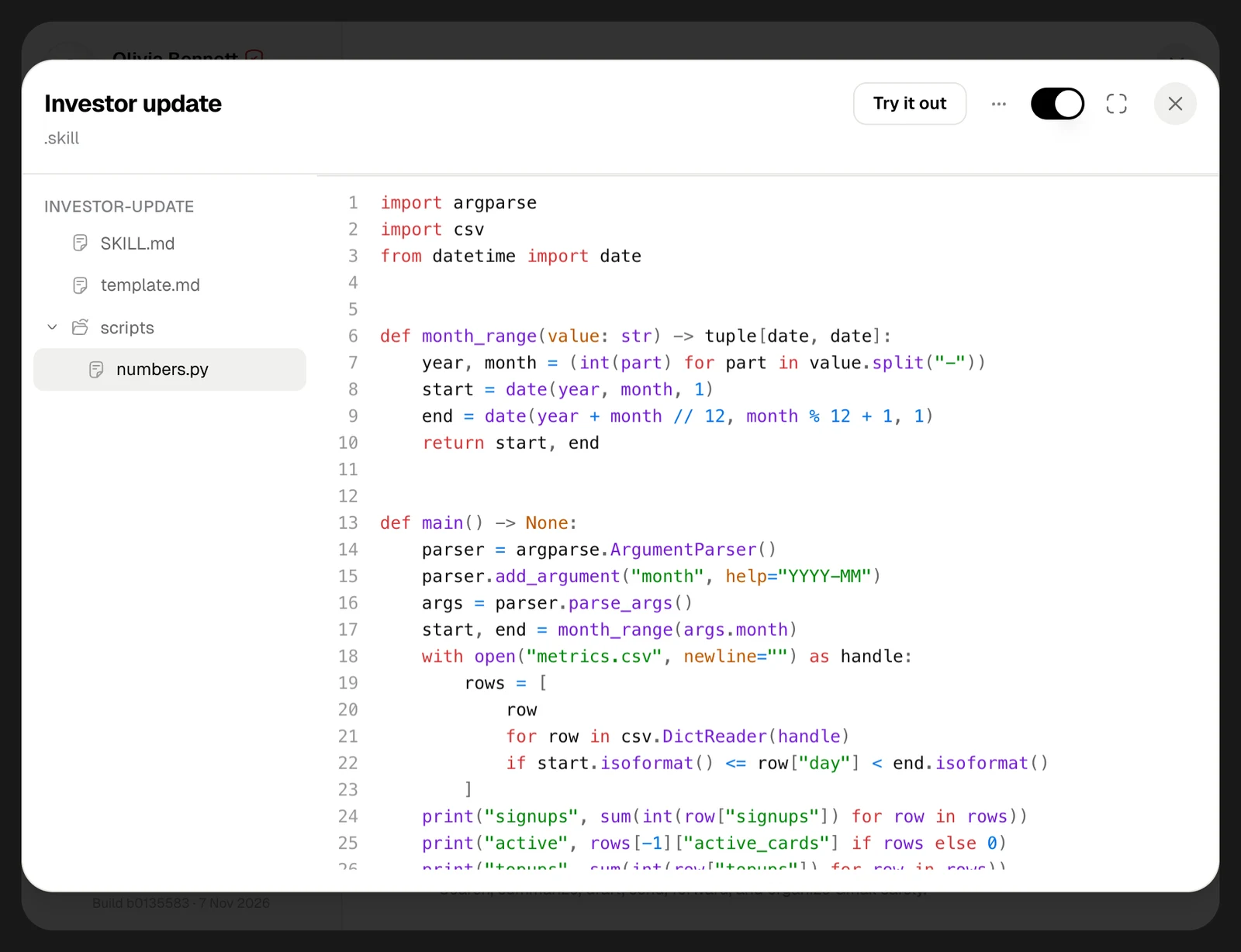
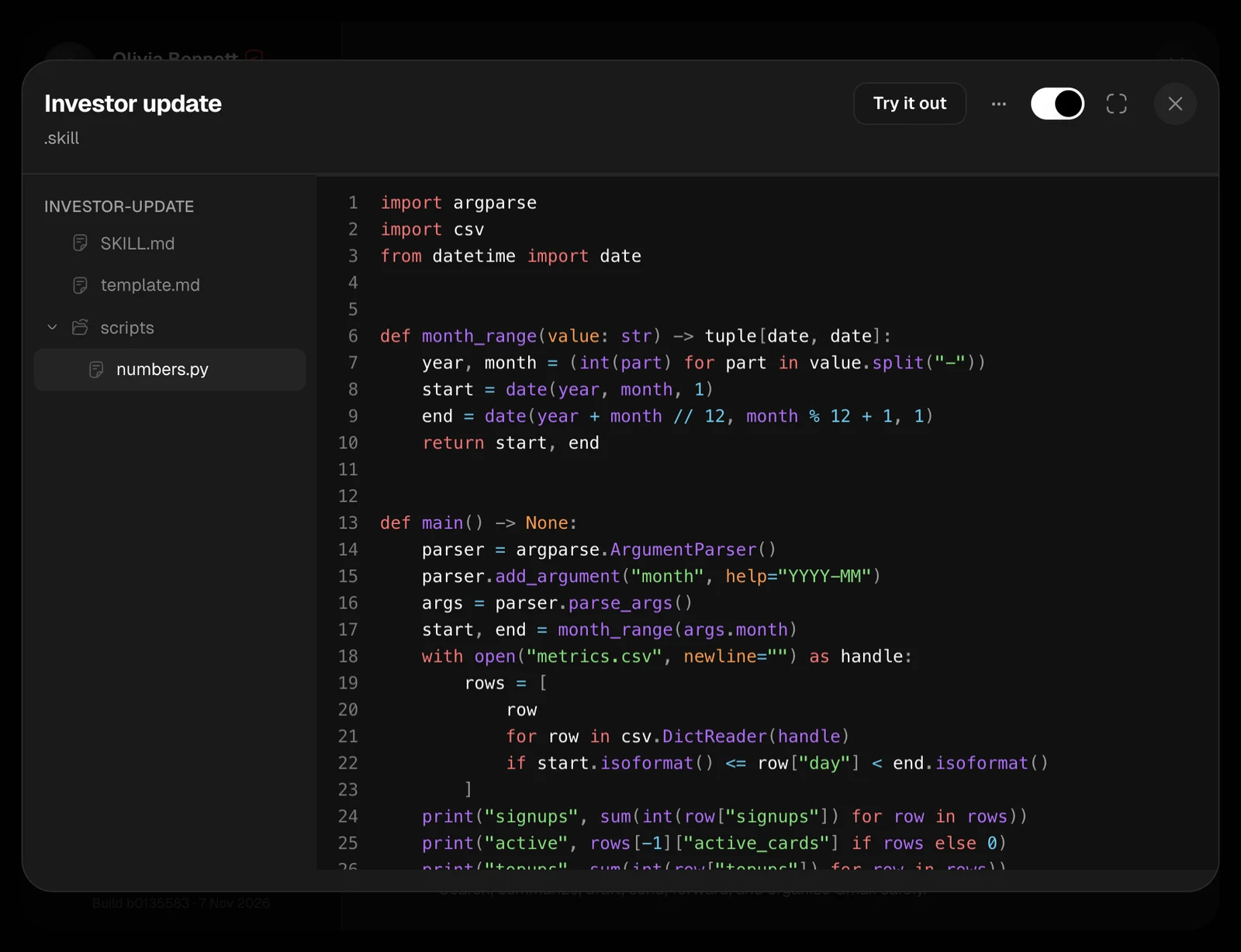
Click a skill to see its files. Markdown files show formatted, code shows as code. At the top: Try it out, the ⋯ menu with Download and Delete, the switch that enables or disables it, and full screen.
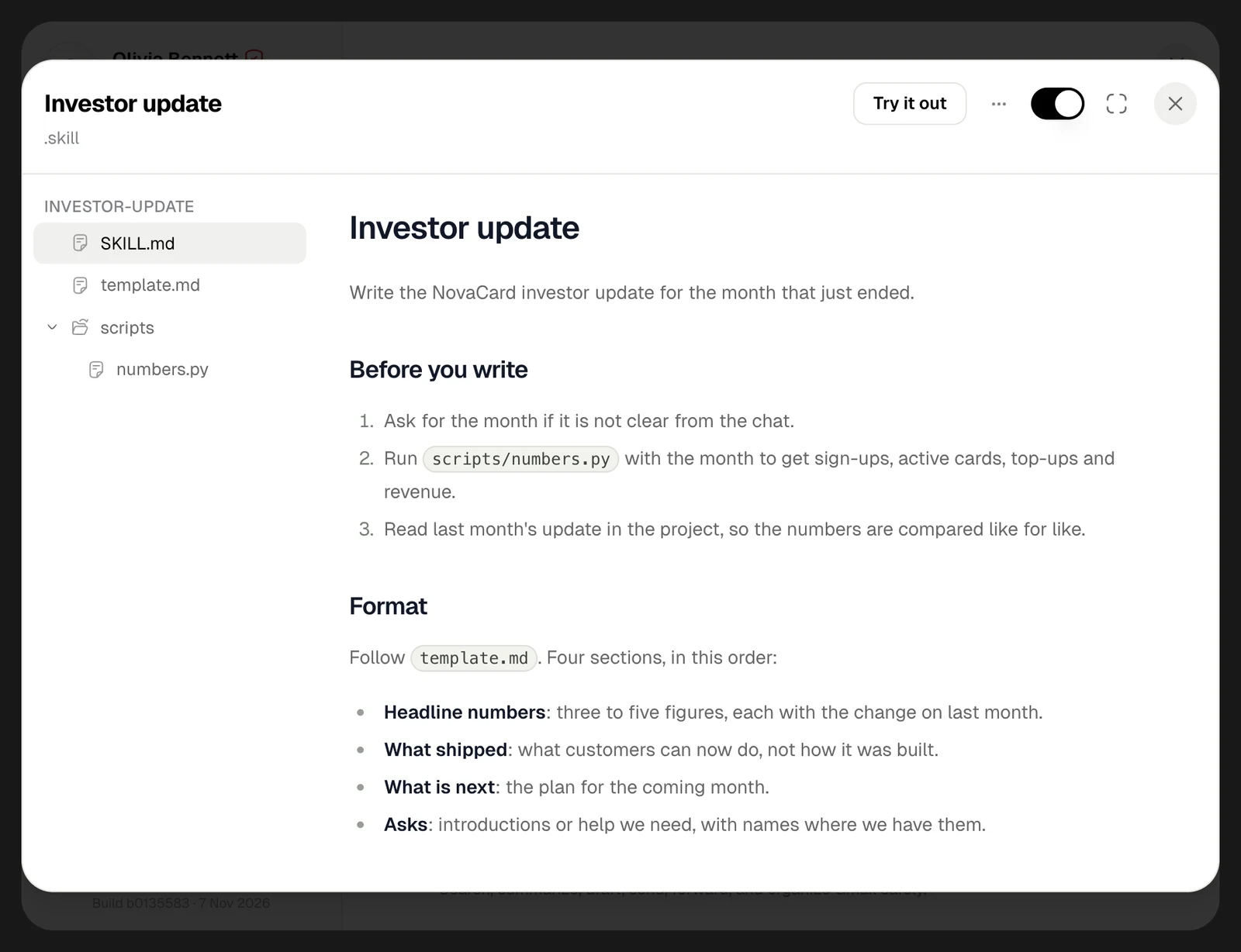
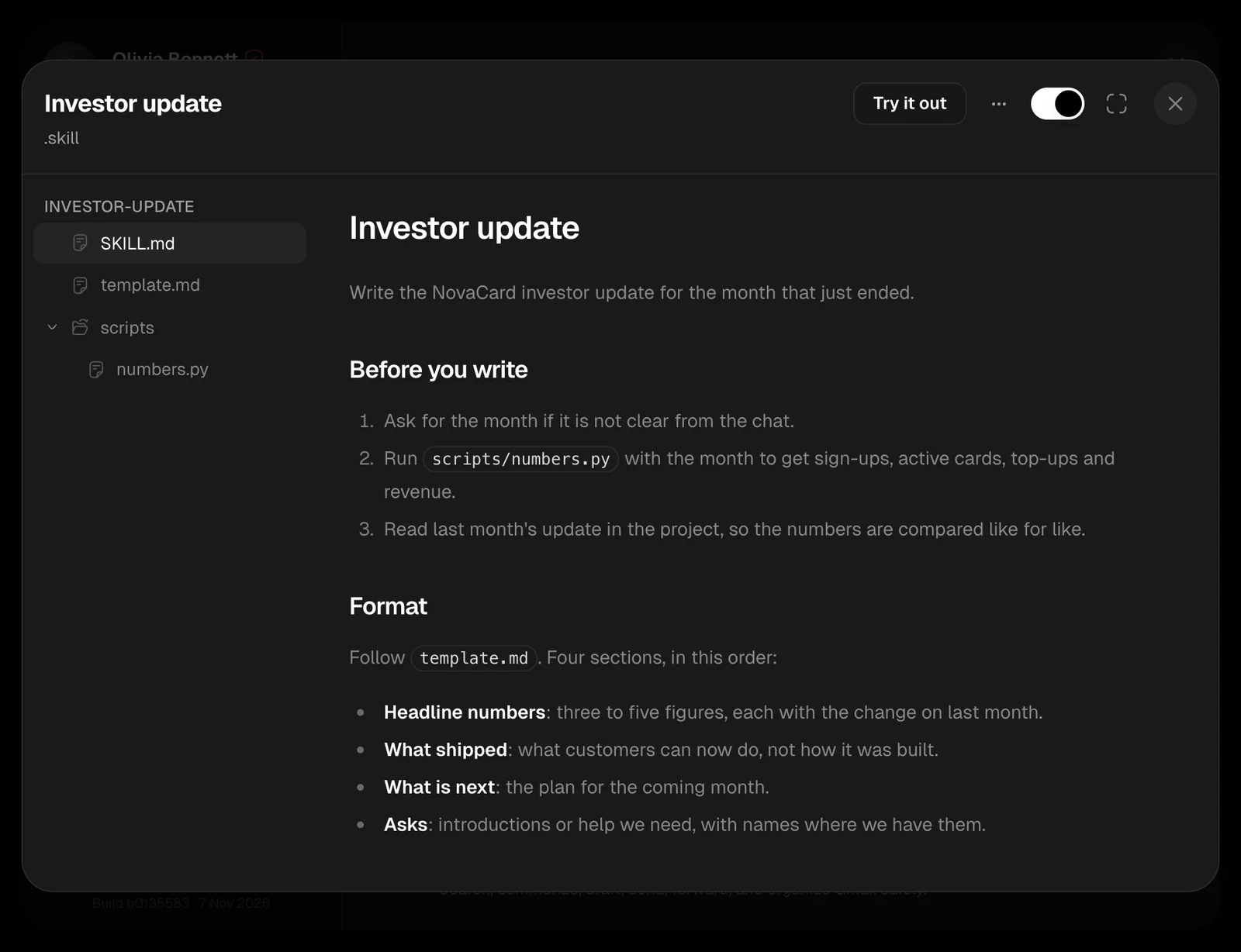
A skill window with its files and SKILL.md, light themeA skill window with its files and SKILL.md, dark theme
A Python file of a skill, light themeA Python file of a skill, dark theme

Manage your skills

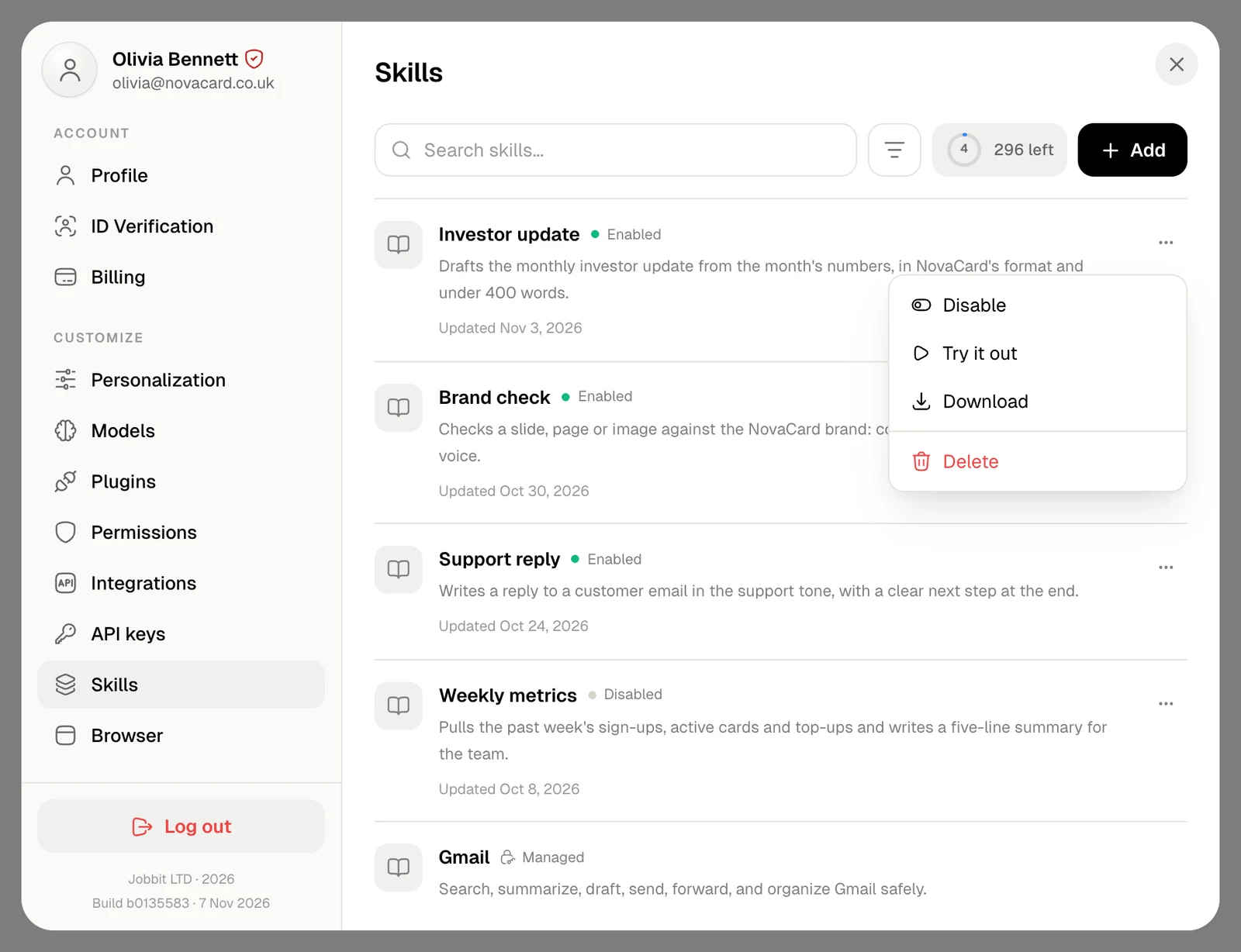
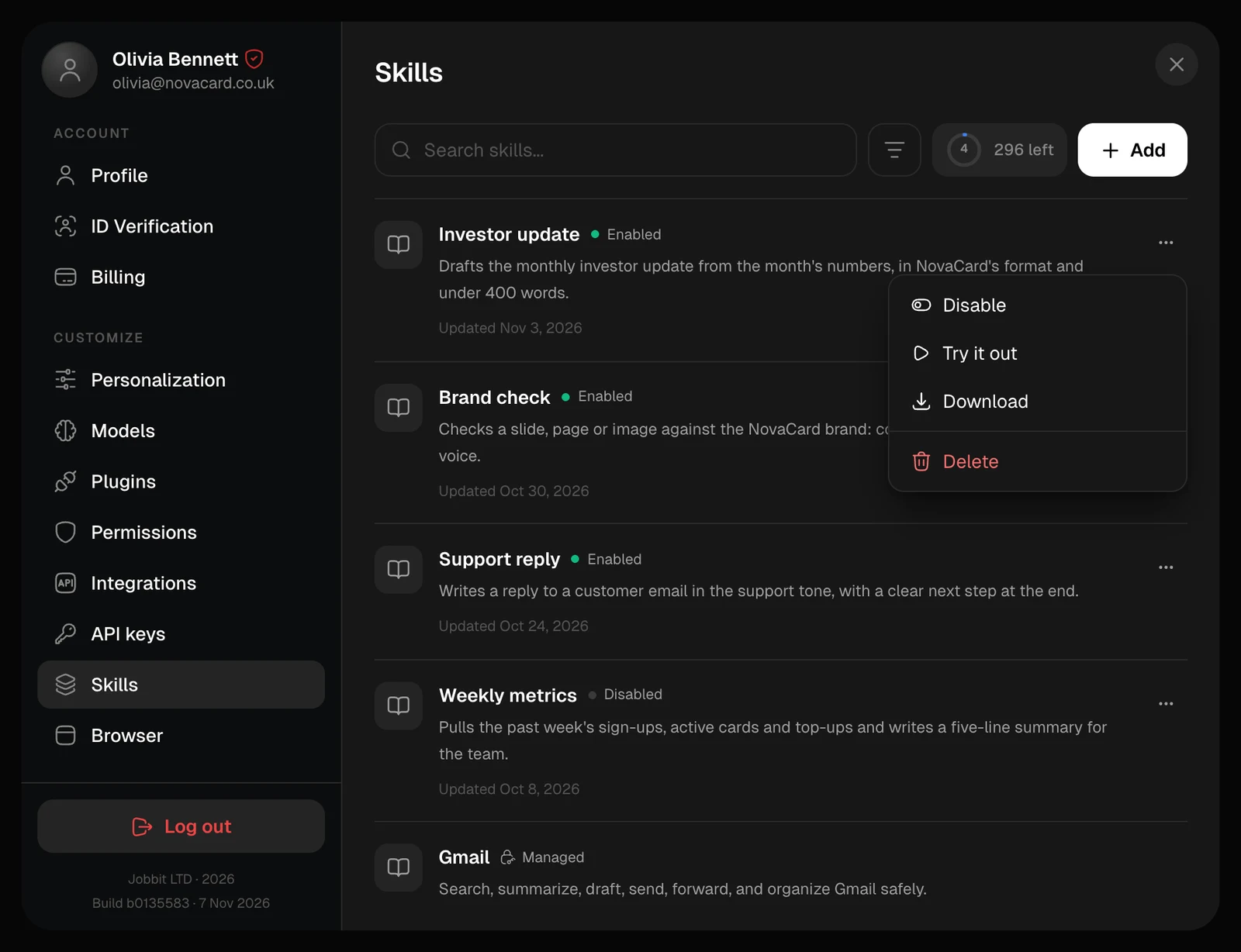
The ⋯ menu on a skill of your own:
ActionWhat it does
Disable or EnableA disabled skill stays in your list, but the agent does not use it
Try it outOpens a chat that asks the agent to show what the skill can do
DownloadSaves the skill as a .zip
DeleteRemoves the skill and its files for good, after you confirm
The skill menu with Disable, Try it out, Download and Delete, light themeThe skill menu with Disable, Try it out, Download and Delete, dark theme
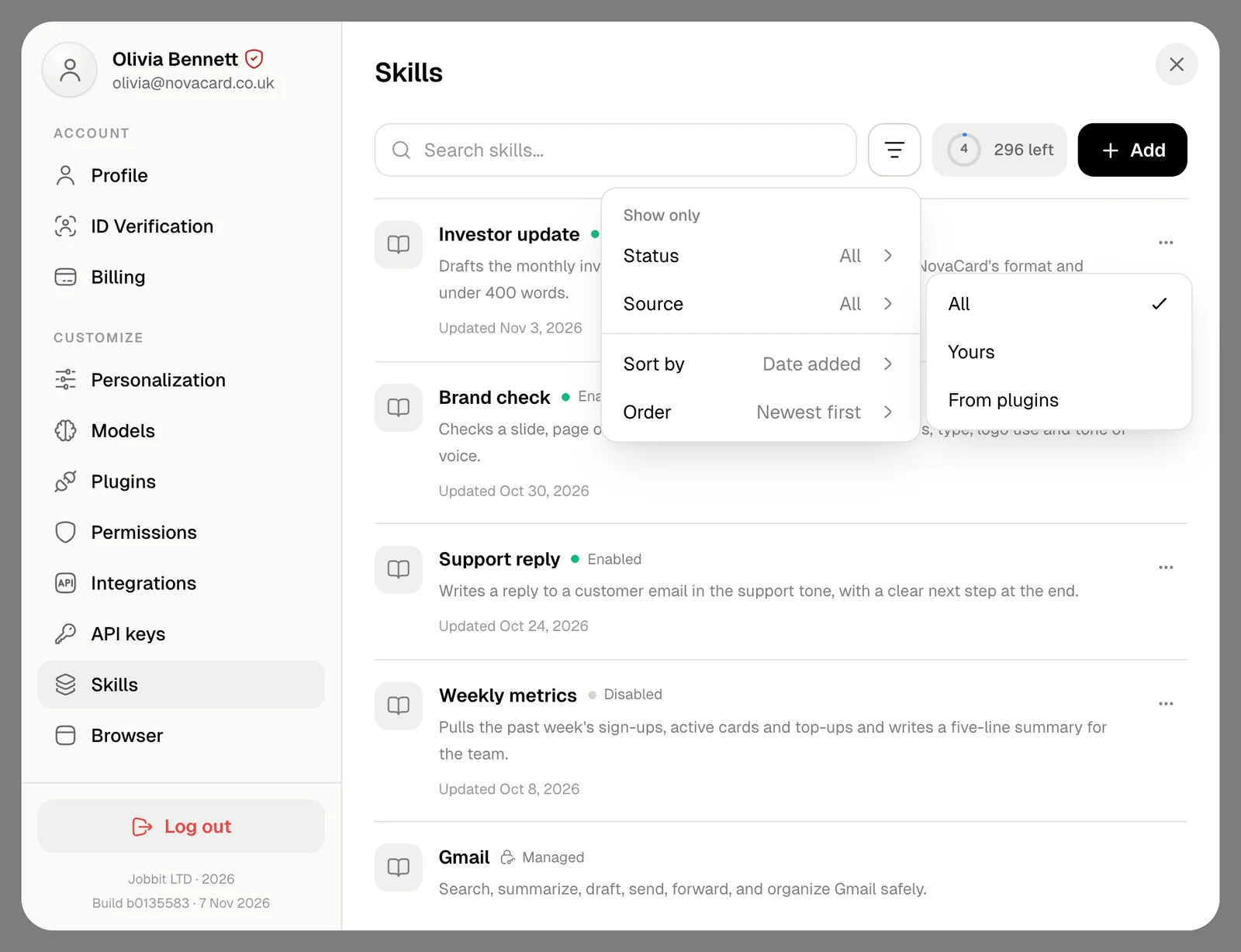
Search skills finds a skill by its name or description. The filter button shows only enabled or disabled skills, only Yours or only those From plugins, and changes the order.
The skills filter with Status and Source, light themeThe skills filter with Status and Source, dark theme

The Skills page

The same list has a page of its own, with New skill at the top: account menu › Customize › Skills.
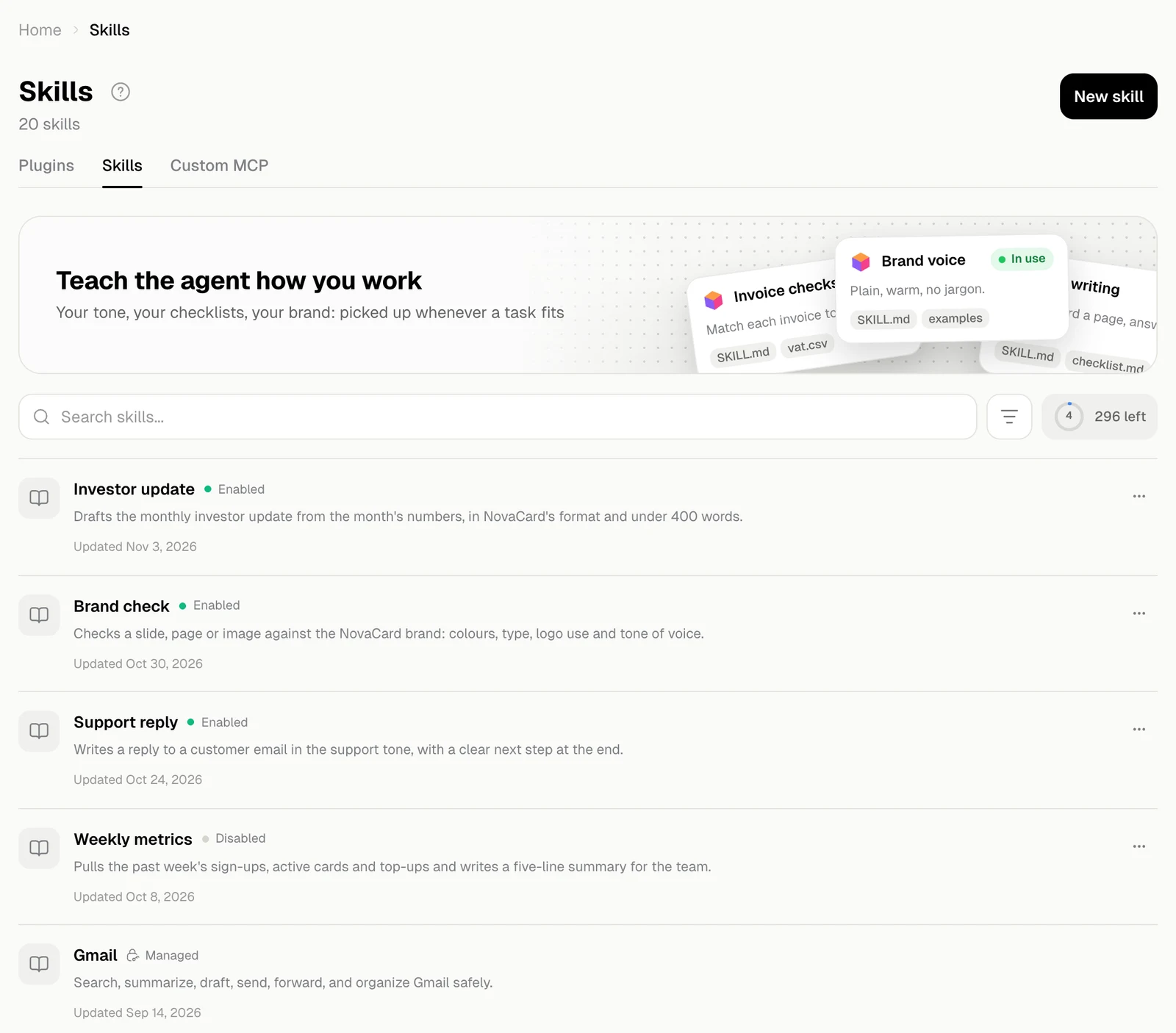
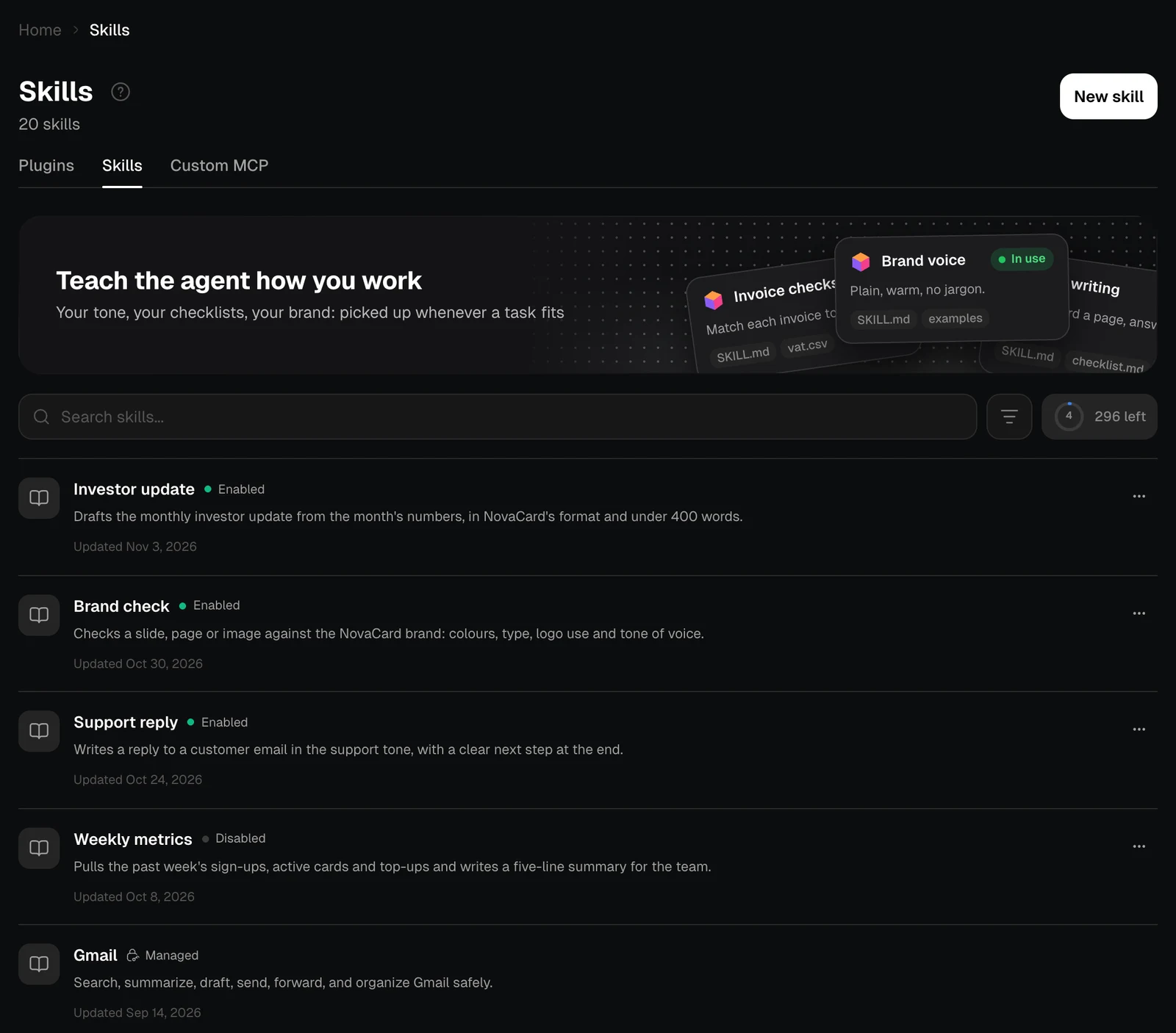
The Skills page with the list of skills, light themeThe Skills page with the list of skills, dark theme