What each row shows
| Column | What it shows |
|---|---|
| Automation | The name, how it starts and the project it belongs to, or Personal |
| Recent runs | One bar per recent run: green succeeded, red failed, an amber outline waits for you |
| Last run | When it last ran and how that run ended |
| Next run | When it runs next on its own. On each call for webhooks, — when nothing is scheduled |
| 30 days | Credits spent in the last 30 days |
What needs you
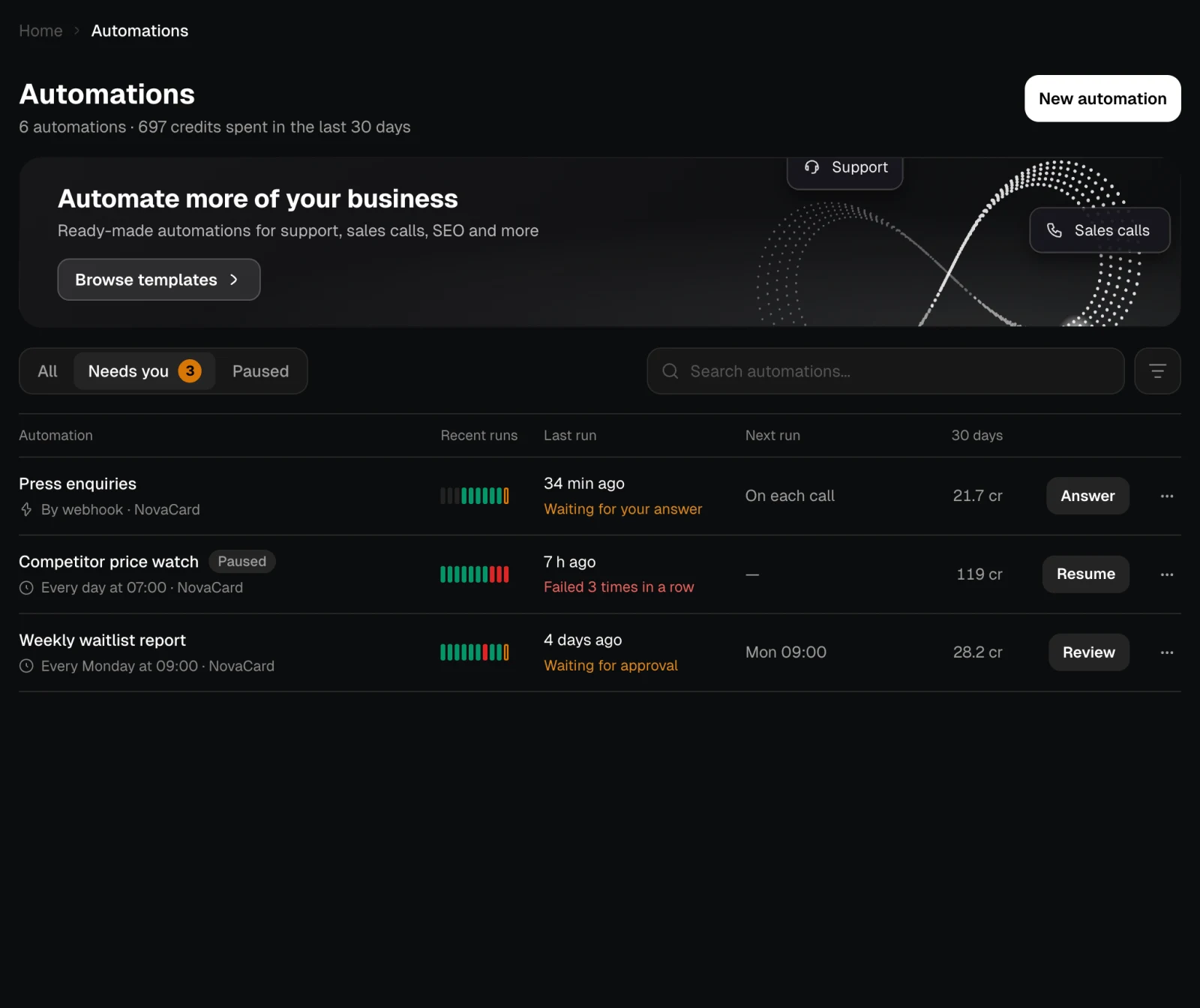
Needs you shows only the automations waiting for you, with how many there are. Paused shows the ones that are off.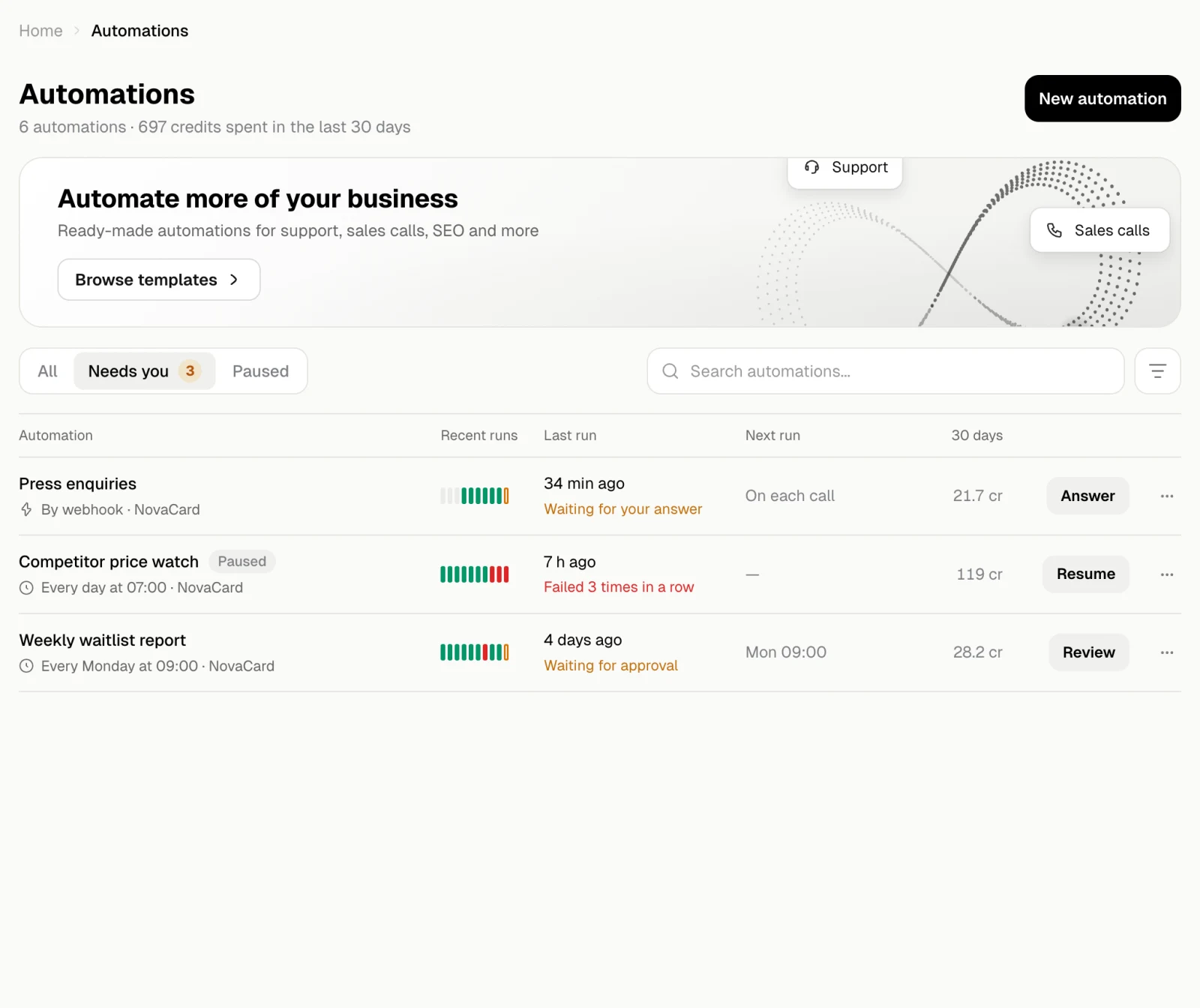
Search, filter and sort
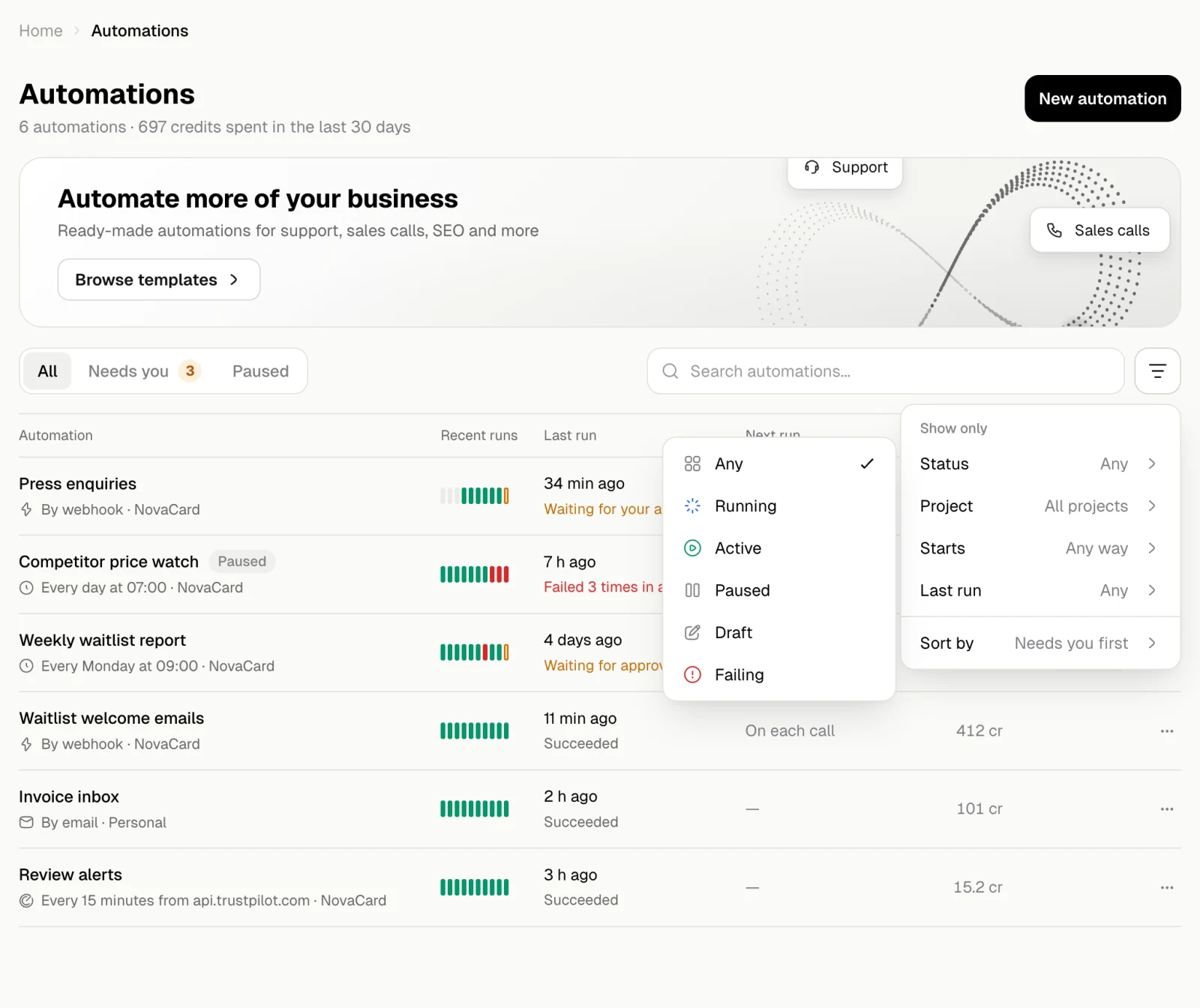
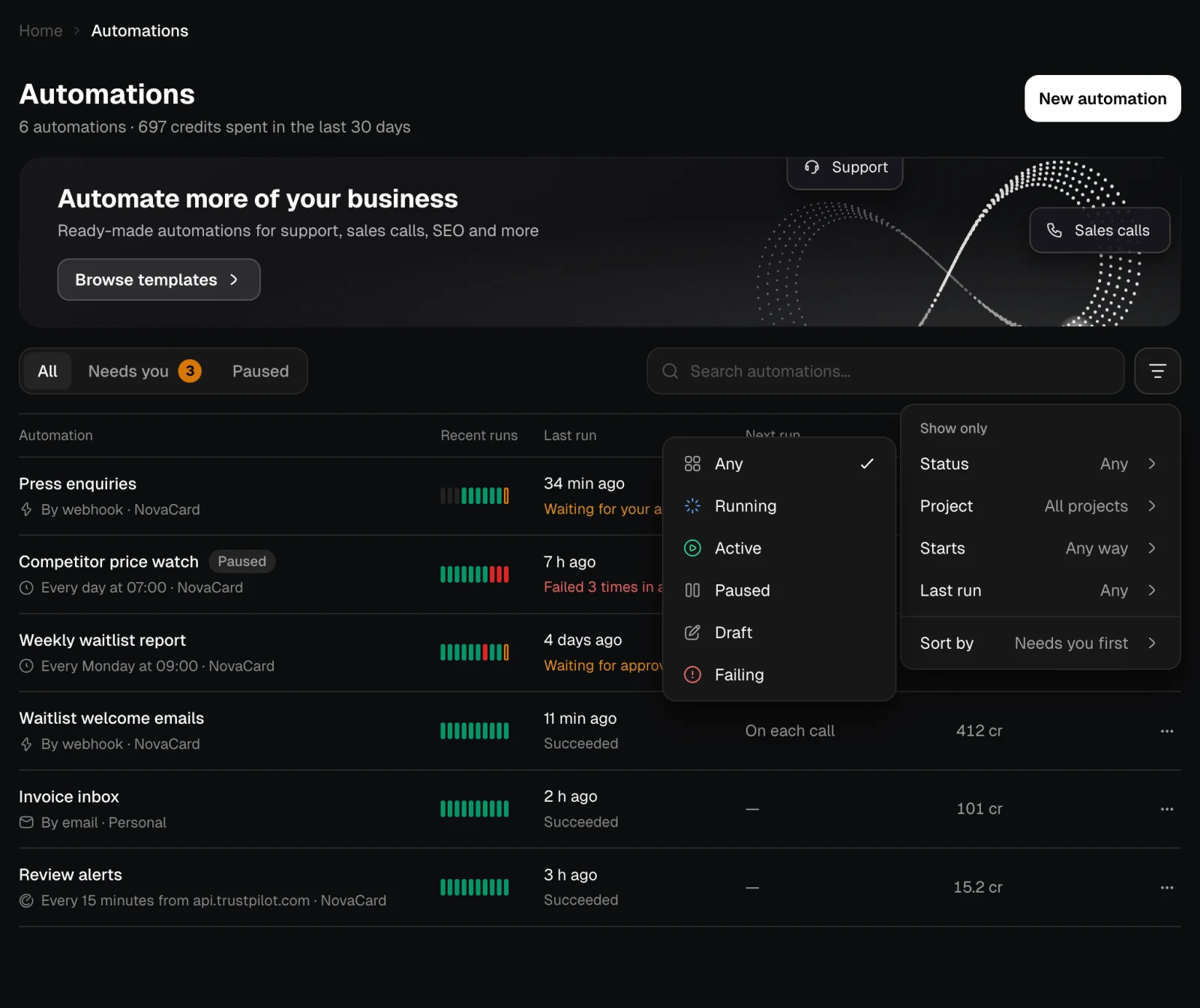
Type in Search automations to find one by name. The filter button next to it opens Show only and Sort by:- Status: Running, Active, Paused, Draft, Failing.
- Project: one of your projects, or Personal.
- Starts: on a schedule, by webhook, by email, by polling, on an event, manually.
- Last run: succeeded, failed, never ran.
- Sort by: needs you first, last run, next run, name or spending, with the order you choose.
Actions on a row
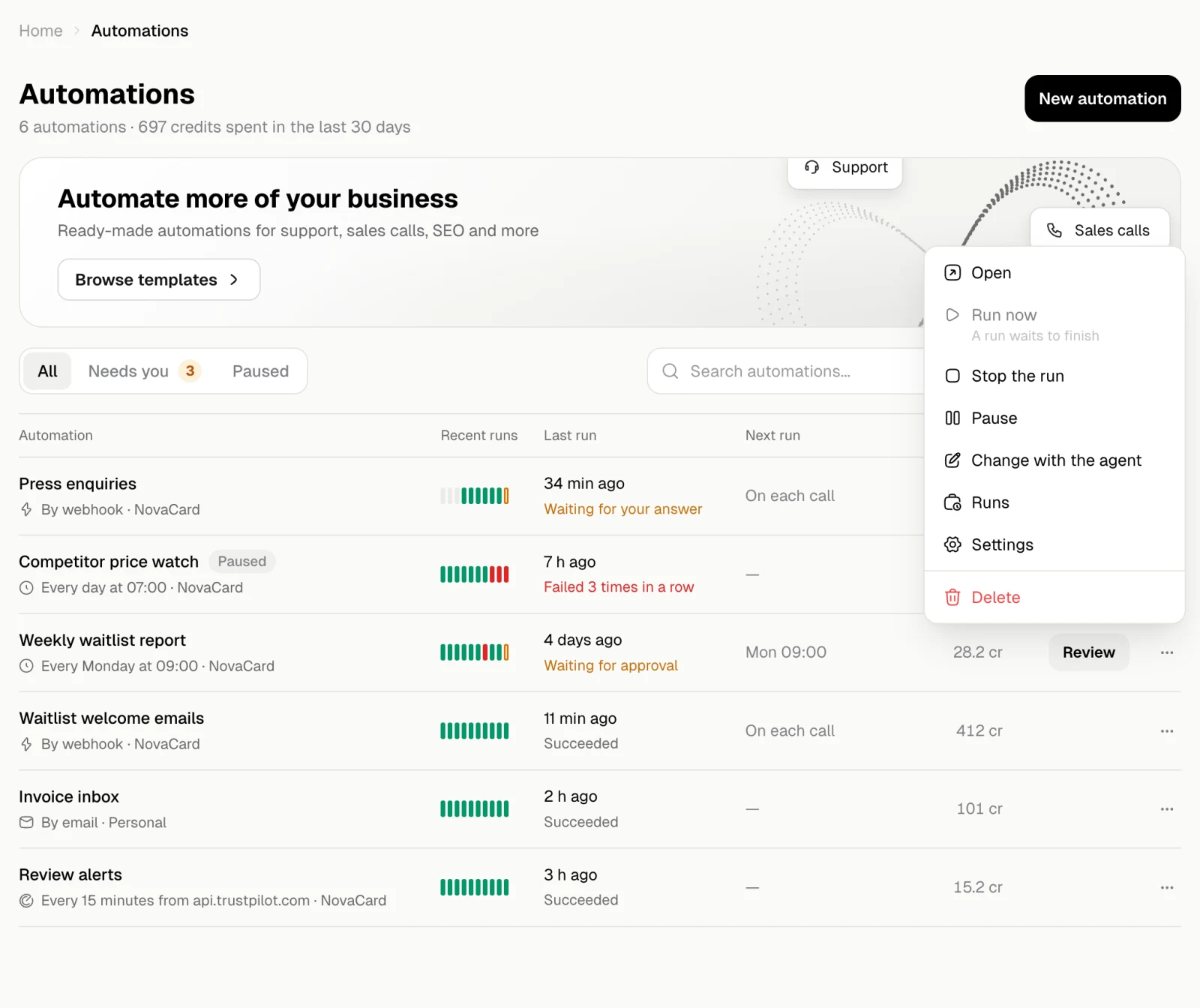
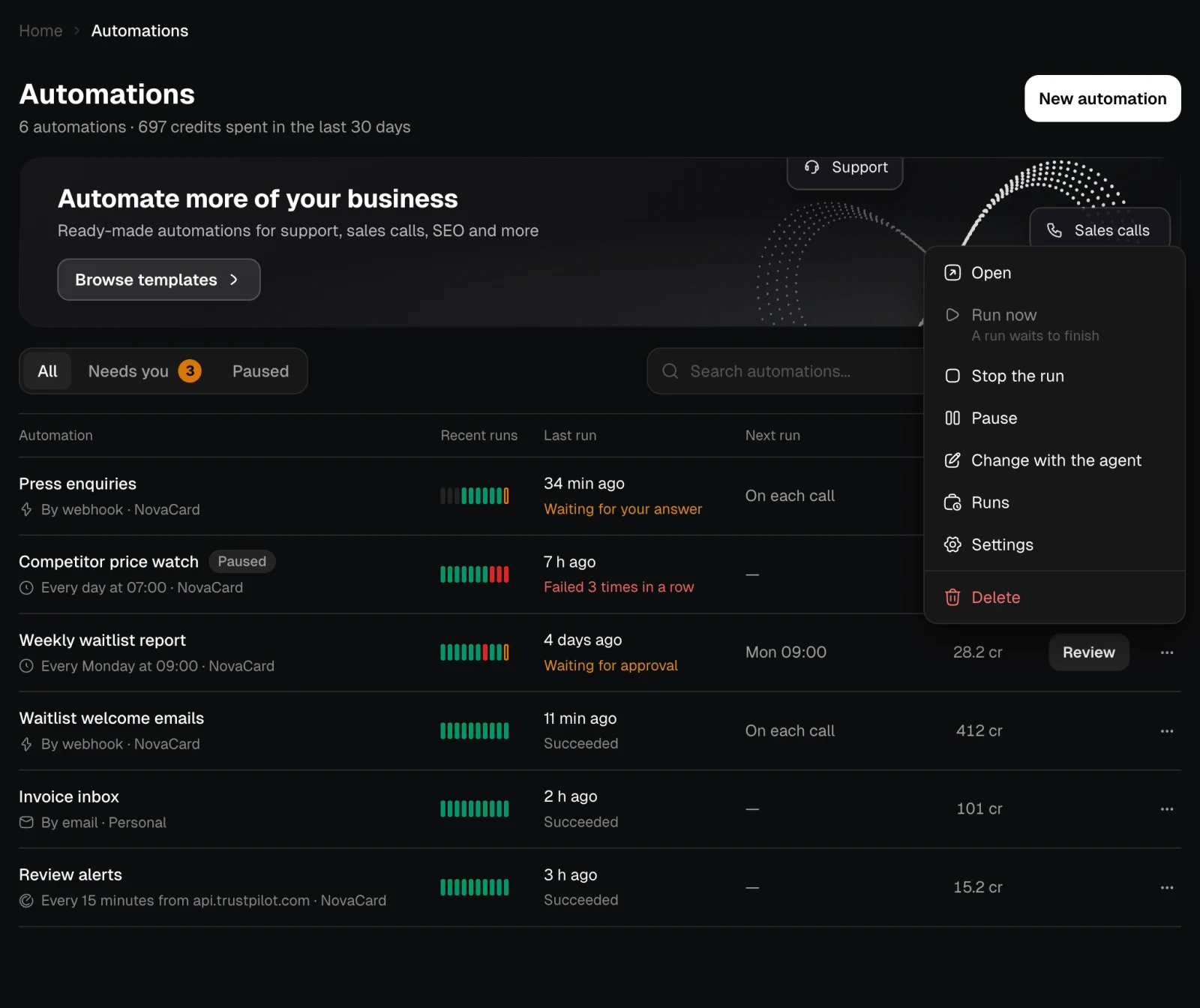
The ⋯ menu of a row:| Action | What it does |
|---|---|
| Open | Opens the automation’s page |
| Run now | Starts a run at once. Not available while a run waits to finish |
| Stop the run | Stops the run that is going or waiting |
| Pause / Resume | Turns it off or on again |
| Change with the agent | Opens a chat with the agent, with this automation named |
| Runs | Opens its runs |
| Settings | Opens its settings |
| Delete | Deletes it after you confirm. See Delete an automation |
Your first automation
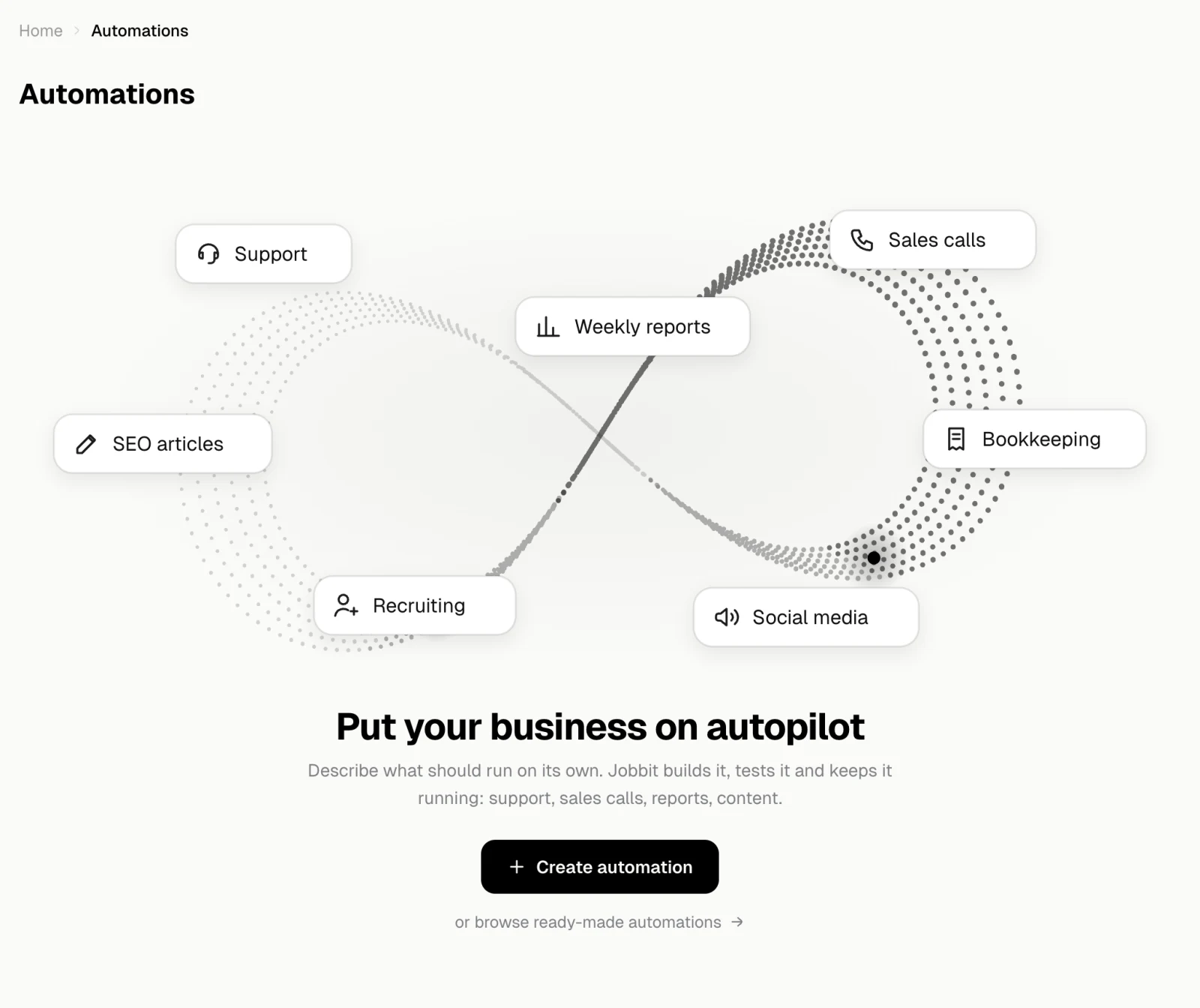
With no automations yet, the page offers Create automation, which opens a chat with the agent, and ready-made automations to start from.