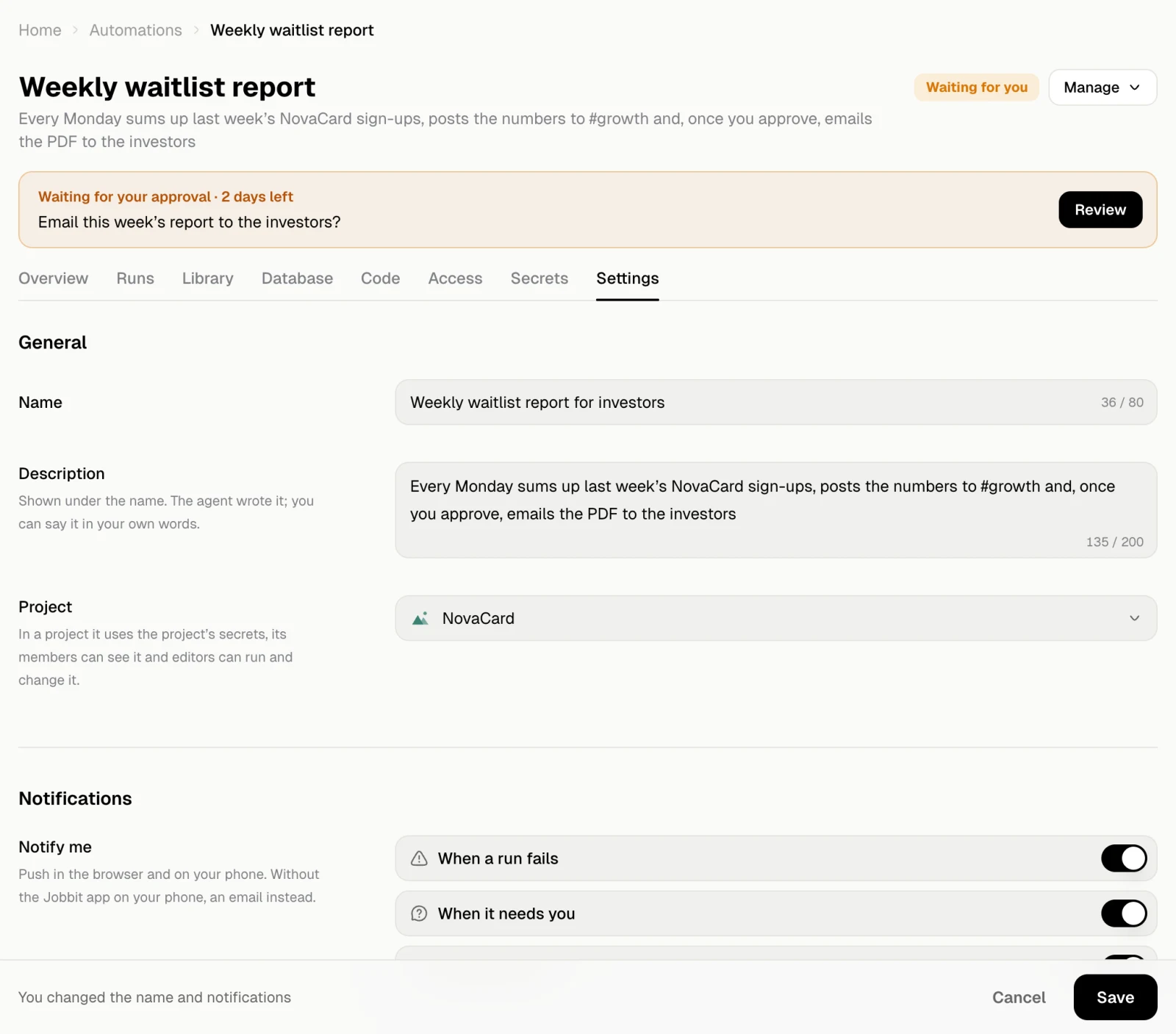
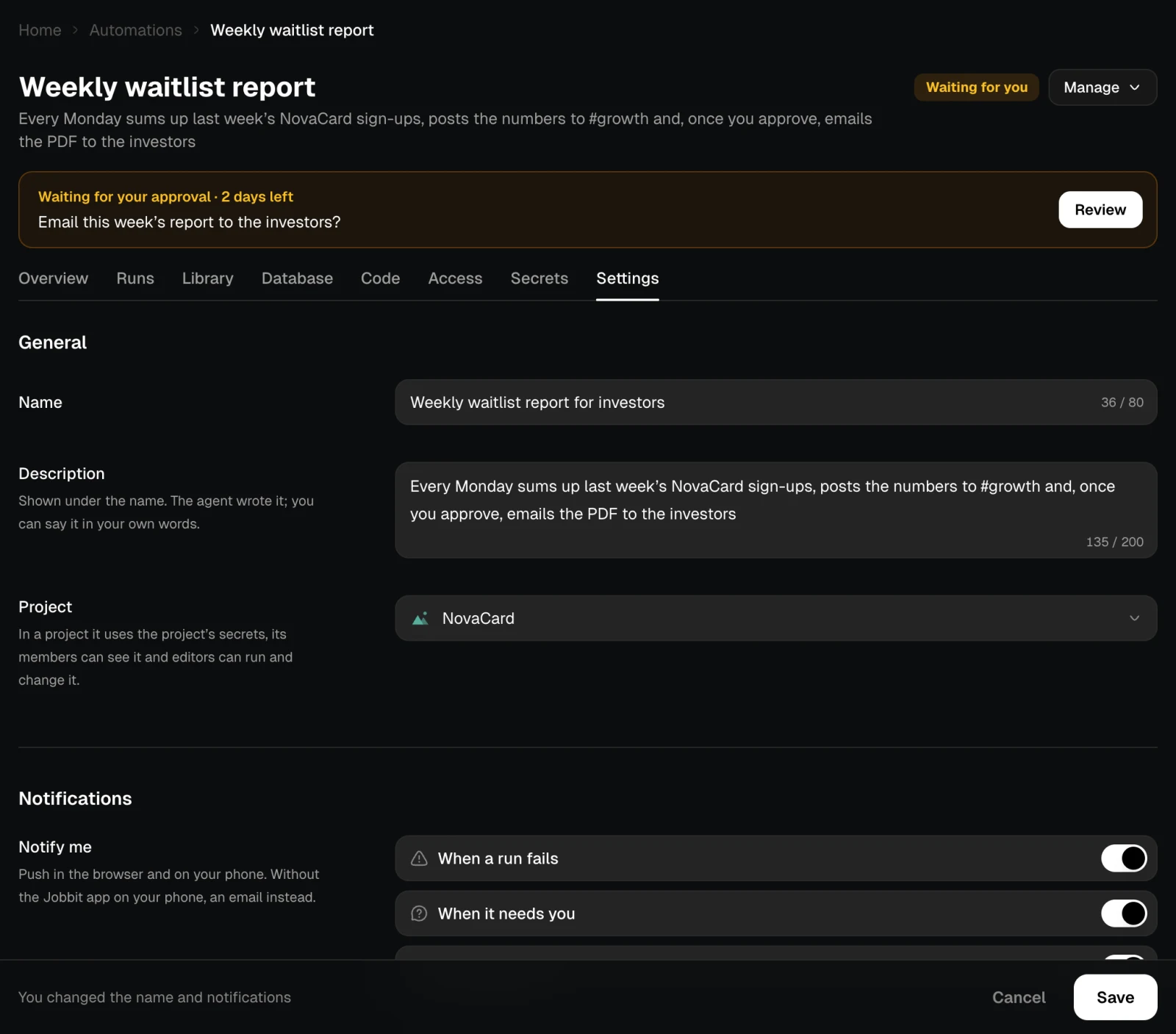
General
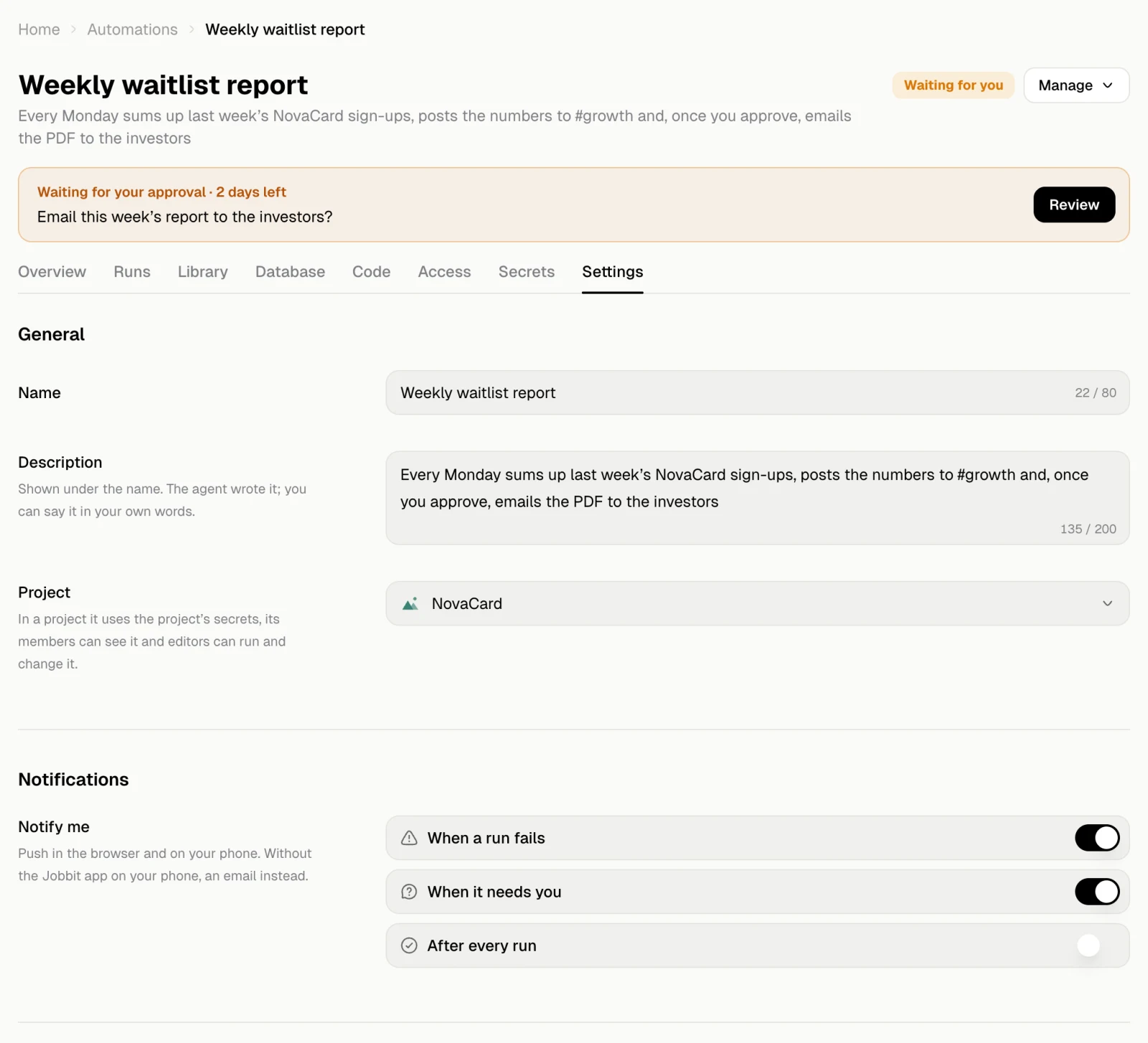
| Setting | What it does |
|---|---|
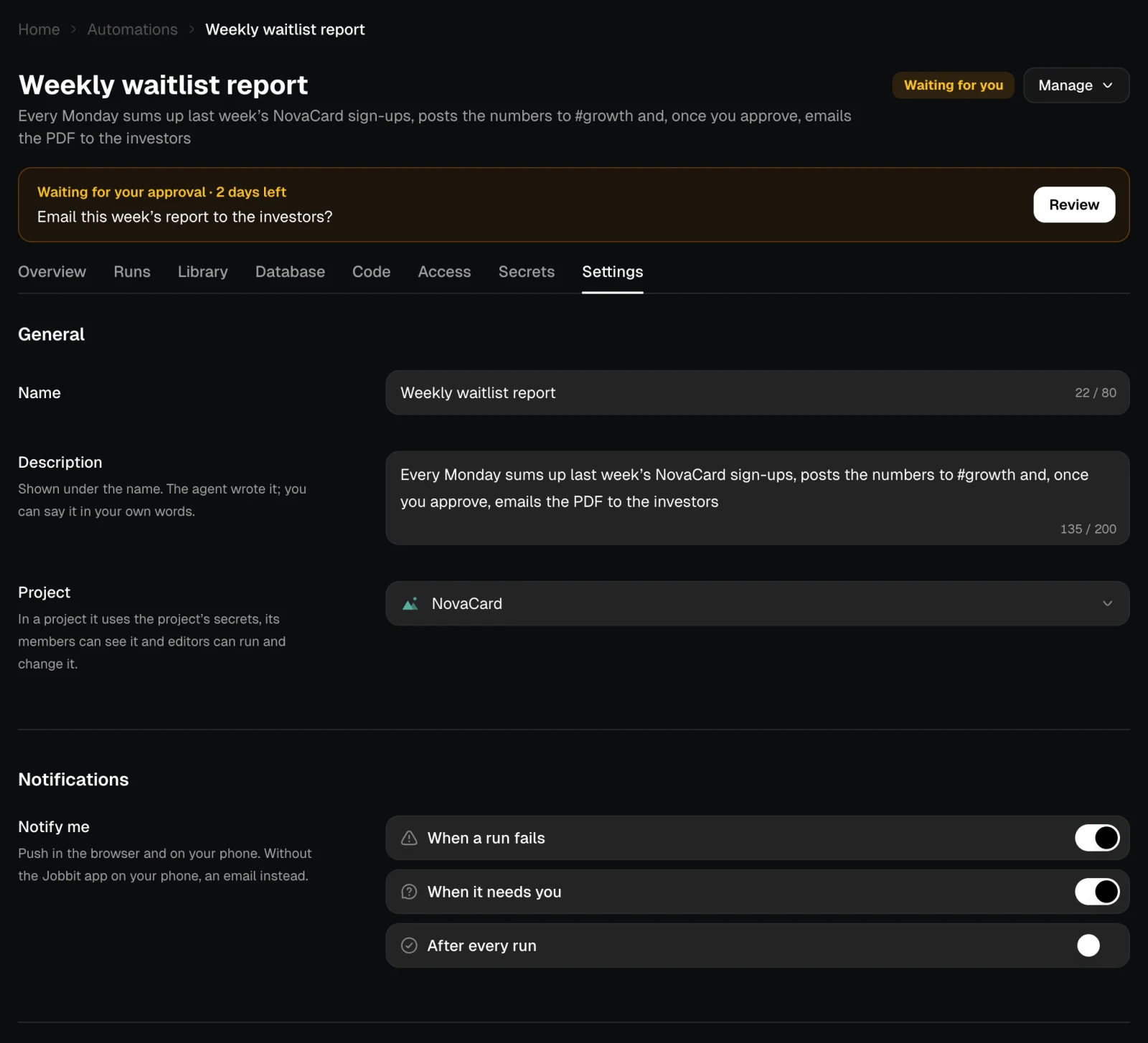
| Name | How it shows in Jobbit, up to 80 characters |
| Description | The line under the name, up to 200 characters. The agent wrote it; you can say it in your own words |
| Project | The project it belongs to, or Personal. In a project it uses the project’s keys, its members can see it and editors can run and change it |
Notifications
Notify me chooses when you hear about it:- When a run fails
- When it needs you, for an answer or an approval
- After every run
Failures
Pause automatically after a number of failures in a row, so a broken site or an expired login does not keep spending credits. It then shows Paused after 3 failures in a row, with the last error.Spending
Limit spending sets a Monthly limit in credits. When the automation has spent that much in a calendar month, it pauses itself and tells you. Under the limit it shows how much it has spent this month.Webhook, Email and Polling
An automation that starts by webhook, by email or by polling has a section for it here: its webhook address, its email address, or where it polls. See How it starts.Export
Prepare an export packs the automation’s code, tables, memory, runs and the files its runs made into one zip file. Key values are never included. You can leave the page while it is prepared; Jobbit emails you when it is ready. Download shows the size and what is inside, and stays available until the date shown.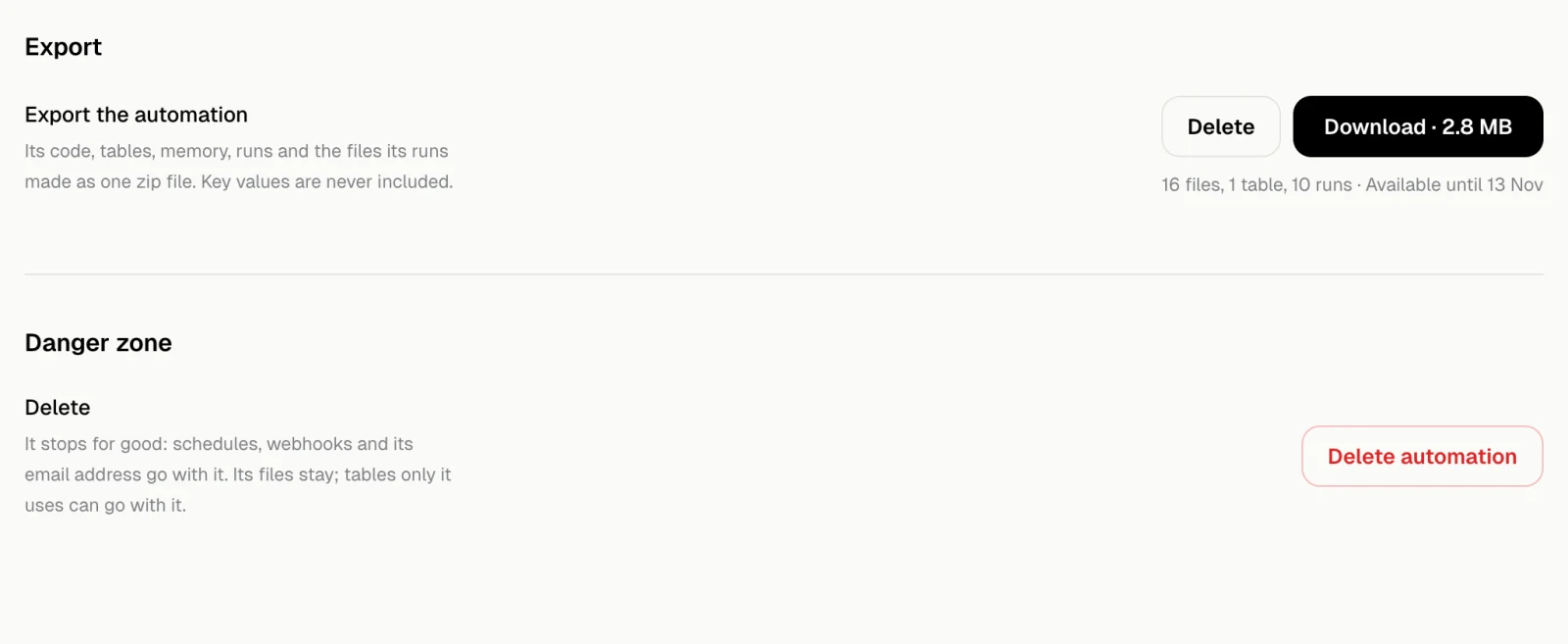
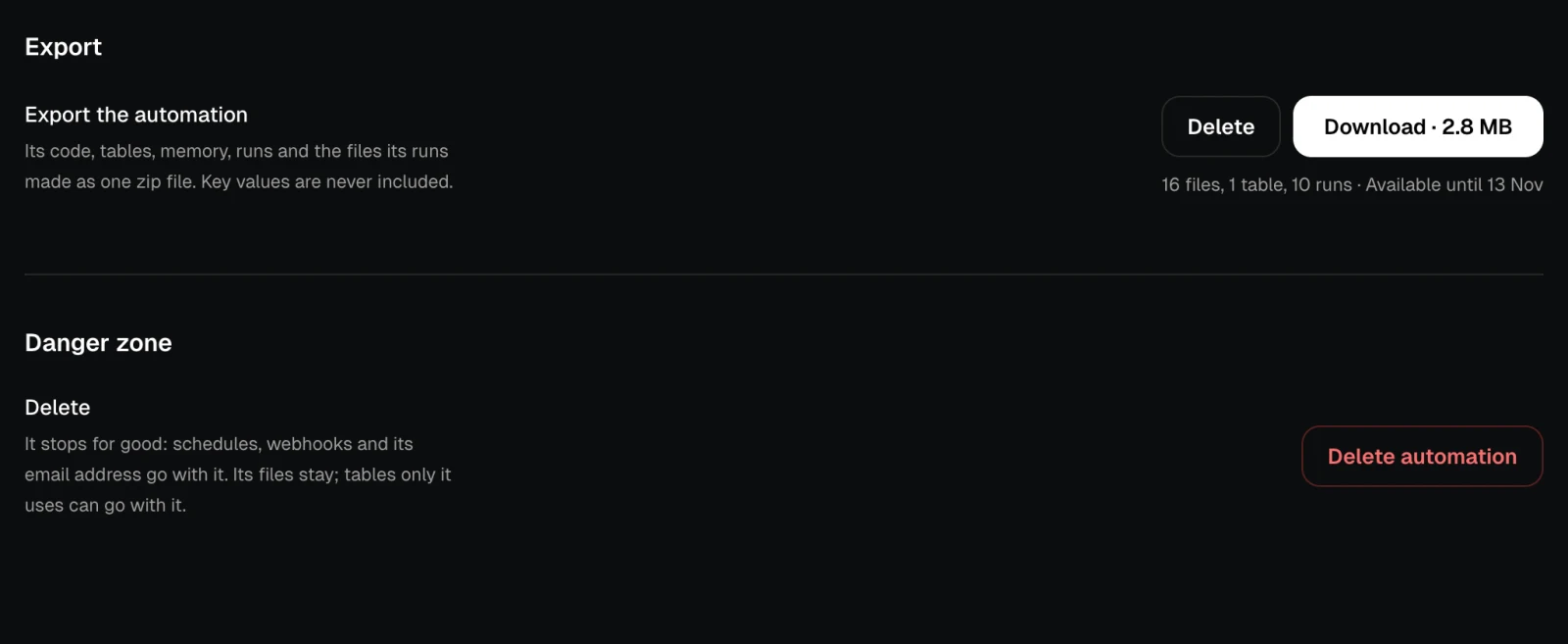
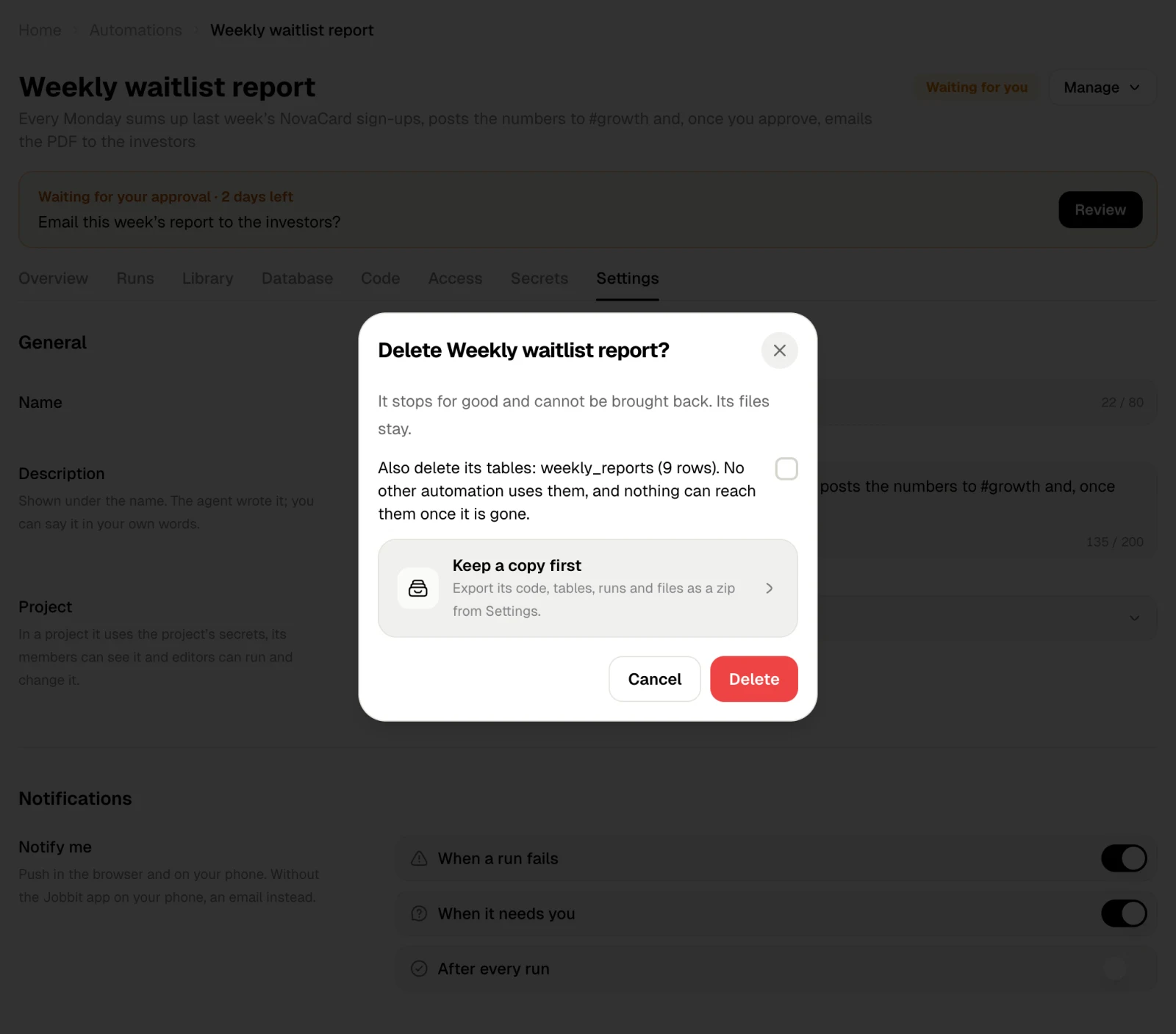
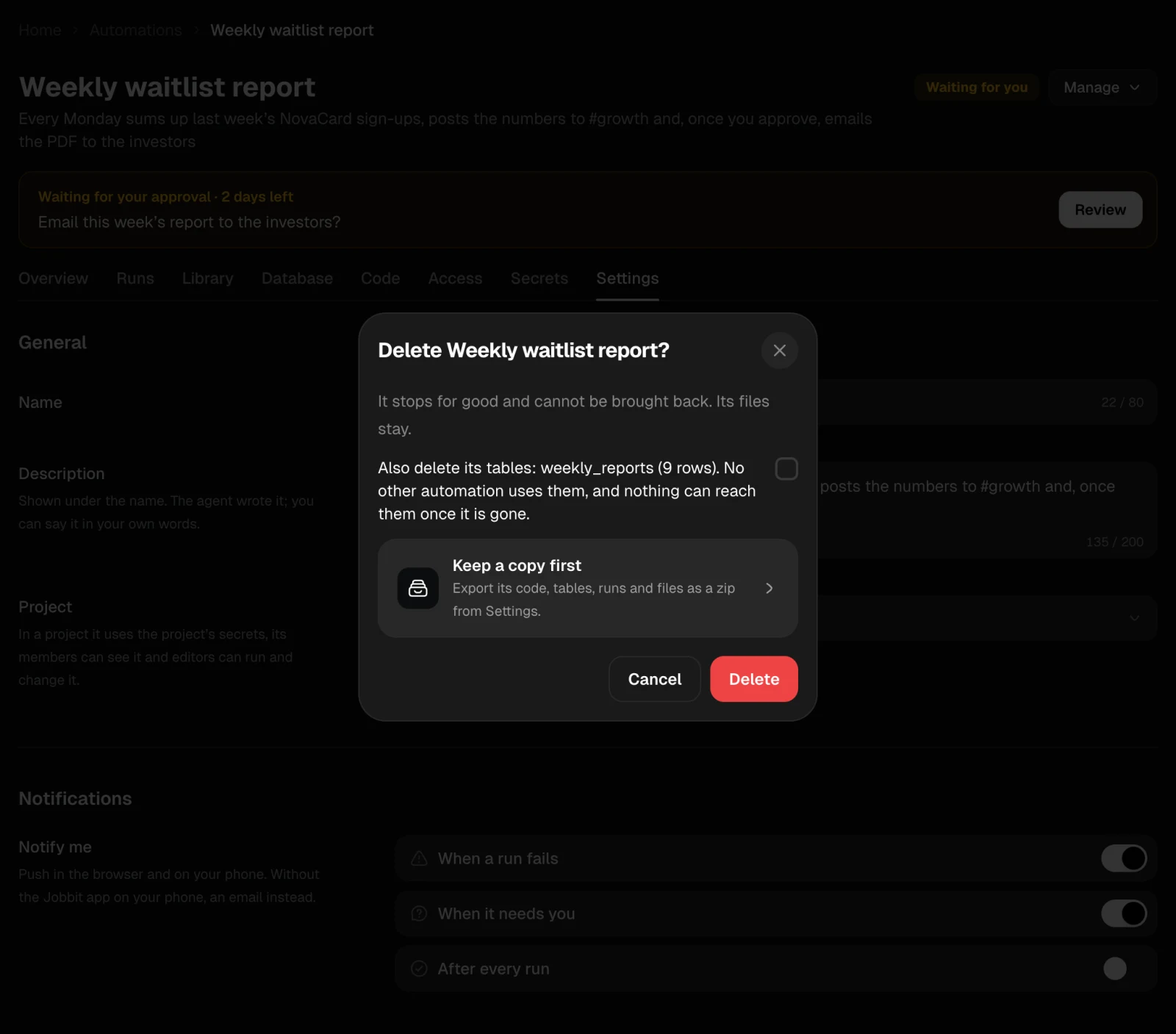
Delete an automation
Delete automation stops it for good. Its schedules, webhooks and email address go with it, and it cannot be brought back. Its files stay in its Library.