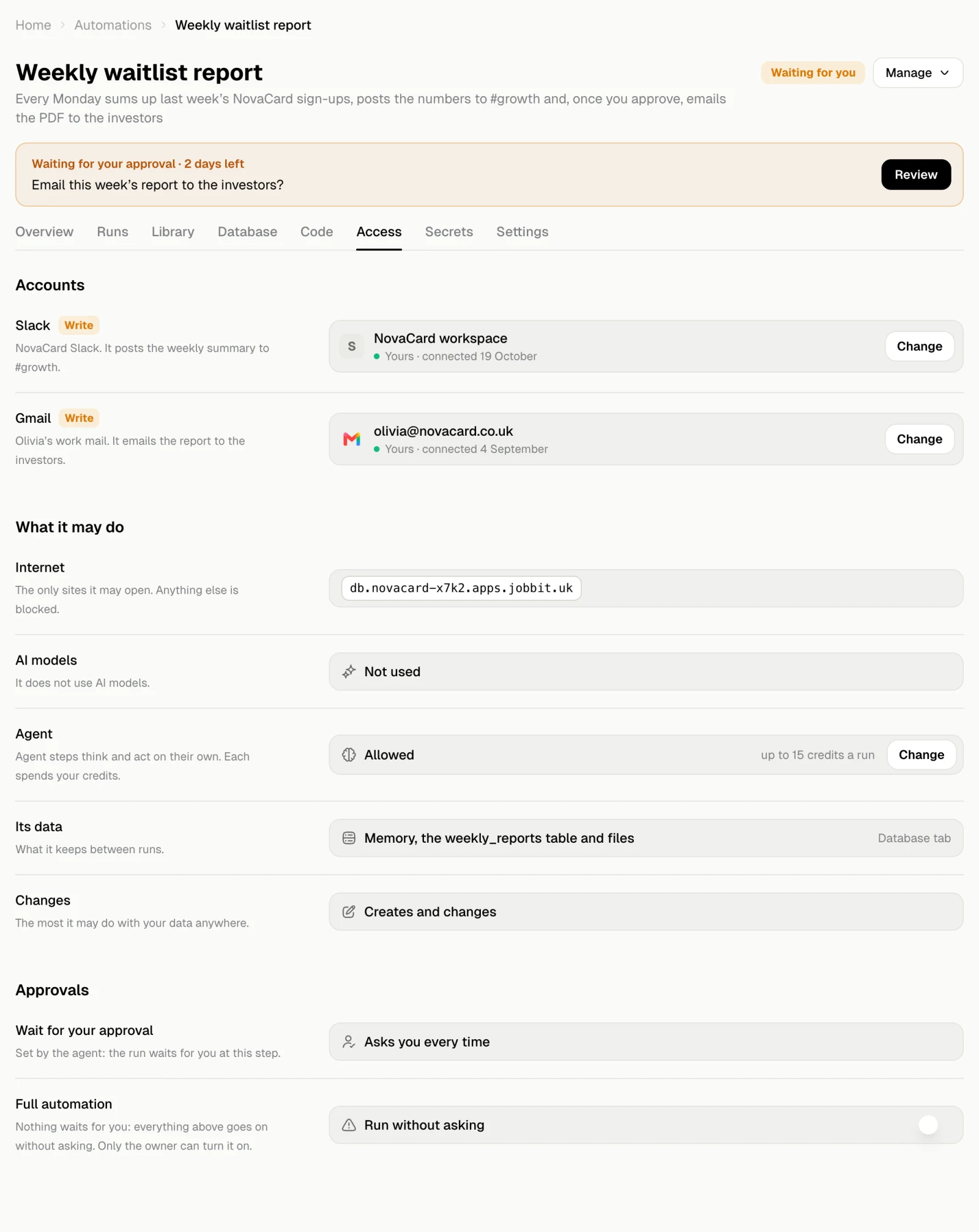
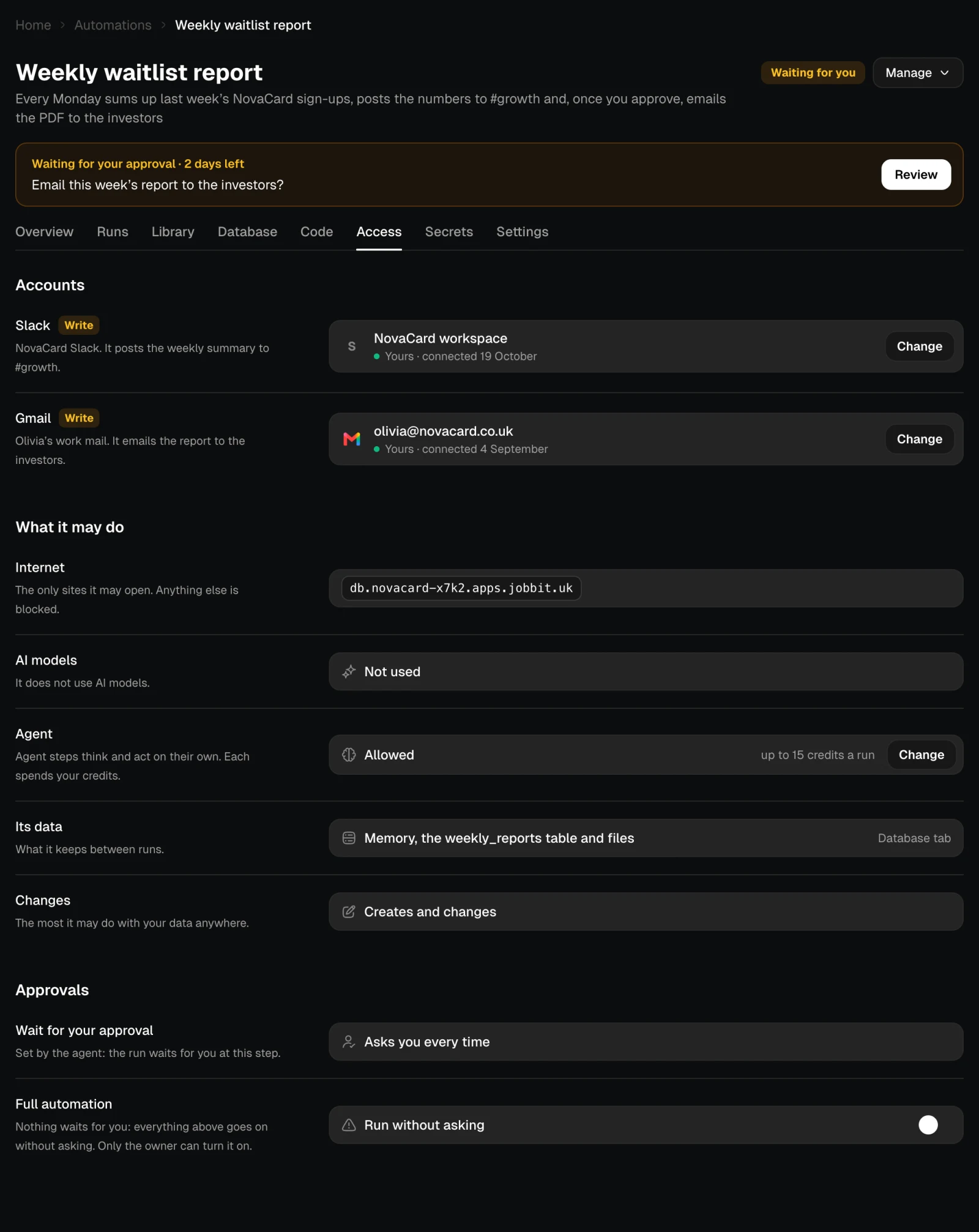
Accounts
Each account the automation needs is a row: the service, how far it may go there (Read, Write or Delete), why it needs it, and which of your connected accounts fills it. Change lists your other accounts of that service to pick from, Connect another one to sign in with a new account, and Take it out to stop using this one. After you take an account out, runs wait until another one is connected. When the service signs the automation out, for example because a token expired, the account shows Access expired · sign in again and a banner appears at the top of the page. Reconnect signs in again.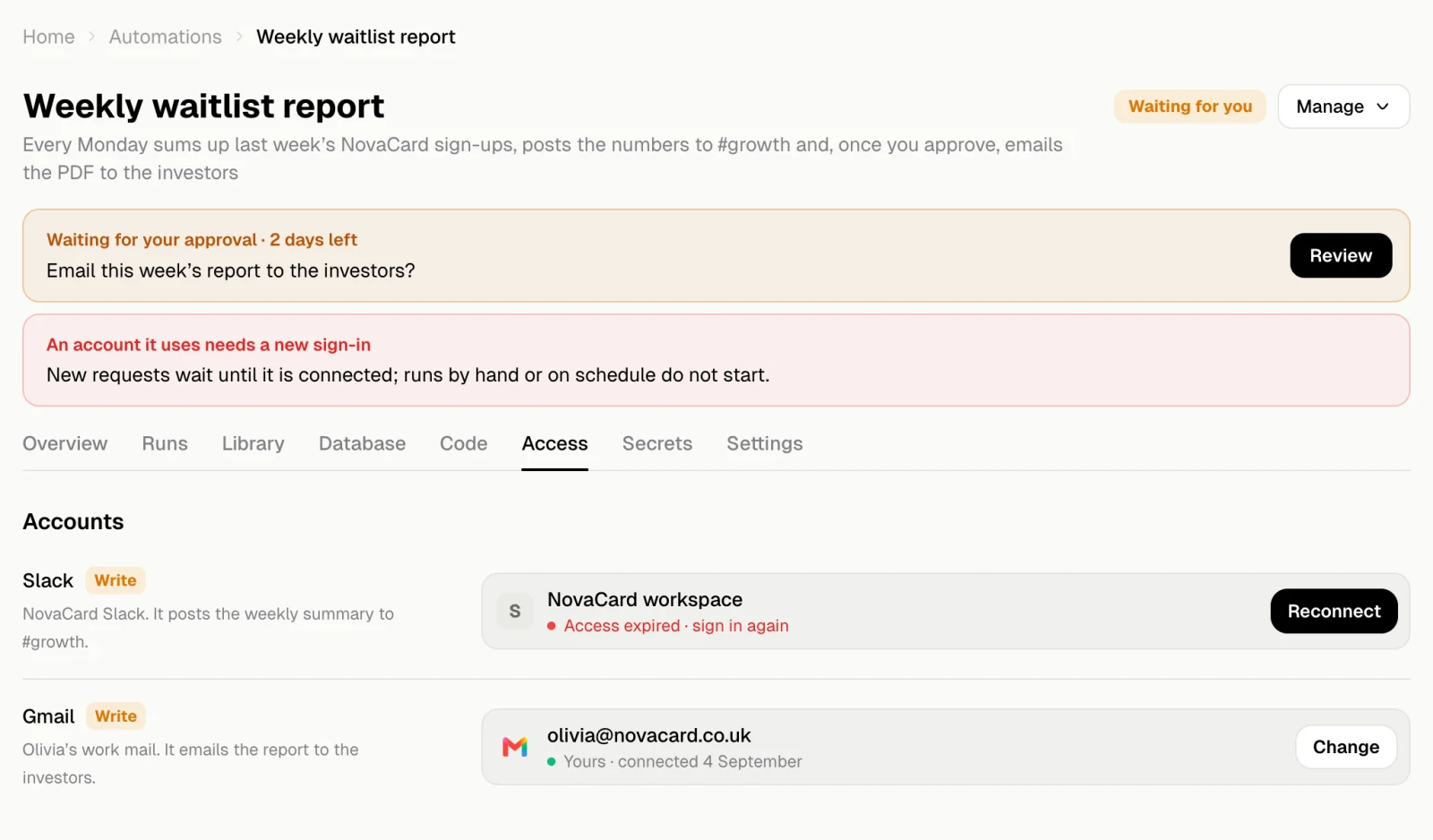
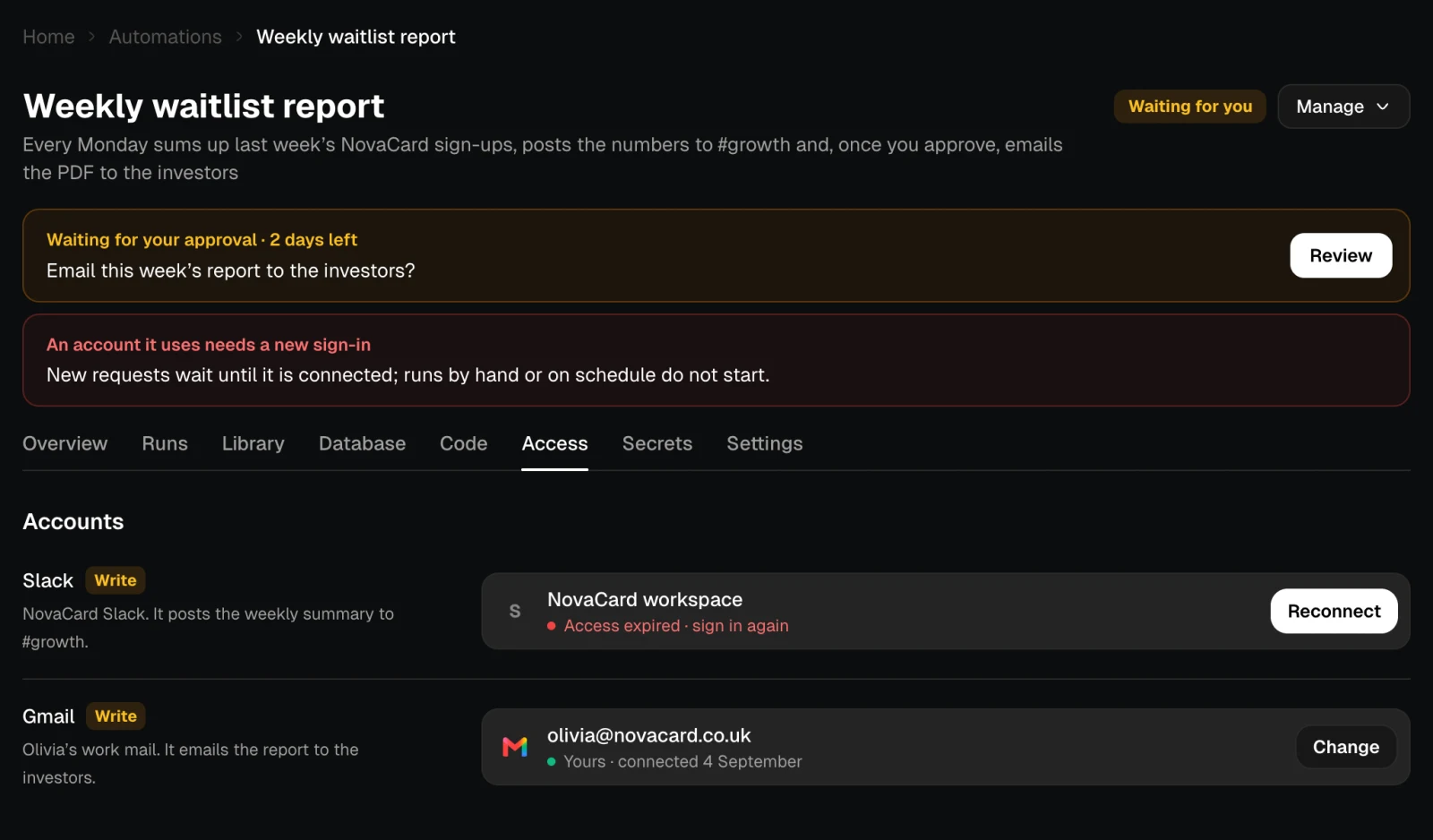
- runs by hand and on schedule do not start;
- requests from a webhook or an event wait, for a week at most, and go on by themselves once it is connected.
What it may do
| Row | What it says |
|---|---|
| Internet | The only sites it may open, or that it may open any. Anything else is blocked |
| AI models | Whether it asks AI models, and how much a run may spend on them |
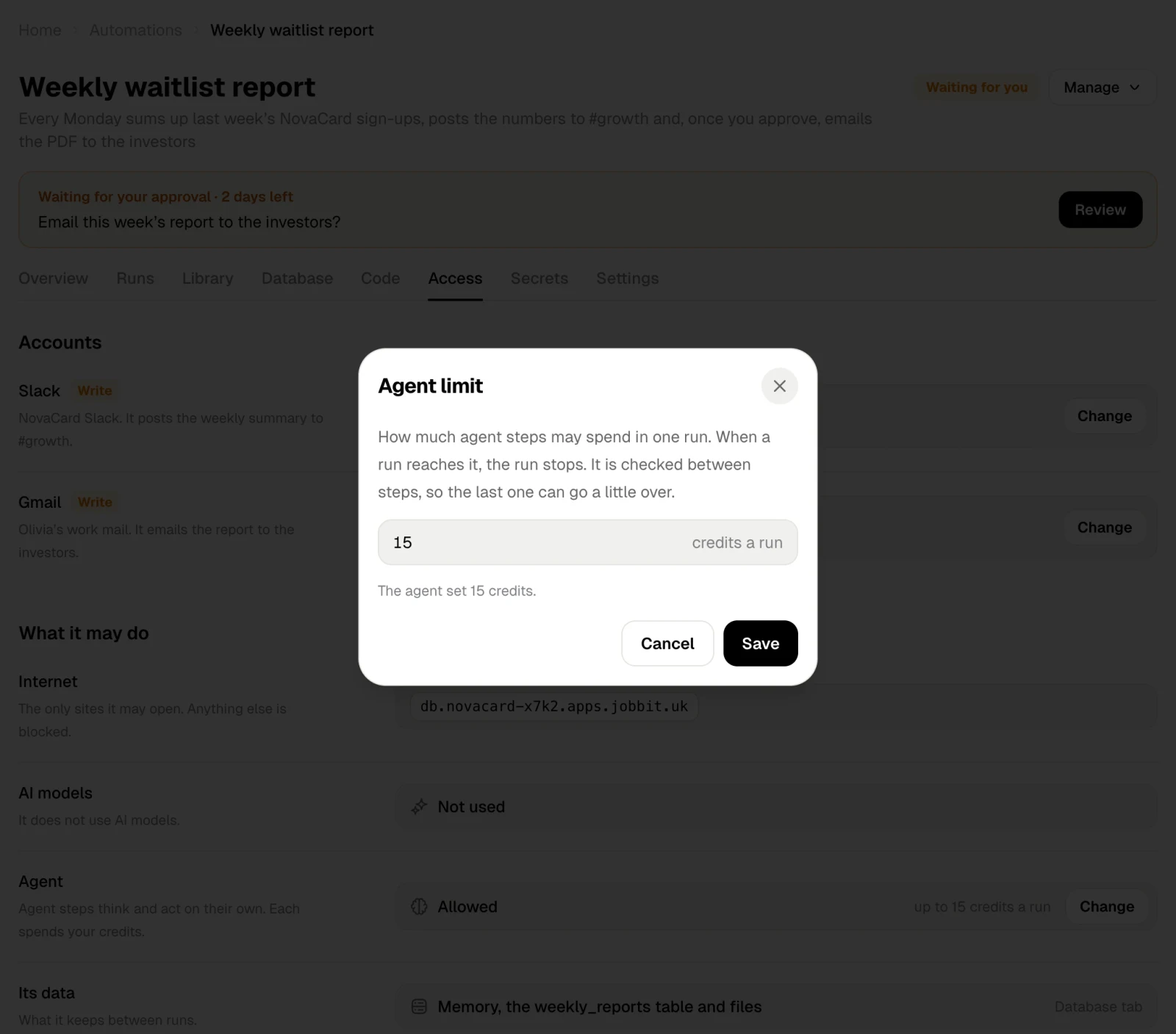
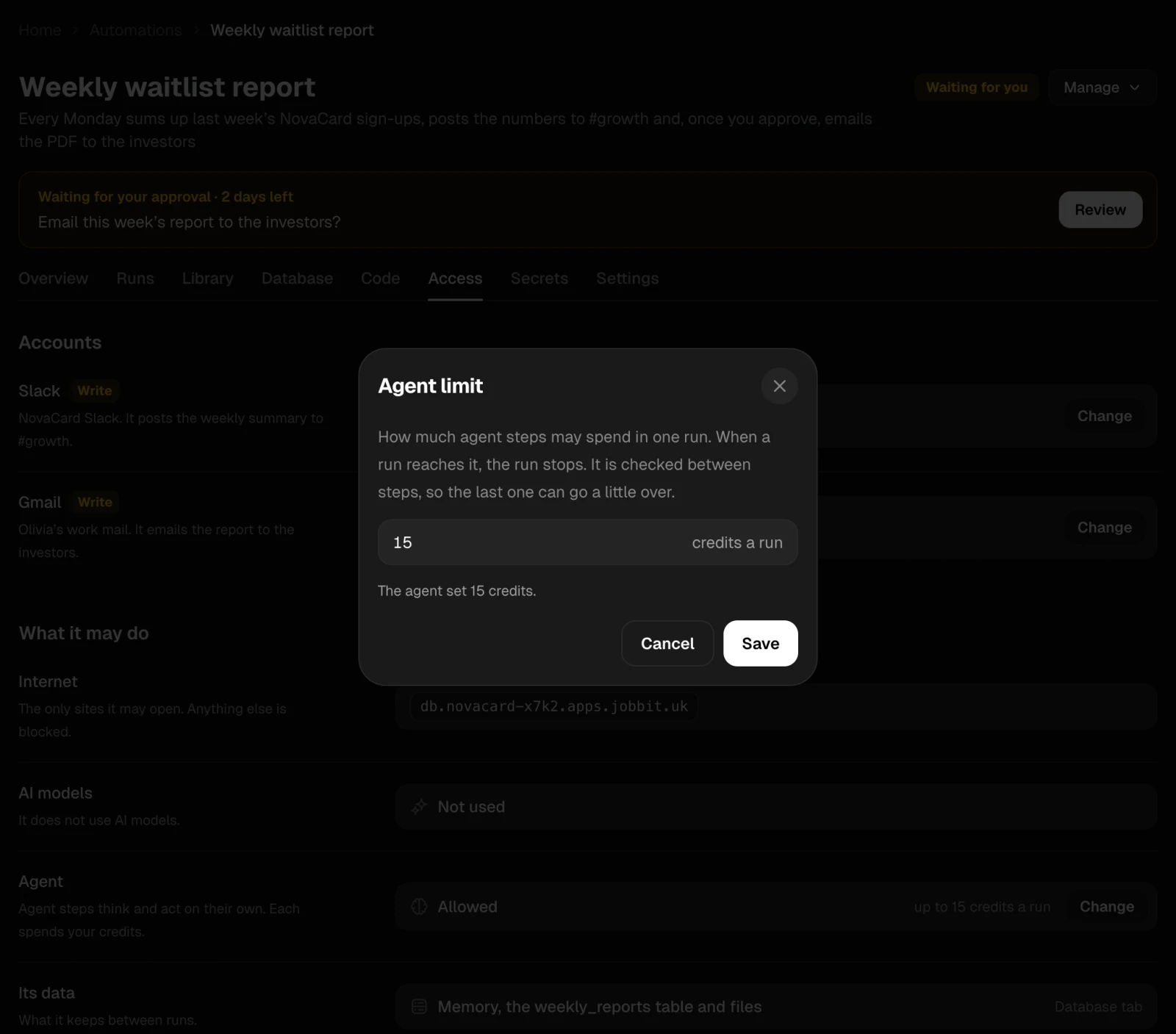
| Agent | Whether it has agent steps, and how much they may spend in one run |
| Its data | What it keeps between runs. Database tab opens it |
| Changes | The most it may do with your data anywhere: only read, create and change, or delete |
| Approvals | Each approval step, and that it asks you every time |
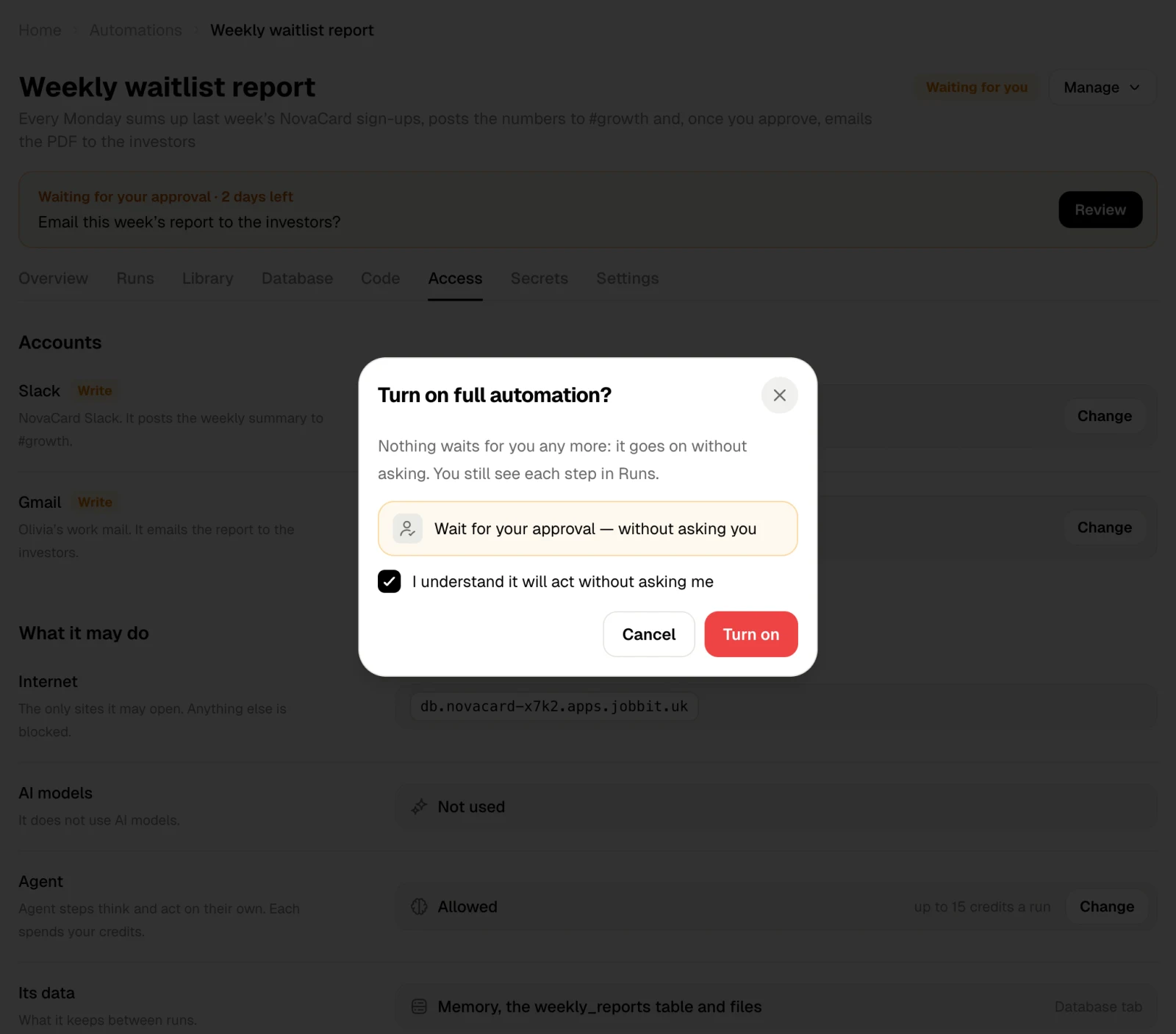
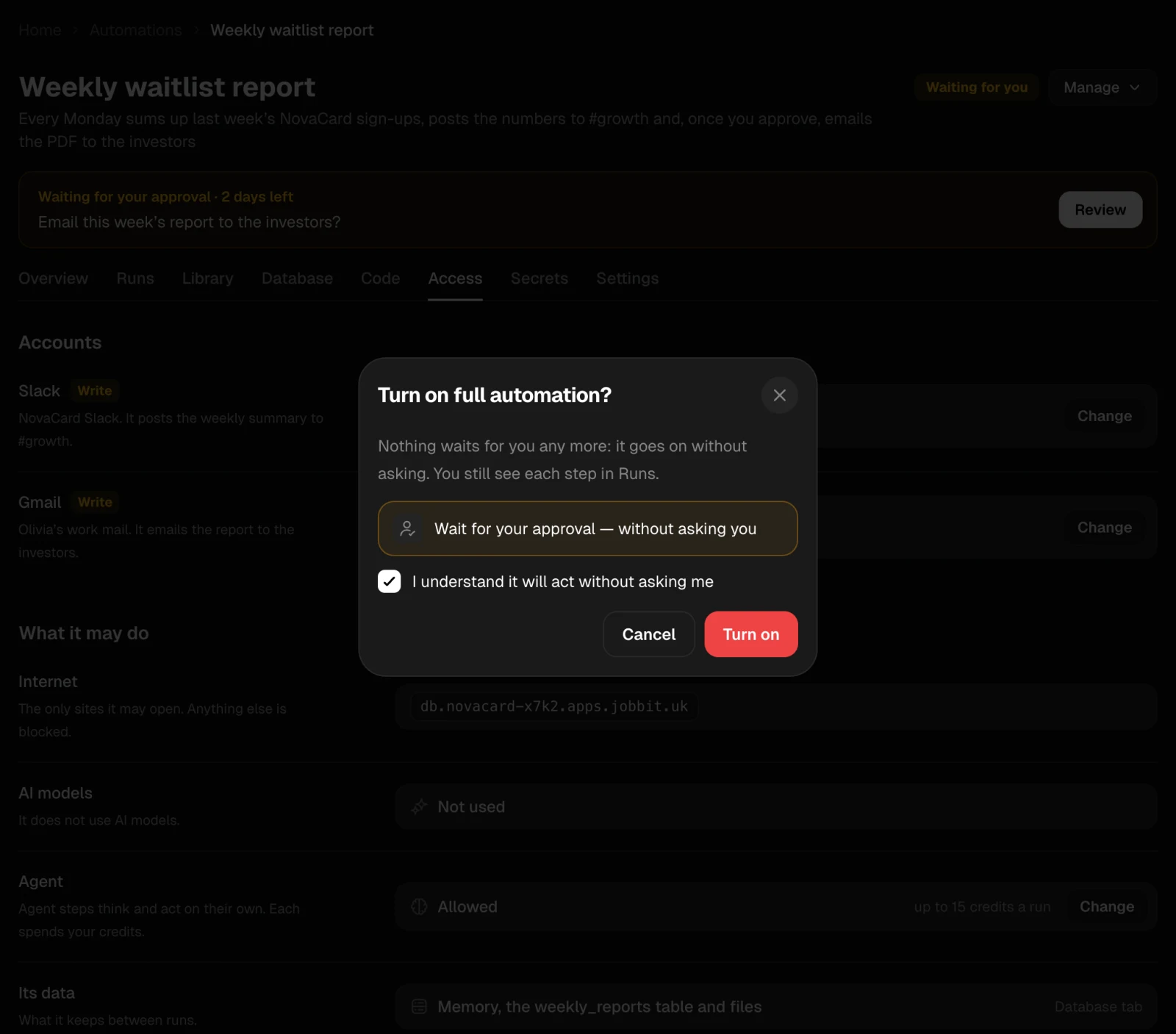
Full automation
Full automation removes the questions before deleting and the approval steps: nothing waits for you, and everything goes on without asking. You still see every step in Runs. Only the owner can turn it on, after confirming I understand it will act without asking me.