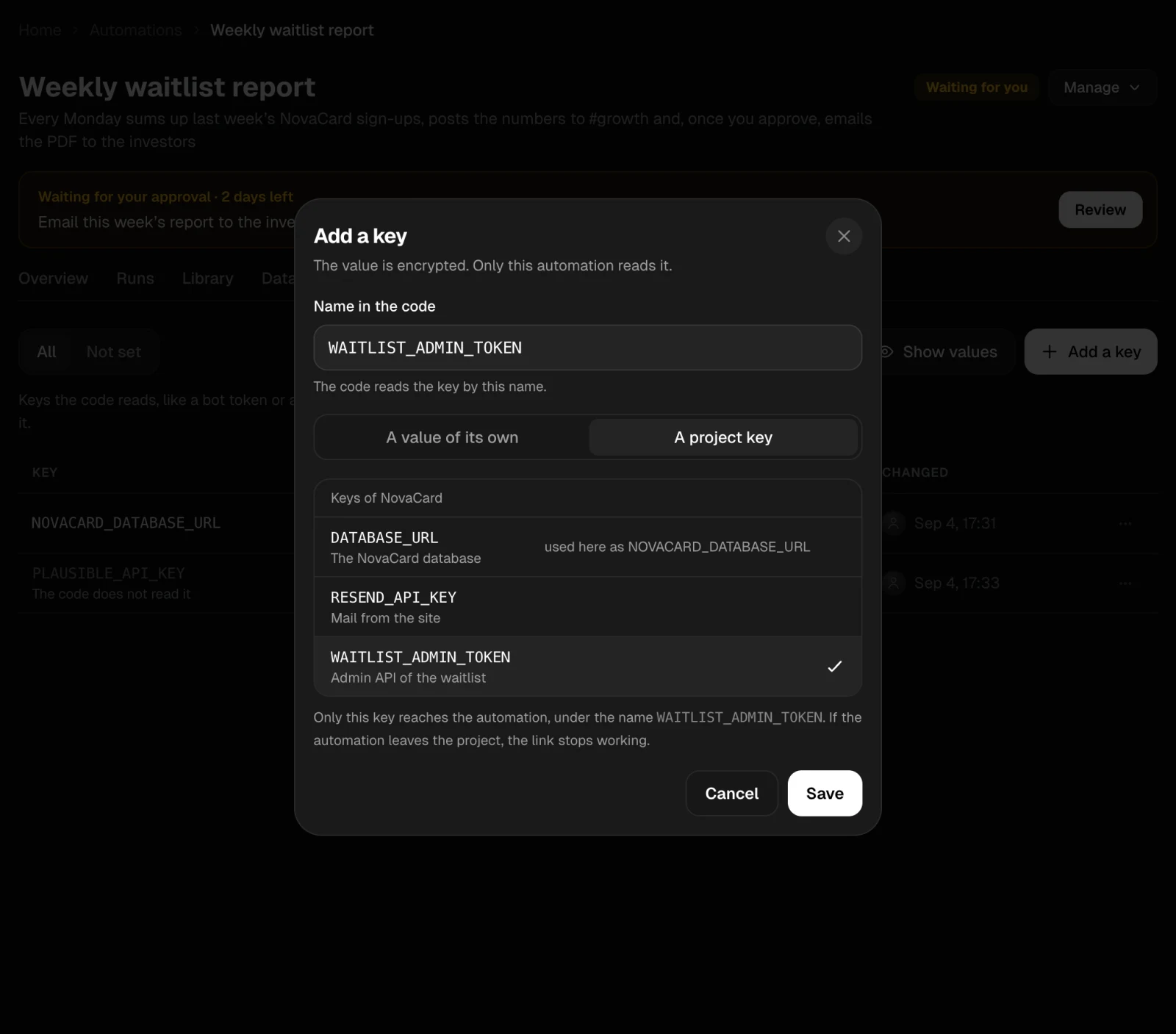
Code that signs in to a service needs a key, such as a bot token, an API key or a database address. The Secrets tab keeps the keys the automation’s code reads by name. Values are encrypted.
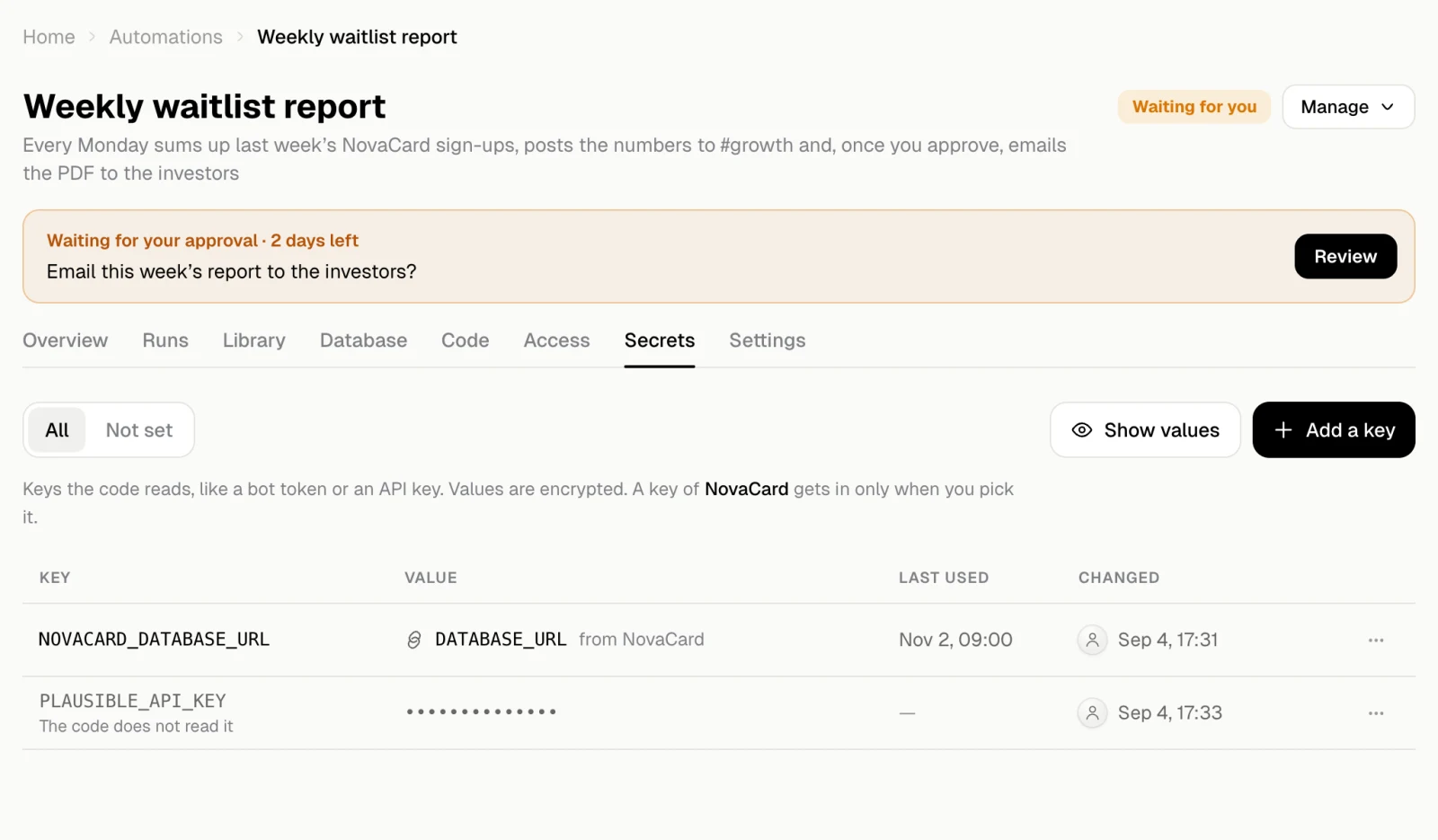
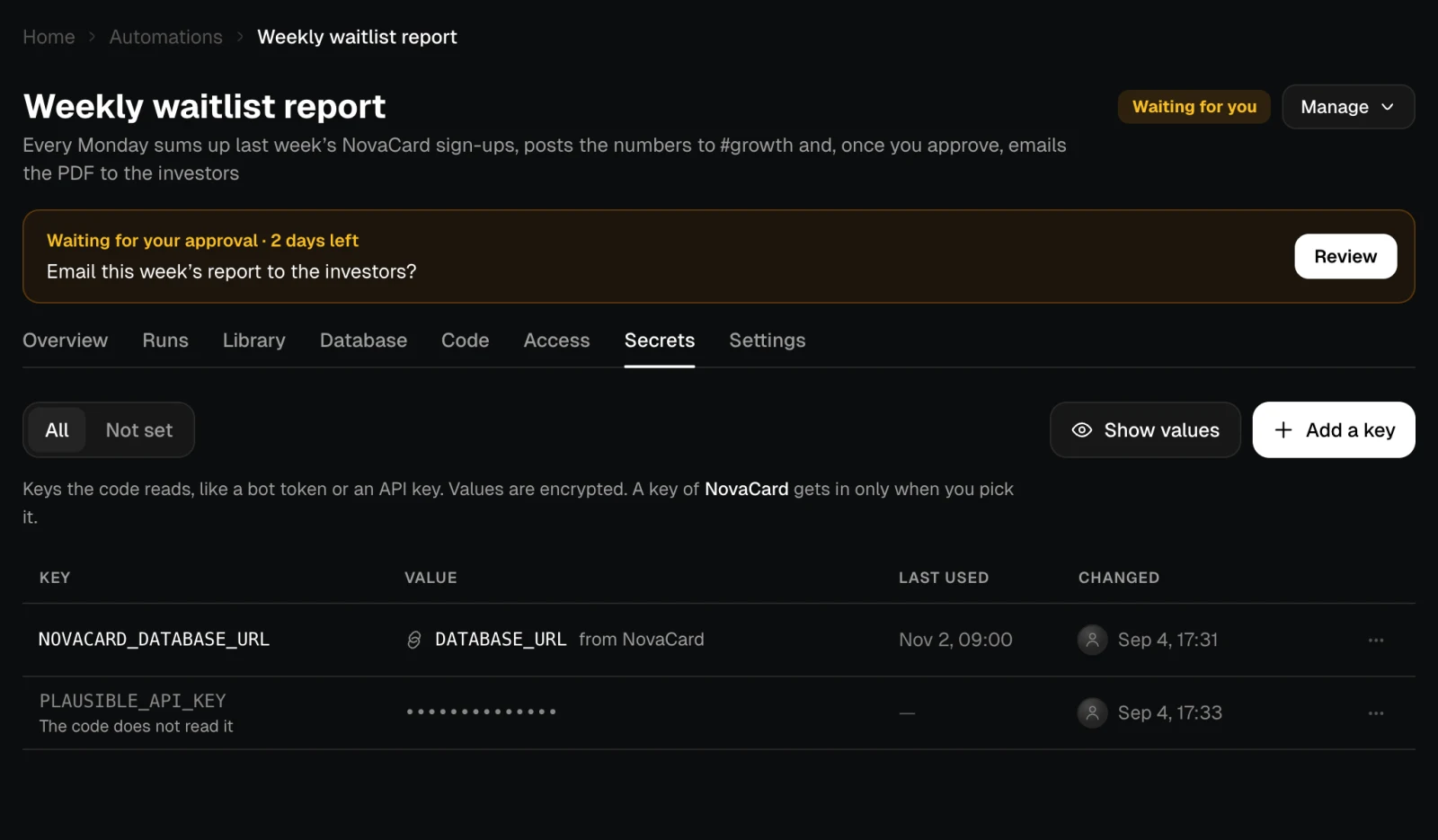
The Secrets tab with two keys, light themeThe Secrets tab with two keys, dark theme
ColumnWhat it shows
KeyThe name the code reads. A key linked from the project says which project key it is
ValueHidden. Show values shows the automation’s own values
Last usedWhen a run last read it
ChangedWhen it was last set
A key the code does not read any more is marked The code does not read it. Not set shows only the keys the code reads that have no value yet. Runs do not start until every key the code reads is set.

Add or change a key

Add a key, or Change in a key’s ⋯ menu. Give the Name in the code, then choose where the value comes from:
  • A value of its own: you type the value. Only this automation reads it.
  • A project key: for an automation in a project, pick one of the project’s keys. Only that key reaches the automation, under the name you gave. It is linked, not copied, so a change in the project reaches the automation too. If the automation leaves the project, the link stops working.
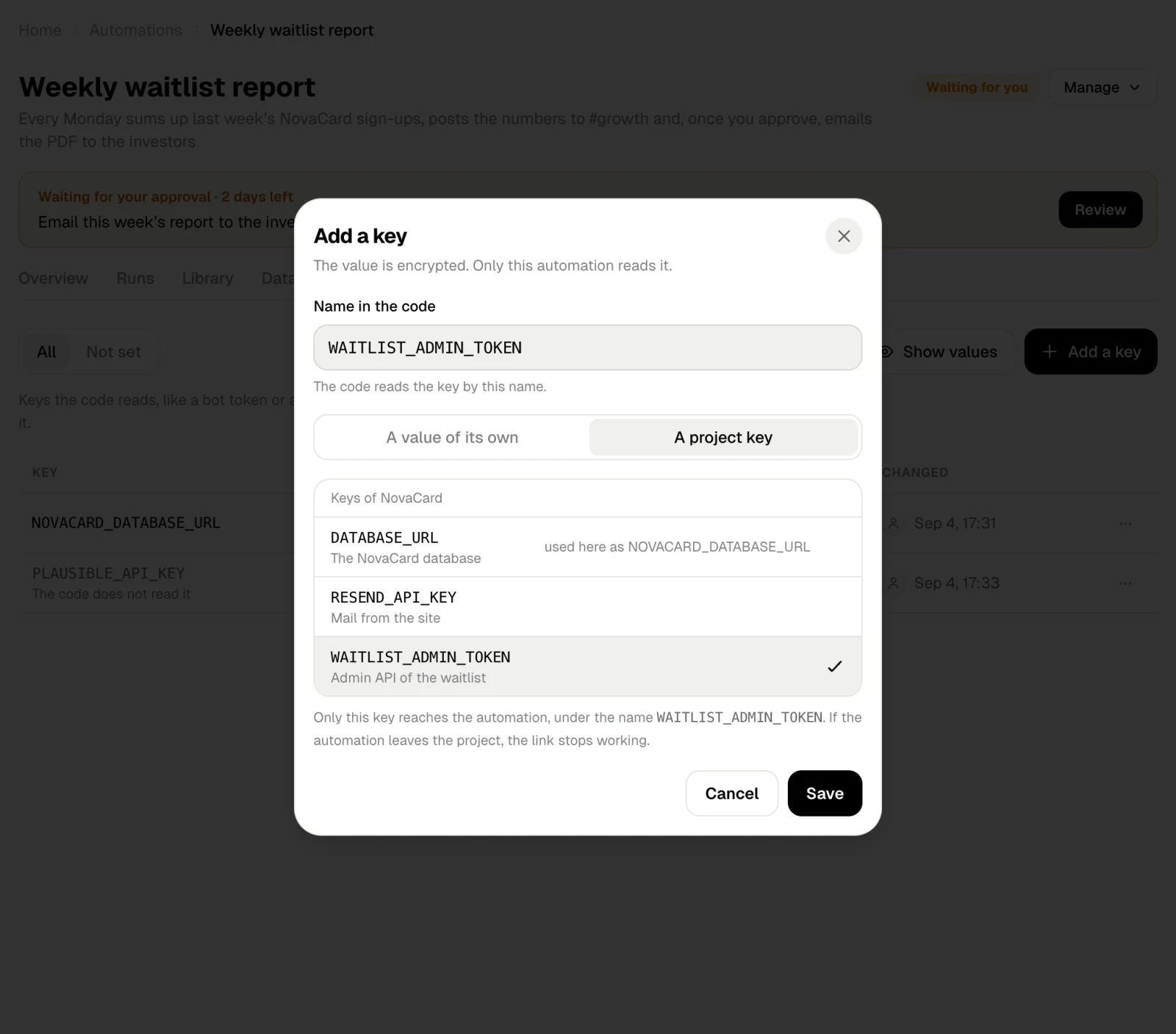
The Add a key dialog with a project key selected, light themeThe Add a key dialog with a project key selected, dark theme
When the agent needs a key, it asks for it on a card in the chat, never in the chat itself, and it never sees the value.

See the values

Show values shows the values of the automation’s own keys to editors. Values of project keys are never shown here.
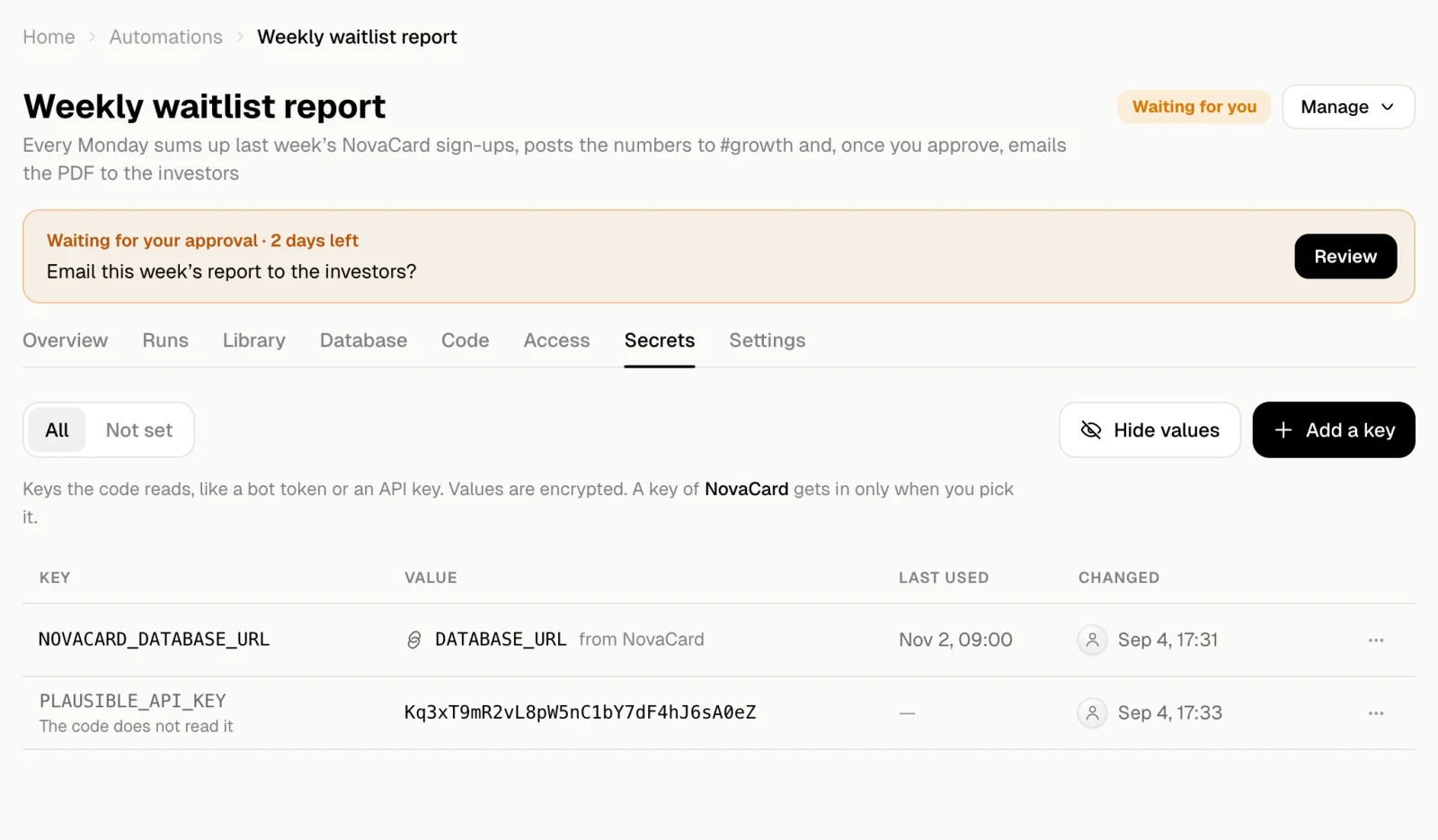
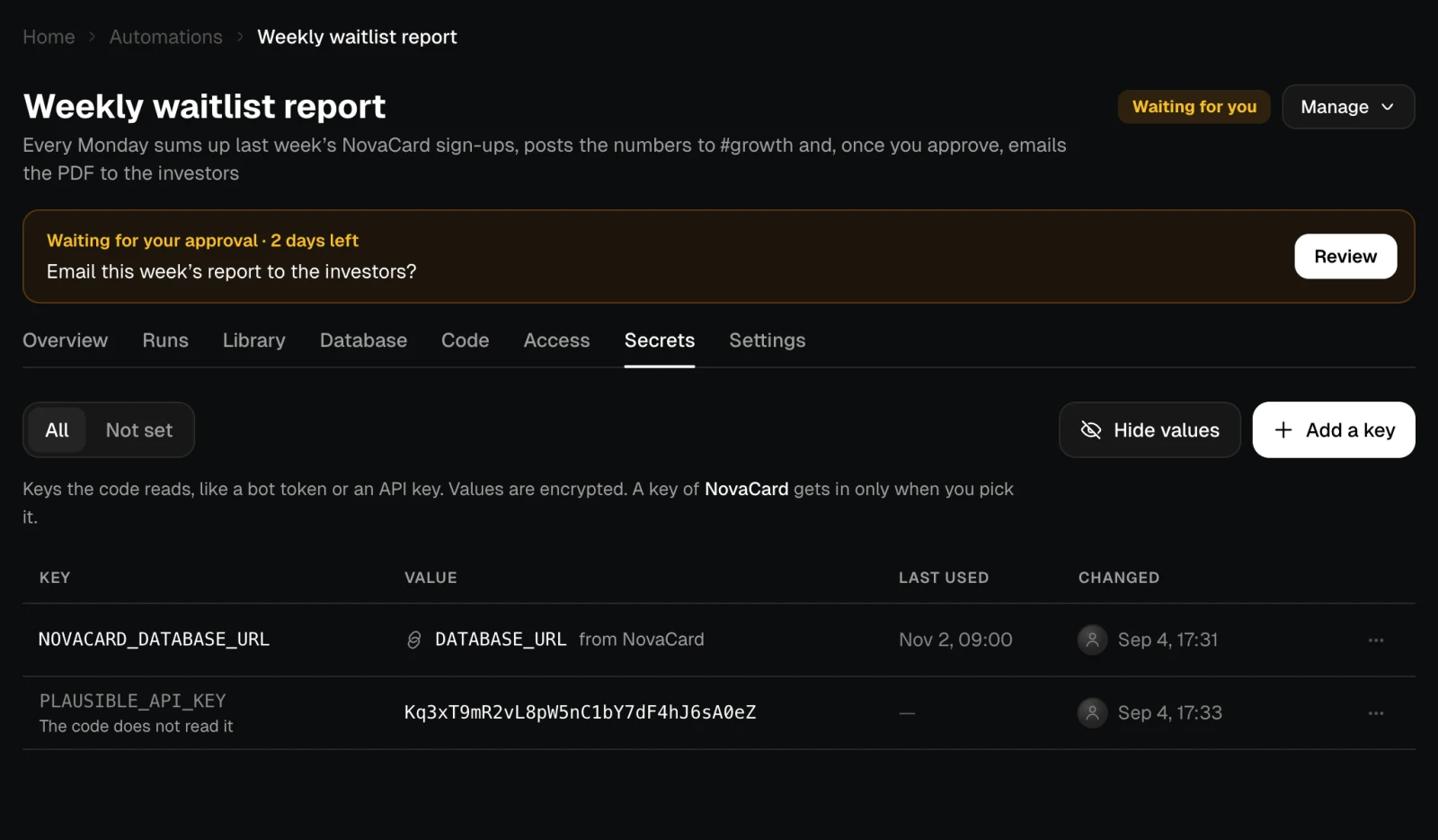
The Secrets tab with values shown, light themeThe Secrets tab with values shown, dark theme

Remove a key

Remove in a key’s ⋯ menu, or Select several keys and remove them together. If the code reads a key you remove, runs do not start until it is set again.