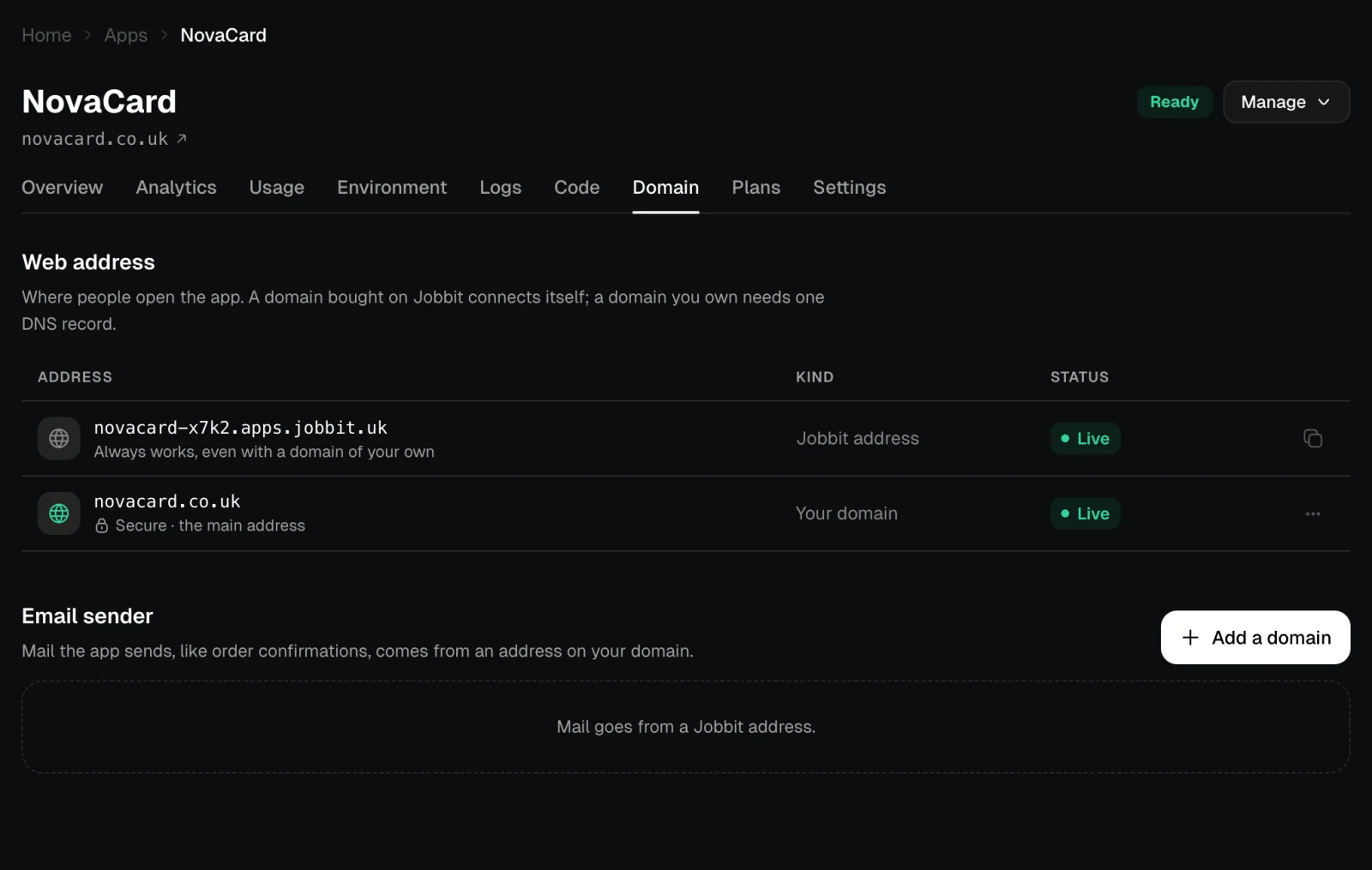
Every app has a Jobbit address such as novacard-x7k2.apps.jobbit.uk. It always works, even after you add a domain of your own. The Domain tab adds one: people then open the app at your domain, and Jobbit sets up the certificate for HTTPS. Your own domain needs a paid plan.

A domain you own

1

Add the domain

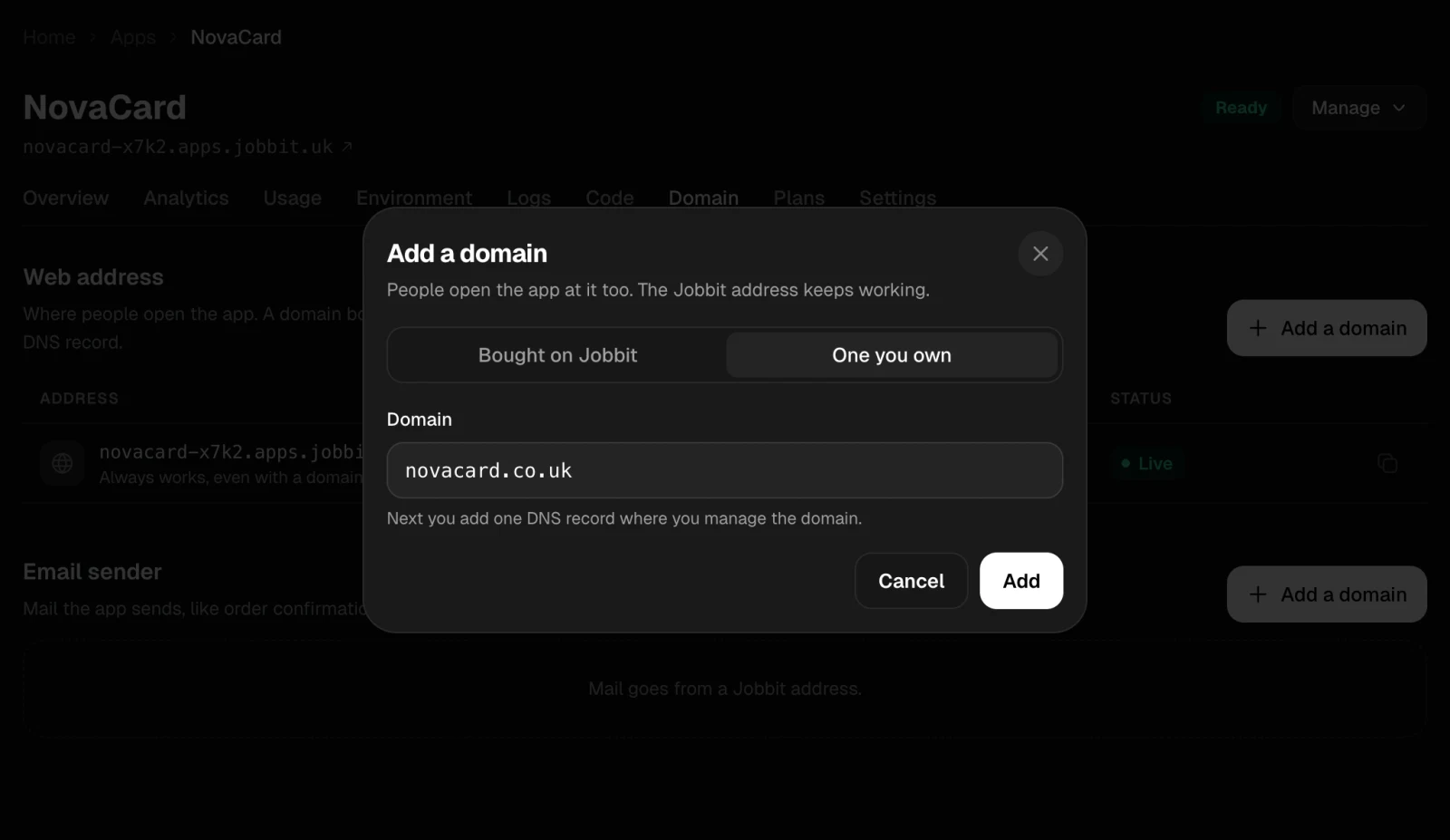
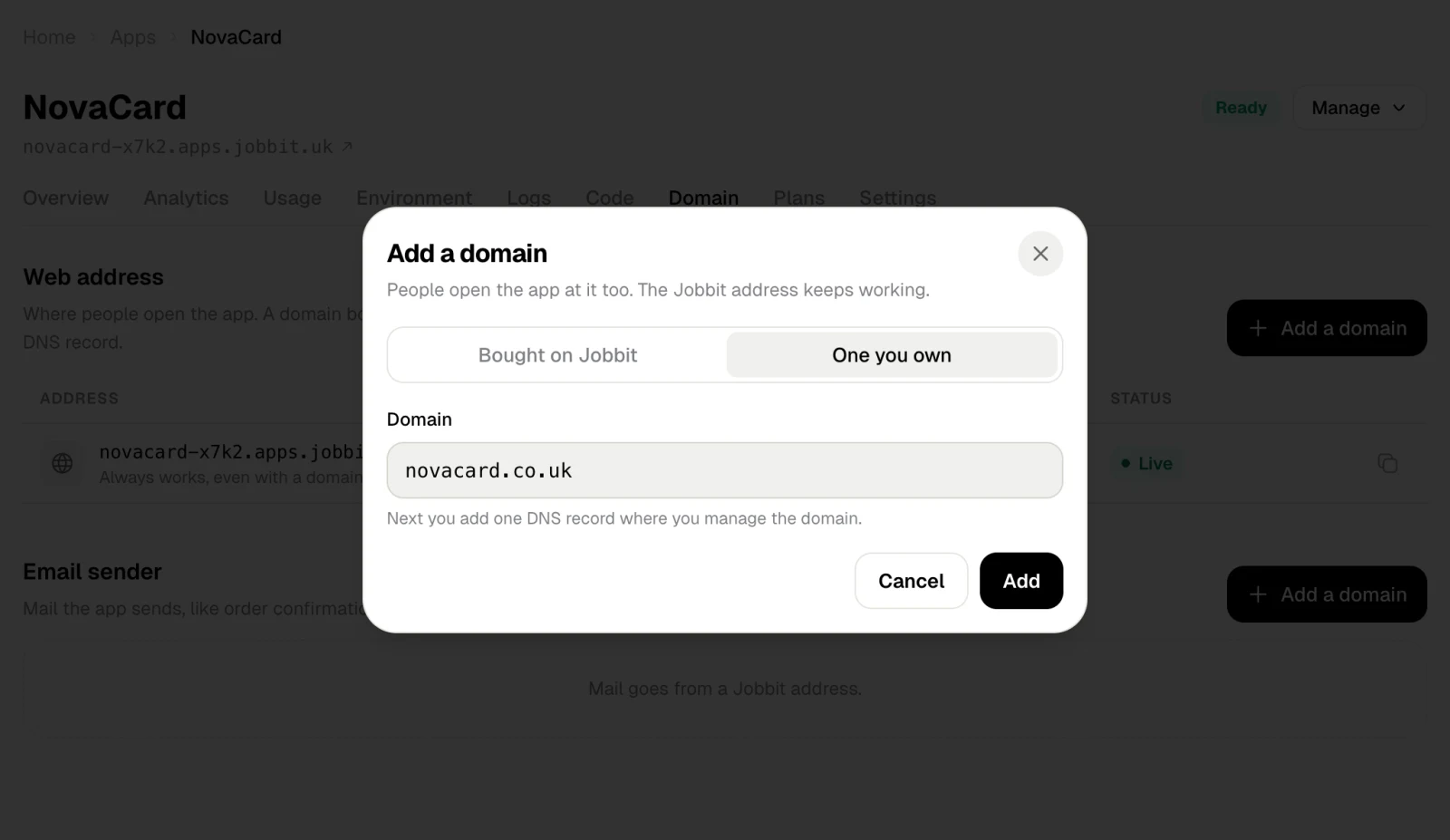
In Domain, choose Add a domain, pick One you own and type the domain, such as novacard.co.uk.
2

Add one DNS record

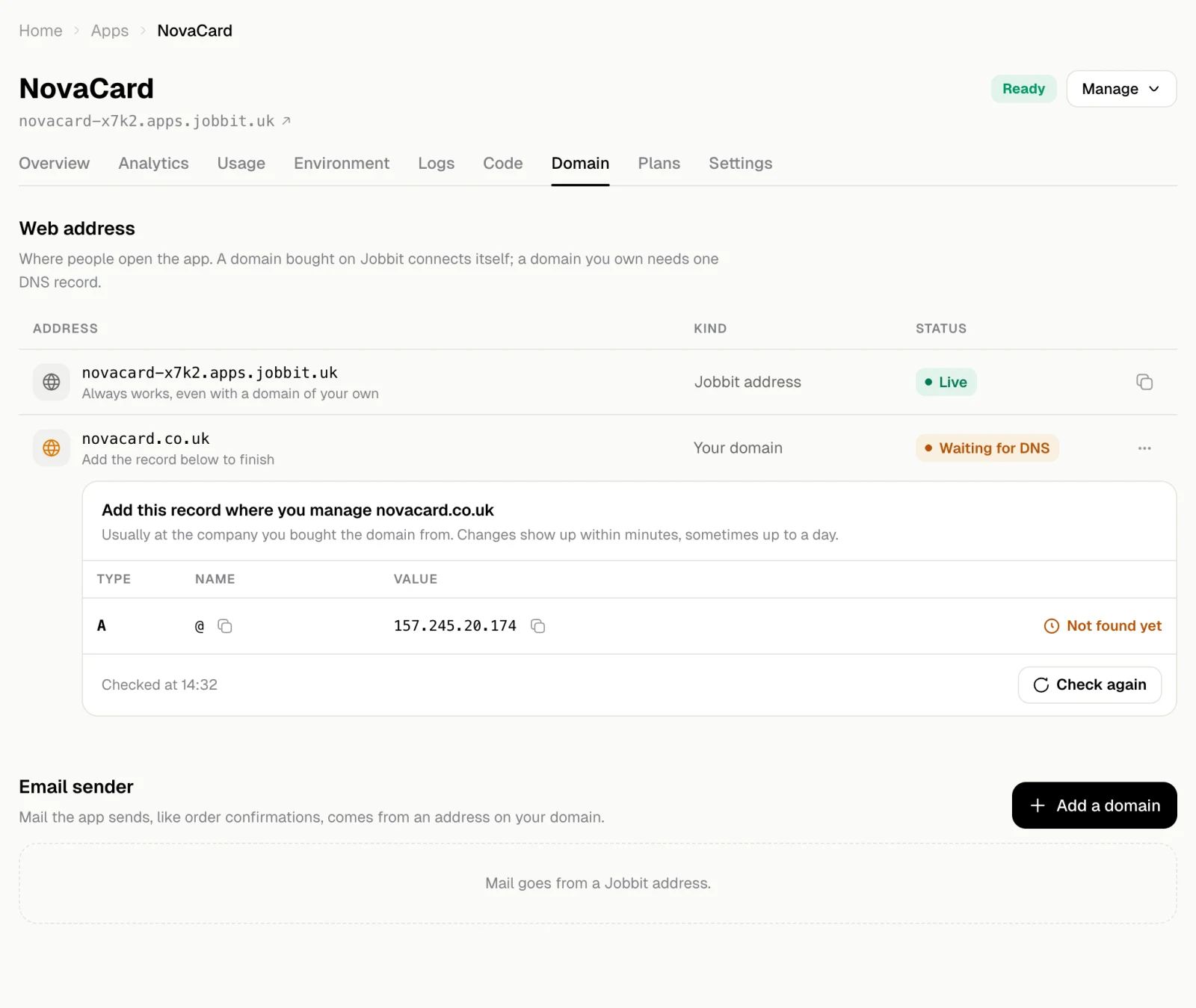
Jobbit shows the record to create: type A, name @, and Jobbit’s address as the value. Add it where you manage the domain, usually at the company you bought it from.
3

Wait for it to connect

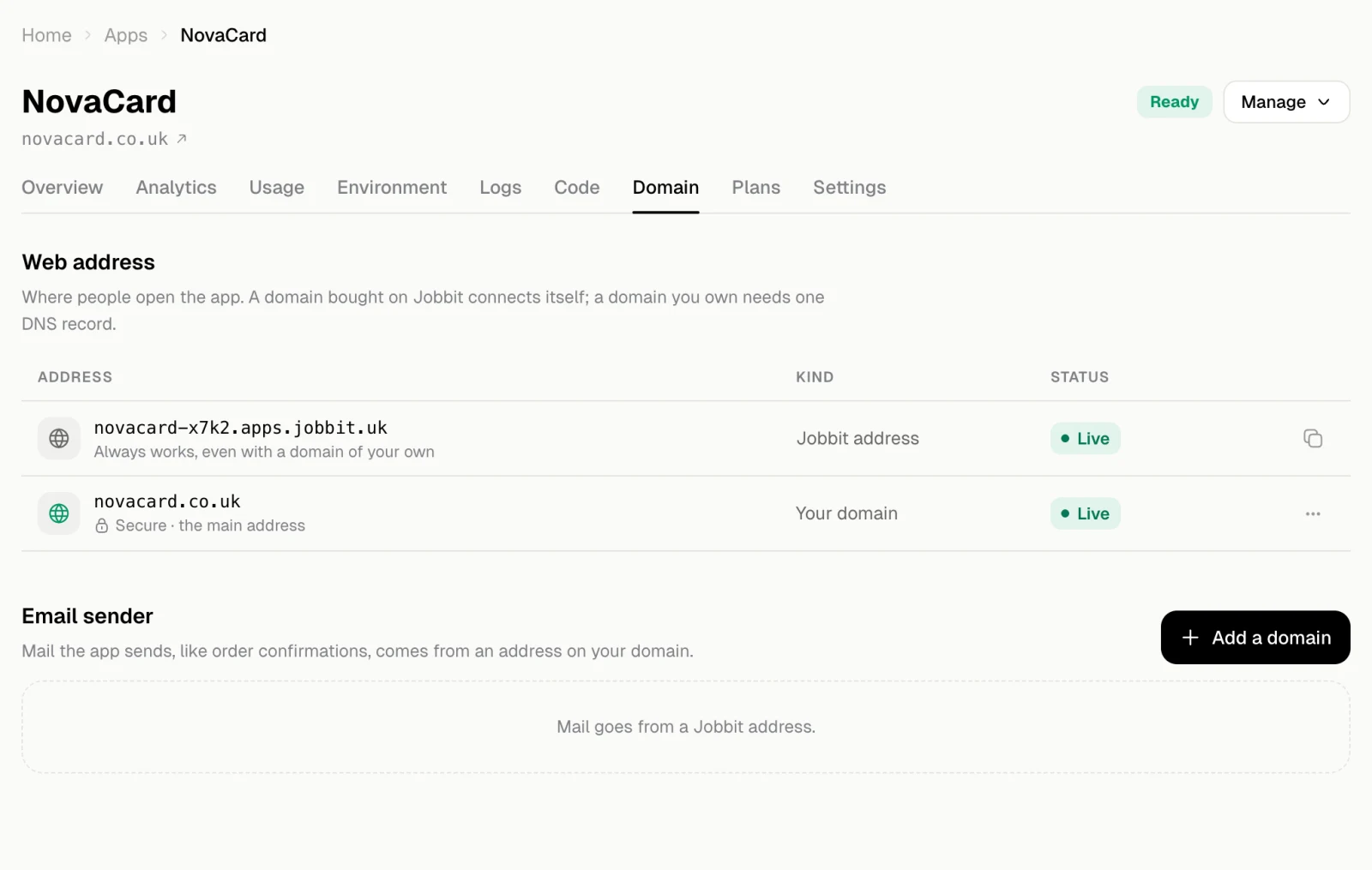
Changes show up within minutes, sometimes up to a day. Check again looks for the record. When it is found, the status turns Live and the domain becomes the app’s main address.
The Add a domain dialog with novacard.co.uk typed, light themeThe Add a domain dialog with novacard.co.uk typed, dark theme
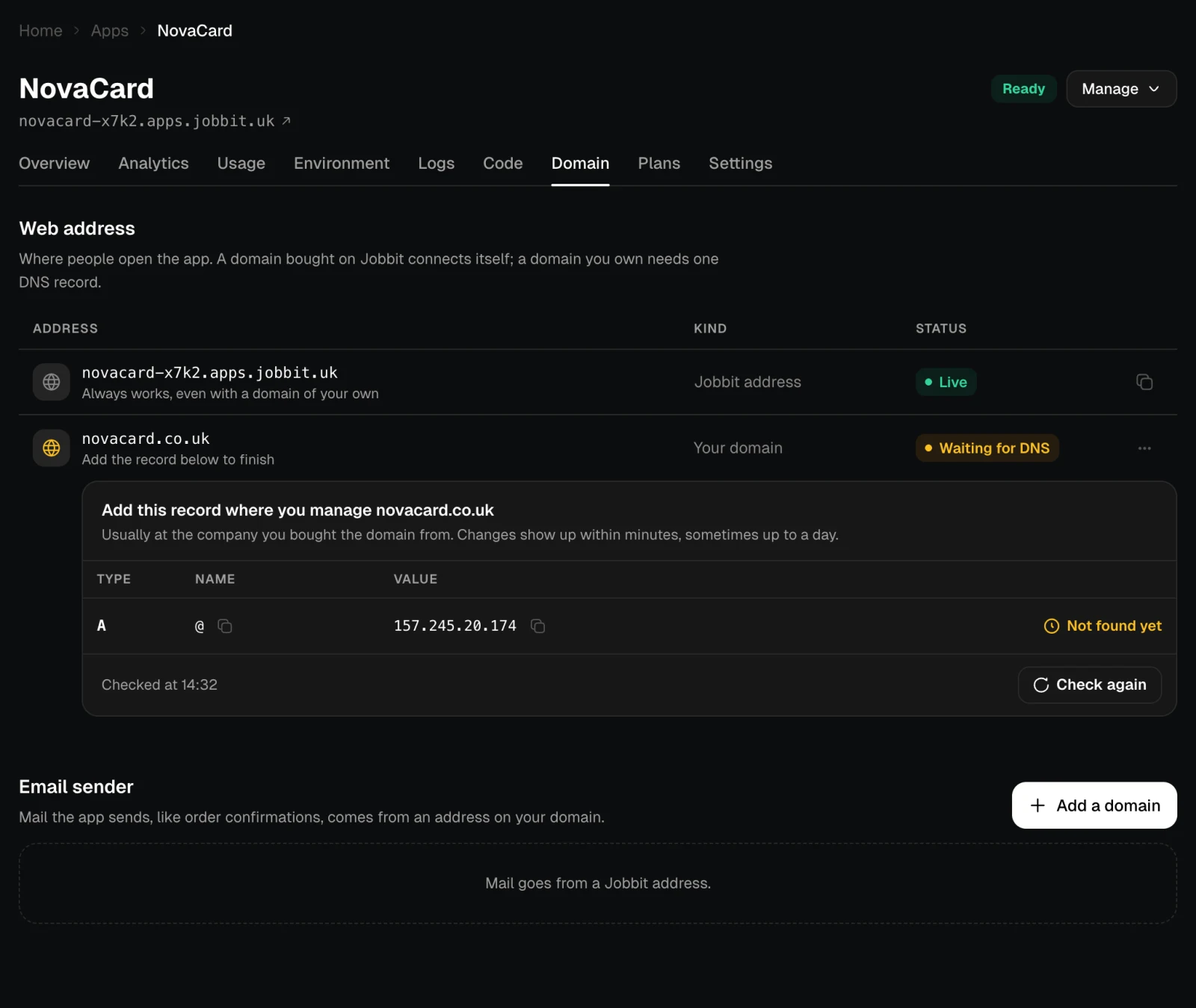
The domain waiting for its A record, light themeThe domain waiting for its A record, dark theme
The domain connected and live, light themeThe domain connected and live, dark theme
If the domain already has another A record for @ pointing elsewhere, remove it, or some visitors may still reach the old site.

A domain bought on Jobbit

Domains bought on Jobbit connect themselves. In Add a domain choose Bought on Jobbit and pick the domain: Jobbit creates the DNS record and the certificate for you.
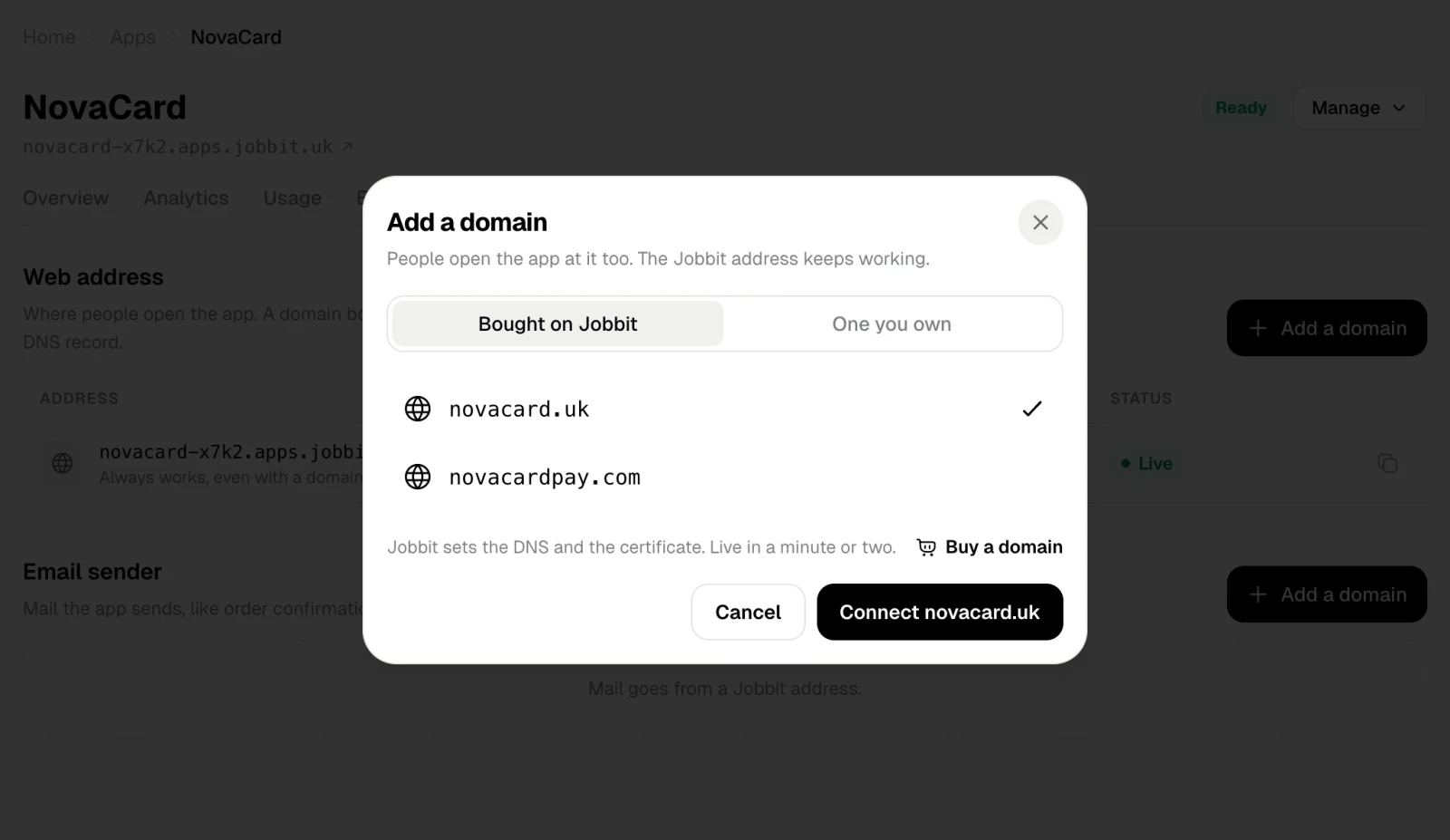
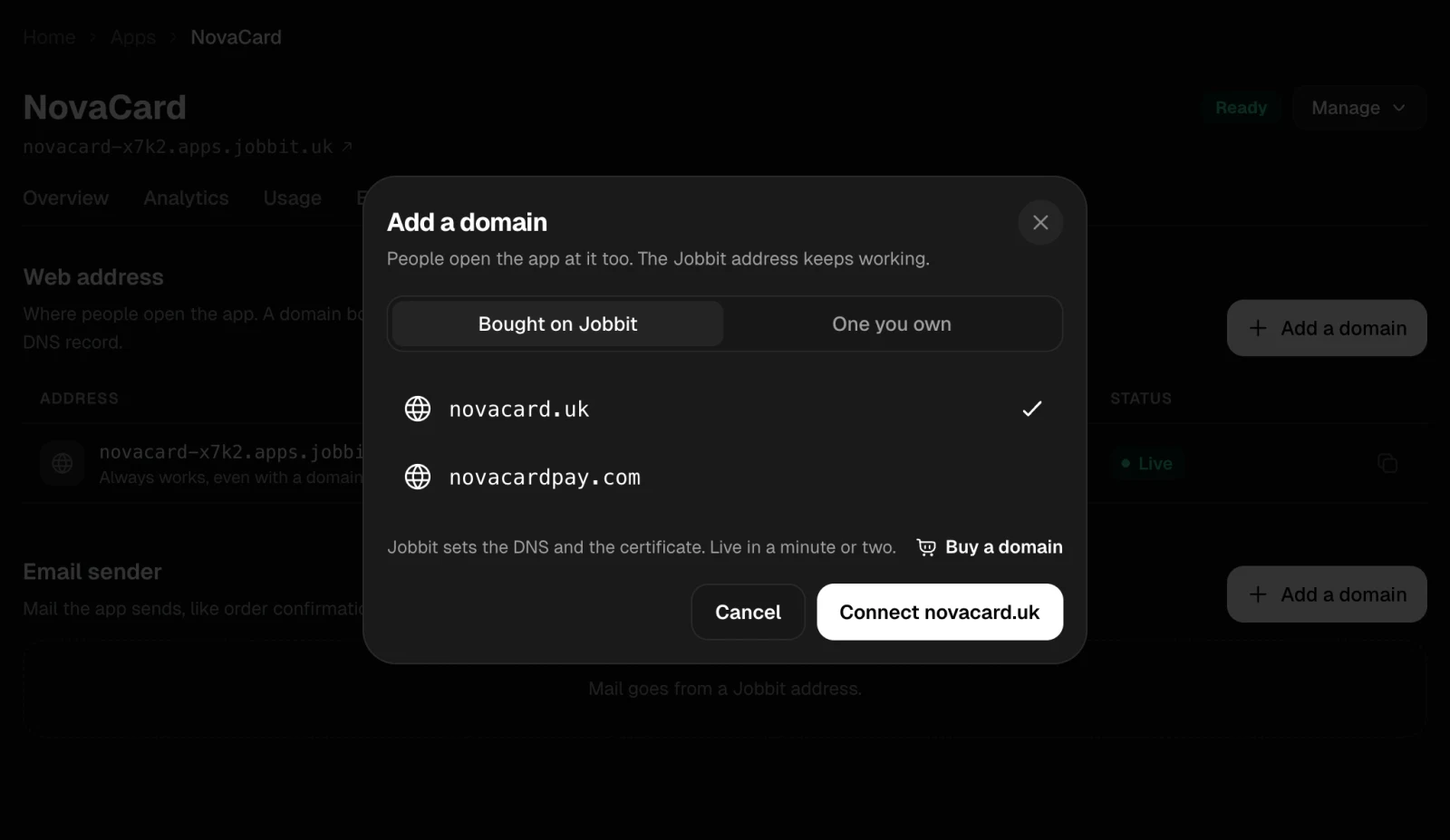
Choosing a domain bought on Jobbit, light themeChoosing a domain bought on Jobbit, dark theme

Remove a domain

Open the domain’s ⋯ menu and choose Remove. The domain stops opening the app; the Jobbit address keeps working, and you can add the domain again later.

Send email from the domain

The same tab sets the address the app’s mail comes from. See Email.