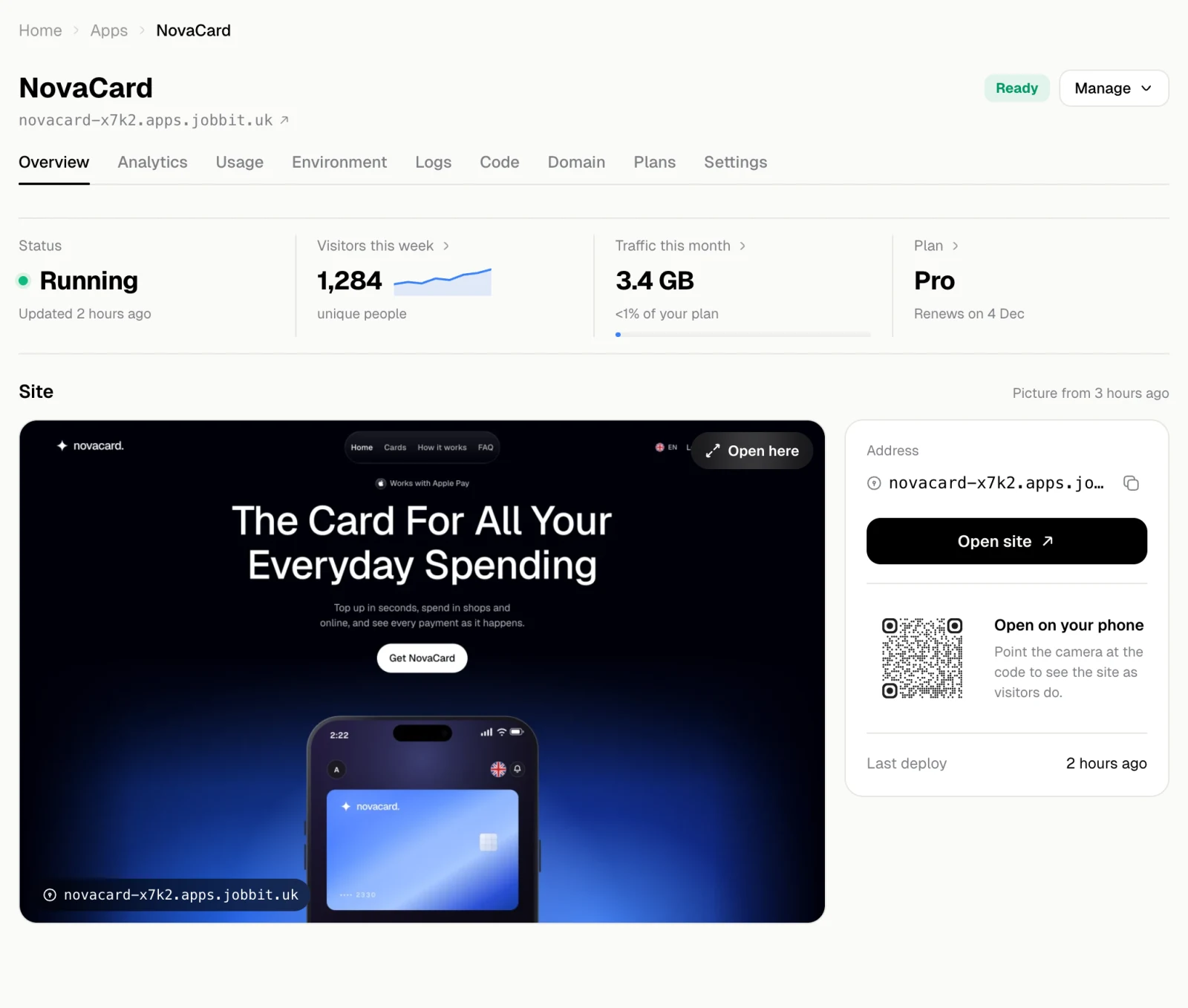
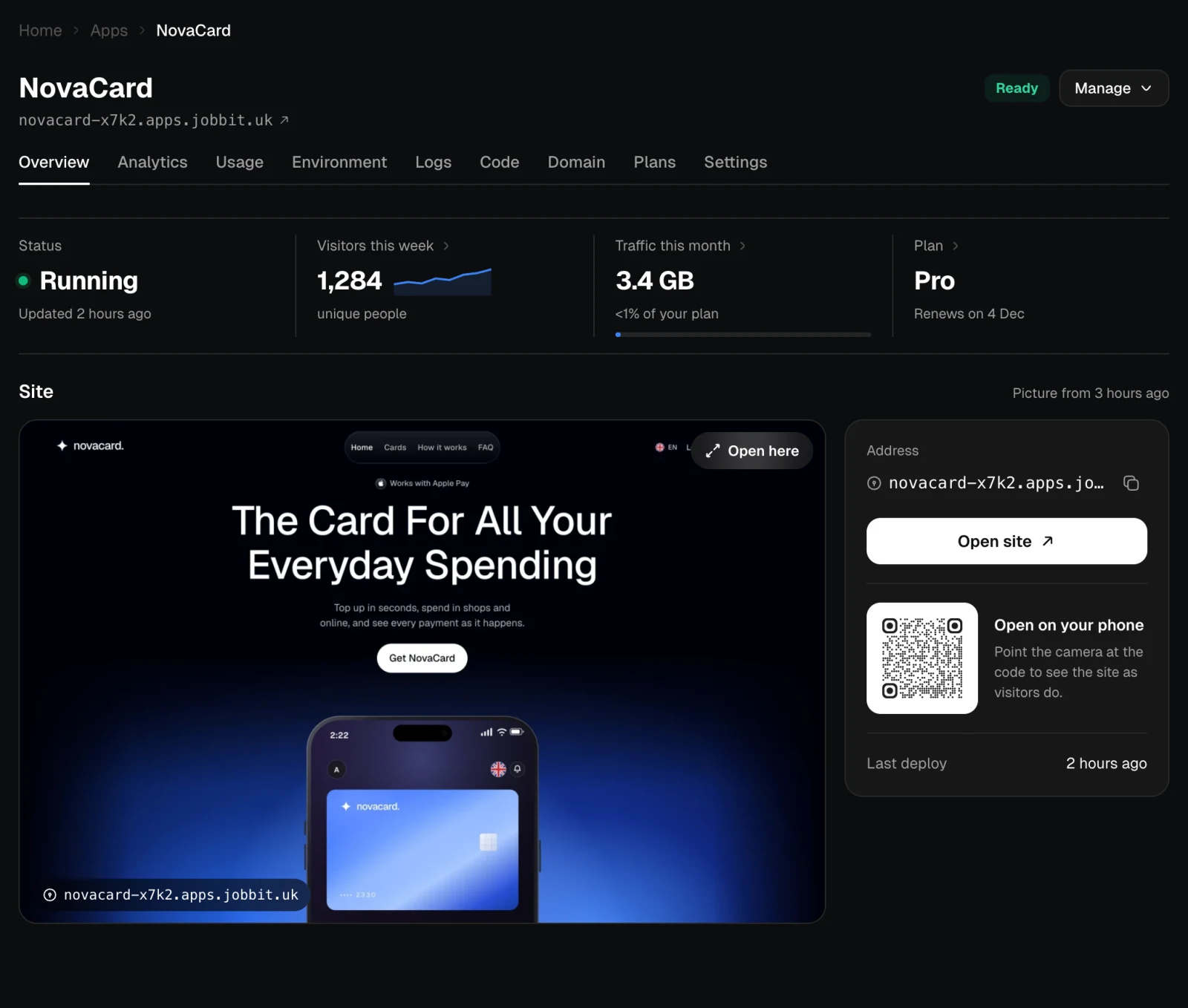
Open an app from the Apps page to see its Overview. At the top of every tab are the app’s name, its address, its status and the Manage menu, with the tabs underneath.
| Figure | What it shows |
|---|
| Status | Running, Crashed or Stopped, and when the app was last updated |
| Visitors this week | Unique people in the last seven days, with a small chart of each day. Opens Analytics |
| Traffic this month | Data the app has served this month and the share of your plan’s traffic it used. Opens Usage |
| Plan | Your plan and when it renews. On Free, how many days are left before the app is removed. Opens Plans |
The site
Site shows a picture of the app’s first screen and when it was taken.
- Open here opens the live site inside Jobbit. Switch between desktop and phone width, reload it, or open it in a new tab.
- Address is the app’s address. Copy it with the button next to it.
- Open site opens the live site in a new tab.
- Open on your phone shows a QR code: point the phone’s camera at it to see the site as your visitors do.
- Last deploy says when the current version went live.
If the app is building, has crashed or is paused, the picture says so instead. A crashed or failed app also shows Logs, which opens the log with the reason.
Manage
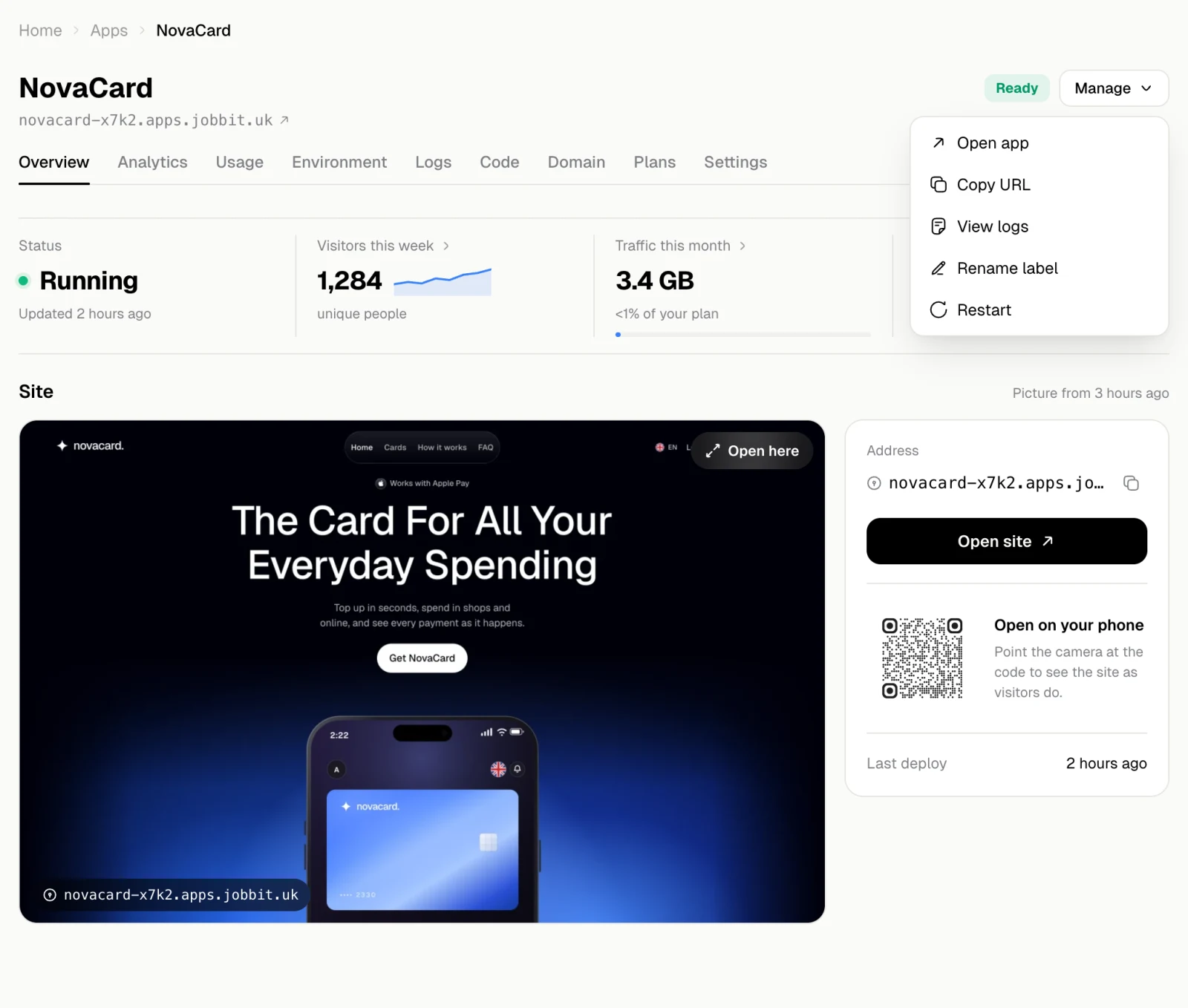
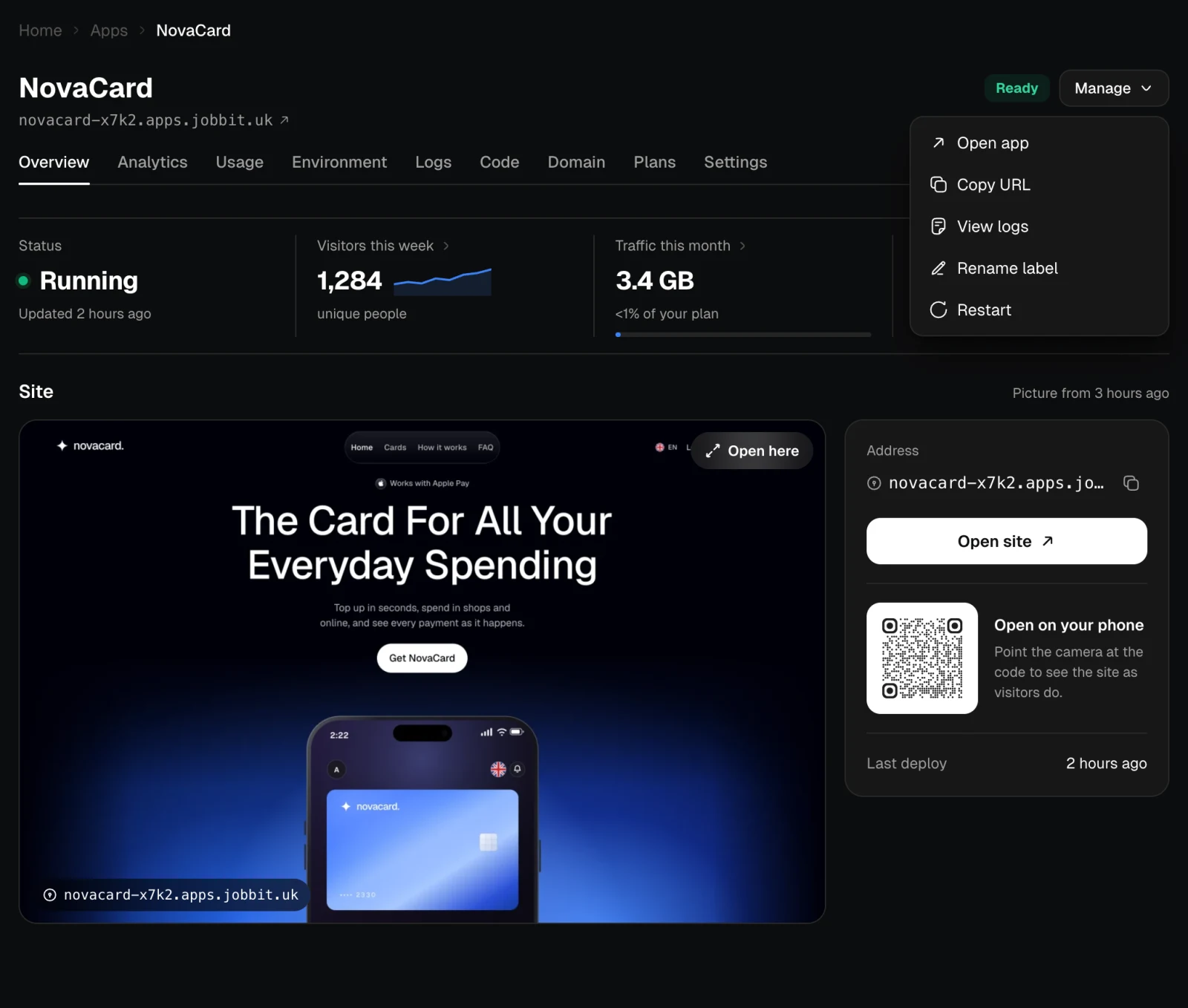
The Manage menu at the top right works on every tab.
| Action | What it does |
|---|
| Open app | Opens the live site in a new tab |
| Copy URL | Copies the app’s address |
| View logs | Opens the Logs tab |
| Rename label | Changes the name shown in Jobbit; the address stays the same |
| Restart | Restarts the app with the same version, for example after it got stuck |
To change what the app does or how it looks, ask the agent in the chat where you built it. The agent edits the code and publishes a new version.