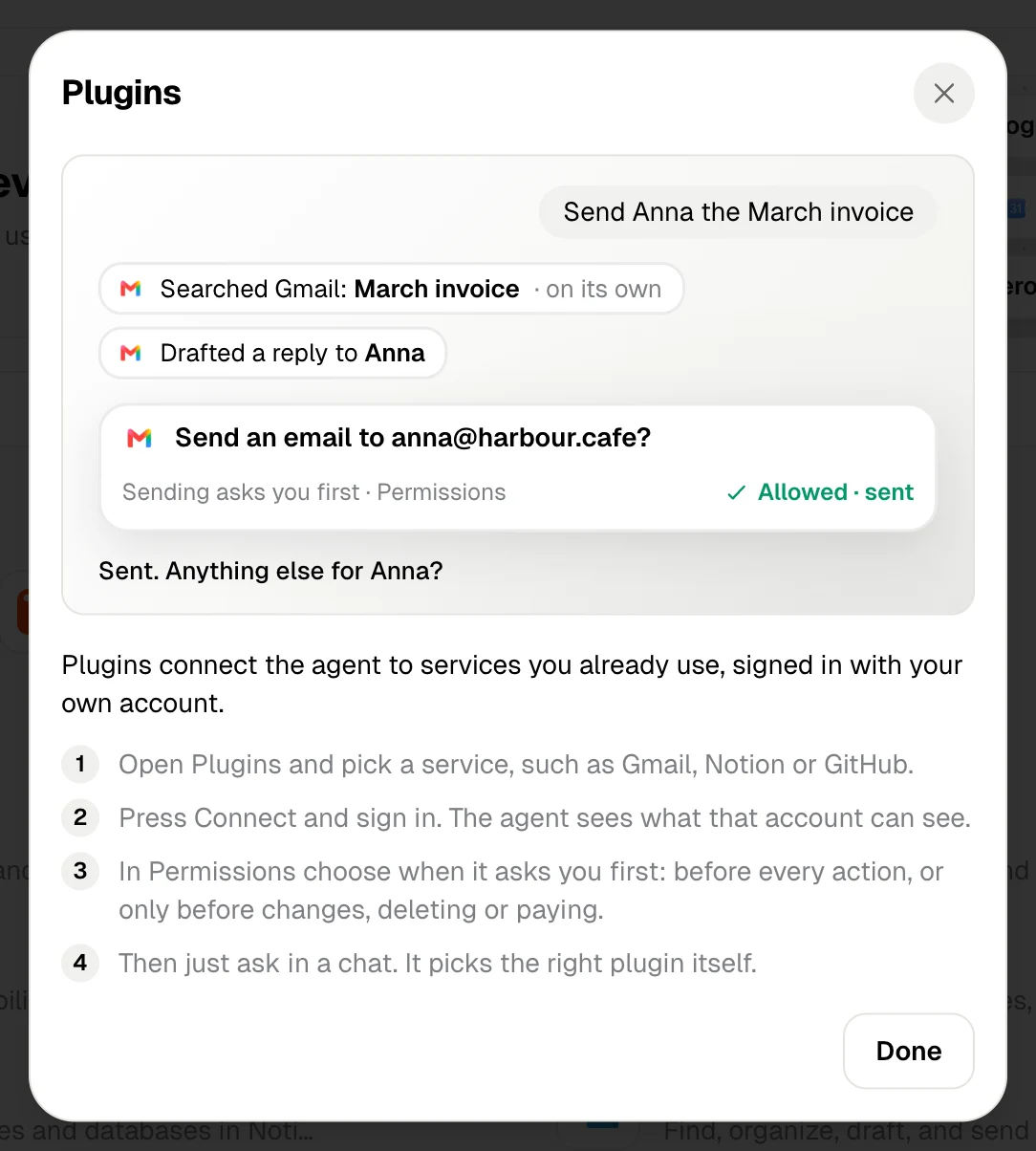
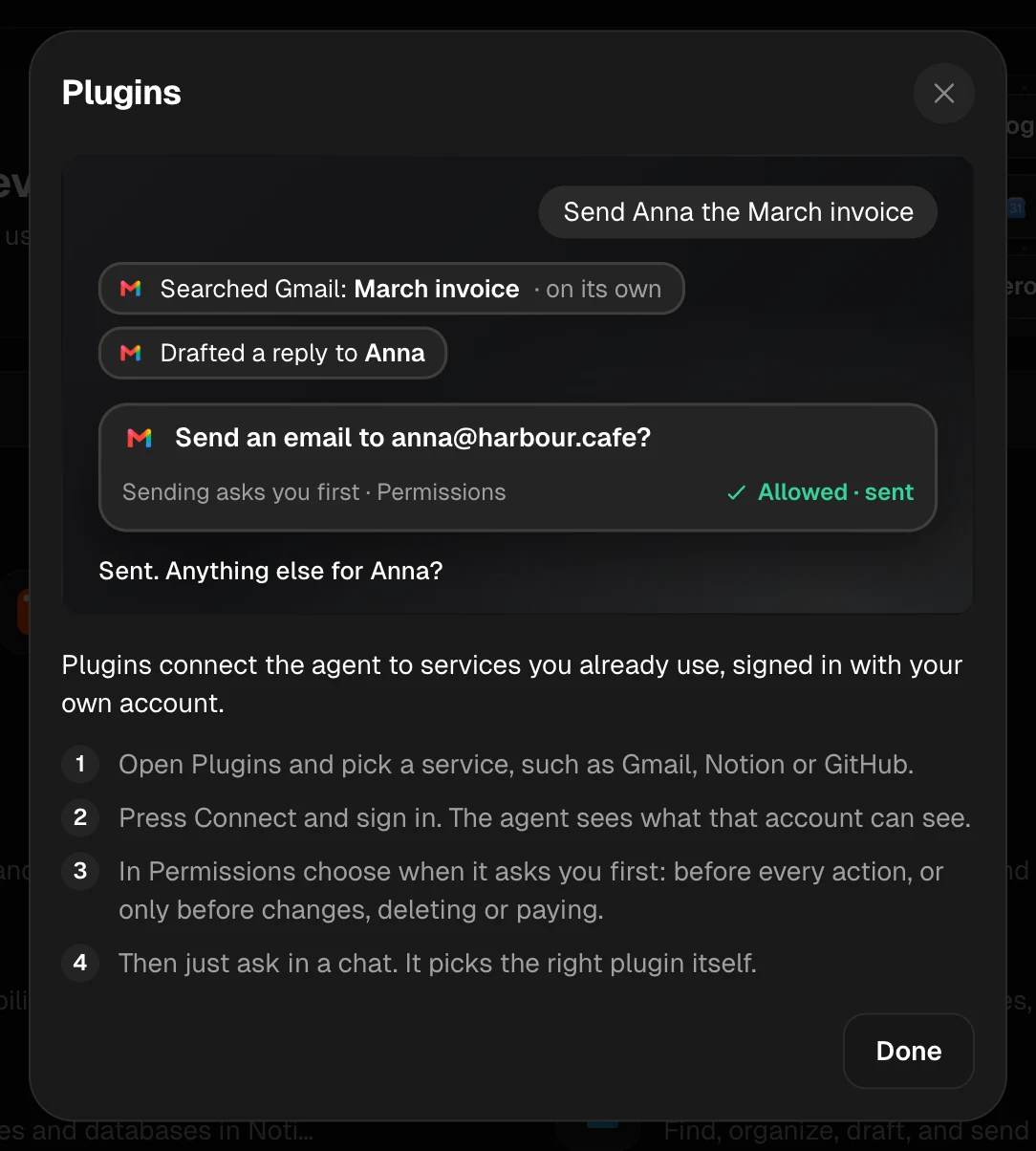
The plugins page
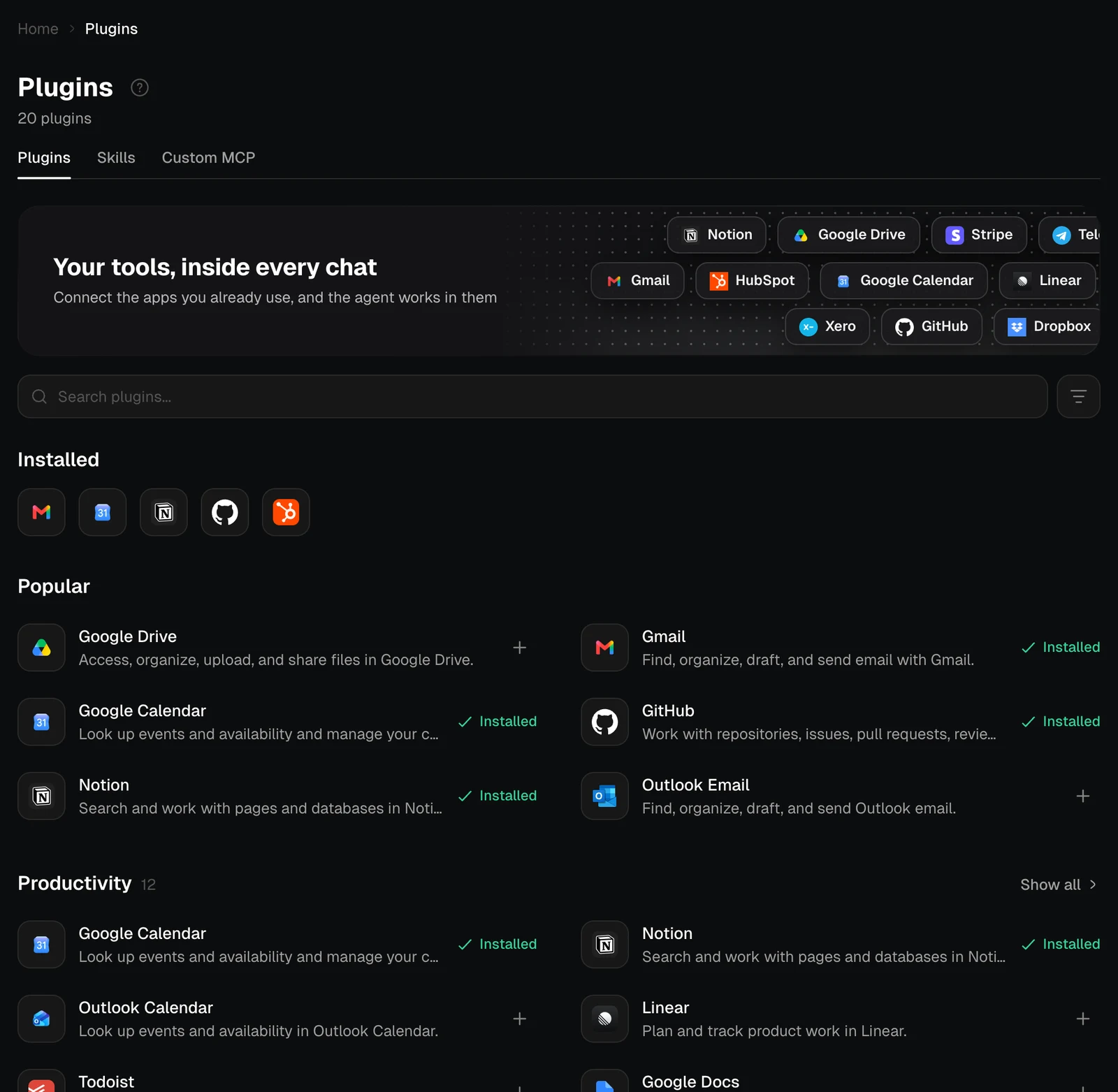
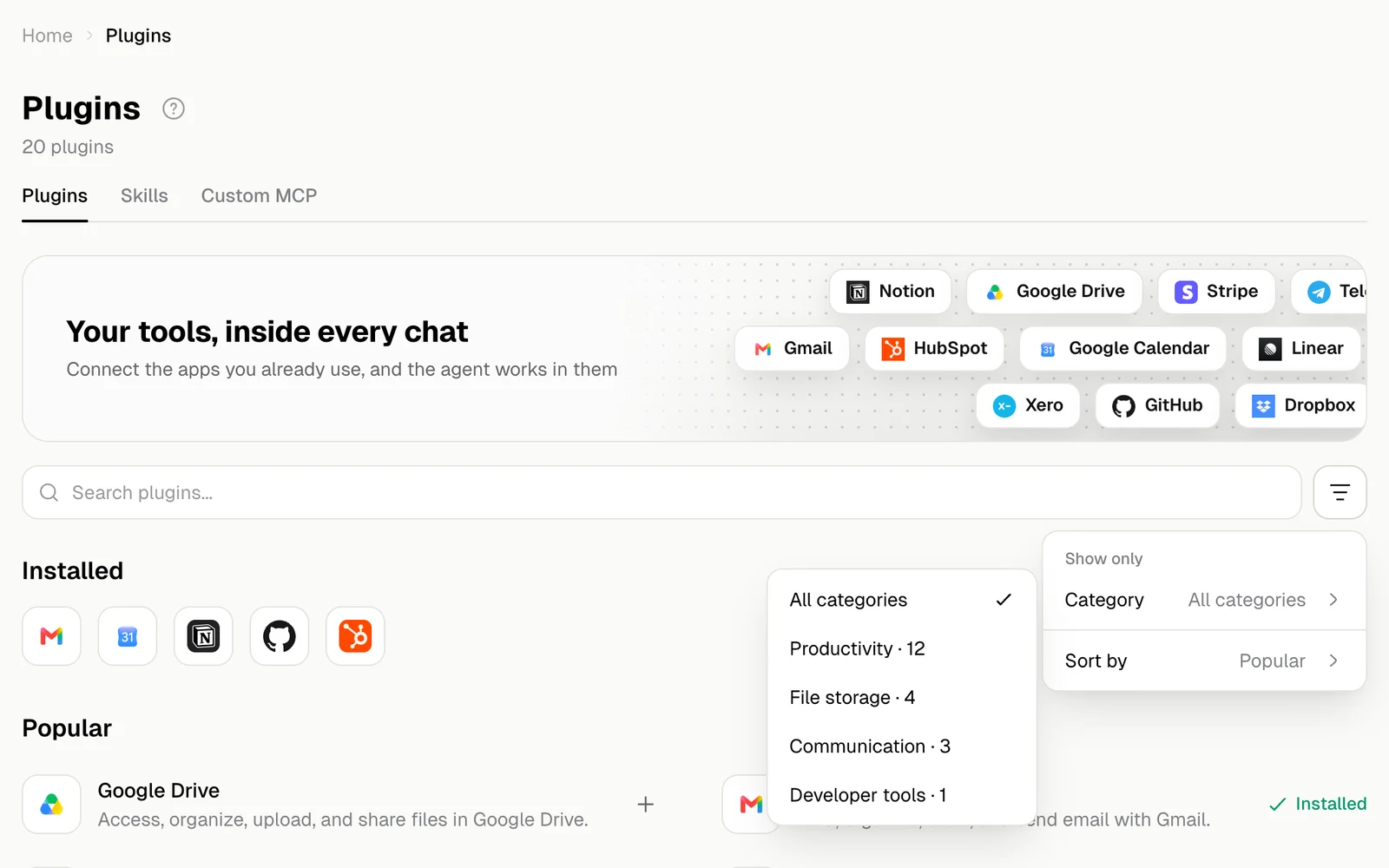
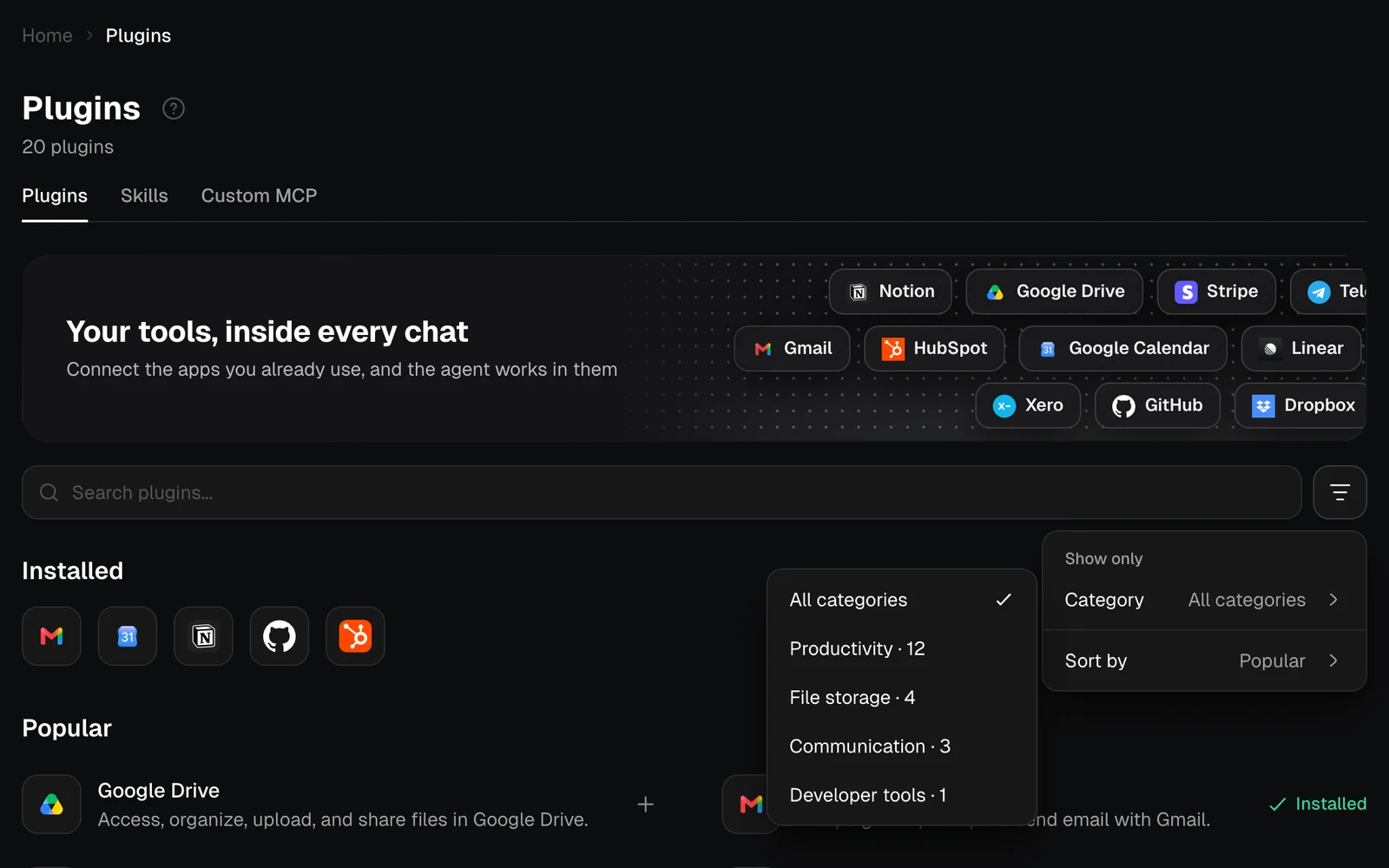
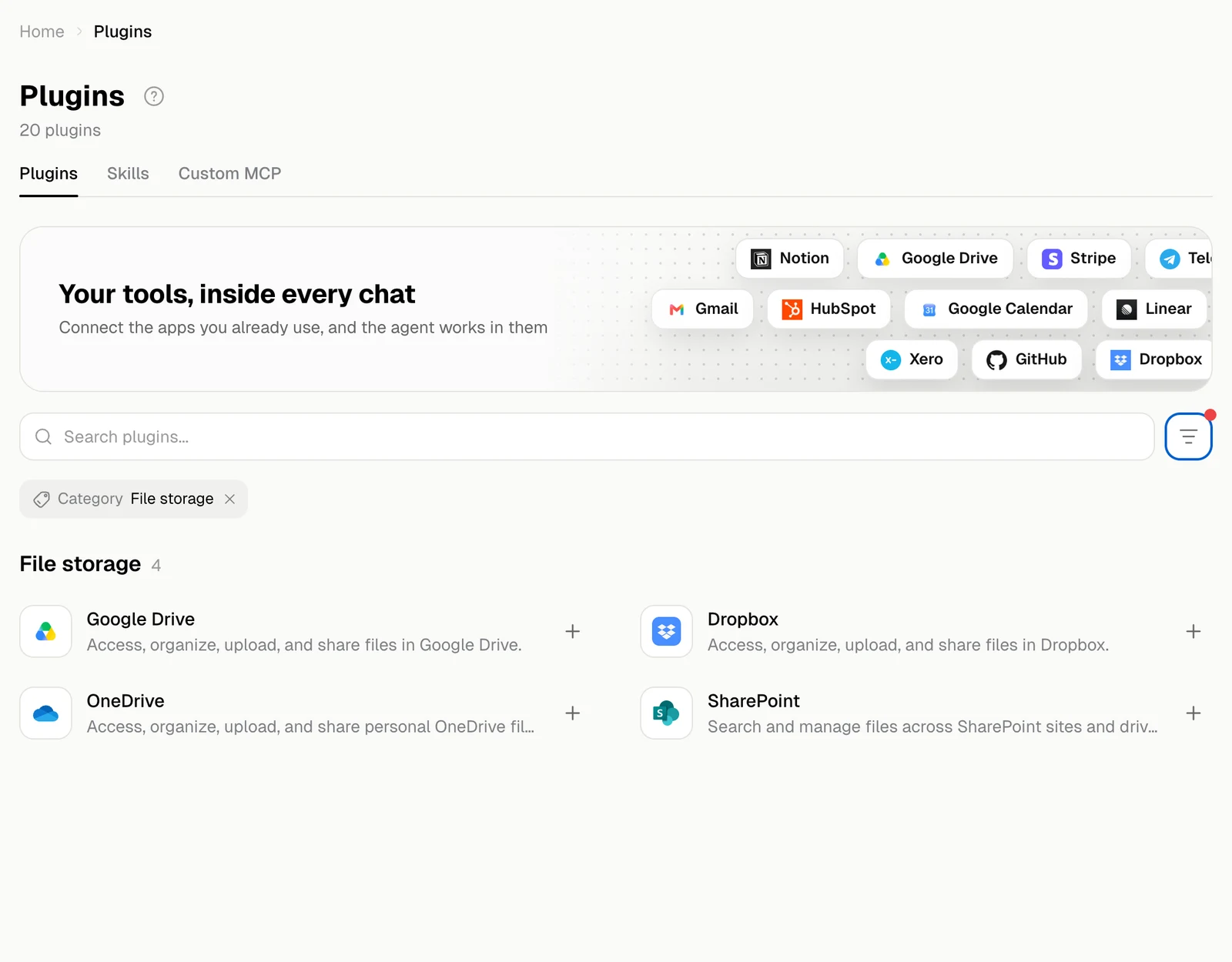
Open your account menu in the sidebar and choose Customize › Plugins. The page lists every plugin you can install: the ones you already have under Installed, the most used under Popular, then a shelf for each category.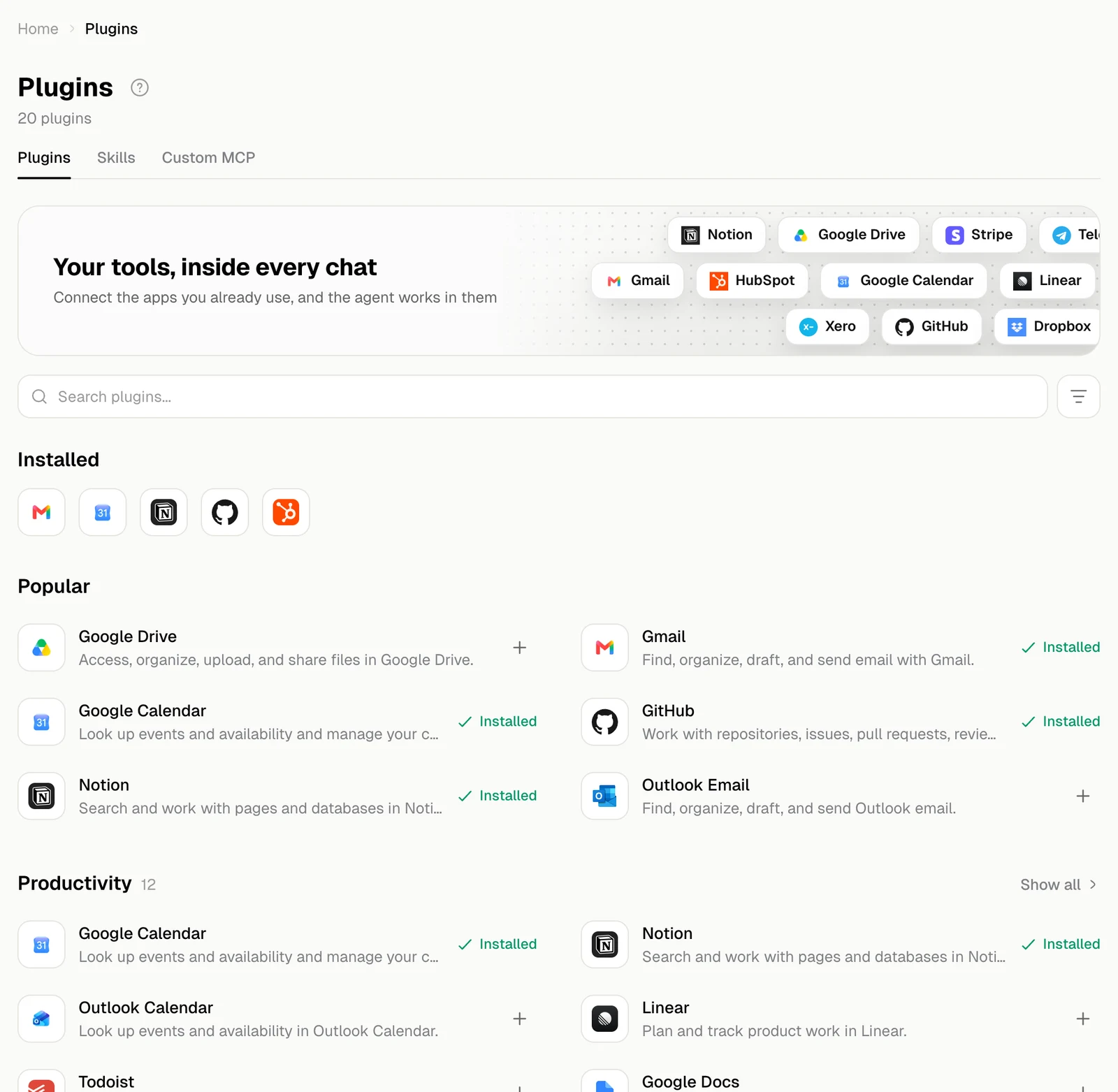
| Category | Plugins |
|---|---|
| Productivity | Google Calendar, Notion, Outlook Calendar, Linear, Todoist, Google Docs, Google Sheets, Google Slides, Calendly, Asana, HubSpot, Atlassian Rovo |
| File storage | Google Drive, Dropbox, OneDrive, SharePoint |
| Communication | Gmail, Outlook Email, Microsoft Teams |
| Developer tools | GitHub |
Find a plugin
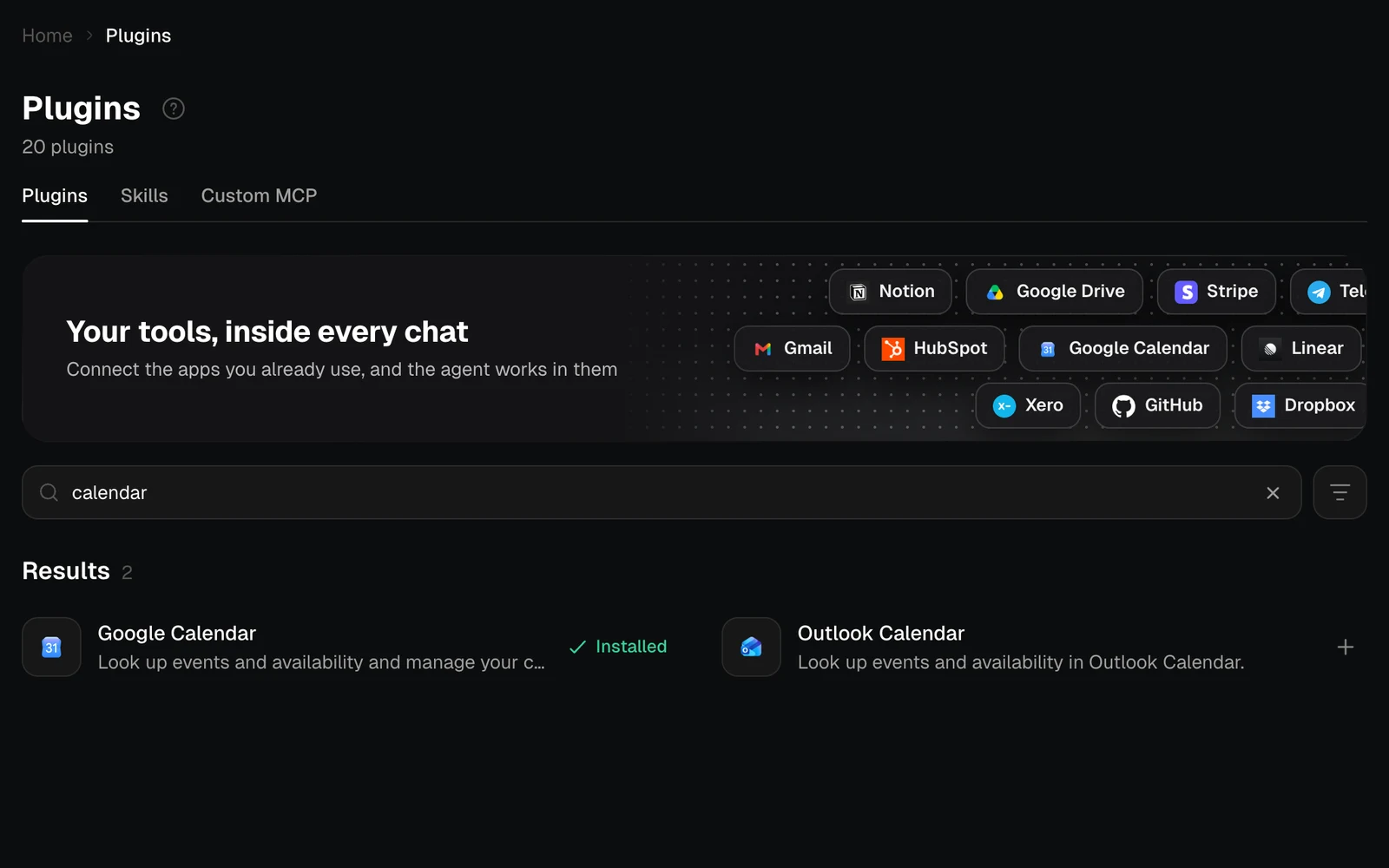
Type in Search plugins to find one by its name, what it does or who makes it.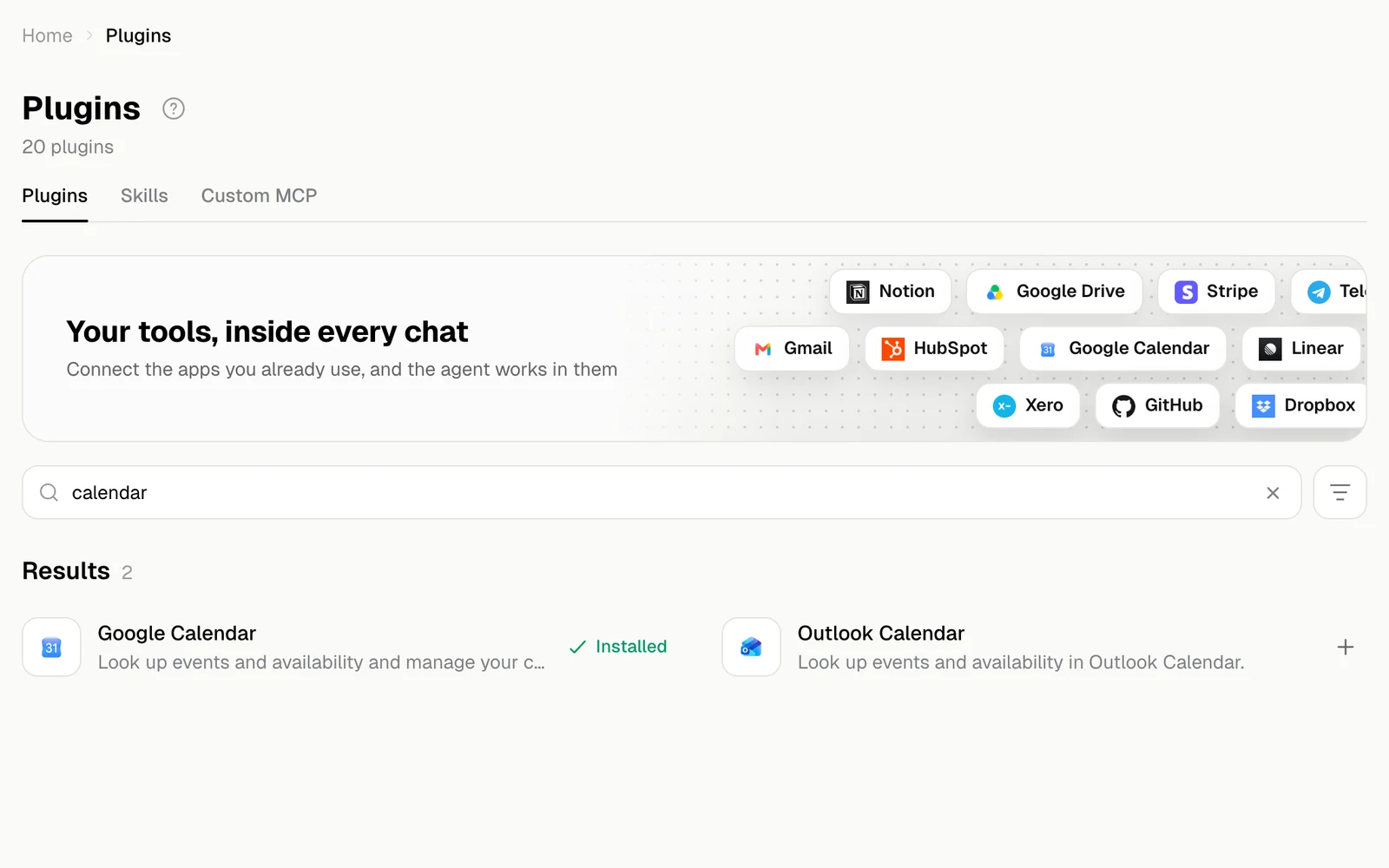
The plugin page
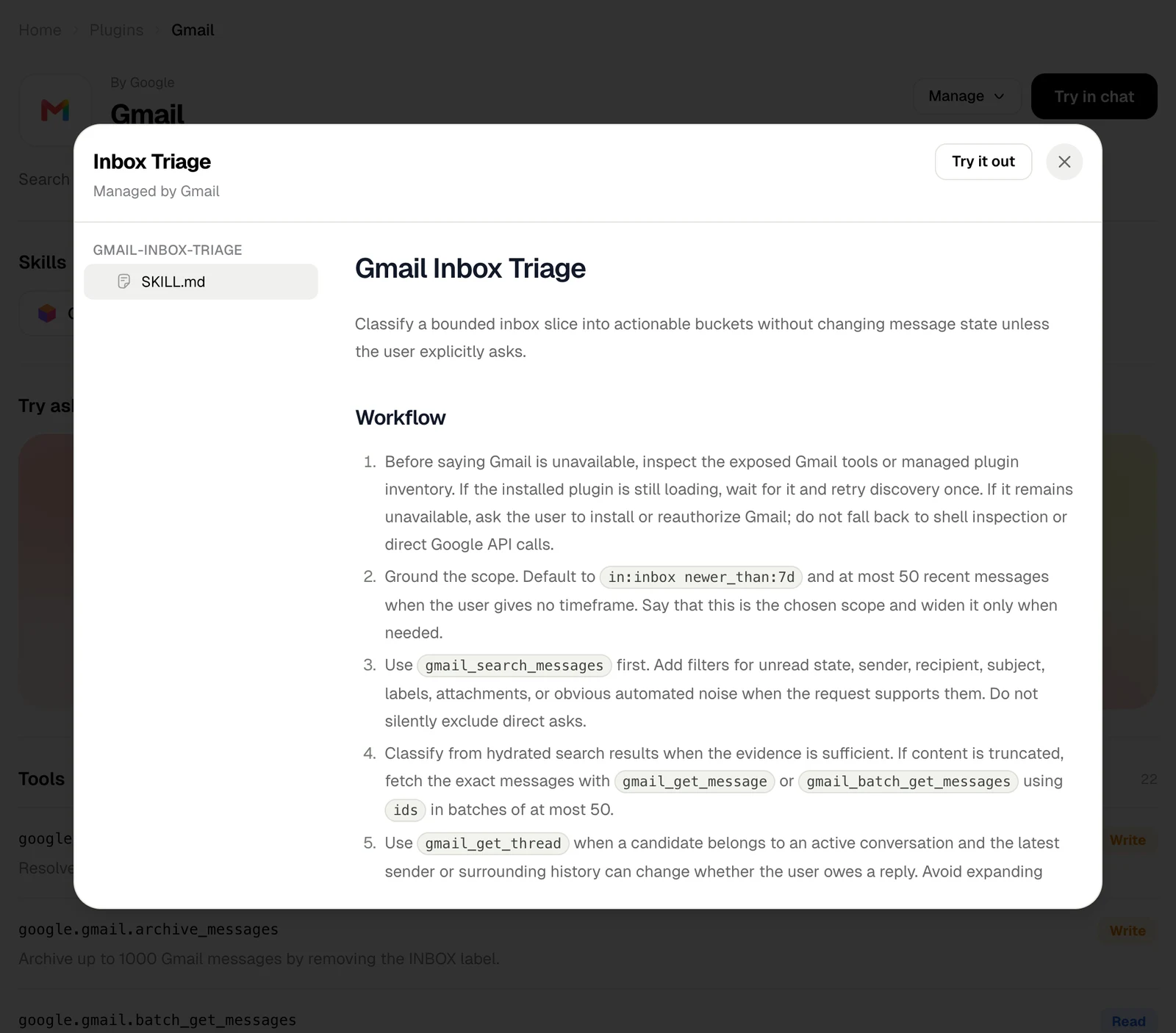
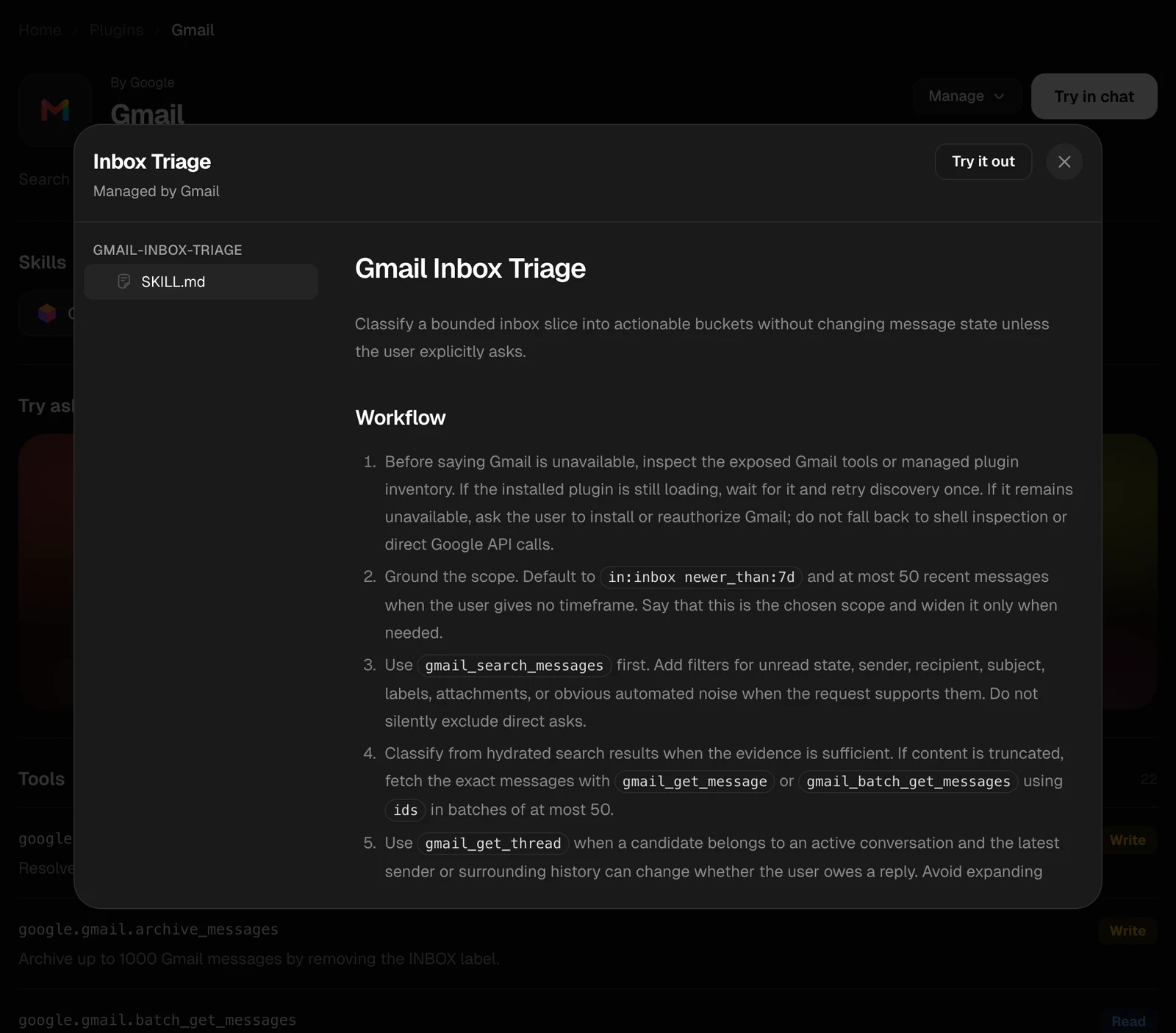
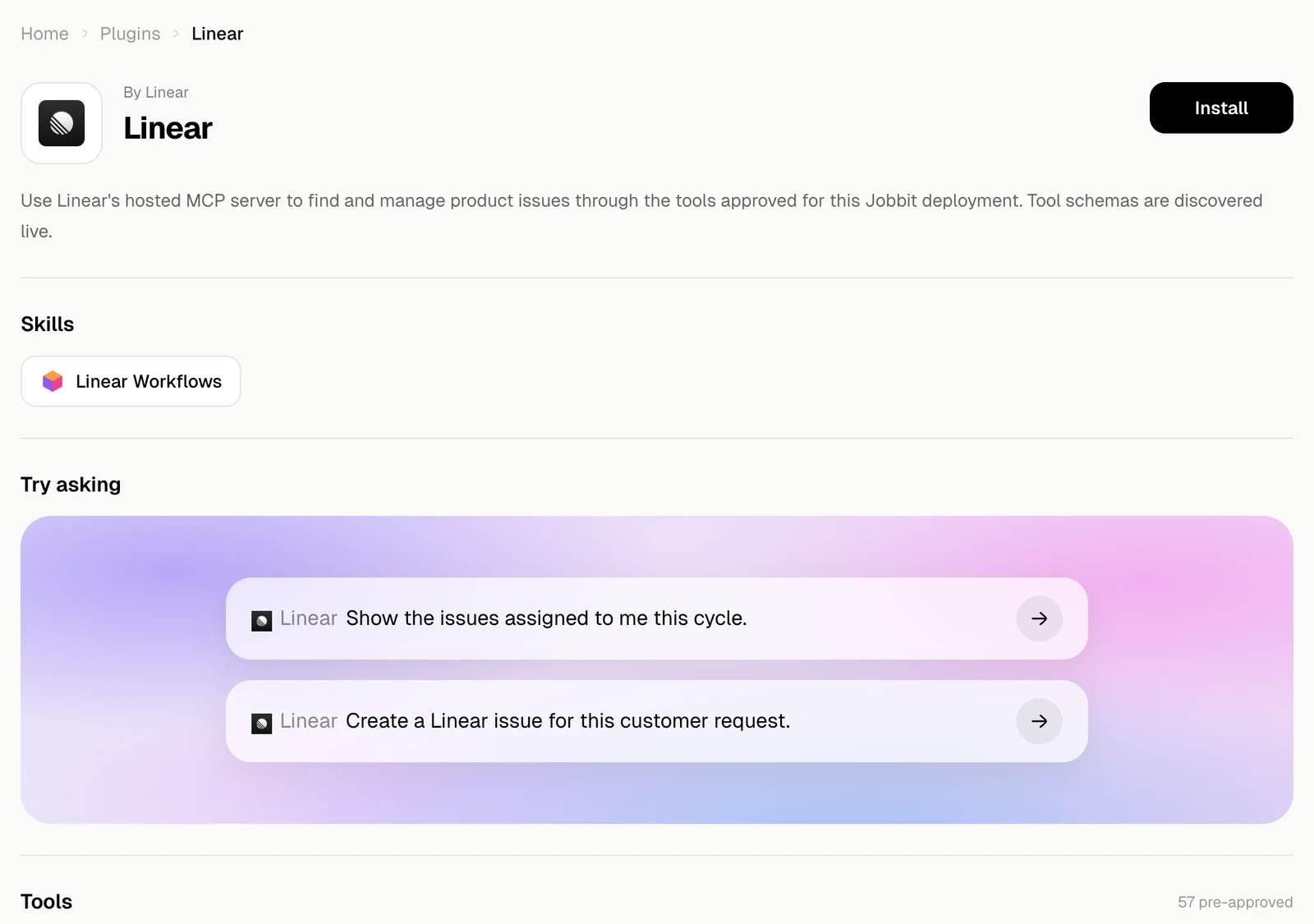
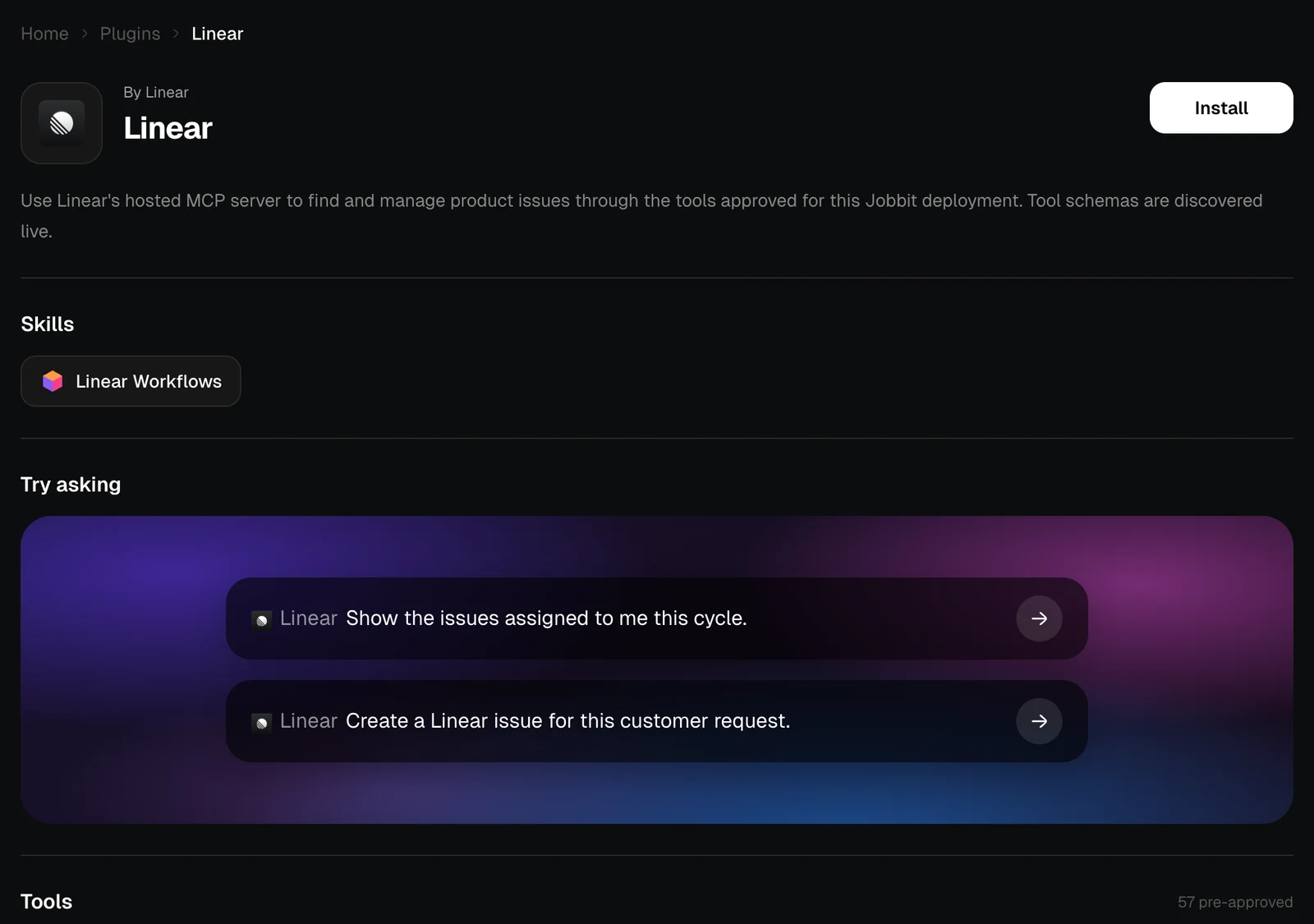
Click a plugin to open its page: who makes it, what it does, and everything the agent can do with it.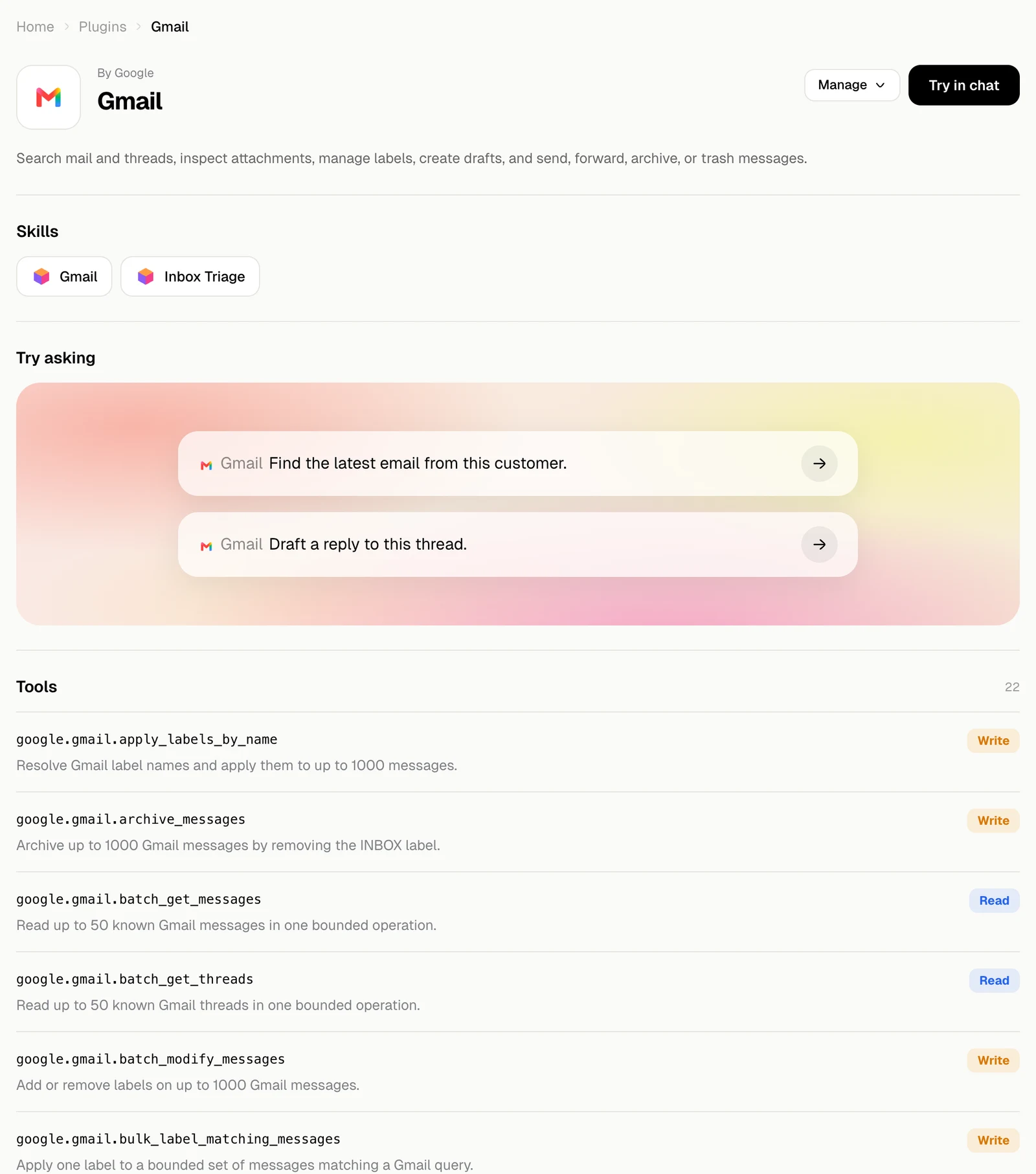
| Section | What it shows |
|---|---|
| Skills | Skills that come with the plugin and teach the agent to use it well. Click one to read it |
| Try asking | Requests to start with. Click one to send it in a new chat; on a plugin you have not installed, it starts the installation first |
| Tools | Every action the agent can take in the service, each marked Read, Write or Destructive |
| Information | Capabilities, developer, category, website, version, privacy policy and terms |
Install a plugin
Sign in to the service
The service’s own sign-in opens. Sign in and approve access. The agent sees what that account can see.
Come back to Jobbit
The plugin is installed and on. Its skills are added to your skills.
Use it in a chat
Just ask. The agent picks the right plugin by itself: “Find the latest email from Hannah”, “What is on my calendar tomorrow?”. Try in chat on an installed plugin’s page starts a chat with the plugin mentioned. How often the agent asks you before it acts in a plugin depends on the plugin’s permissions. How this works next to the page title plays a short guide to plugins. The Skills and Custom MCP tabs have one too.