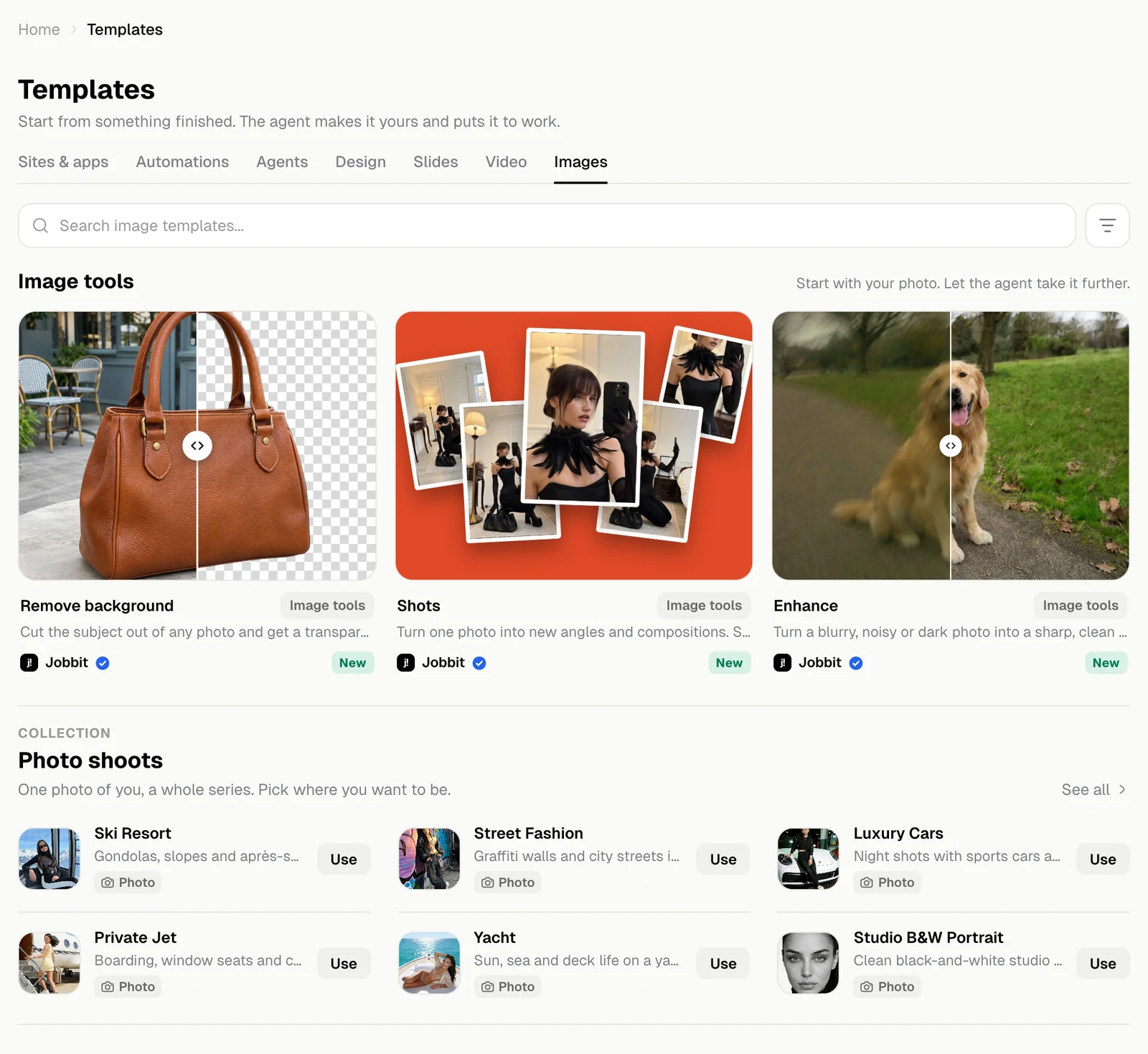
The Images tab has two groups. Image tools work on a photo you already have. Photo shoots turn one photo of you into a whole series.
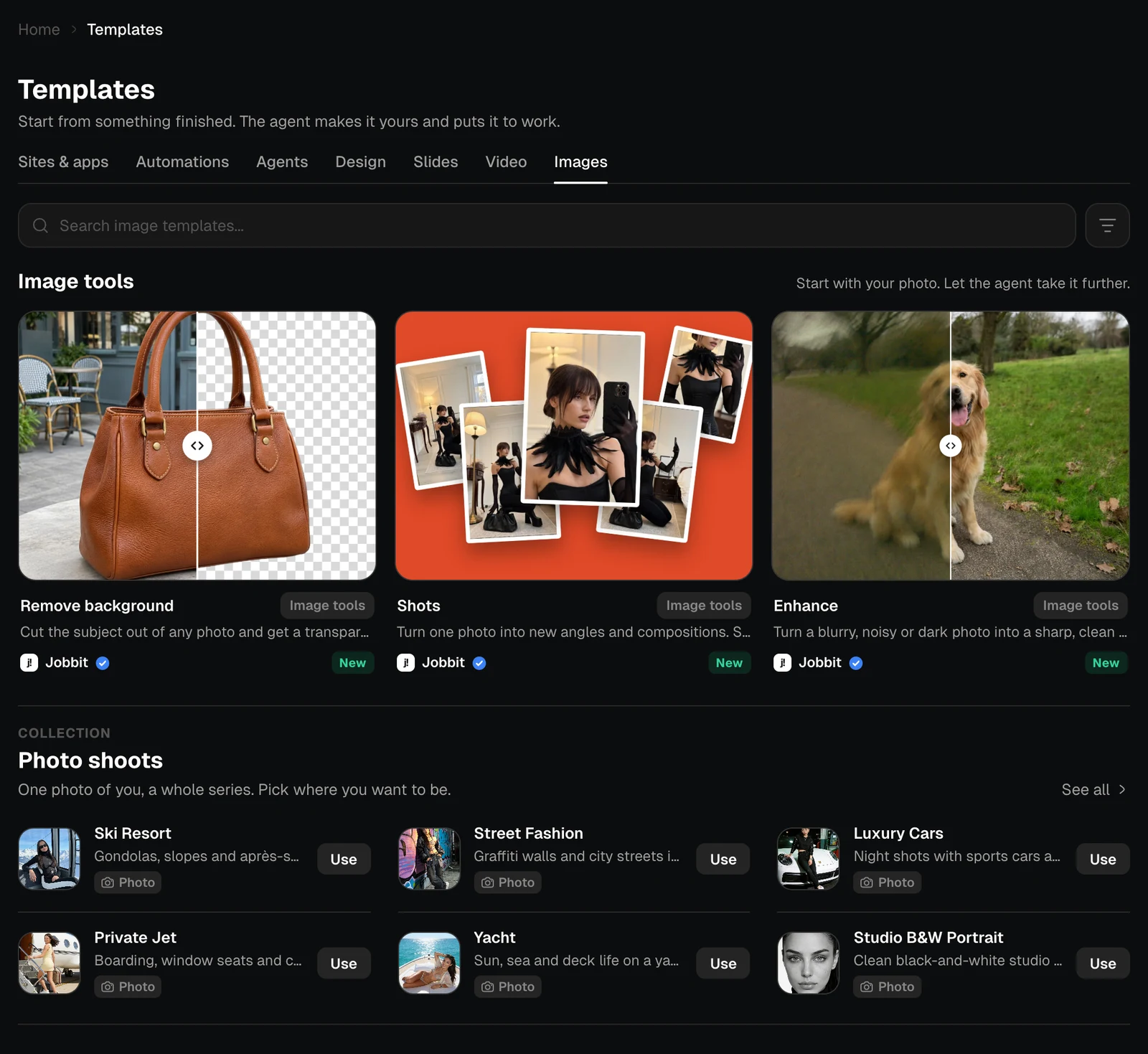
The Images tab with tools and the Photo shoots collection, light themeThe Images tab with tools and the Photo shoots collection, dark theme
Image toolWhat it does
Remove backgroundCuts the subject out onto a transparent PNG
ShotsTurns one photo into new angles and compositions
EnhanceTurns a blurry, noisy or dark photo into a sharp, clean one
Product photoTurns a phone photo of your product into clean shop-ready shots
Business portraitTurns a selfie into a professional portrait for LinkedIn, a CV or your website
Room makeoverShows your room redesigned in a new style, from a single photo

An image tool

The pictures show examples. They are AI-generated, and your results depend on your photo. Under them, the page says exactly what the tool does.
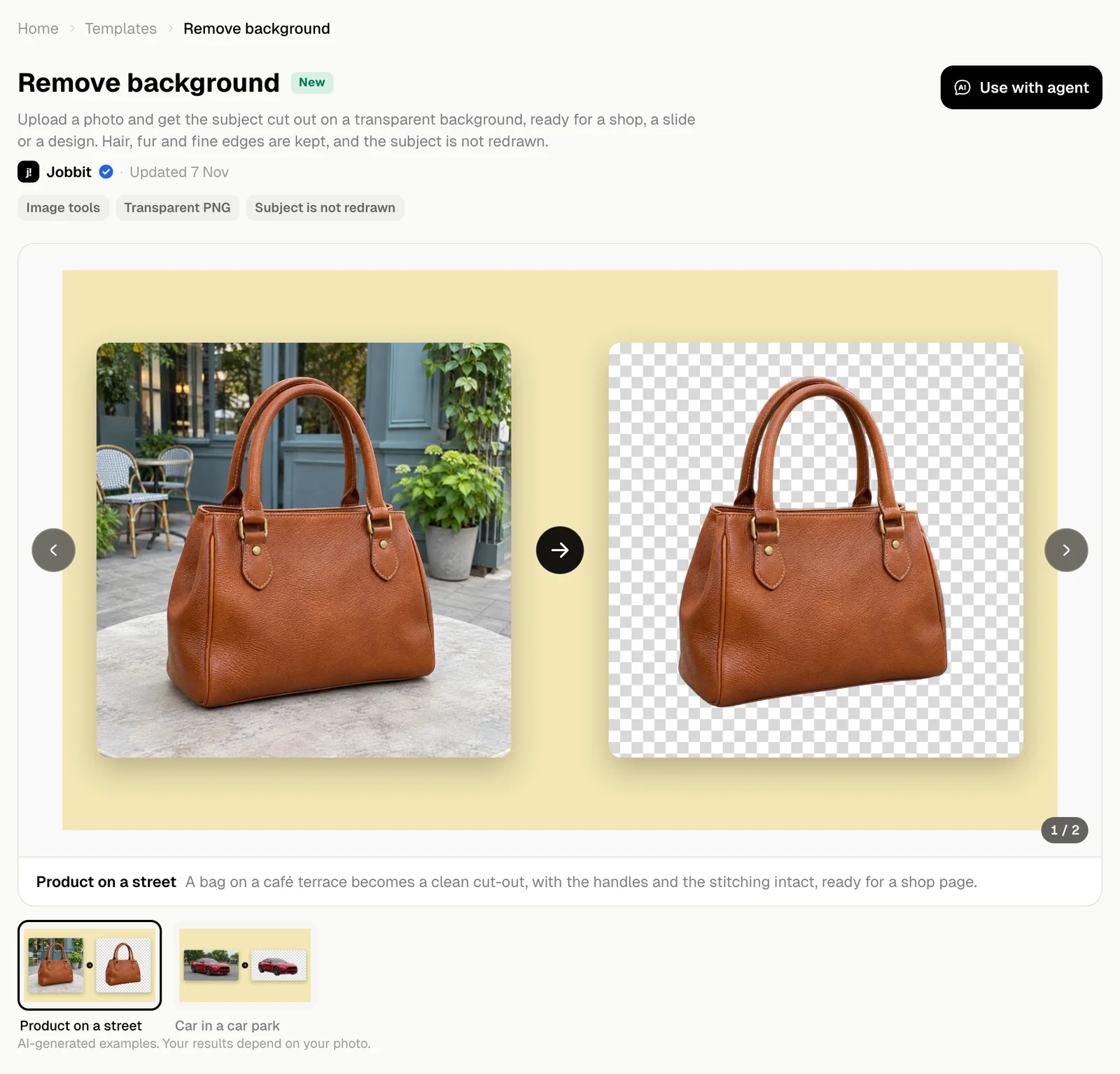
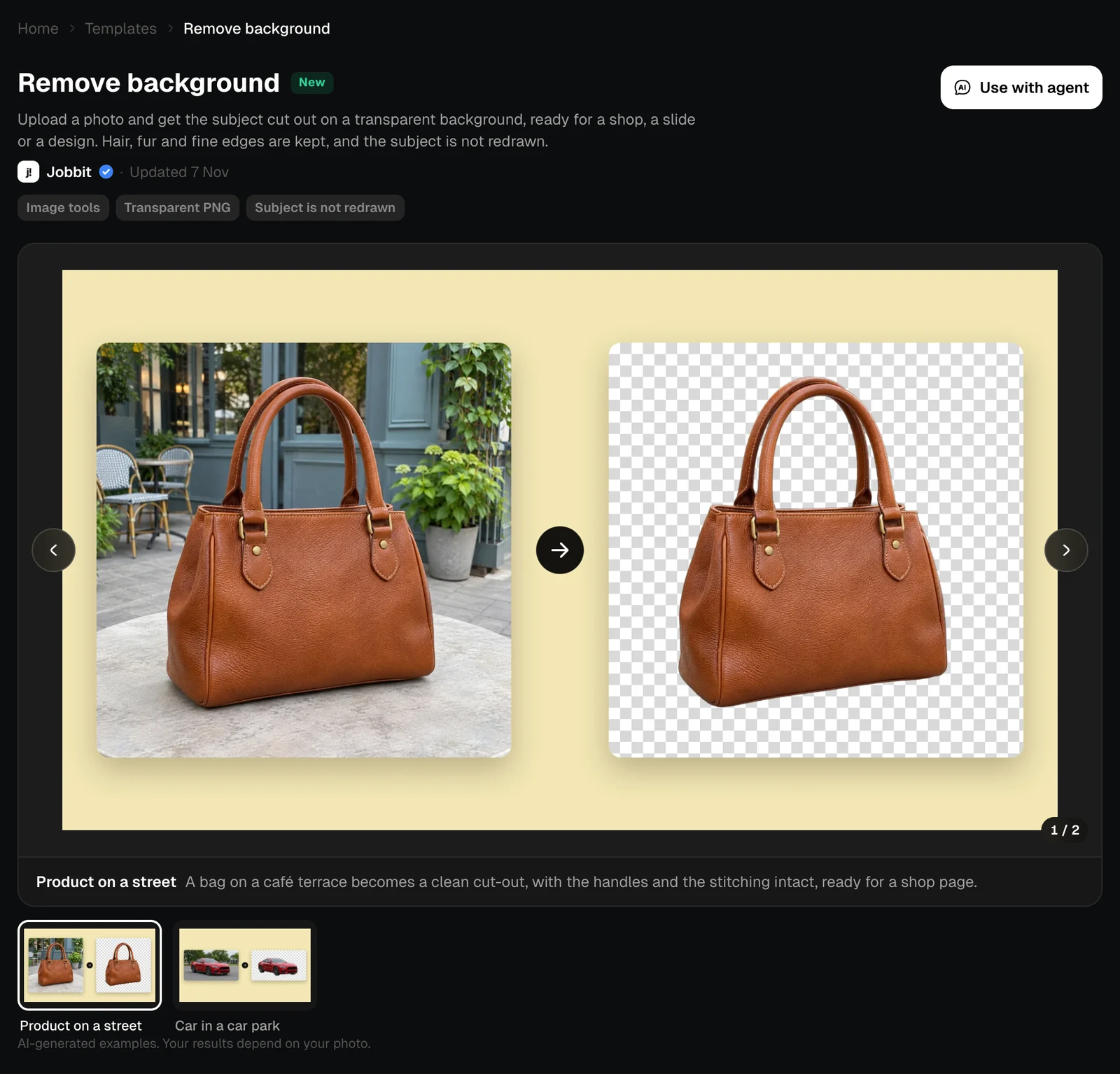
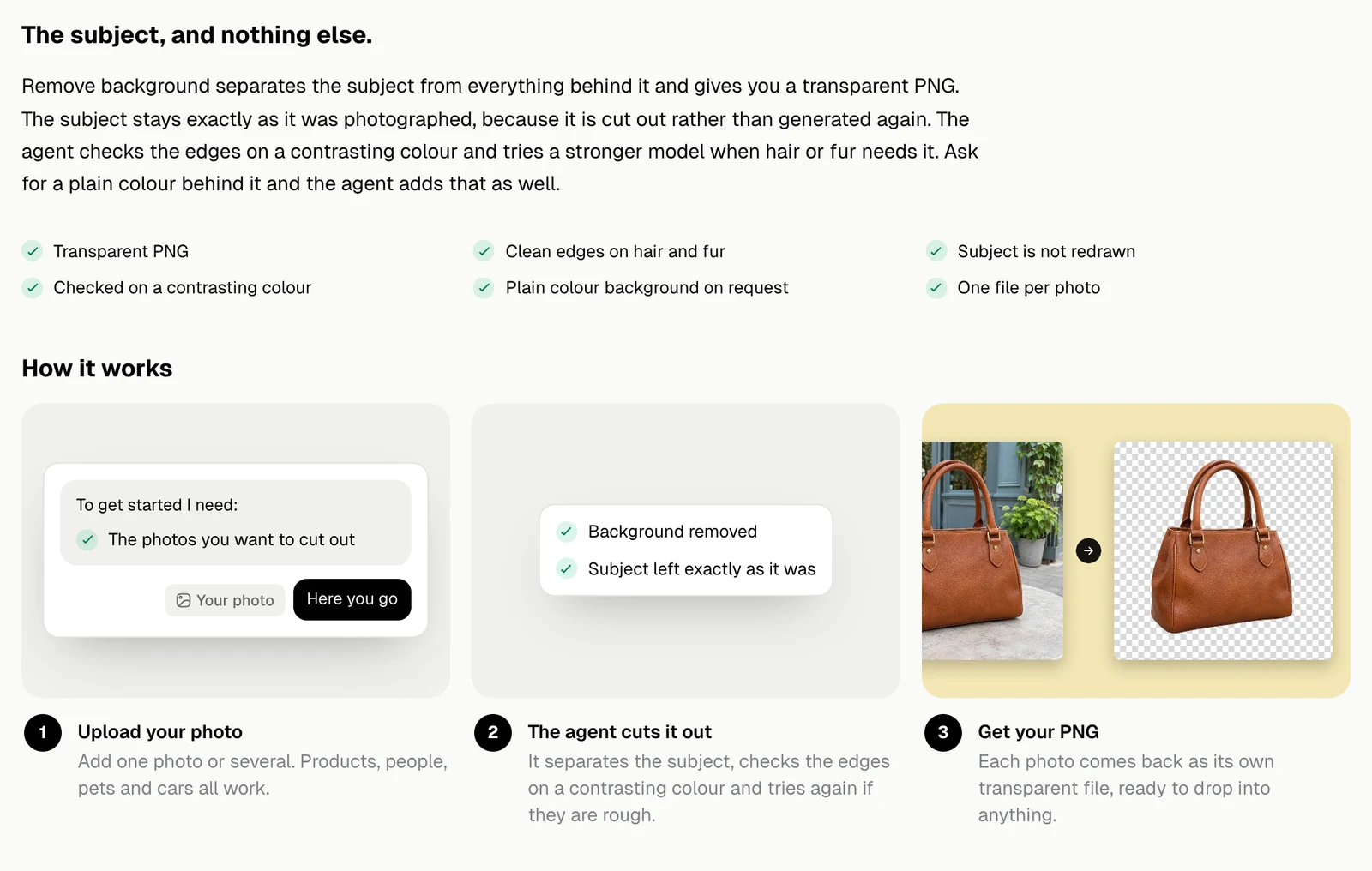
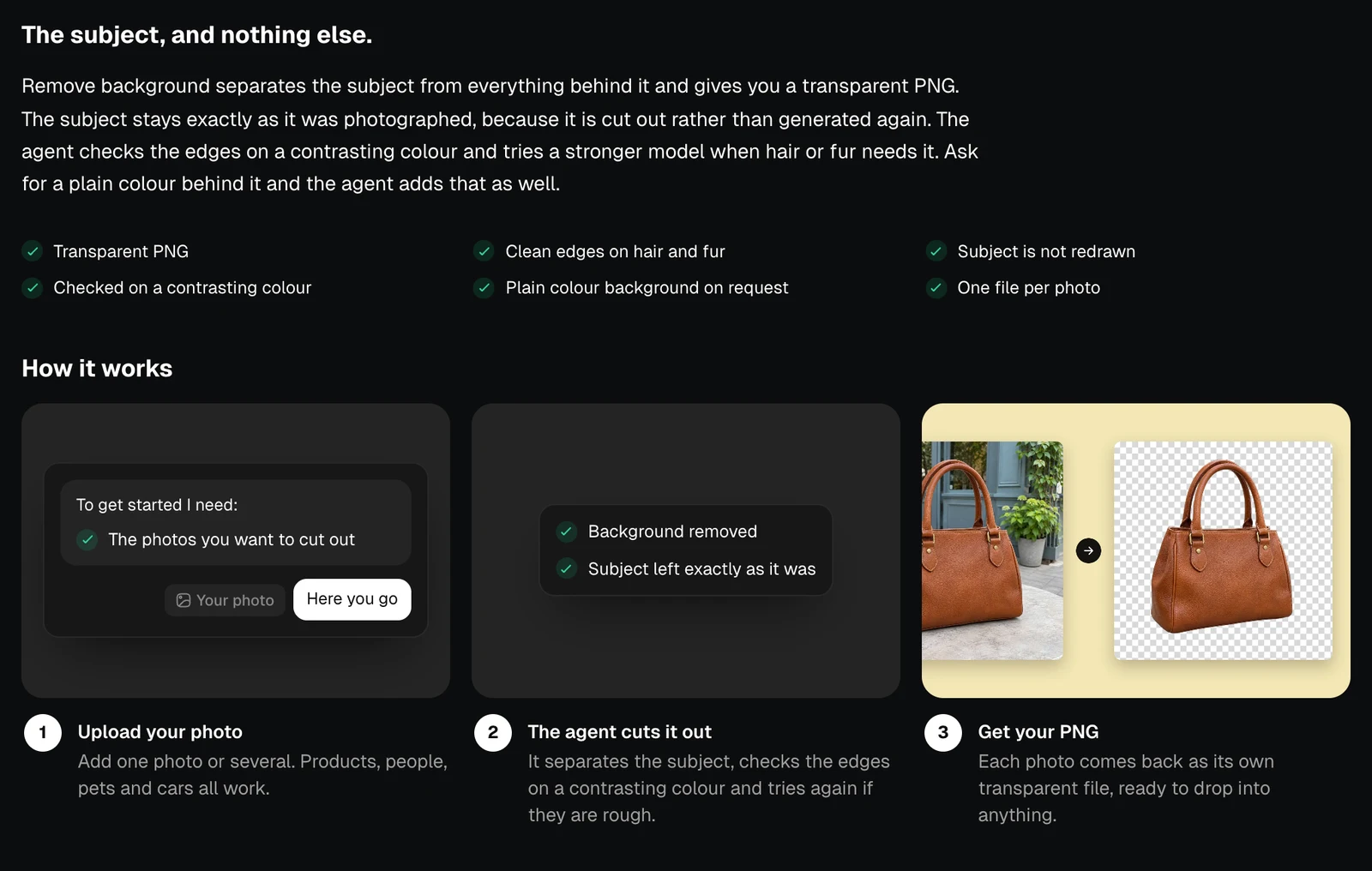
The page of the Remove background tool with an example, light themeThe page of the Remove background tool with an example, dark theme
The description of the tool and its three steps, light themeThe description of the tool and its three steps, dark theme

A photo shoot

Ski Resort, Private Jet, Street Fashion, Yacht, Luxury Cars, Studio B&W Portrait and 2000s Party each put you in a different setting. The examples show results for women and for men.
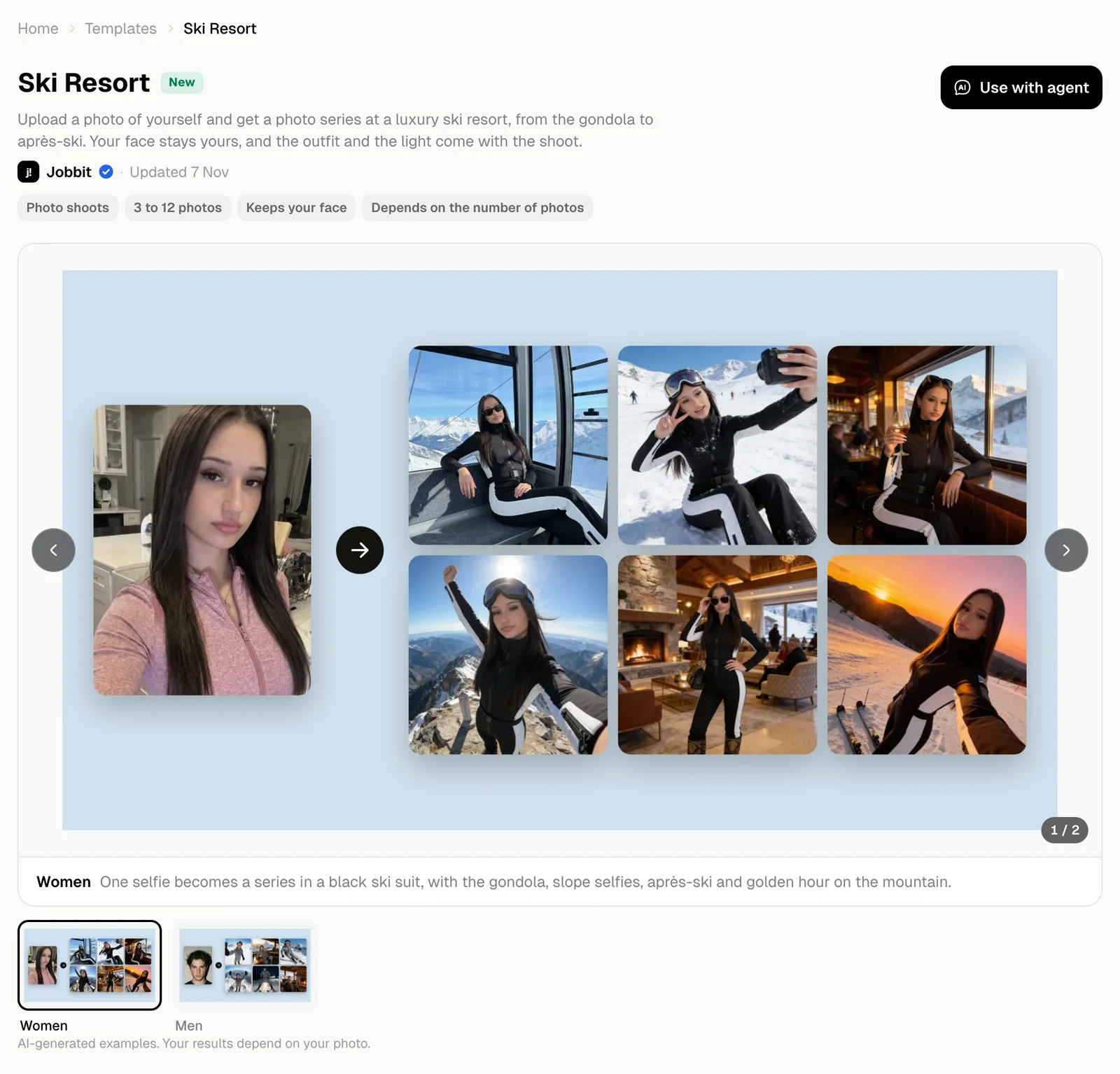
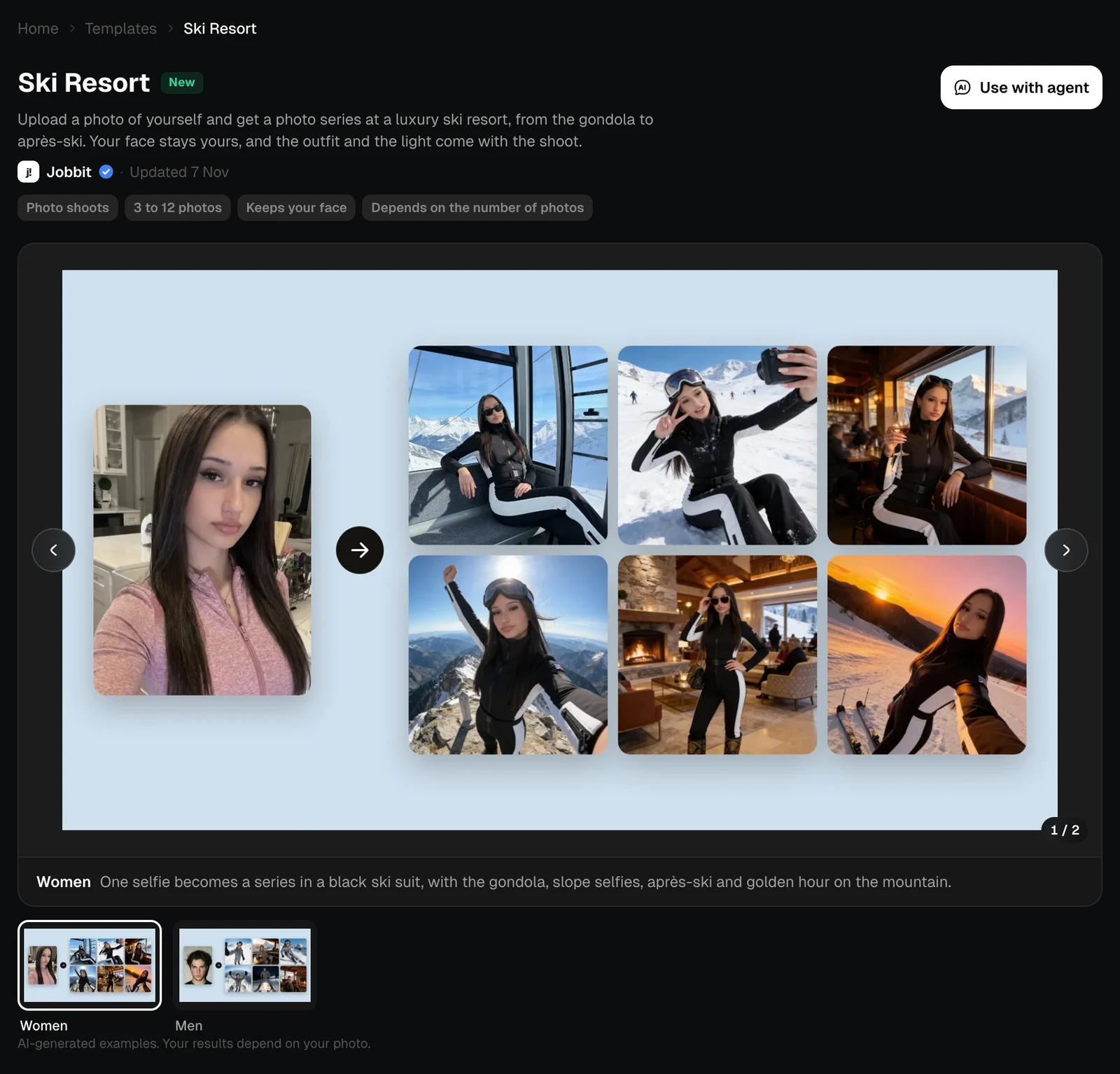
The page of the Ski Resort photo shoot with an example series, light themeThe page of the Ski Resort photo shoot with an example series, dark theme
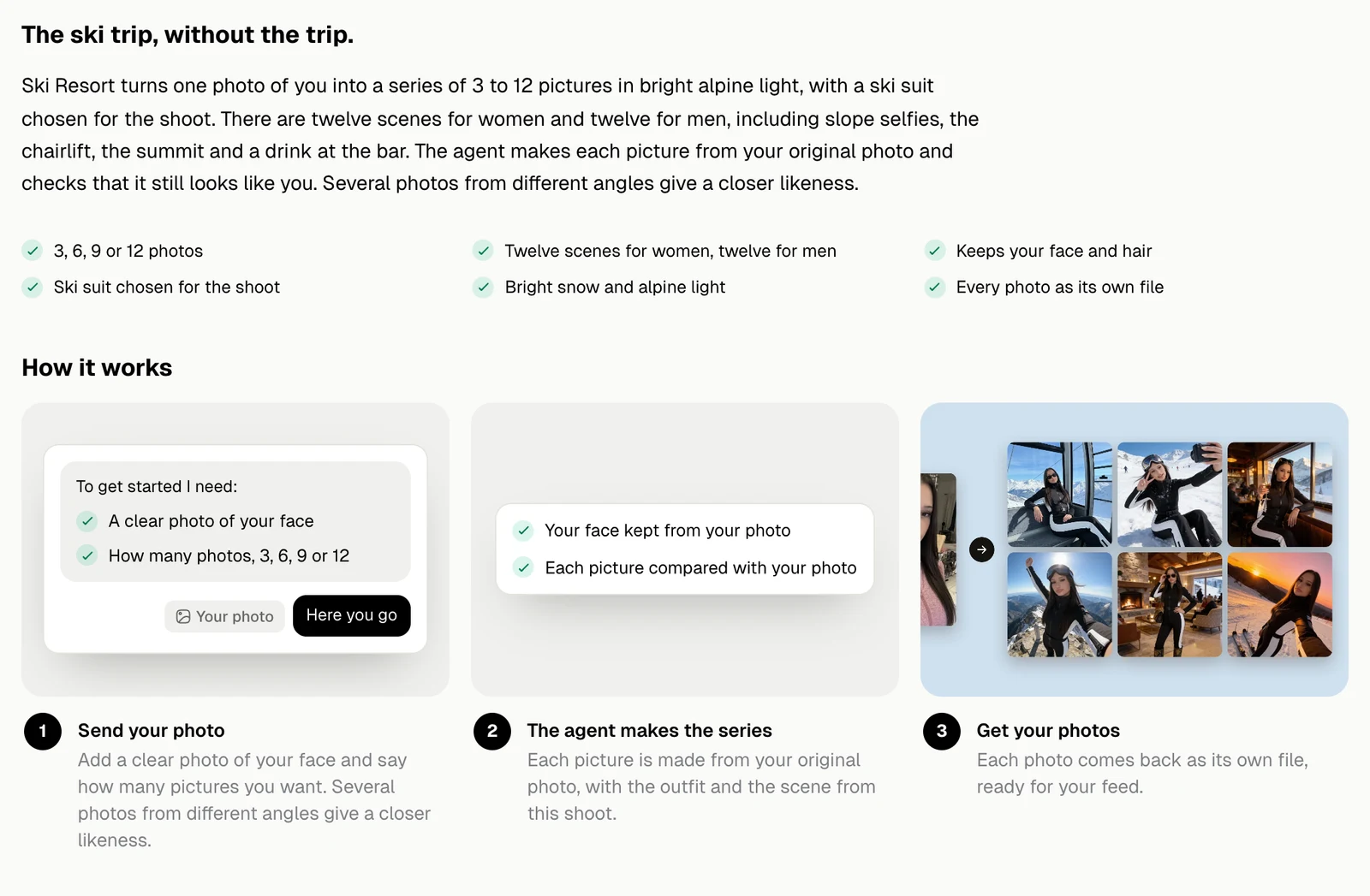
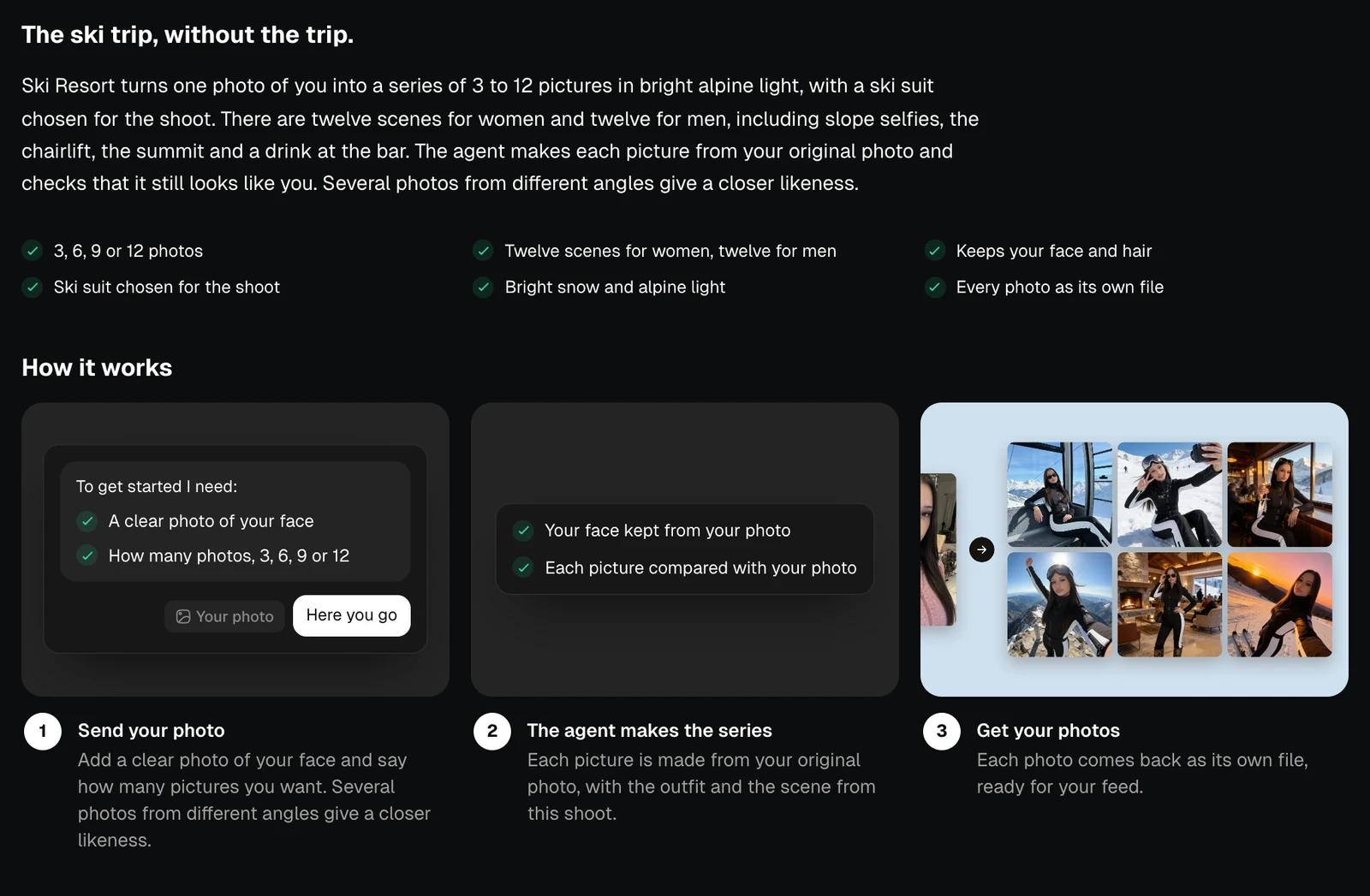
Send a clear photo of your face and say how many pictures you want: 3, 6, 9 or 12. Your face and hair stay yours, and the outfit and the light come with the shoot. Several photos from different angles give a closer likeness. The cost depends on the number of photos.
The description of the photo shoot and its three steps, light themeThe description of the photo shoot and its three steps, dark theme
Photo shoots sit in their own collection while you browse, and appear with the other cards when you search or filter.