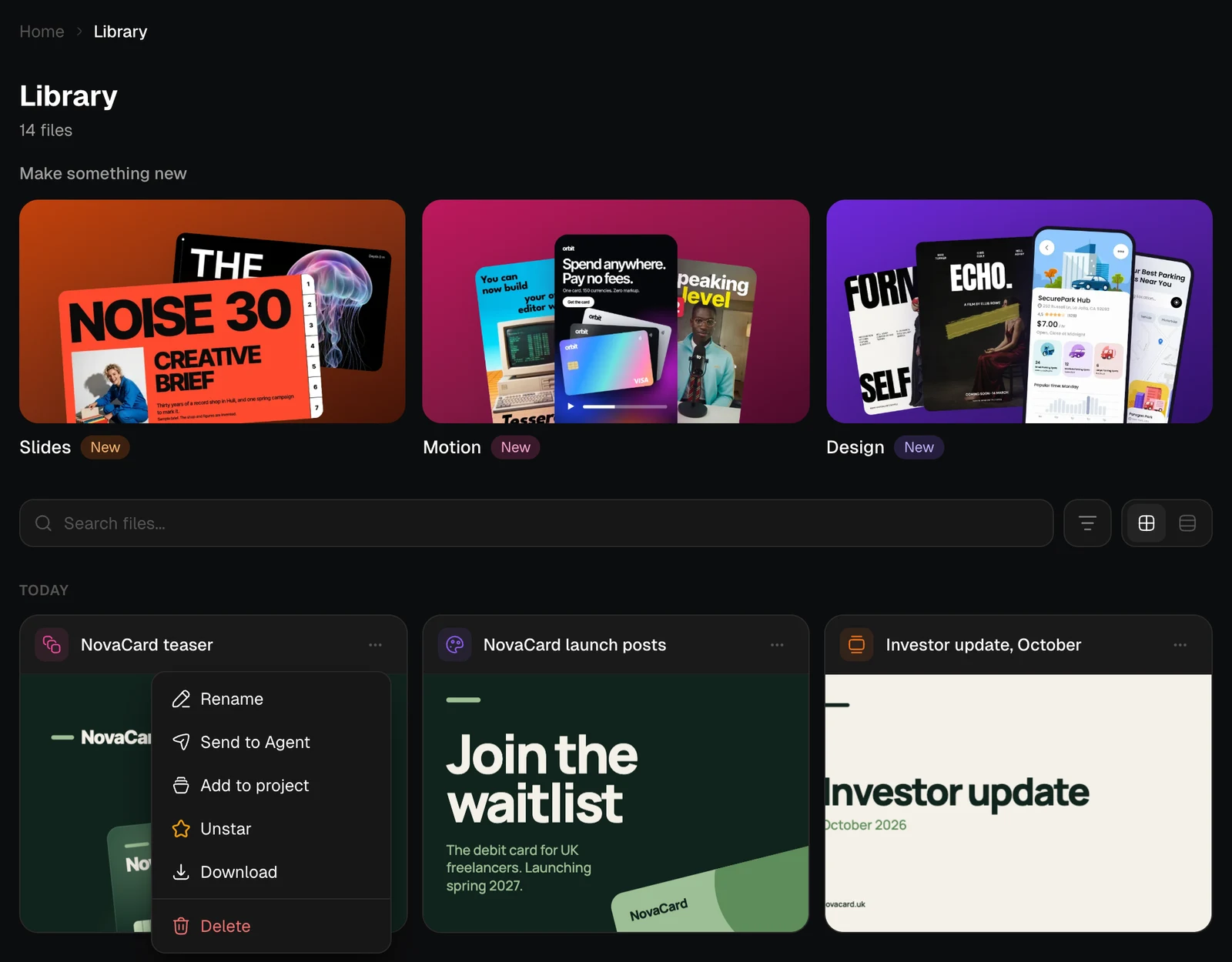
| Action | What it does |
|---|---|
| Rename | Gives the file a new name |
| Send to Agent | Starts a new chat with the file in it |
| Add to project | Puts a presentation, design or motion video in a project. Only these have it |
| Star / Unstar | Marks the file as a favourite, or takes the mark off |
| Download | Saves the file to your device |
| Delete | Deletes the file for good |
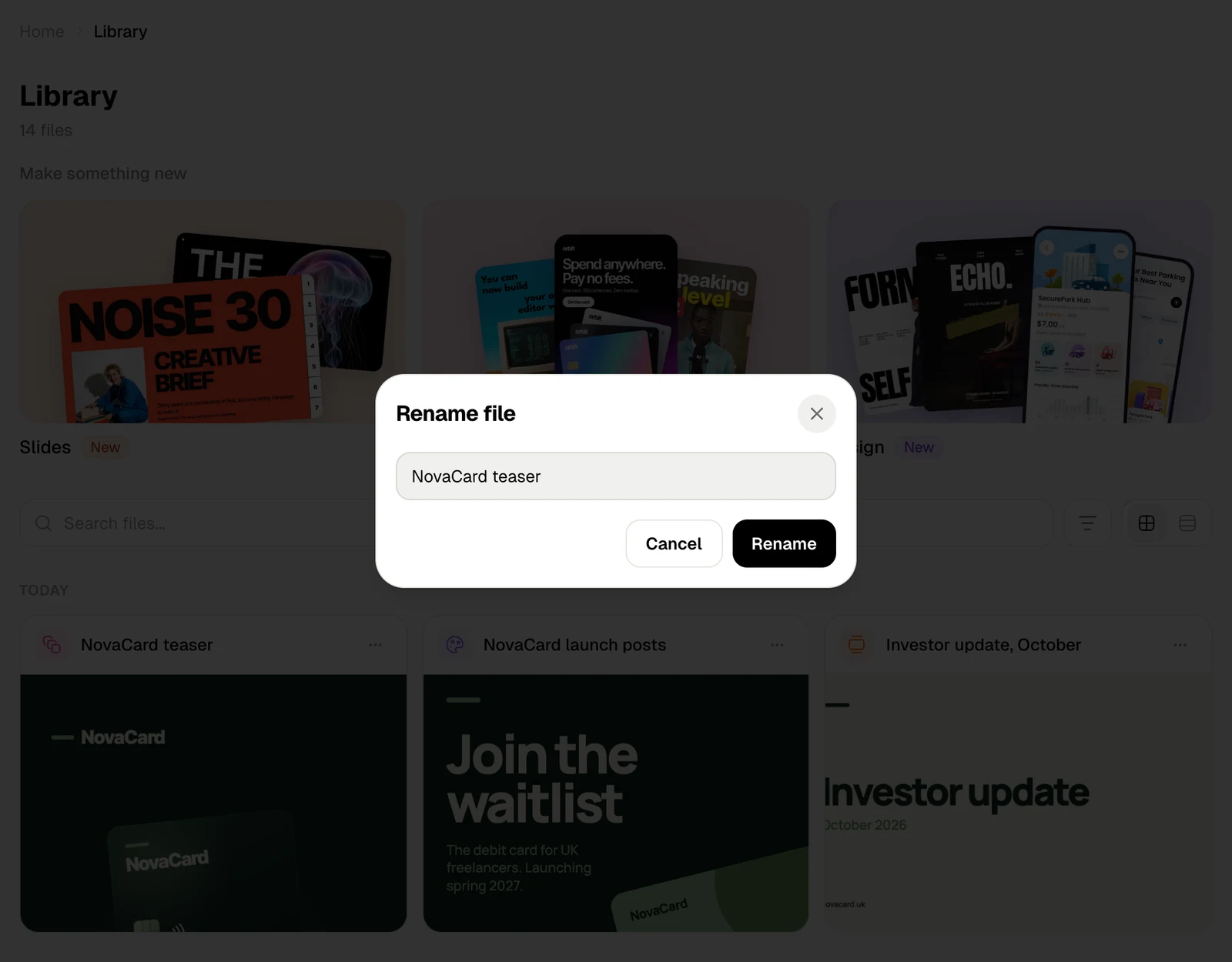
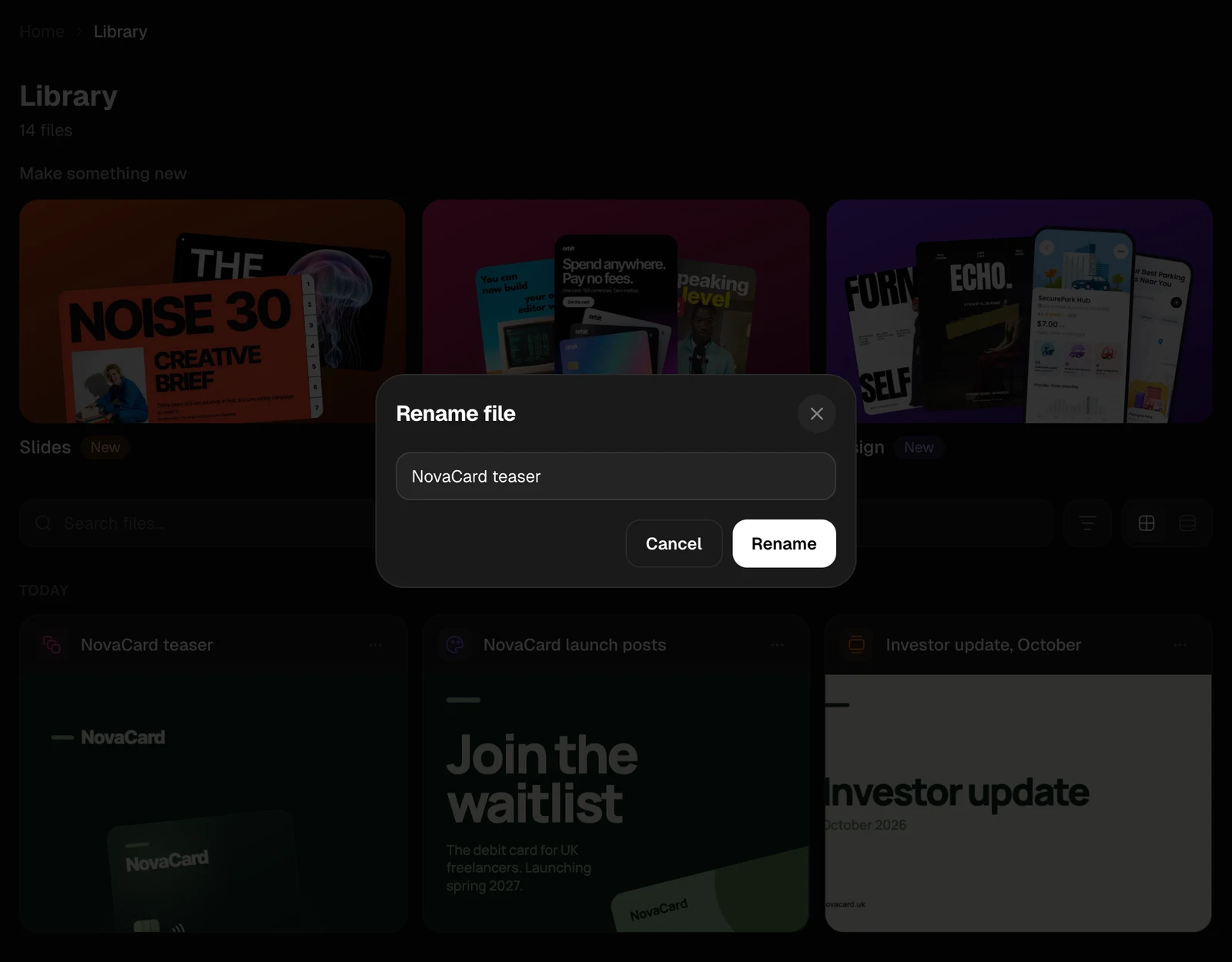
Rename
Type the new name and choose Rename, or press Enter. The extension stays as it is: the dialog says which one it keeps, so.png stays .png.
Send to Agent
Send to Agent opens a new chat with the file already in the message, so you can ask about it or ask for something made from it. A presentation, design or motion video goes in as a mention, such as @NovaCard seed deck: the agent opens the document itself and can change it.Star
Starred files show Unstar in their menu, with a yellow star. To see only them, choose Favourites only in the filter. See Filter and sort.Add to project
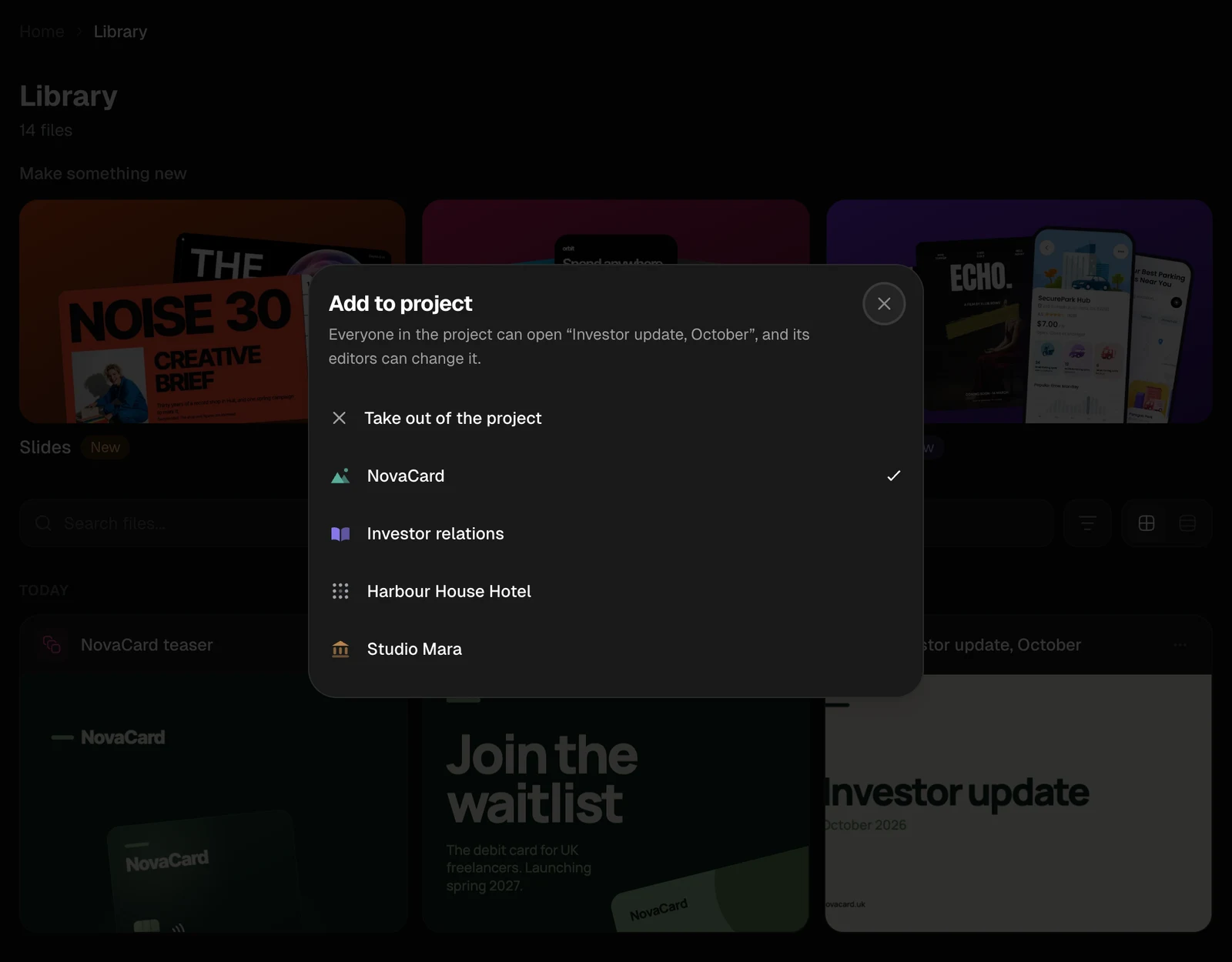
Presentations, designs and motion videos can sit in one project at a time. Everyone in the project can open the document, and the project’s editors can change it. The list shows the projects where you can edit, with a tick next to the one the document is in now. Pick another project to move it there, or Take out of the project to keep it only in your Library.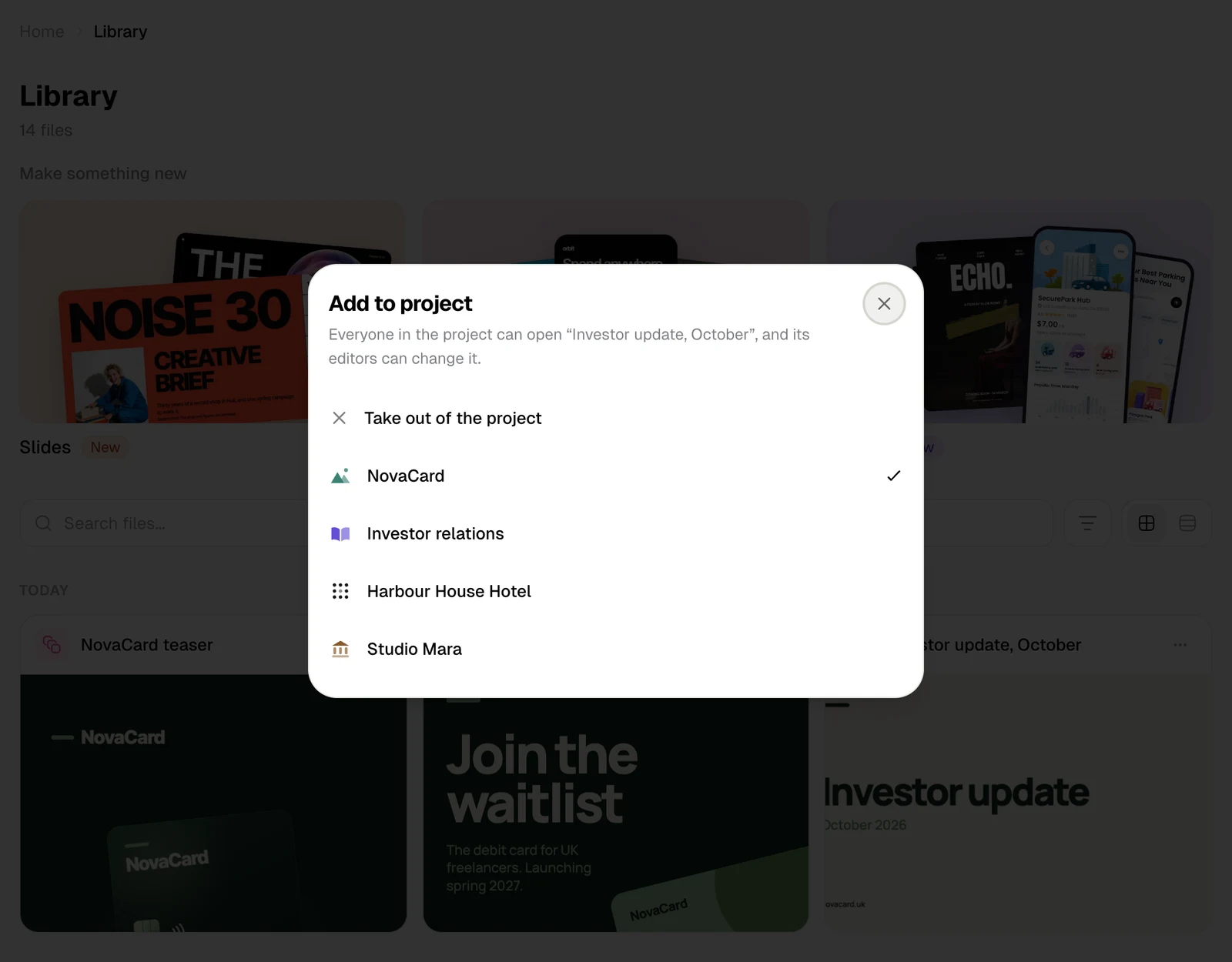
Delete
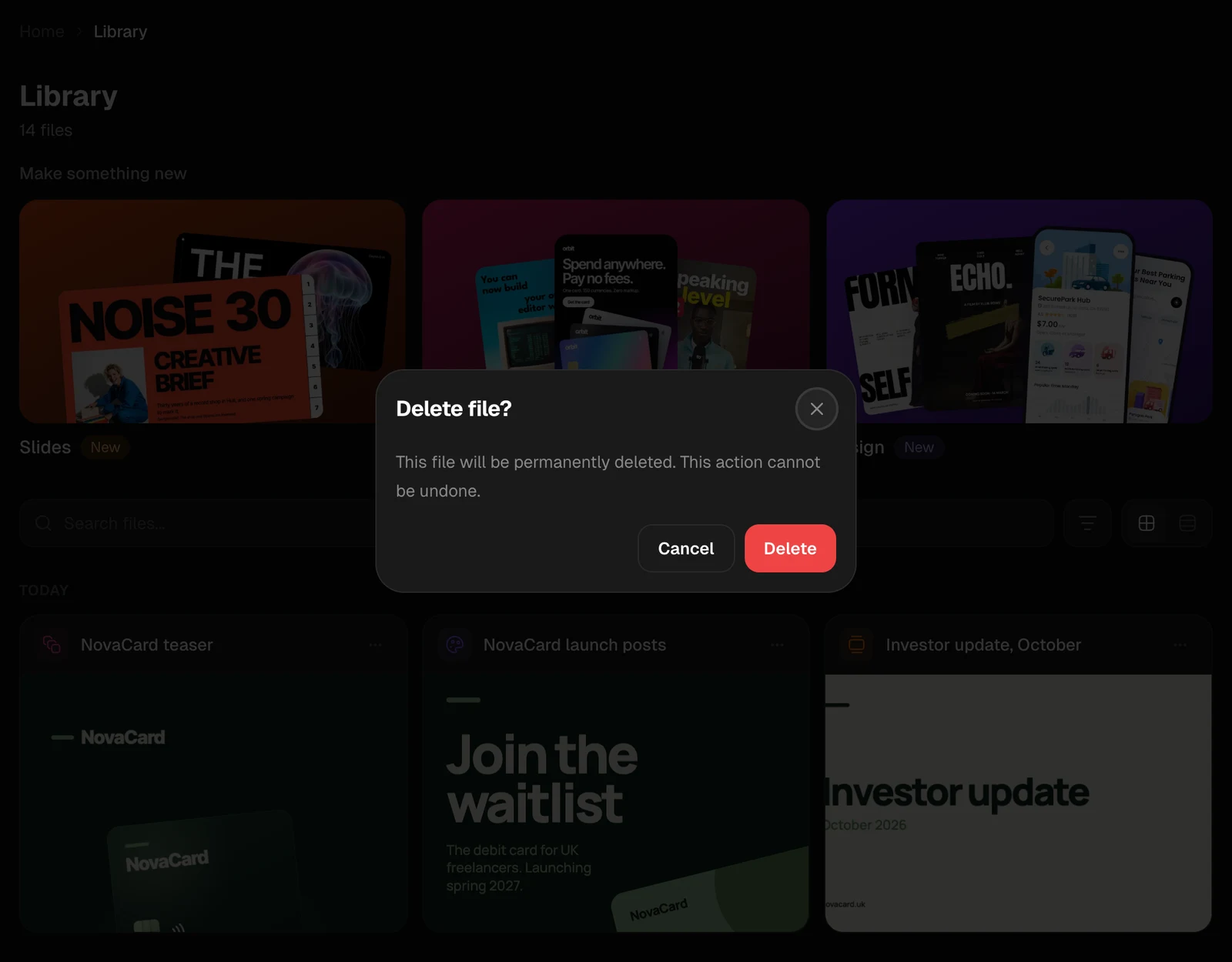
Delete asks first, then deletes the file for good. A file with earlier versions is deleted with all of them, and the dialog says how many.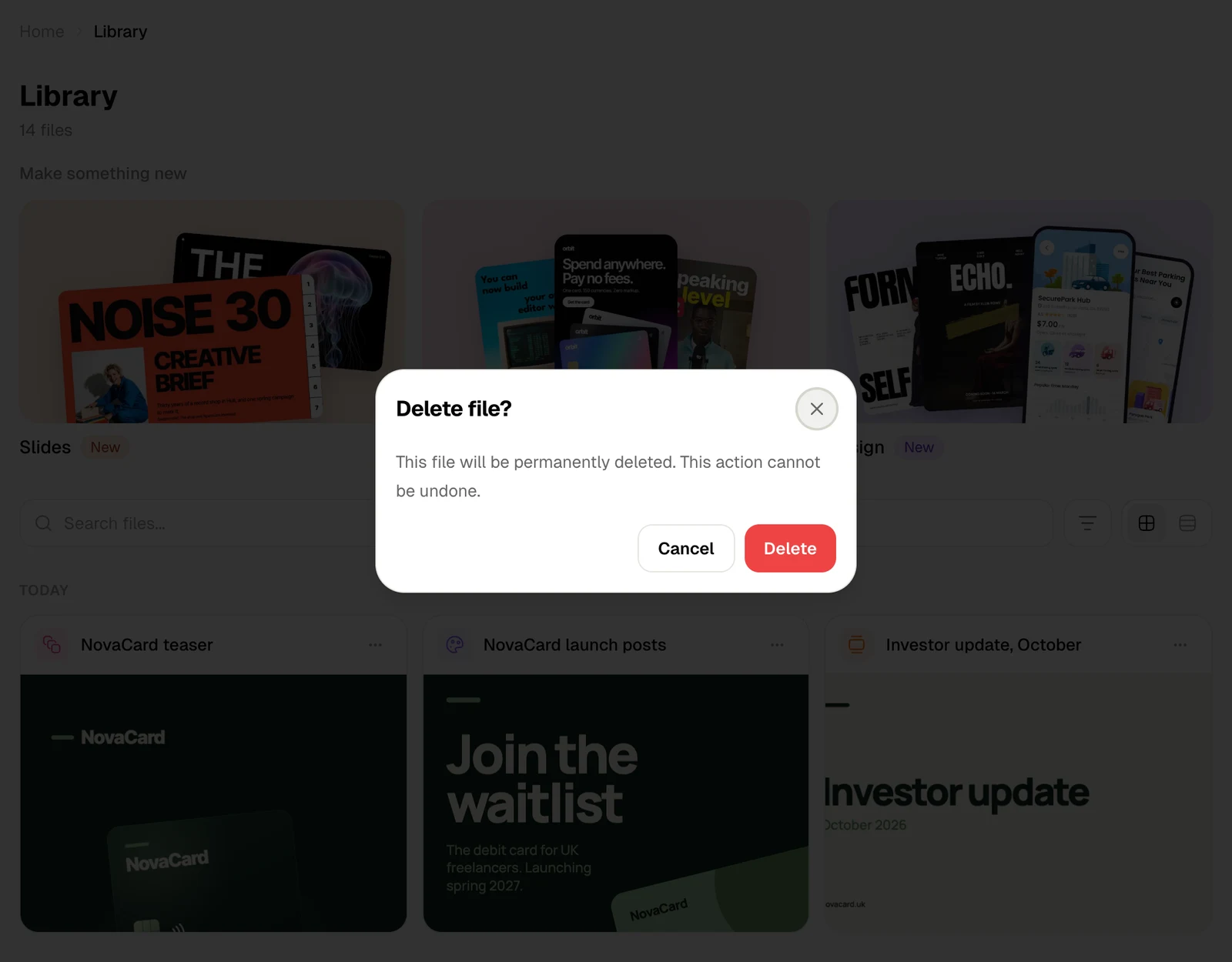
Several files at once
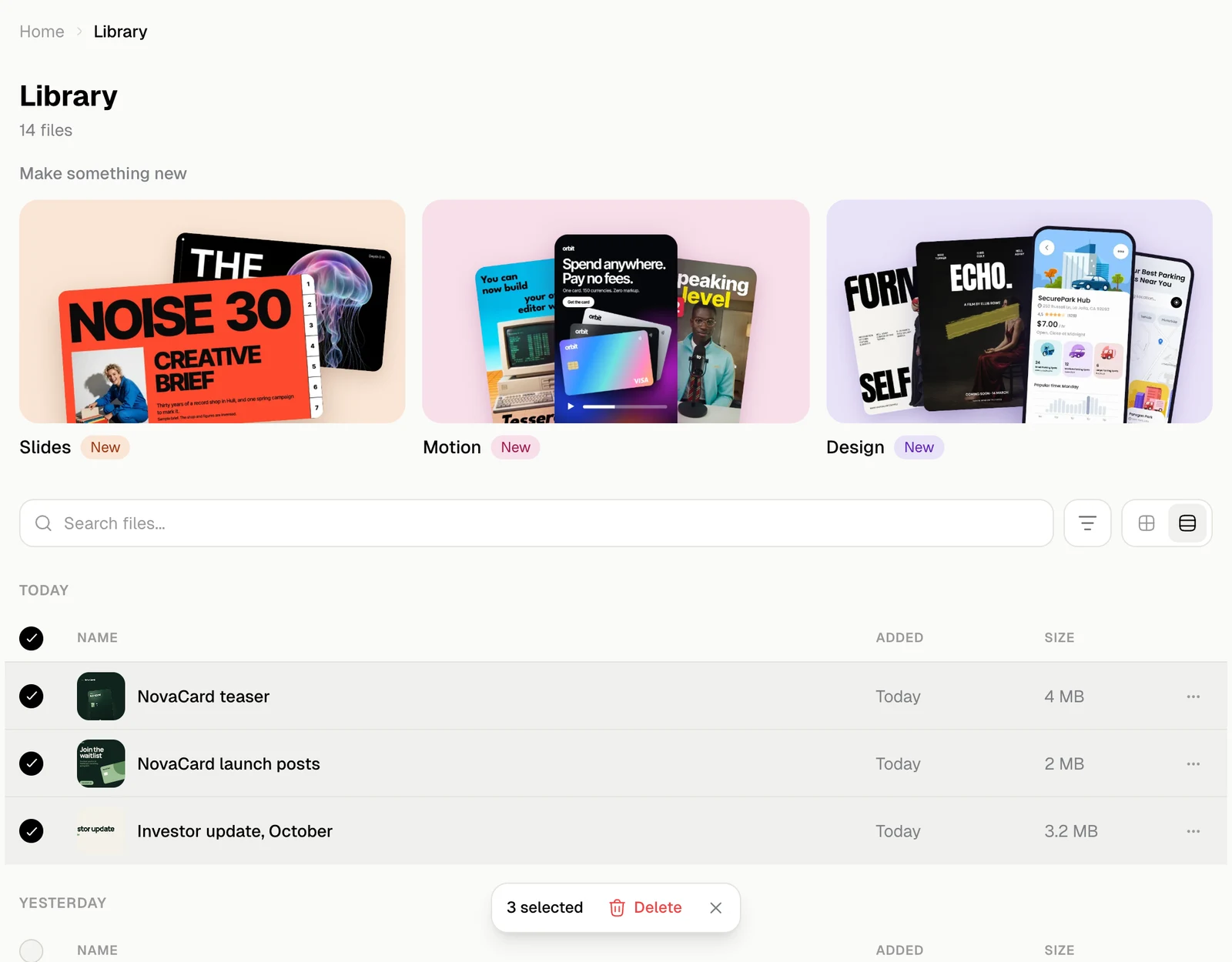
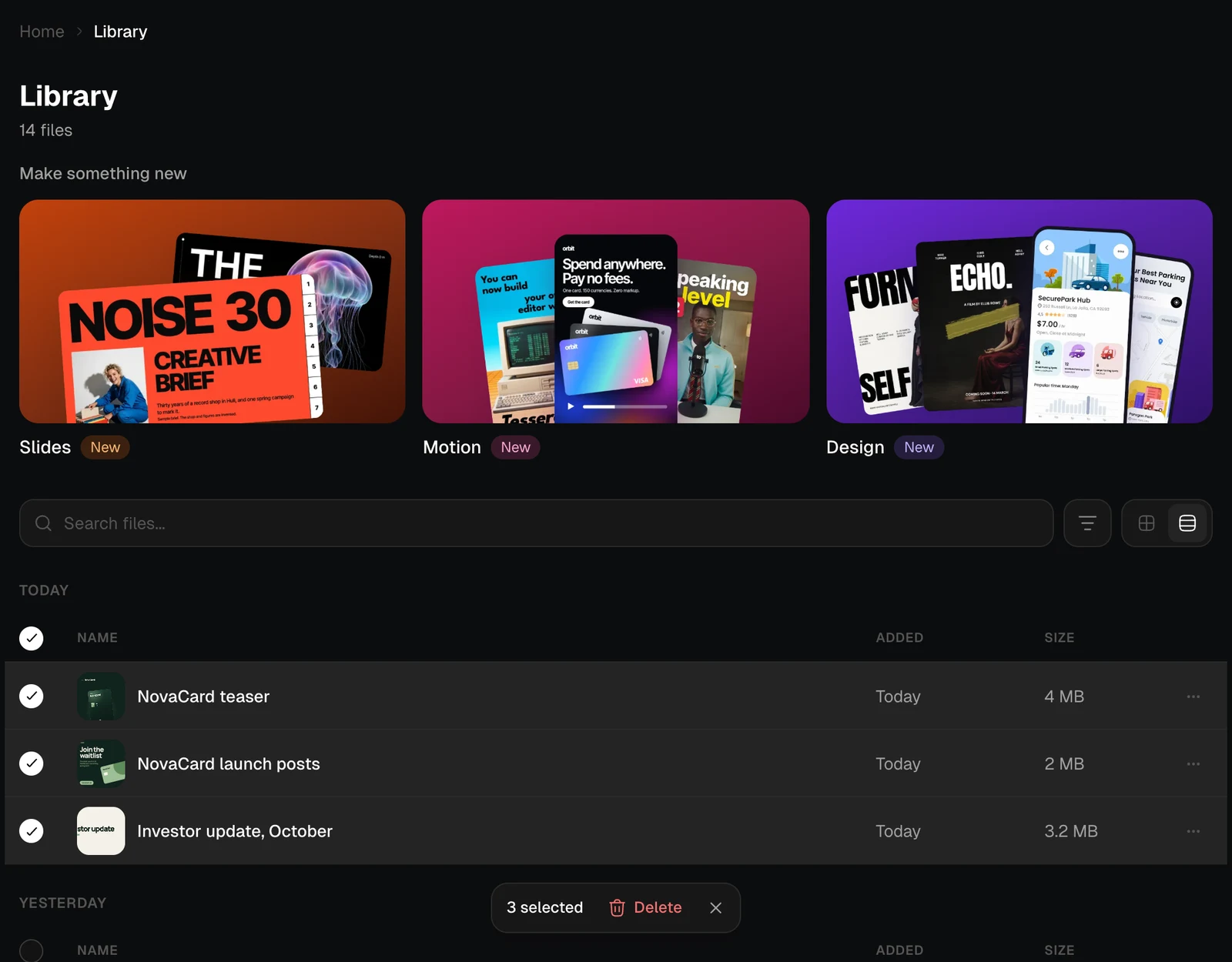
In the list view, tick the files you want. The tick in a day’s header picks the whole day. A bar at the bottom counts what you picked: Delete deletes them all after you confirm, and × clears the choice.