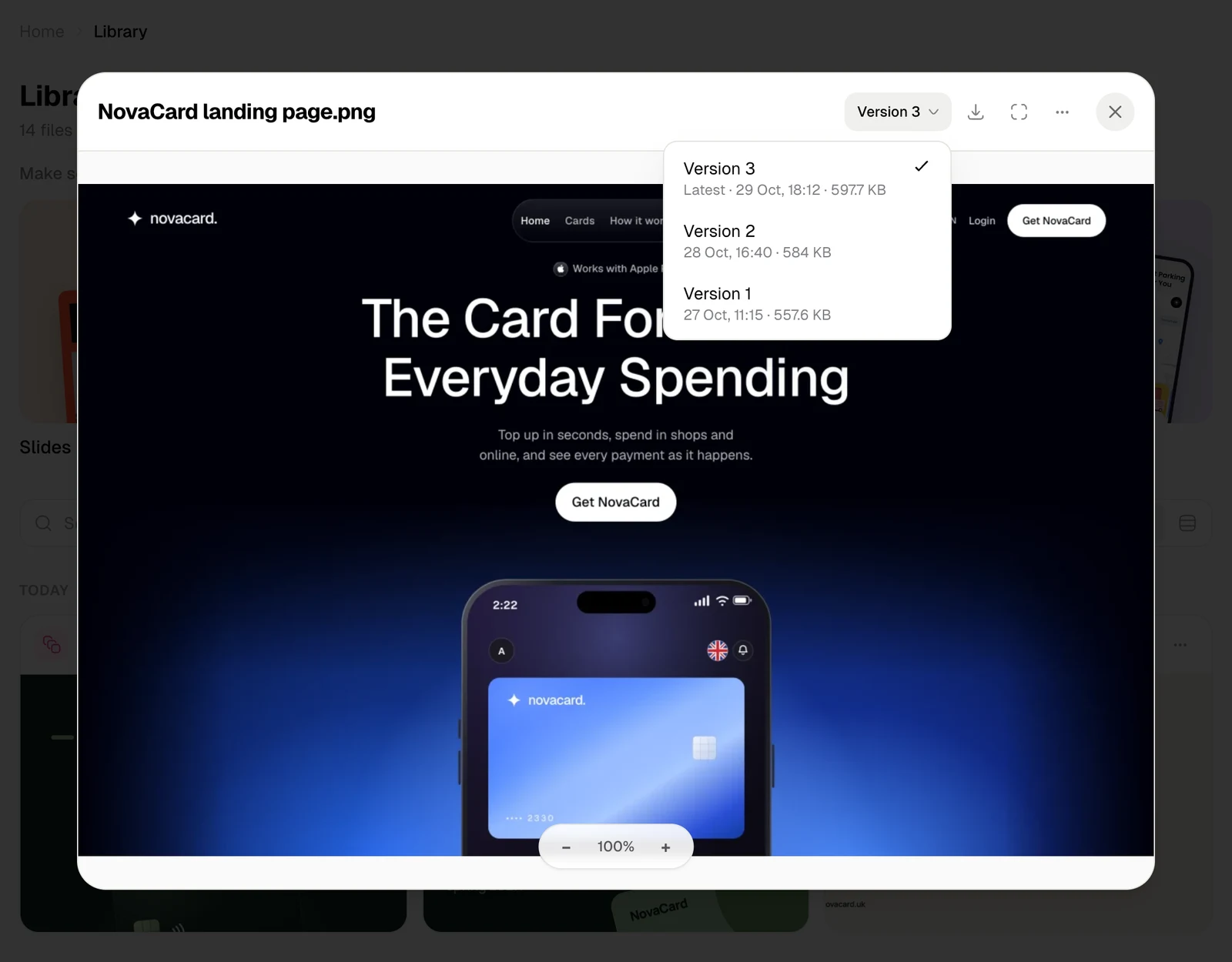
| Button | What it does |
|---|---|
| Download | Saves the file to your device |
| Fullscreen | Fills the screen with the window. Exit fullscreen brings it back |
| ⋯ | Rename, Send to Agent, Star or Unstar, and Delete. See Manage files |
| × | Closes the window. Esc does the same |
What each kind of file shows
| File | What you see |
|---|---|
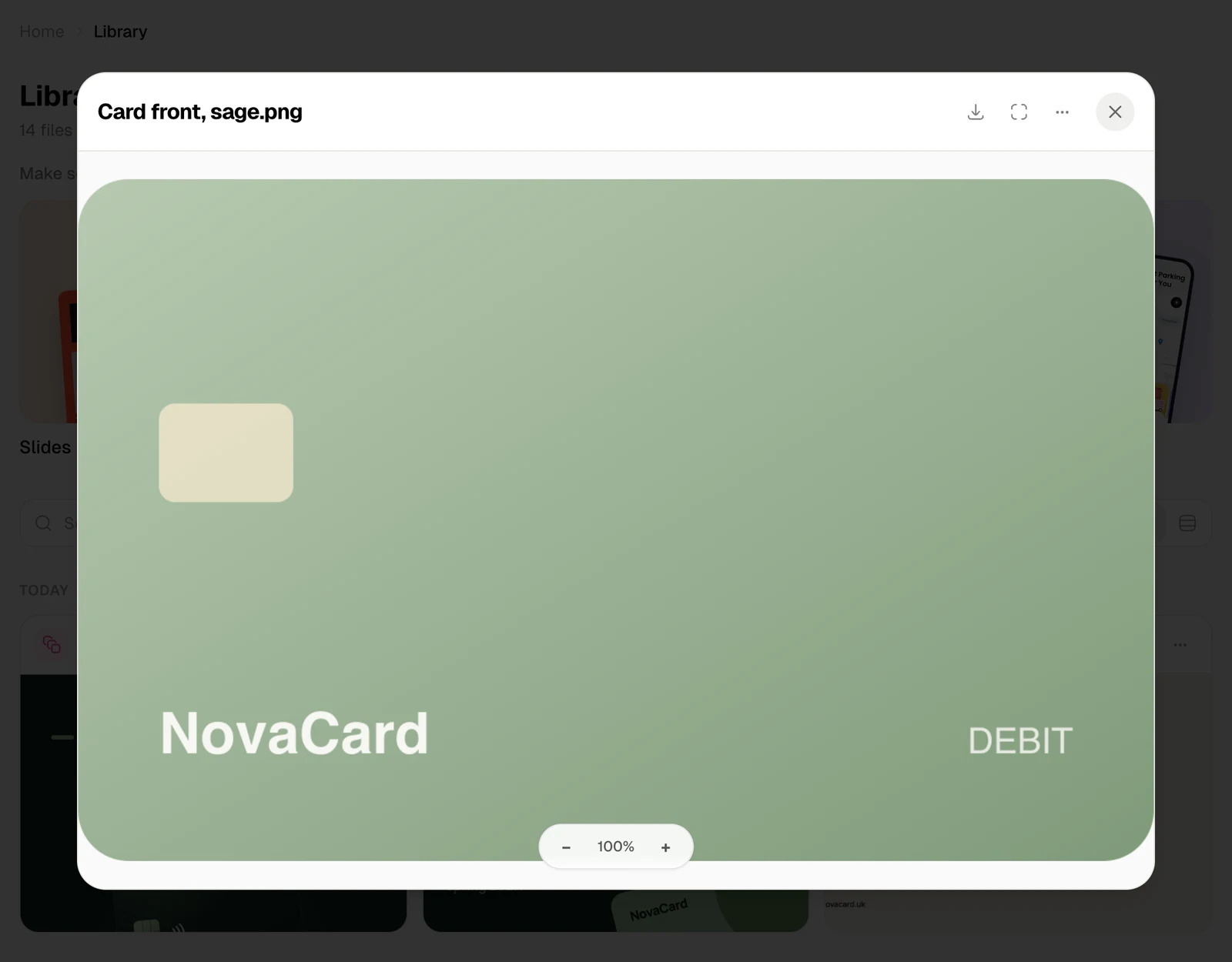
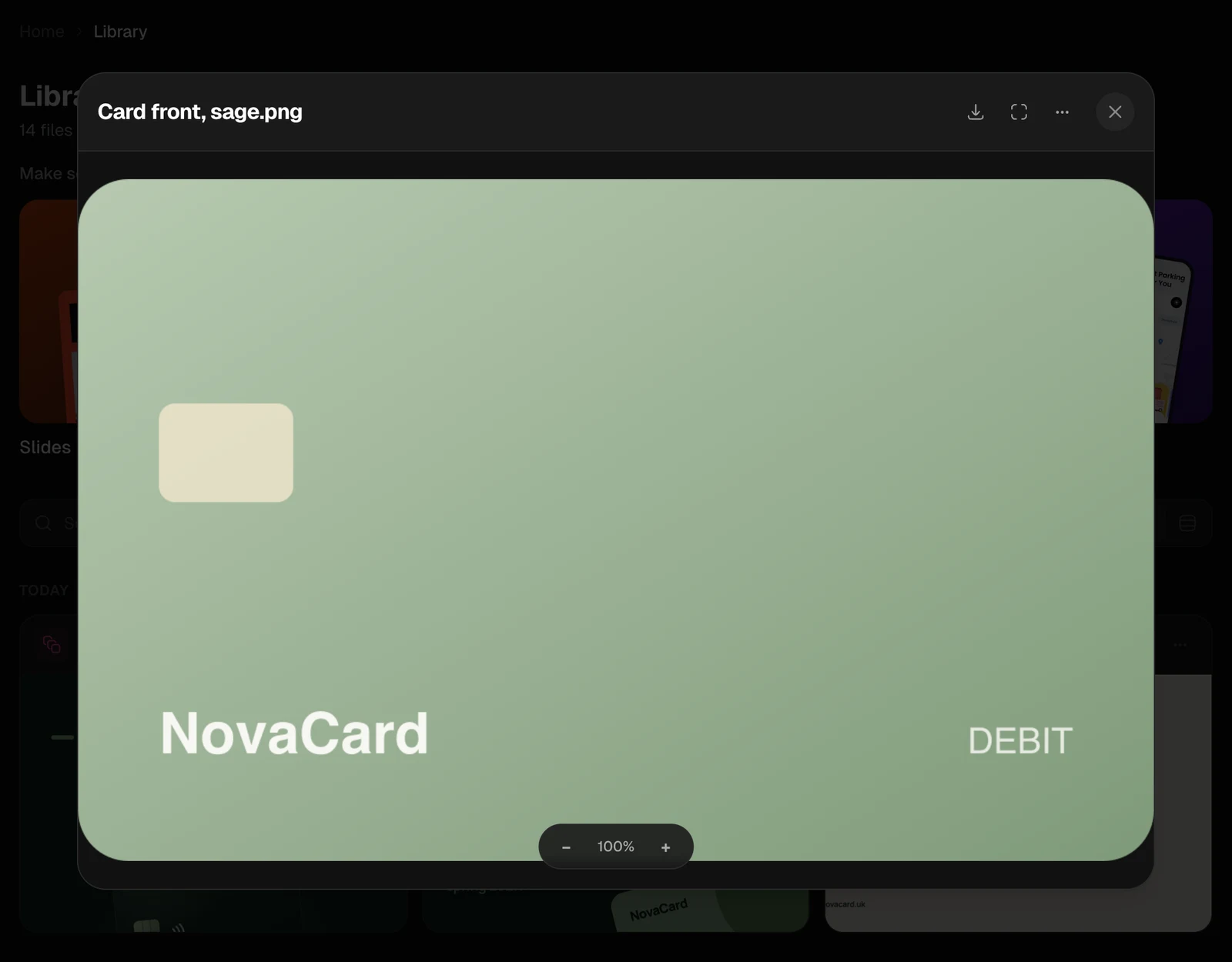
| Pictures | The picture, with − and + to zoom. Drag to move around a zoomed picture |
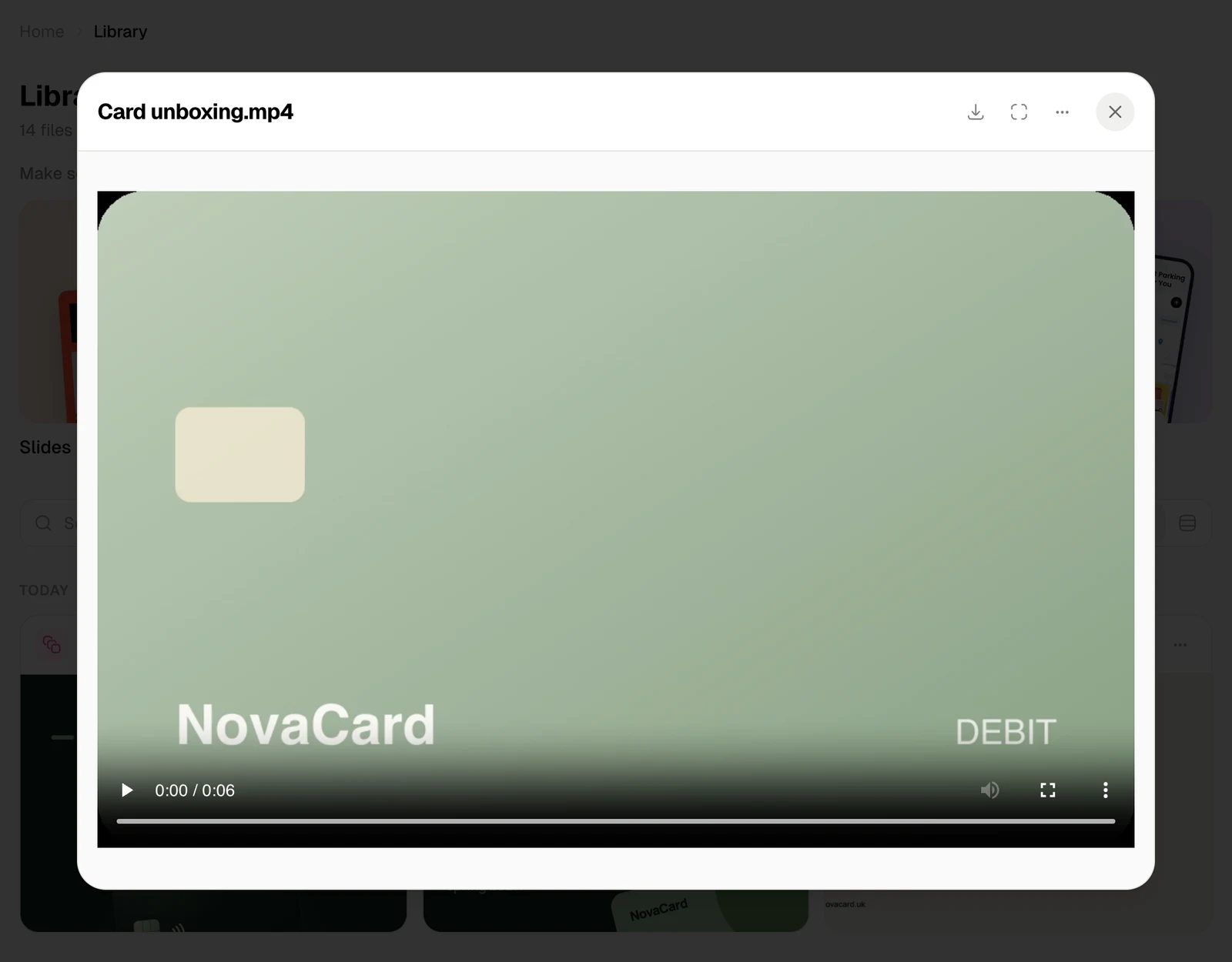
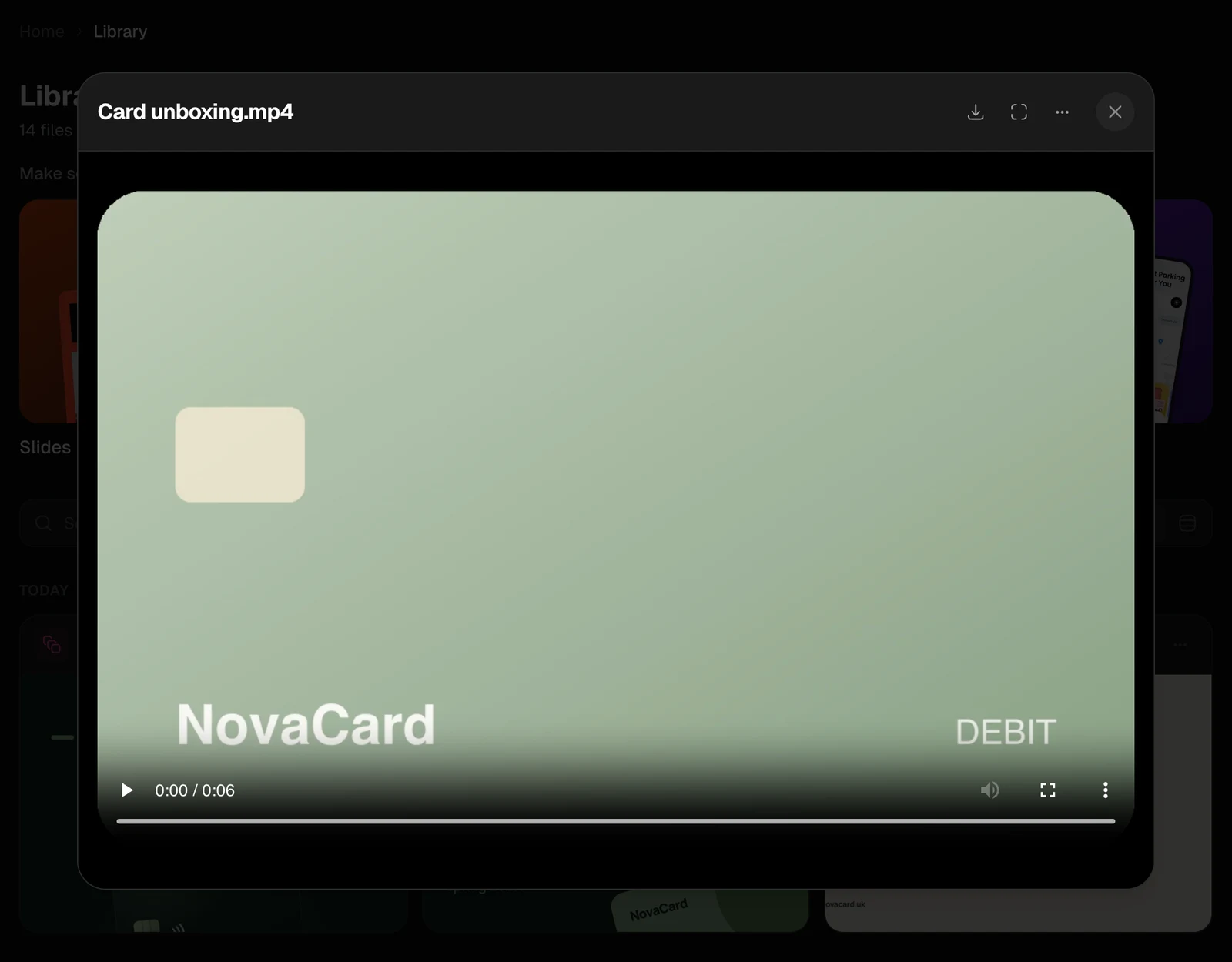
| Video | Your browser’s video player |
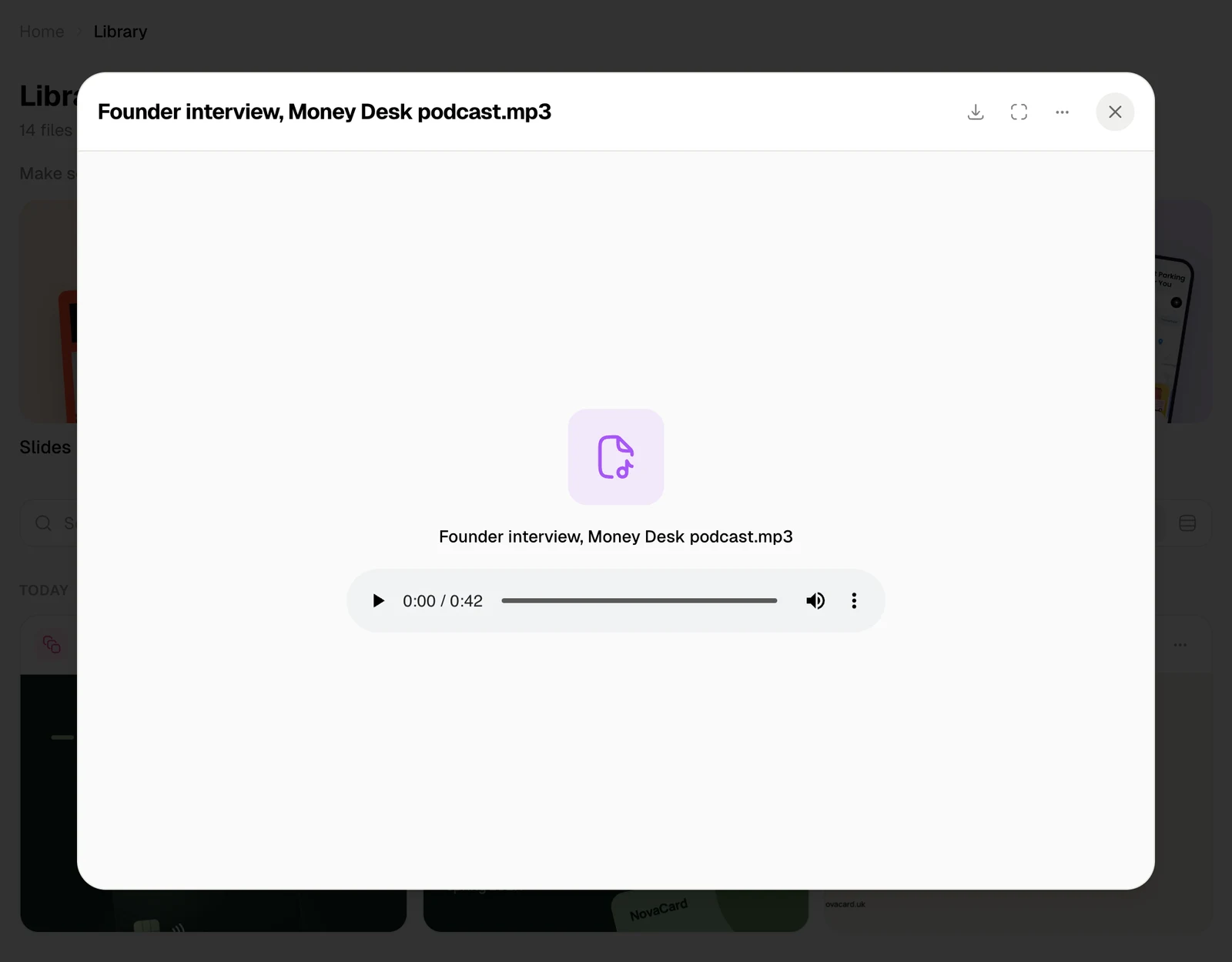
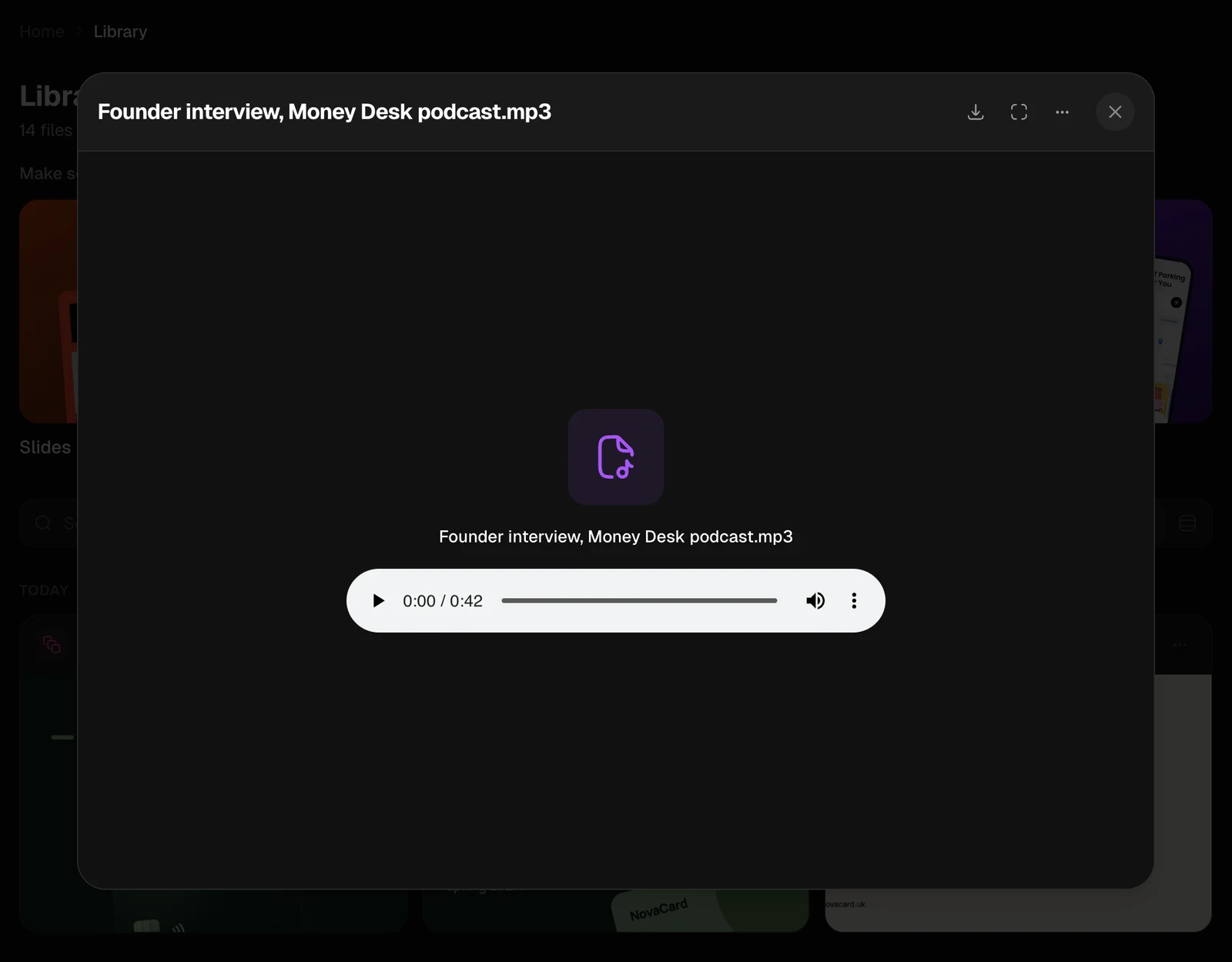
| Audio | The file’s name and a player |
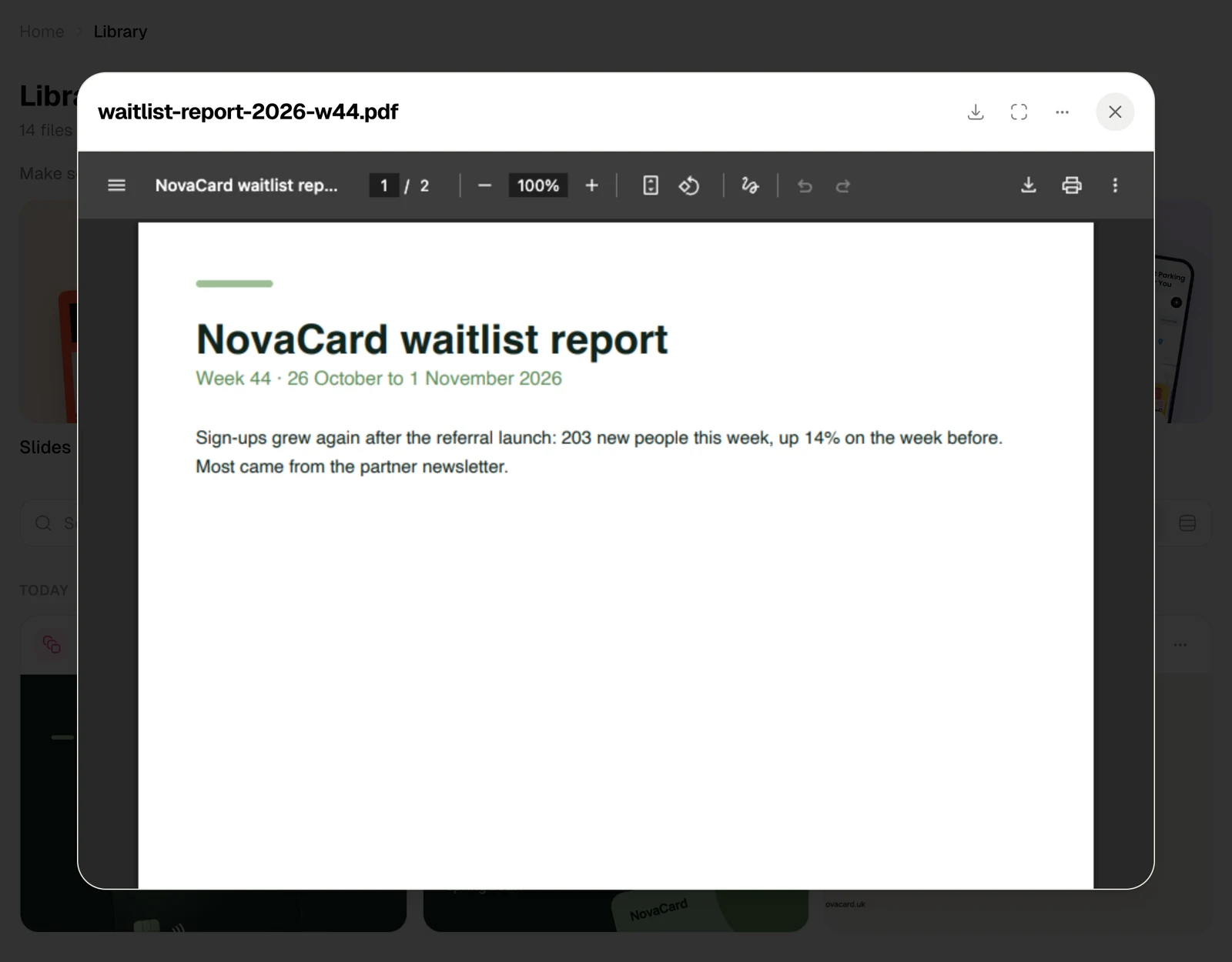
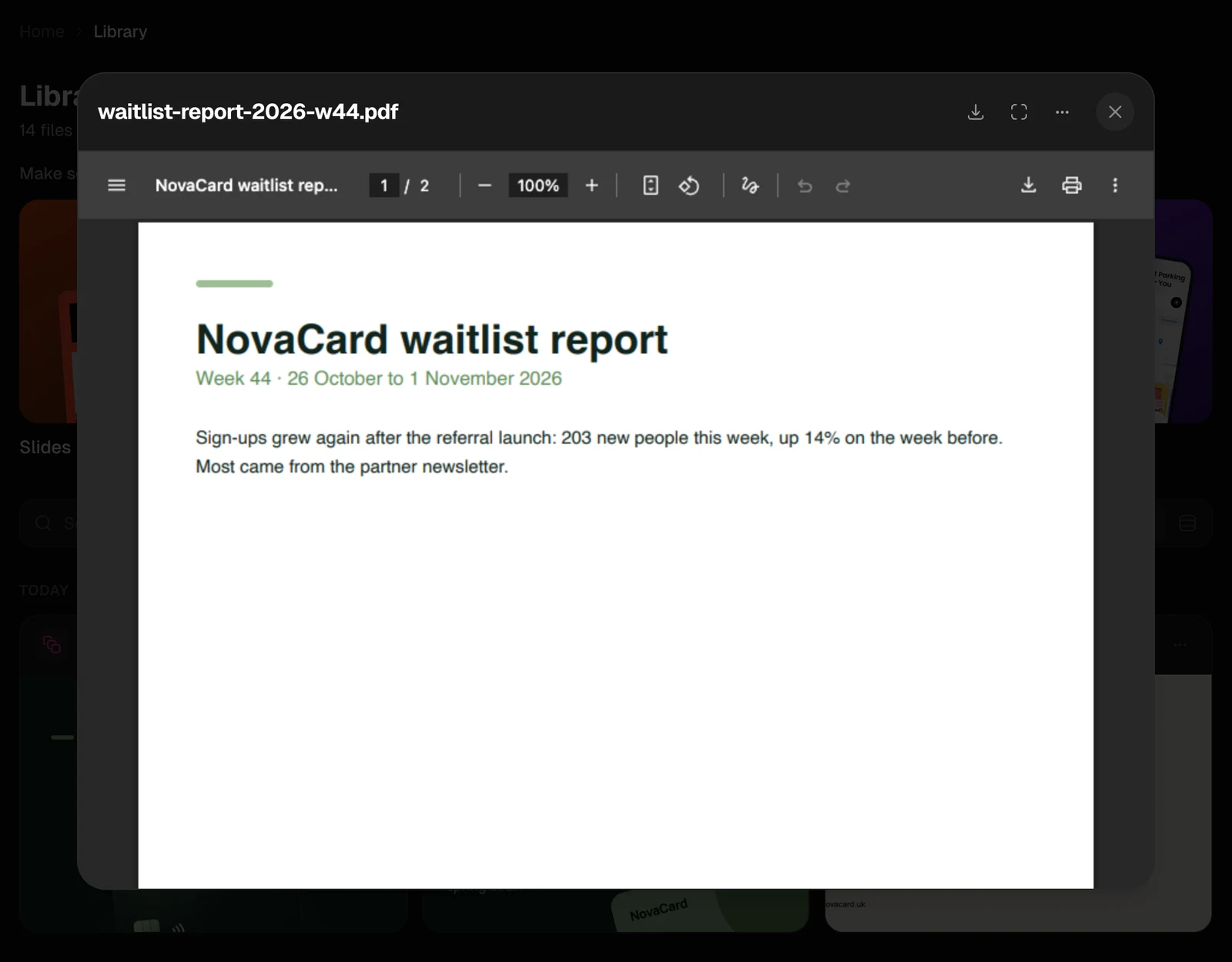
| Your browser’s PDF viewer, with its pages, zoom and print | |
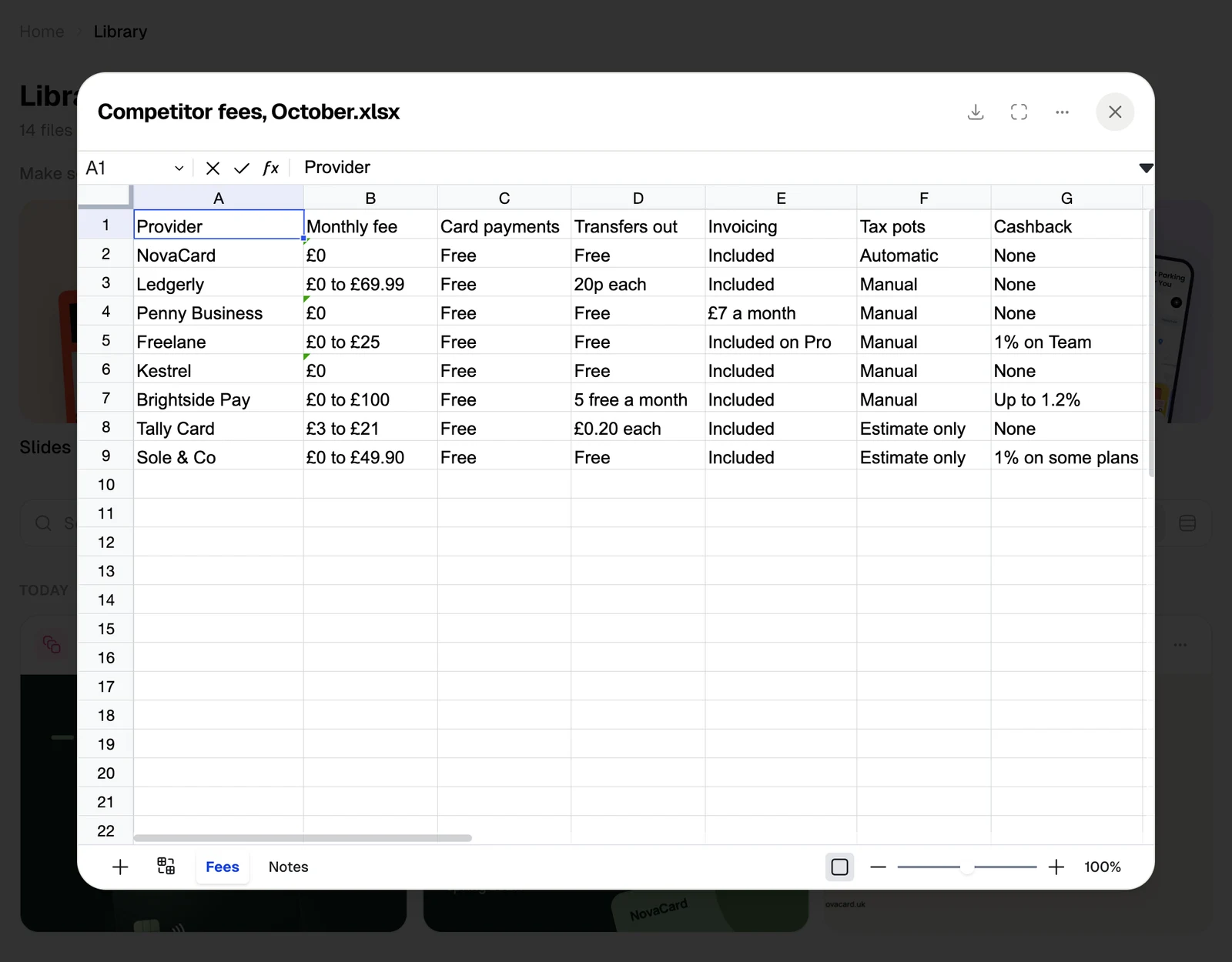
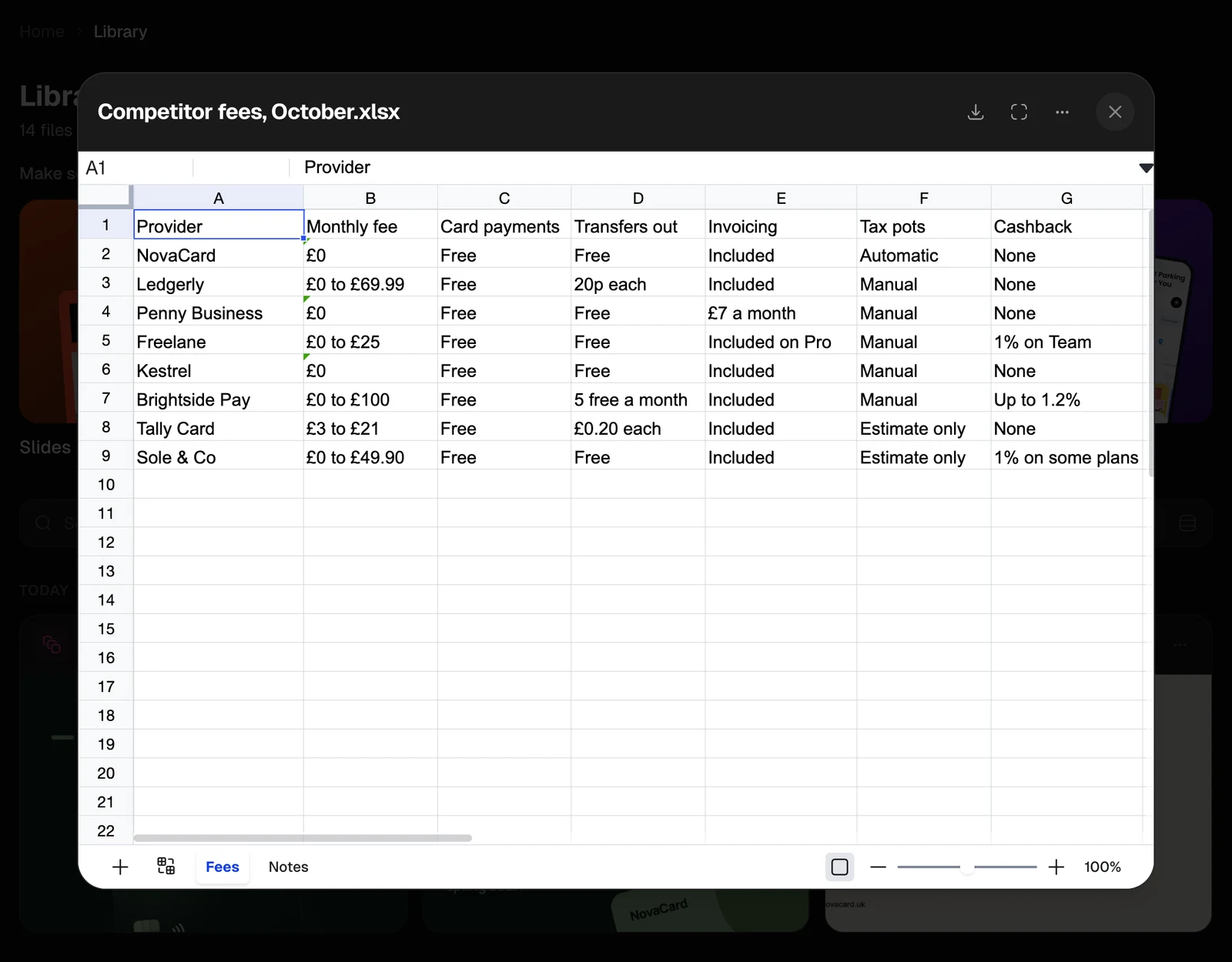
| Spreadsheets (.xlsx, .xls, .csv) | The sheet with its formatting, a tab for each sheet, and zoom |
| Word documents (.docx) | The document, laid out as pages |
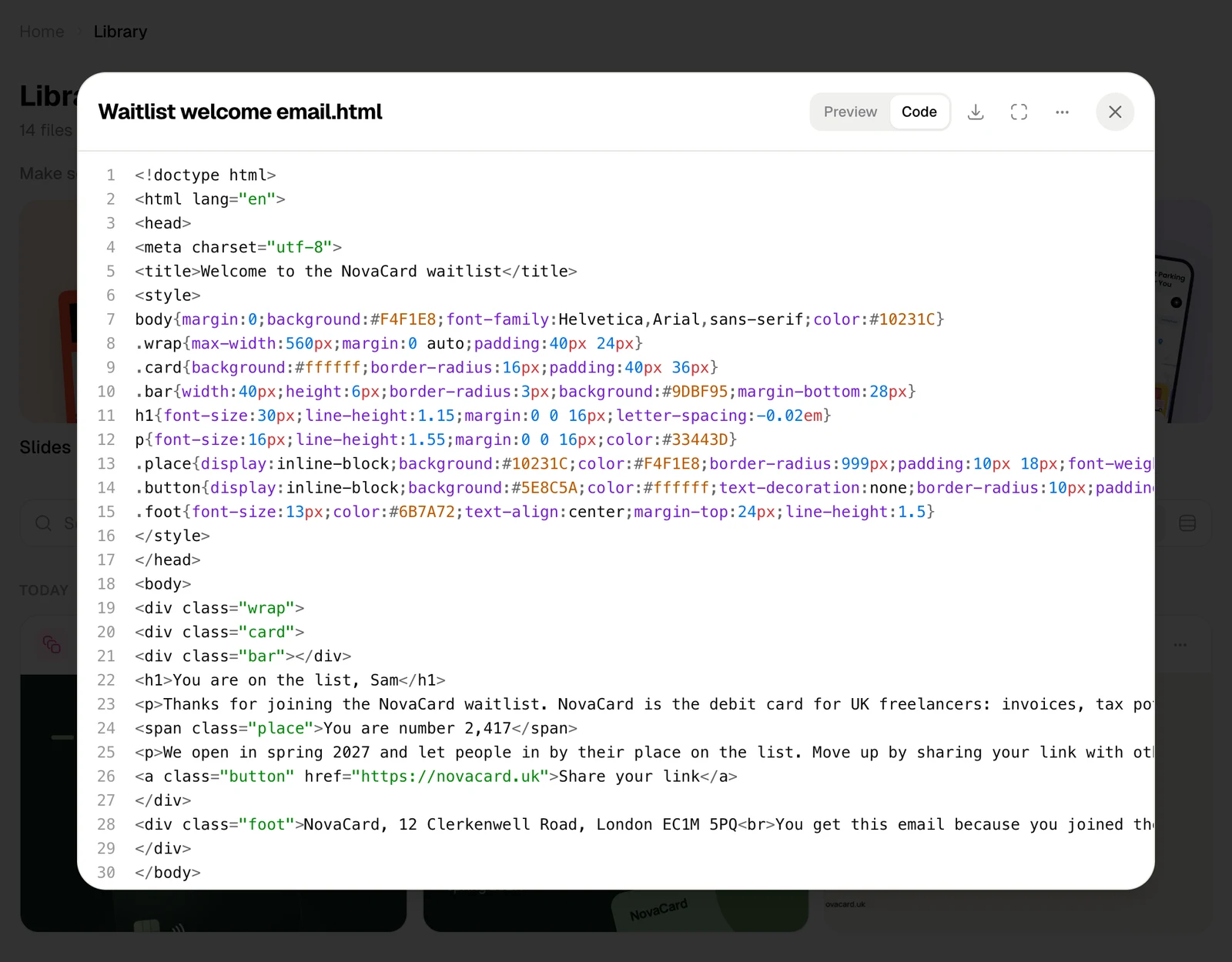
| Web pages (.html) | The page as a browser shows it, or its code |
| Text, Markdown, code and JSON | The text; Markdown laid out, code and JSON coloured |
| Anything else | The file’s name and type, with Download |
Web pages
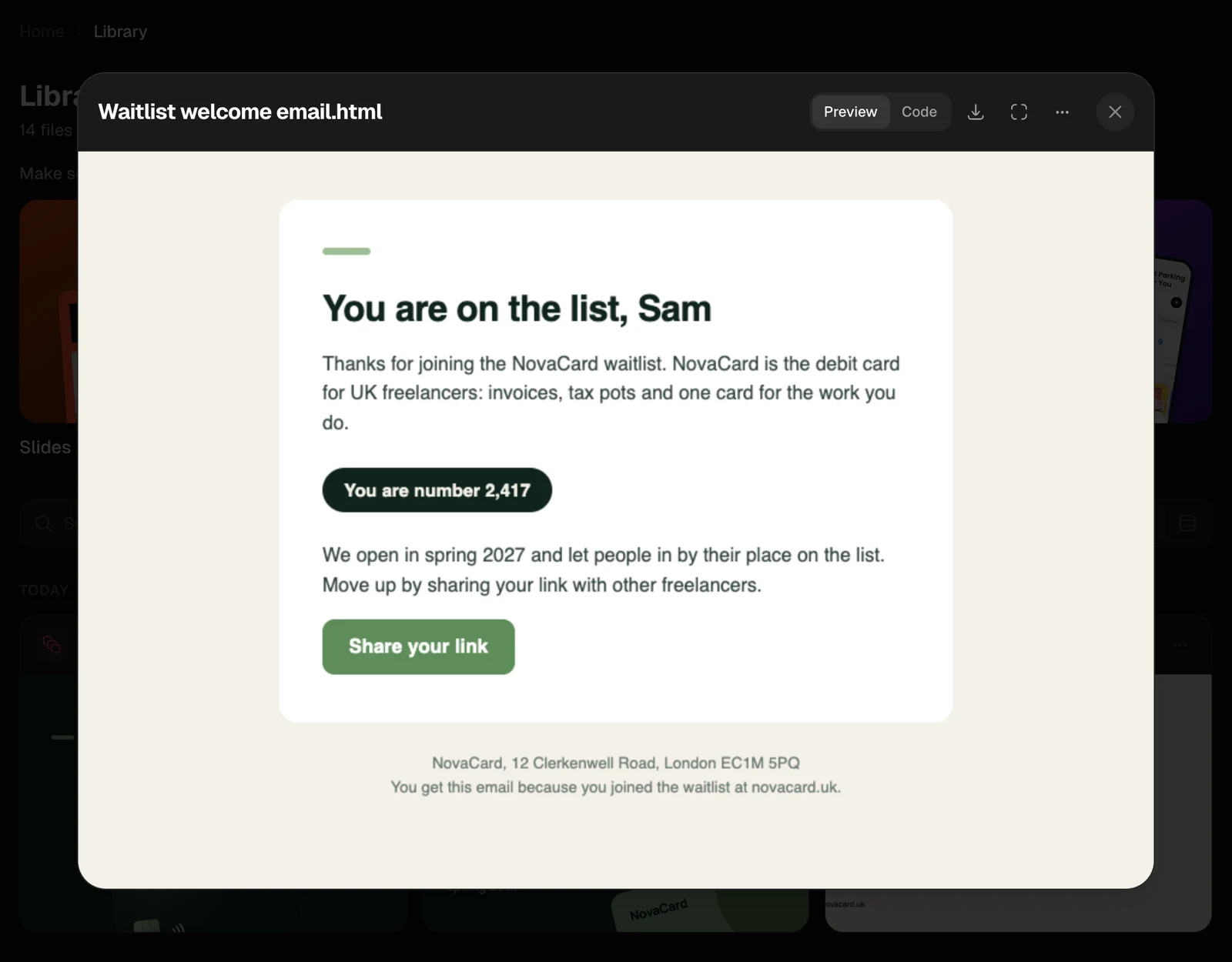
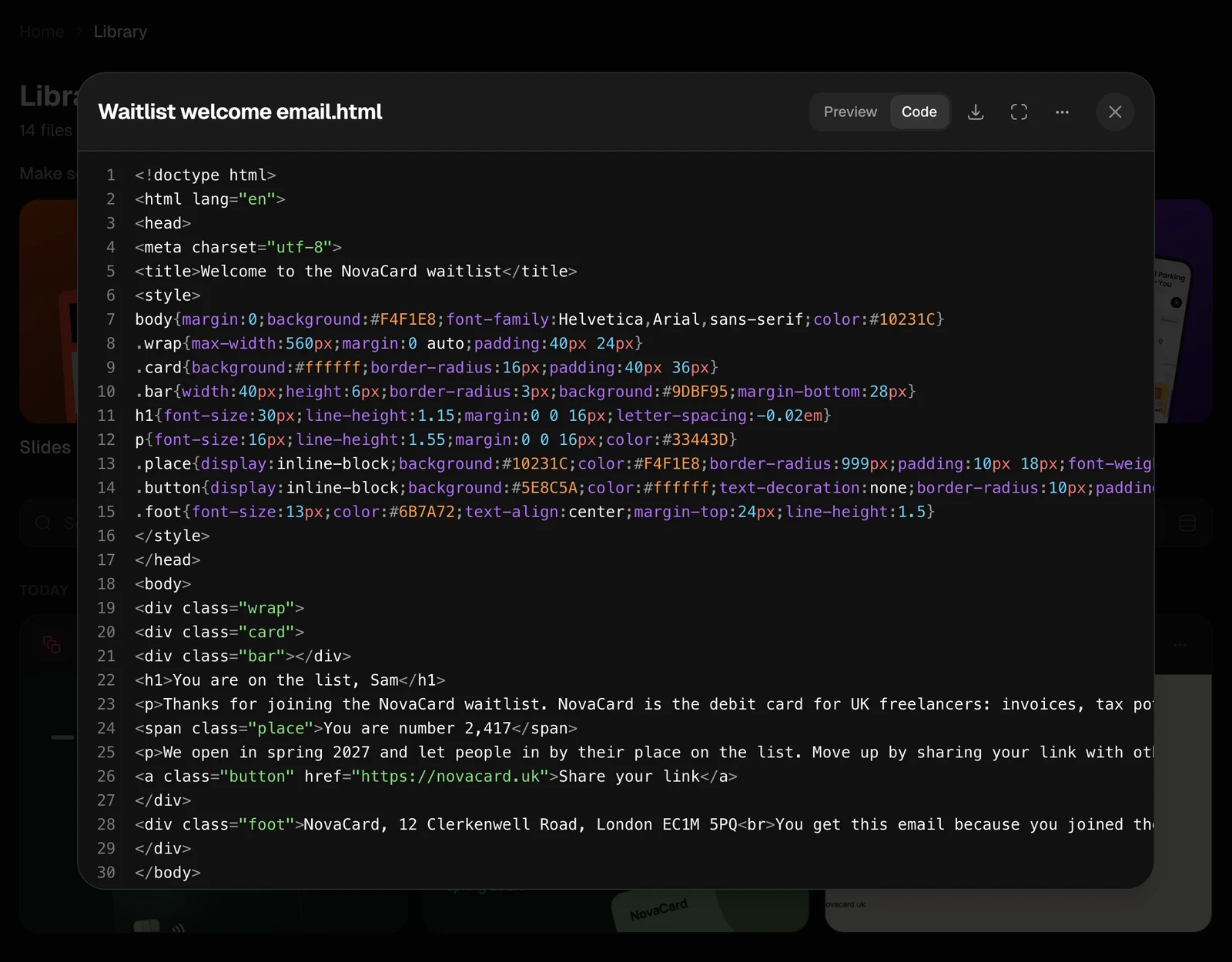
An HTML file opens as a page. Preview and Code at the top switch between the page and its source.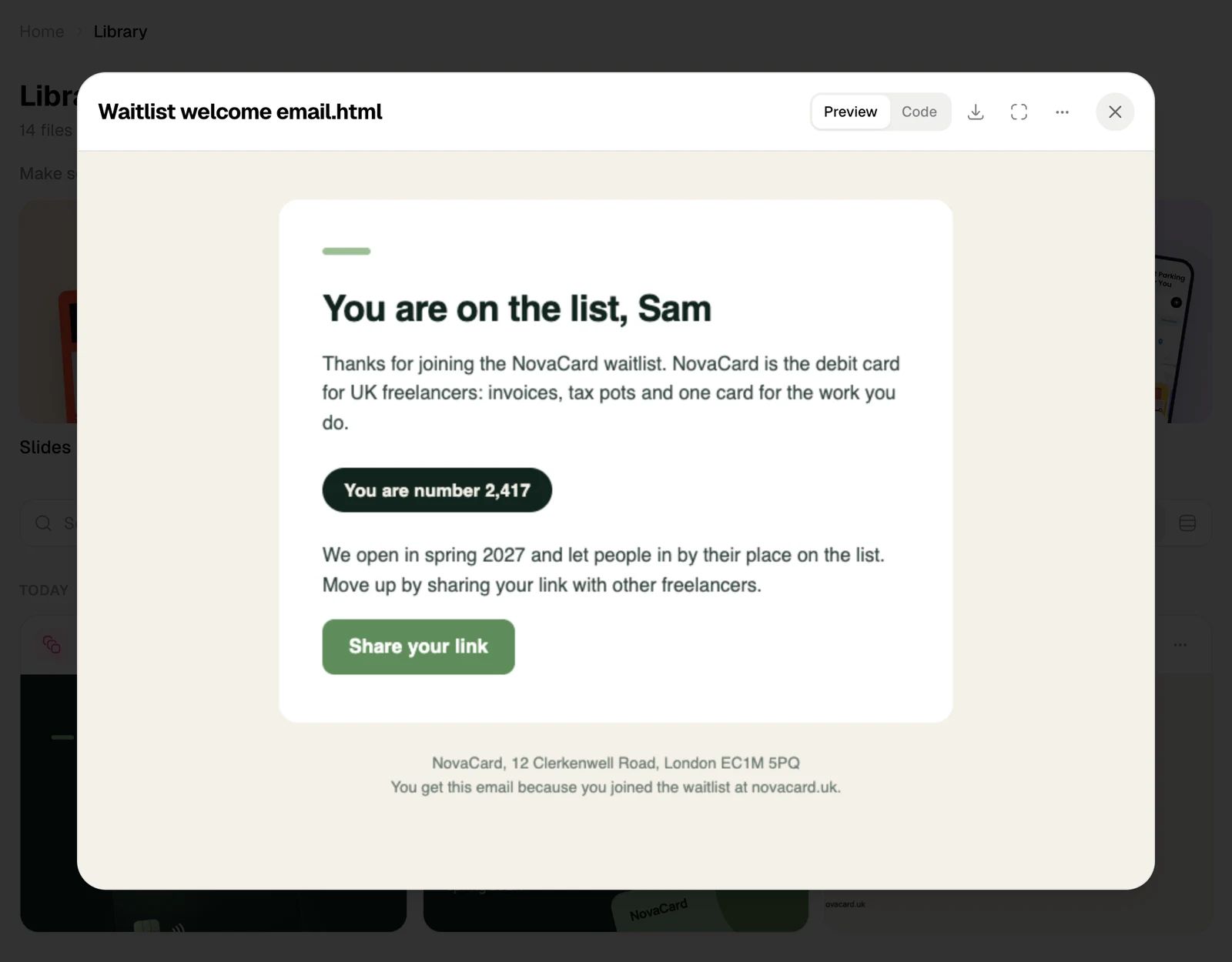
Earlier versions
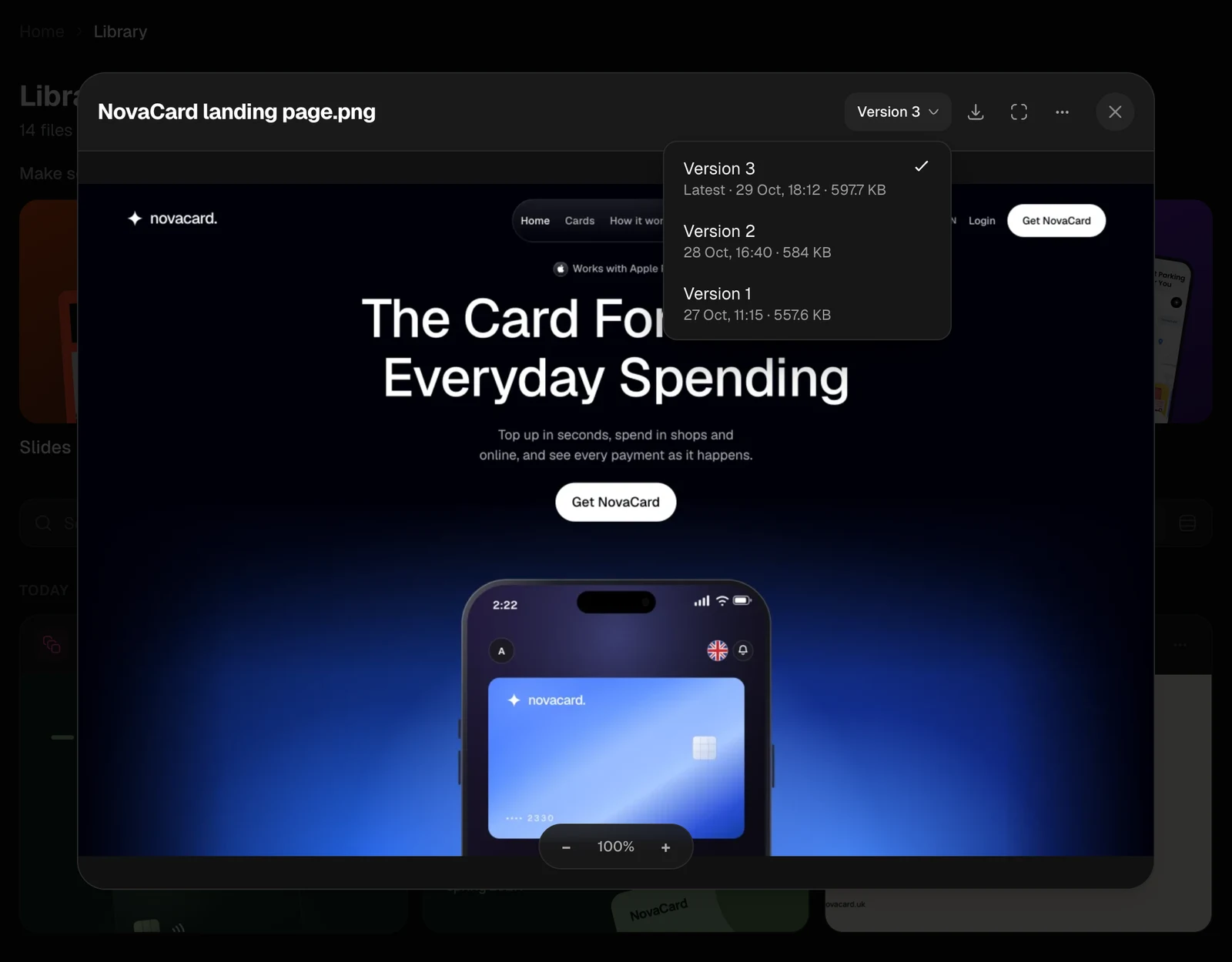
When the agent changes a file it made and hands it over again under the same name, the new file becomes the latest version and the earlier ones are kept. A file with versions has a Version button in the window. It lists every version with its time and size, the newest marked Latest. Pick one to see it. Download saves the version you are looking at.