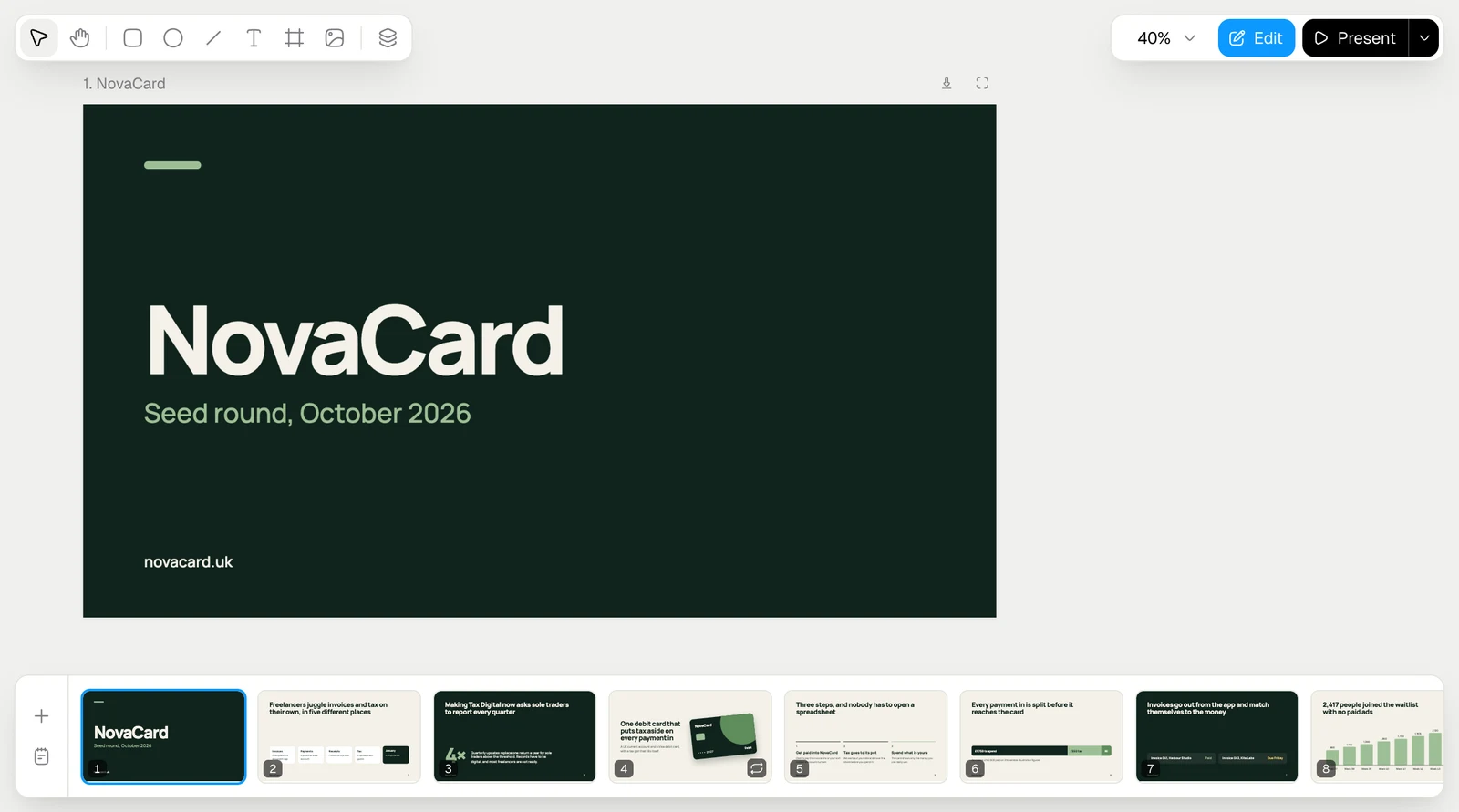
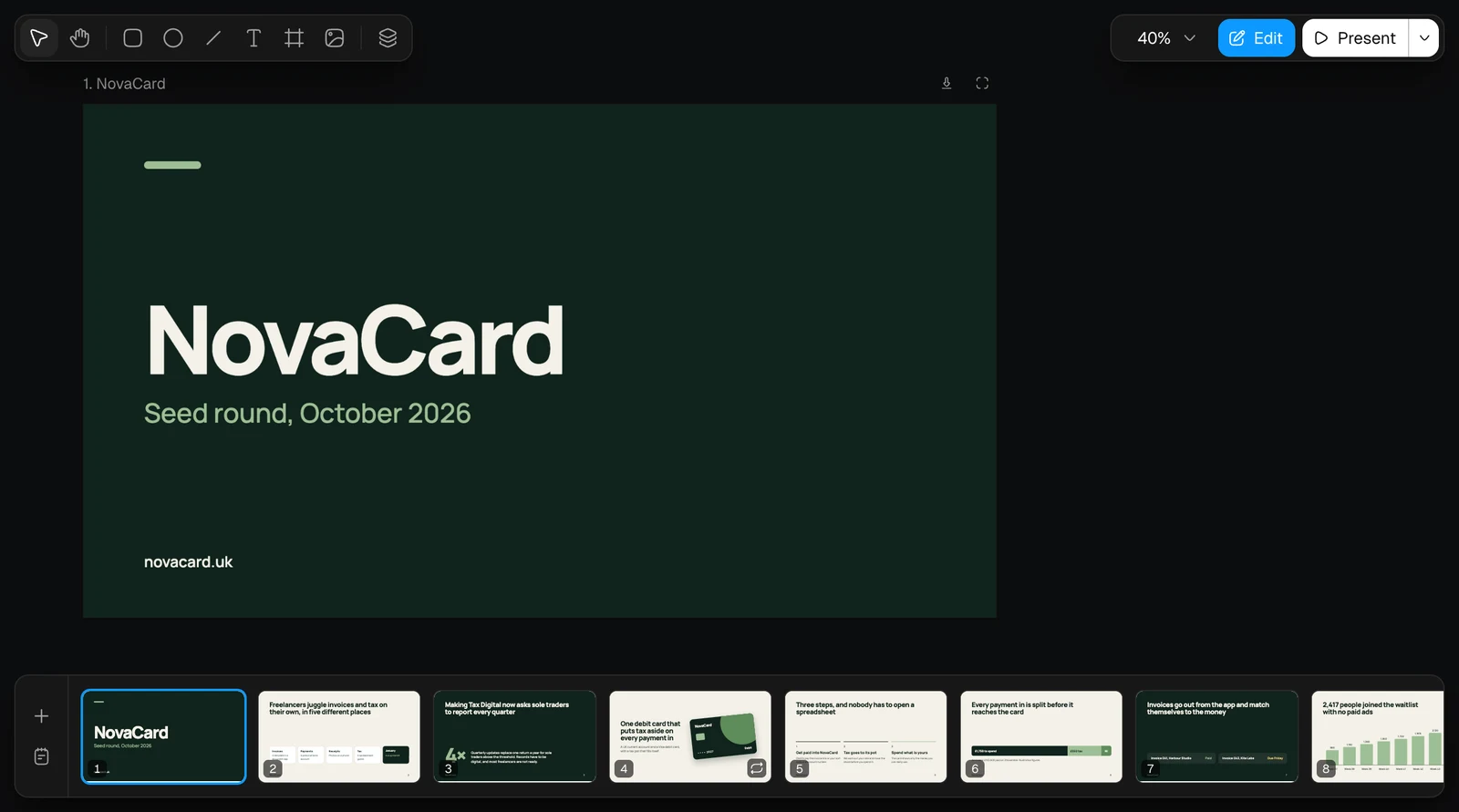
| Part | What is in it |
|---|---|
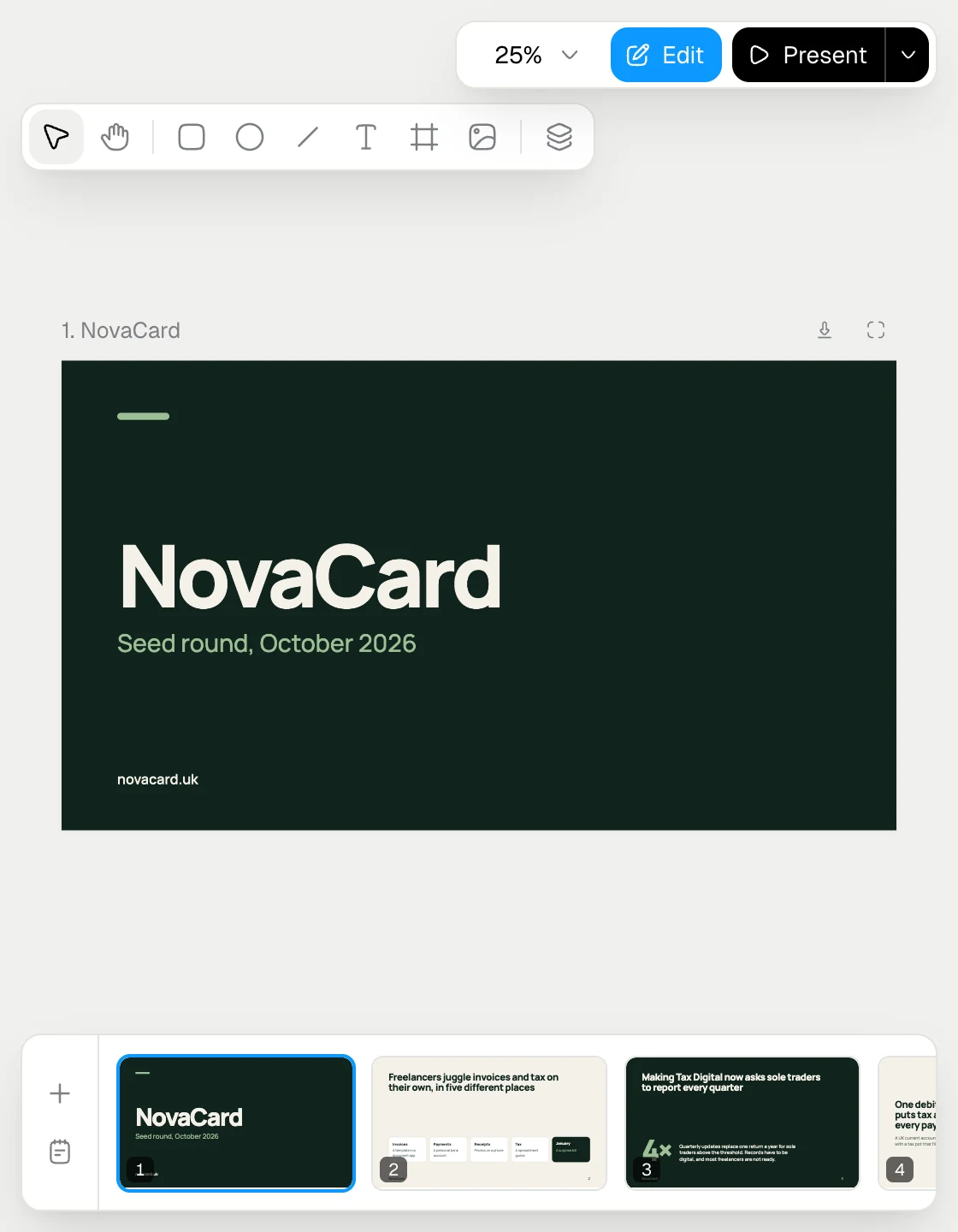
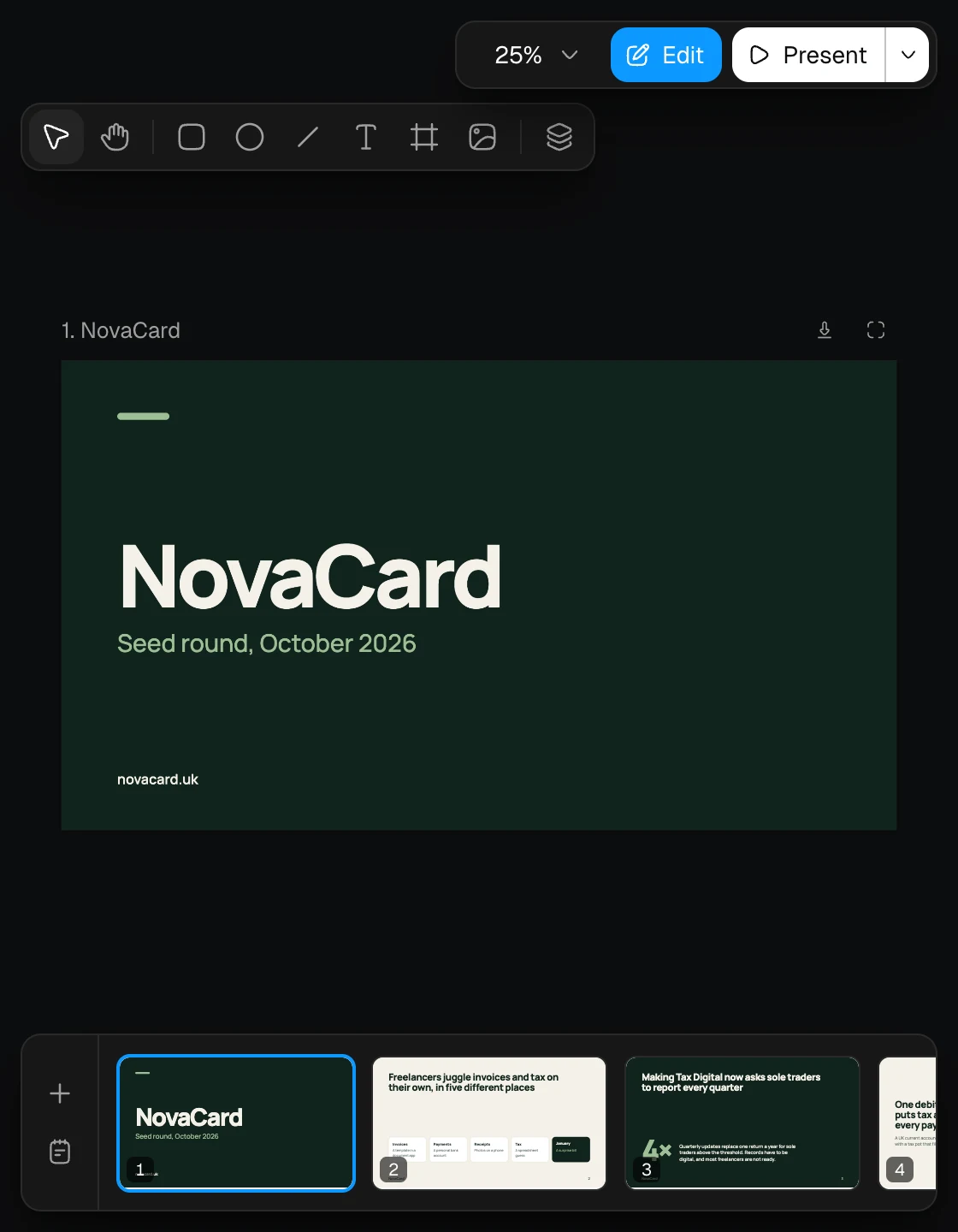
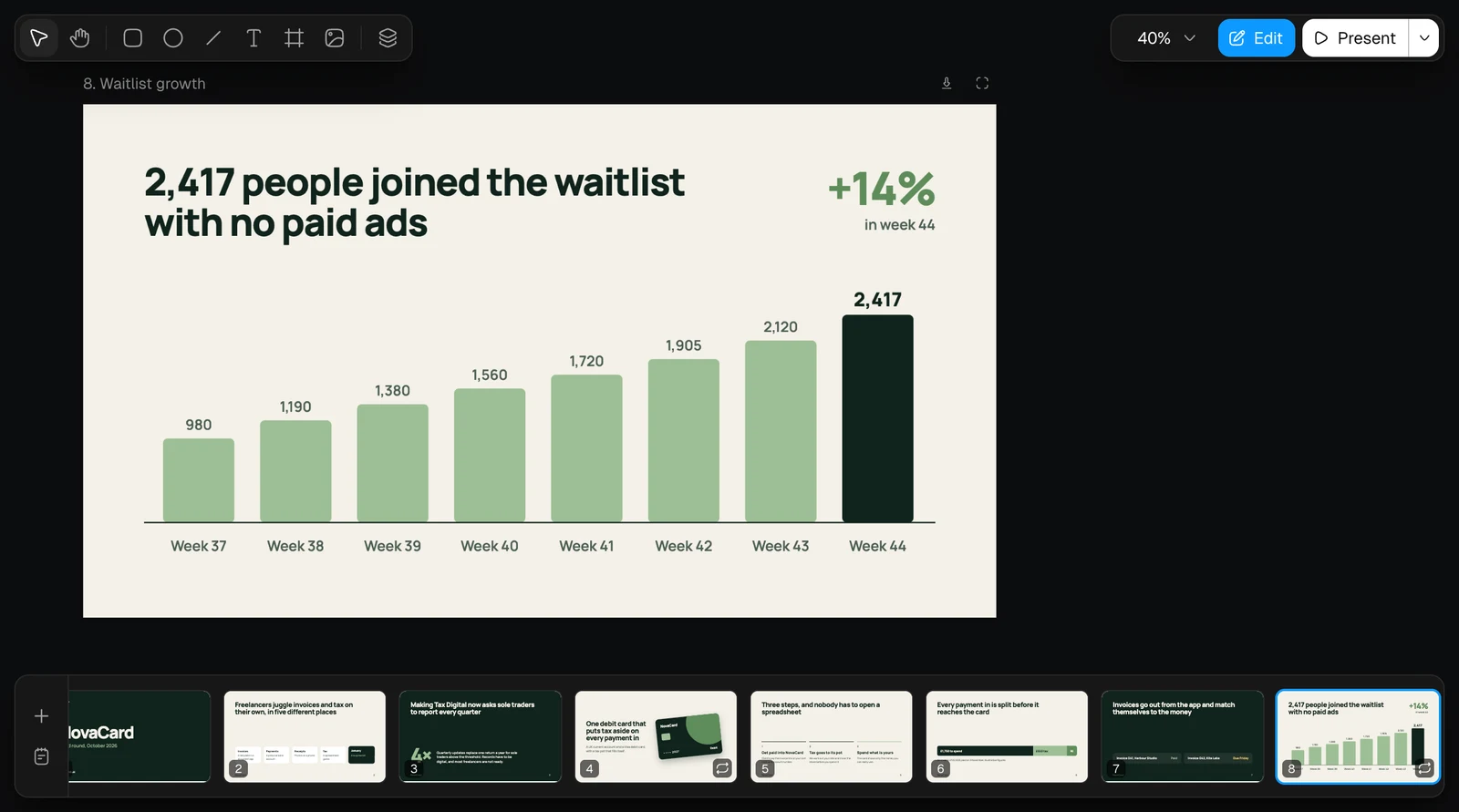
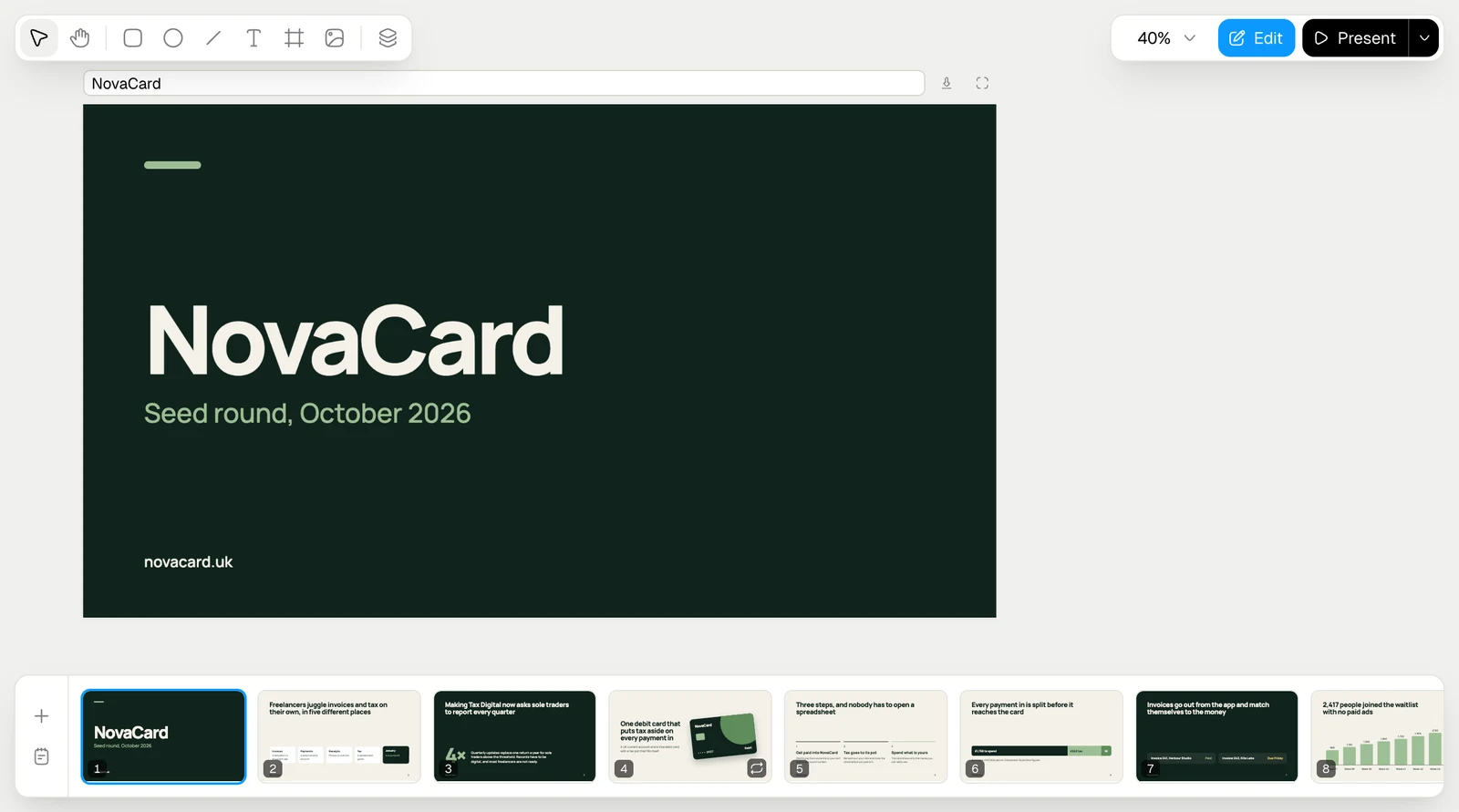
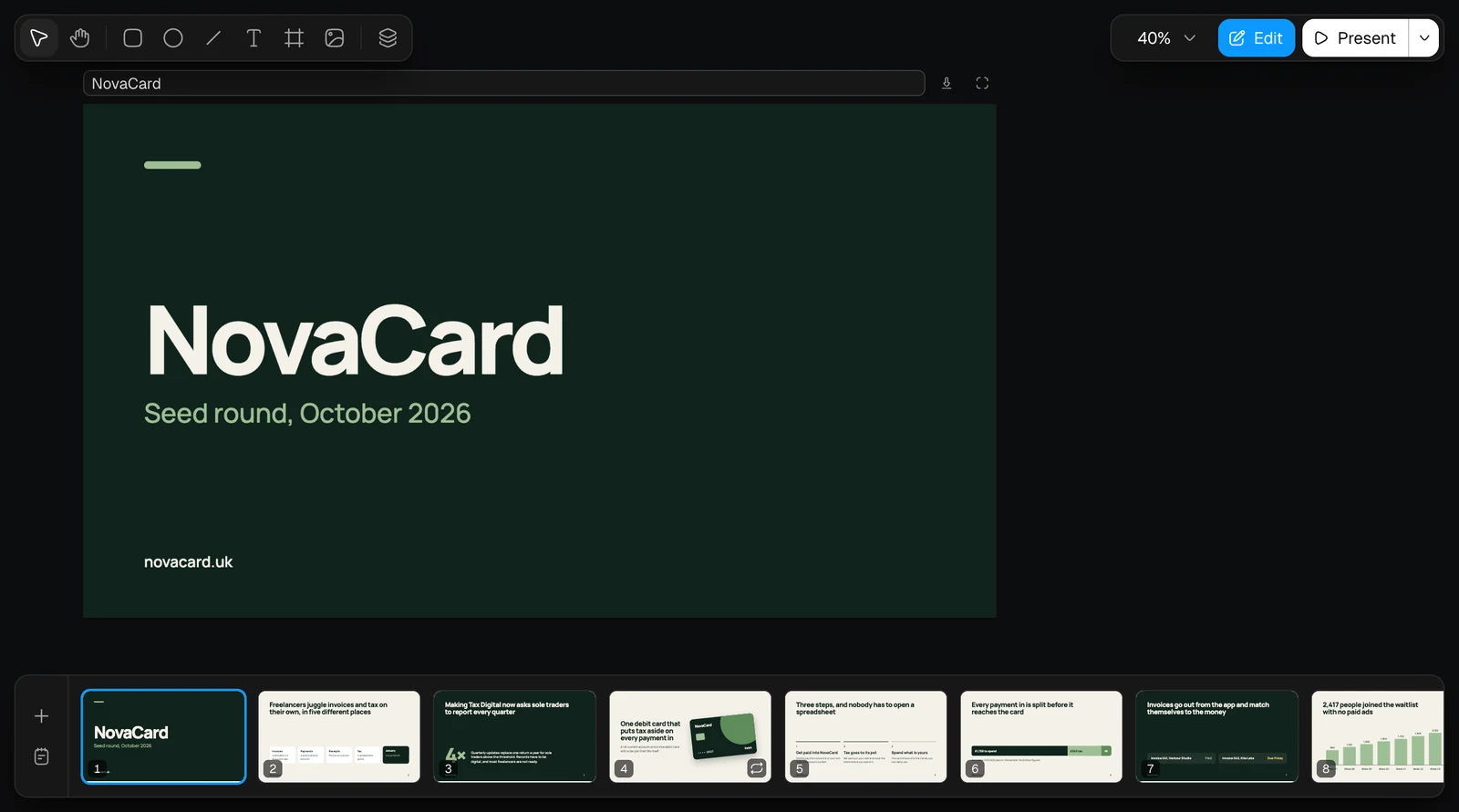
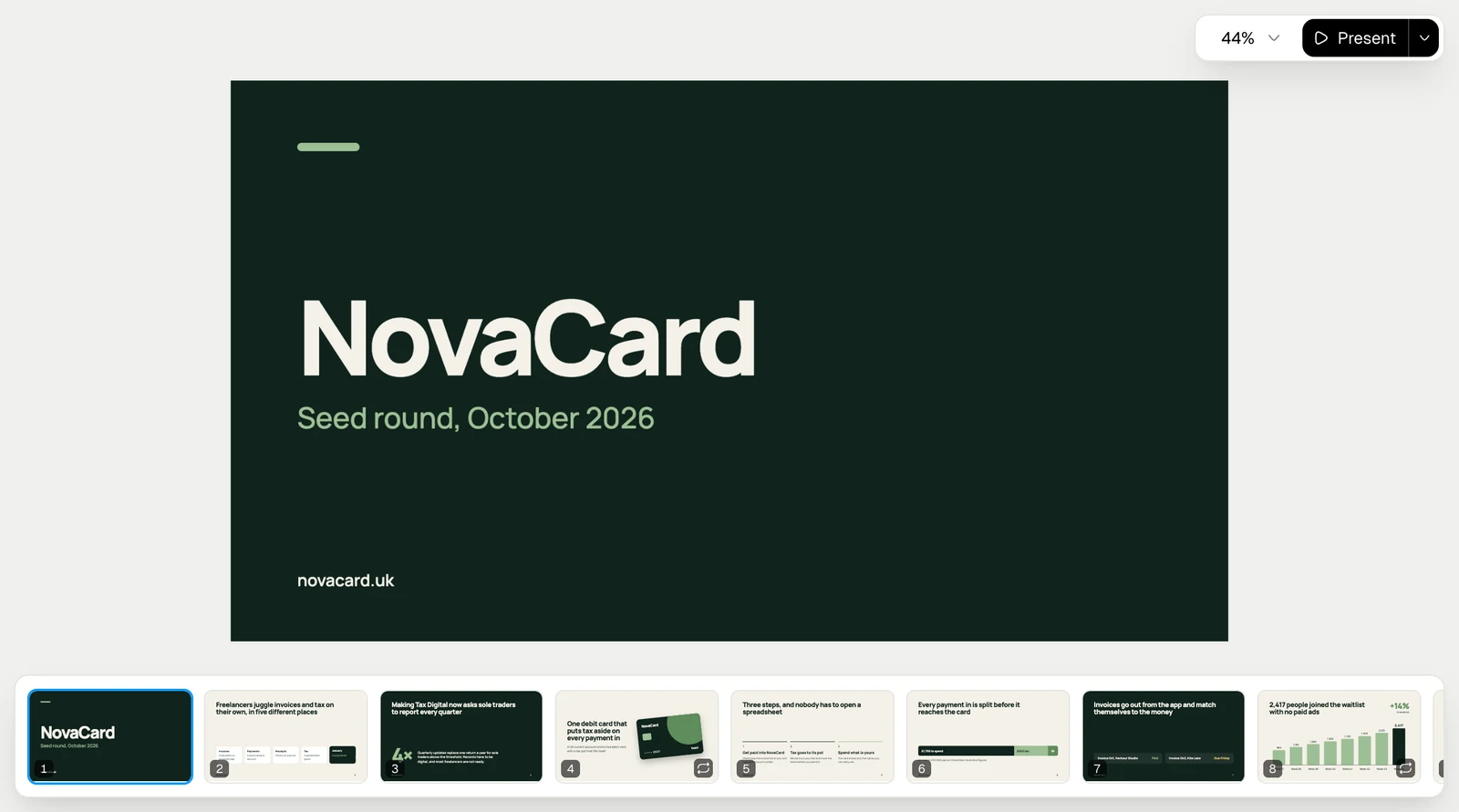
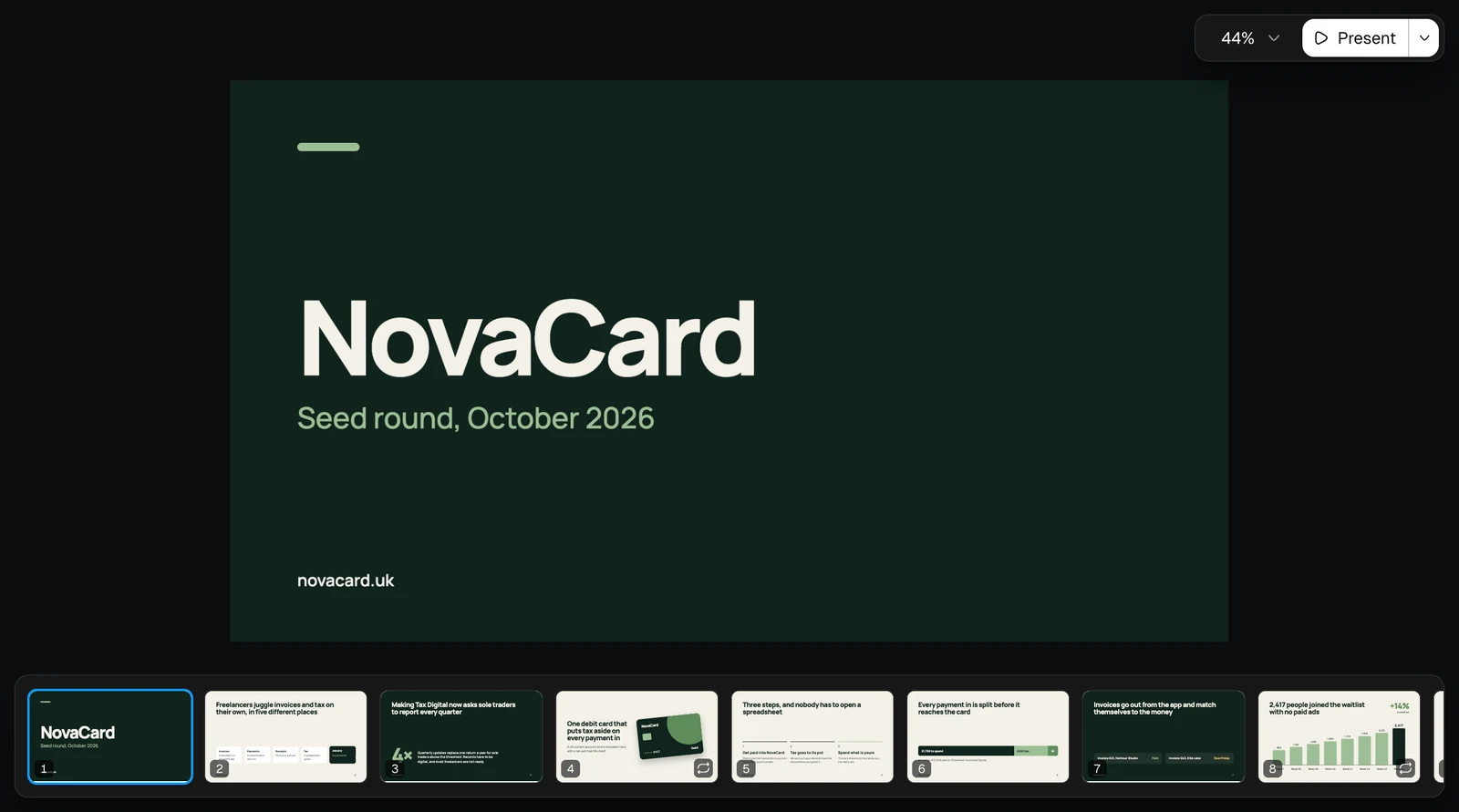
| Toolbar, top left | Select, Hand, Rectangle, Oval, Line, Text, Frame, Image and Layers |
| Slide, in the middle | The slide’s number and title above it, with Download and Open on its own |
| Slide strip, at the bottom | Every slide in order. + adds a slide, the notes button opens speaker notes |
| Top right | Zoom, Edit to turn editing off and on, Present with more ways to present |
Move around
Scroll to move across the slides, or hold the Hand tool (H) and drag. The zoom menu zooms in and out, fits the slides to the window (⇧1), or jumps to 50%, 100% (⇧0) or 200%.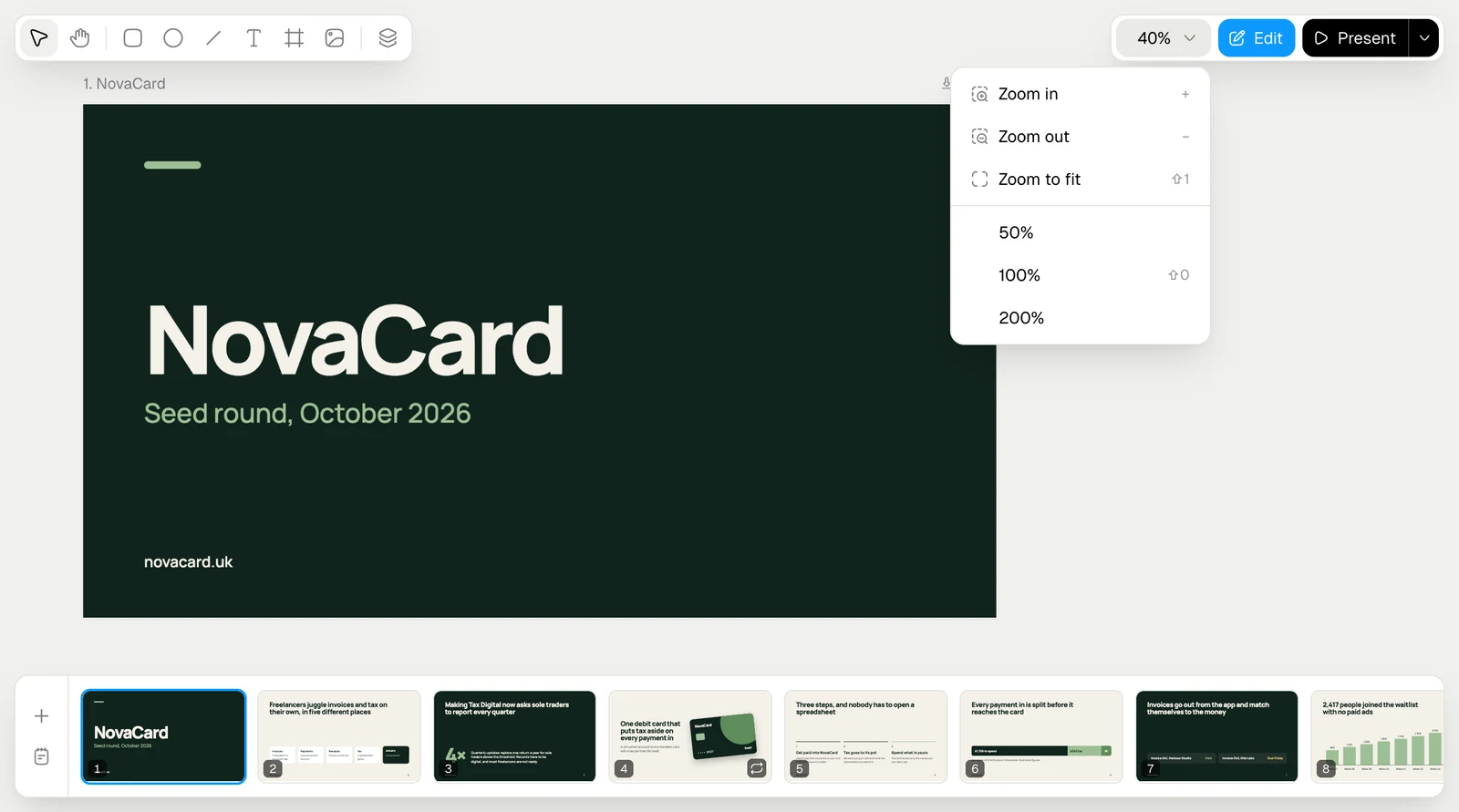
Slides
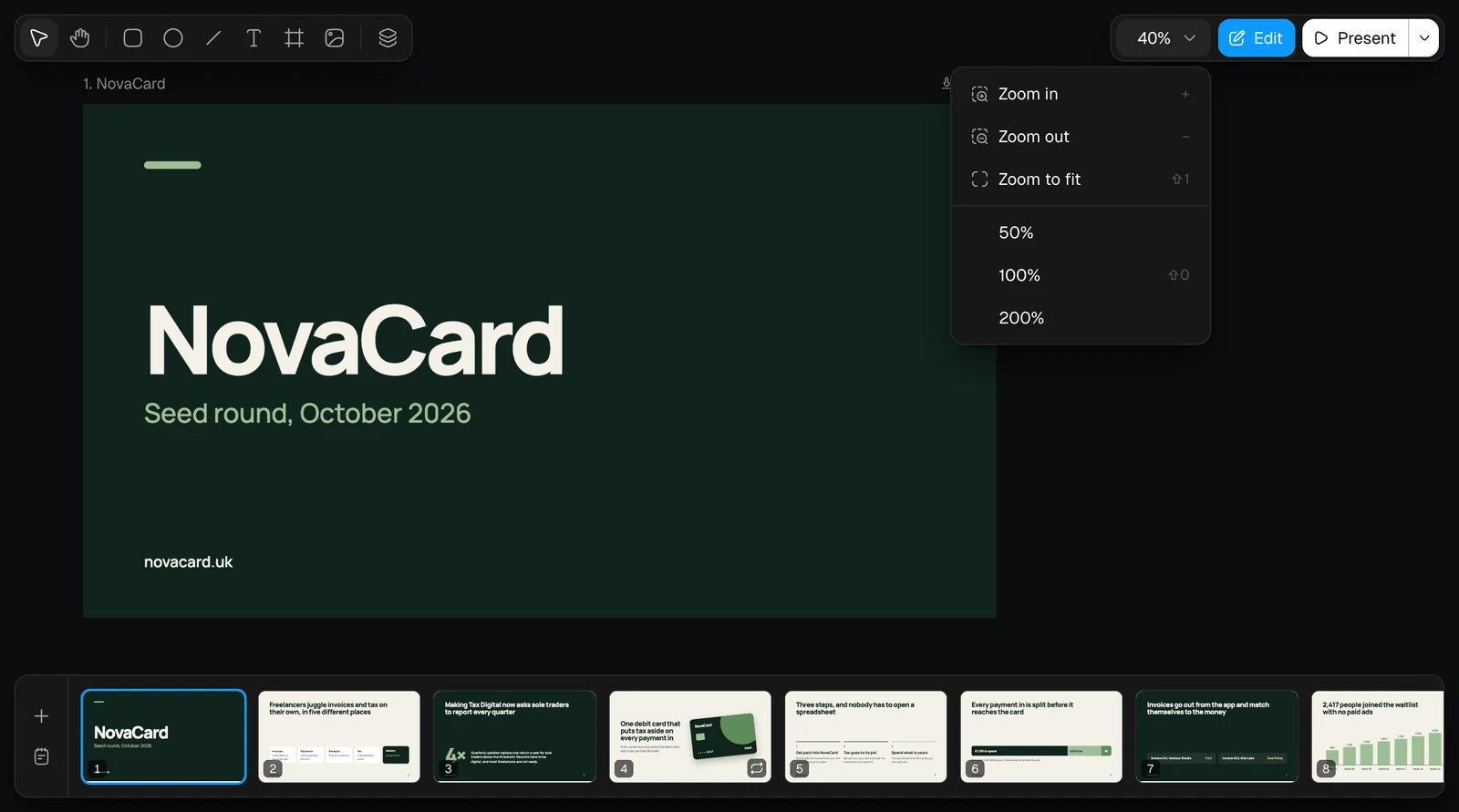
Click a slide in the strip to go to it. A small mark on a slide in the strip means it has a transition.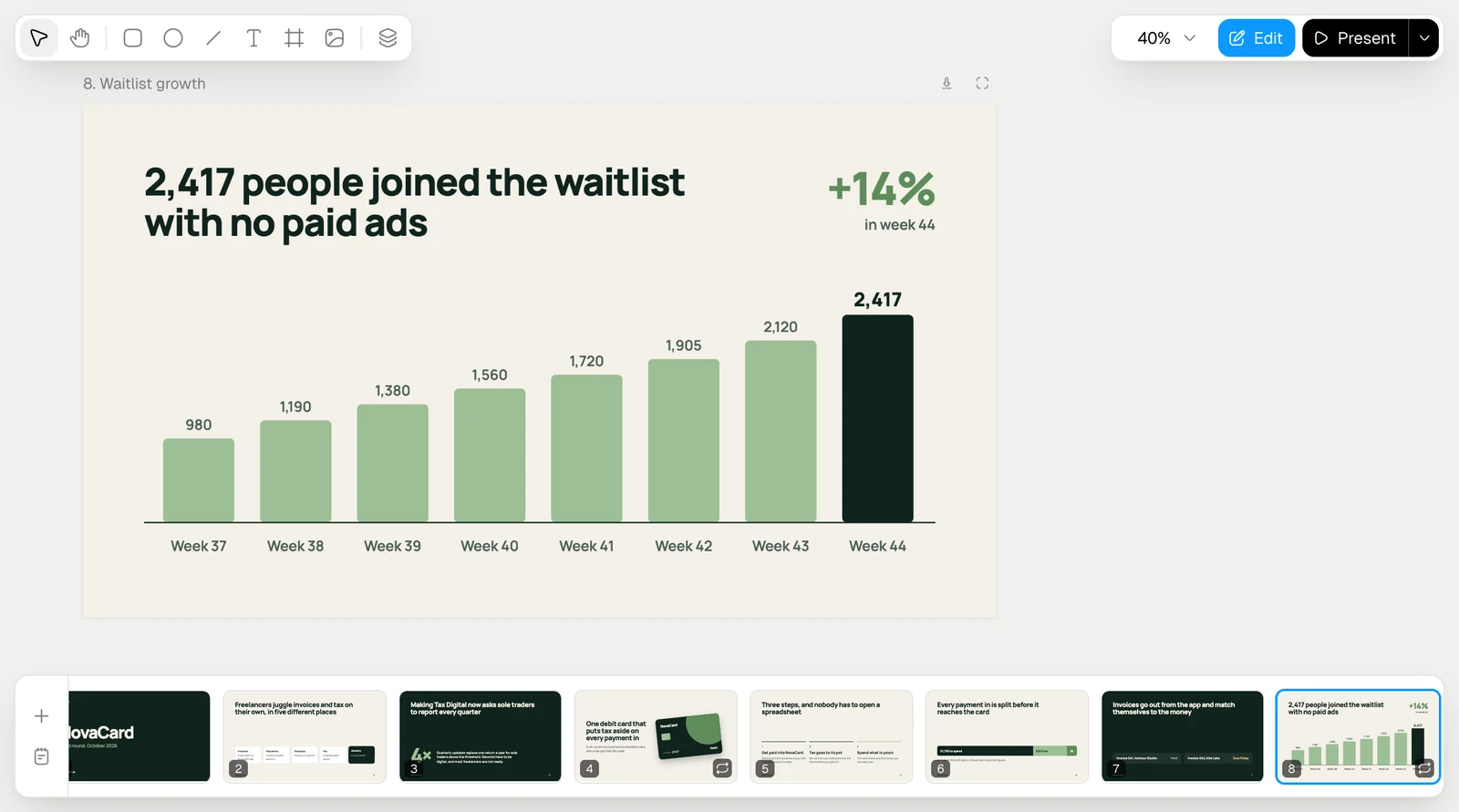
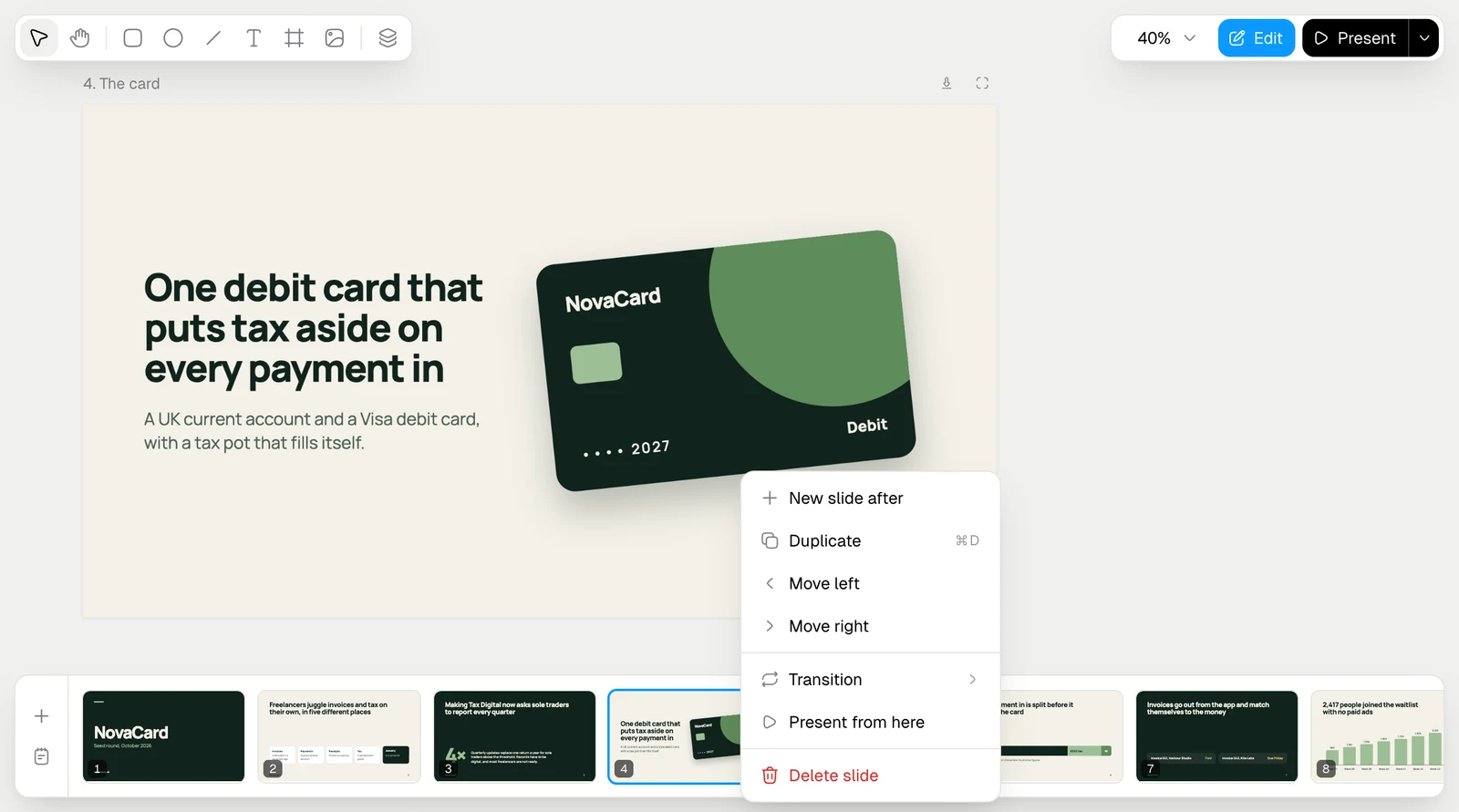
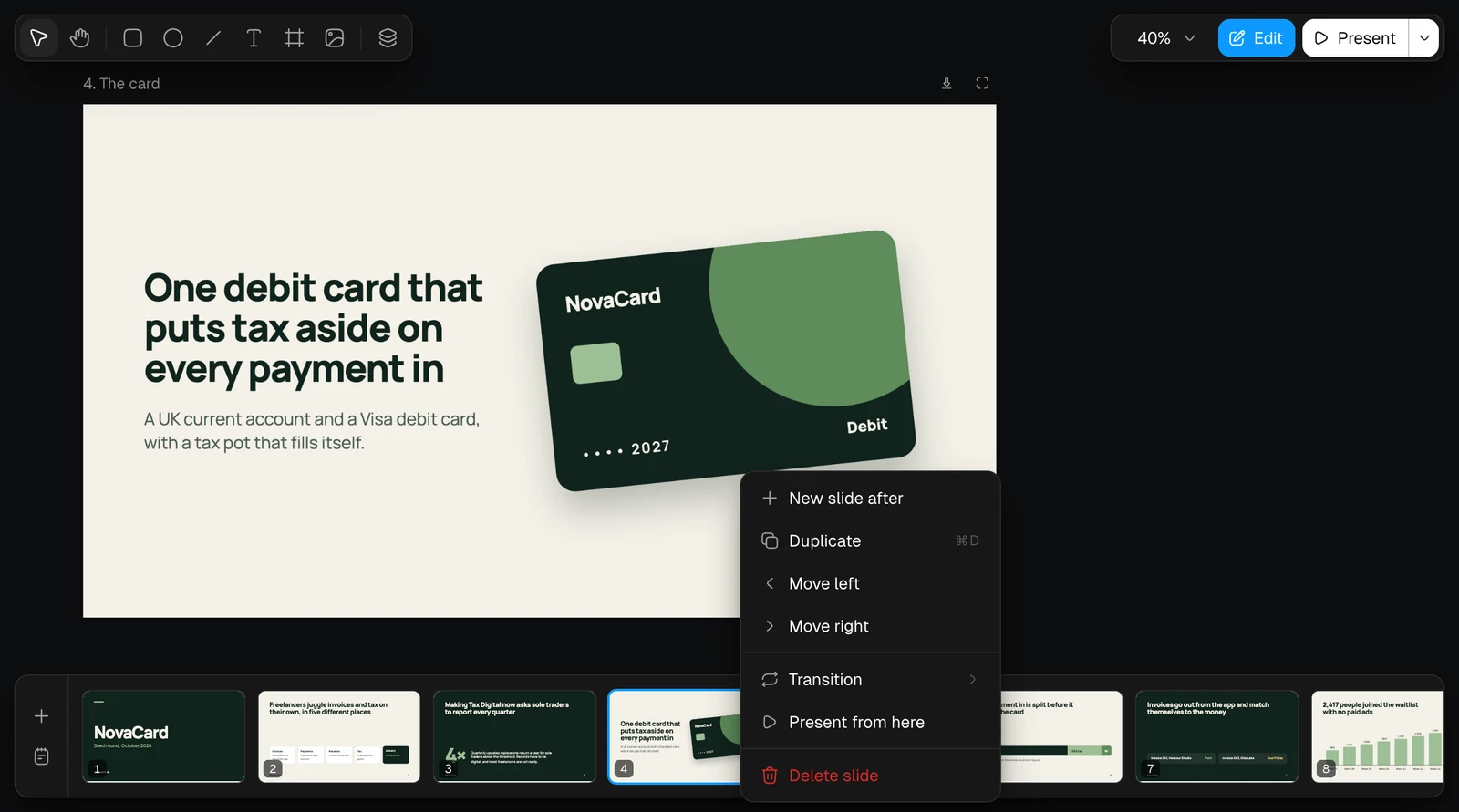
| Action | What it does |
|---|---|
| New slide after | Adds an empty slide right after this one |
| Duplicate (⌘D) | Makes a copy of the slide next to it |
| Move left, Move right | Moves the slide one place in the order |
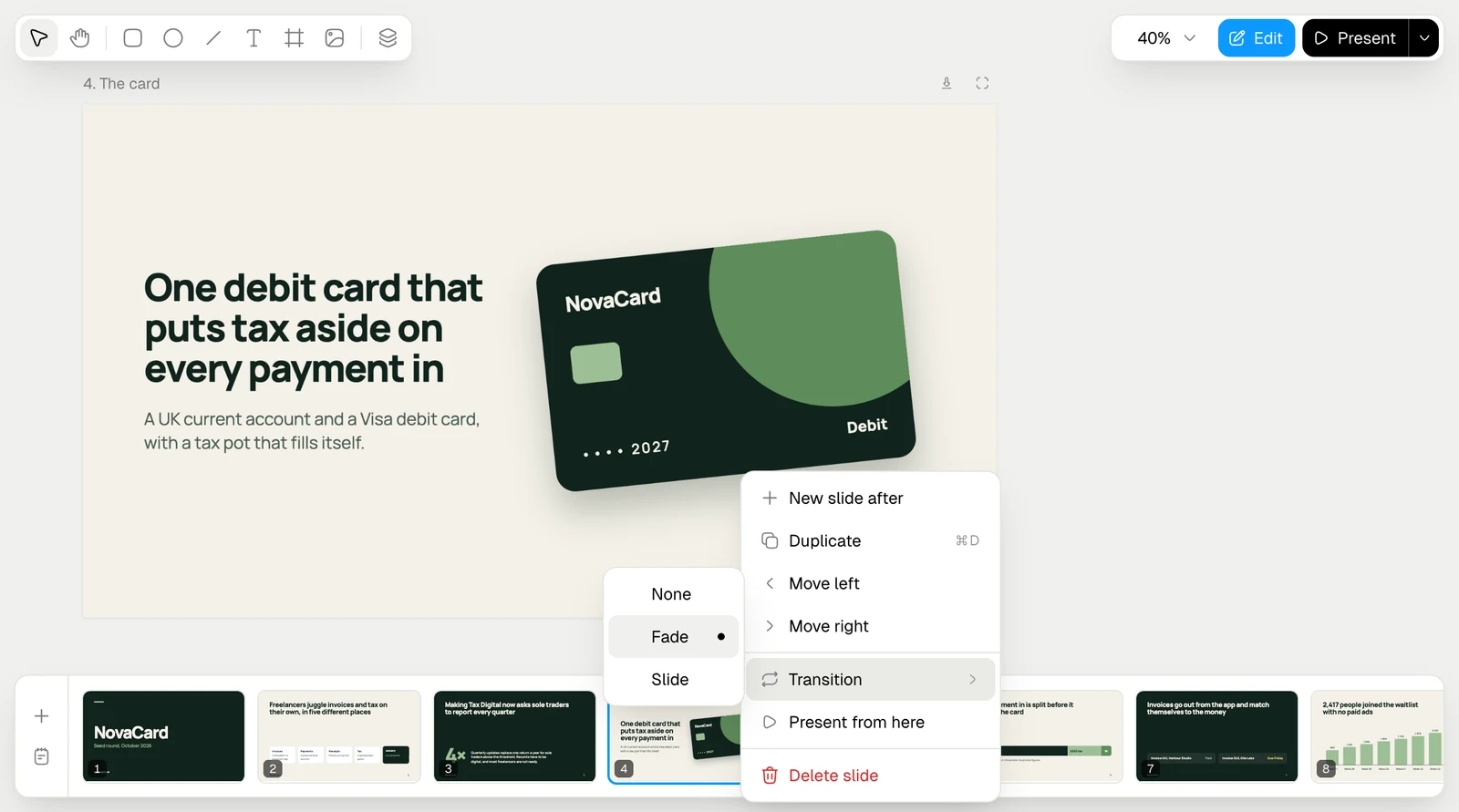
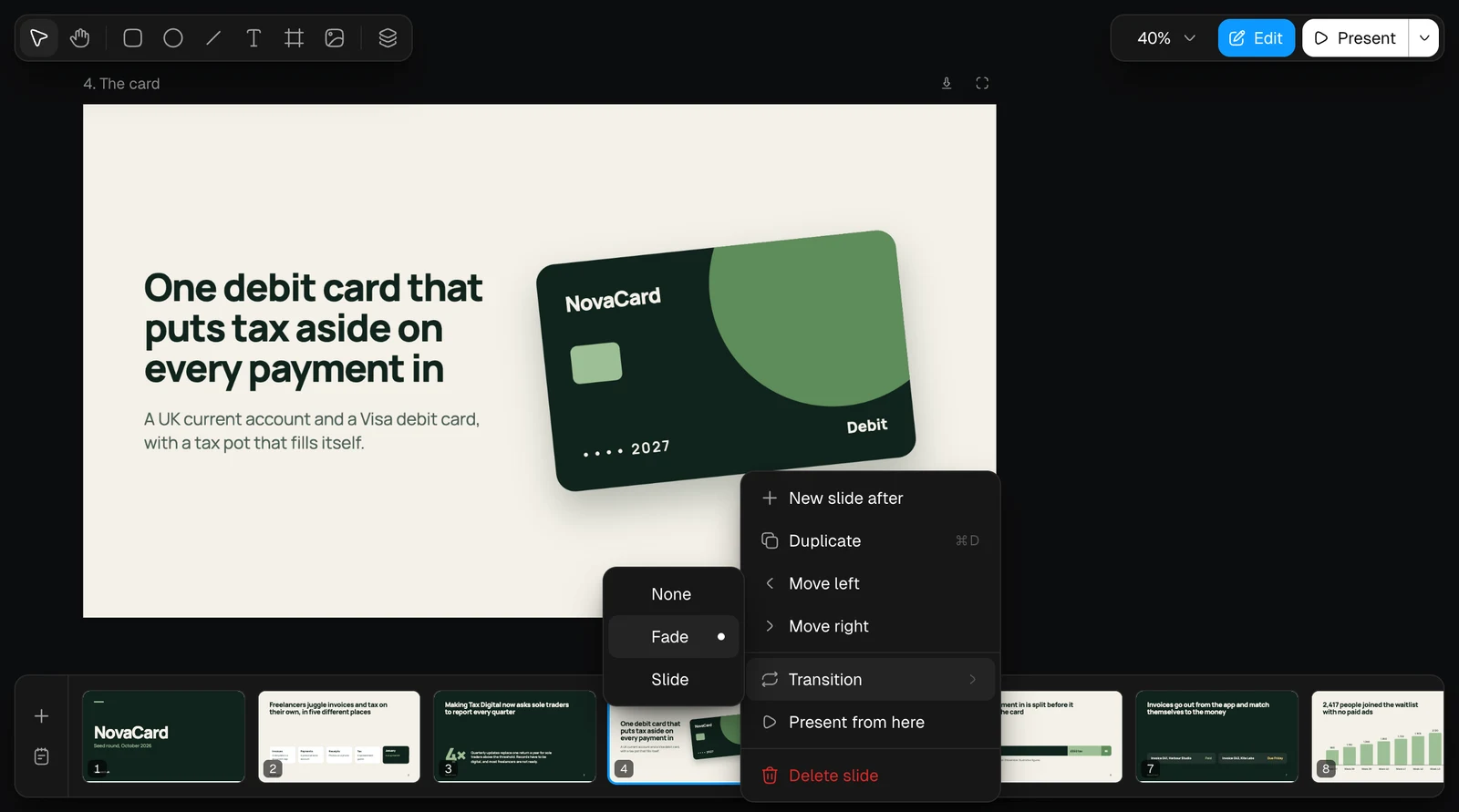
| Transition | How the slide comes in when you present: None, Fade or Slide |
| Present from here | Starts presenting at this slide |
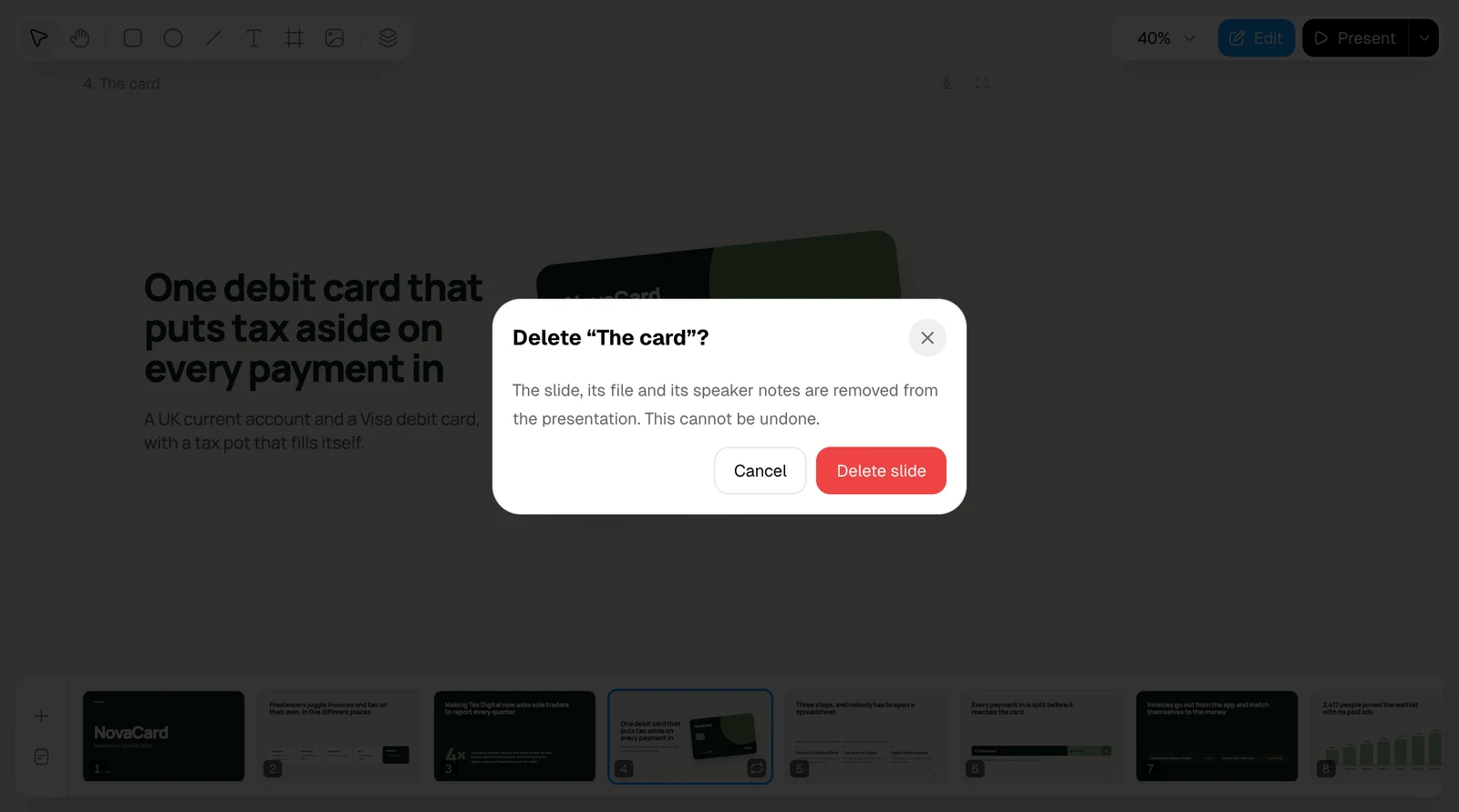
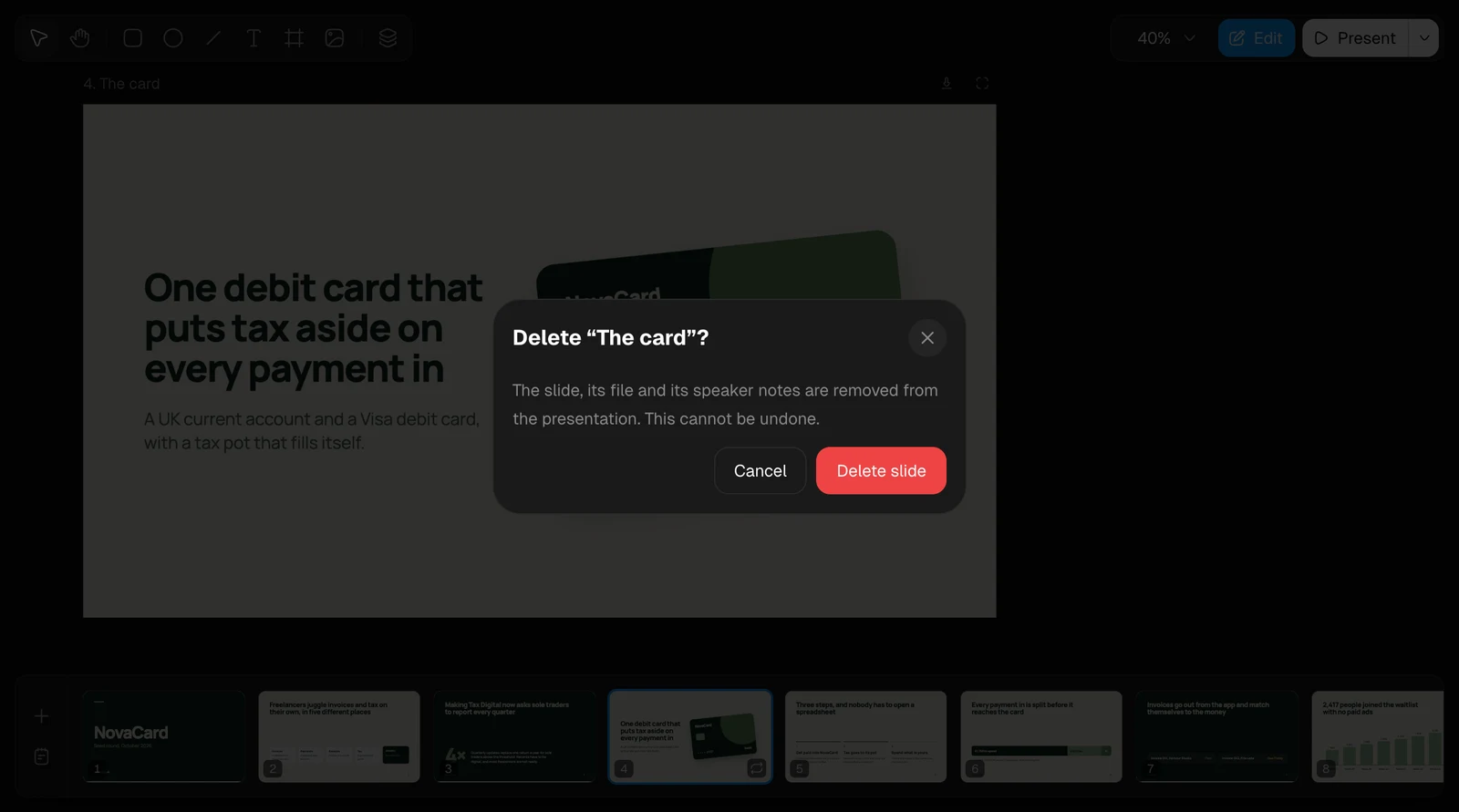
| Delete slide | Removes the slide, its file and its speaker notes, after you confirm. This cannot be undone |
Speaker notes
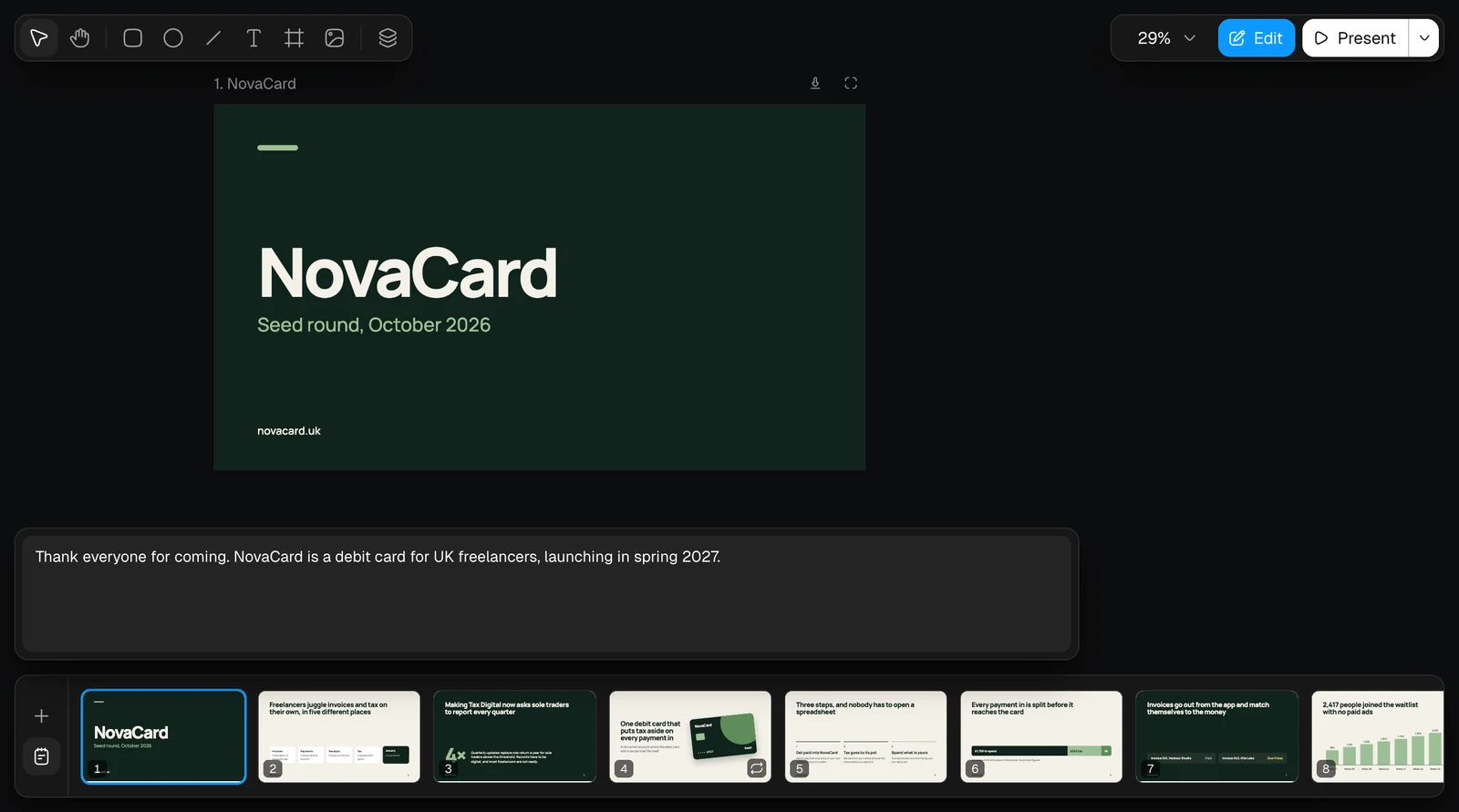
The notes button in the strip opens the notes of the current slide under it: what to say on the slide. Only you see them, in the presenter view.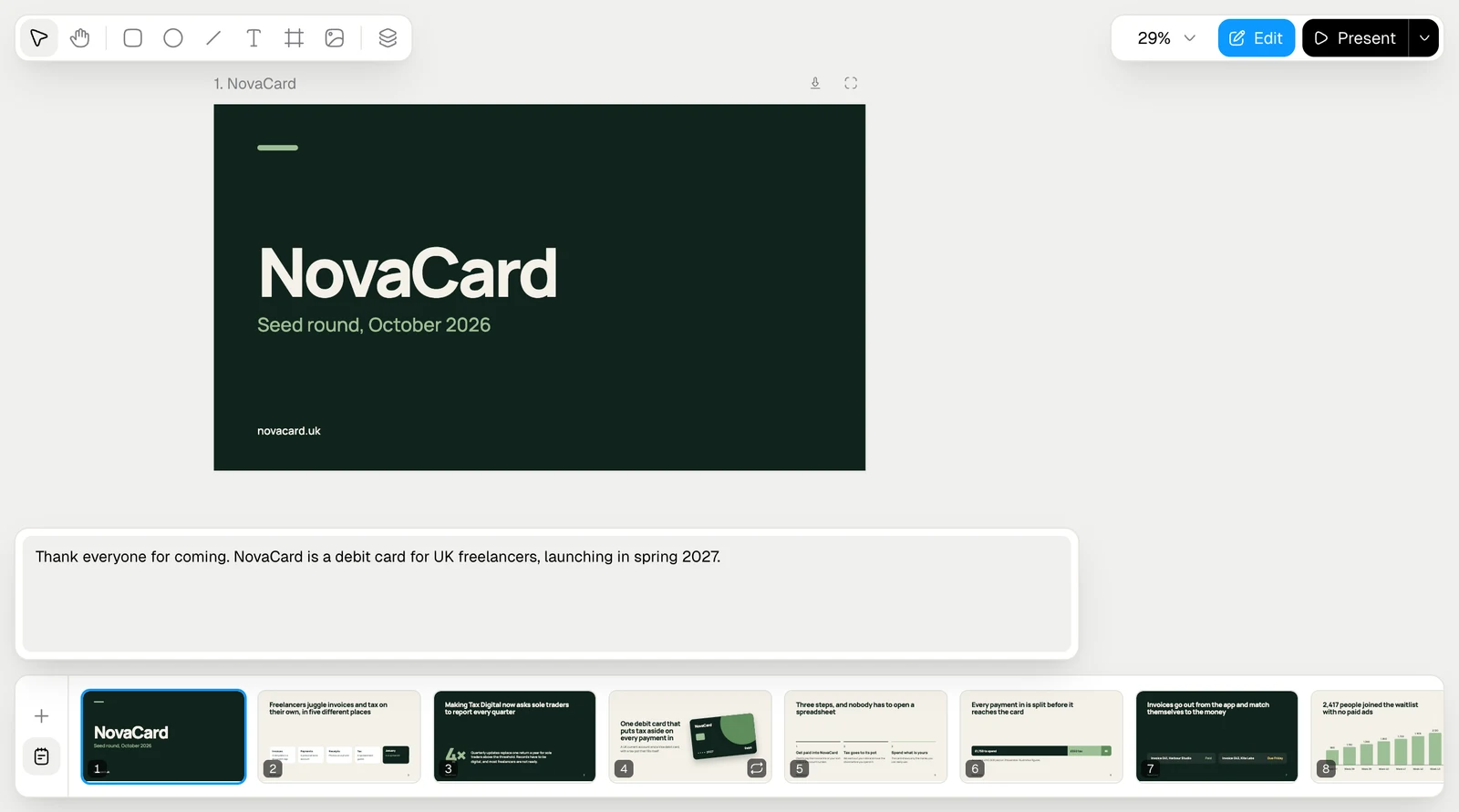
Change what is on a slide
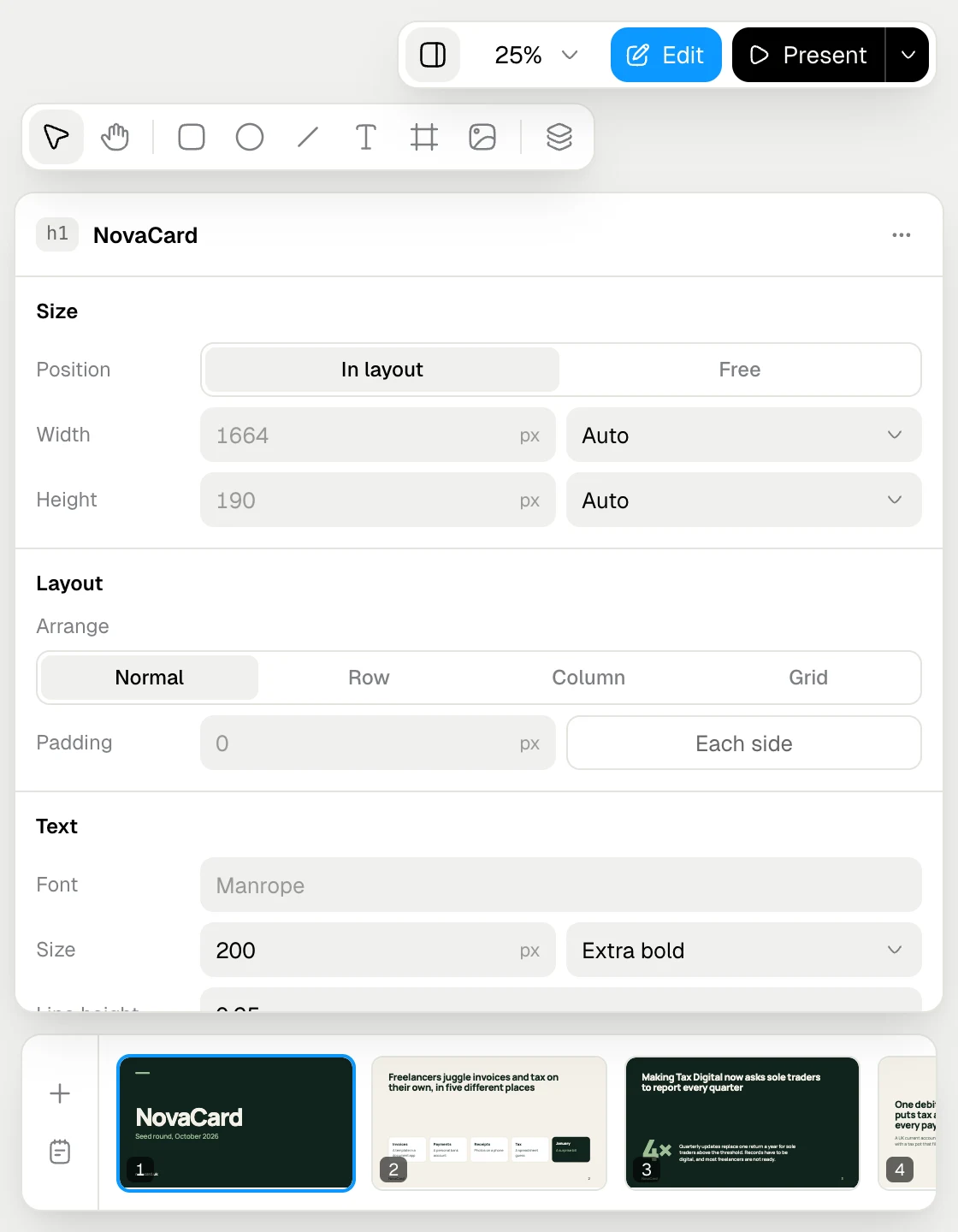
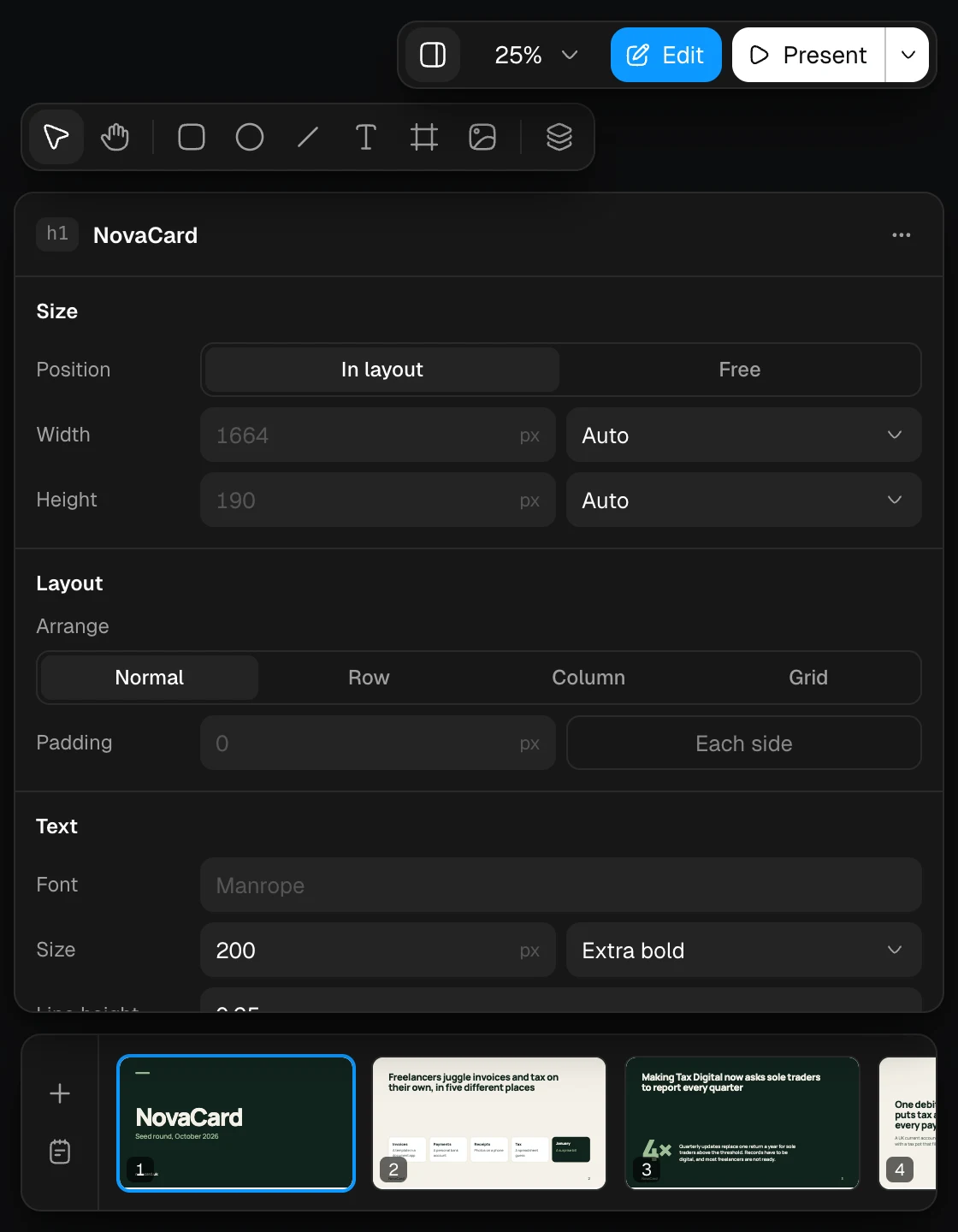
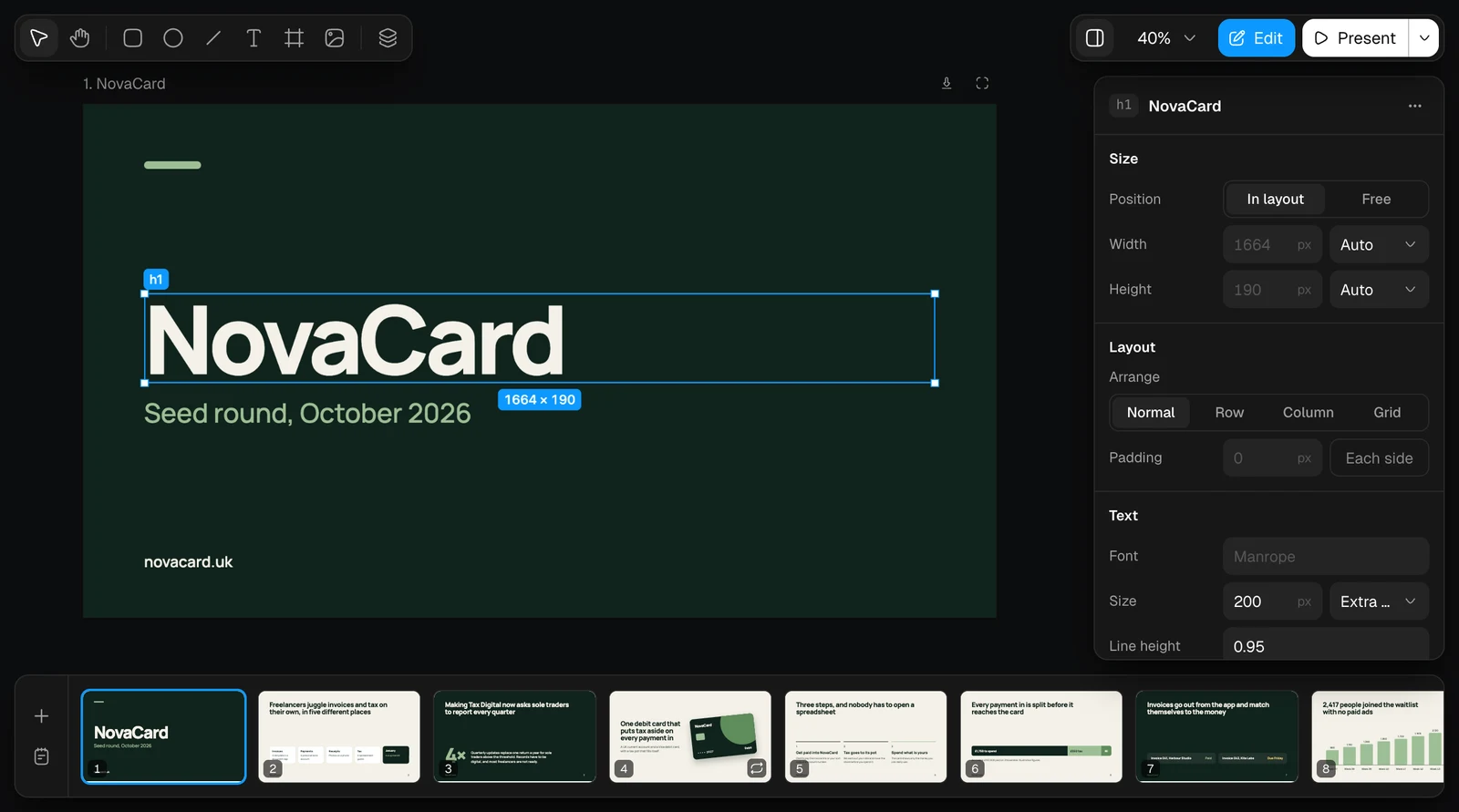
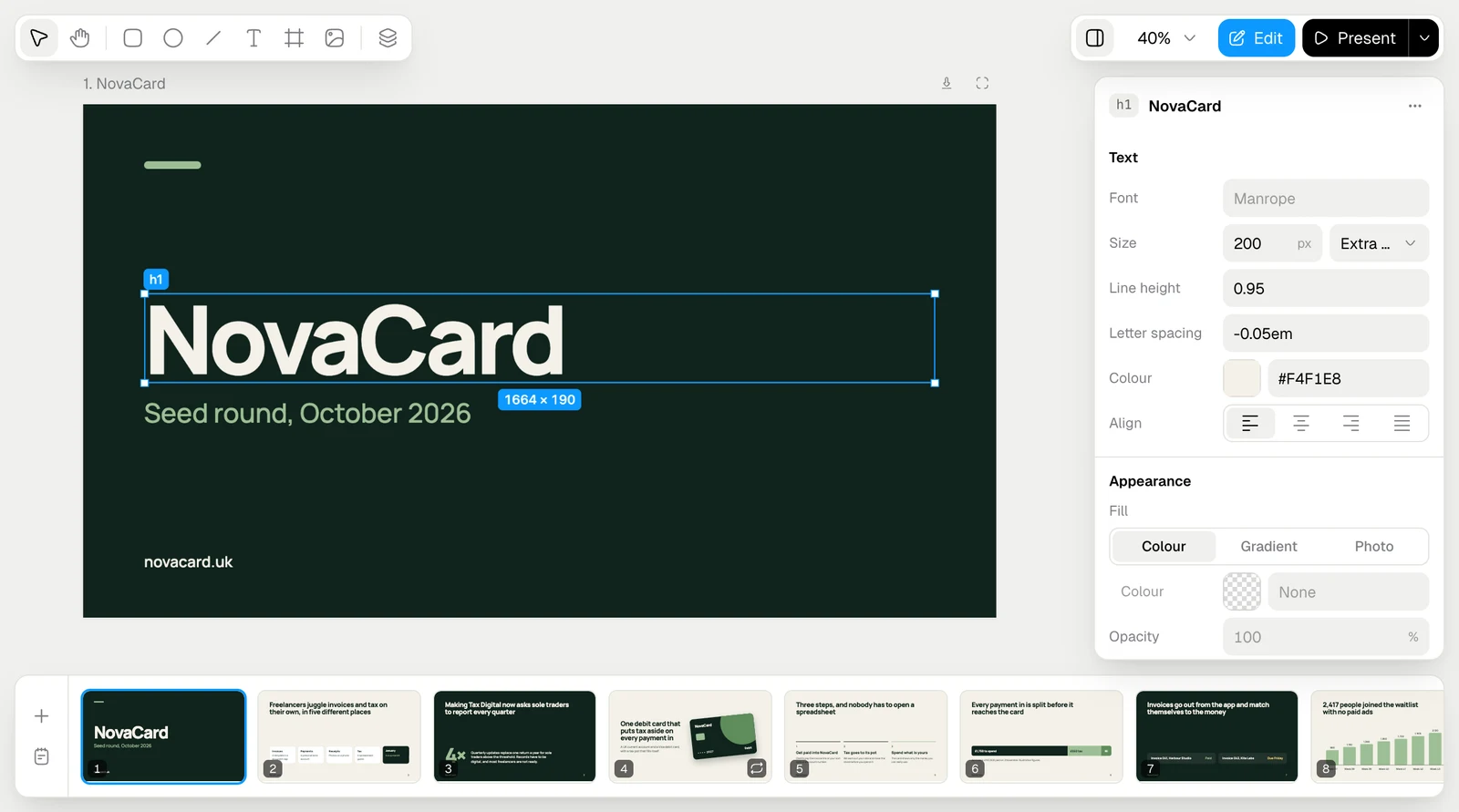
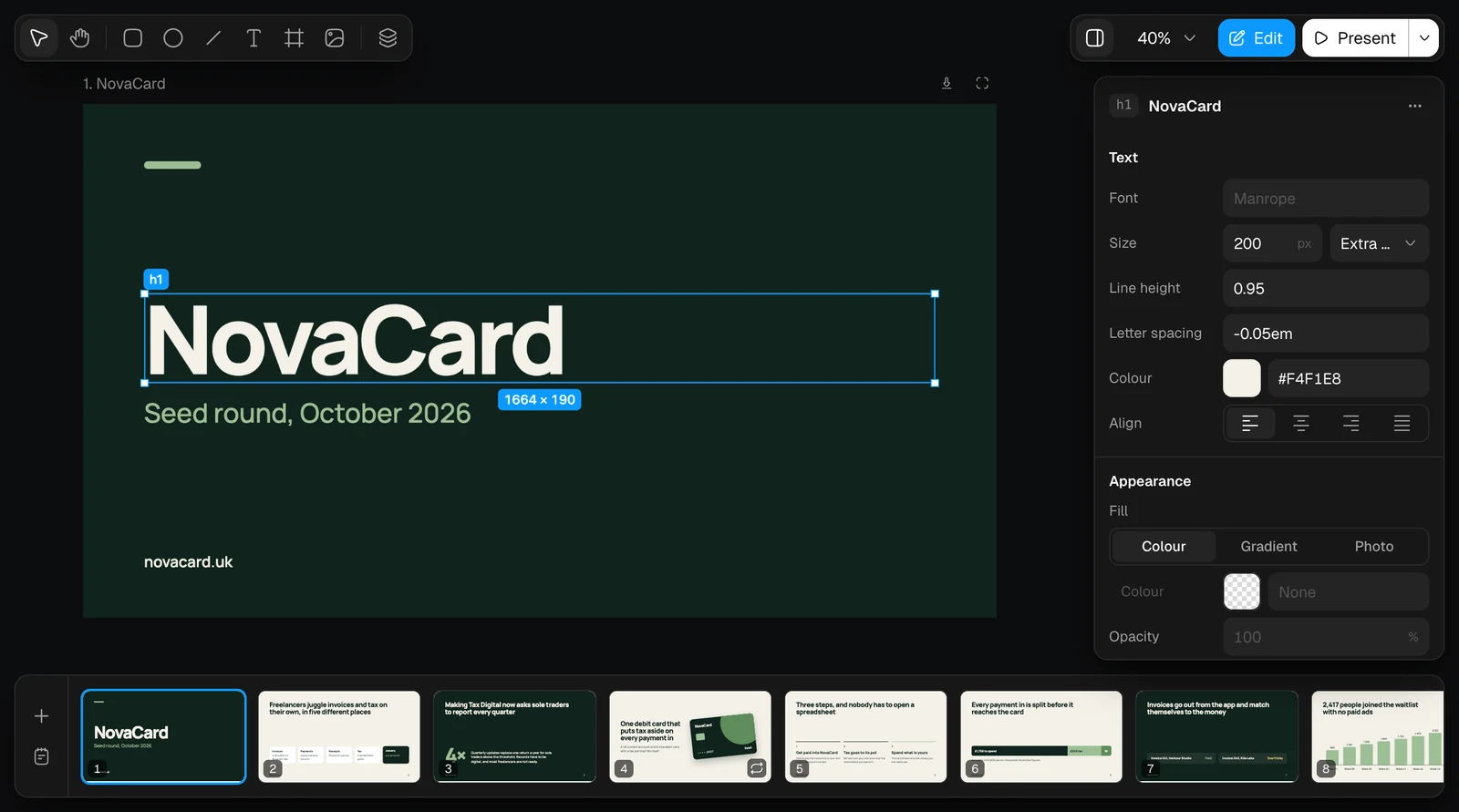
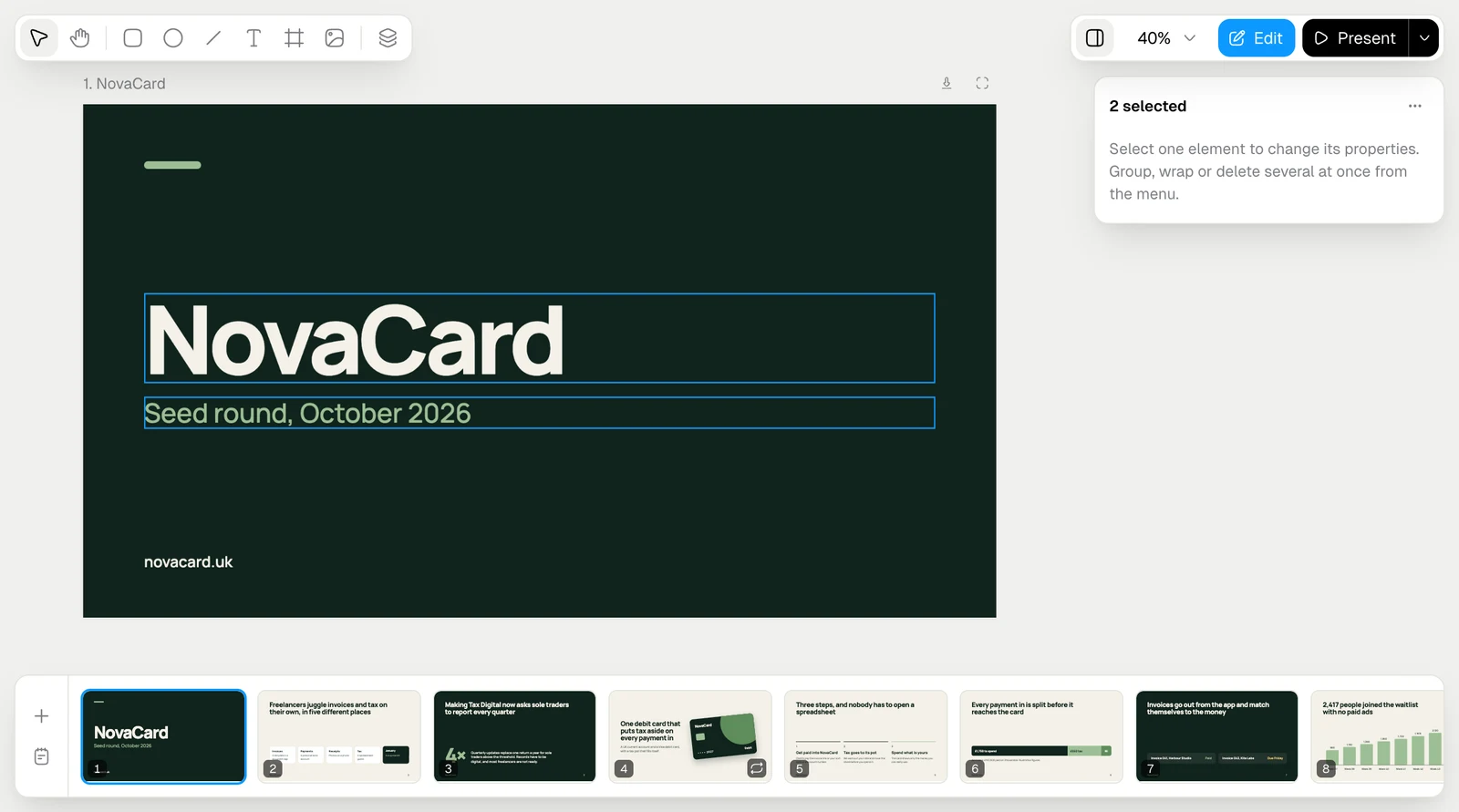
Click anything on a slide to select it. Its tag and size show on the slide, and its properties open on the right. Shift-click adds more elements to the selection. The panel button next to the zoom hides and shows the properties.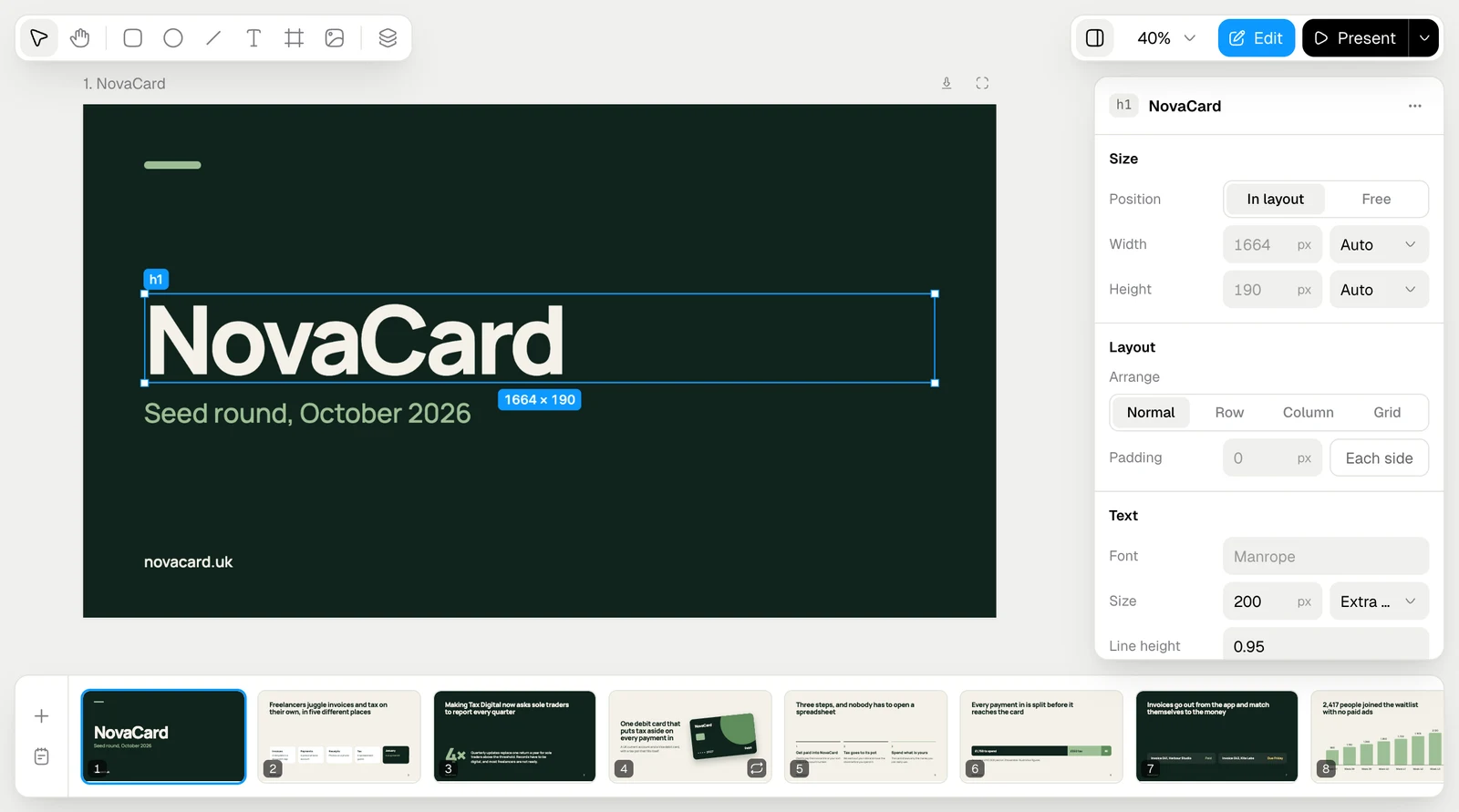
| Section | What you set |
|---|---|
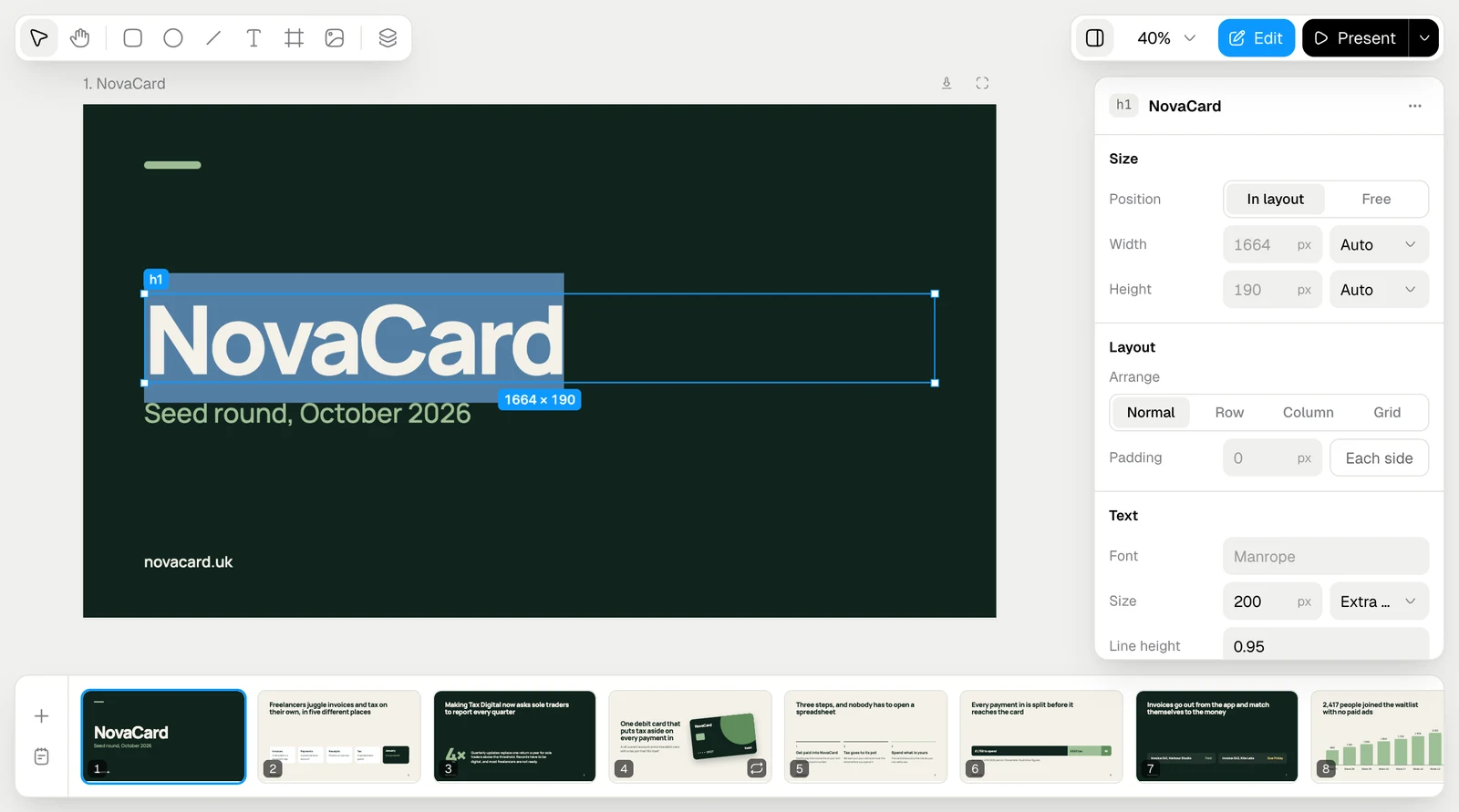
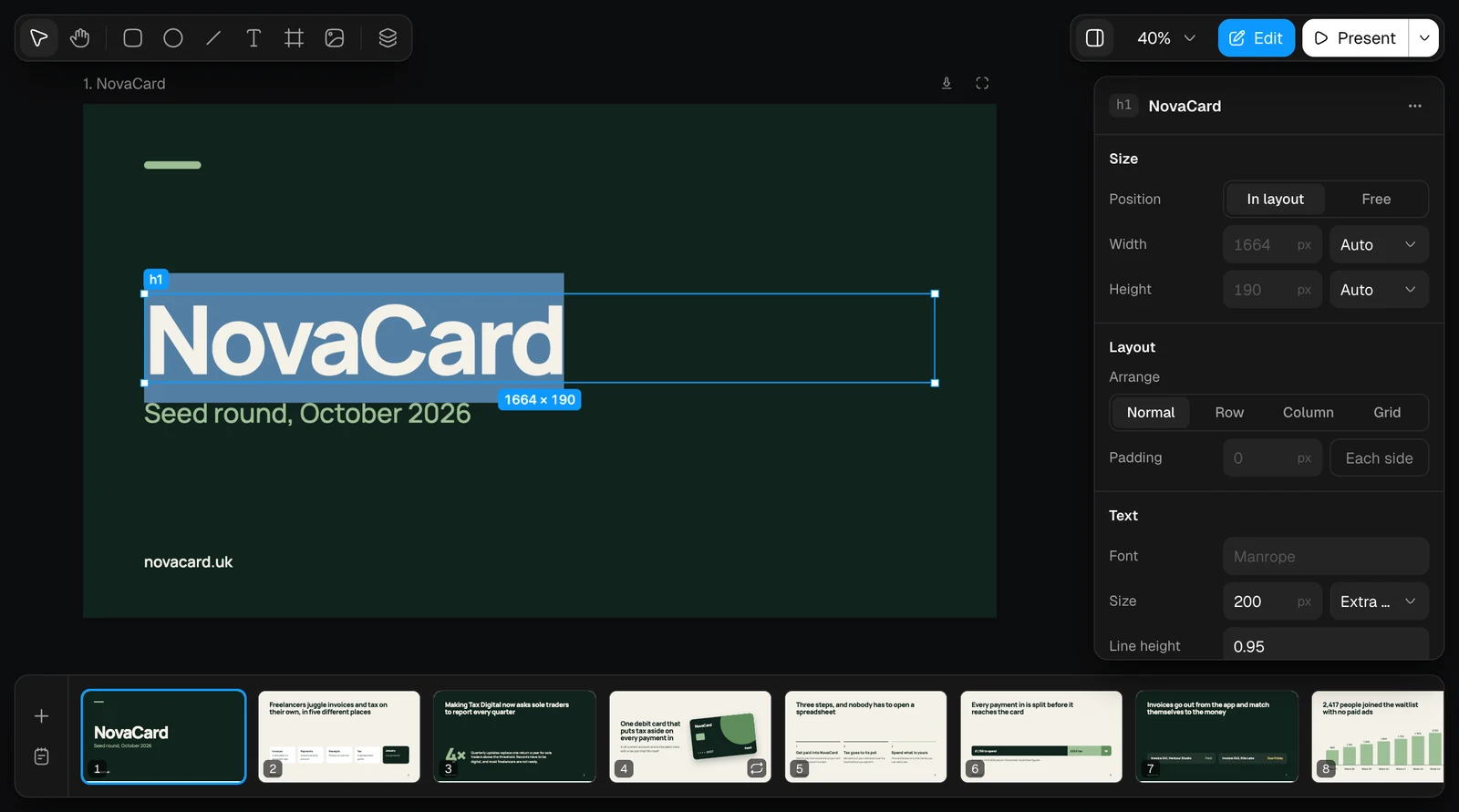
| Size | Position: In layout follows its row, column or grid, Free stays where you put it and can be dragged anywhere. Width and Height: a number makes it fixed, Auto fits the content |
| Layout | How the elements inside are placed. Arrange: Normal, Row, Column or Grid. For a row or column: Align, Distribute and Gap. Padding, the same on all sides or each side apart |
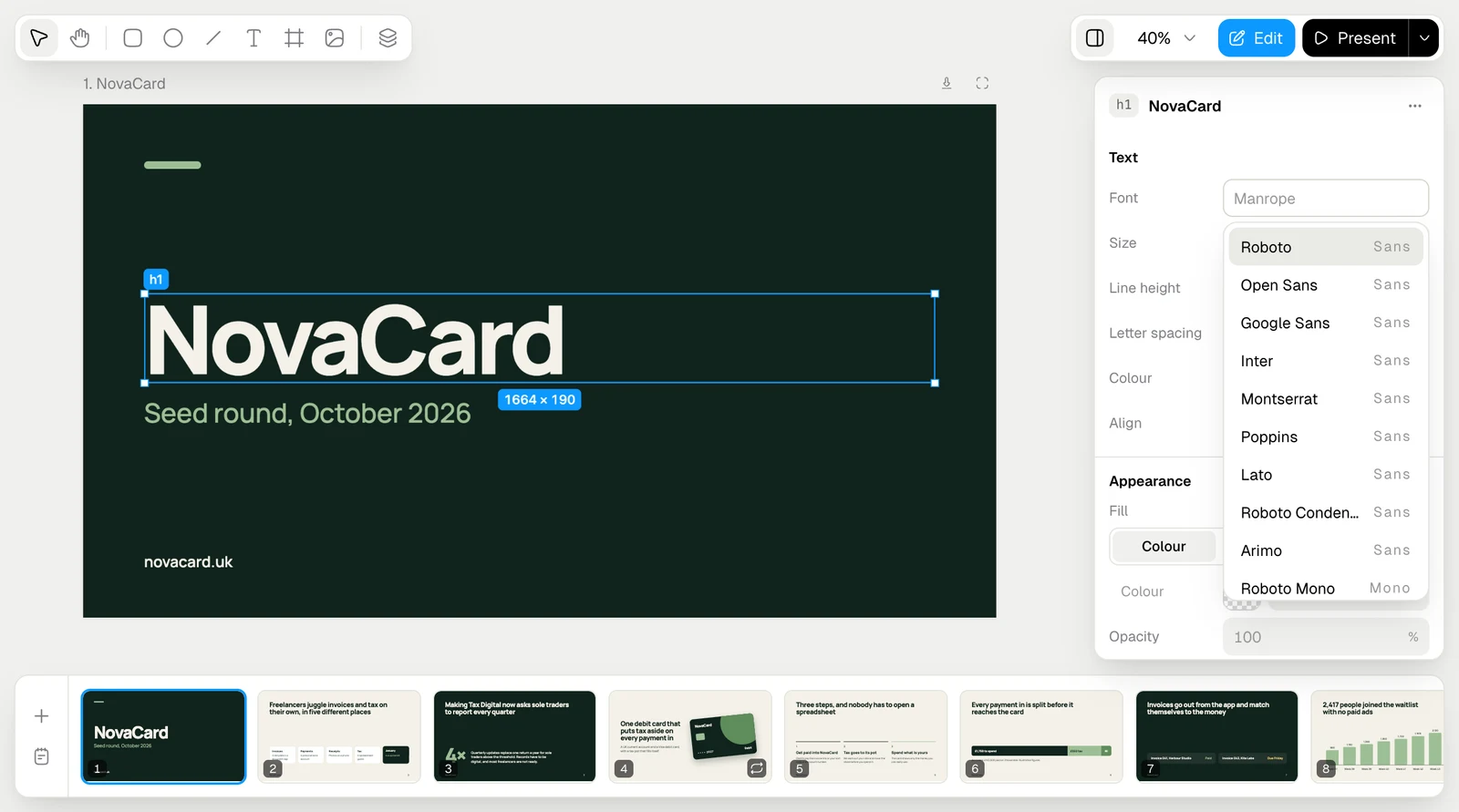
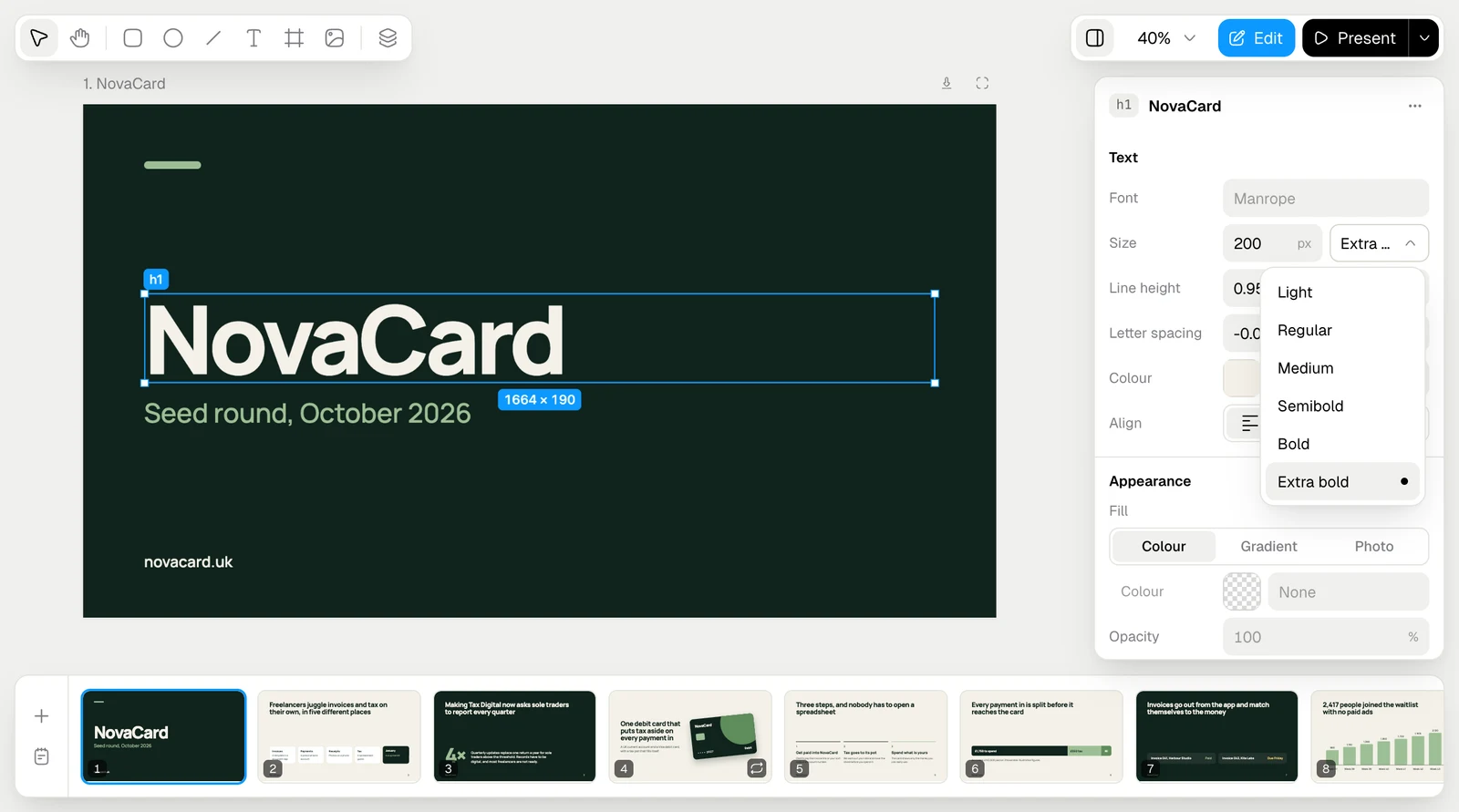
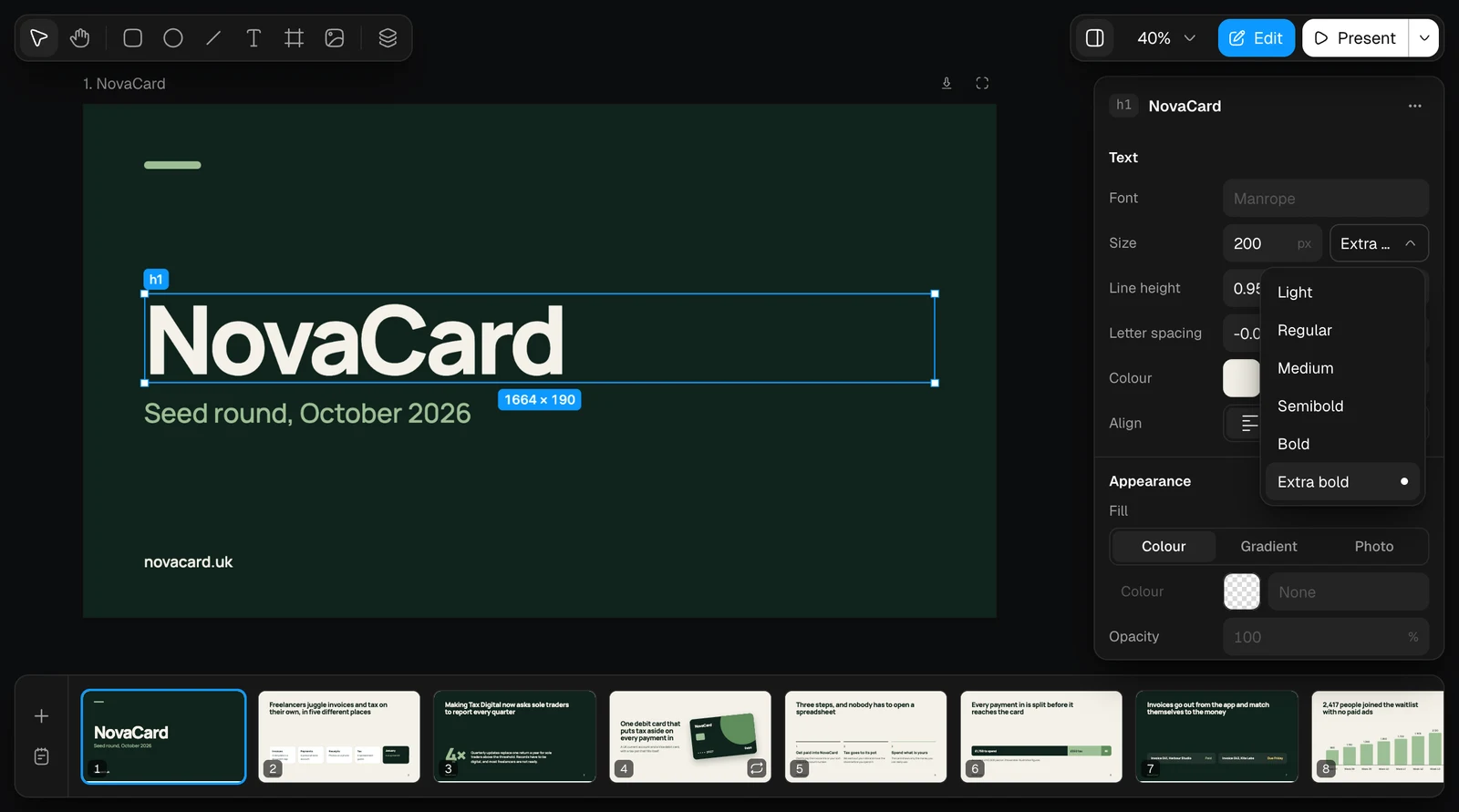
| Text | Font, weight, size, Line height, Letter spacing, Colour and Align |
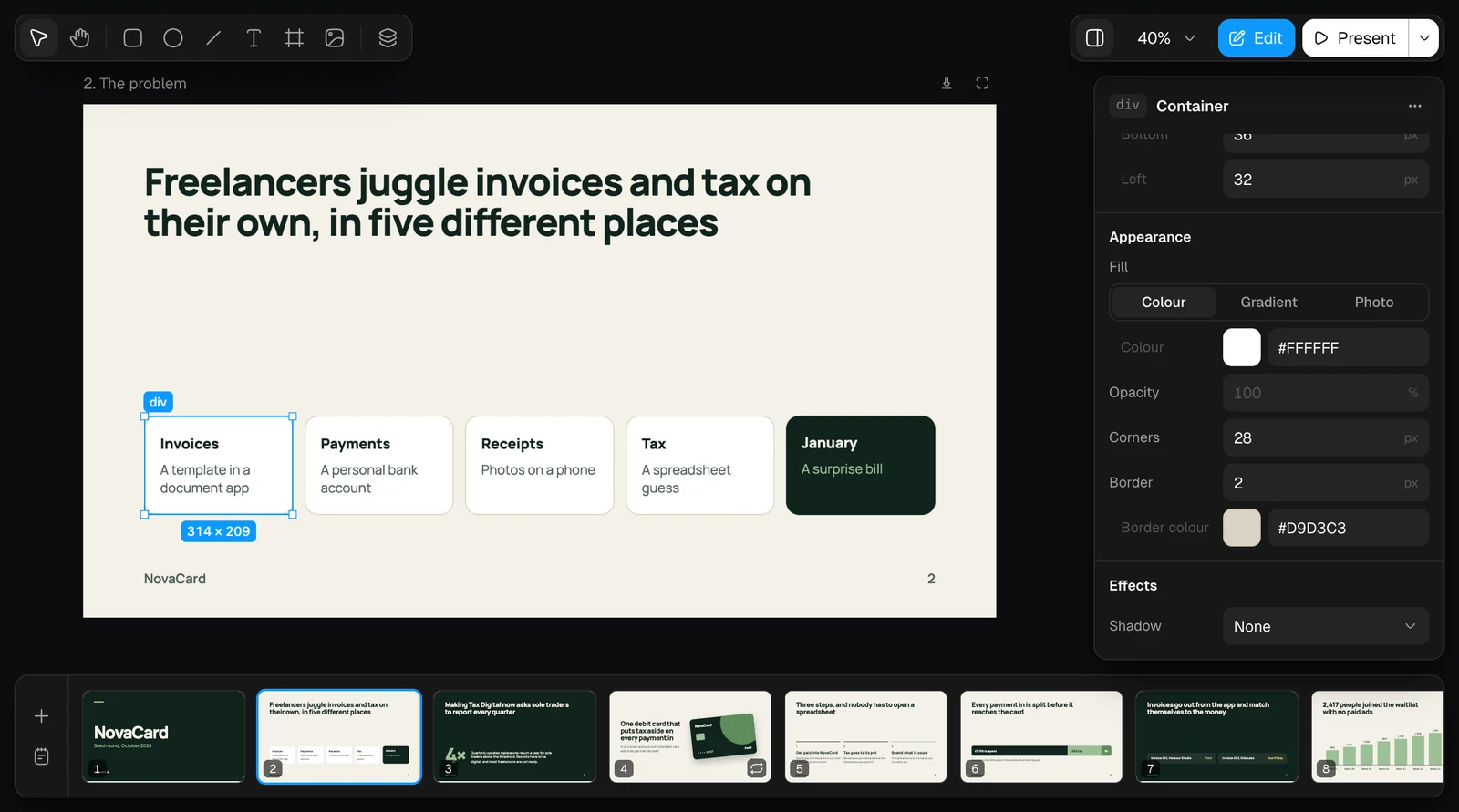
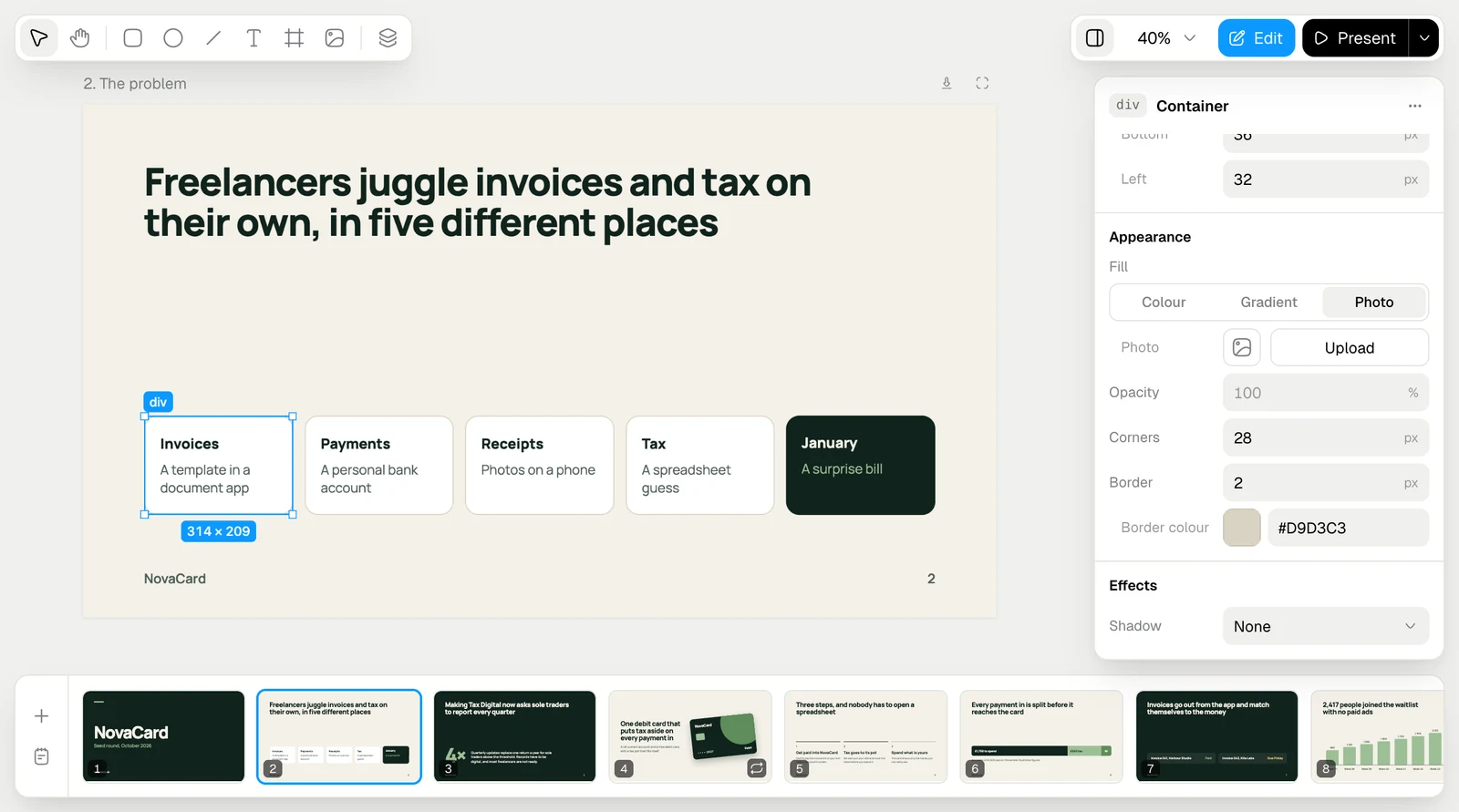
| Appearance | Fill: a colour, a gradient or a photo. Opacity, Corners, Border and its colour |
| Effects | Shadow |
Fill, gradient and photo
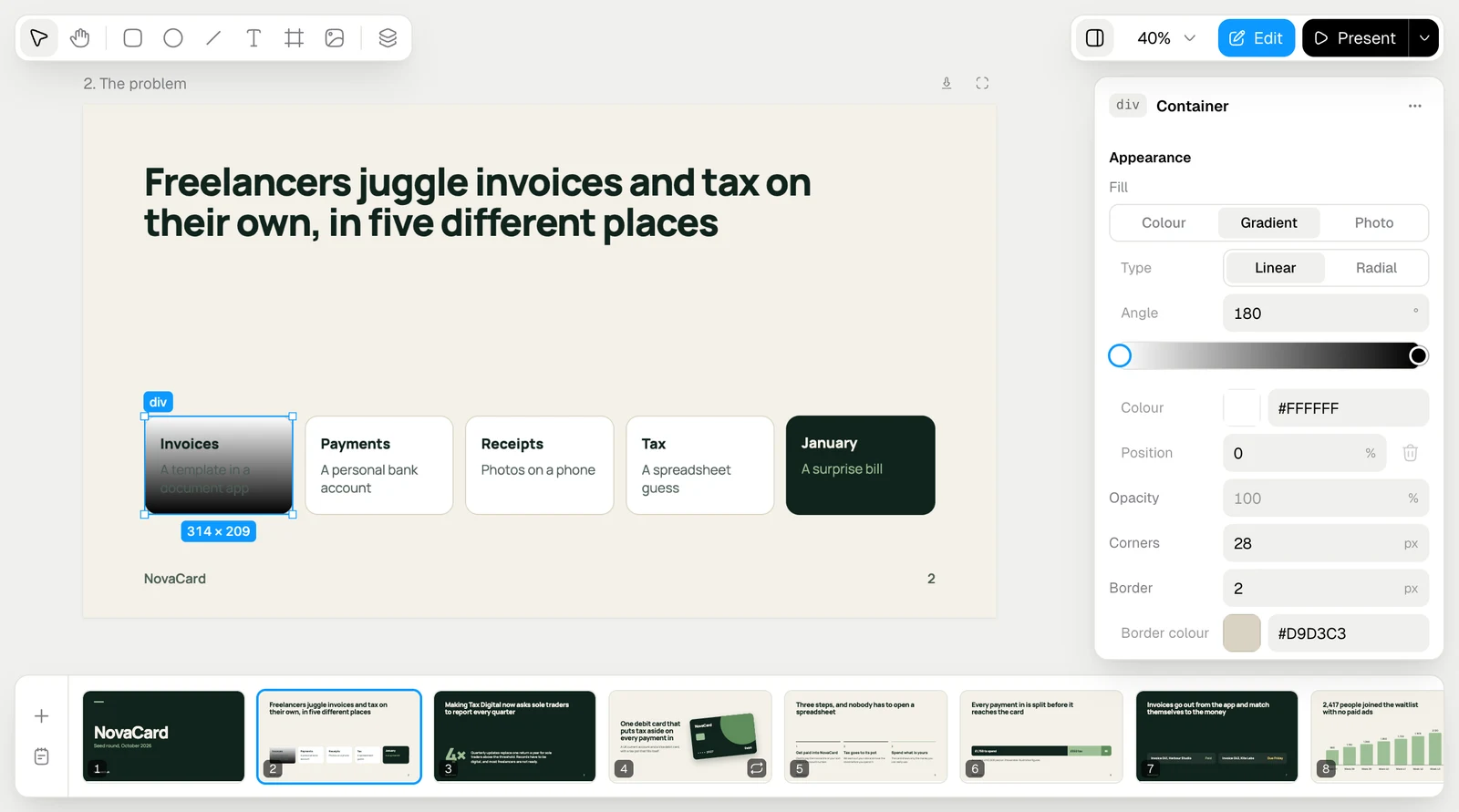
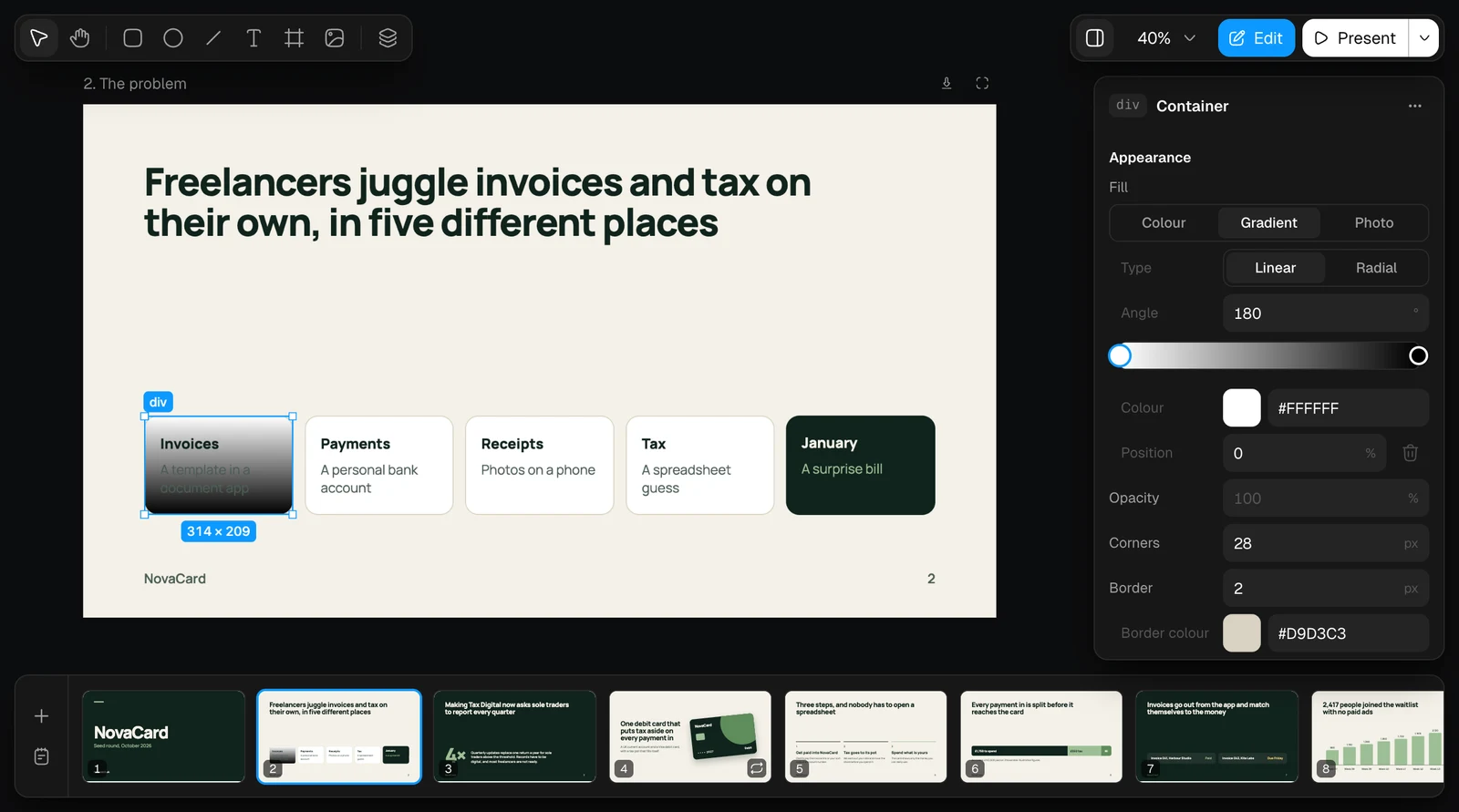
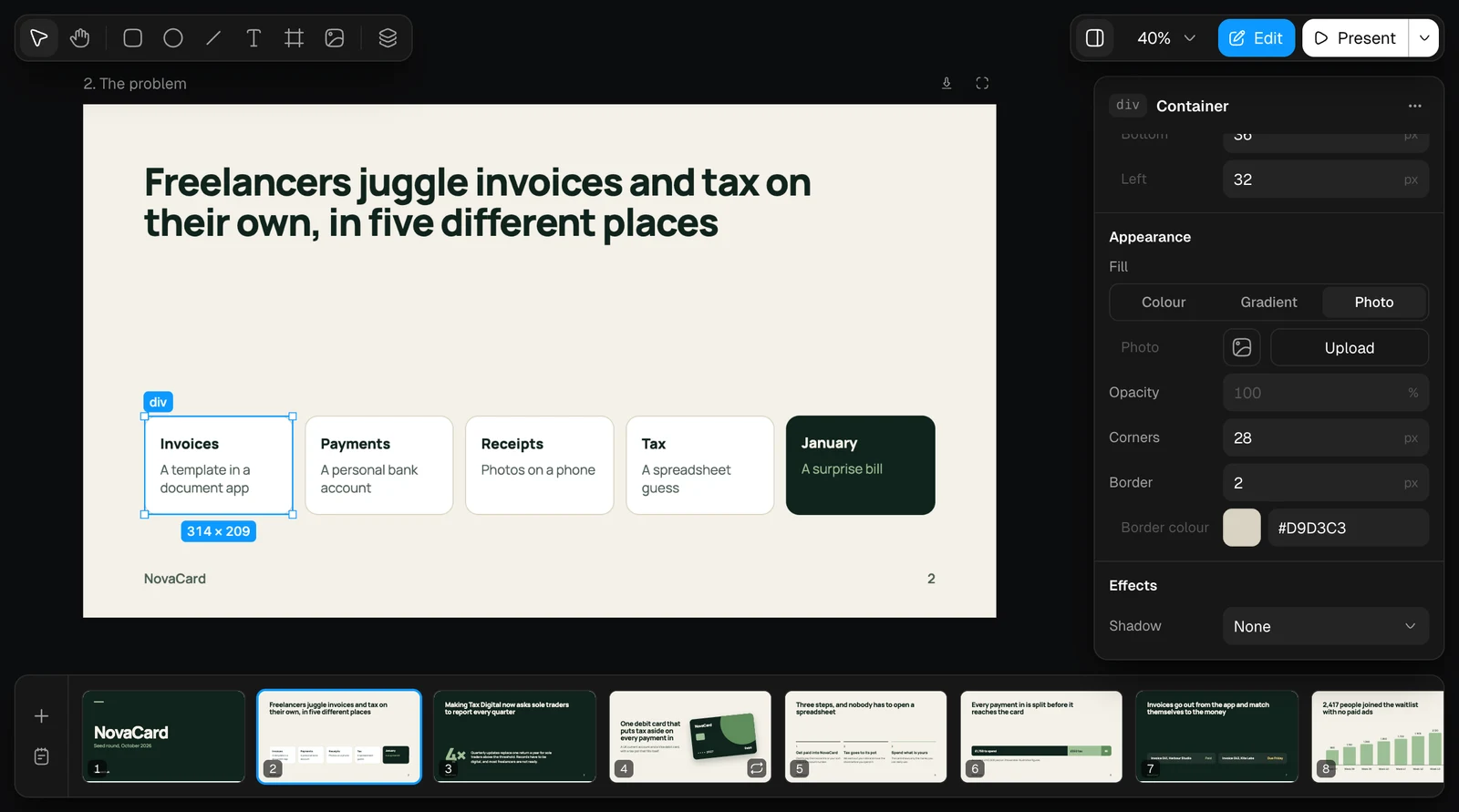
Fill has three kinds. Colour is one colour. Gradient is linear or radial, with an angle and colour stops you can add, move and remove. Photo fills the element with a picture you upload.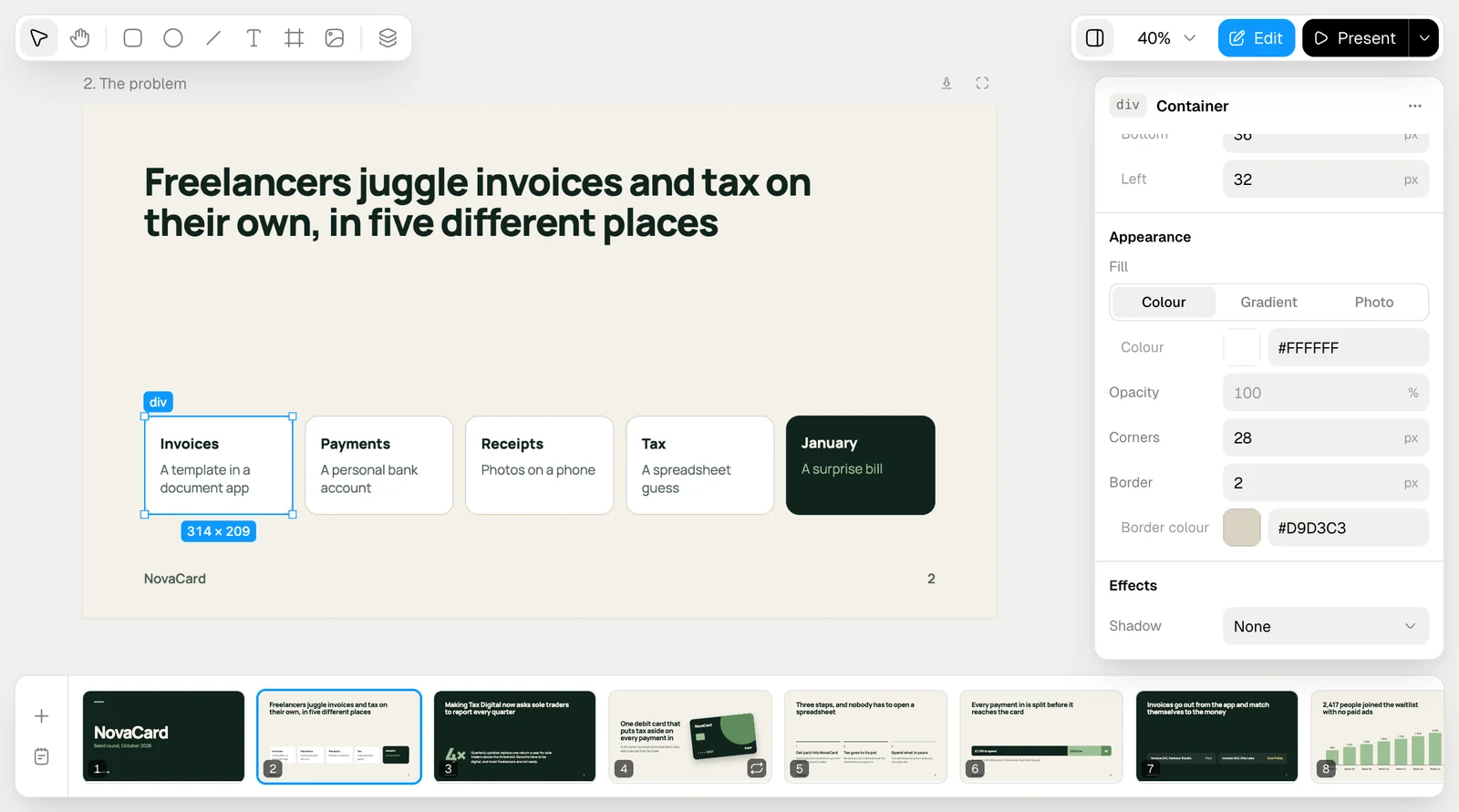
Layout of a container
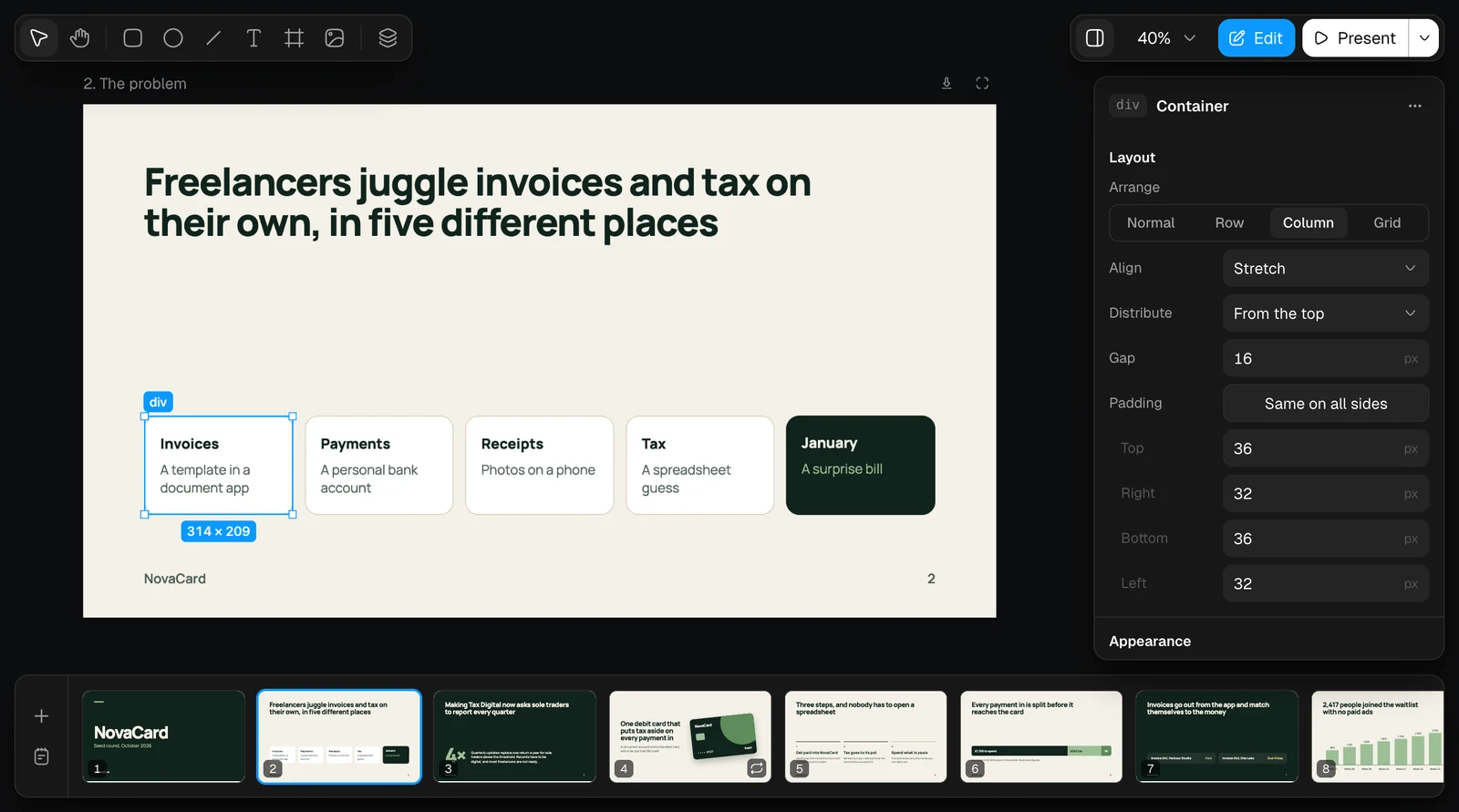
A container lays out what is inside it. With Column chosen, Align sets where the items sit from left to right, Distribute how they share the height, and Gap the space between them.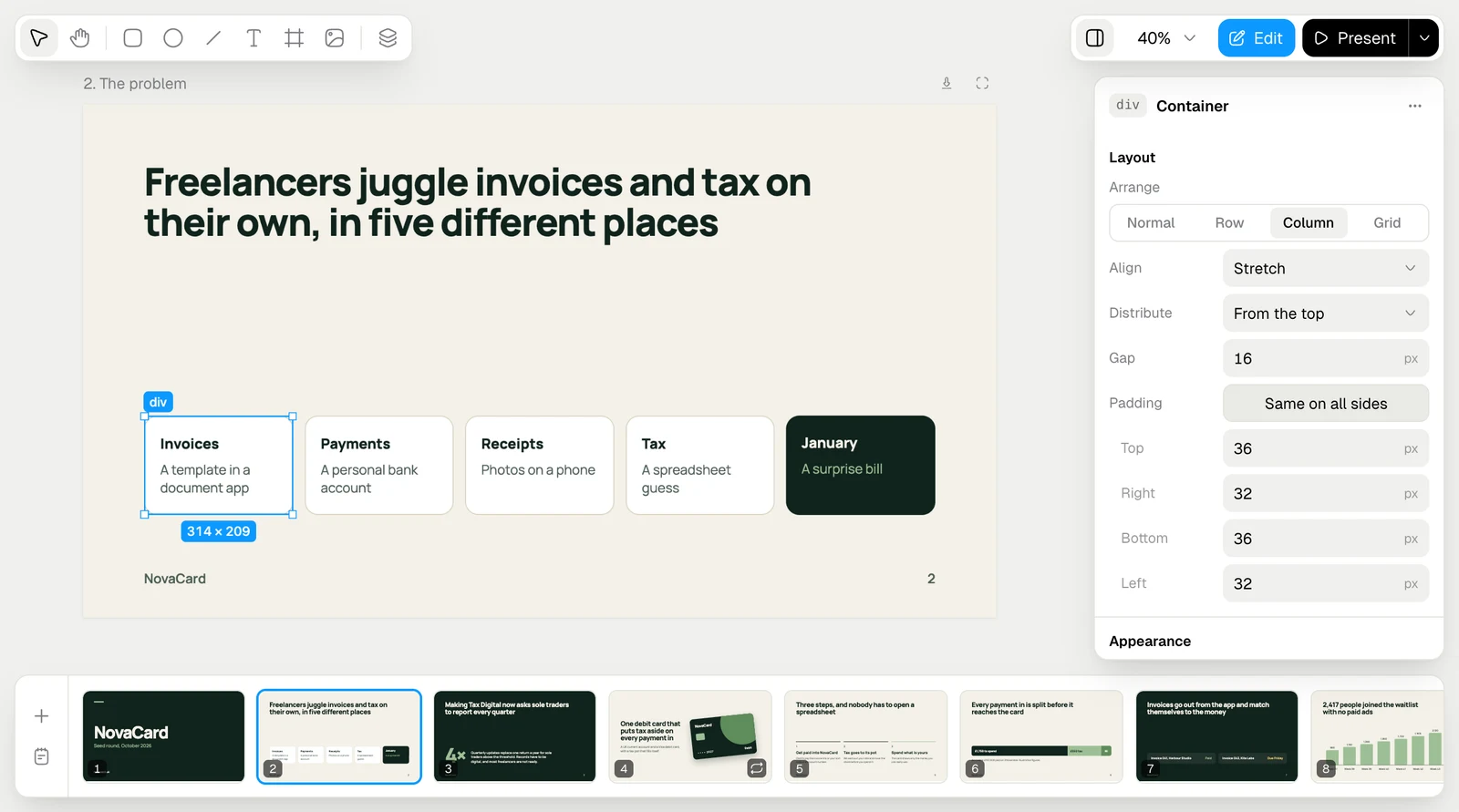
Element actions
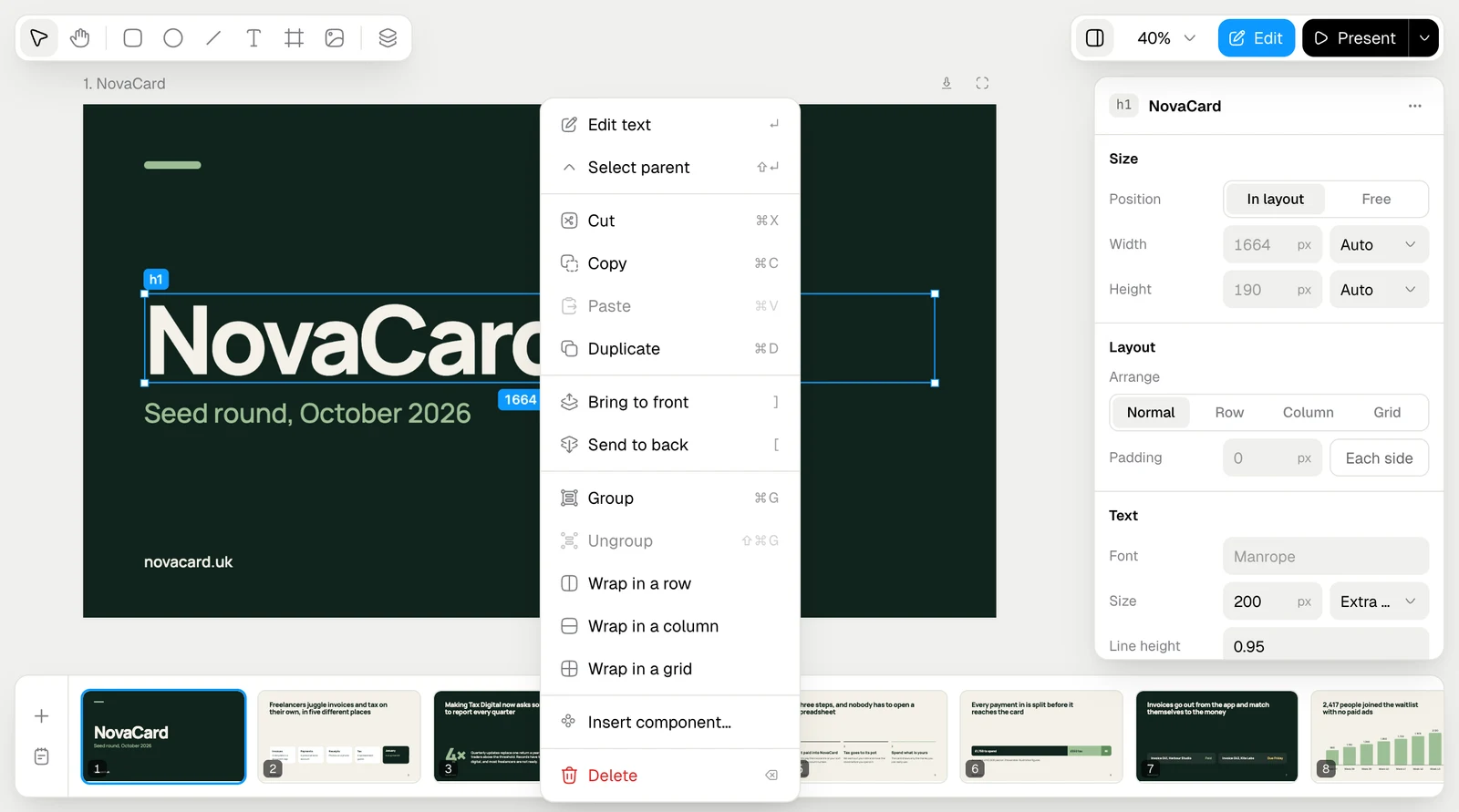
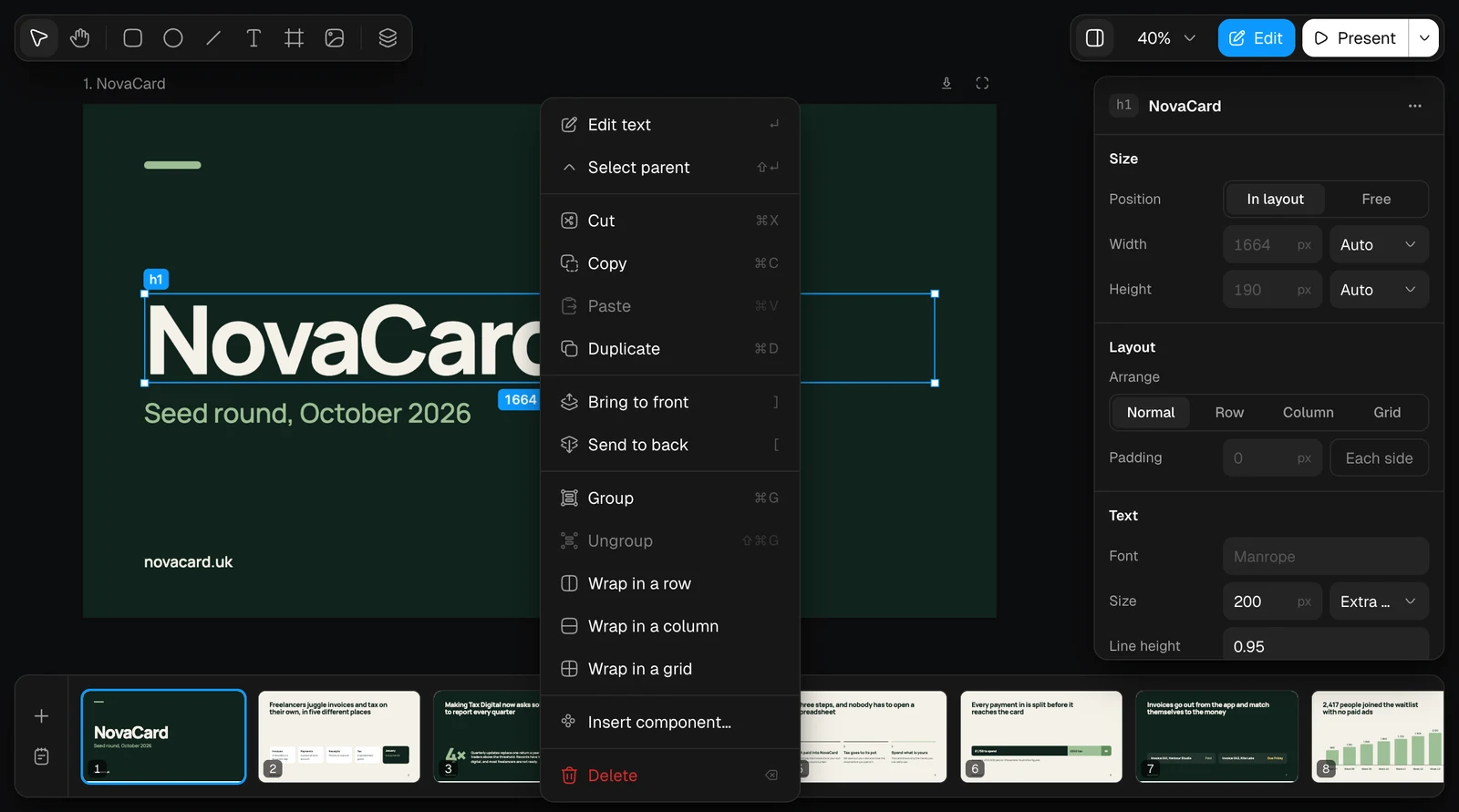
⋯ at the top of the properties, or a right-click on the element, opens its actions:| Action | Shortcut |
|---|---|
| Edit text | Enter |
| Select parent: the container it sits in | ⇧Enter |
| Cut, Copy, Paste | ⌘X, ⌘C, ⌘V |
| Duplicate | ⌘D |
| Bring to front, Send to back | ], [ |
| Group, Ungroup | ⌘G, ⇧⌘G |
| Wrap in a row, Wrap in a column, Wrap in a grid: put it in a new container | |
| Insert component…: place another artboard of the document here as a component. See Components | |
| Delete | ⌫ |
Layers
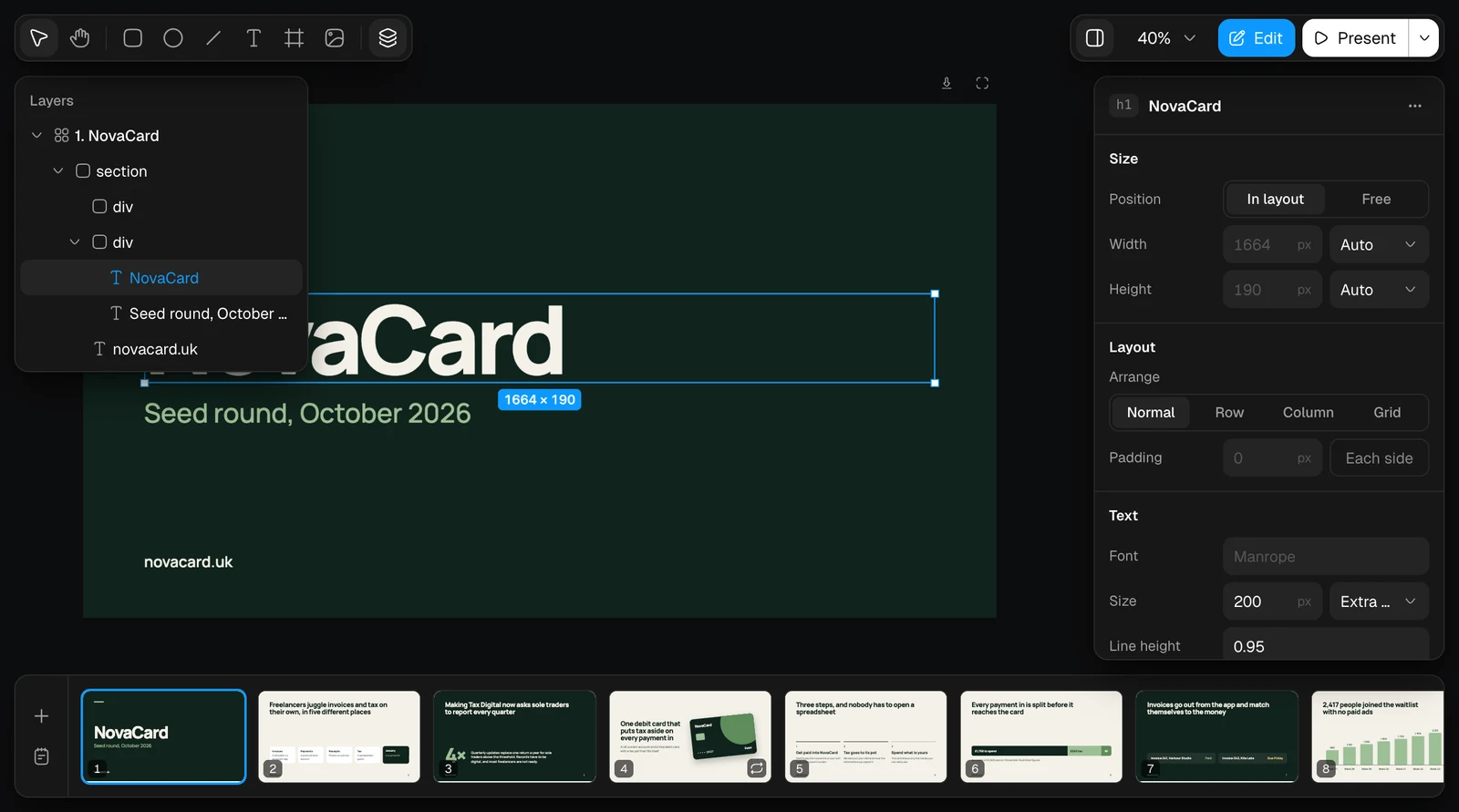
Layers in the toolbar shows everything on the slide as a tree. Click a line to select that element; the arrows fold and unfold containers.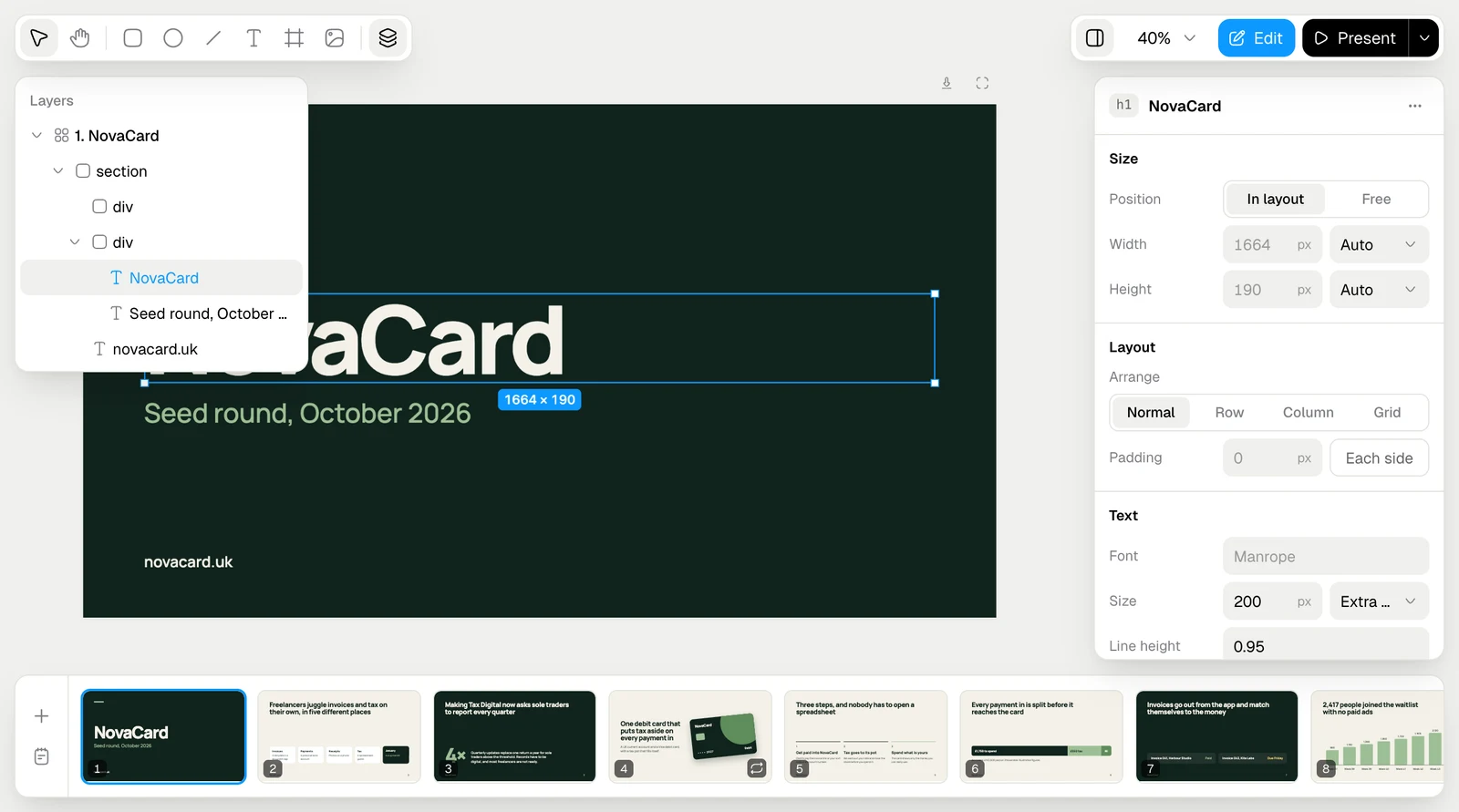
Add things
The toolbar adds new elements: Rectangle (R), Oval (O), Line (L), Text (T), Frame (F) for a container, and Image for a picture you upload. Select (V) goes back to selecting. ⌘Z undoes, ⇧⌘Z redoes.Present
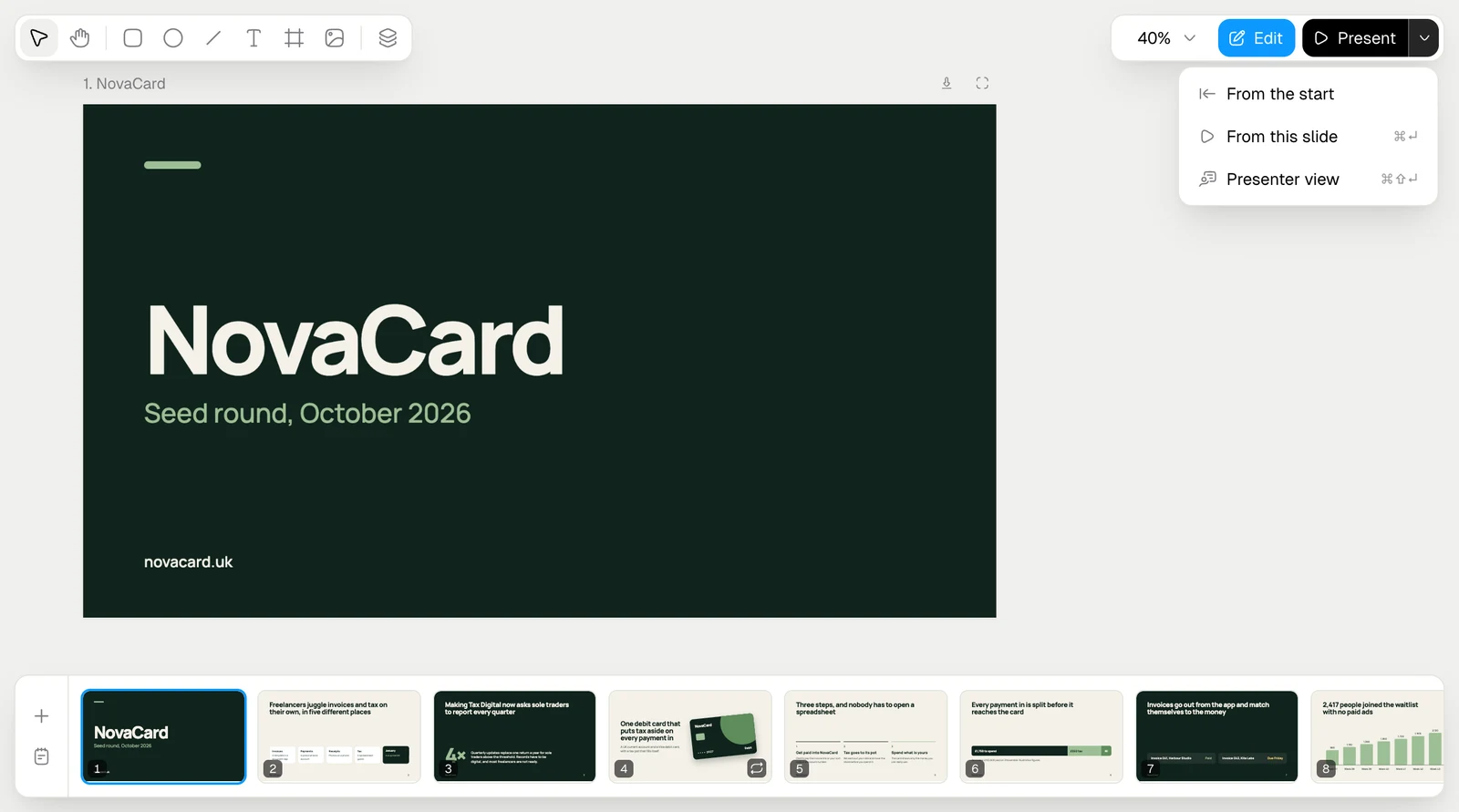
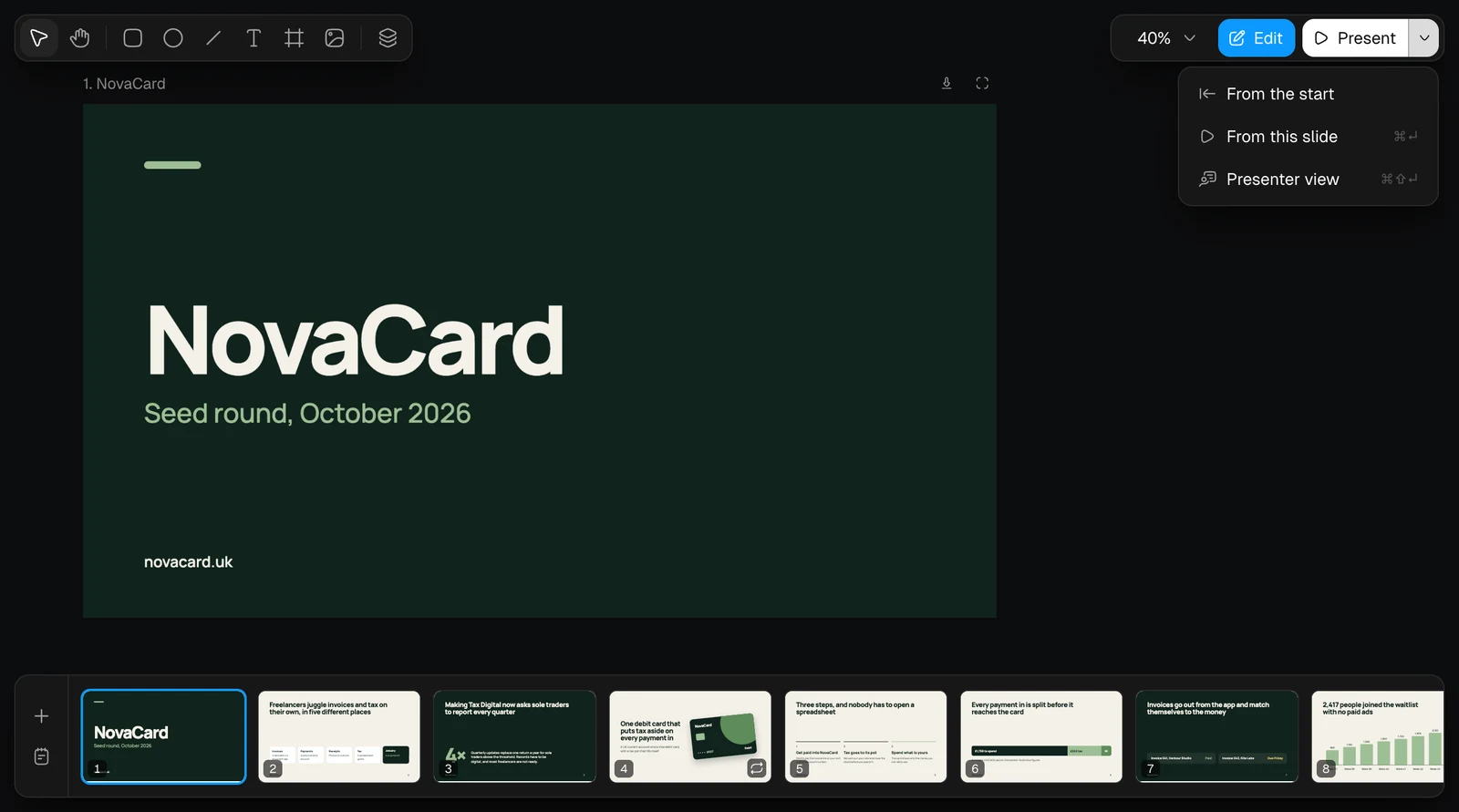
Present starts from the slide you are on (⌘Enter). The arrow next to it has more ways:| Choice | What it does |
|---|---|
| From the start | Presents from slide 1 |
| From this slide | Presents from the current slide (⌘Enter) |
| Presenter view | Opens your view with notes and a timer (⇧⌘Enter) |


Presenter view
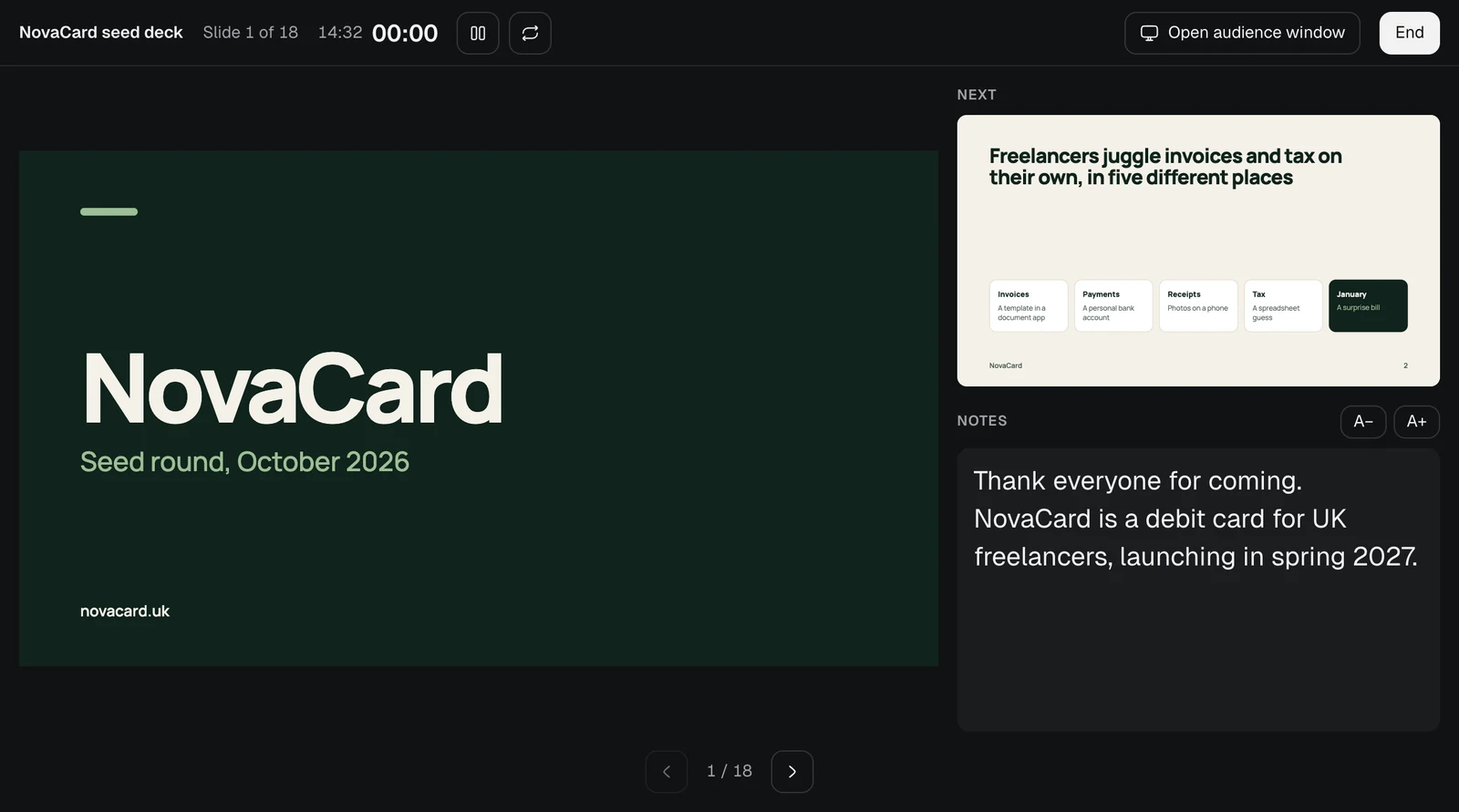
The presenter view is for you: the current slide, the next one, your notes, the clock and a timer since you started. A− and A+ change the size of the notes; the timer can be paused and reset. Open audience window opens a second window with just the slides, to put on the projector or share in a call. End finishes.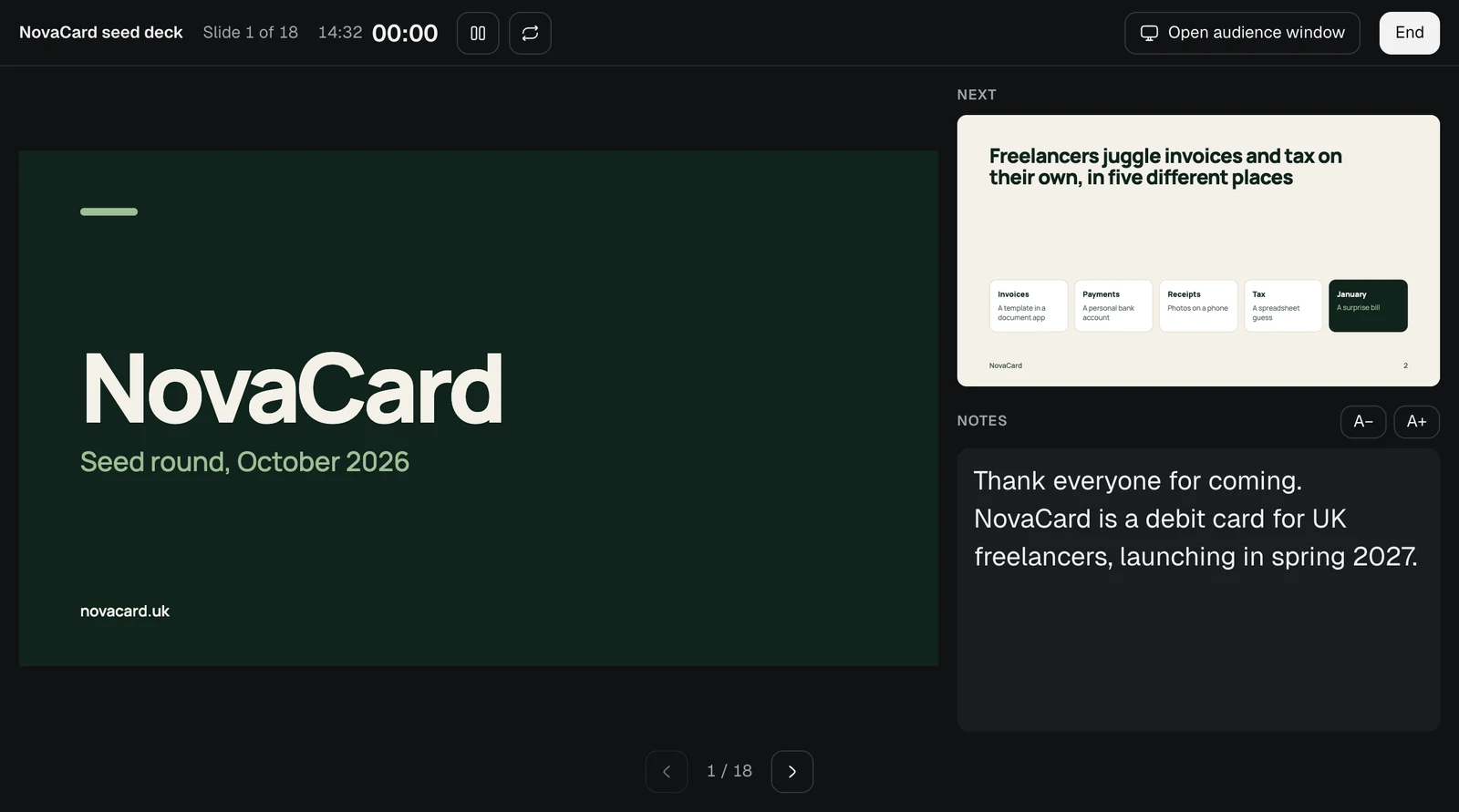
Look without editing
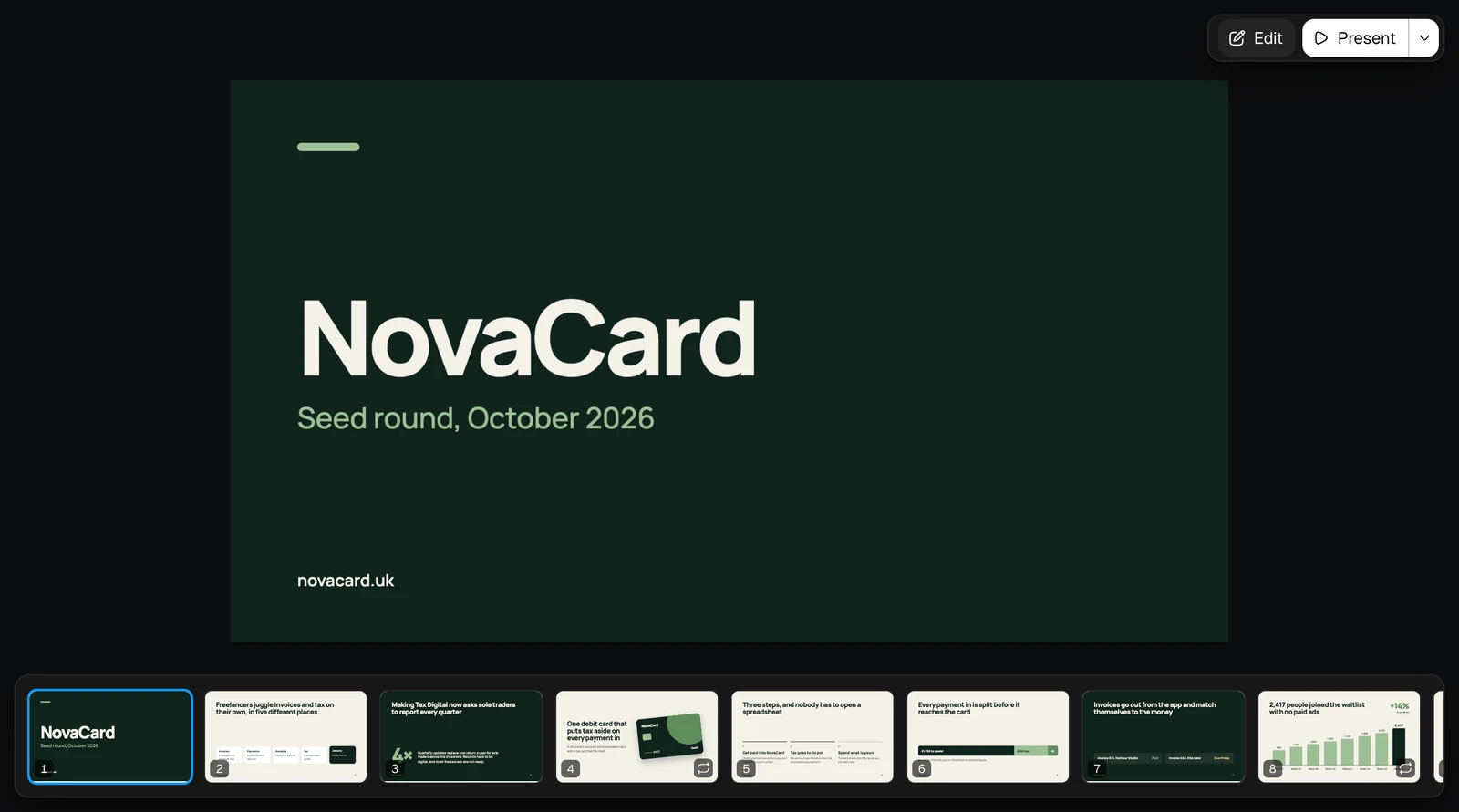
With editing turned off by the Edit button, the tools, the zoom and the buttons of the strip go away: you can go through the slides and present, and nothing moves by accident. Edit turns it back on.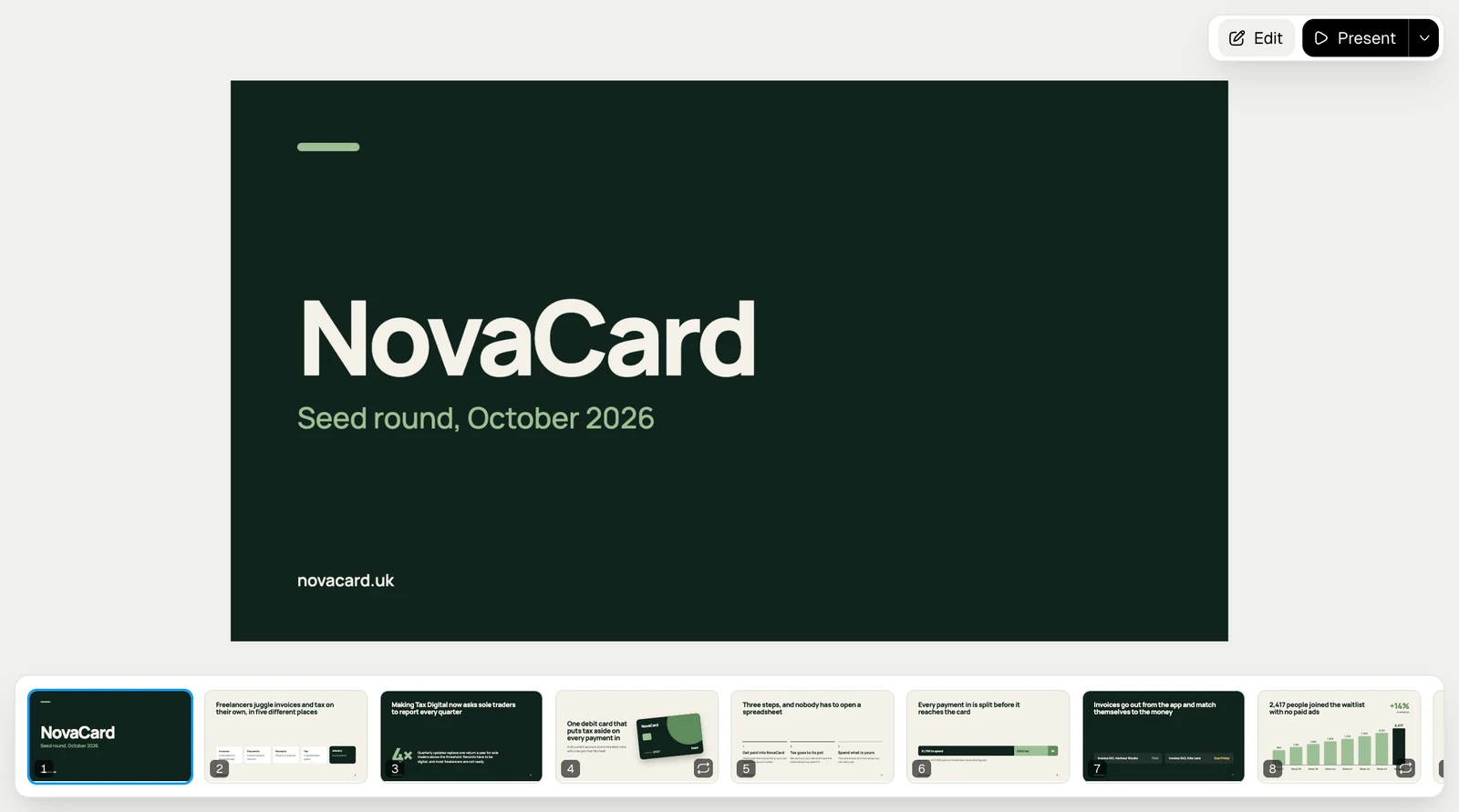
Beside a chat
In the panel beside a chat, the toolbars stack at the top and the properties of a selected element open from the bottom.