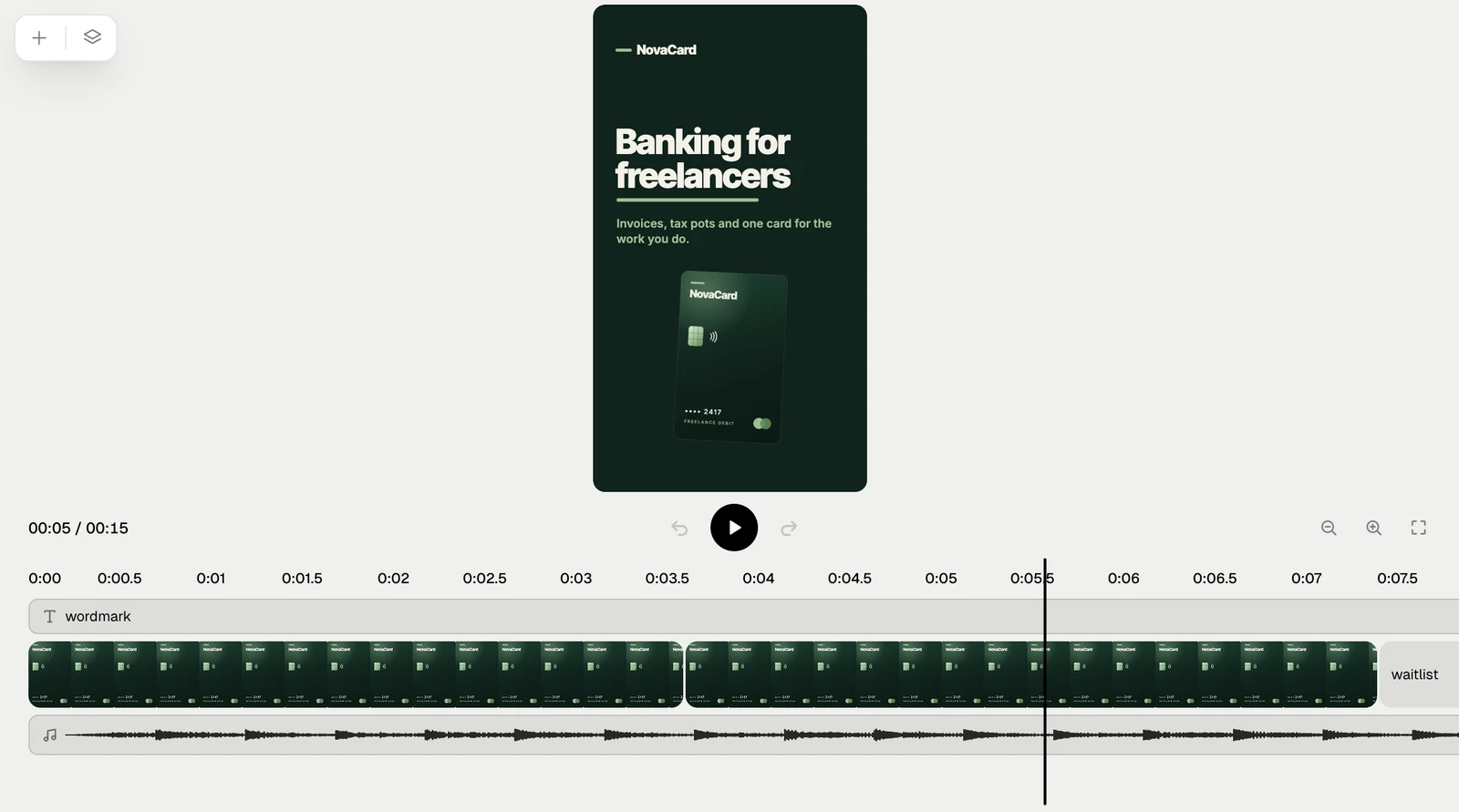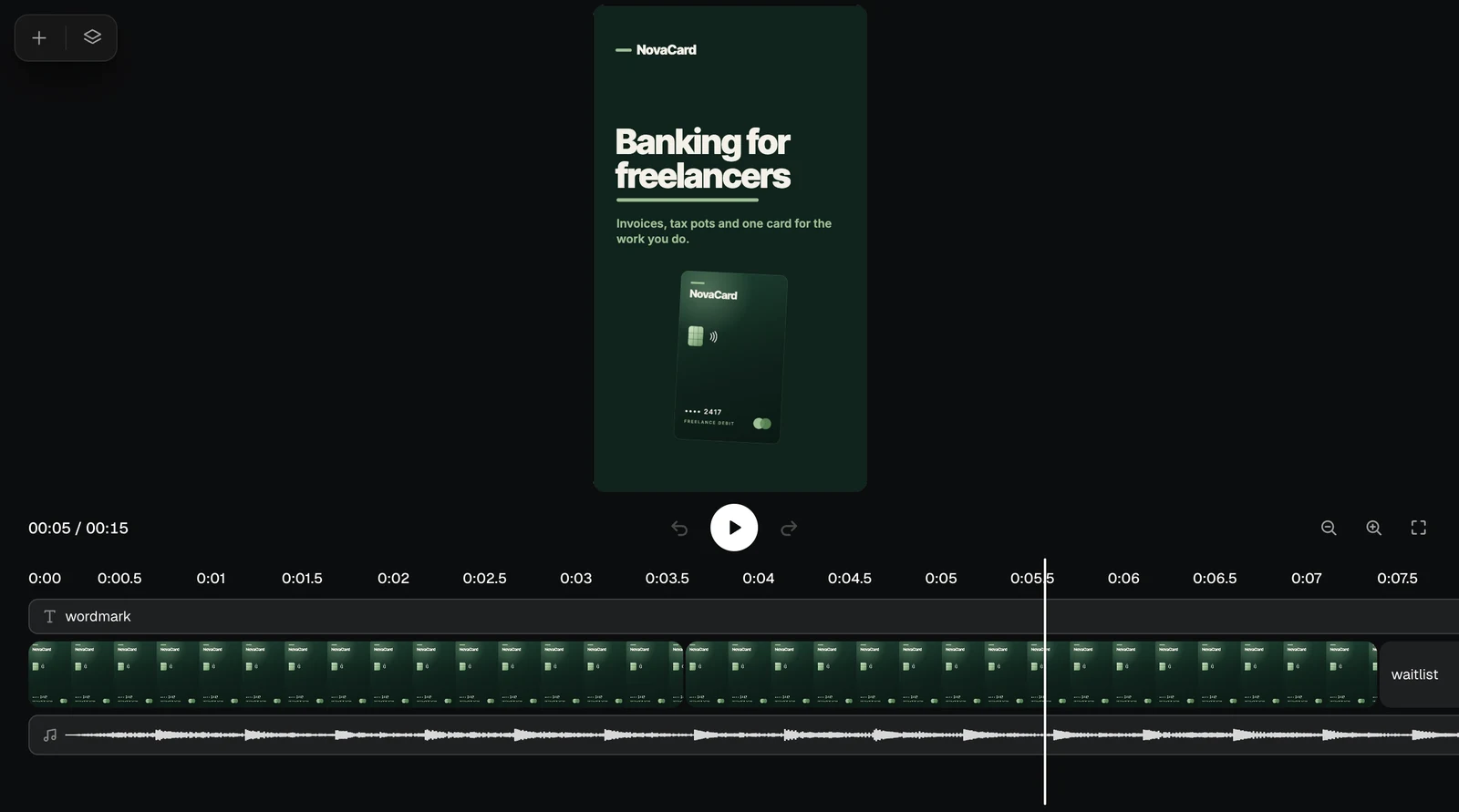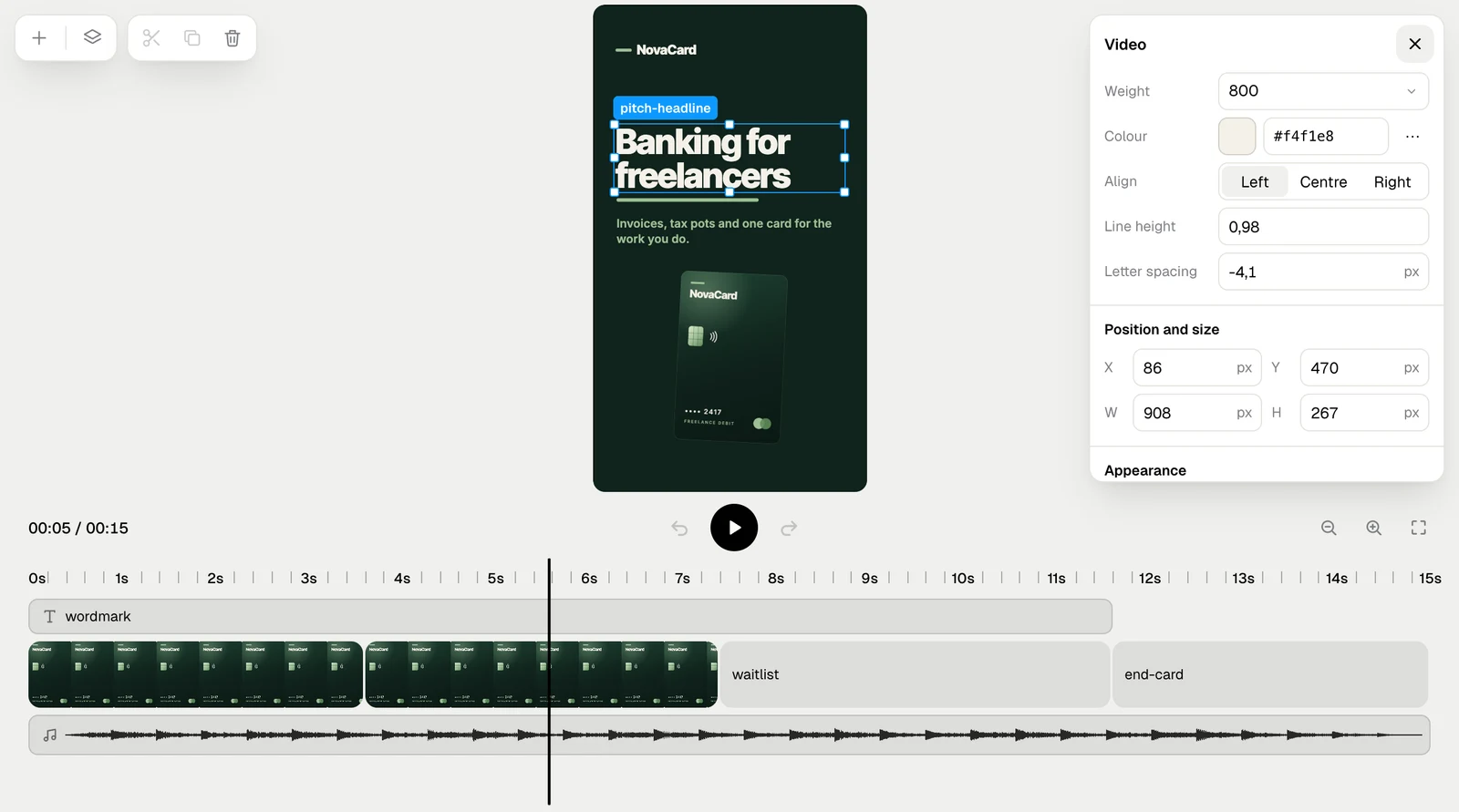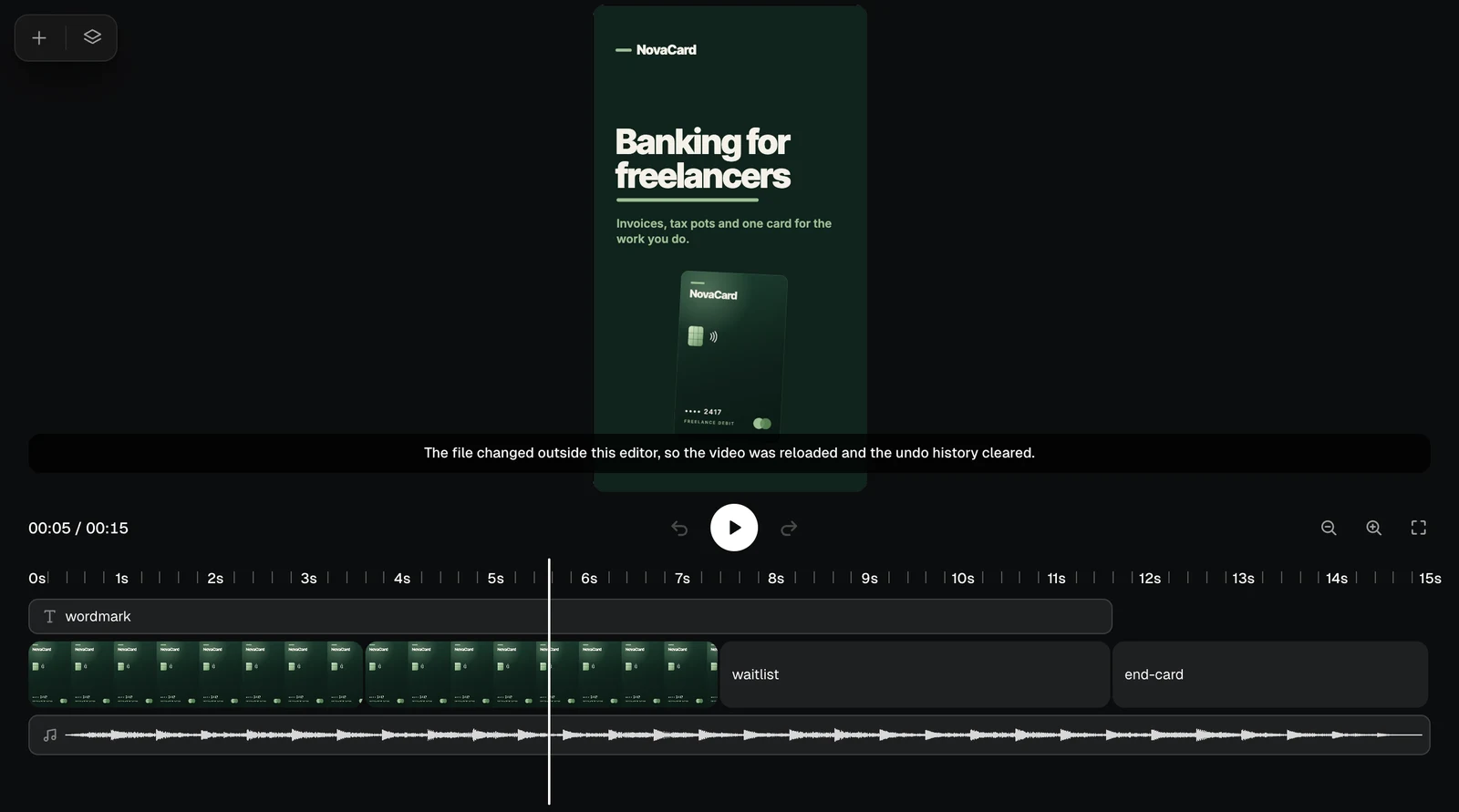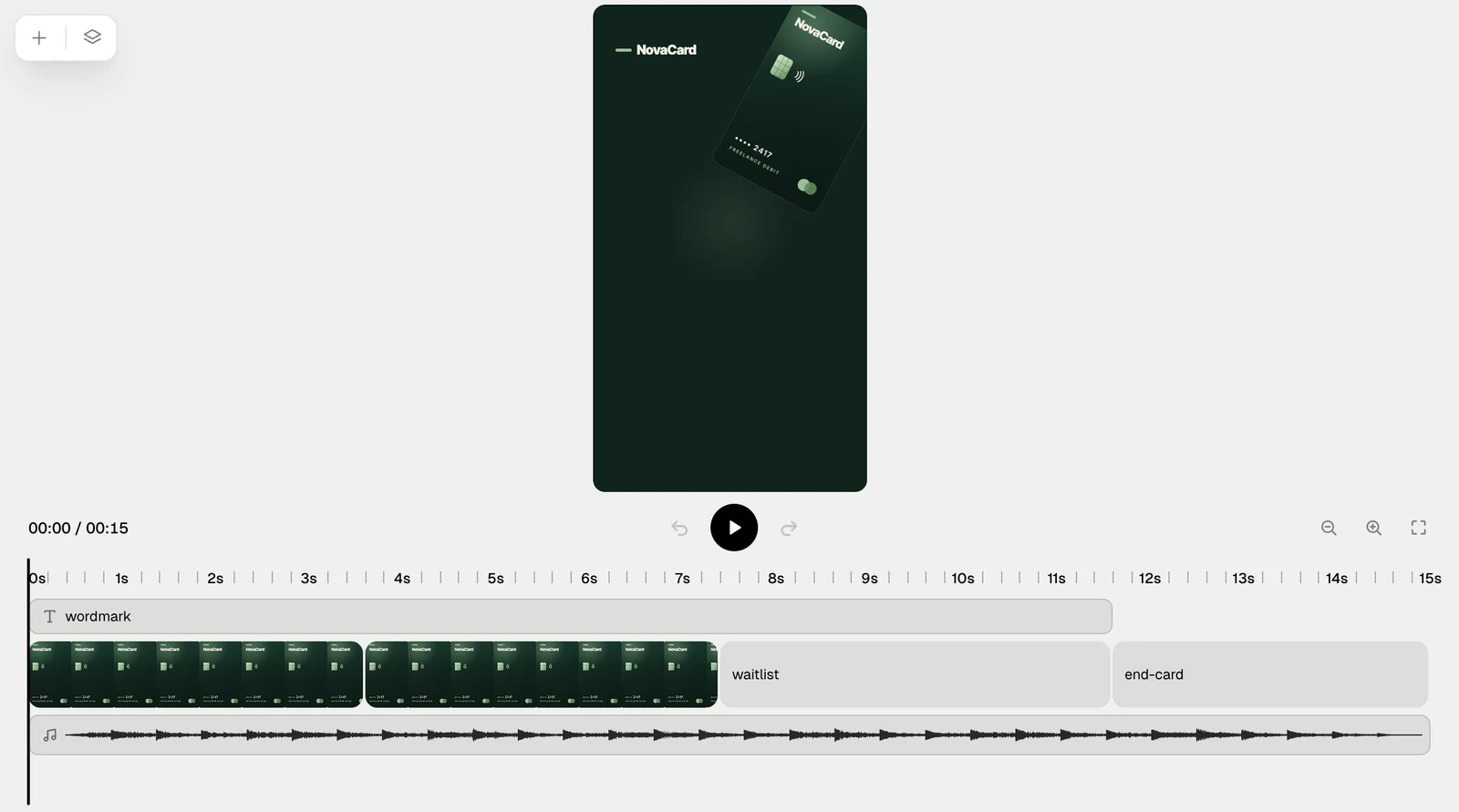
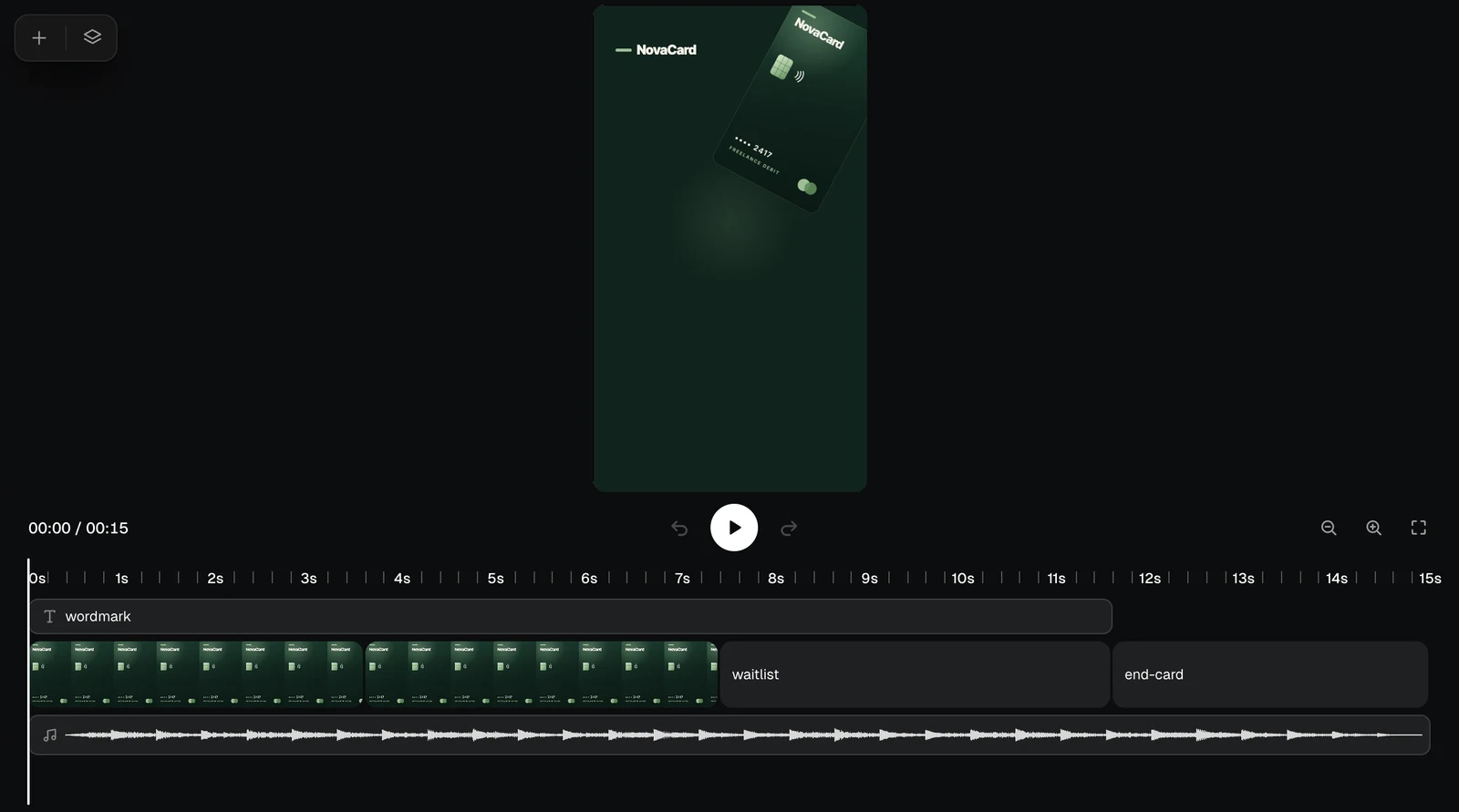
A motion video is built from scenes that play one after another on a timeline, with text and pictures inside them, layers that run across scenes, and sound underneath. The frame is at the top, the timeline below. Changes save on their own.
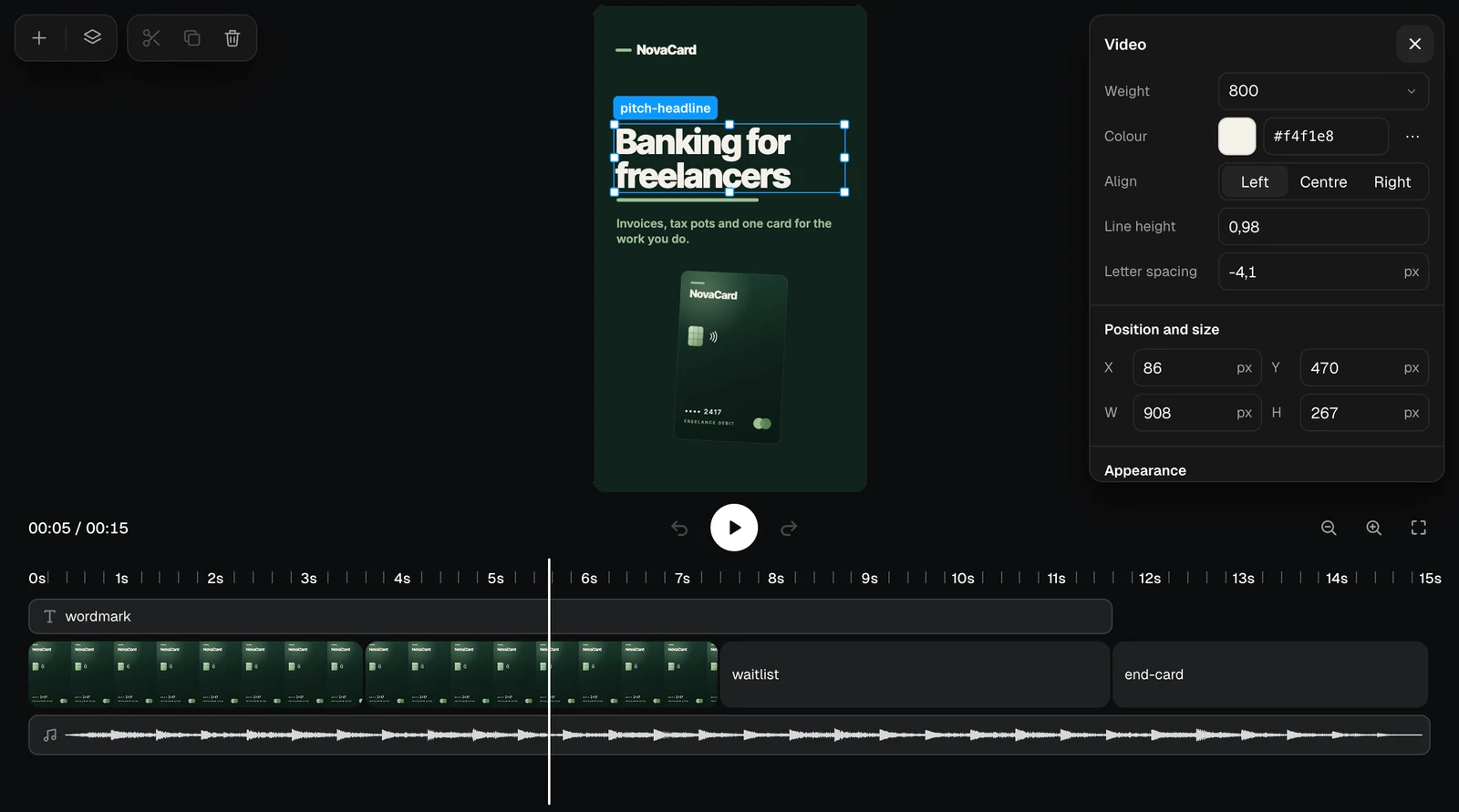
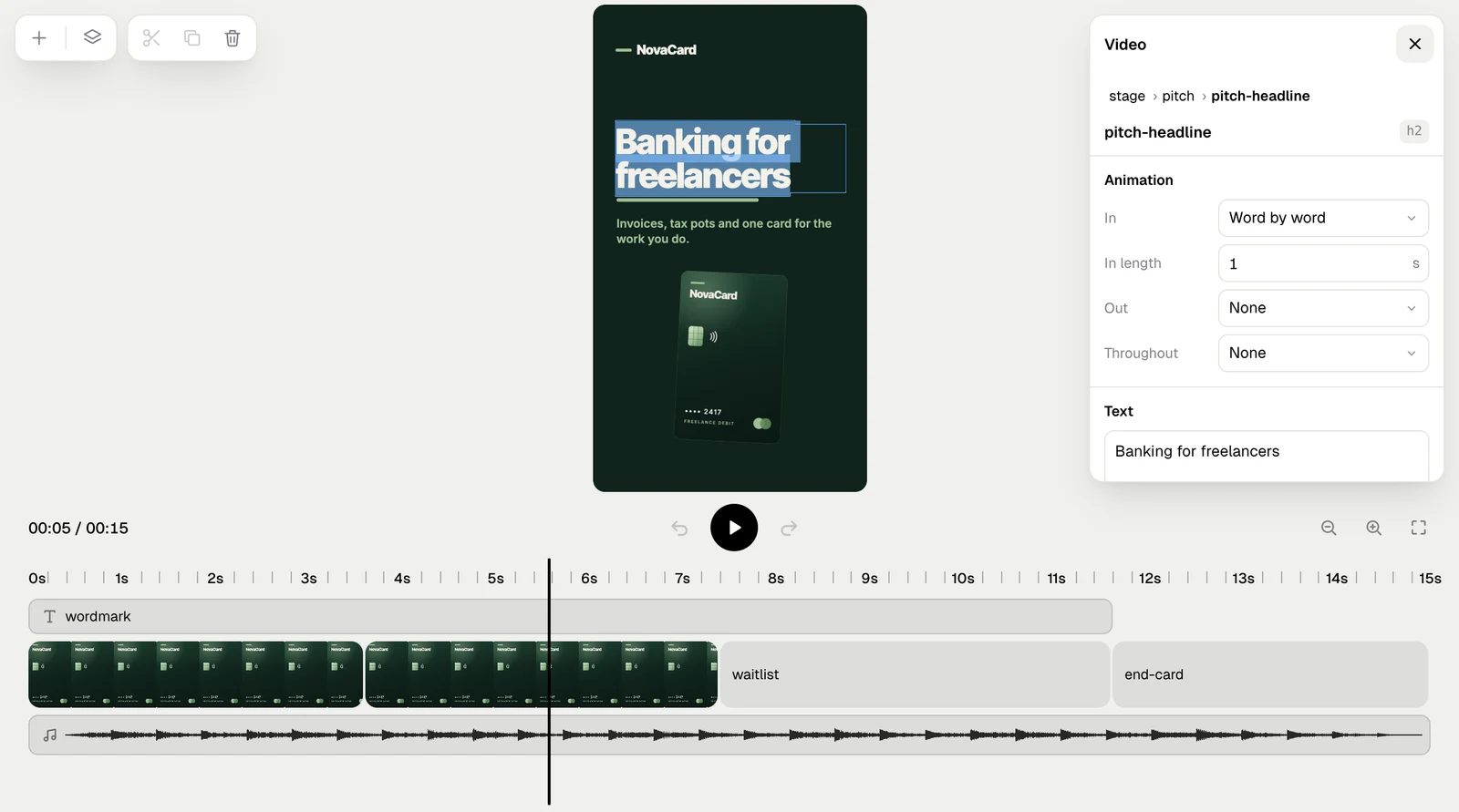
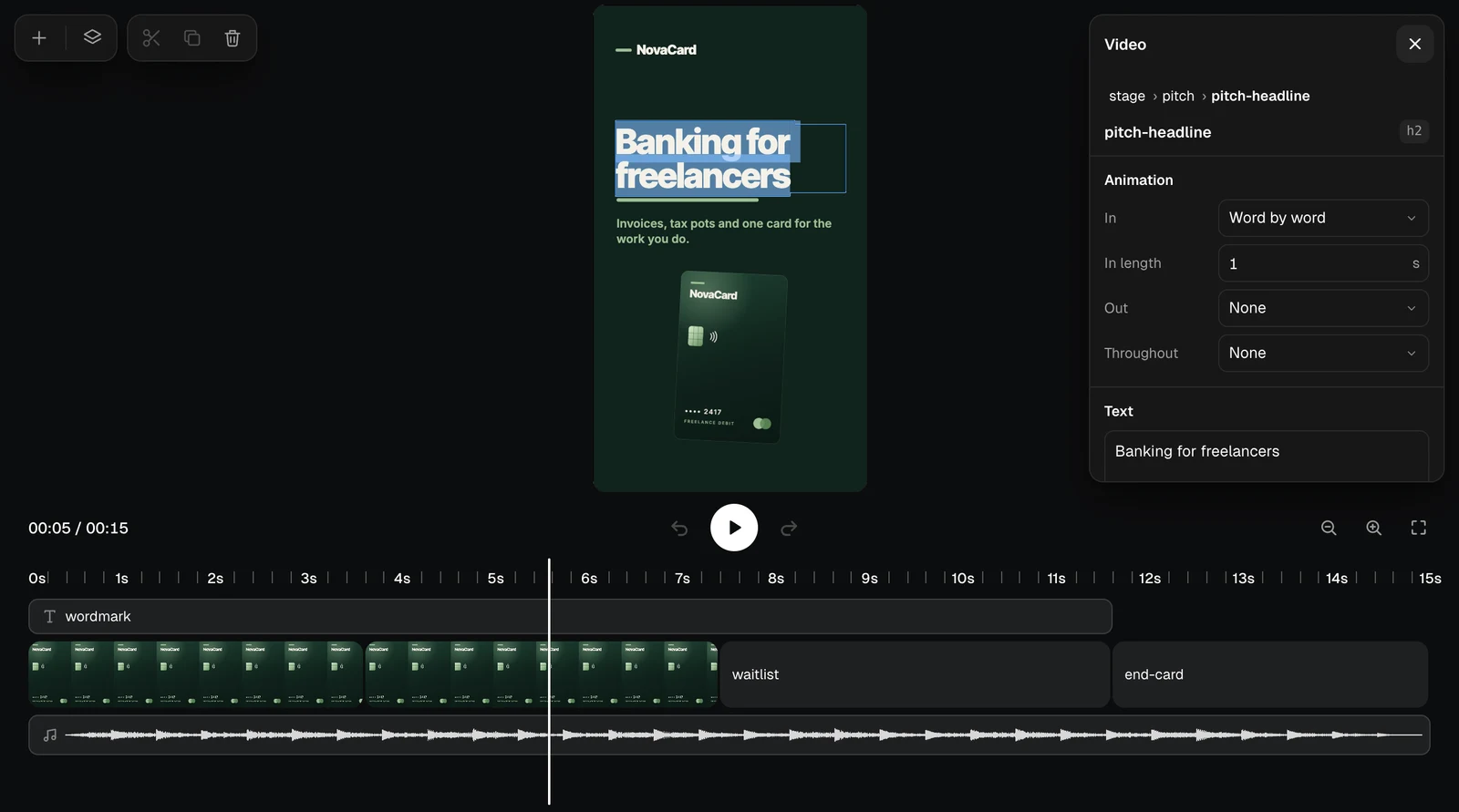
The Motion editor with the frame, the playback buttons and the timeline, light themeThe Motion editor with the frame, the playback buttons and the timeline, dark theme
PartWhat is in it
Top left+ opens your files, the layers button opens Layers
FrameThe video at the playhead. Click anything in it to select it
PlaybackThe time, Undo and Redo, Play (Space), zoom of the timeline (− and +) and Full screen
TimelineA ruler in seconds, the playhead, and a track for each layer: text on top, the scenes with their frames, sound with its waveform
Drag the playhead or click the ruler to move through the video.
The timeline zoomed in with marks every half second, light themeThe timeline zoomed in with marks every half second, dark theme
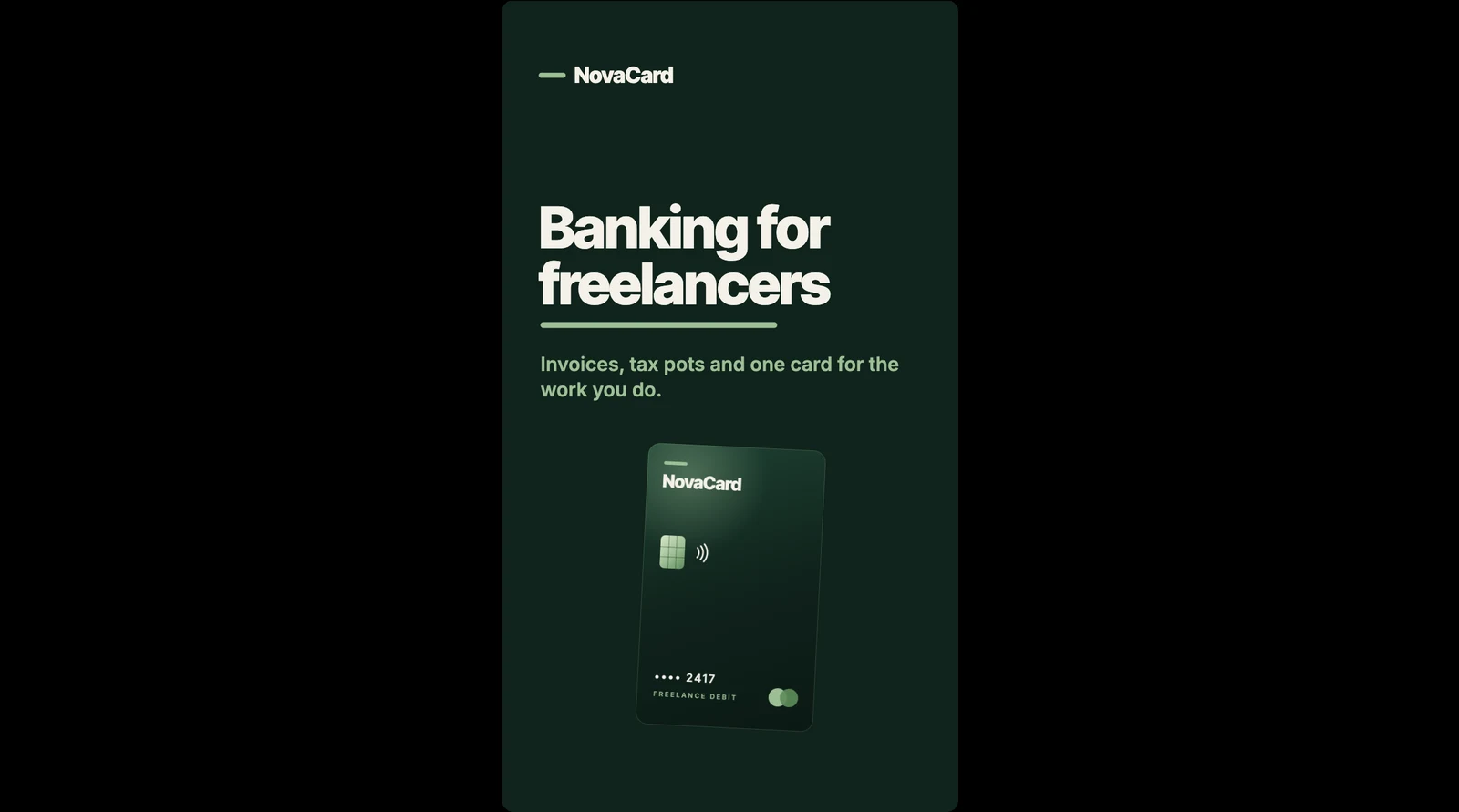
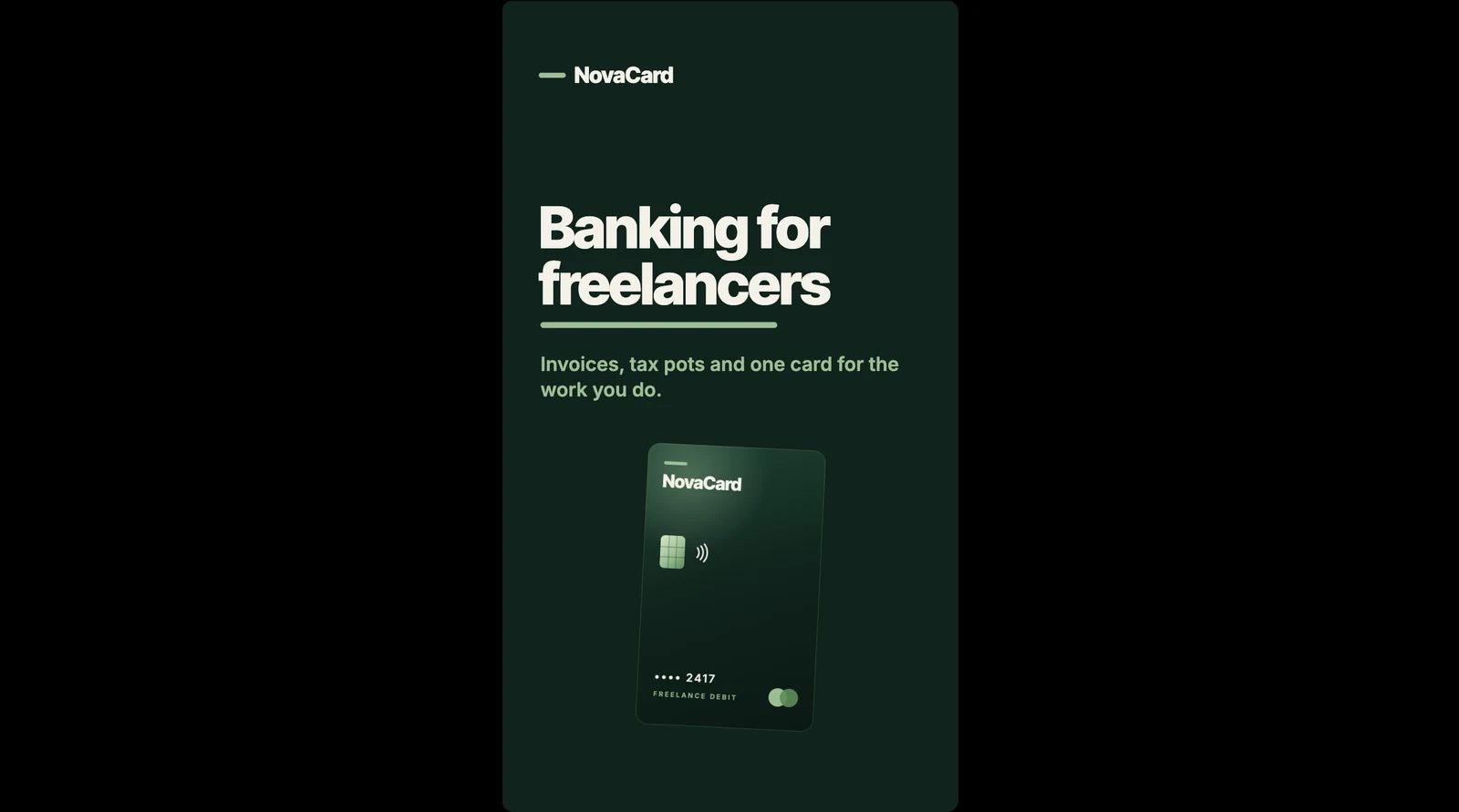
The video frame full screen, light themeThe video frame full screen, dark theme

Scenes

Click a scene on the timeline to select it. Its properties open on the right, and a bar of clip actions appears at the top left: Split, Duplicate and Delete. Scenes cannot be duplicated, and only pictures, videos and sounds can be split. On the timeline, drag a clip to move it, or drag its start or end to make it shorter or longer.
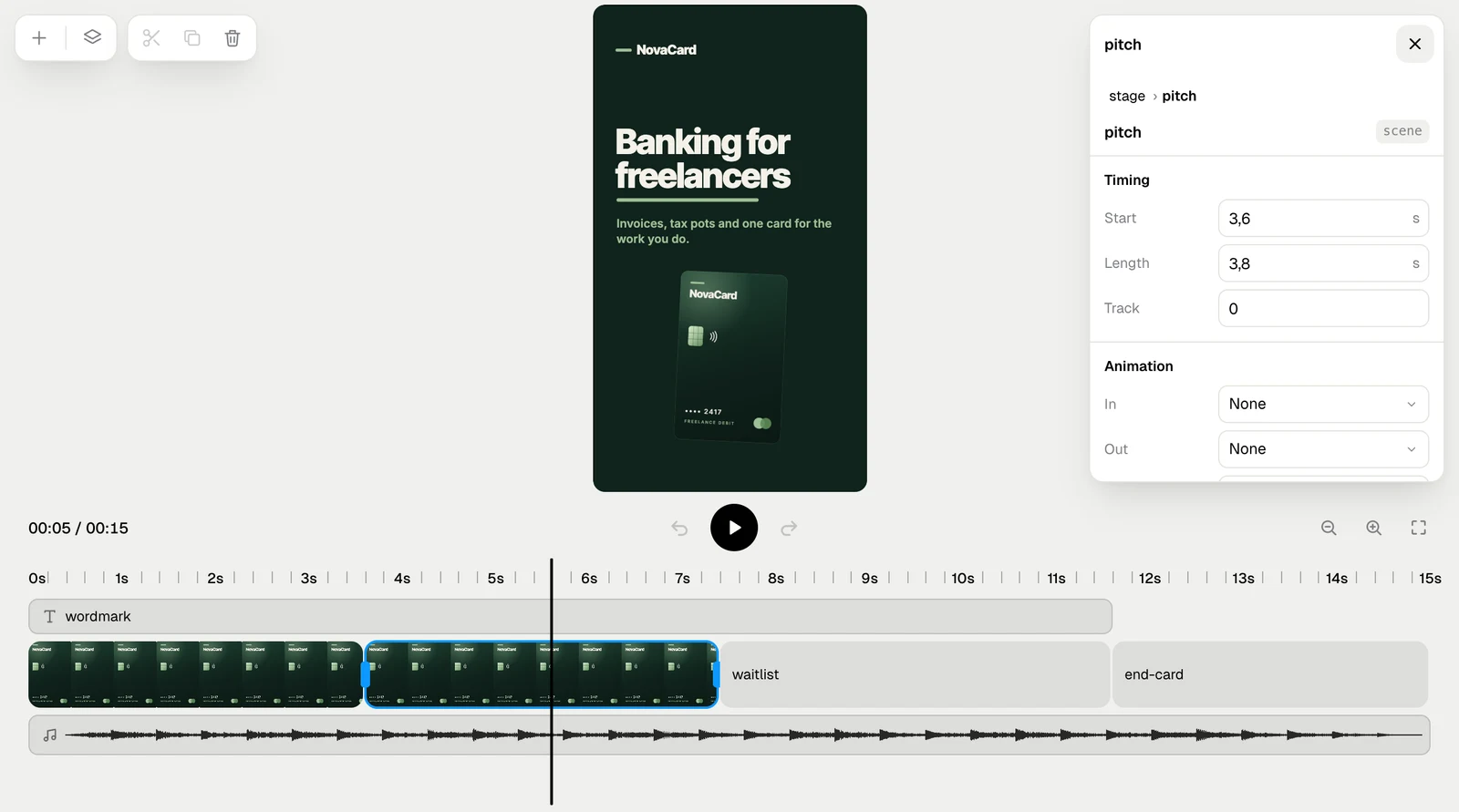
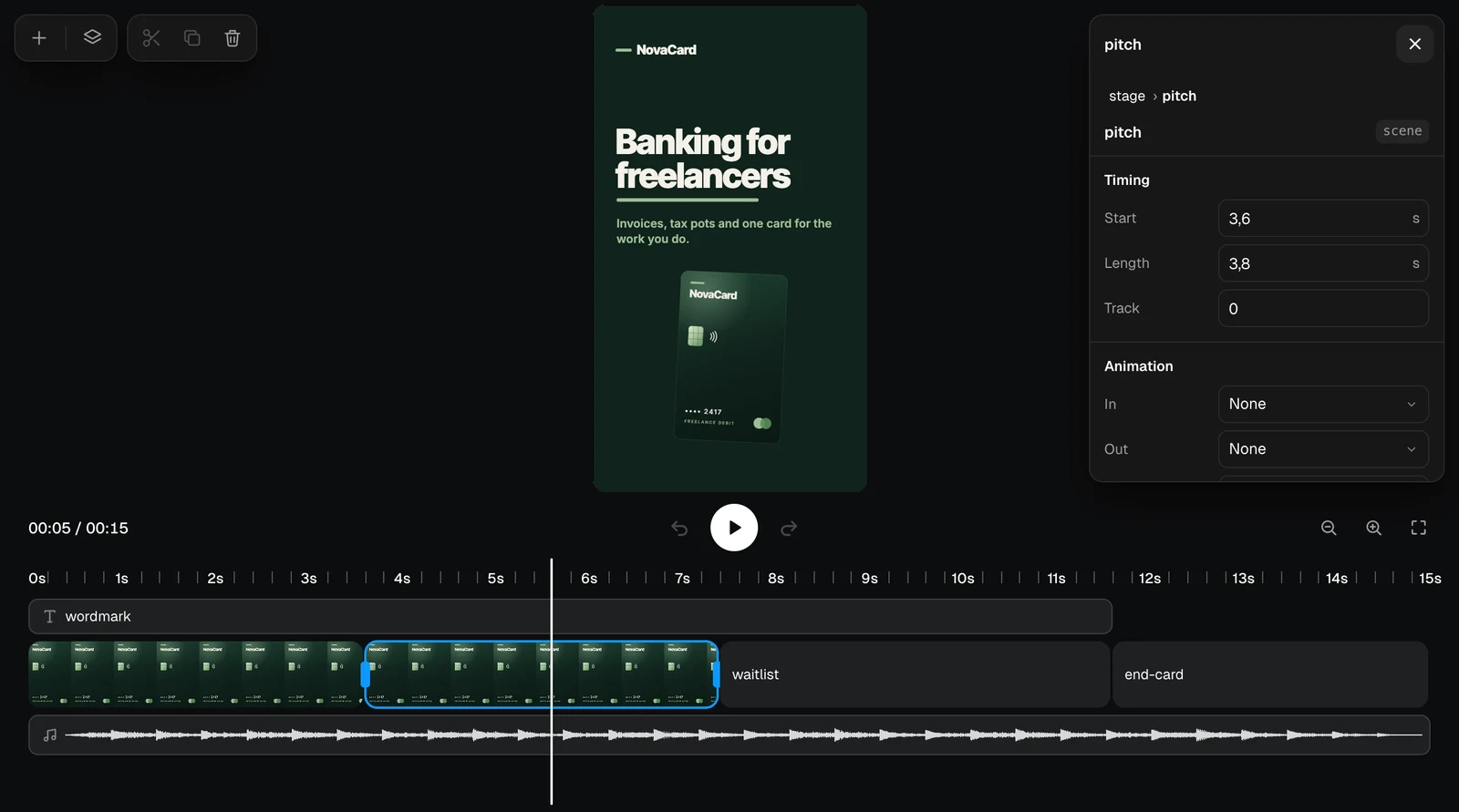
A selected scene with Timing, Animation and Appearance, light themeA selected scene with Timing, Animation and Appearance, dark theme
SectionWhat you set
TimingStart and Length in seconds, and the Track it is on
AnimationHow it comes In and goes Out: Fade, Rise, Drop, Slide left, Slide right, Pop, Zoom, Focus or Wipe. Throughout: a slow zoom in or out while it is on screen
AppearanceFill, Opacity and Radius
Delete at the bottom of the properties removes the selected element.

Text

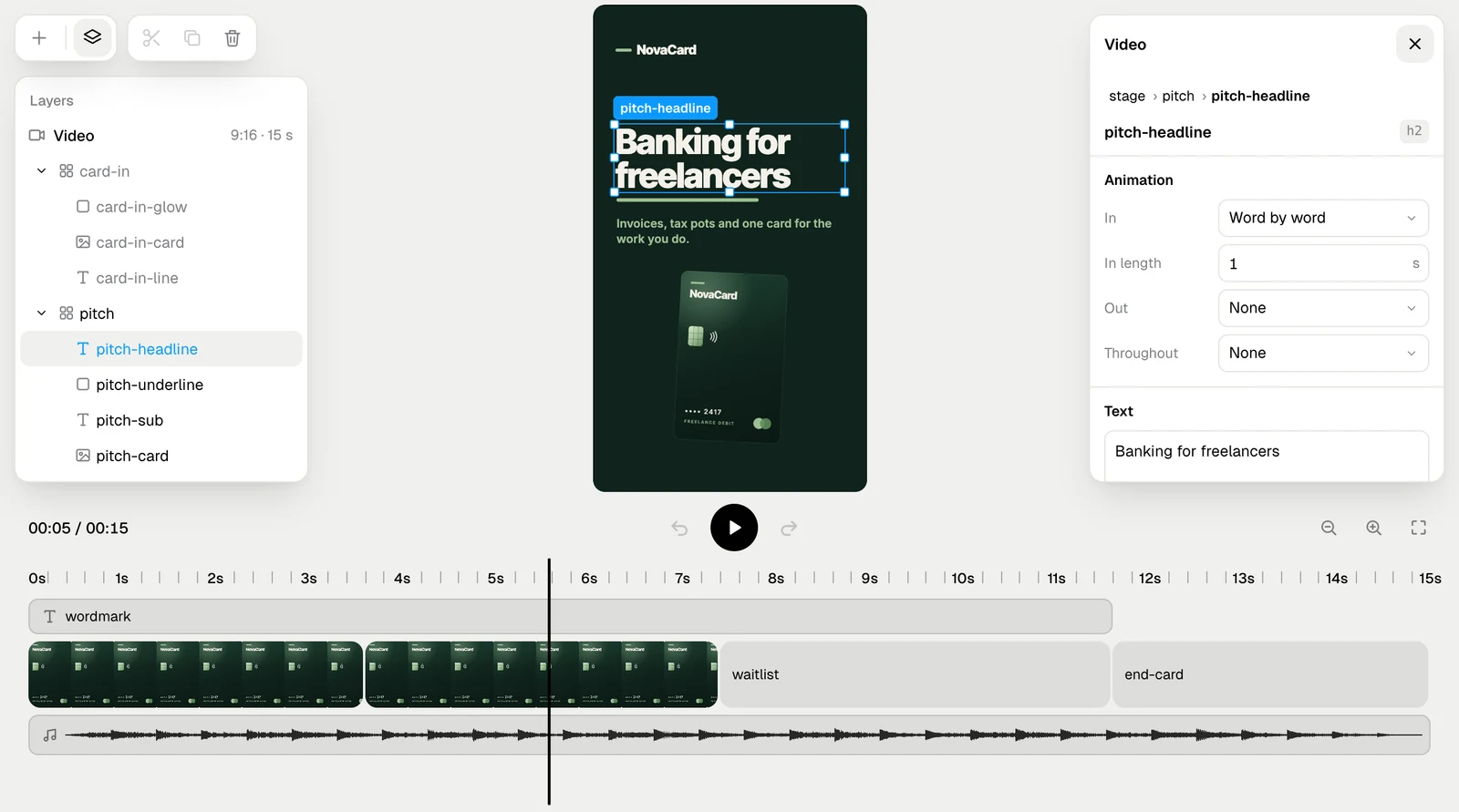
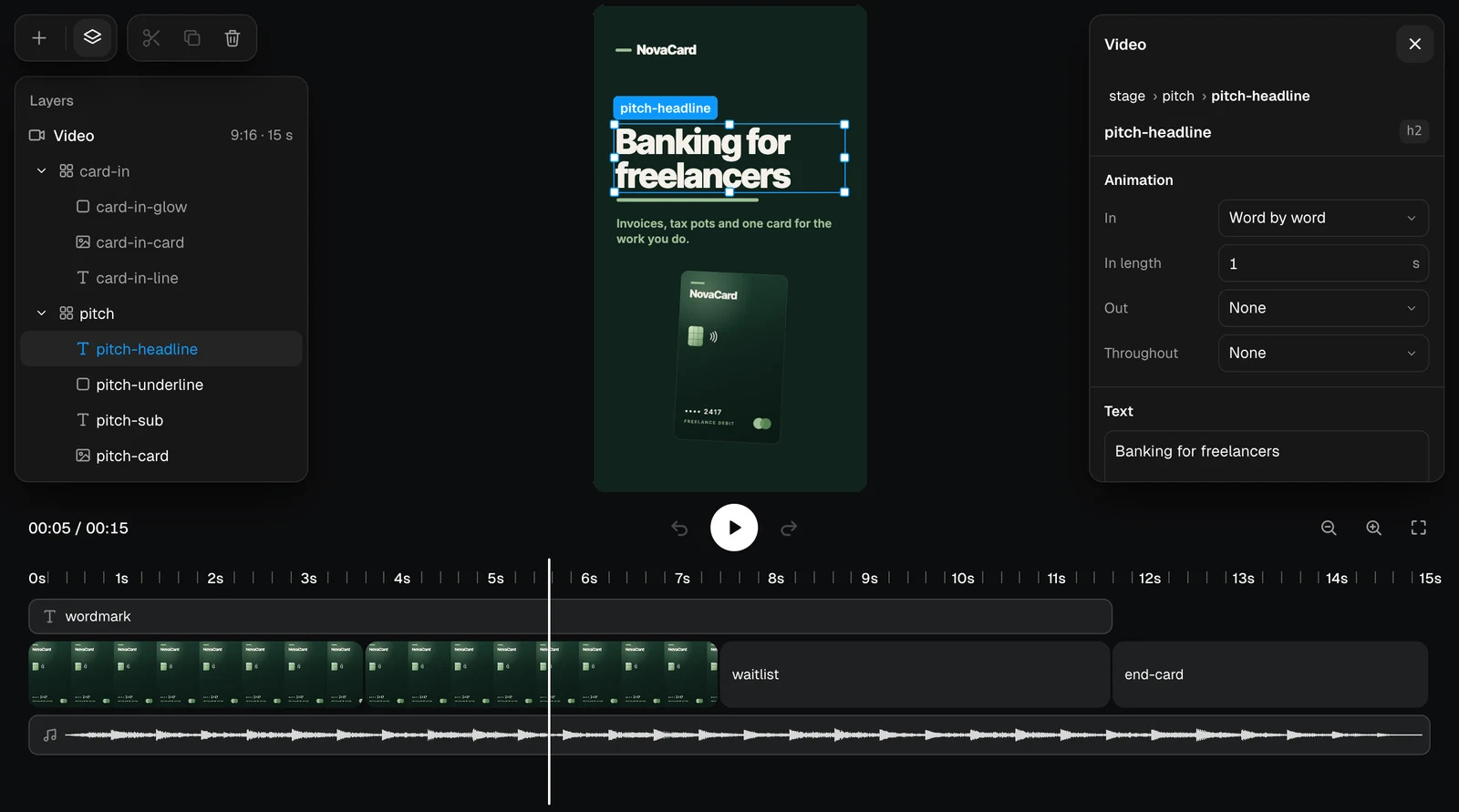
Click text in the frame to select it. Text has more ways to come in: Word by word, Letter by letter, Typewriter and Marker, with In length for how long that takes.
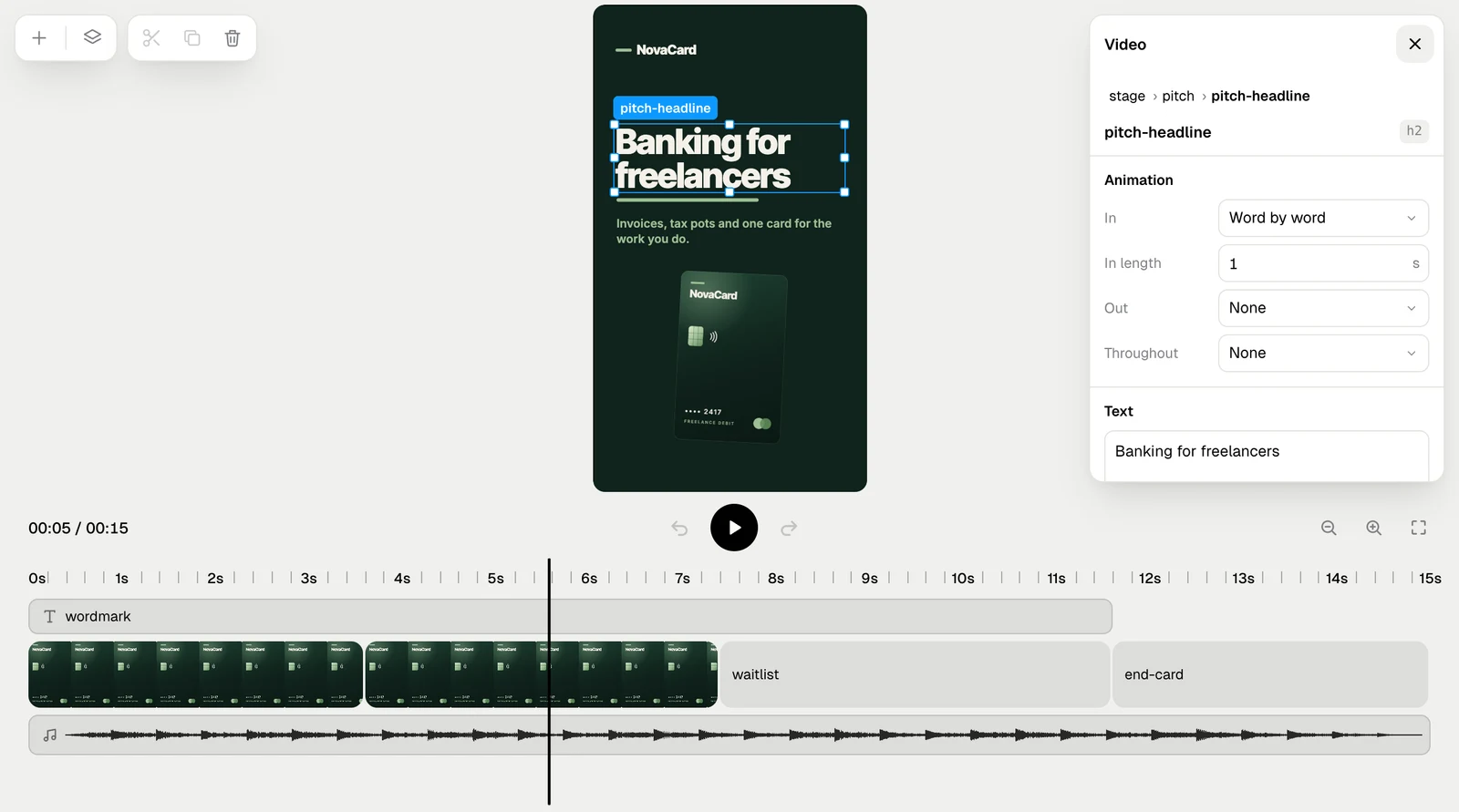
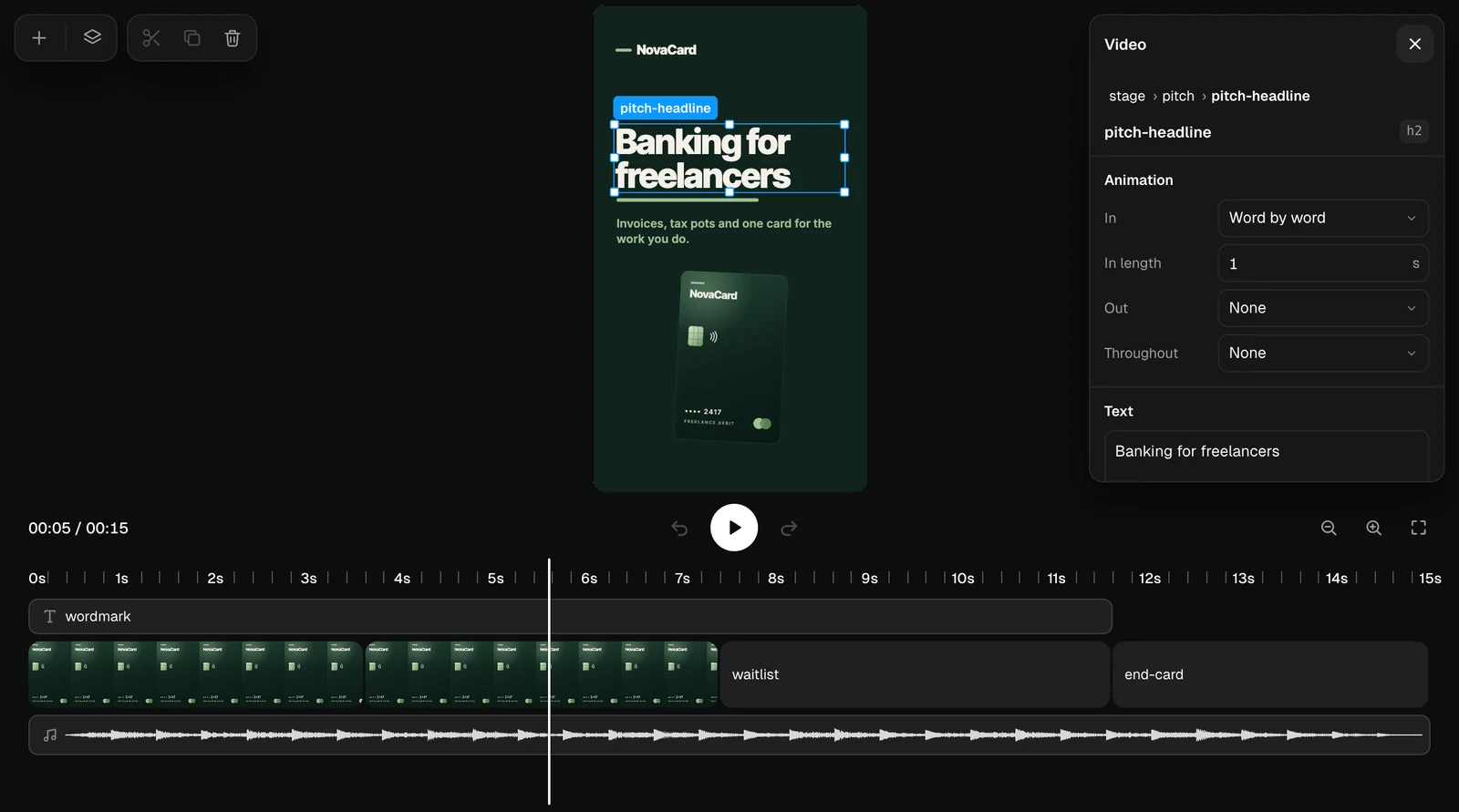
Selected text in the frame with its Animation properties, light themeSelected text in the frame with its Animation properties, dark theme
SectionWhat you set
TextThe words, Font (or one of the video’s fonts), Size, Weight from 300 to 900, Colour, Align, Line height and Letter spacing
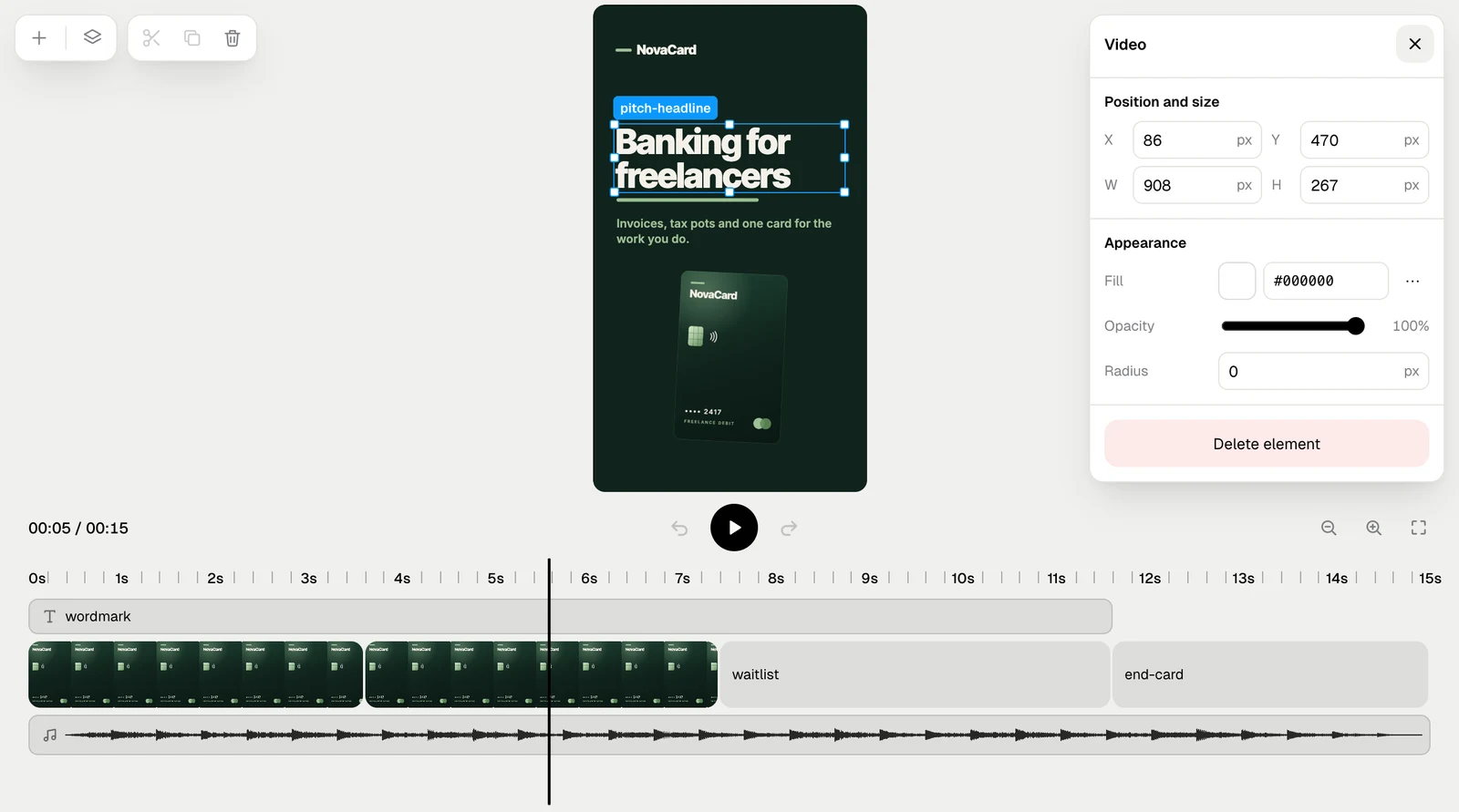
Position and sizeX, Y, W and H in the frame
AppearanceFill, Opacity and Radius
The Text section with font, size, weight, colour and align, light themeThe Text section with font, size, weight, colour and align, dark theme
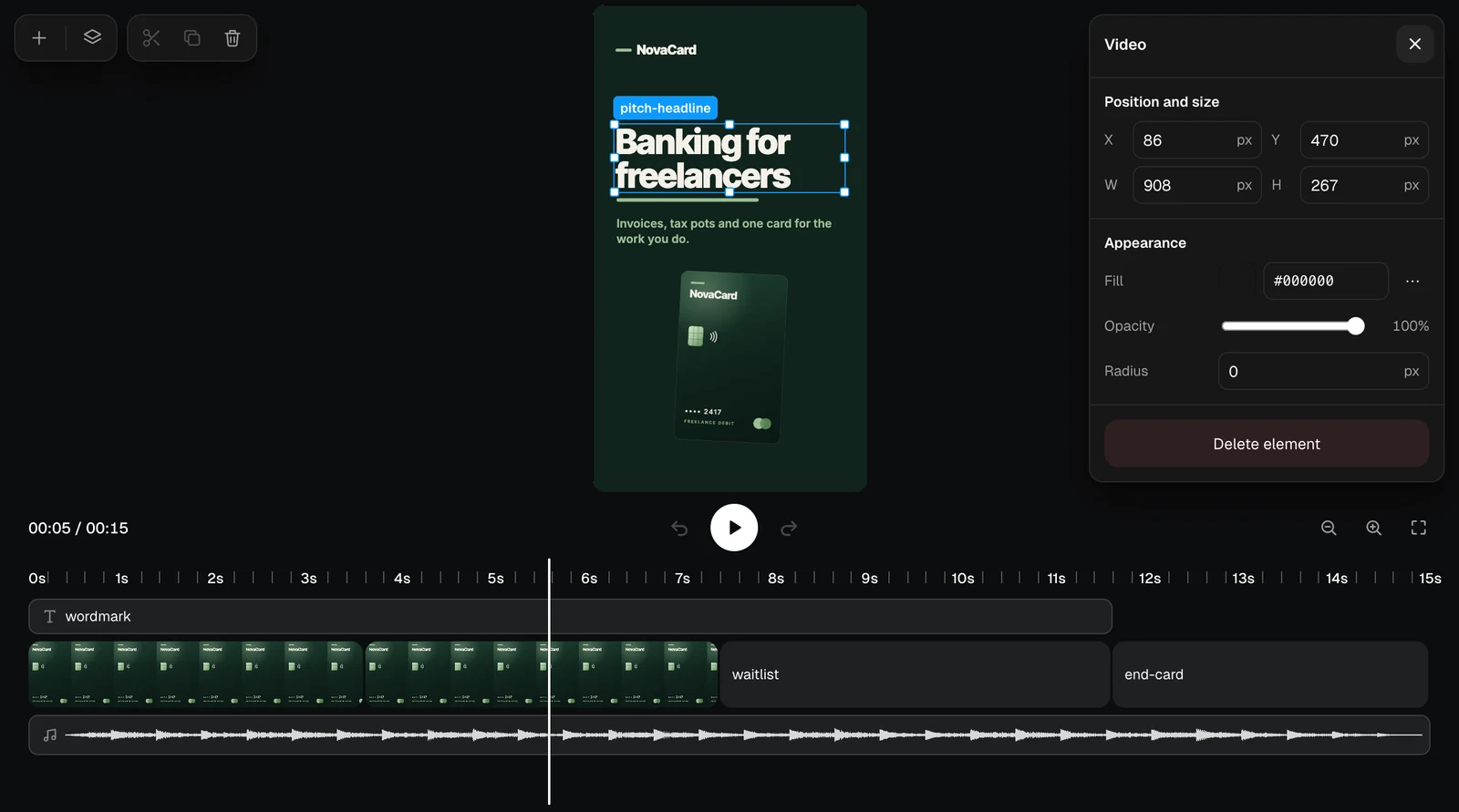
Position and size, Appearance and Delete element, light themePosition and size, Appearance and Delete element, dark theme
Double-click text in the frame to type in it right there.
The headline in text editing mode in the frame, light themeThe headline in text editing mode in the frame, dark theme

Pictures

A picture has the same timing, animation, position and appearance, and Fit: Cover fills its box and crops, Contain shows all of it.
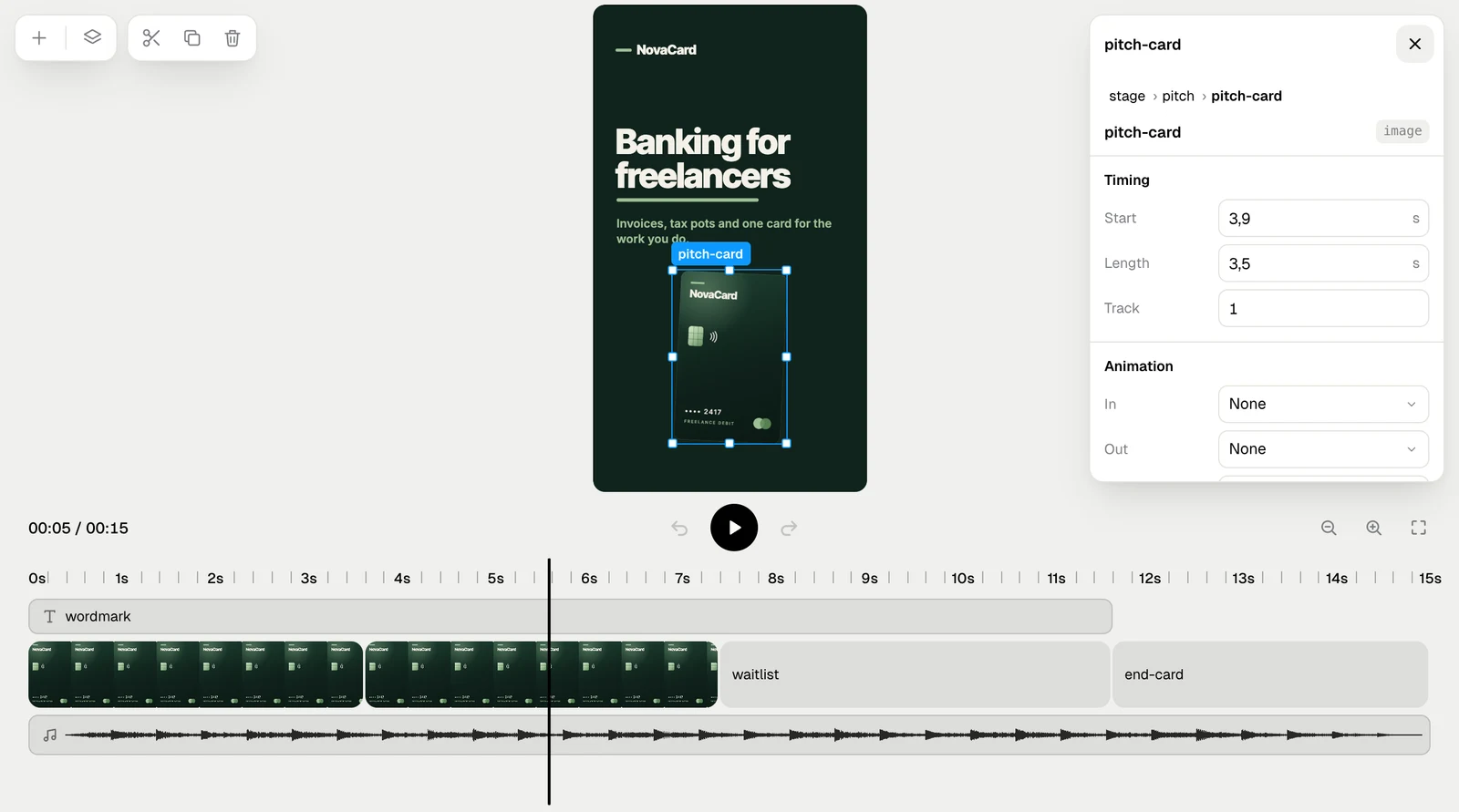
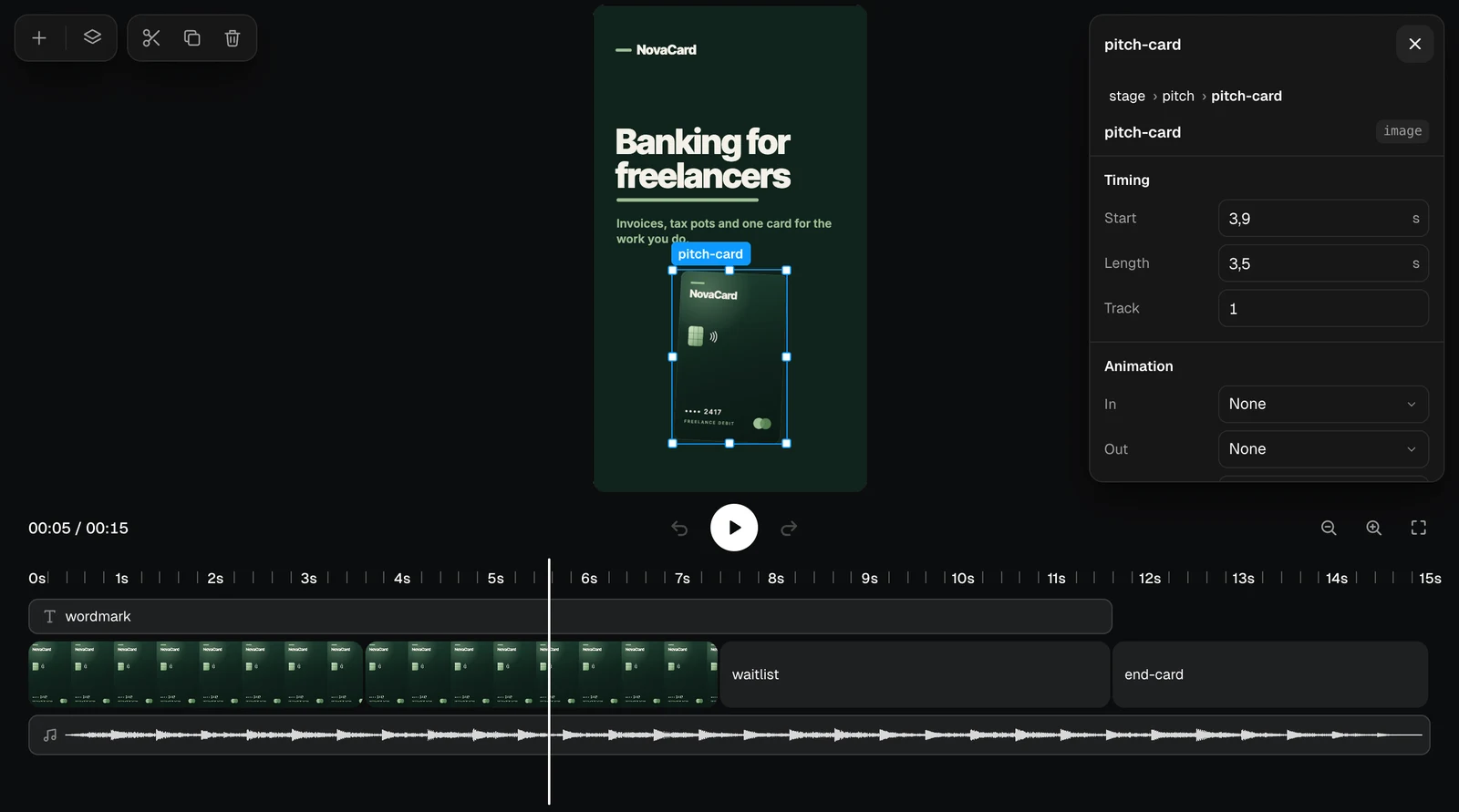
A selected picture with its properties, light themeA selected picture with its properties, dark theme

Sound

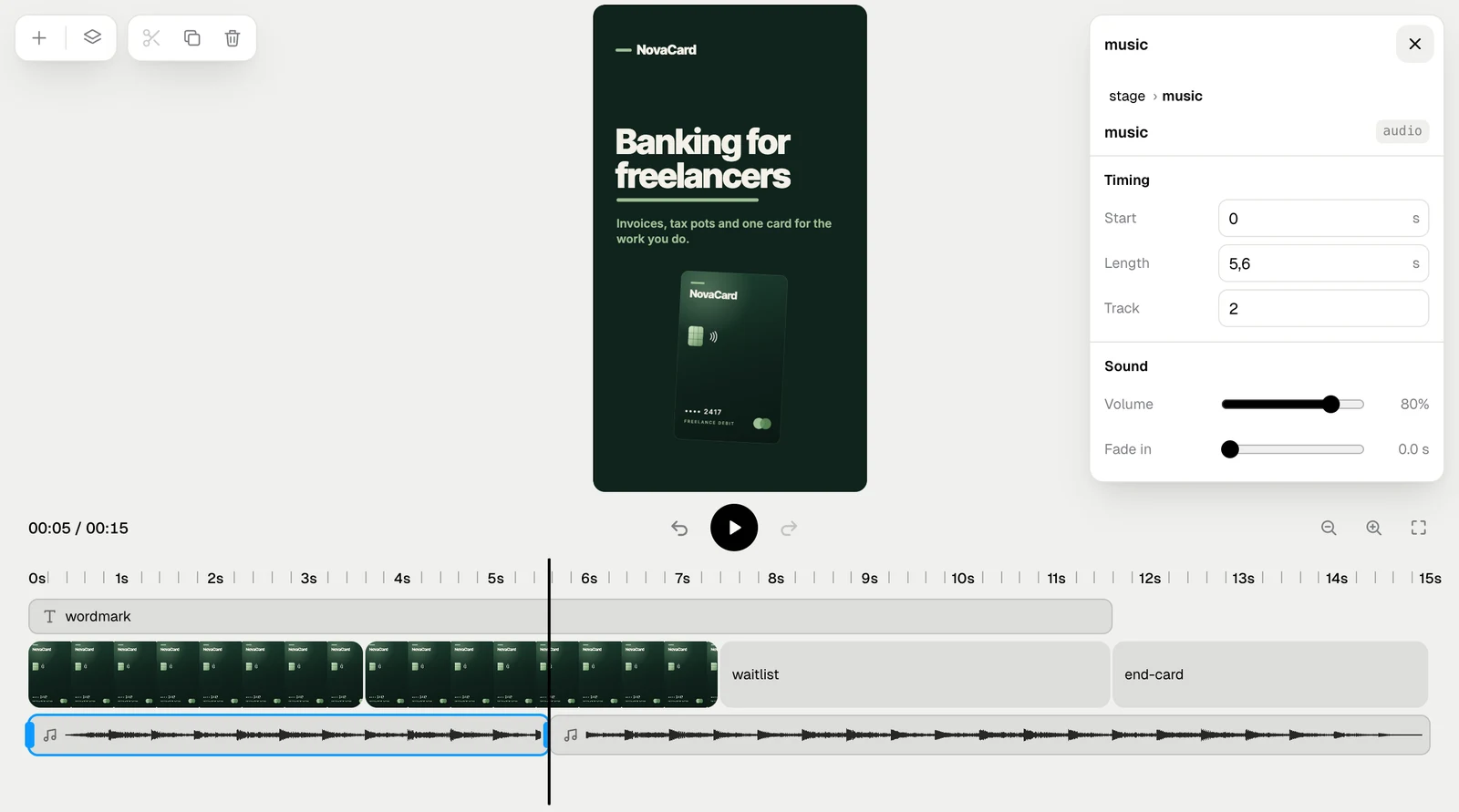
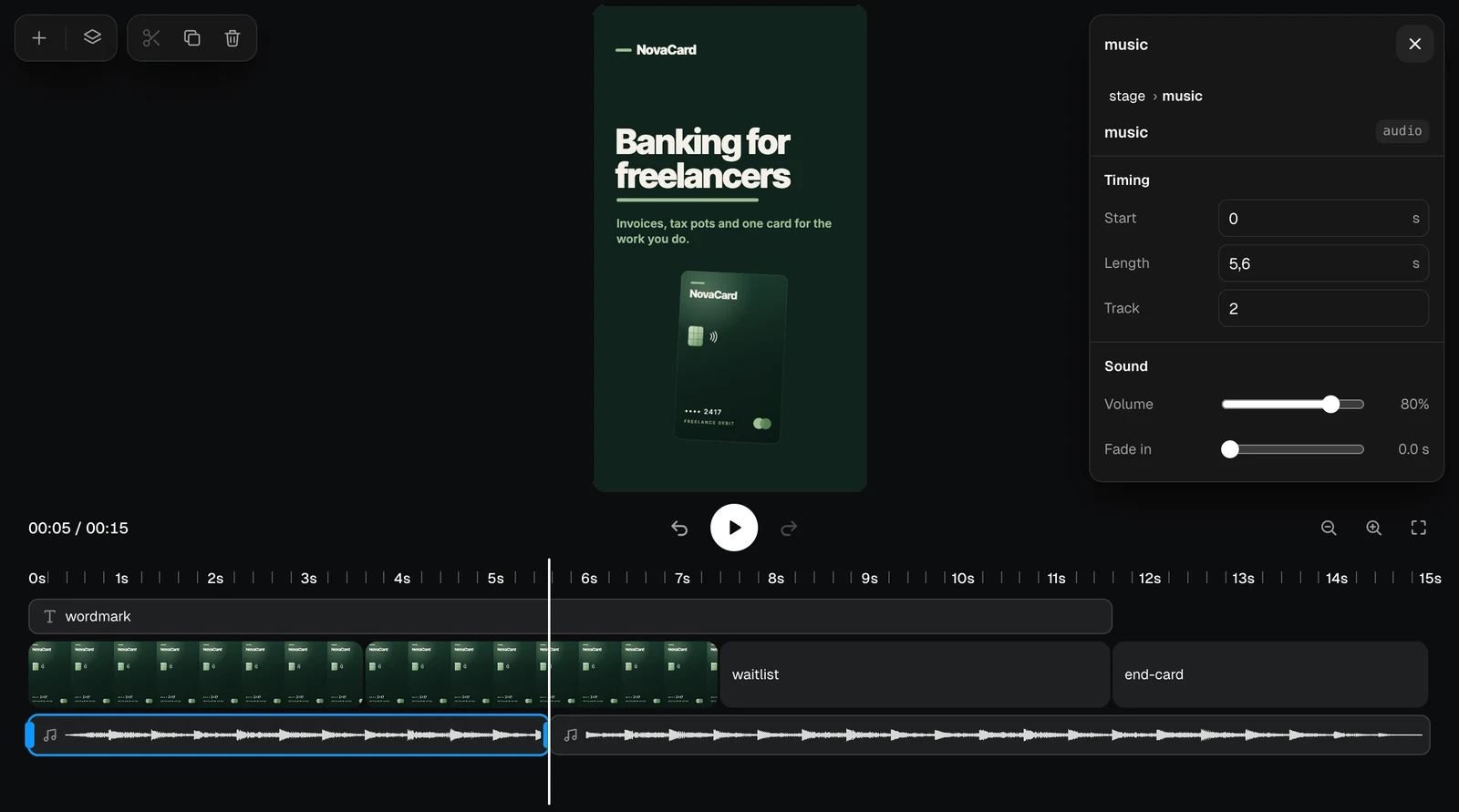
Click the sound track to select it. Volume, Fade in and Fade out set how it plays; File is the recording it plays.
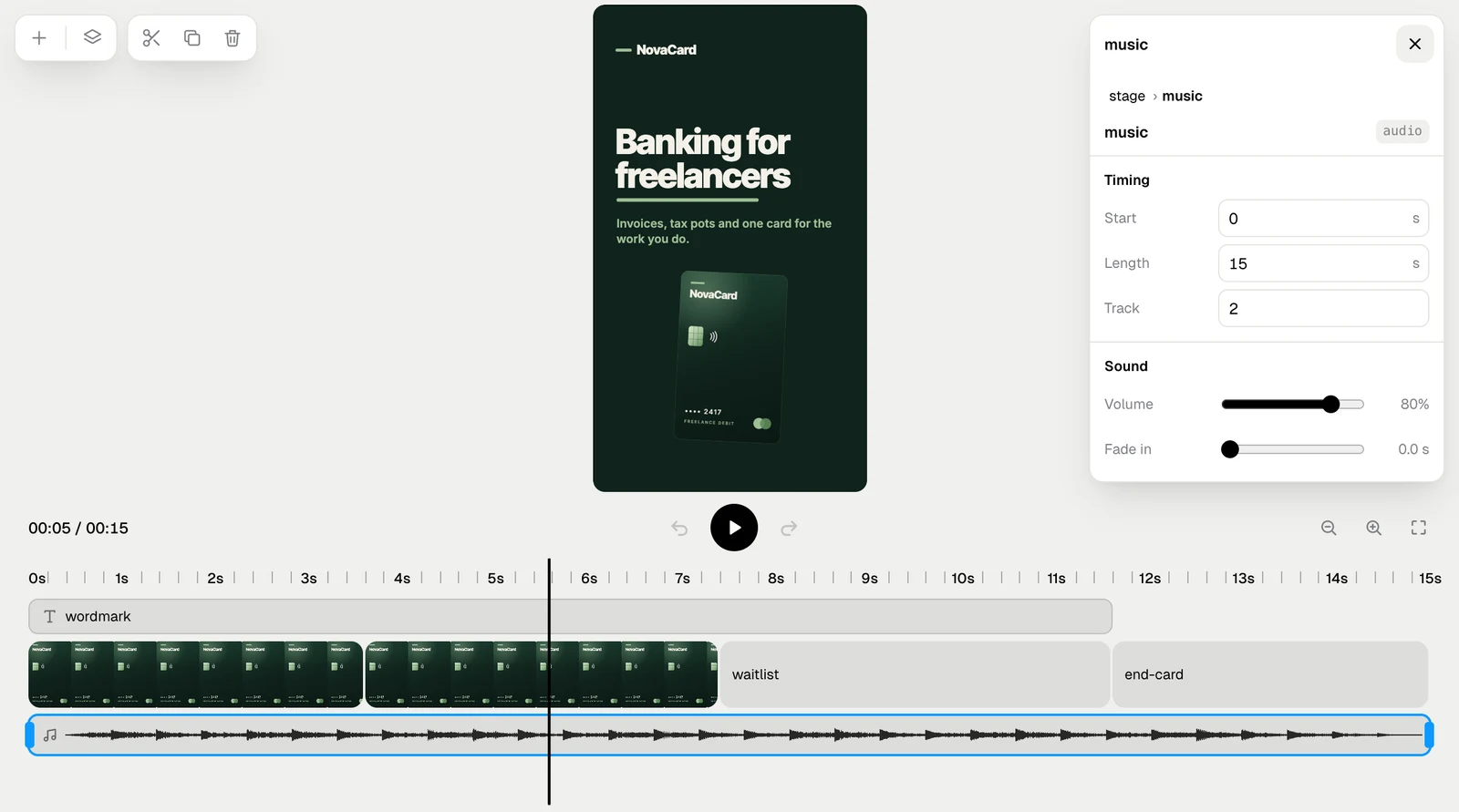
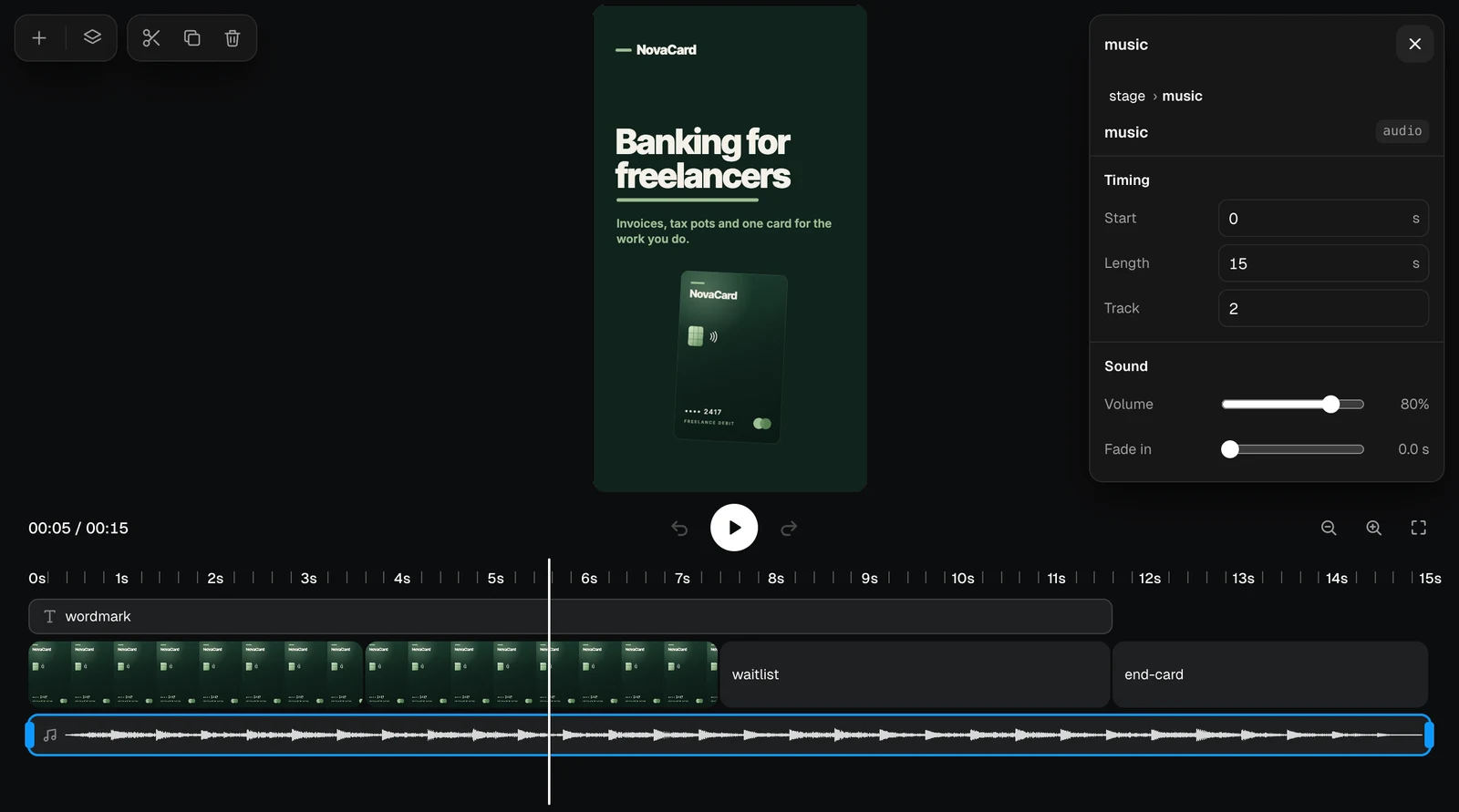
Selected sound with Volume, Fade in, Fade out and File, light themeSelected sound with Volume, Fade in, Fade out and File, dark theme
Split cuts the selected picture, video or sound in two at the playhead. Undo puts it back.
The sound track cut in two at the playhead, light themeThe sound track cut in two at the playhead, dark theme

Layers and the video

Layers lists everything in the video as a tree: each scene with what is inside it, the layers on top and the sound. Click a line to select it. A faded line is not on screen at the playhead.
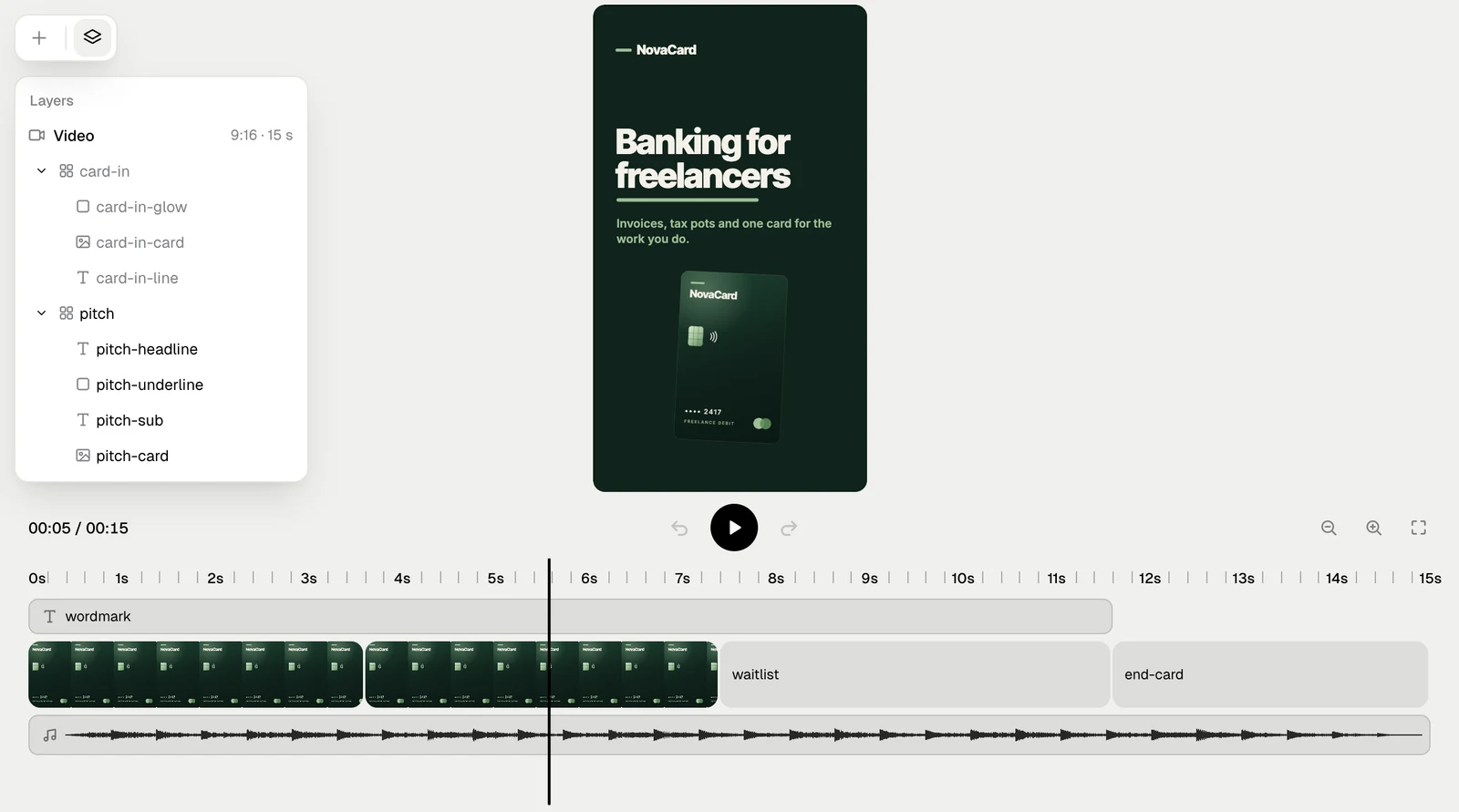
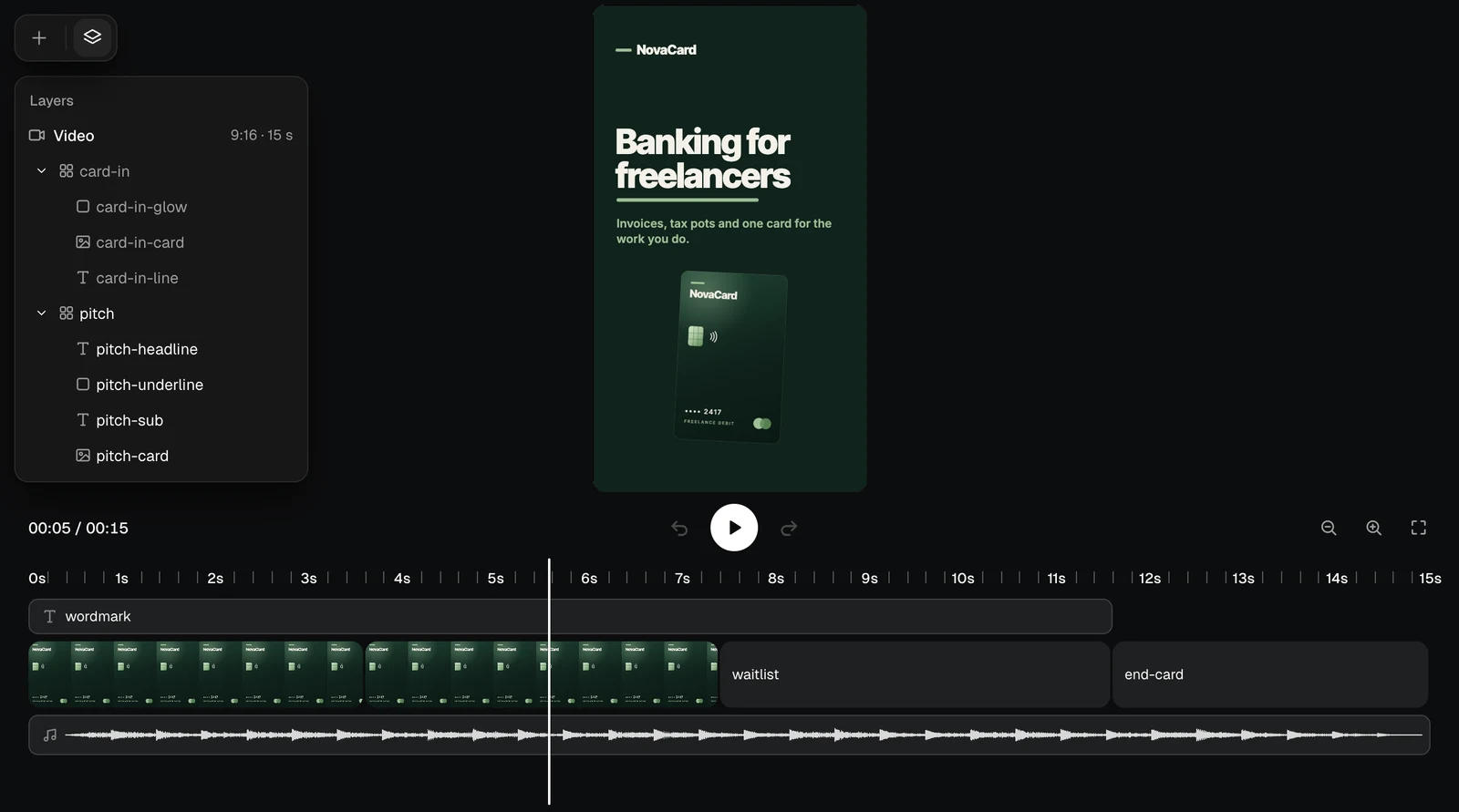
The Layers panel with scenes and their elements, light themeThe Layers panel with scenes and their elements, dark theme
Layers with the headline selected and its properties open, light themeLayers with the headline selected and its properties open, dark theme
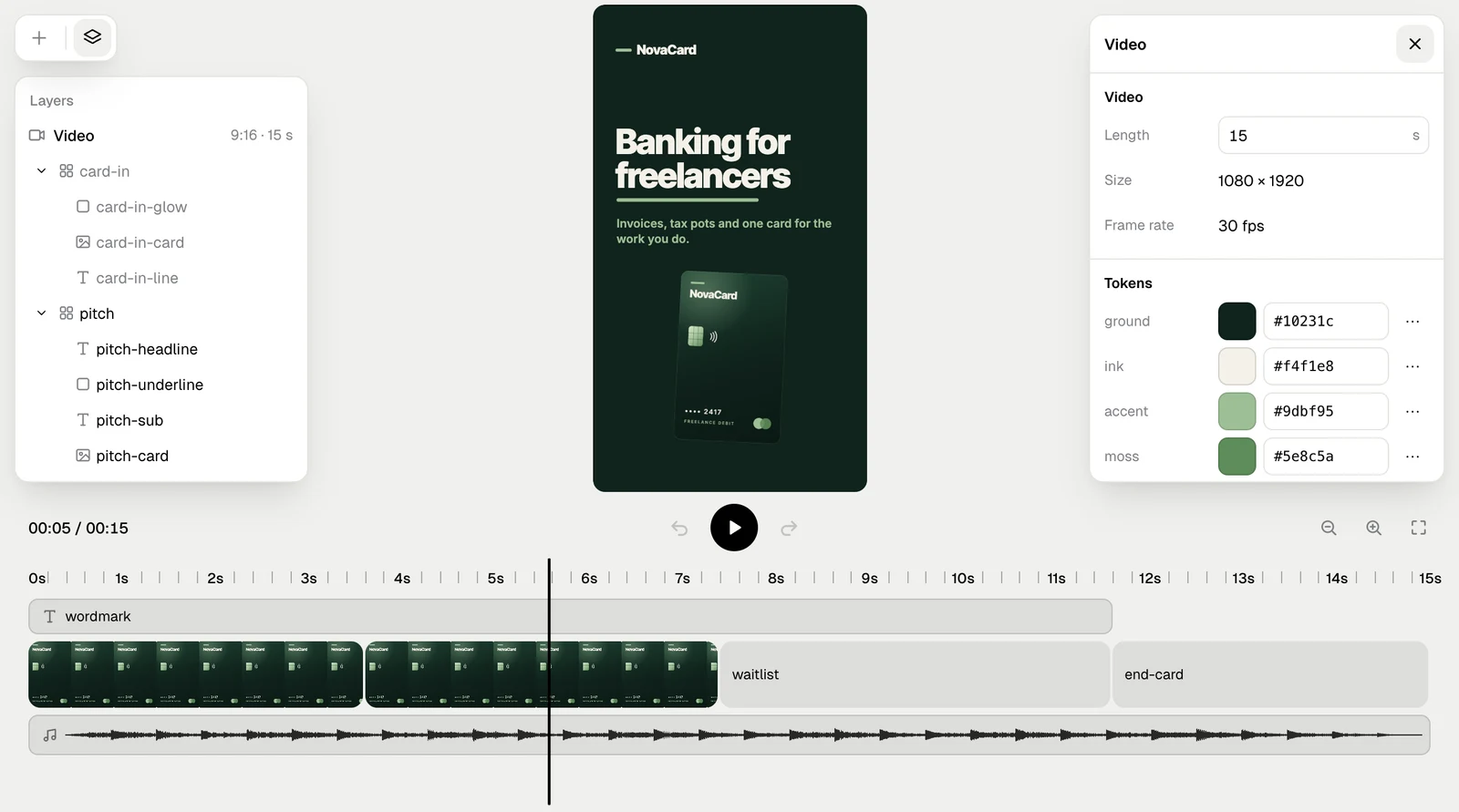
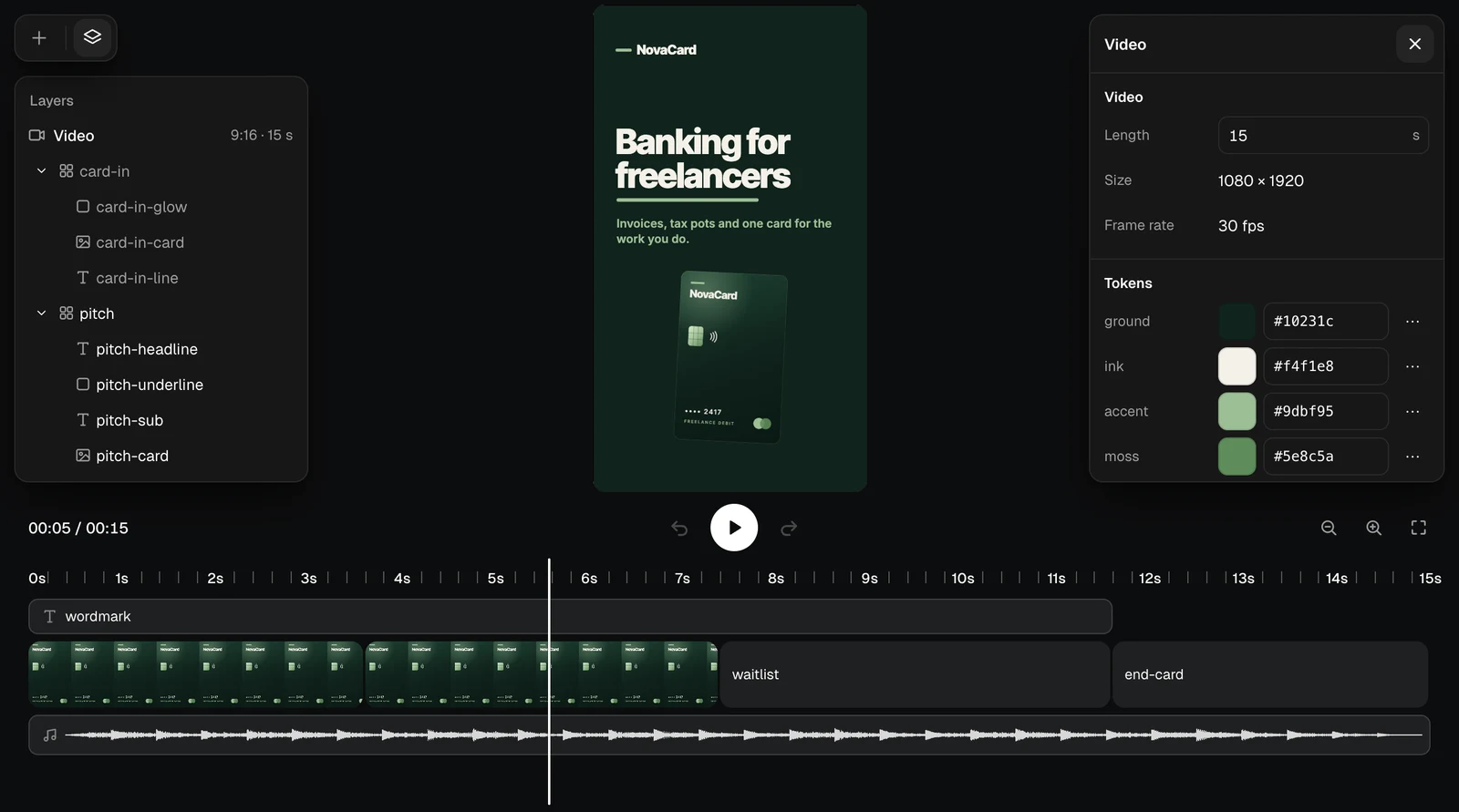
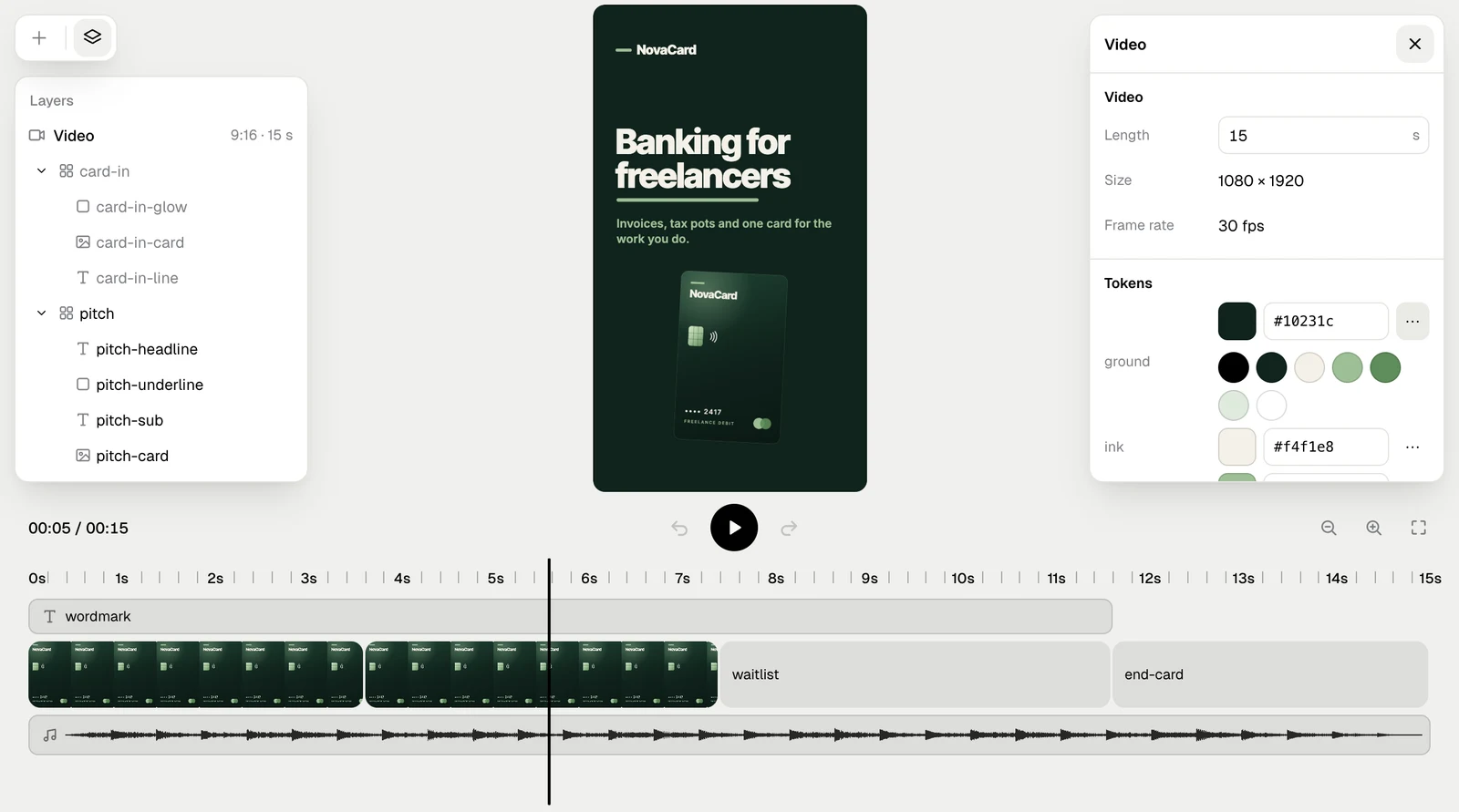
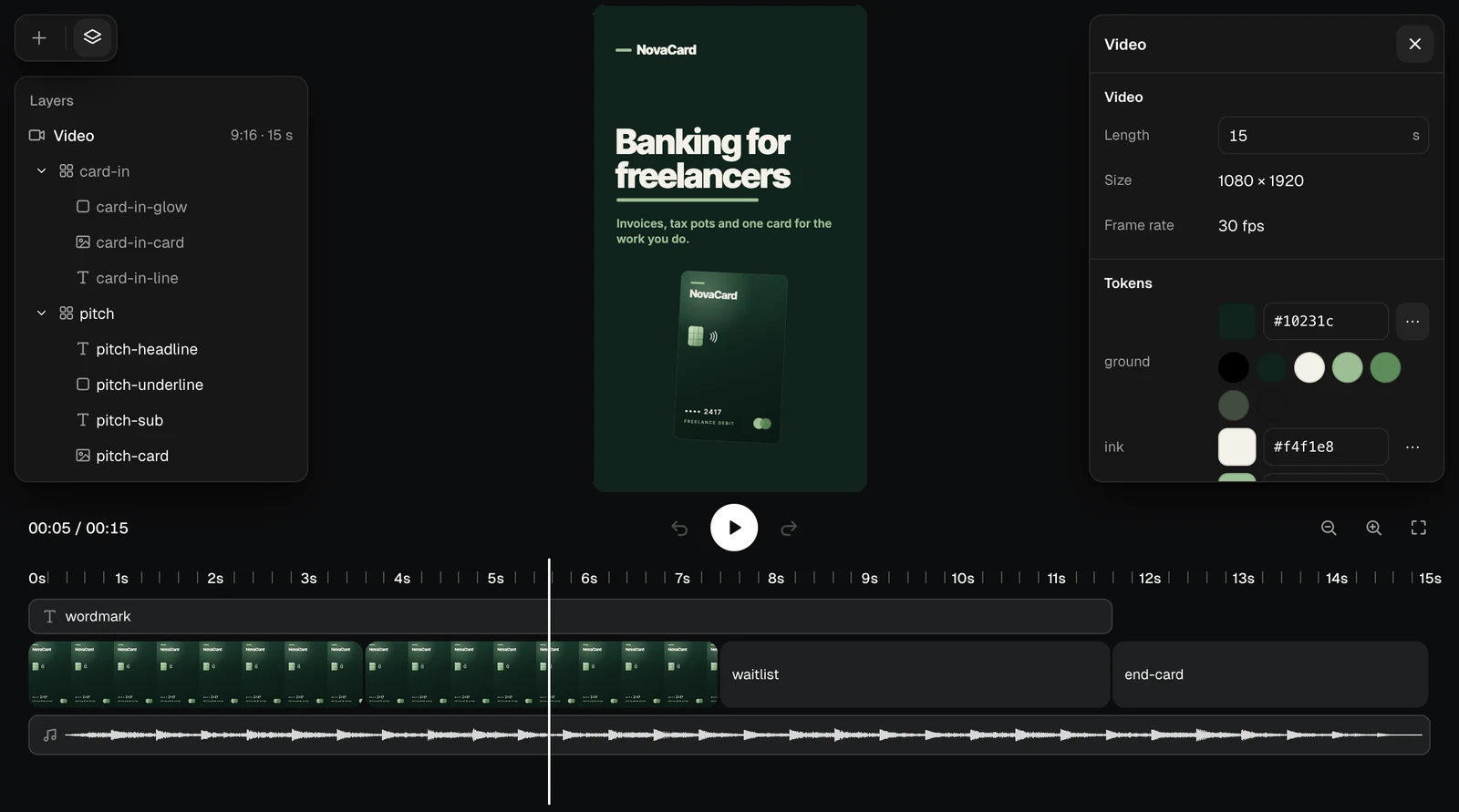
Video, at the top of Layers, opens the settings of the whole video: its Length, Size and Frame rate, and its Tokens, the named colours and fonts the video uses. Change a token and everything that uses it changes. Colours in this video lists every colour in use, to pick from.
The Video settings with Length, Size, Frame rate and Tokens, light themeThe Video settings with Length, Size, Frame rate and Tokens, dark theme
The swatches of the colours in the video, light themeThe swatches of the colours in the video, dark theme

Pictures and sounds to add

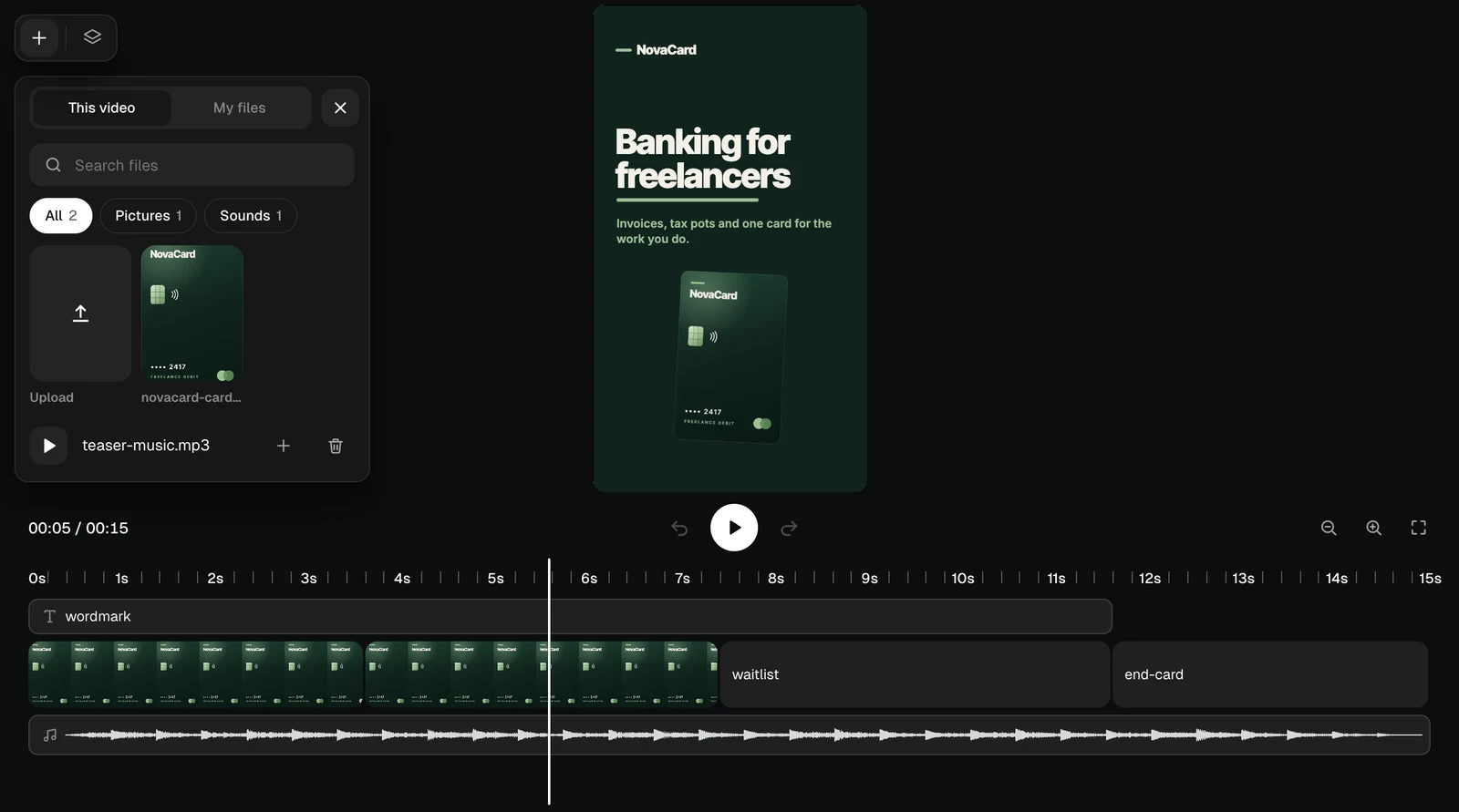
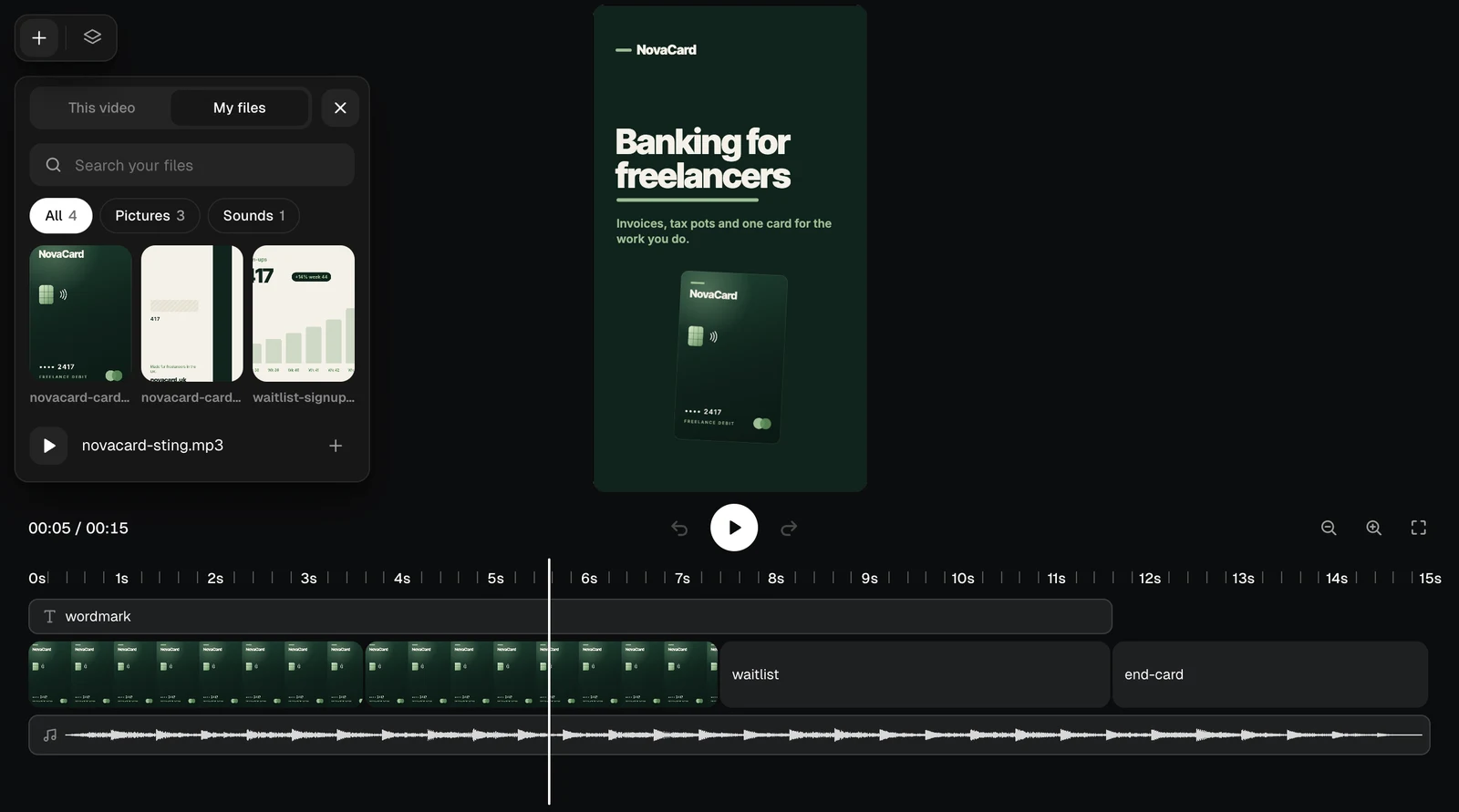
+ opens the files you can put in the video, in two tabs:
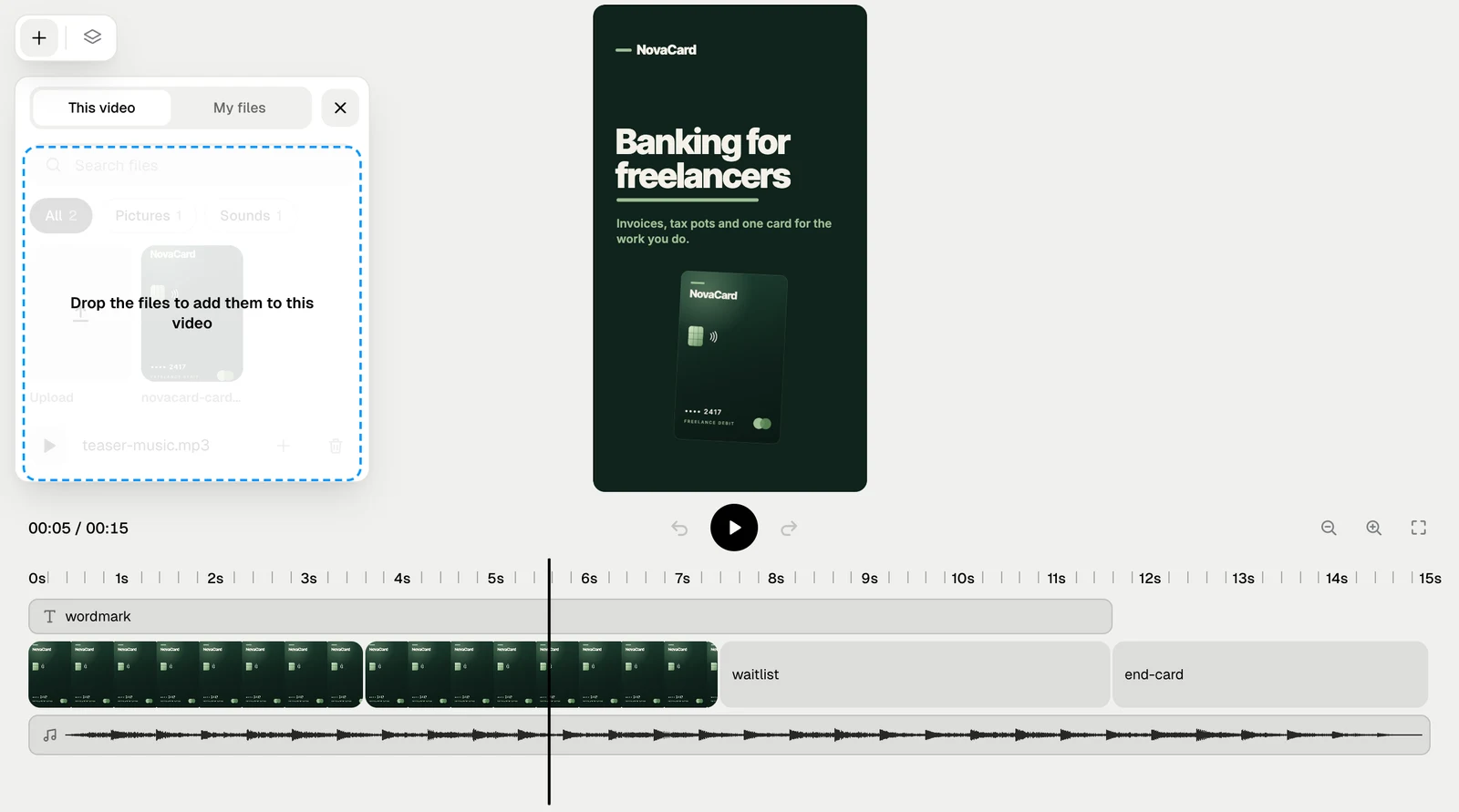
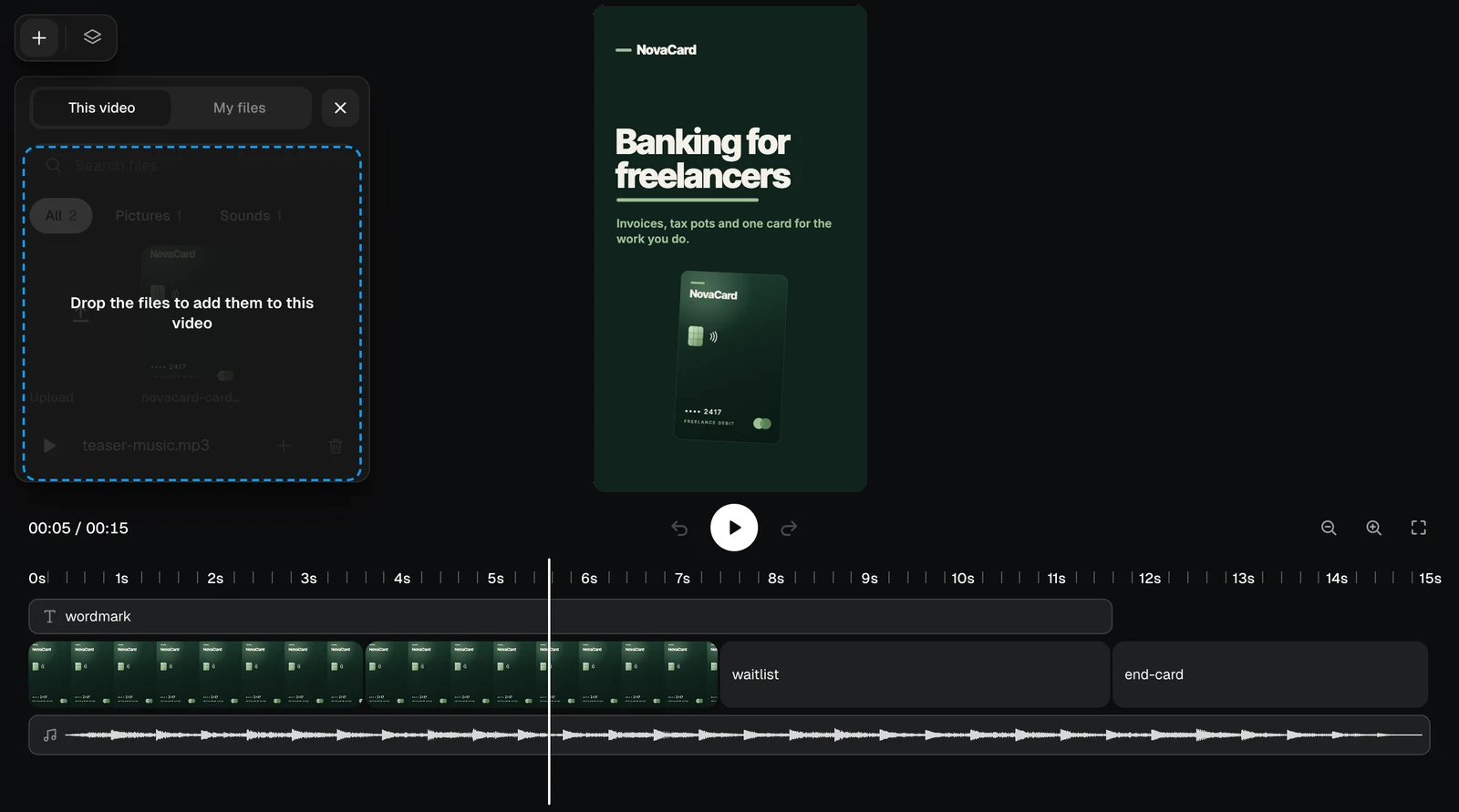
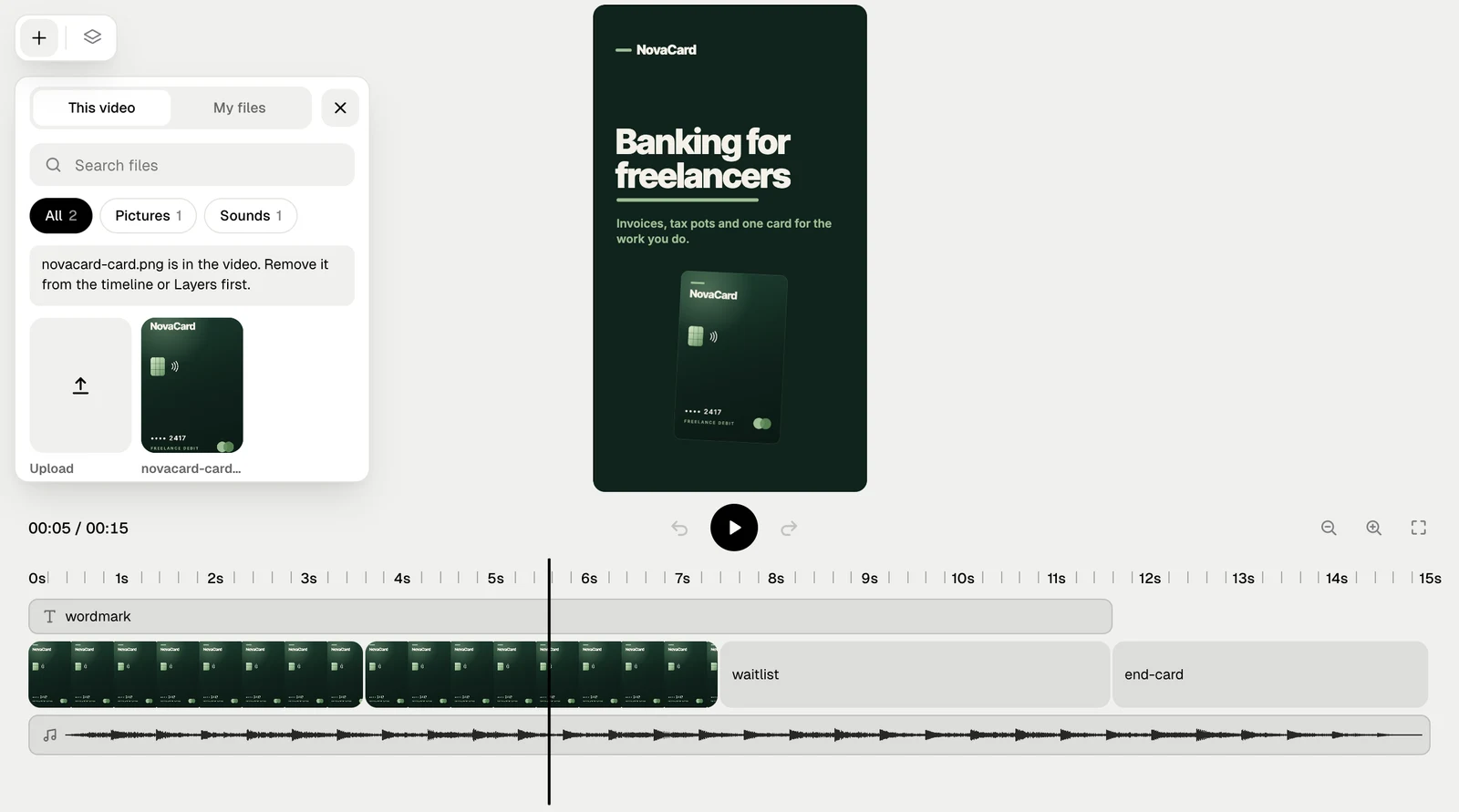
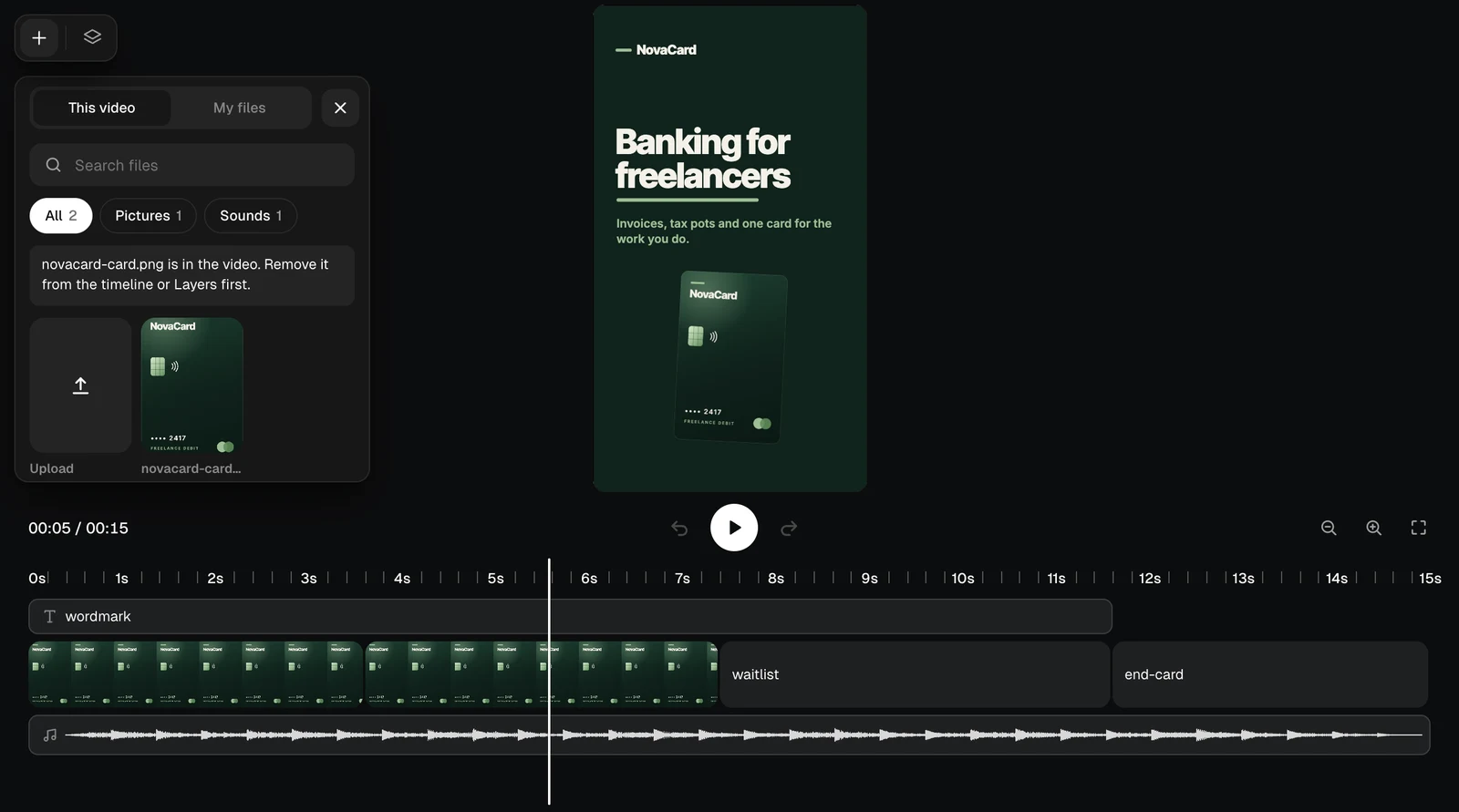
  • This video: the files already in it. Upload adds files from your device, or drop them on the panel. A file still on the timeline cannot be deleted: take it out of the timeline or Layers first.
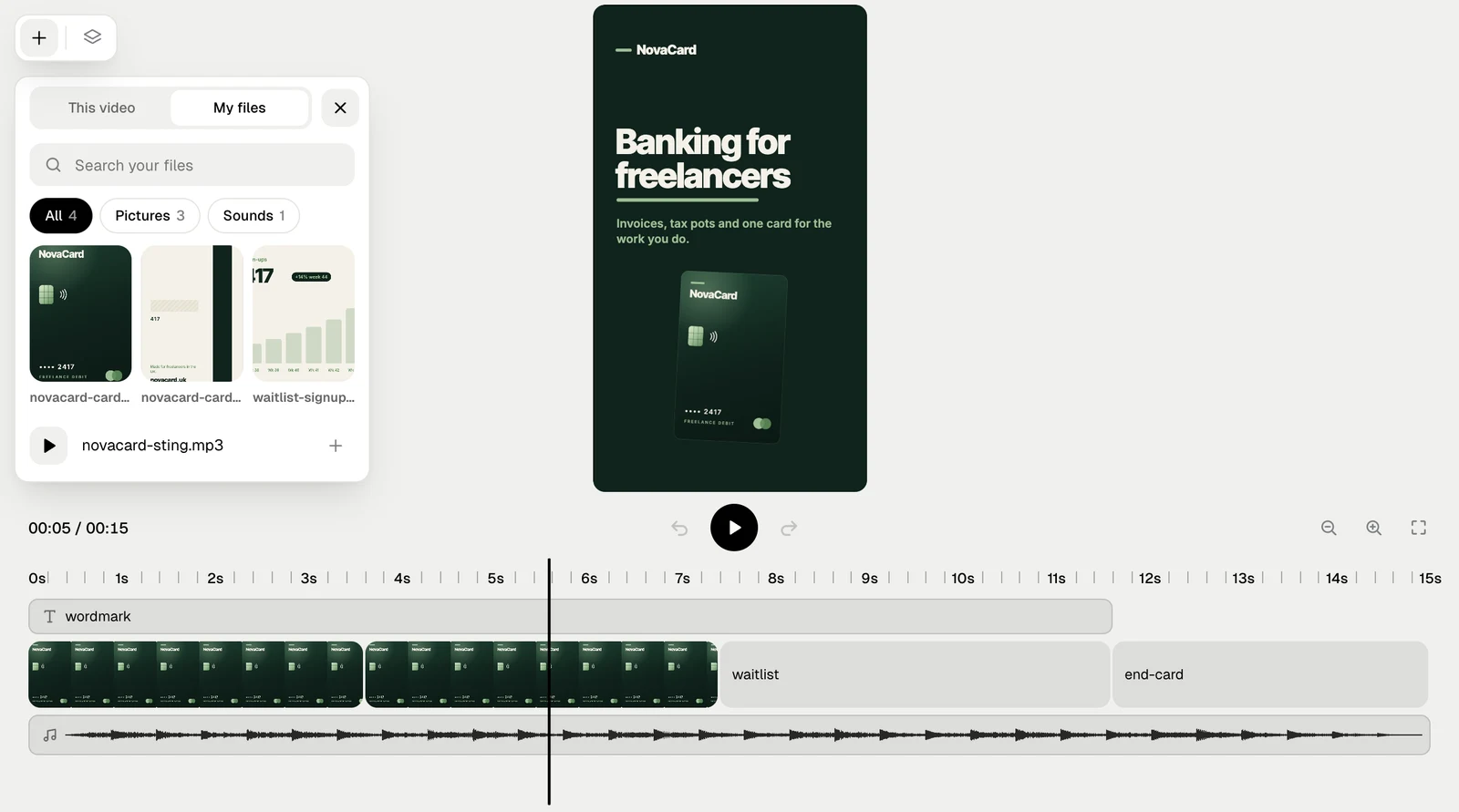
  • My files: the pictures and sounds in your Library, with search and All, Pictures, Sounds.
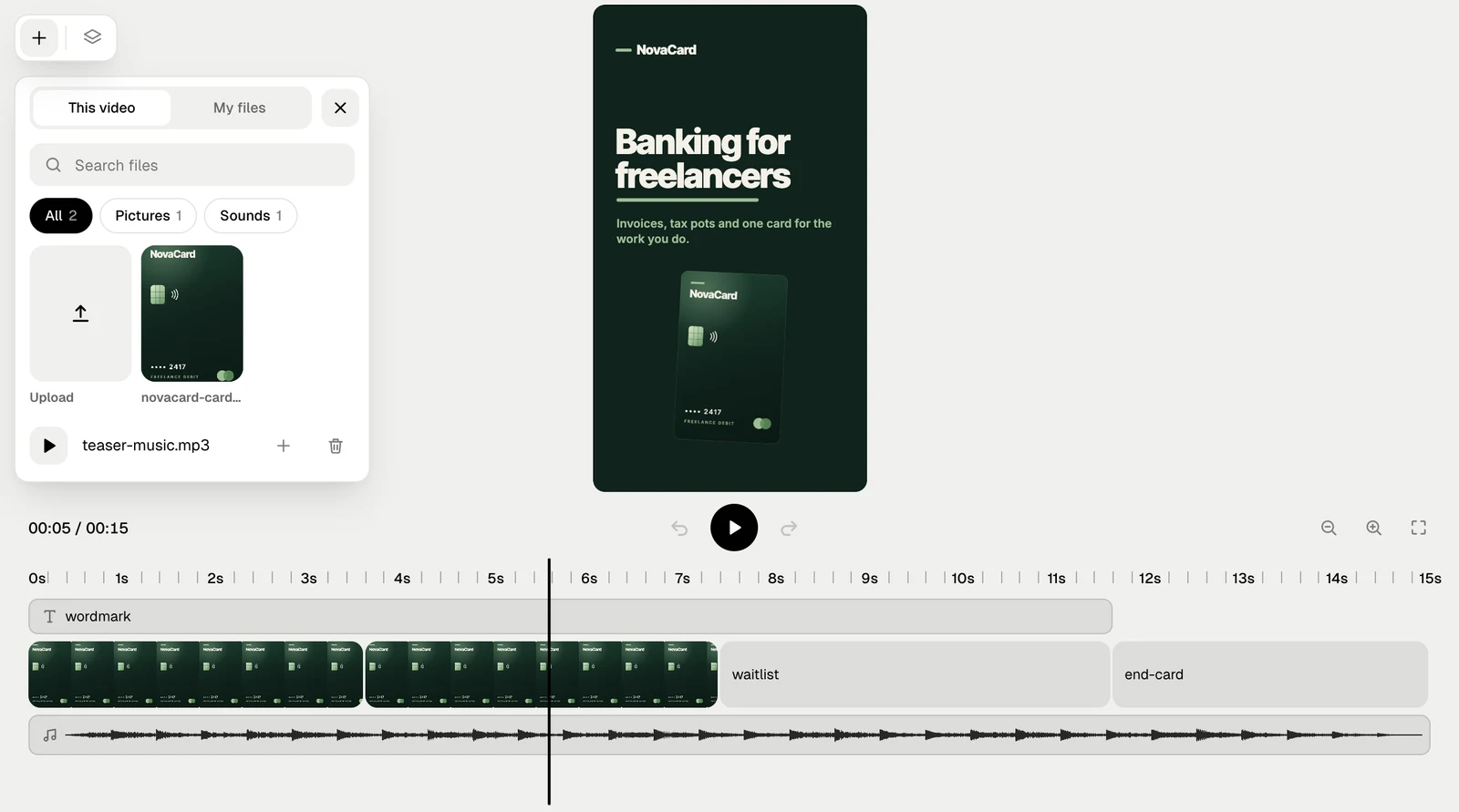
The play button on a sound lets you listen to it first. + on a file adds it at the playhead.
This video tab with Upload, a picture and a sound, light themeThis video tab with Upload, a picture and a sound, dark theme
My files tab with three pictures and a sound, light themeMy files tab with three pictures and a sound, dark theme
The panel saying Drop the files to add them to this video, light themeThe panel saying Drop the files to add them to this video, dark theme
The message that a file is in the video, light themeThe message that a file is in the video, dark theme

Export

Download at the top of the Jobbit window opens Export.
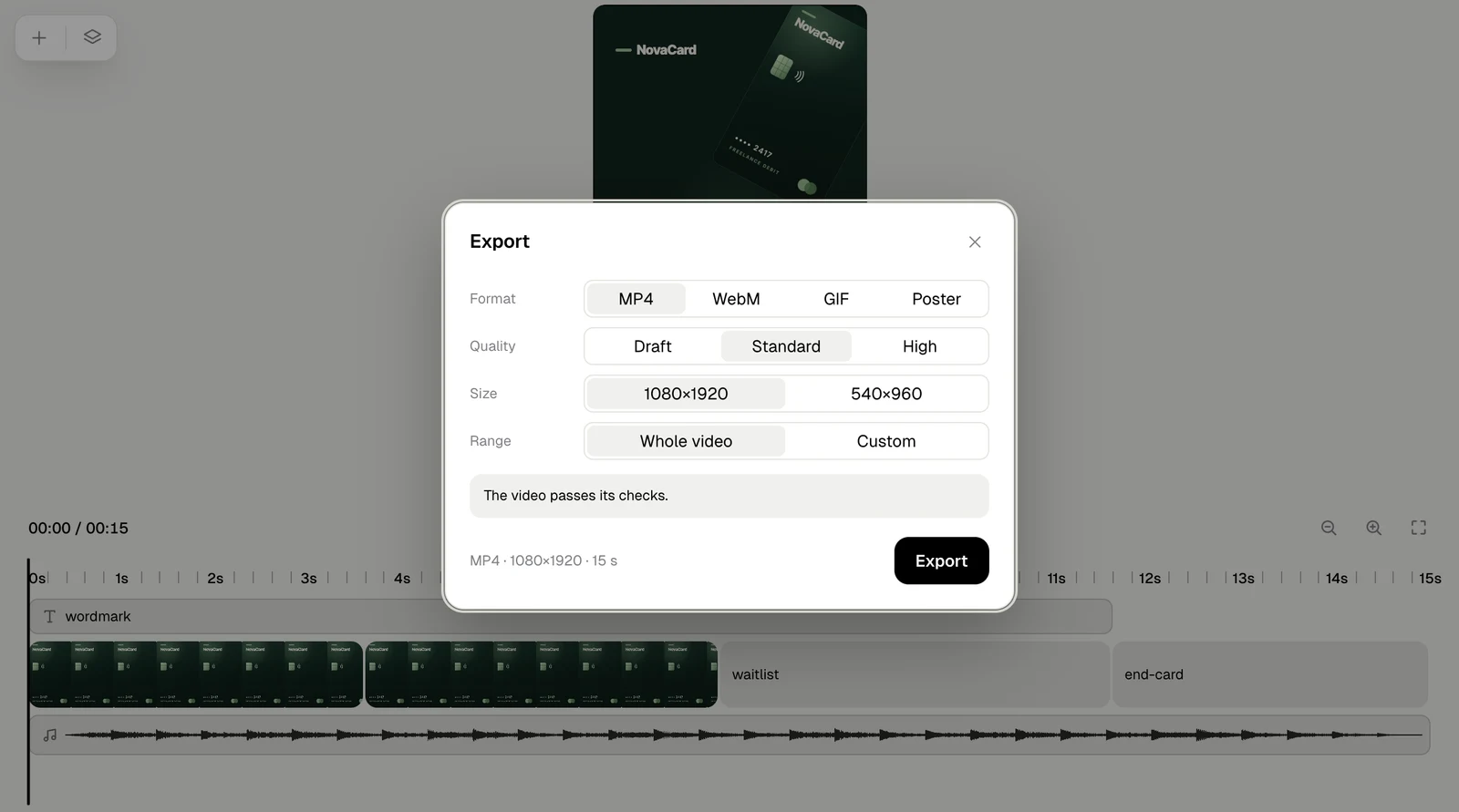
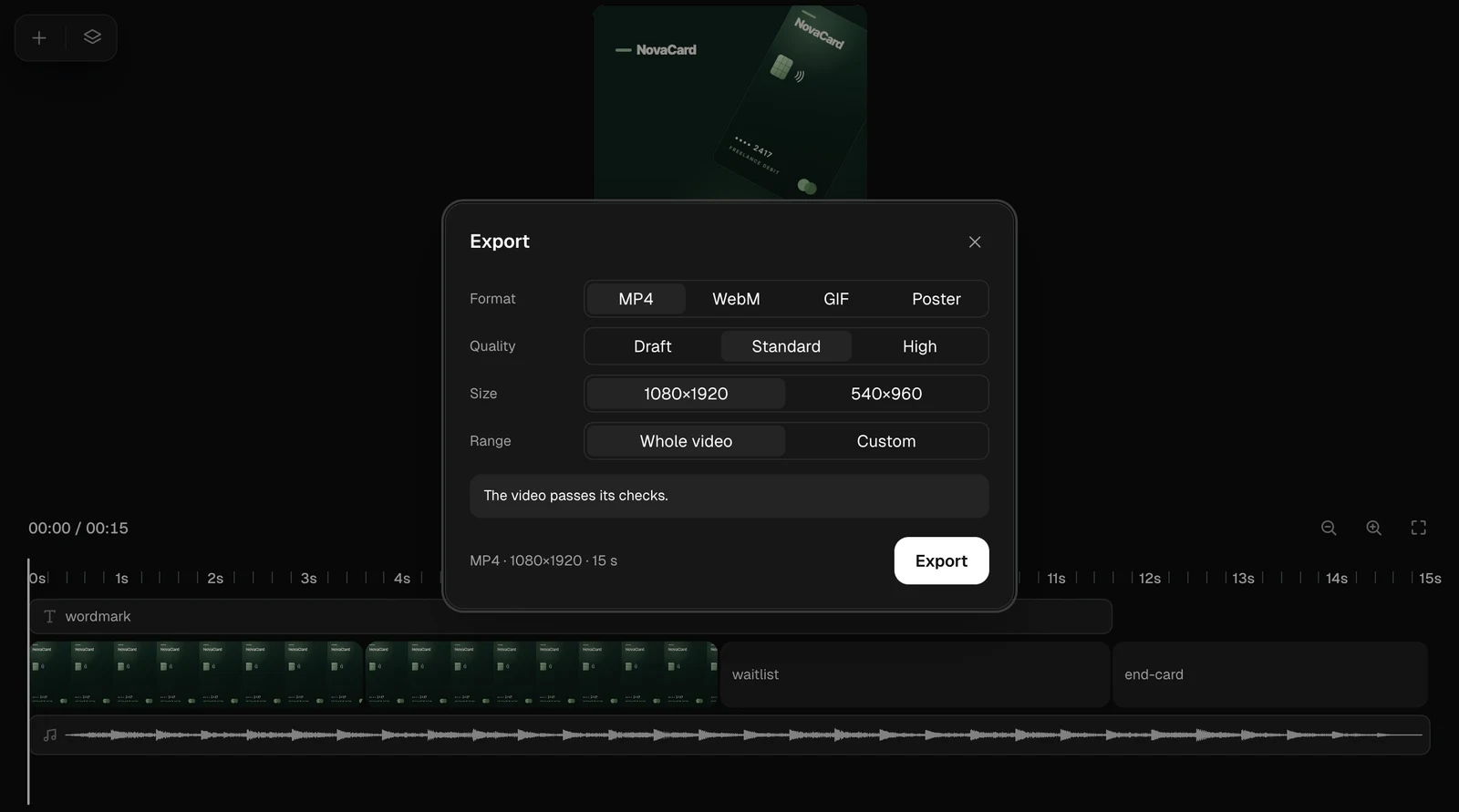
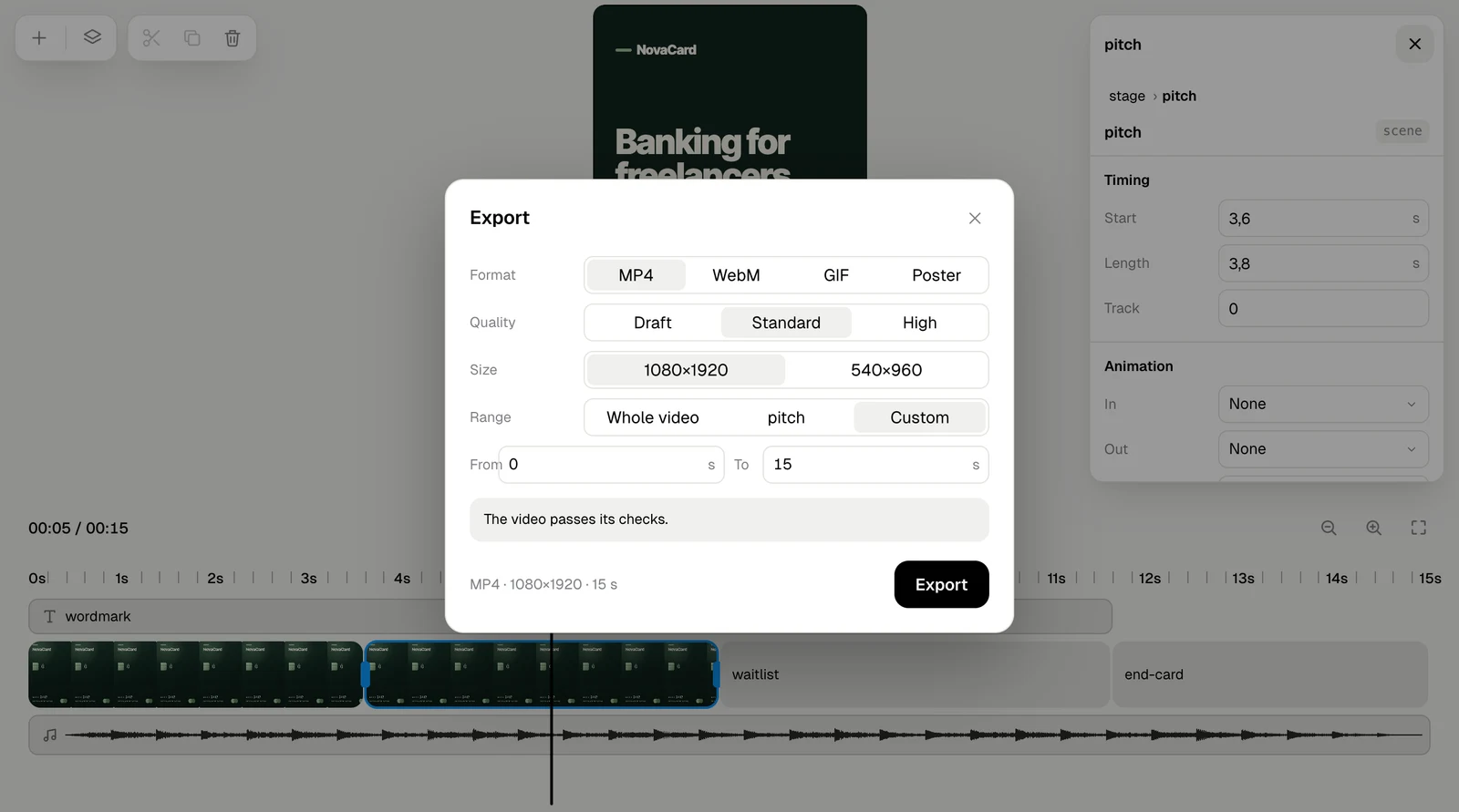
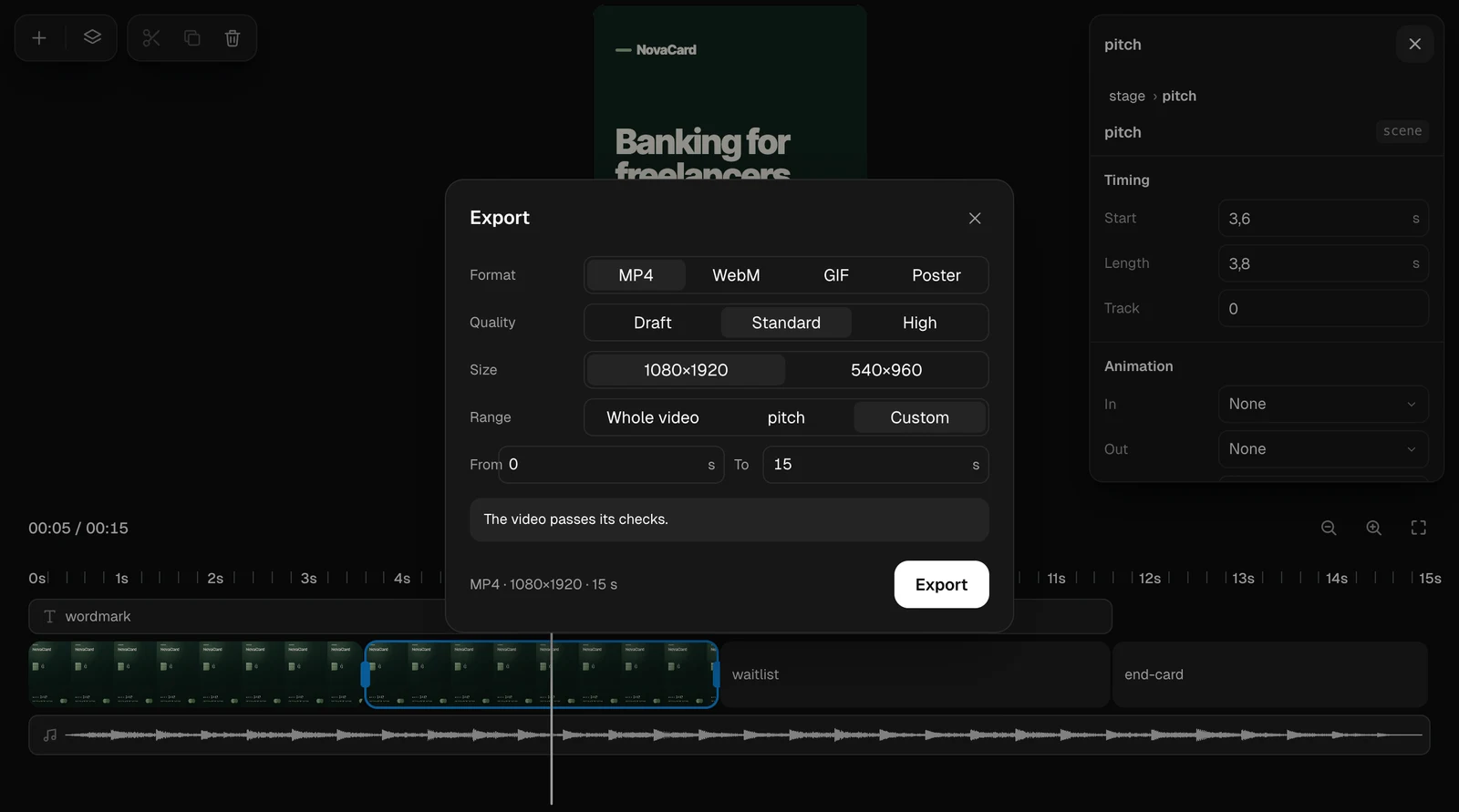
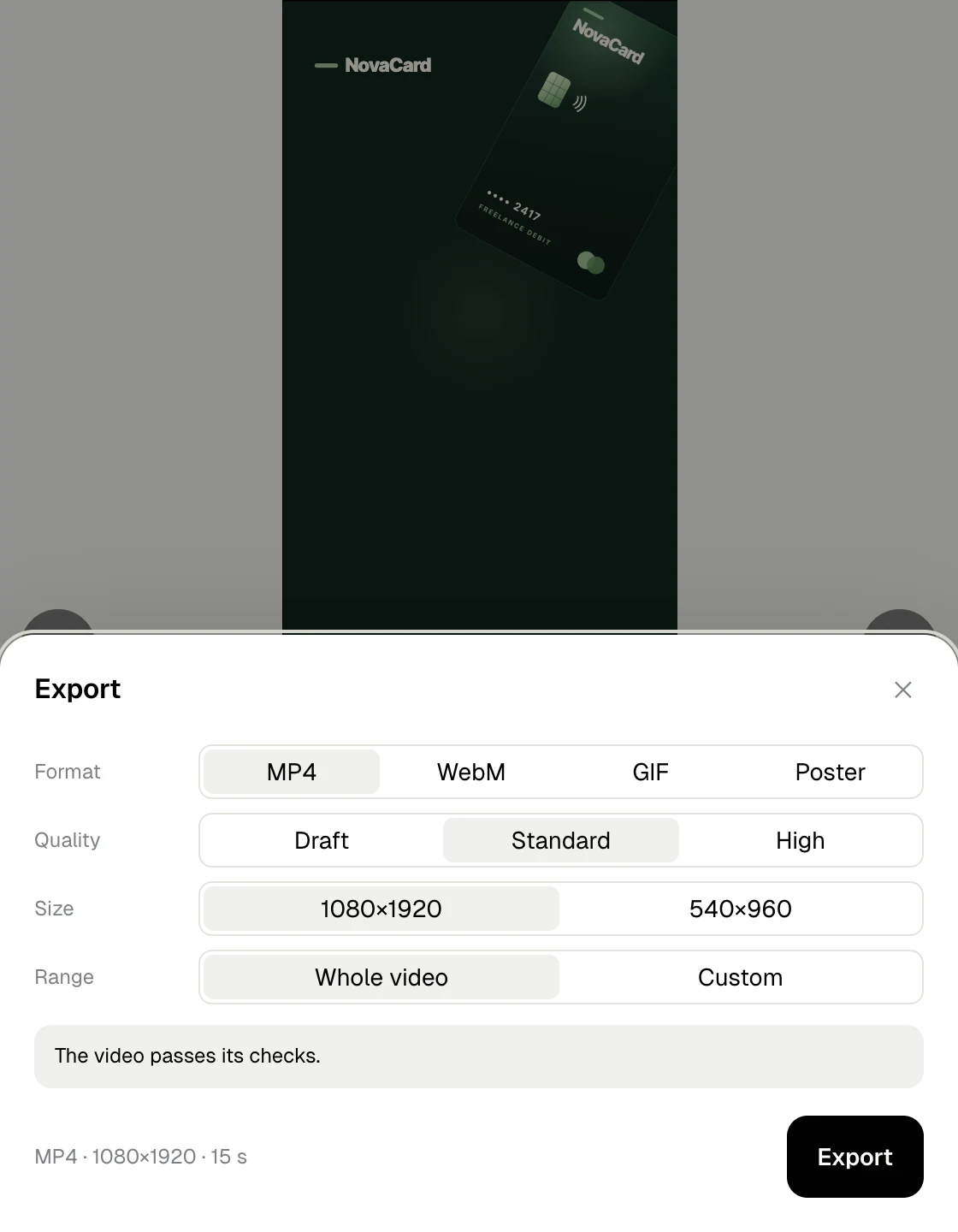
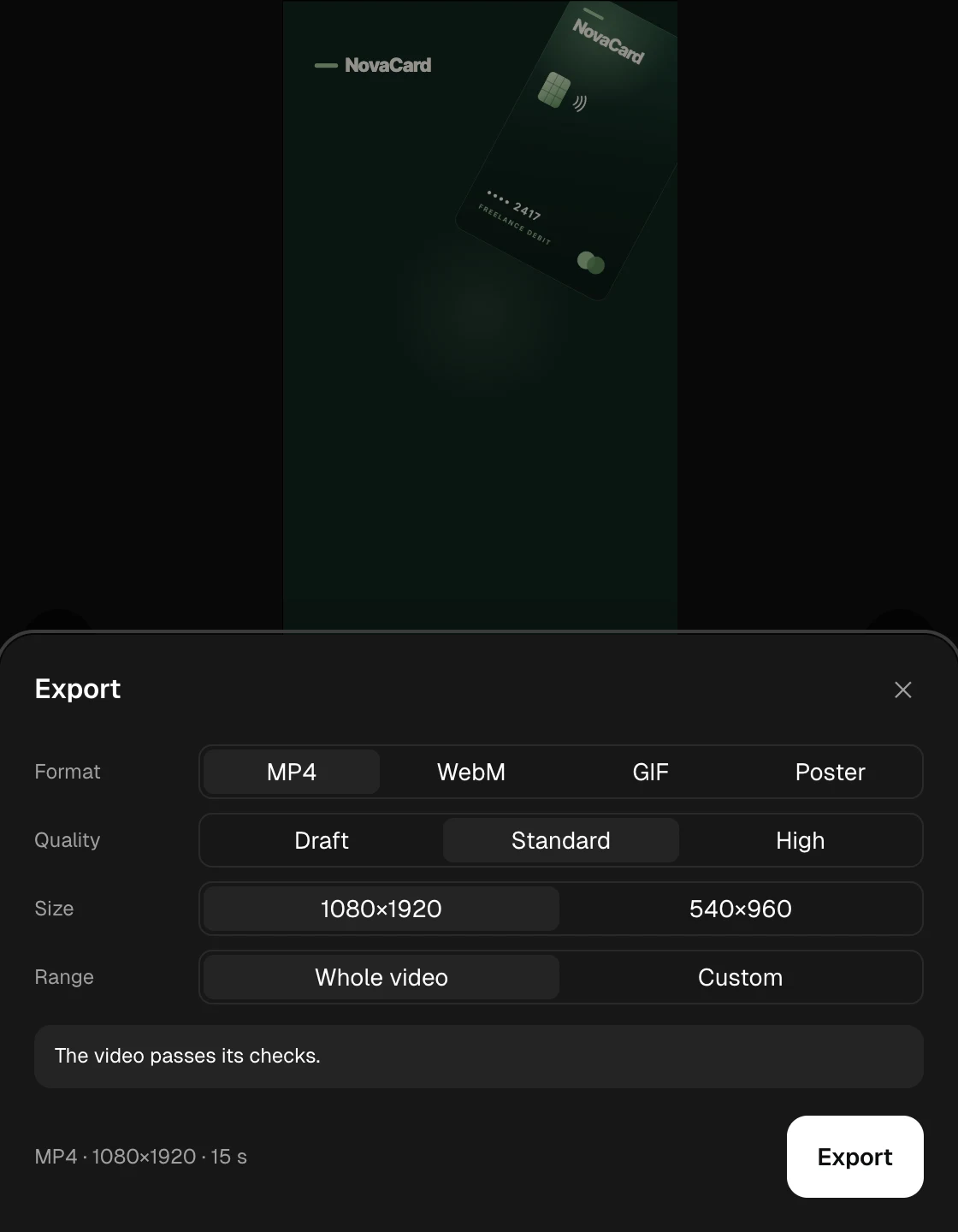
The Export window with Format, Quality, Size and Range, light themeThe Export window with Format, Quality, Size and Range, dark theme
SettingChoices
FormatMP4, WebM, GIF, or Poster: one still picture
QualityDraft, Standard, High
SizeThe video’s full size, or half of it
RangeWhole video, the selected scene, or Custom from and to a second
Before it exports, Jobbit checks the video and says if something is wrong. The line at the bottom sums up what you will get.
Export with Range set to Custom, From and To, light themeExport with Range set to Custom, From and To, dark theme
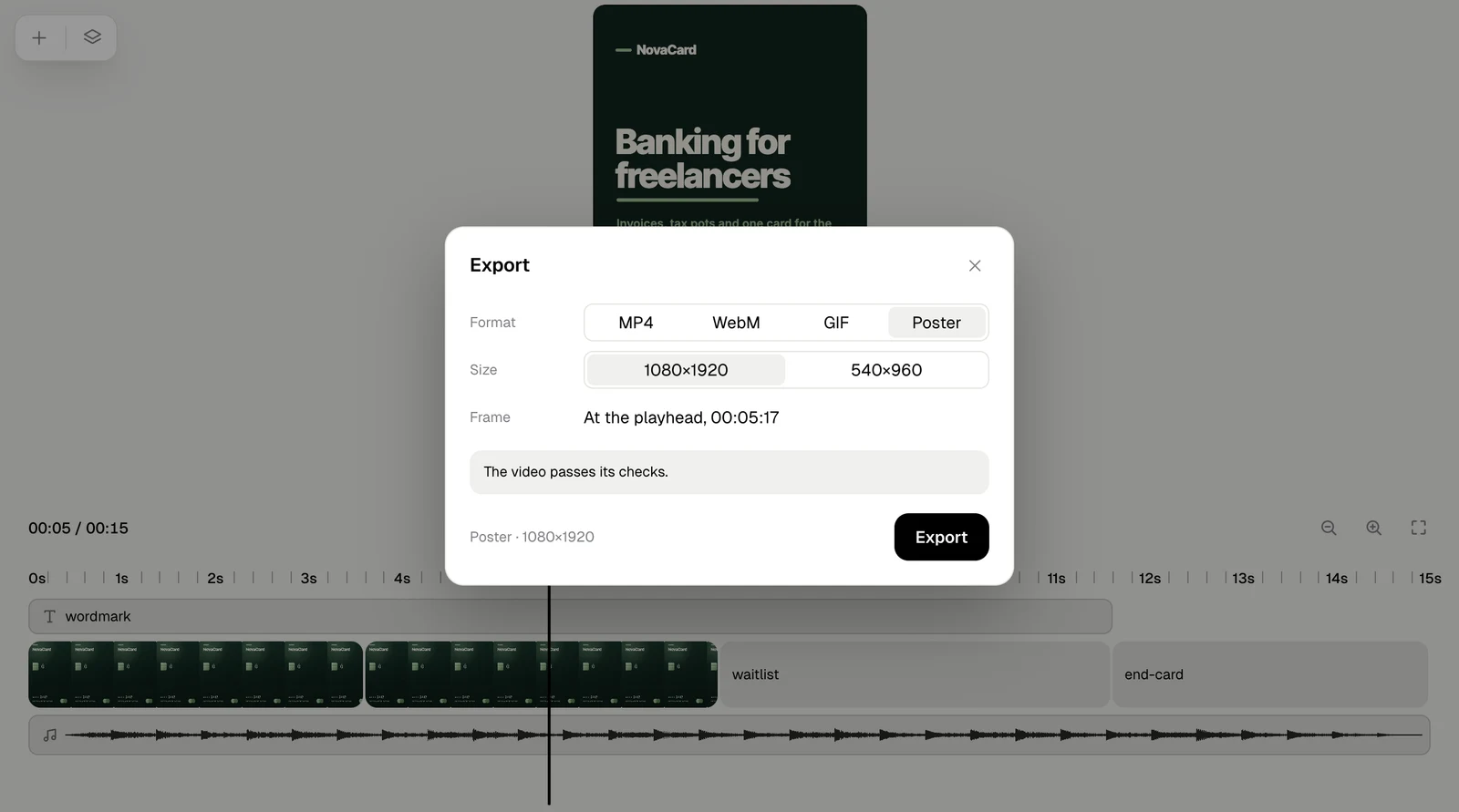
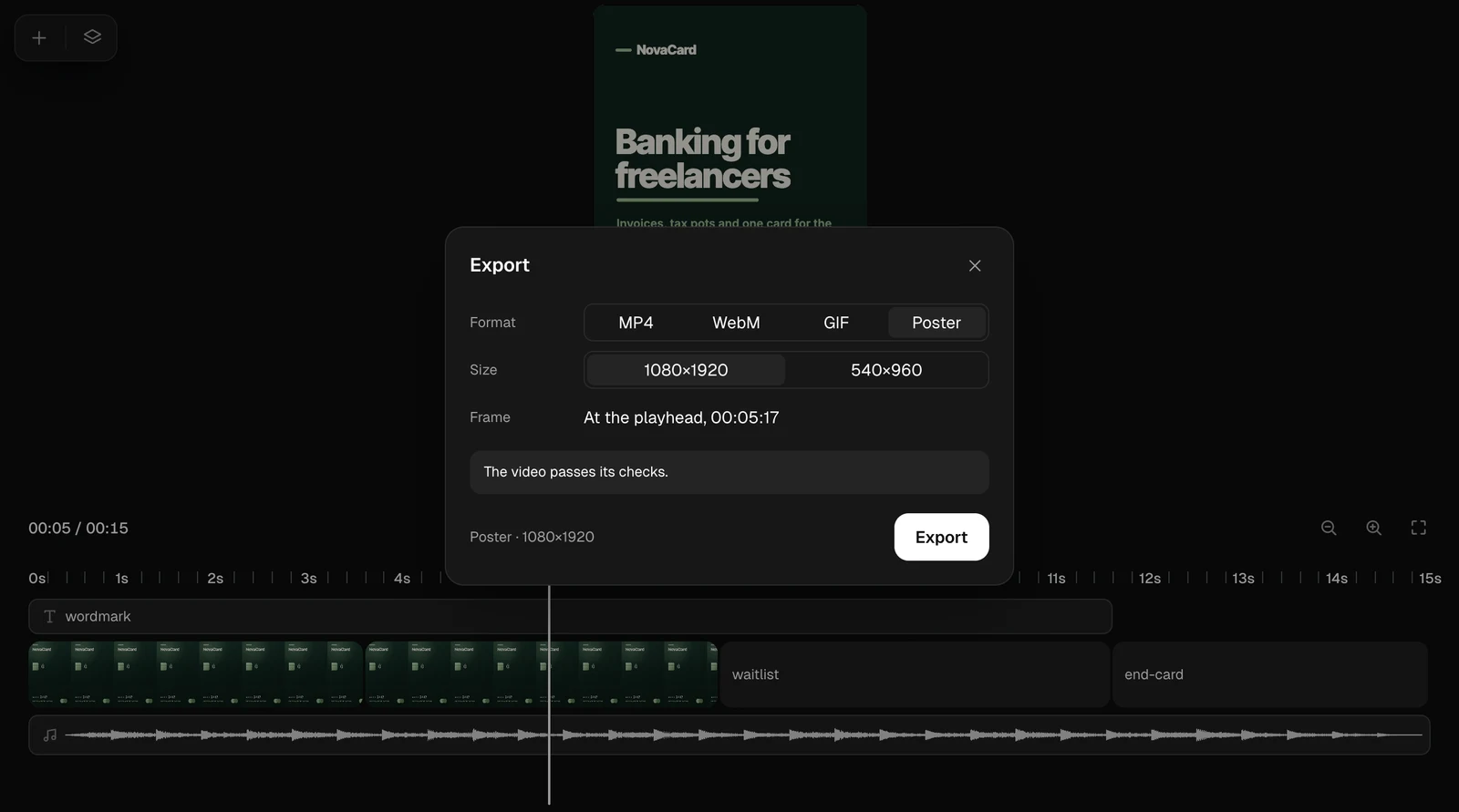
Poster saves the frame at the playhead as a picture.
Export with Poster and the frame at the playhead, light themeExport with Poster and the frame at the playhead, dark theme
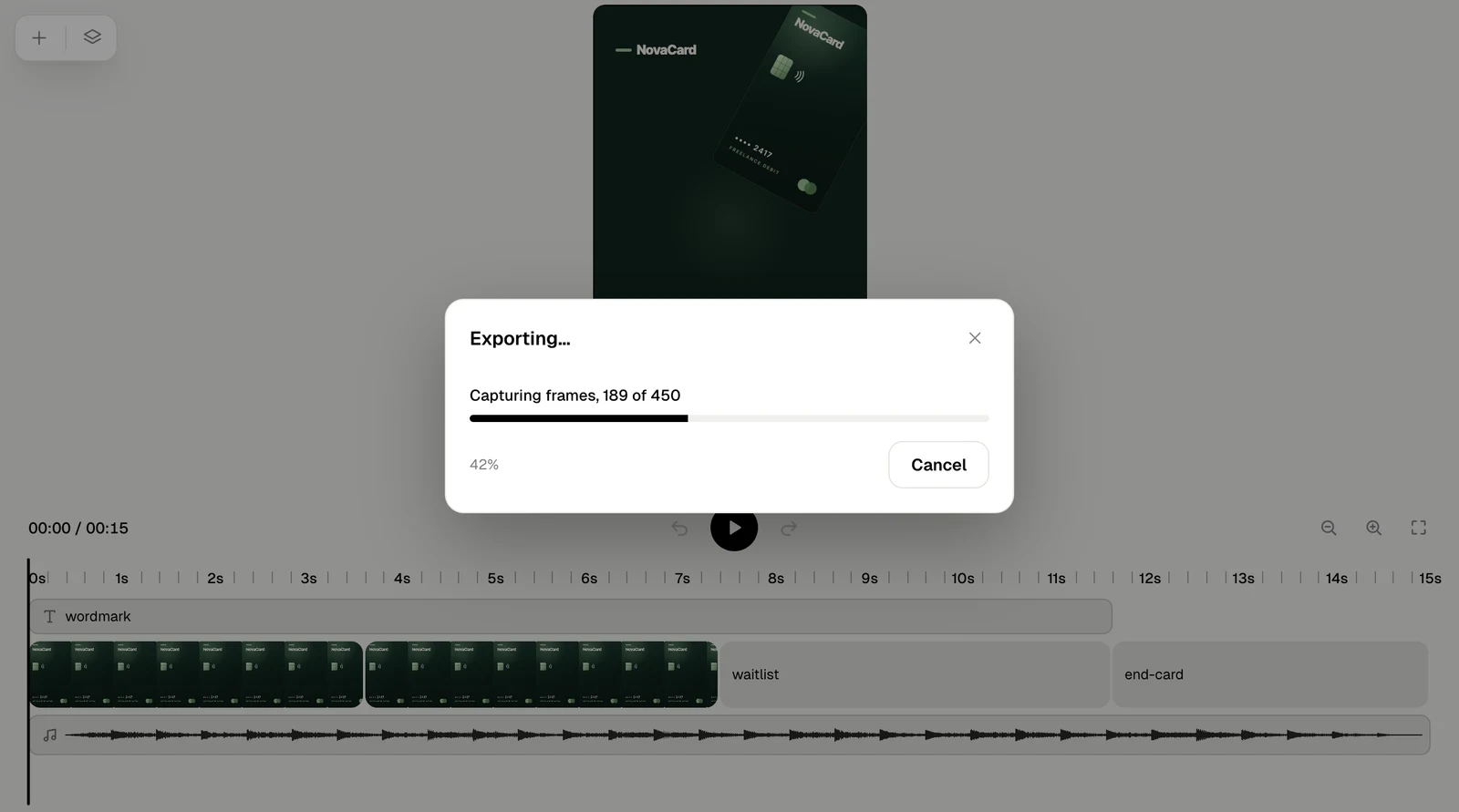
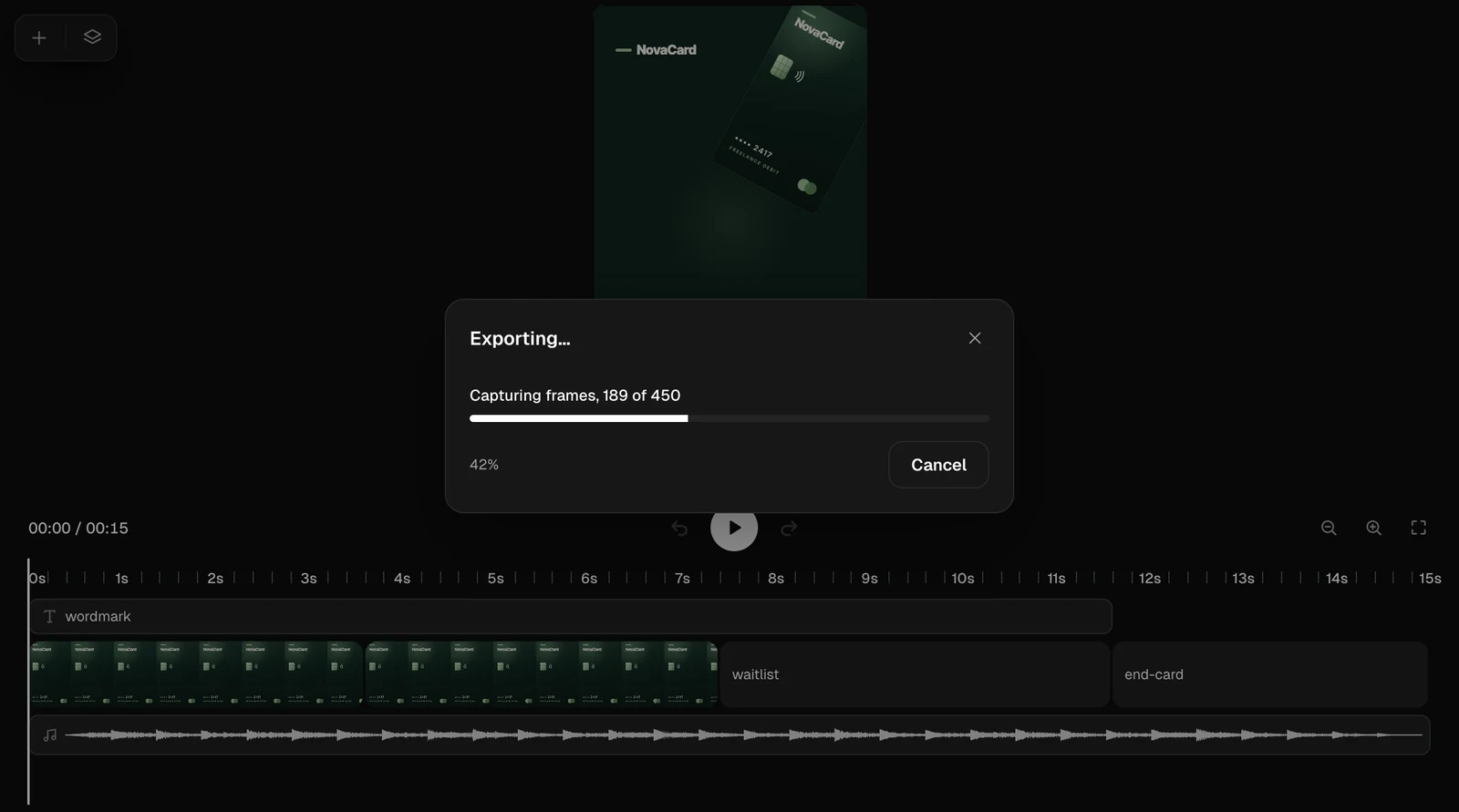
Export renders the video. The window shows how far it has got, and Cancel stops it.
Exporting with a progress bar at 42%, light themeExporting with a progress bar at 42%, dark theme
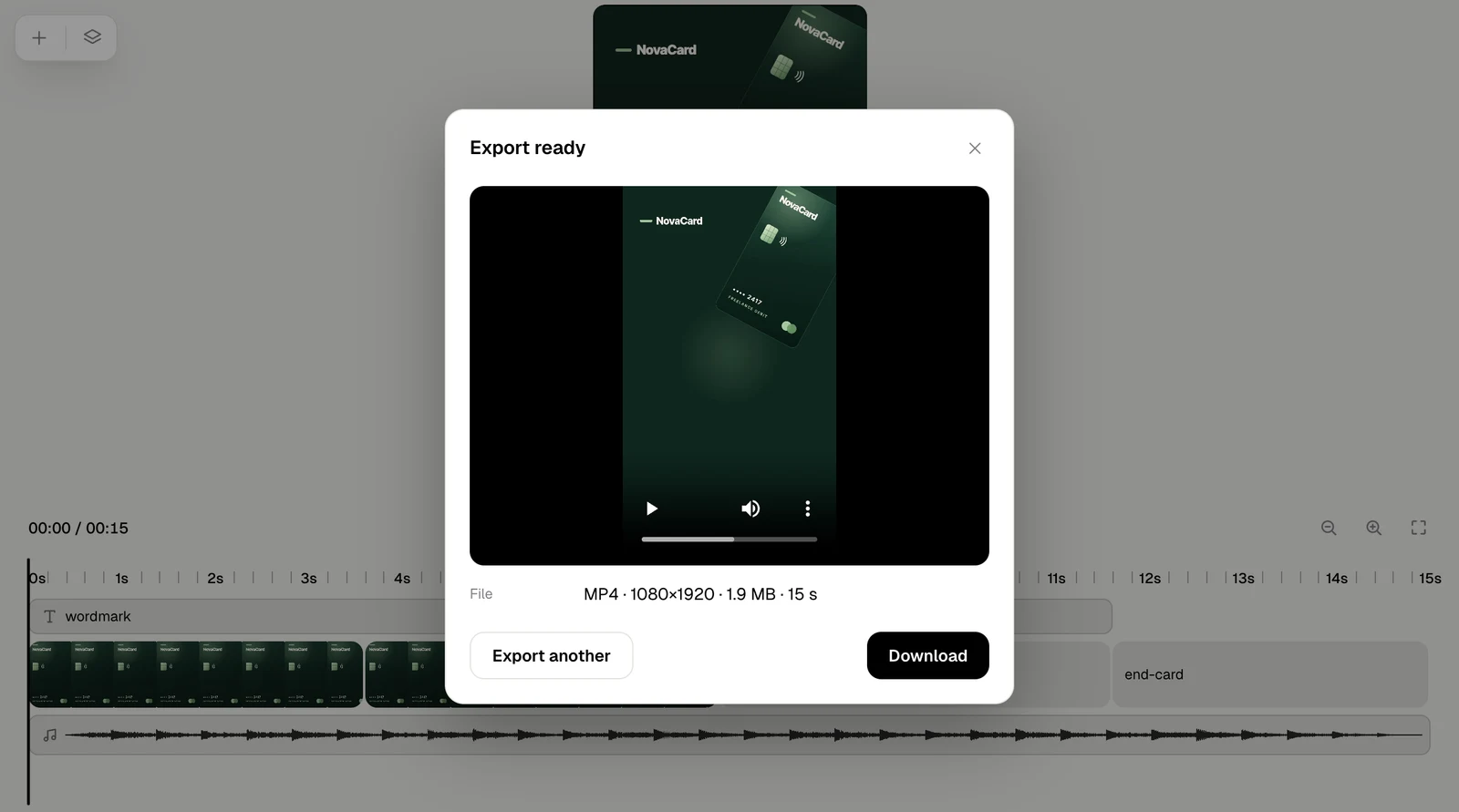
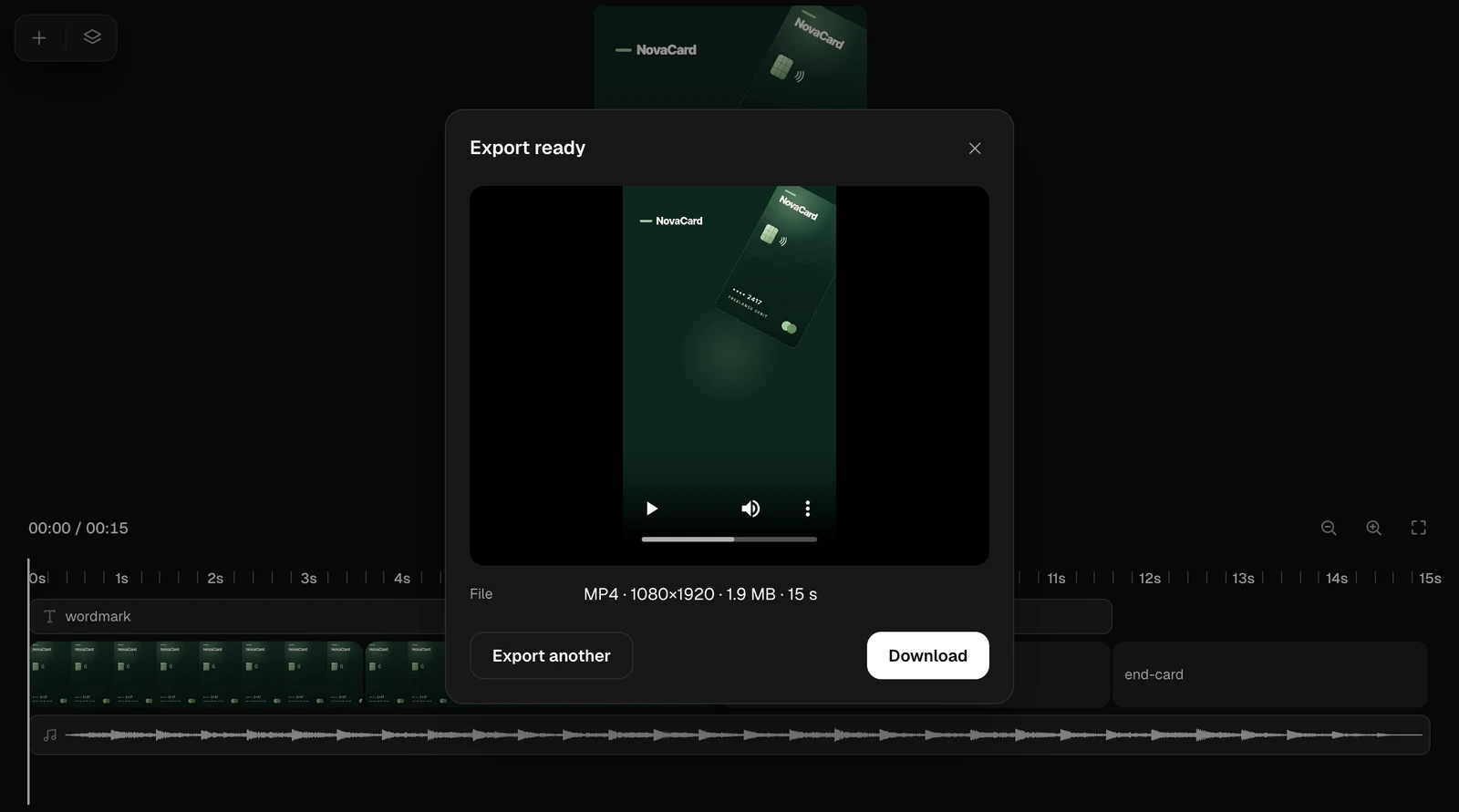
When it is done, Download saves the file, and Export another goes back to the settings.
Export ready with the file, Export another and Download, light themeExport ready with the file, Export another and Download, dark theme
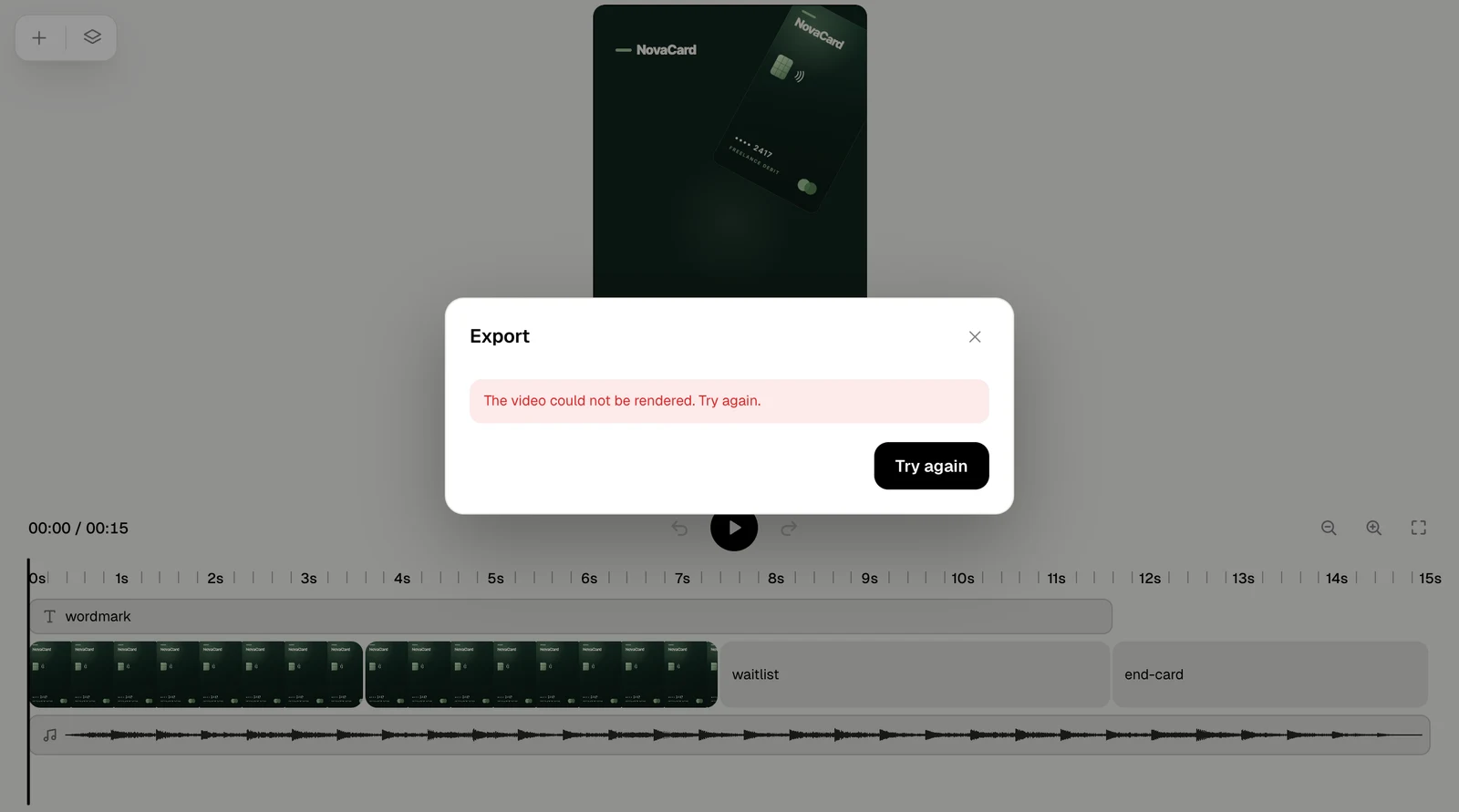
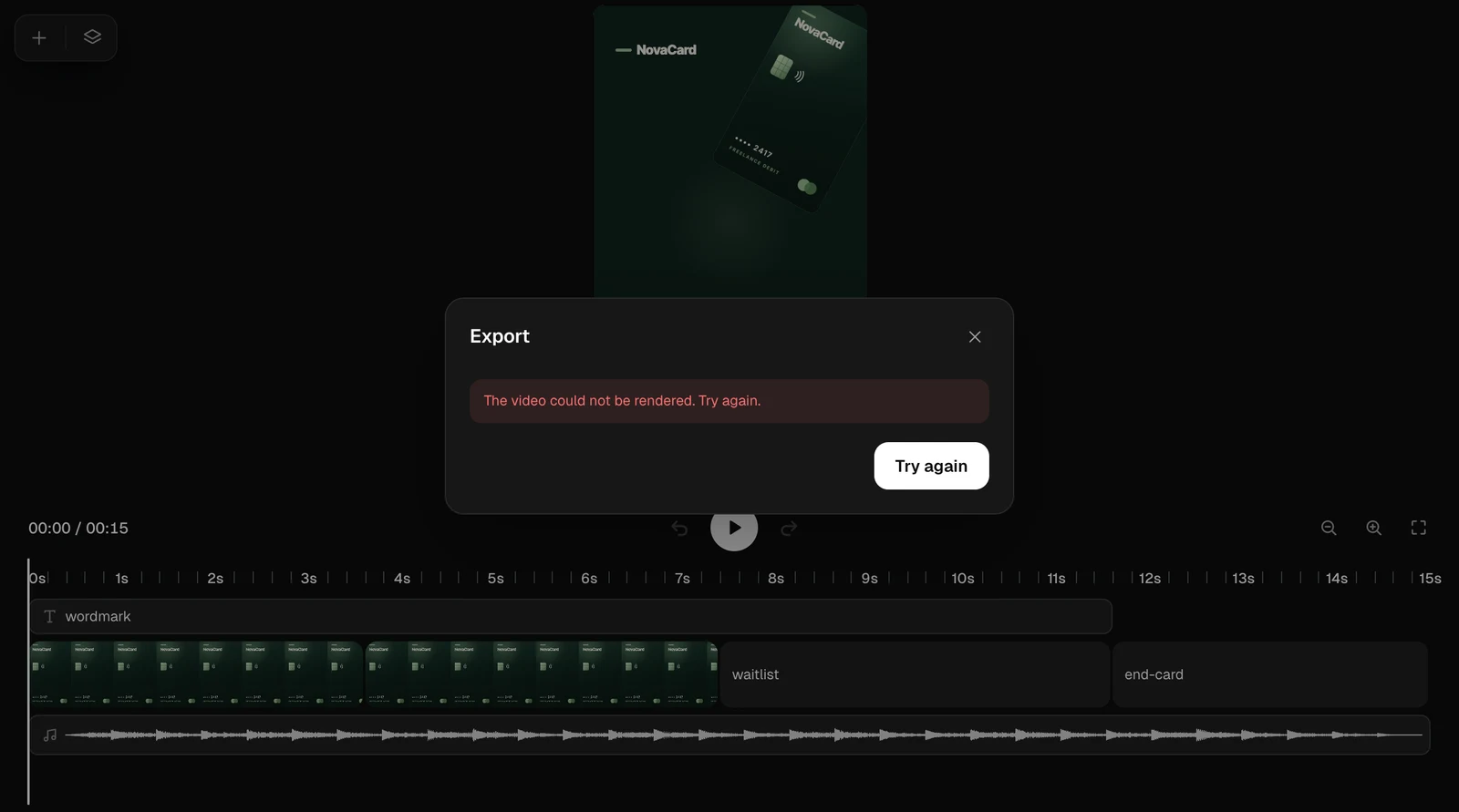
If rendering fails, Try again starts it over.
Export failed with Try again, light themeExport failed with Try again, dark theme

The player

Someone who can only view the video, and anyone while the agent is working on it, sees a player: play, the time, the playhead, sound on or off (M) and volume.
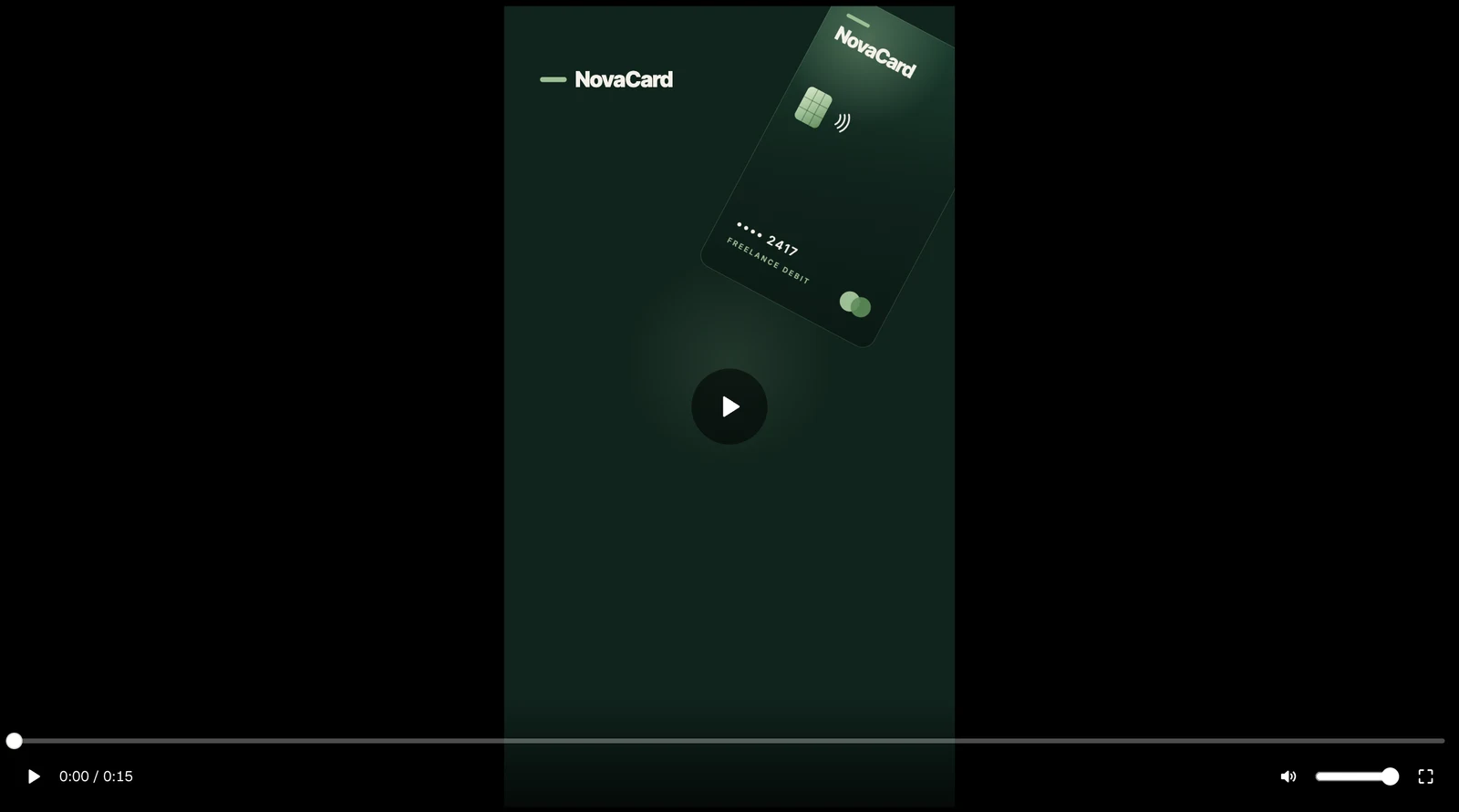
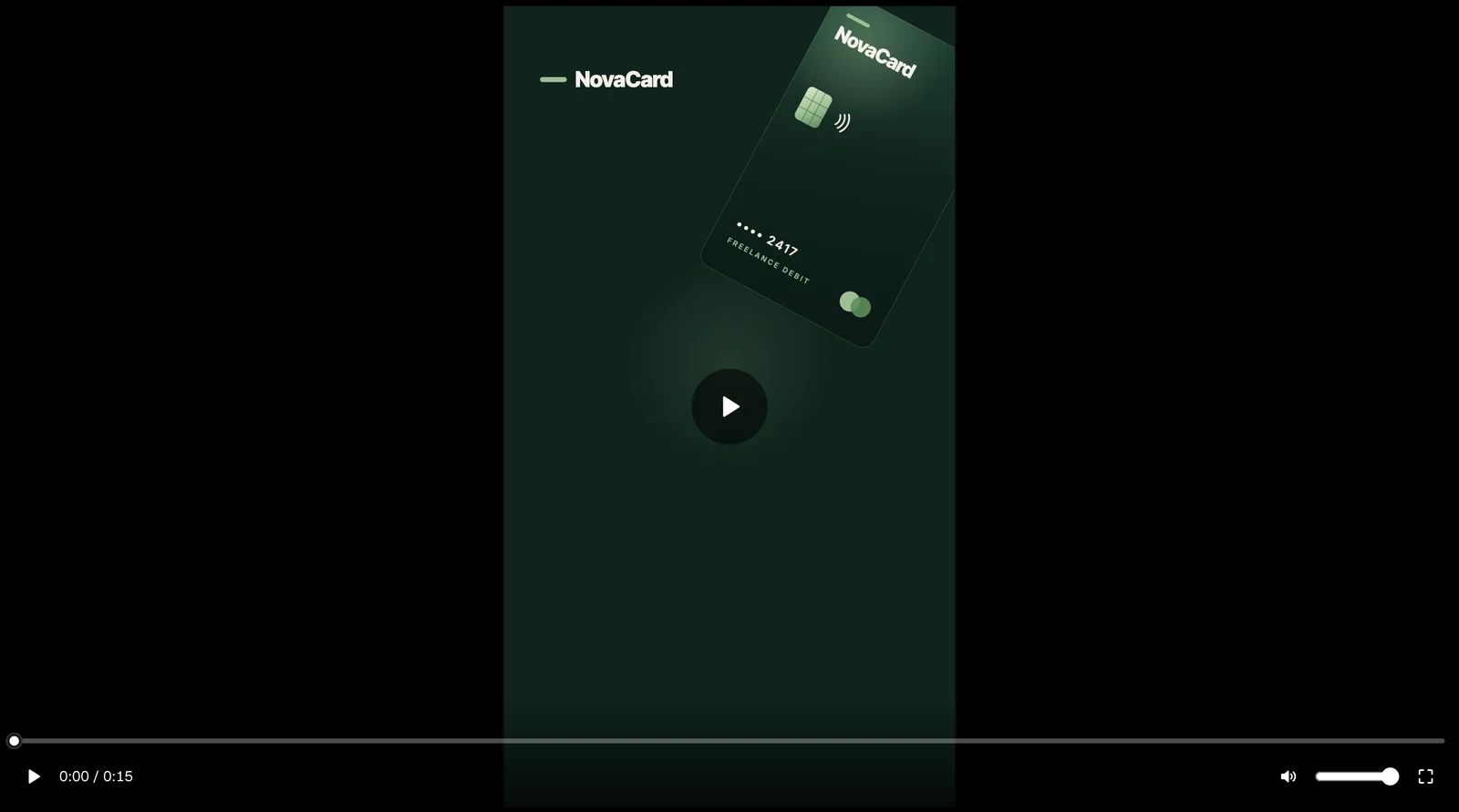
The video player with play, time and volume, light themeThe video player with play, time and volume, dark theme
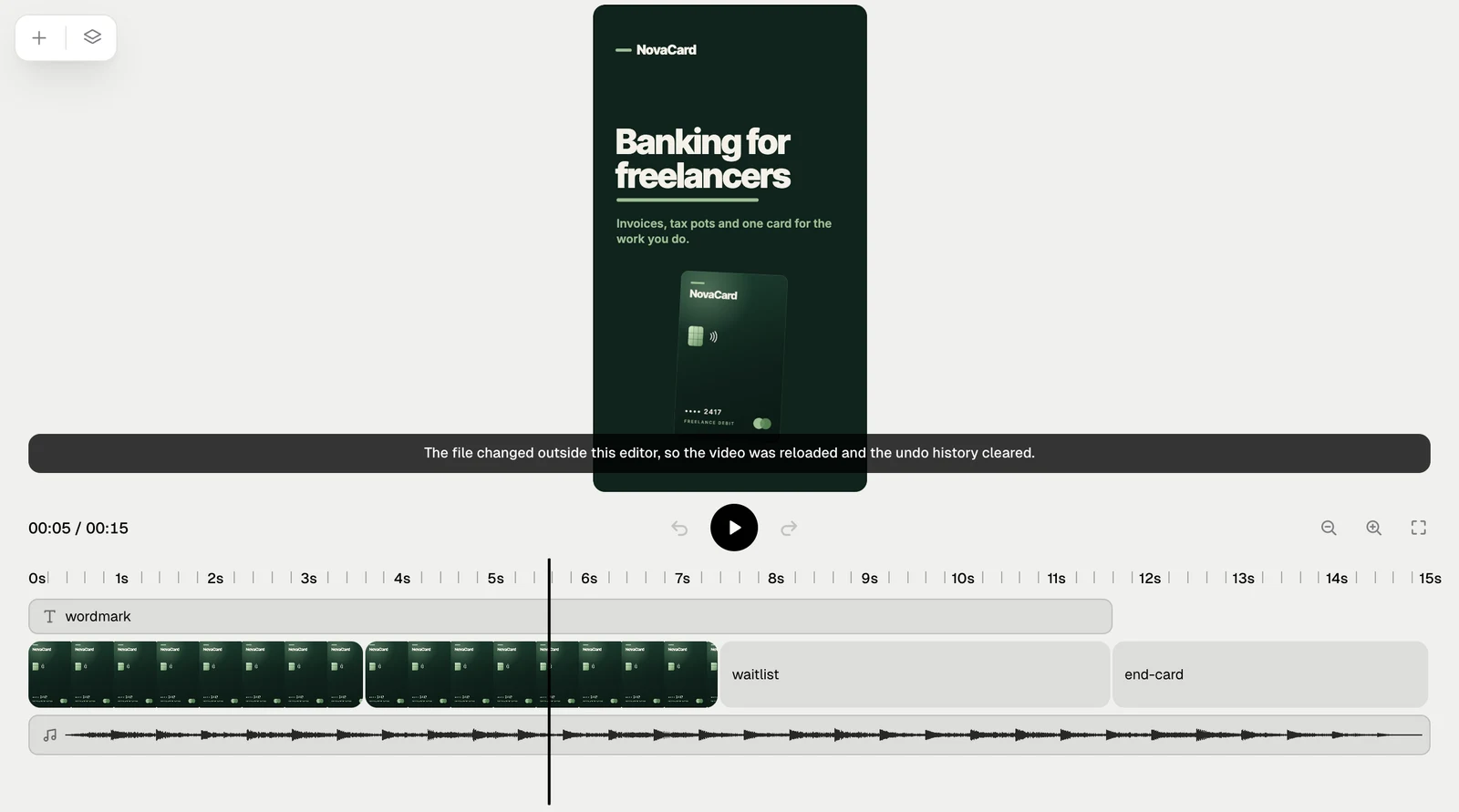
When the agent changes the video while you have it open, the editor loads the new version and says so. Undo starts again from there.
The message that the file changed outside this editor, light themeThe message that the file changed outside this editor, dark theme

Beside a chat

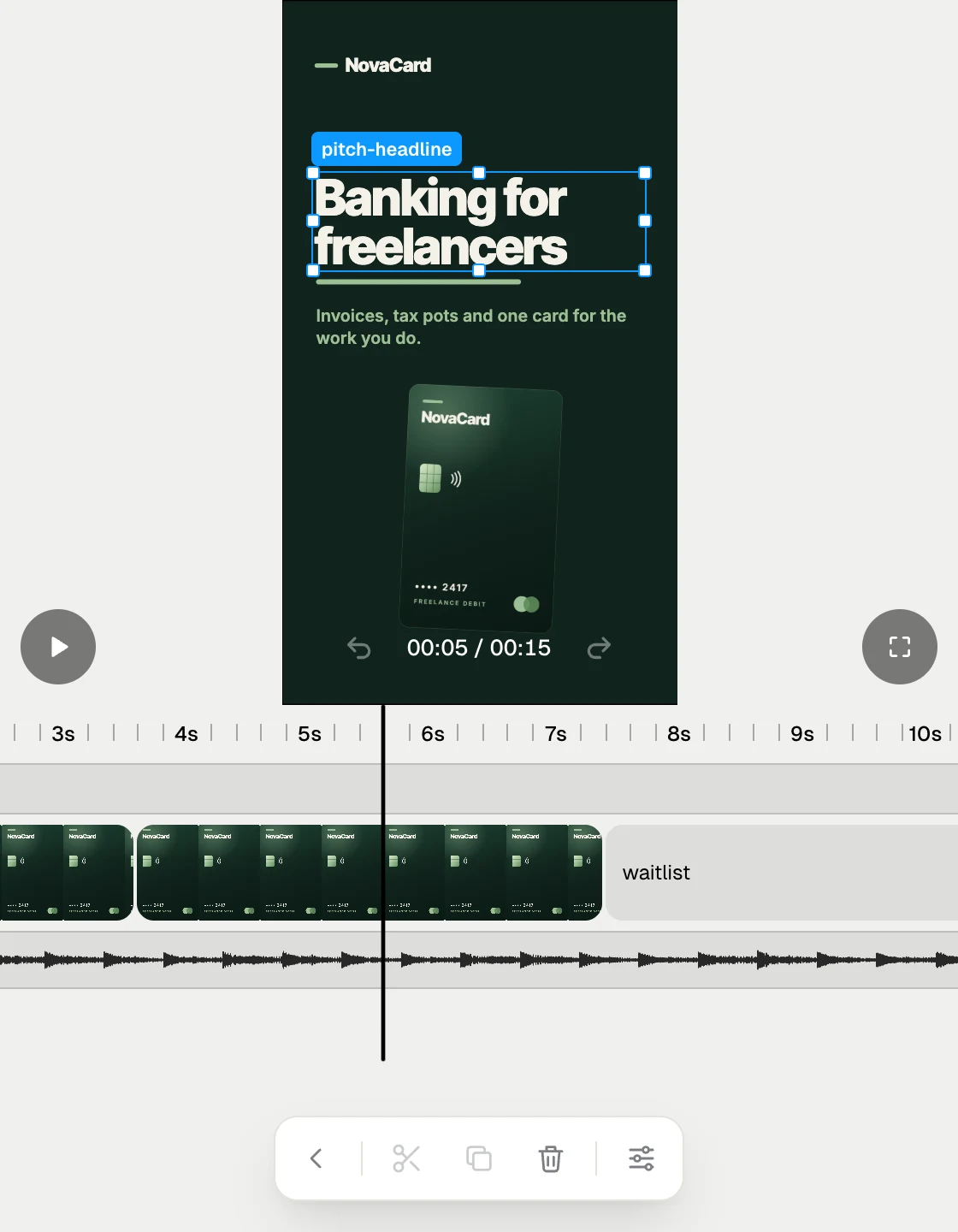
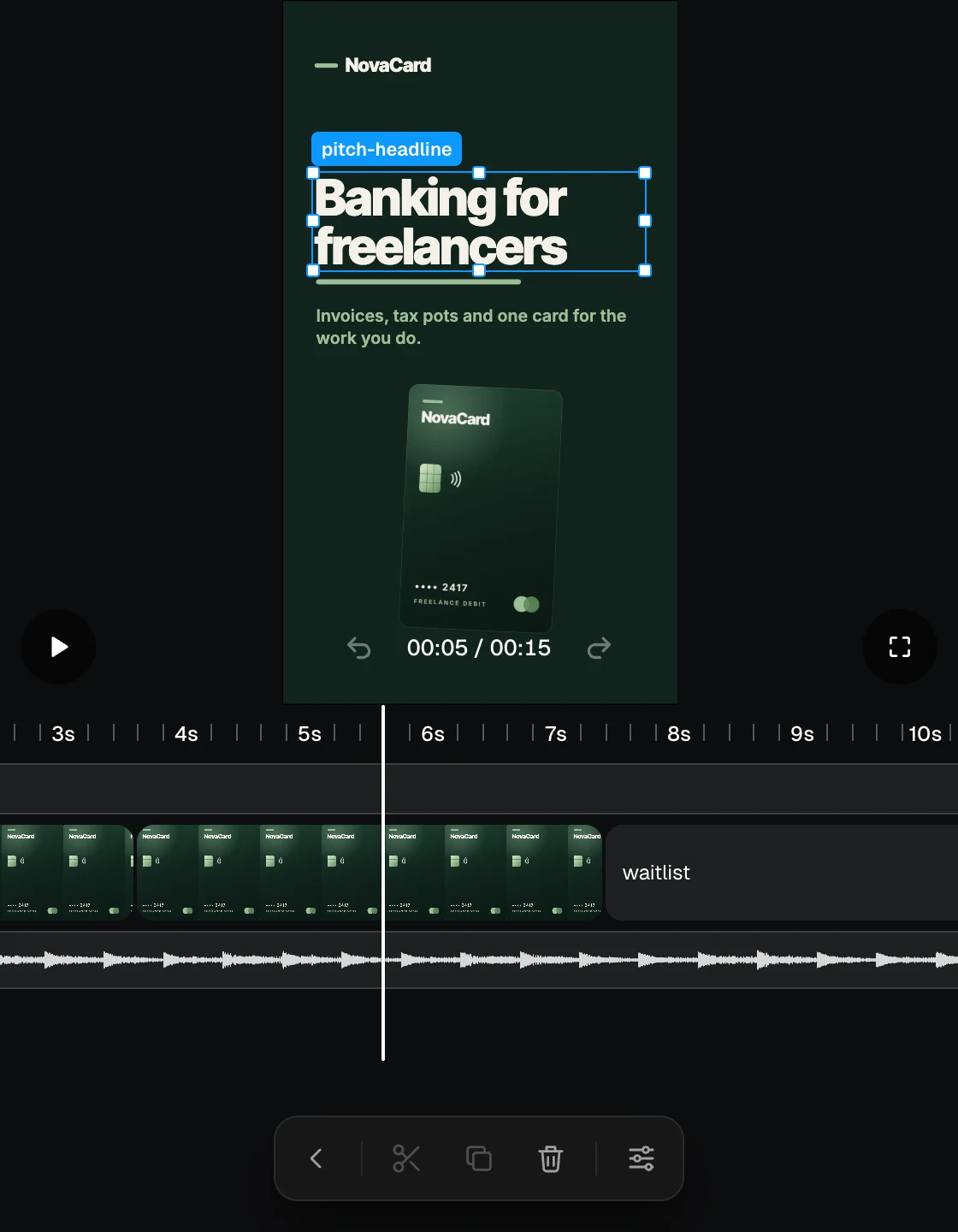
In the panel beside a chat, the buttons sit over the frame and the properties, files, layers and export open from the bottom.
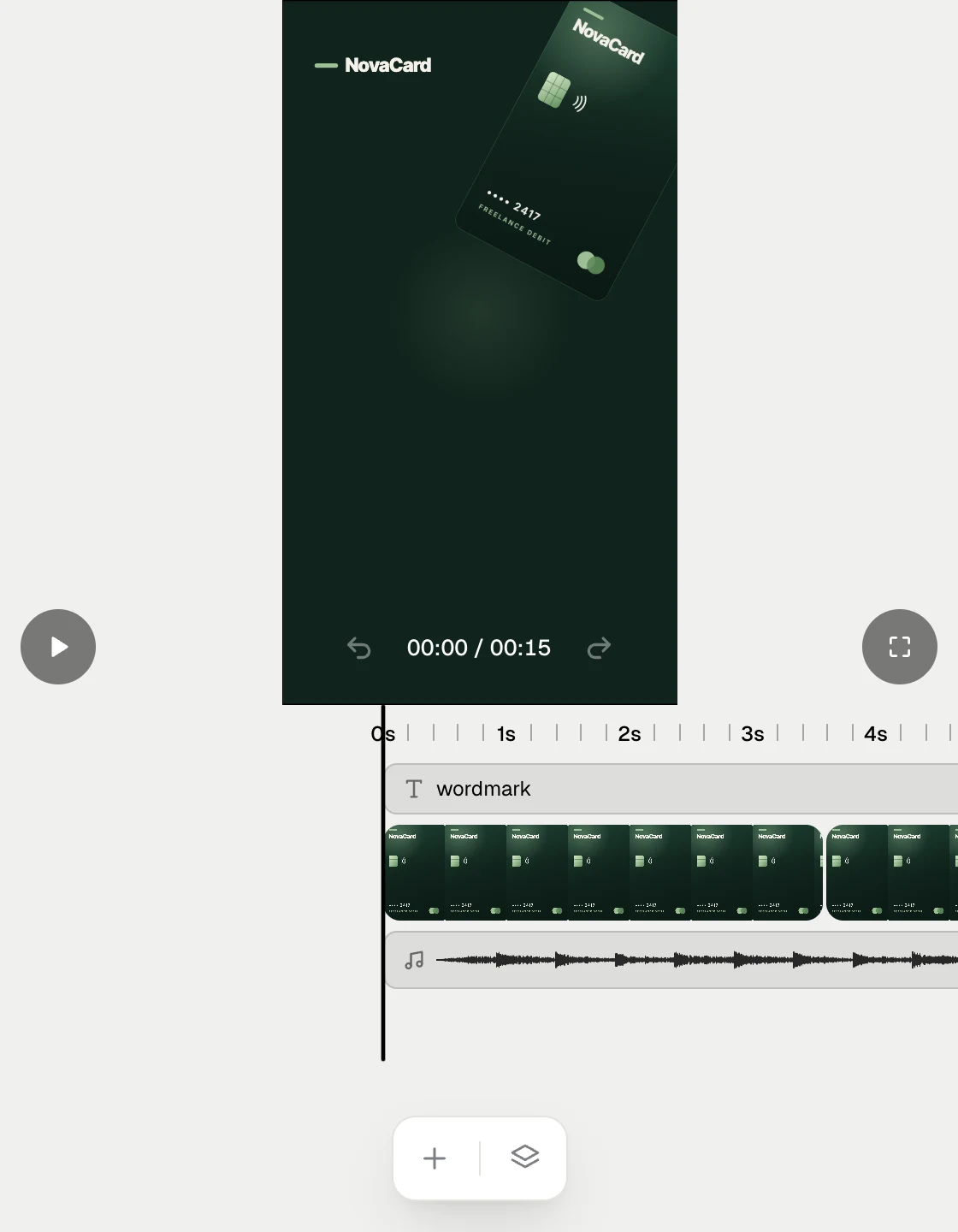
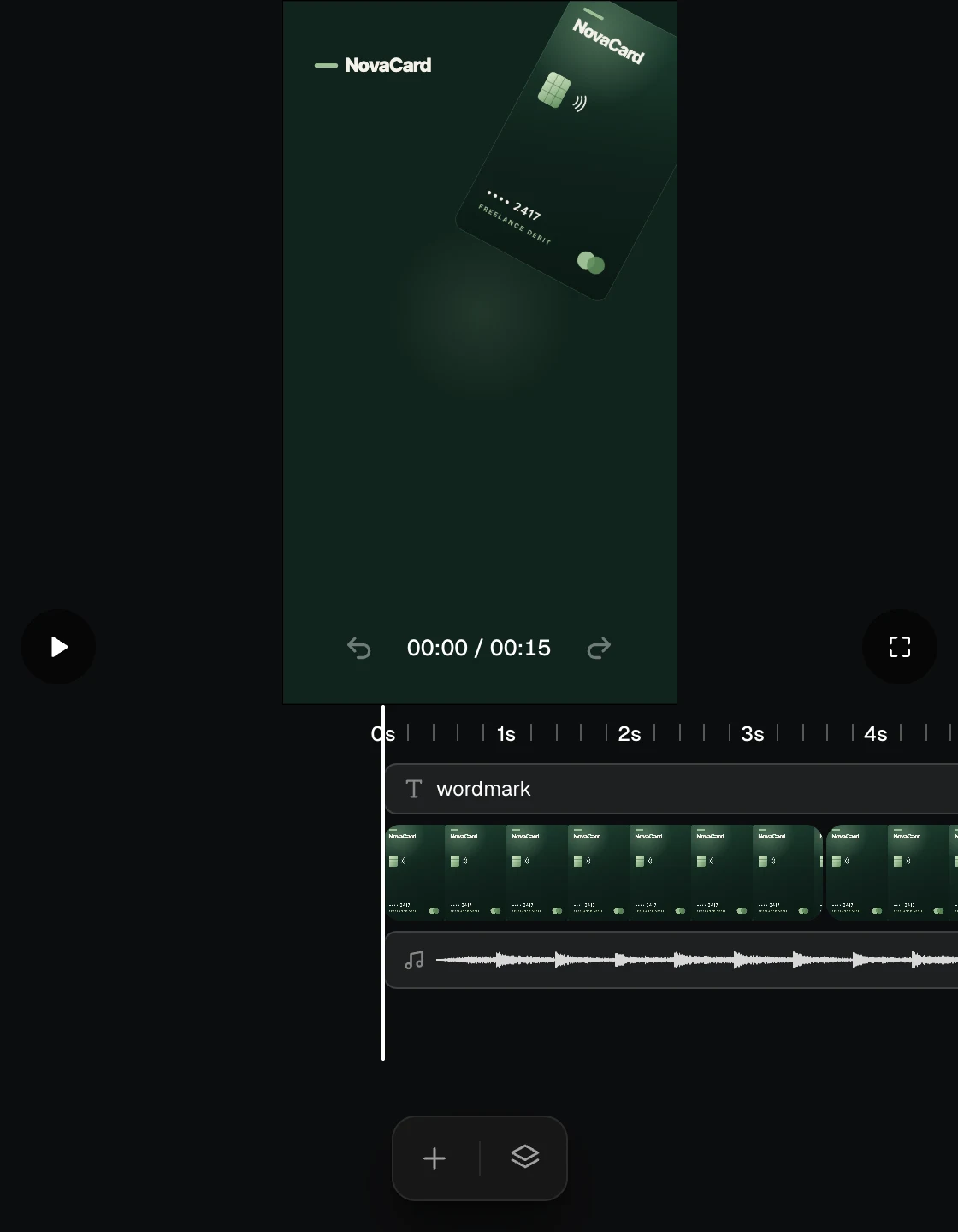
The Motion editor in the narrow chat panel, light themeThe Motion editor in the narrow chat panel, dark theme
Selected text with actions at the bottom in the narrow chat panel, light themeSelected text with actions at the bottom in the narrow chat panel, dark theme
The Export sheet in the narrow chat panel, light themeThe Export sheet in the narrow chat panel, dark theme