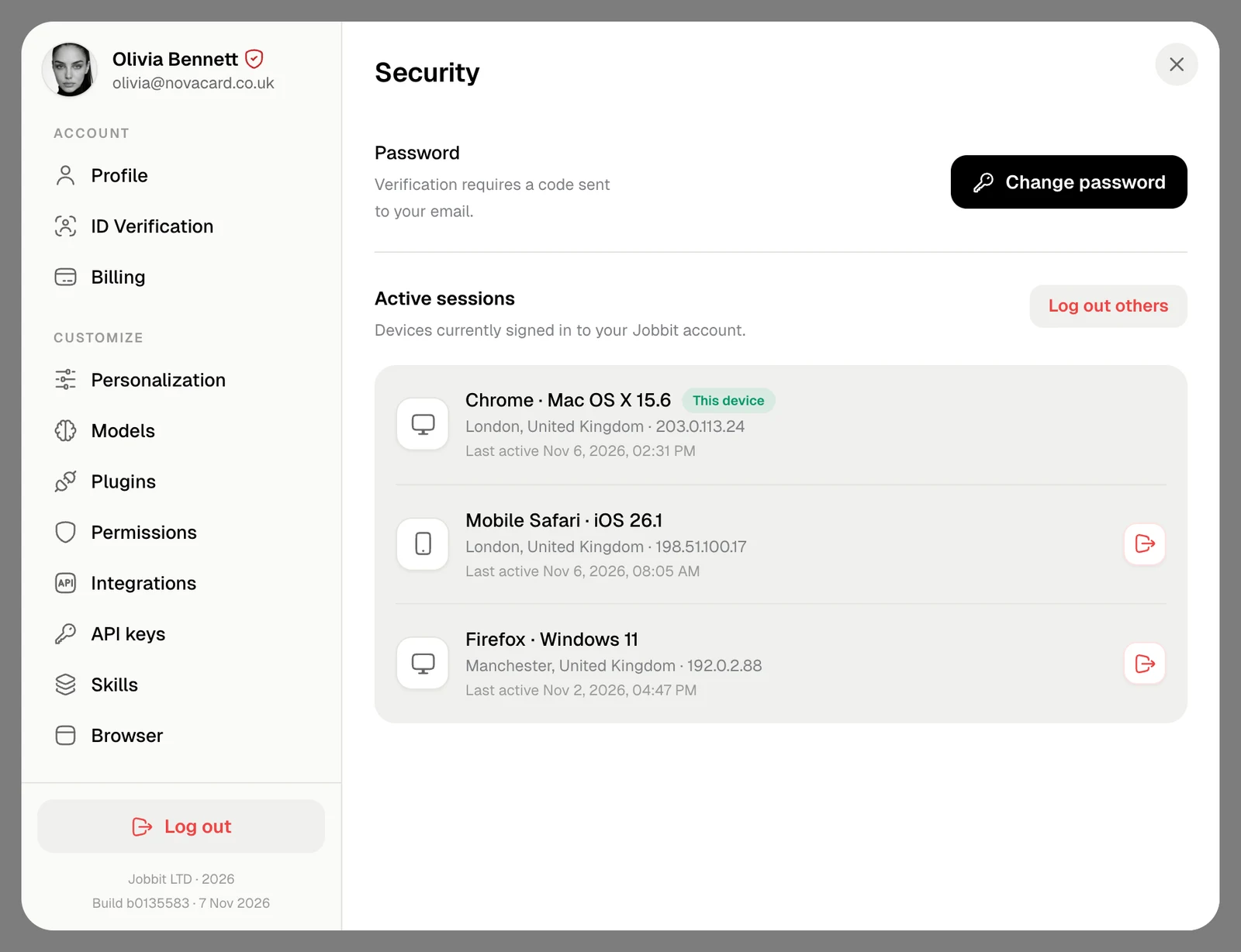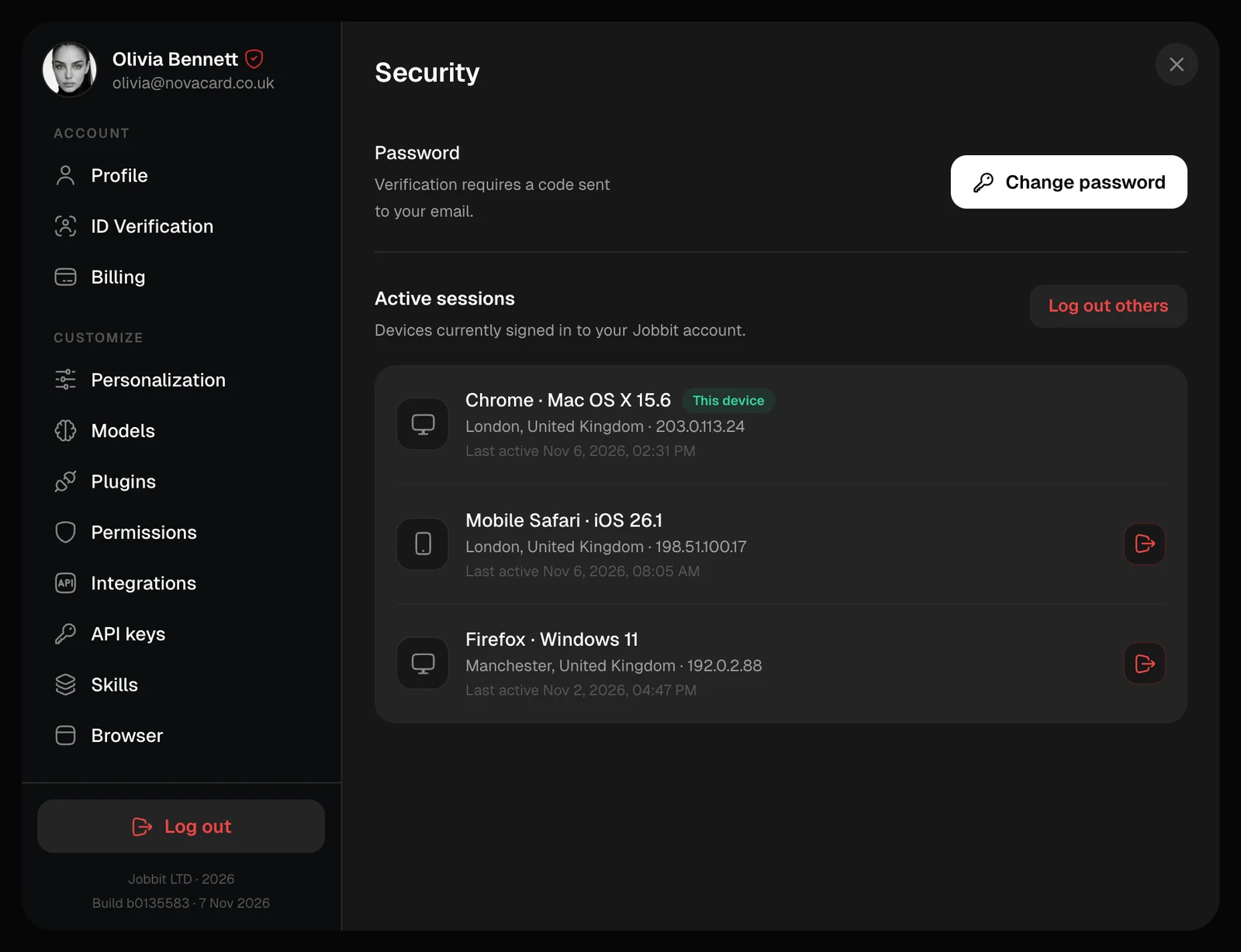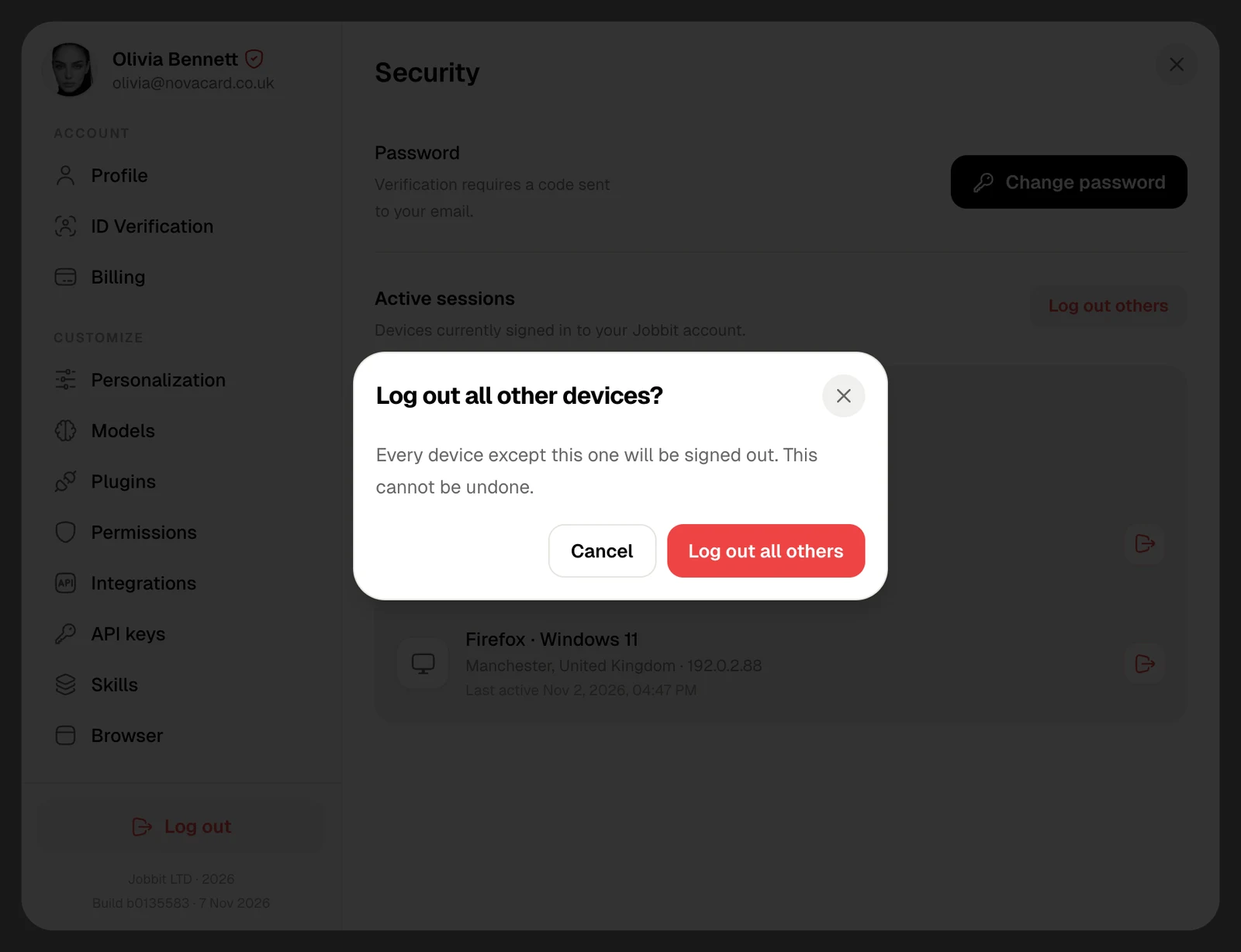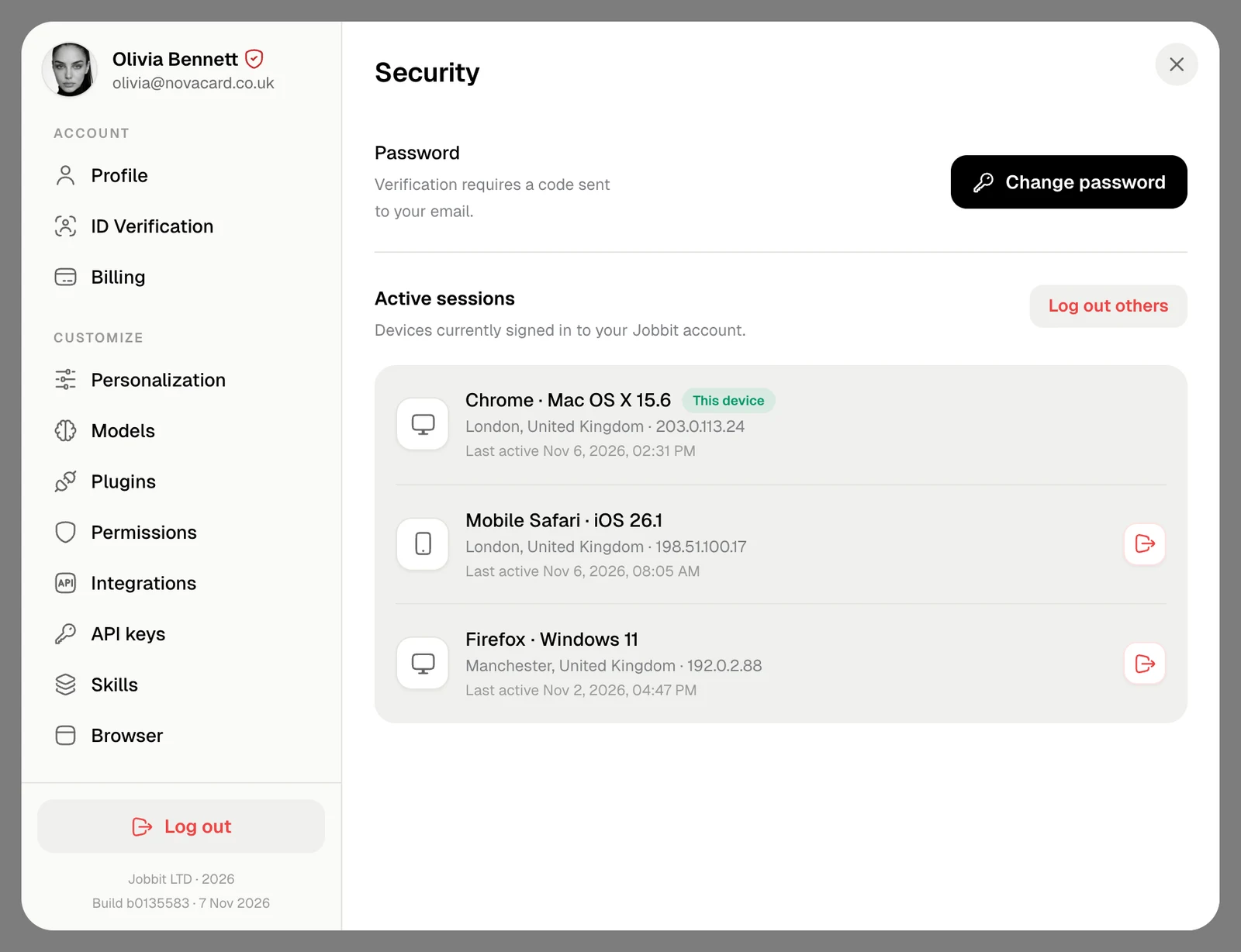
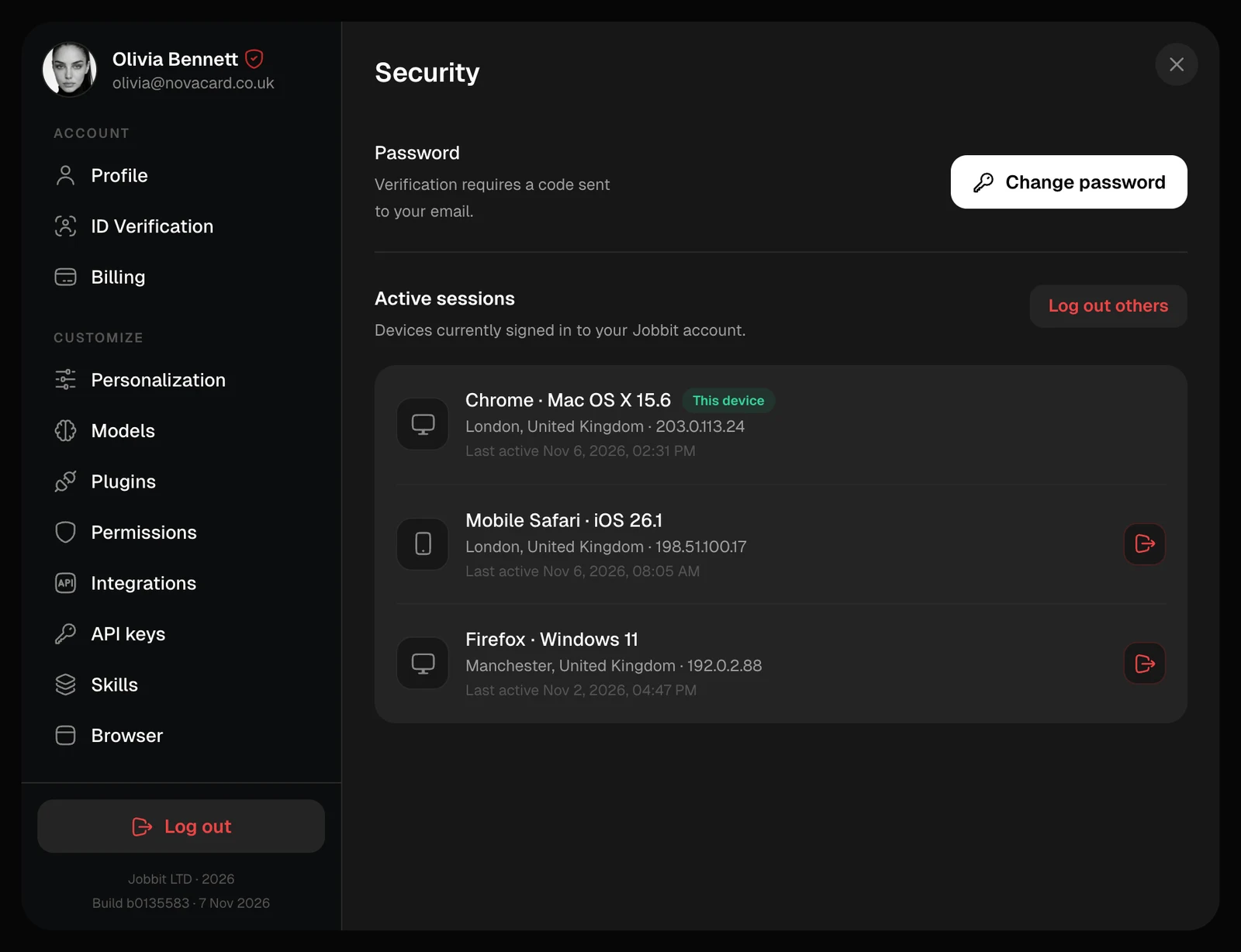
Settings › Security is where you change your password and see where you are signed in.
Security with the password and three active sessions, light themeSecurity with the password and three active sessions, dark theme

Change your password

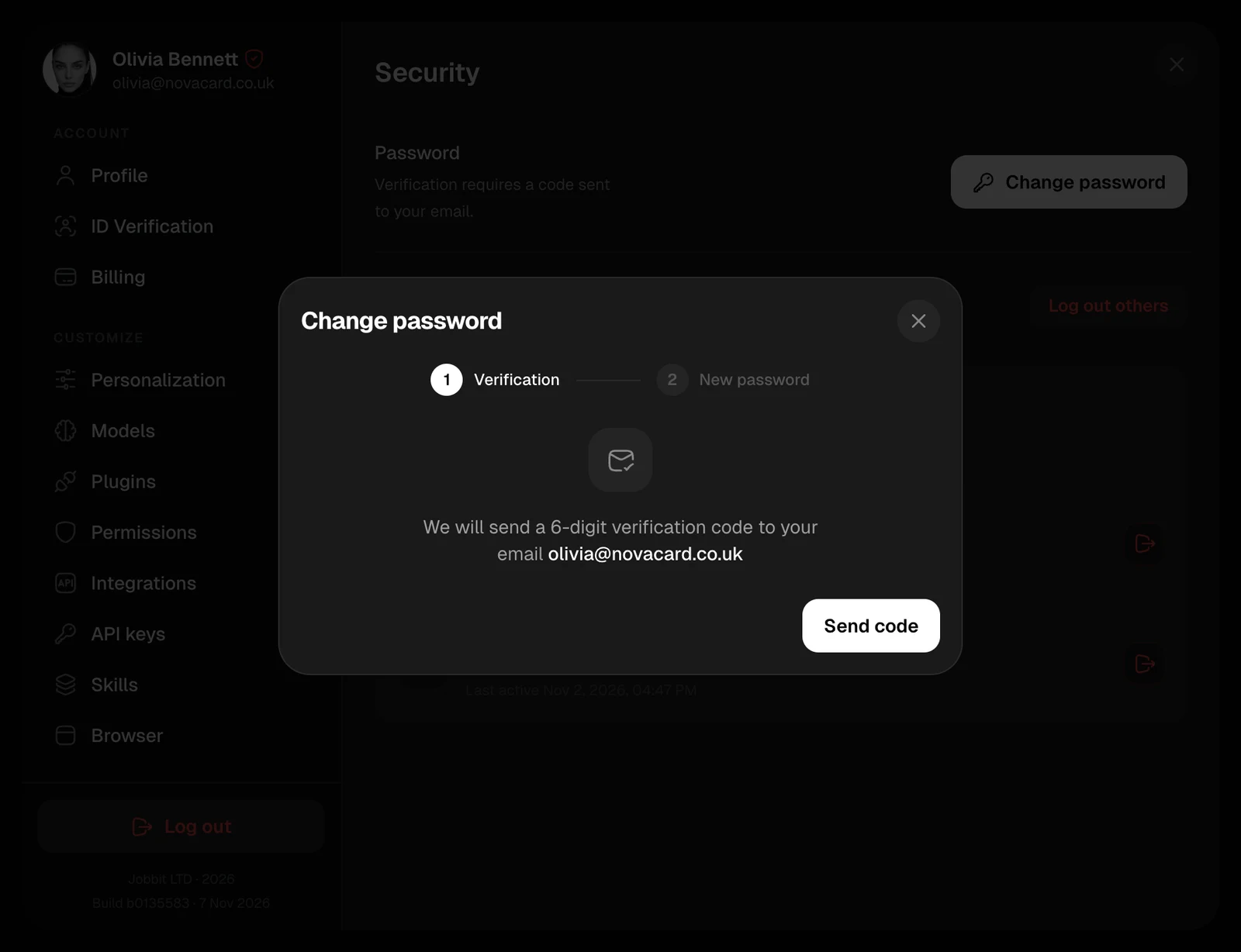
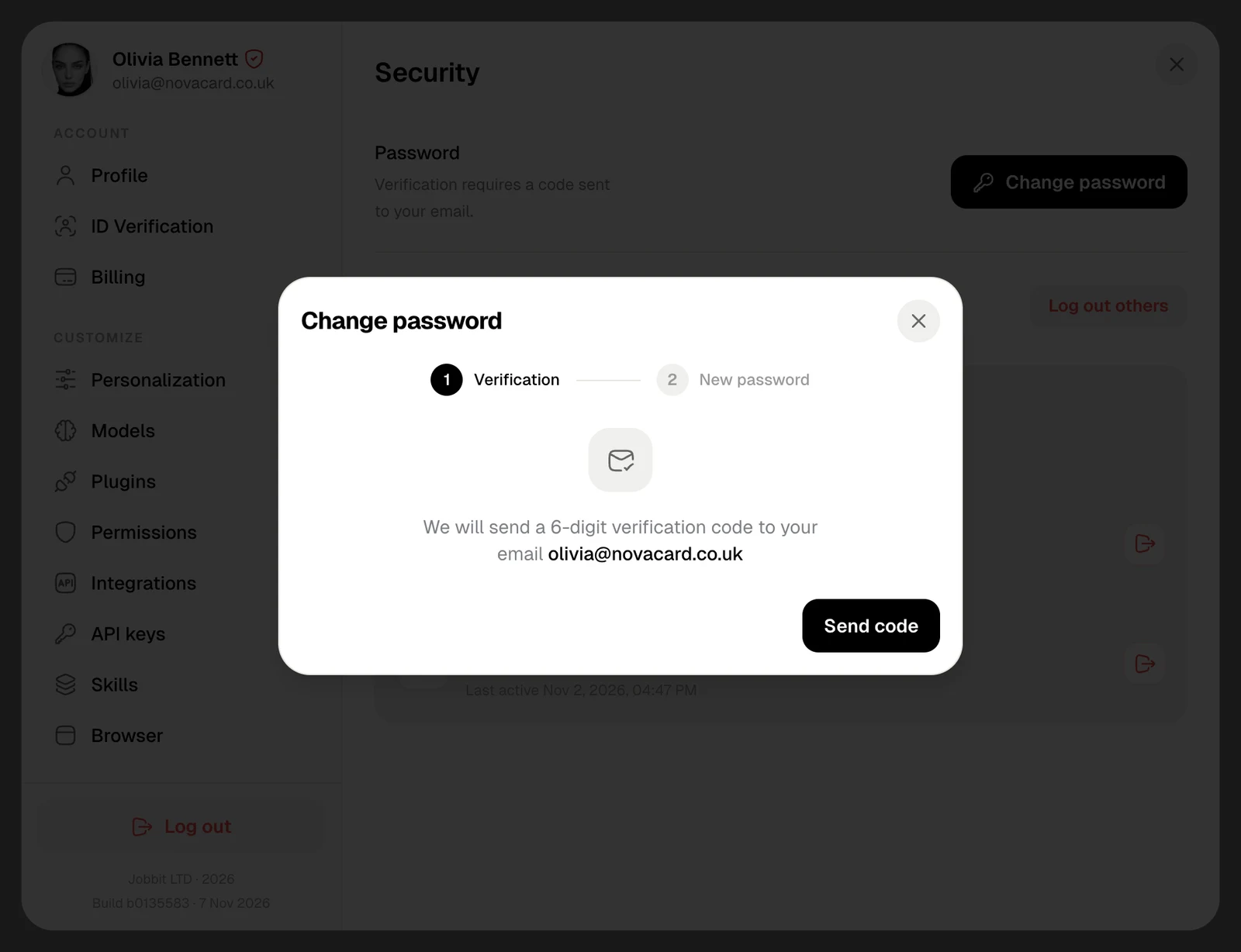
Changing the password takes a code sent to your email, or to your phone if your account has no email. Without either, add one in Profile first.
1

Send the code

Choose Change password, then Send code.
2

Set the new password

Enter the 6-digit code and a new password of at least 8 characters, twice. Resend code sends another one after a minute.
3

Sign in again

Choose Update password. You are signed out, so sign in with the new password.
The Change password window with Send code, light themeThe Change password window with Send code, dark theme
The Change password window with the code and new password fields, light themeThe Change password window with the code and new password fields, dark theme

Active sessions

Every device signed in to your account: the browser and system, the city and IP address, and when it was last active. The one you are using is marked This device.
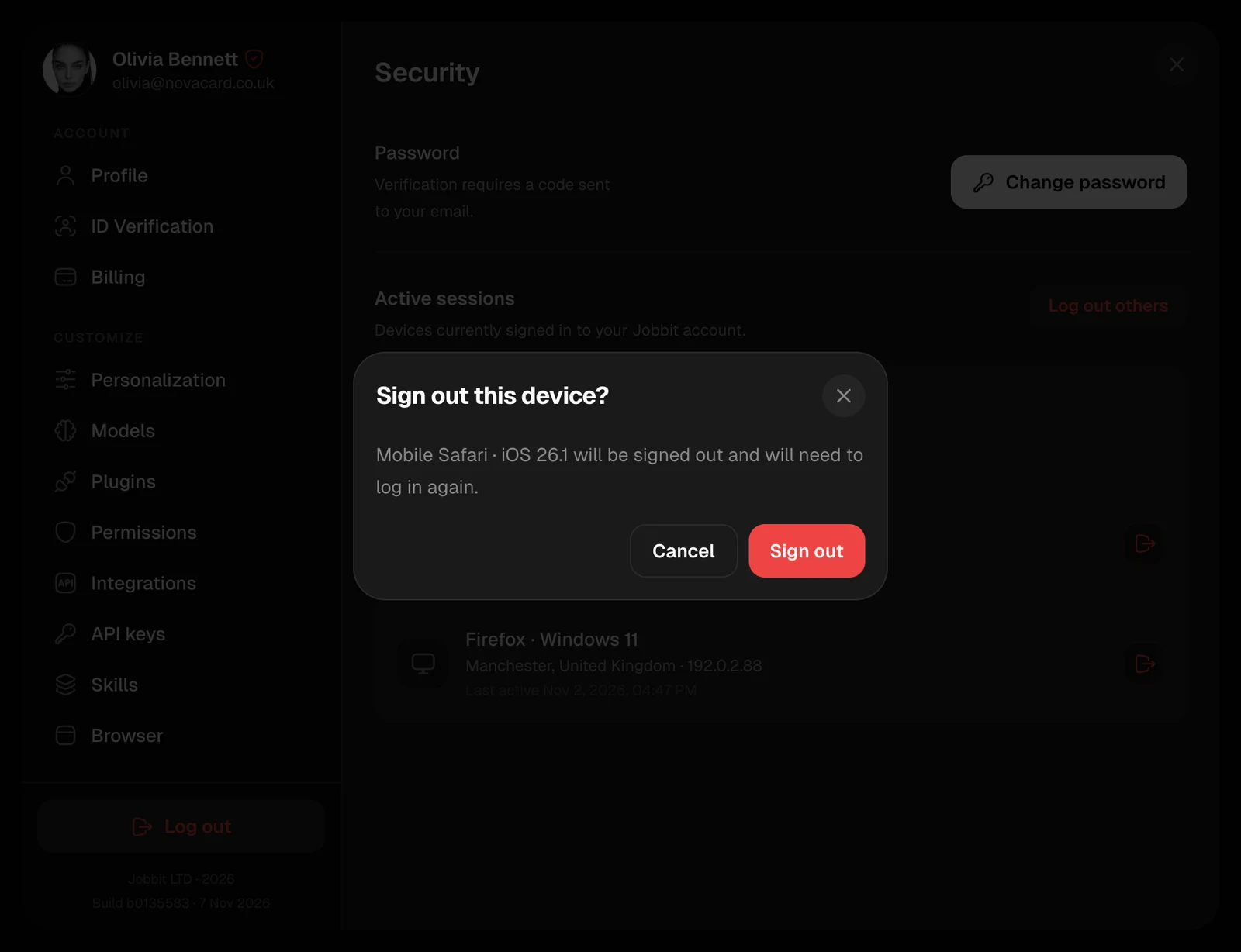
  • The sign-out button on a session signs that device out, after you confirm.
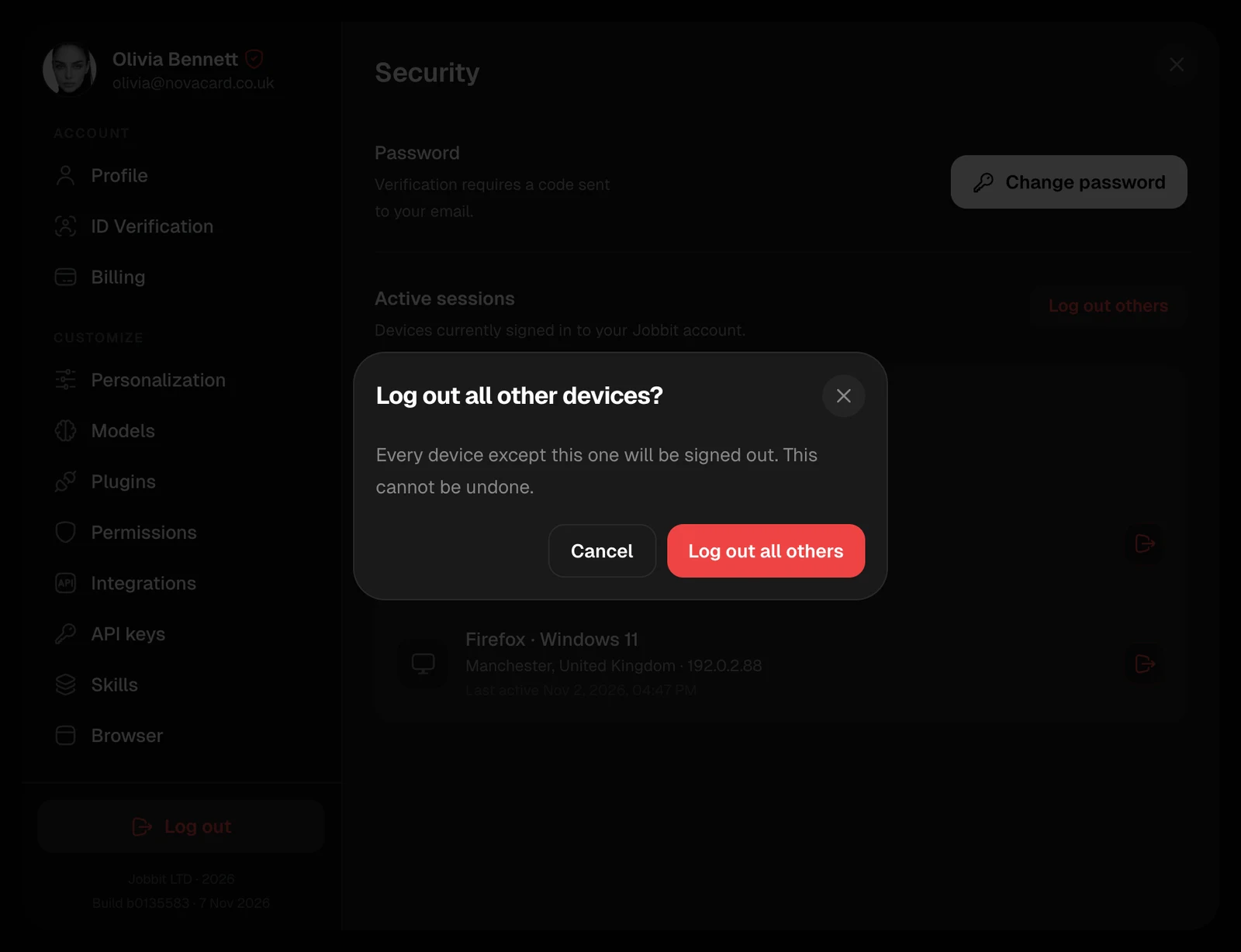
  • Log out others signs out every device except this one. It cannot be undone.
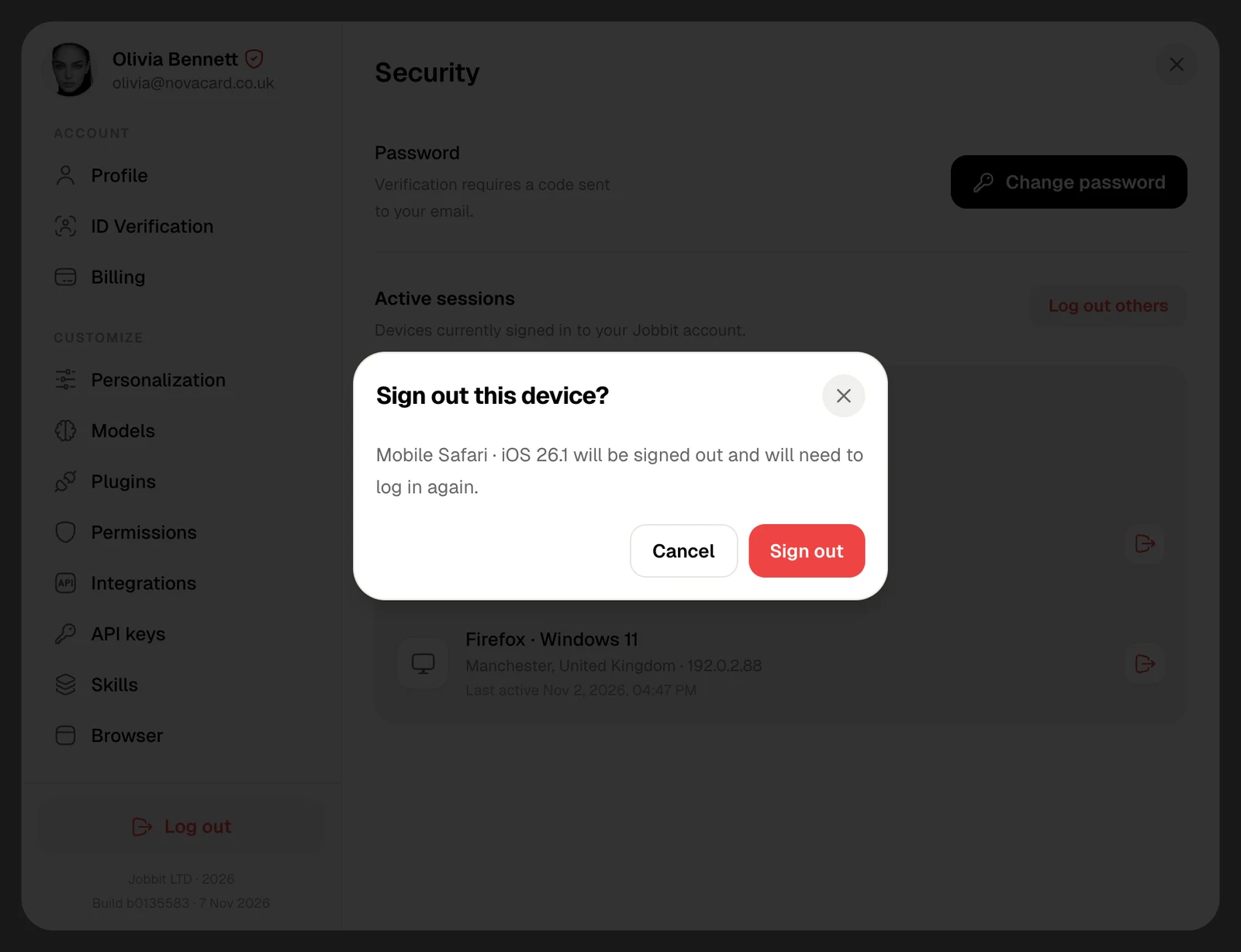
The Sign out this device window, light themeThe Sign out this device window, dark theme
The Log out all other devices window, light themeThe Log out all other devices window, dark theme
See a device you do not recognise? Sign it out and change your password.