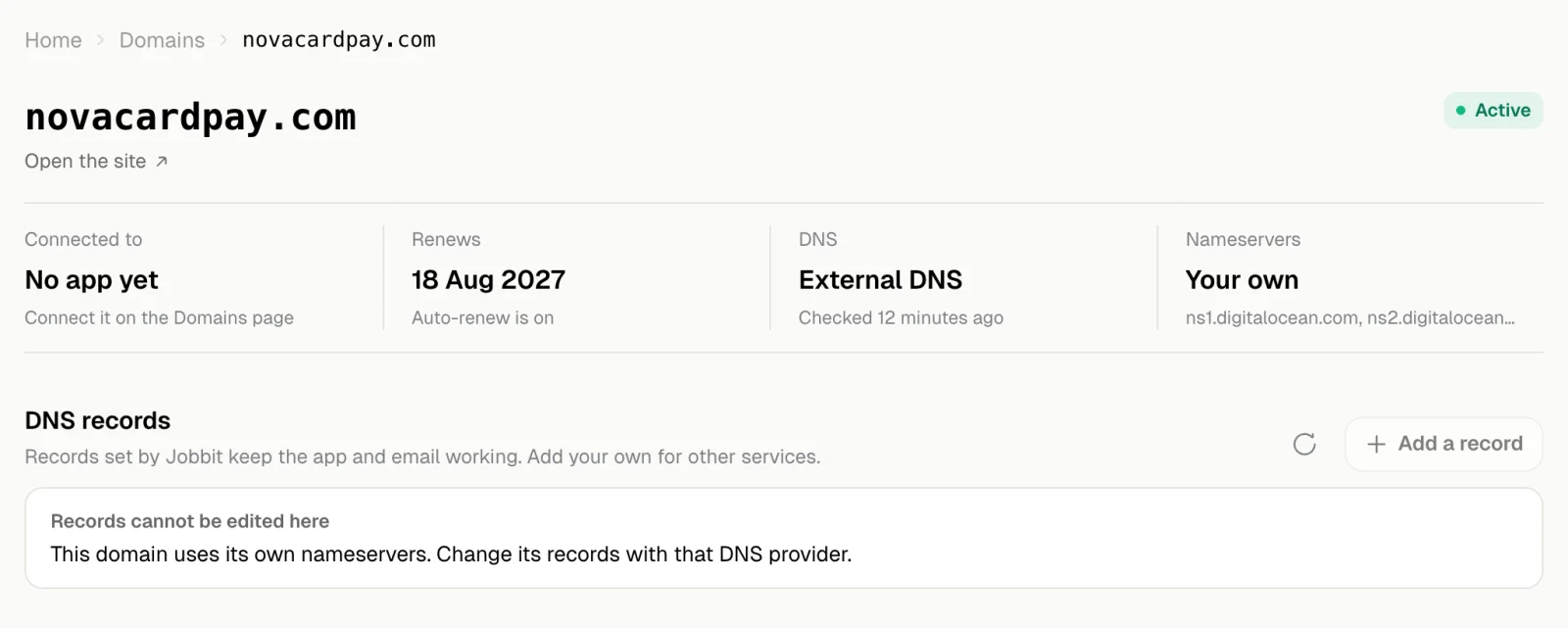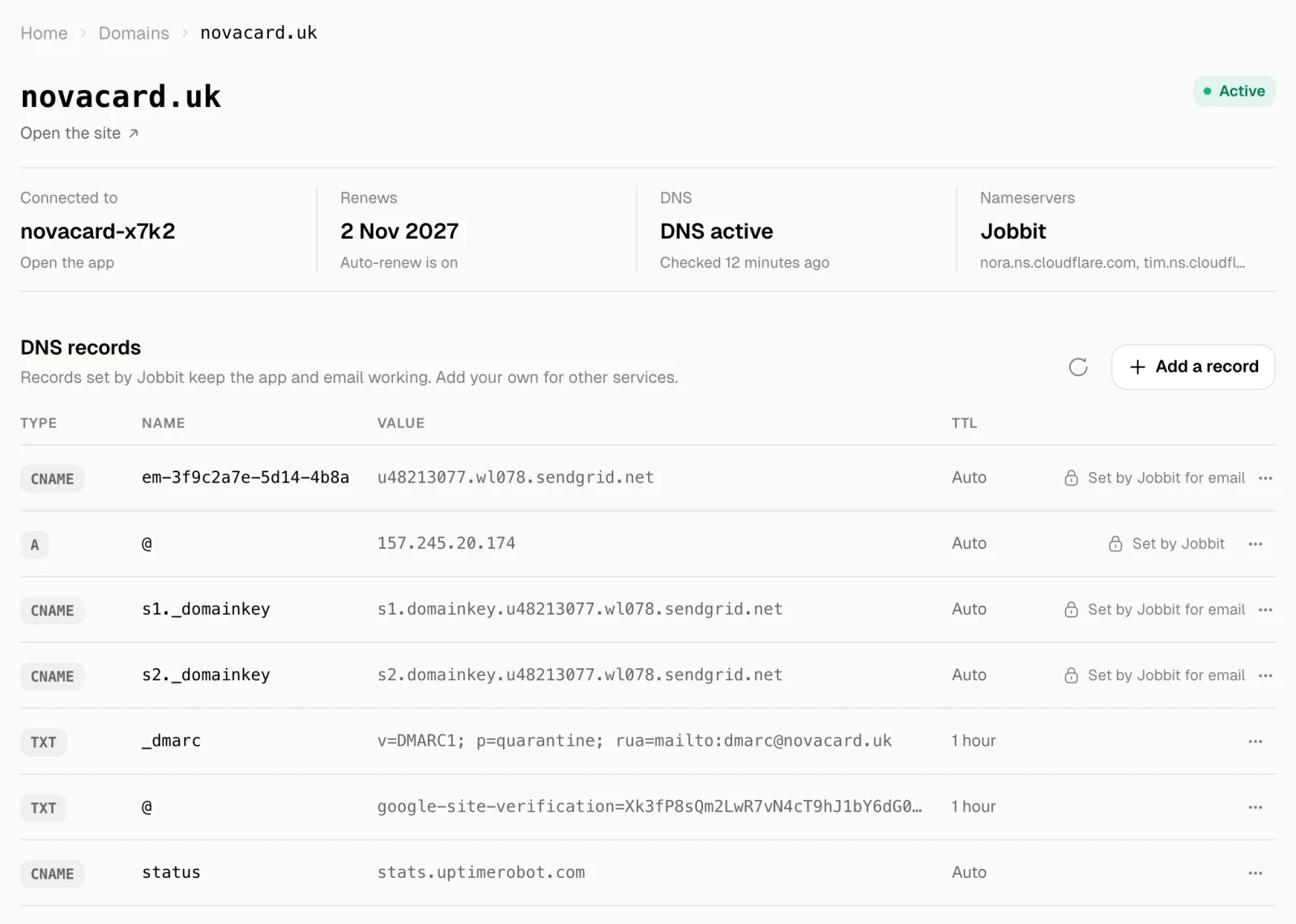
At the top
| Fact | What it shows |
|---|---|
| Connected to | The app the domain opens, with Open the app, or No app yet |
| Renews / Expires | The date, and whether auto-renew is on. See Renewal |
| DNS | The state of its DNS and when Jobbit last checked it |
| Nameservers | Jobbit, or Your own, and the nameservers themselves |
| DNS state | Meaning |
|---|---|
| Setting up DNS | Jobbit is creating the domain’s DNS |
| DNS propagating | The registry is switching the domain to Jobbit’s nameservers |
| DNS active | Everything works |
| External DNS | The domain uses nameservers of its own |
| DNS issue | Something is wrong. The note says what |
Records Jobbit sets
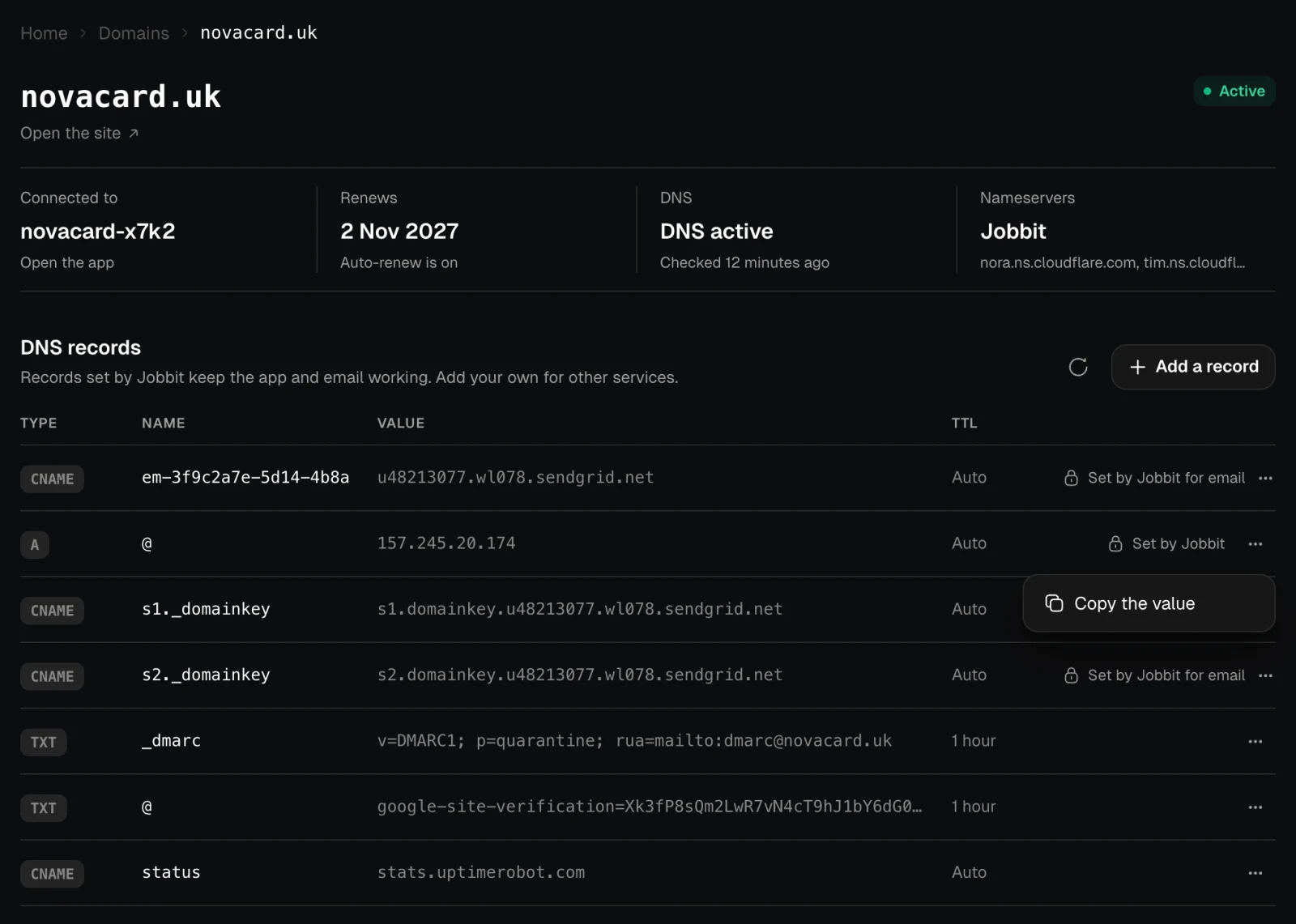
Records marked Set by Jobbit make the connected app open at the domain. Records marked Set by Jobbit for email let the app send email from it. Jobbit keeps them up to date and they cannot be changed here; their menu only has Copy the value.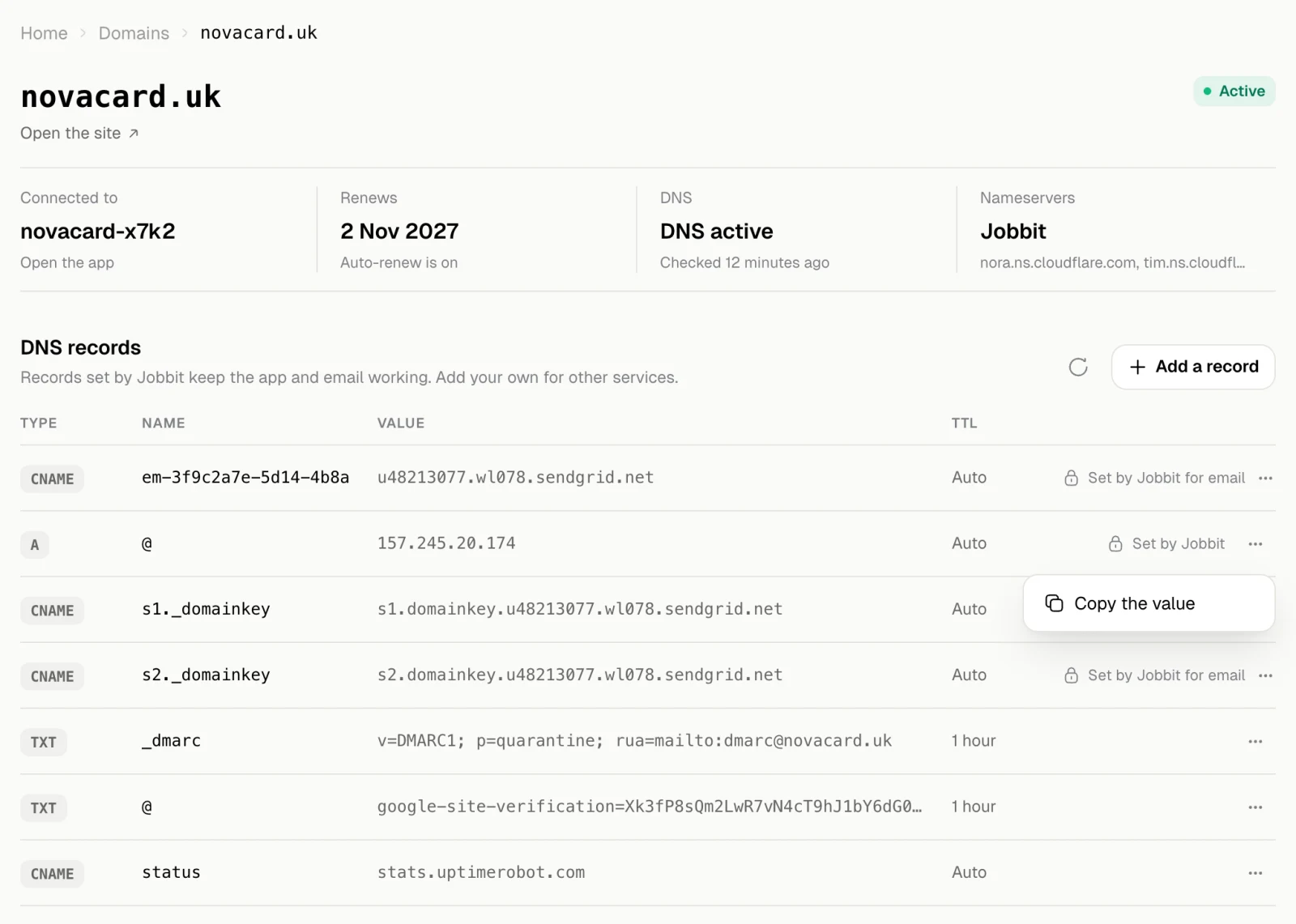
Add a record
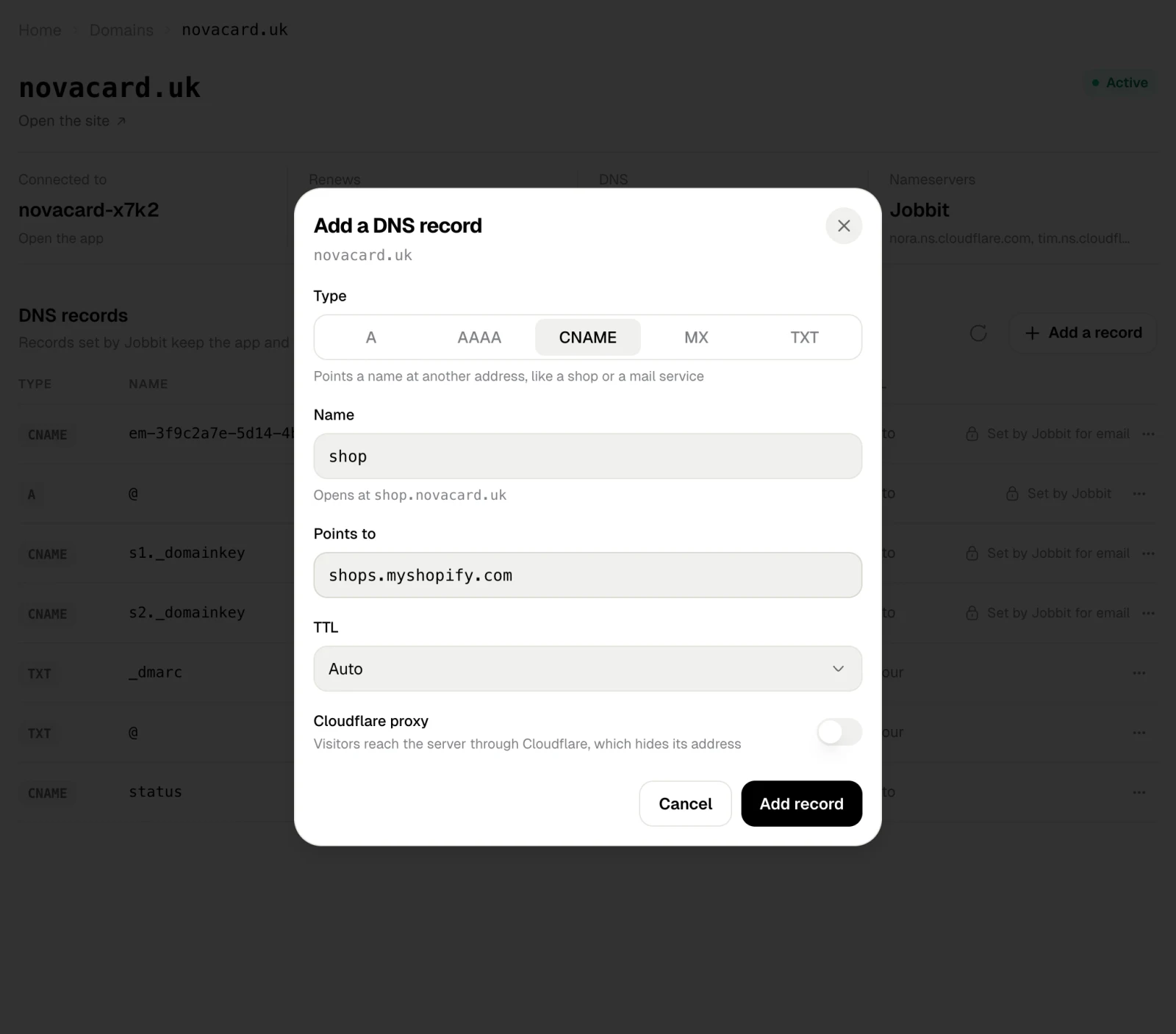
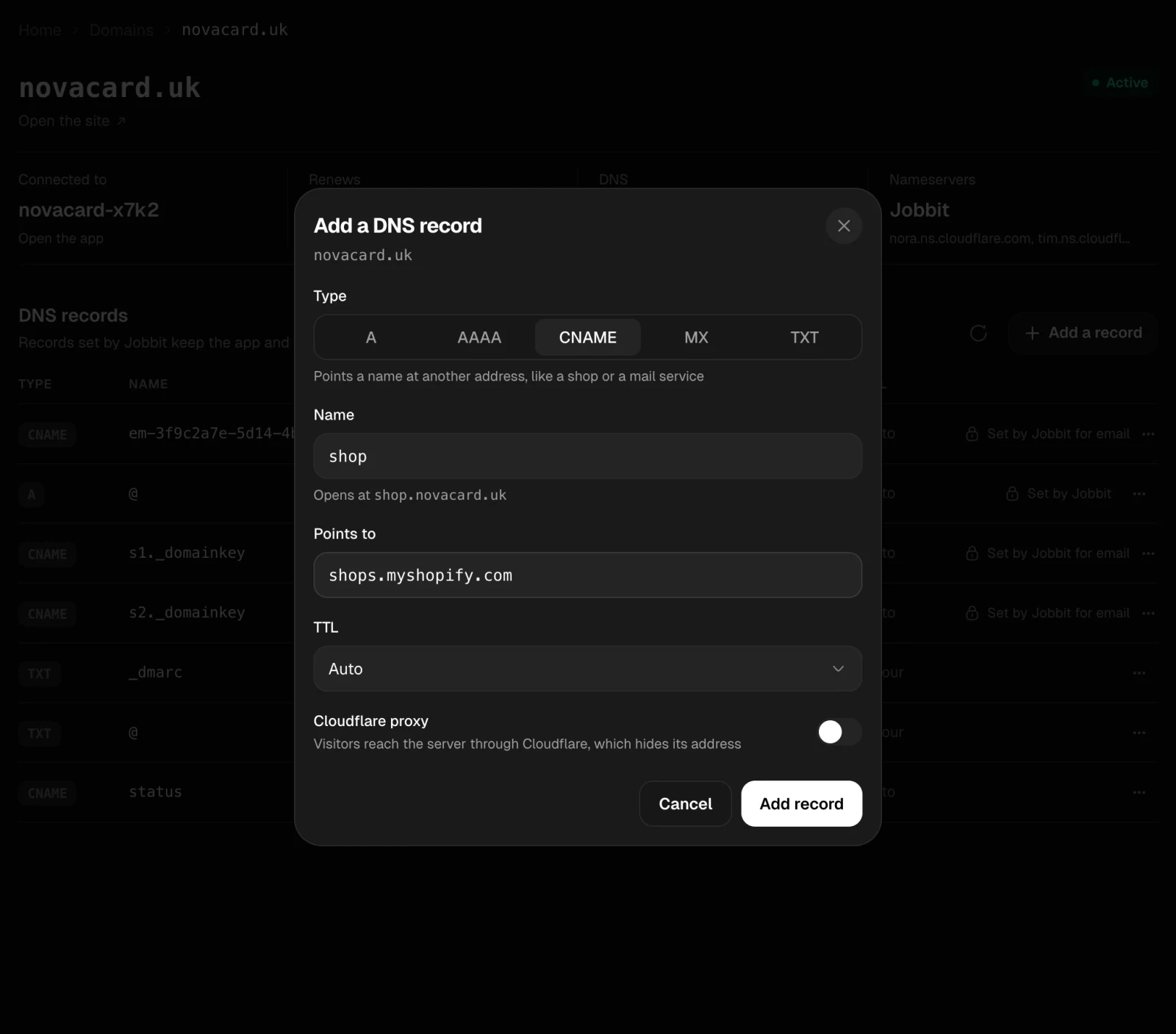
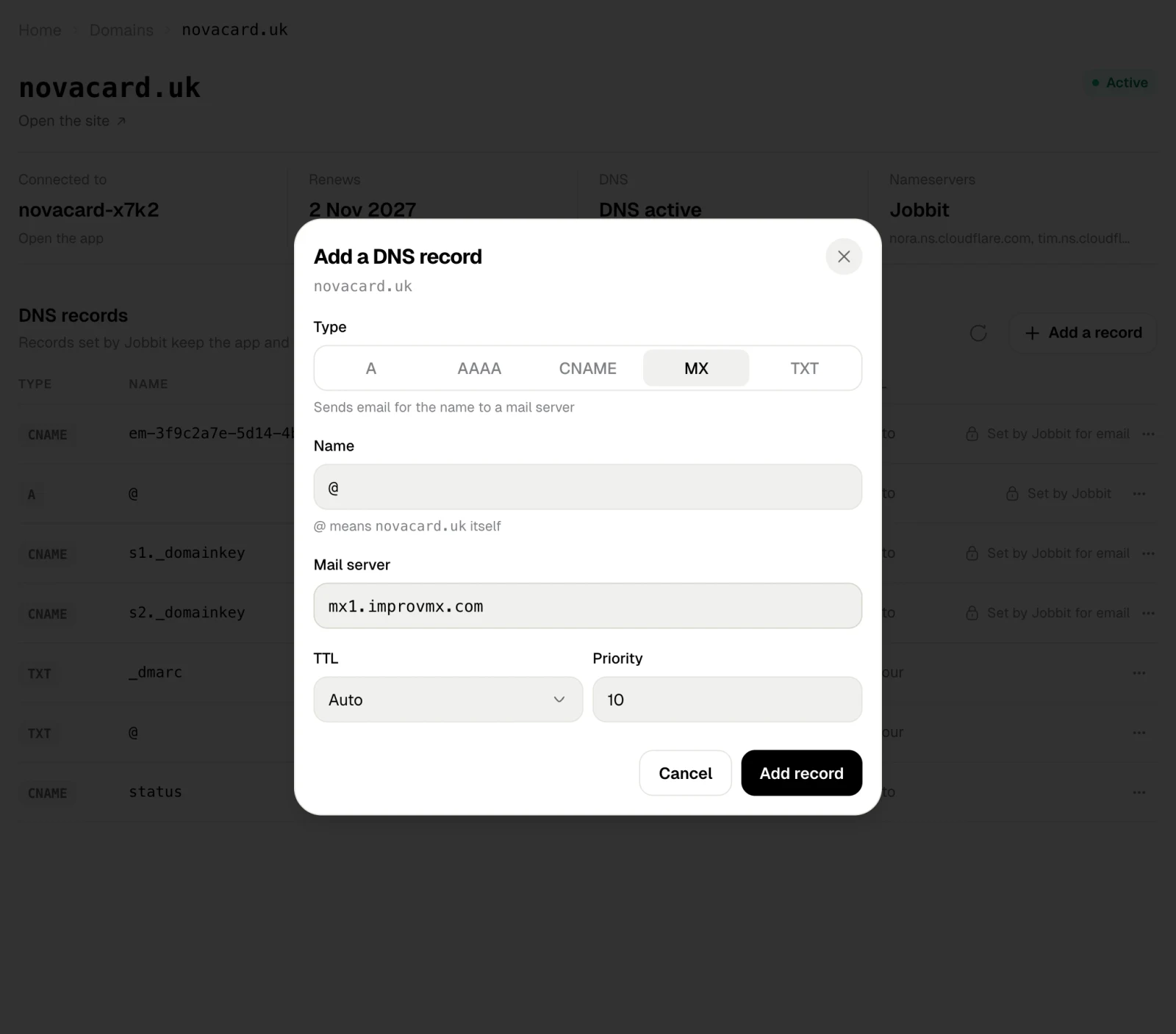
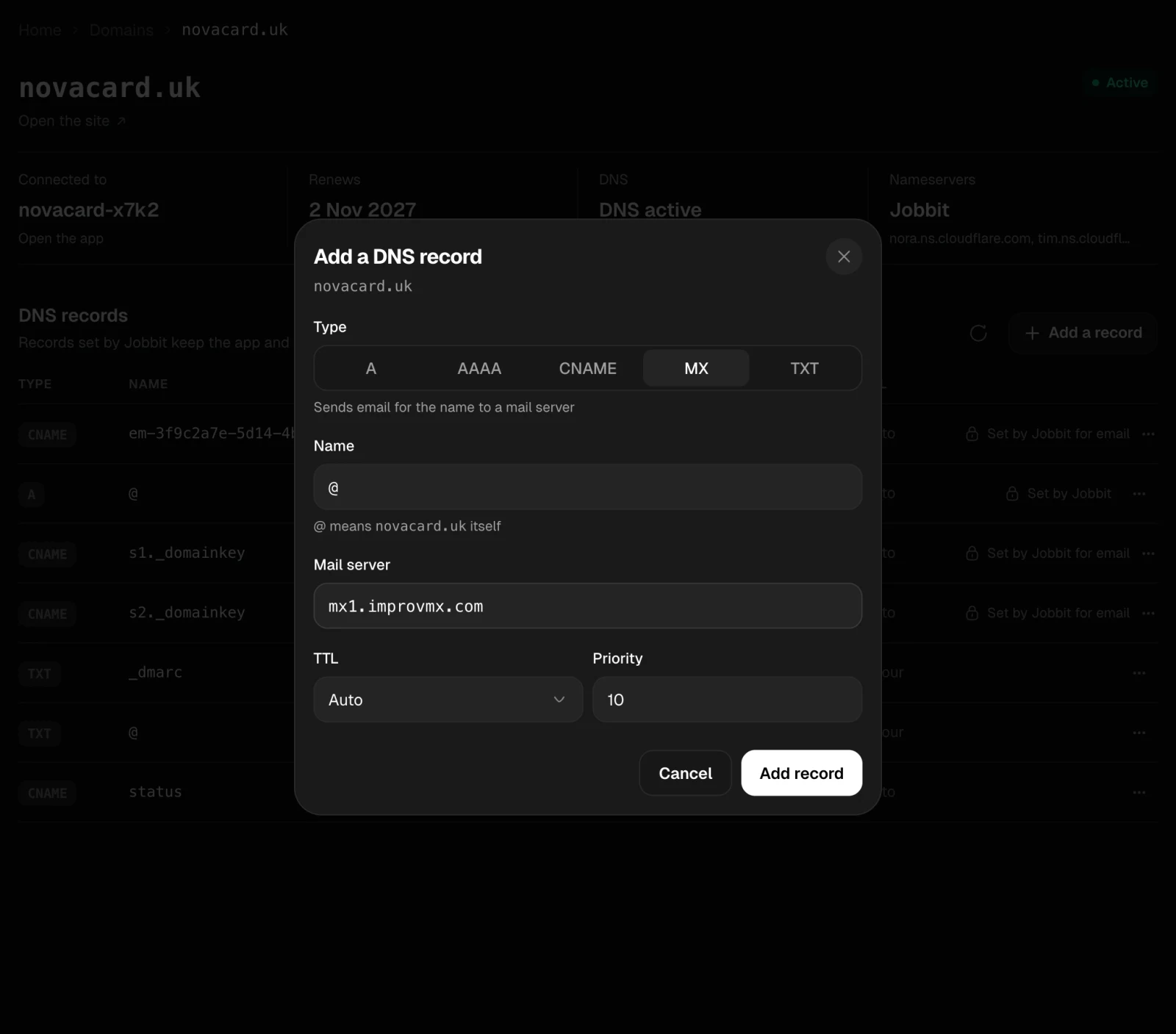
Add a record adds one of your own, for example to verify the domain with Google or point a subdomain at a shop.| Field | What to enter |
|---|---|
| Type | A, AAAA, CNAME, MX or TXT. The hint under it says what each is for |
| Name | @ for the domain itself, or a subdomain such as shop. The line under it shows the full address |
| Value | An IPv4 address for A, an IPv6 address for AAAA, the target for CNAME, the mail server for MX, the text for TXT |
| TTL | How long other servers may keep the answer. Auto suits most records |
| Priority | For MX only: lower numbers are tried first |
| Cloudflare proxy | For A, AAAA and CNAME. Visitors reach the server through Cloudflare, which hides its address |
Change or delete a record
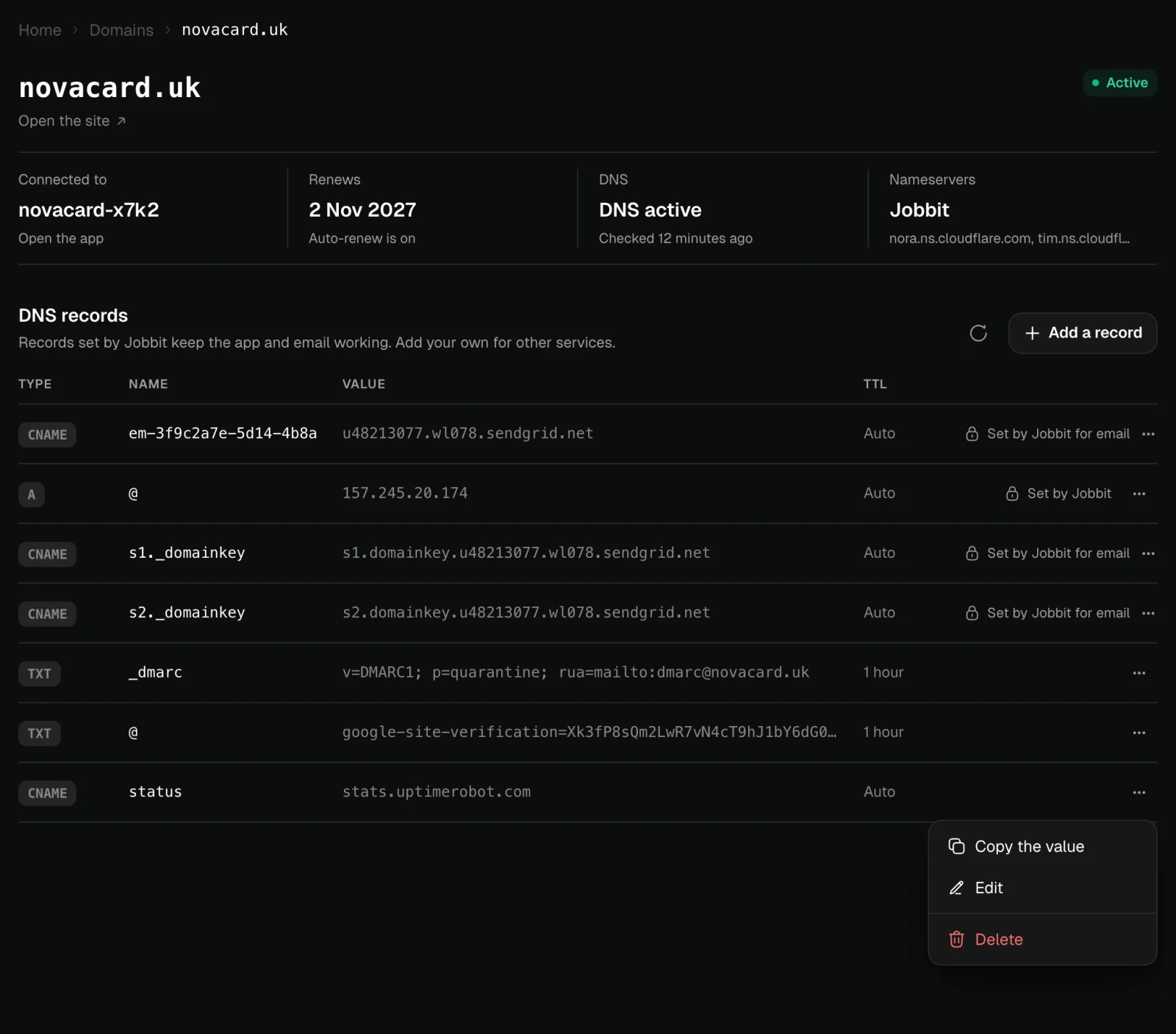
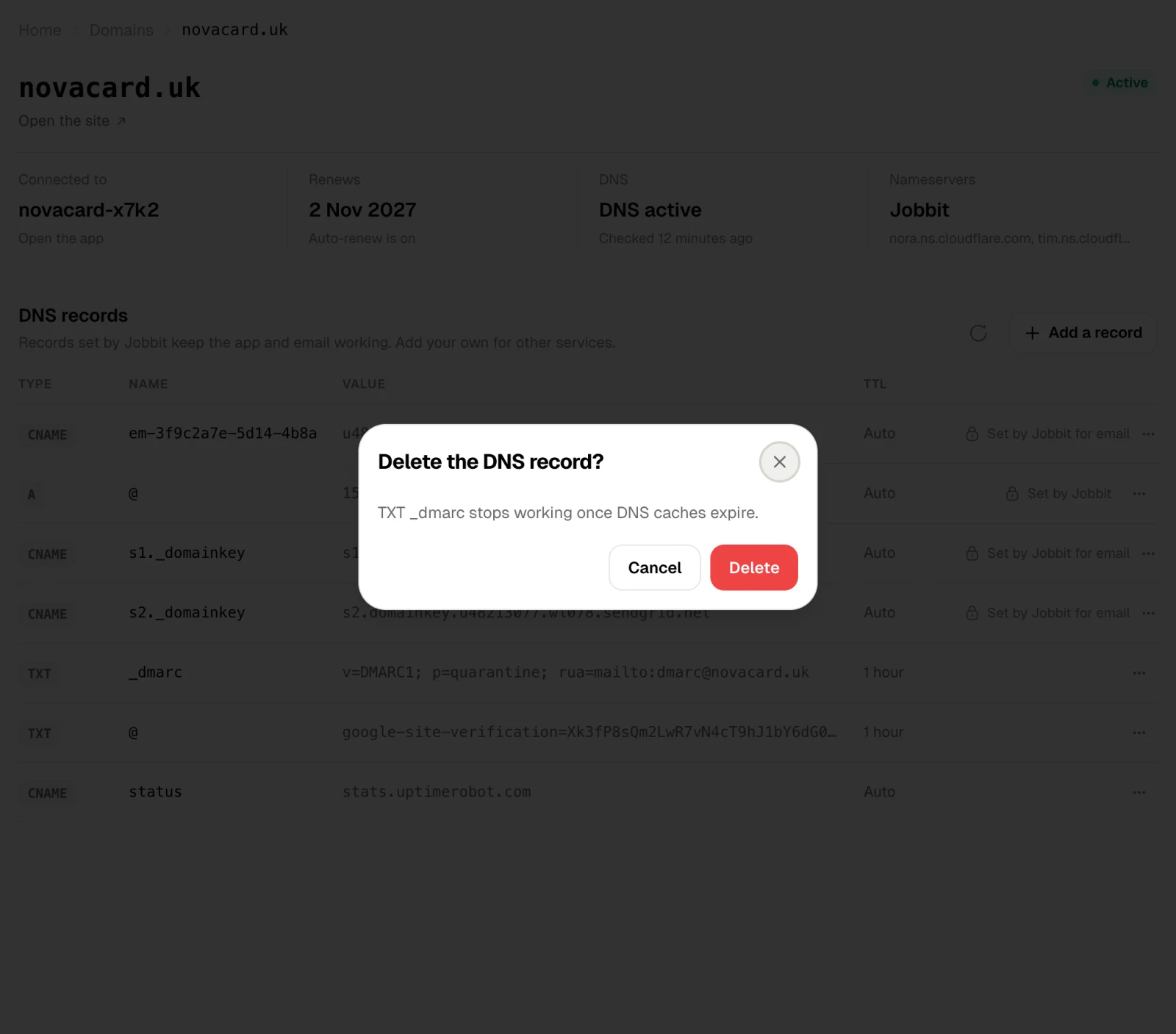
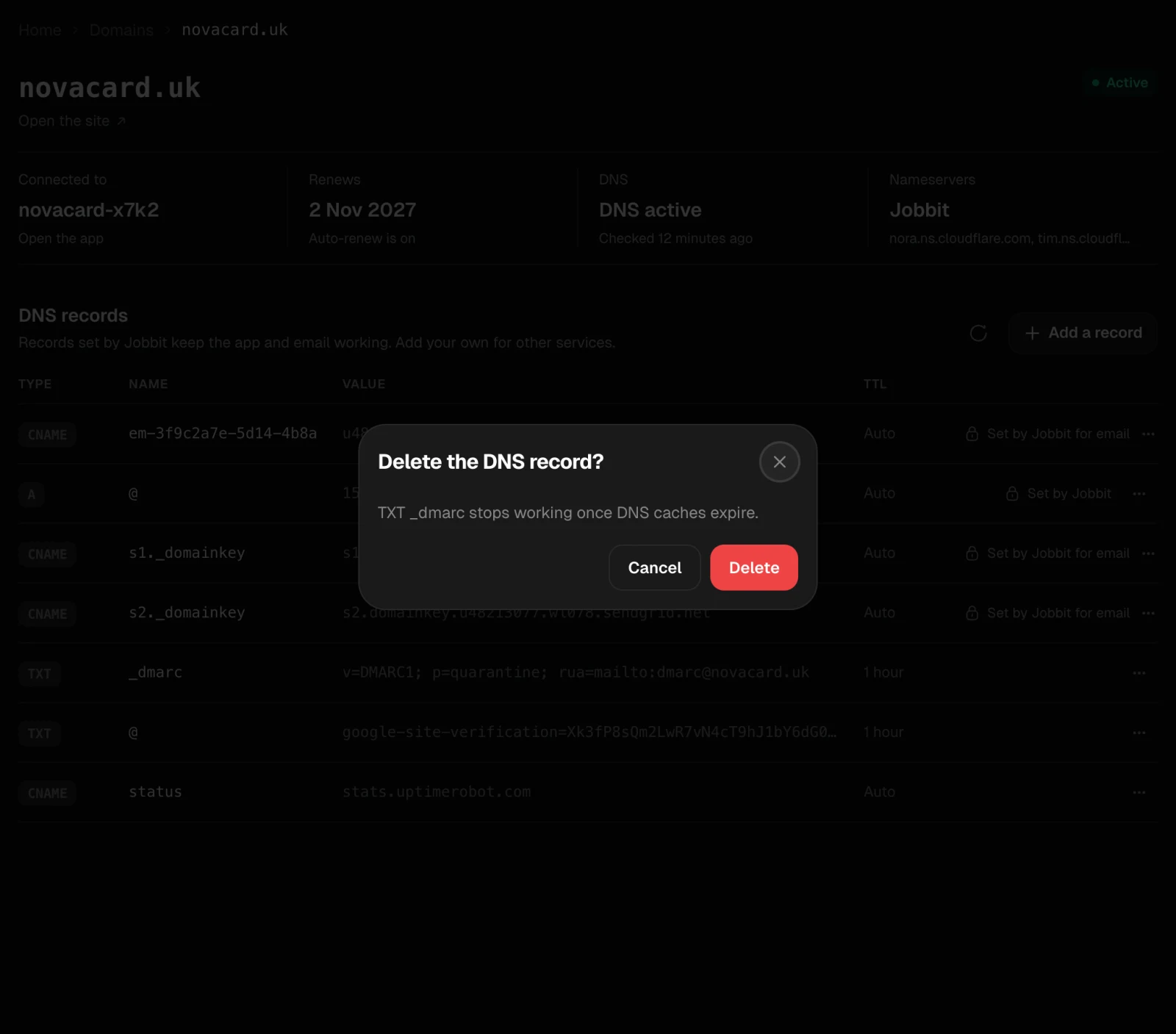
A record of your own has Copy the value, Edit and Delete in its ⋯ menu.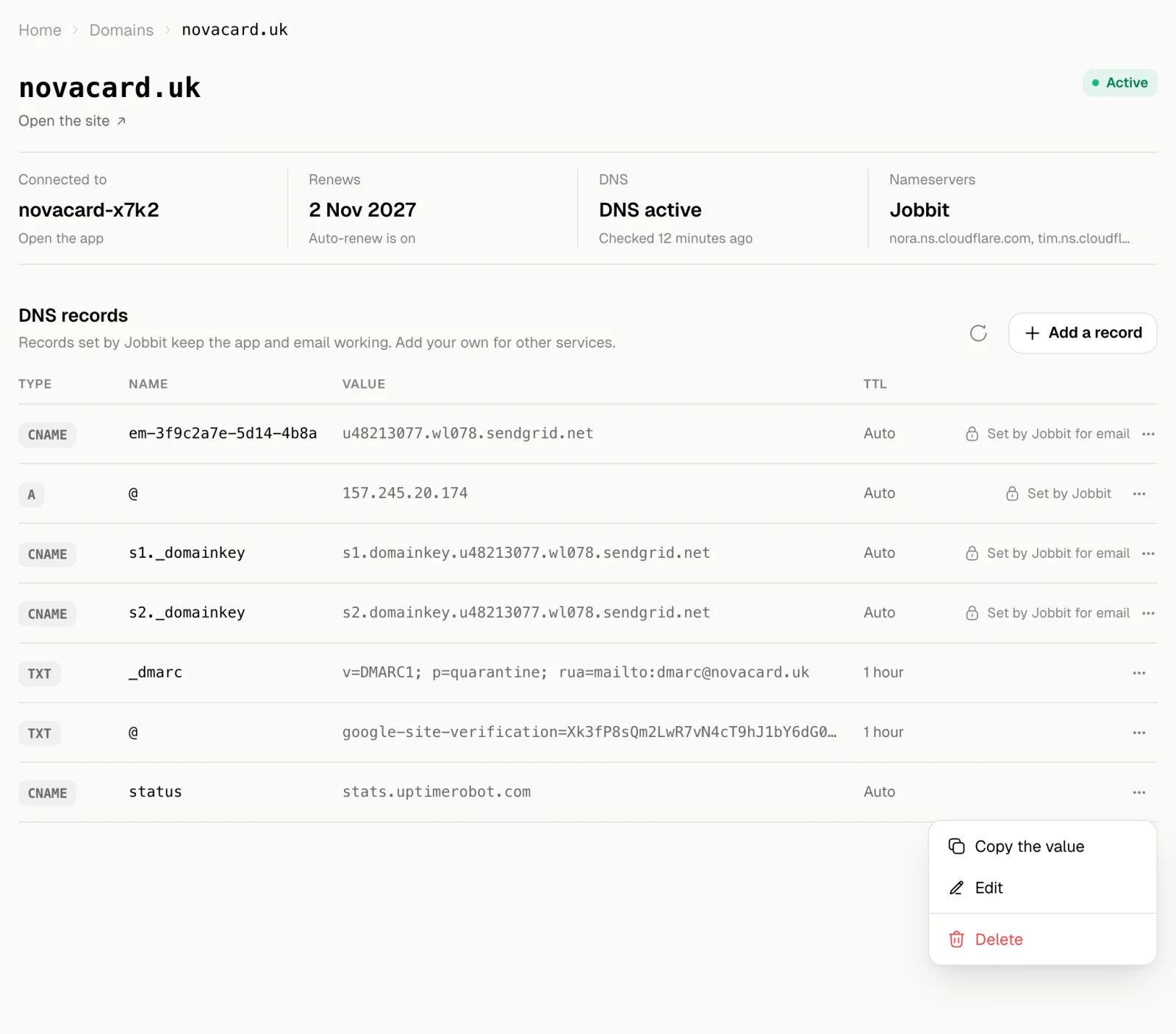
When records cannot be edited
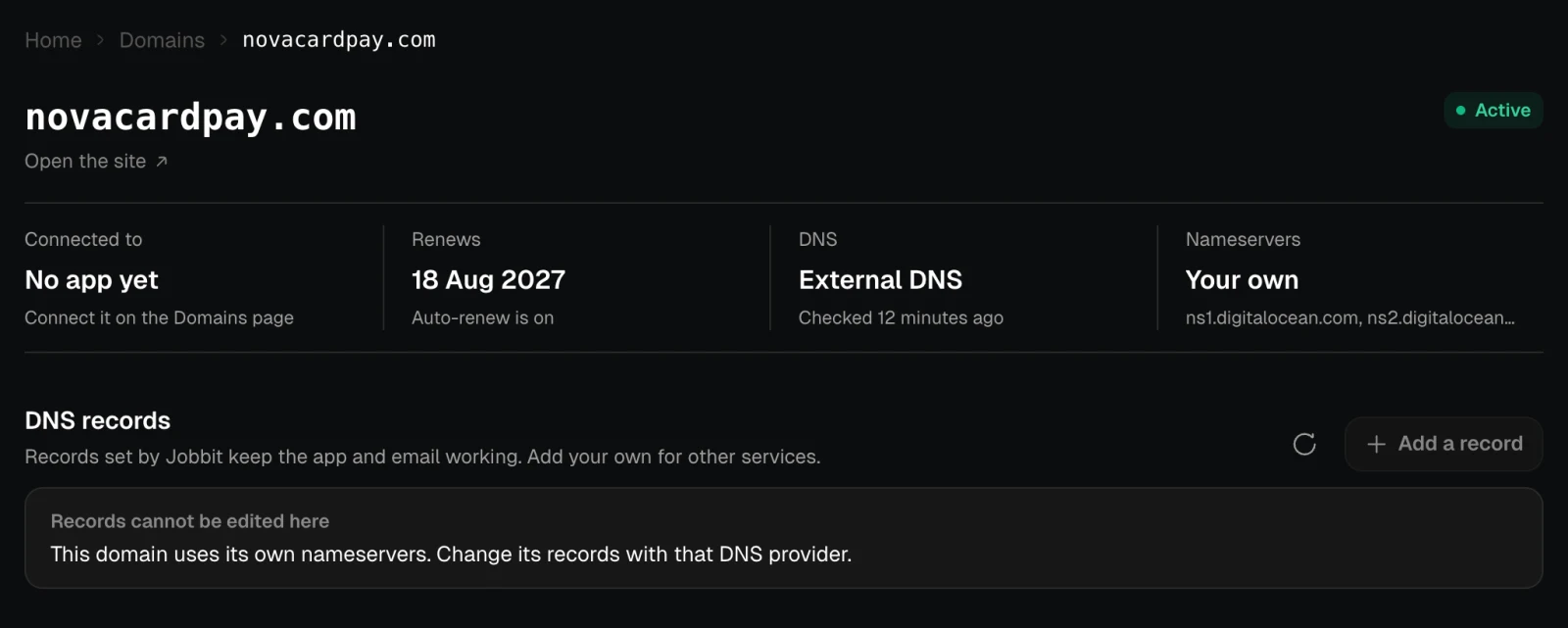
Records can be changed here only when the domain is registered and uses Jobbit’s nameservers. A domain still being registered, or one with nameservers of its own, shows Records cannot be edited here. For your own nameservers, change the records with that DNS provider.