

Create a key
Open API keys
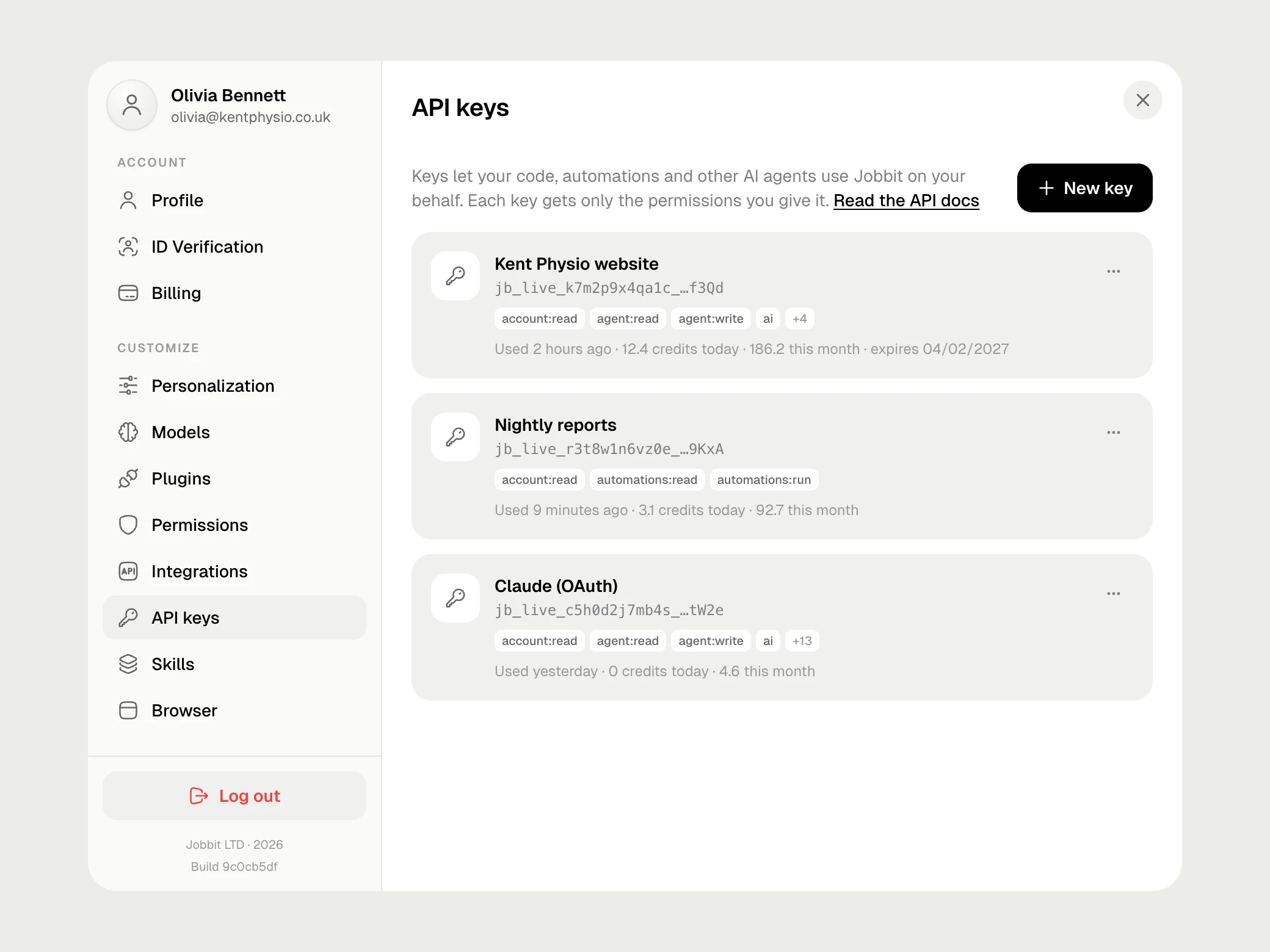
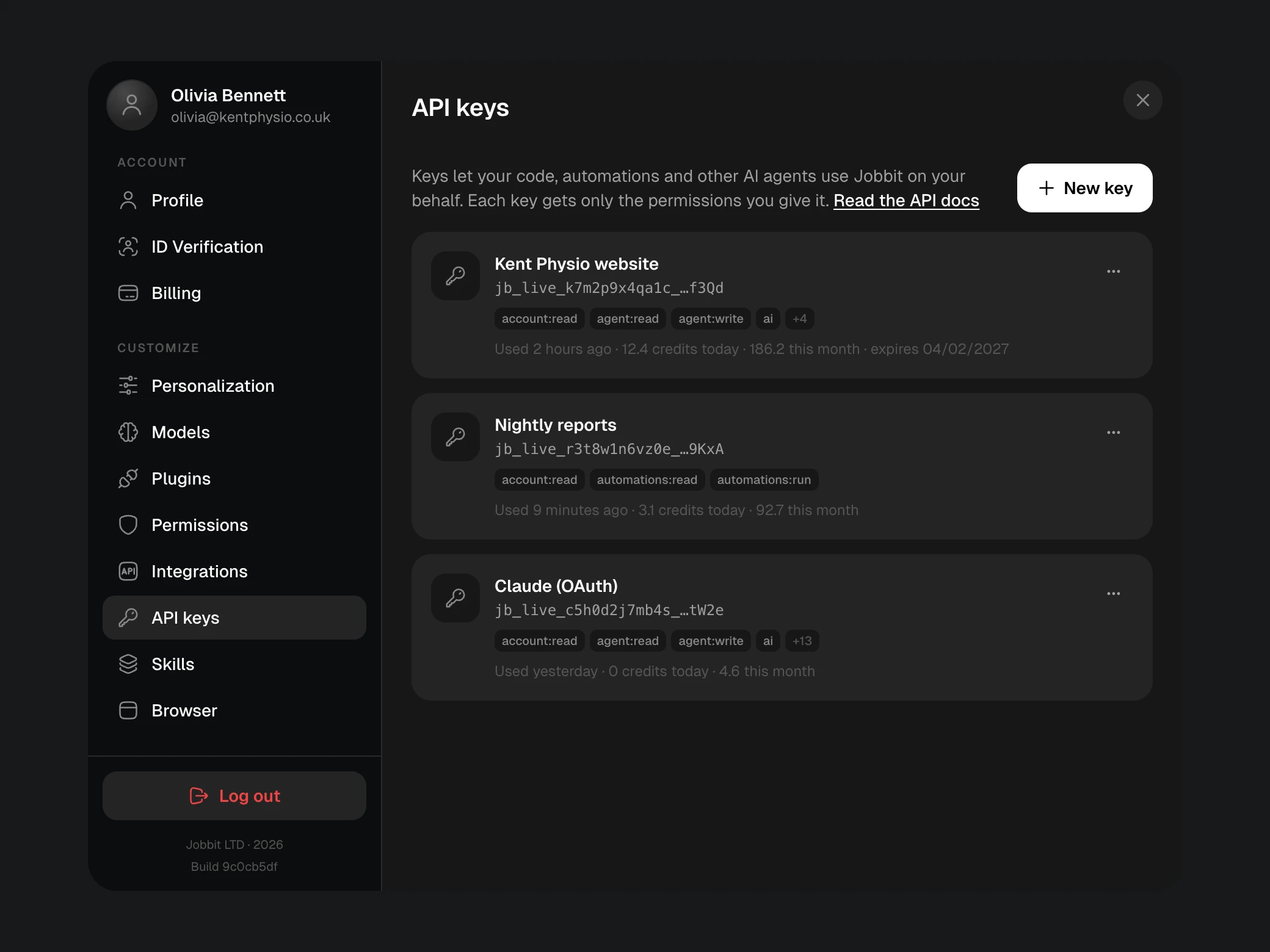
Sign in at jobbit.uk, open Settings from your profile and choose API keys, then New key.
Name it
Use a name that says where the key will live, such as
Kent Physio website or Nightly reports. You will see it in the list and in your usage.Choose its access
Access offers three choices:
Prefer Custom for anything that runs unattended.
| Choice | What the key gets |
|---|---|
| Full access | Every permission, including deleting apps and reading database passwords |
| Read only | Sees your account, tasks, apps, files, automations, projects and domains; changes nothing |
| Custom | Only the permissions you tick |
Set an expiry and limits
Choose when the key stops working (never, 30 days, 90 days or a year) and, if you want, how much it may spend and where it may be used. All limits are optional.
Permissions
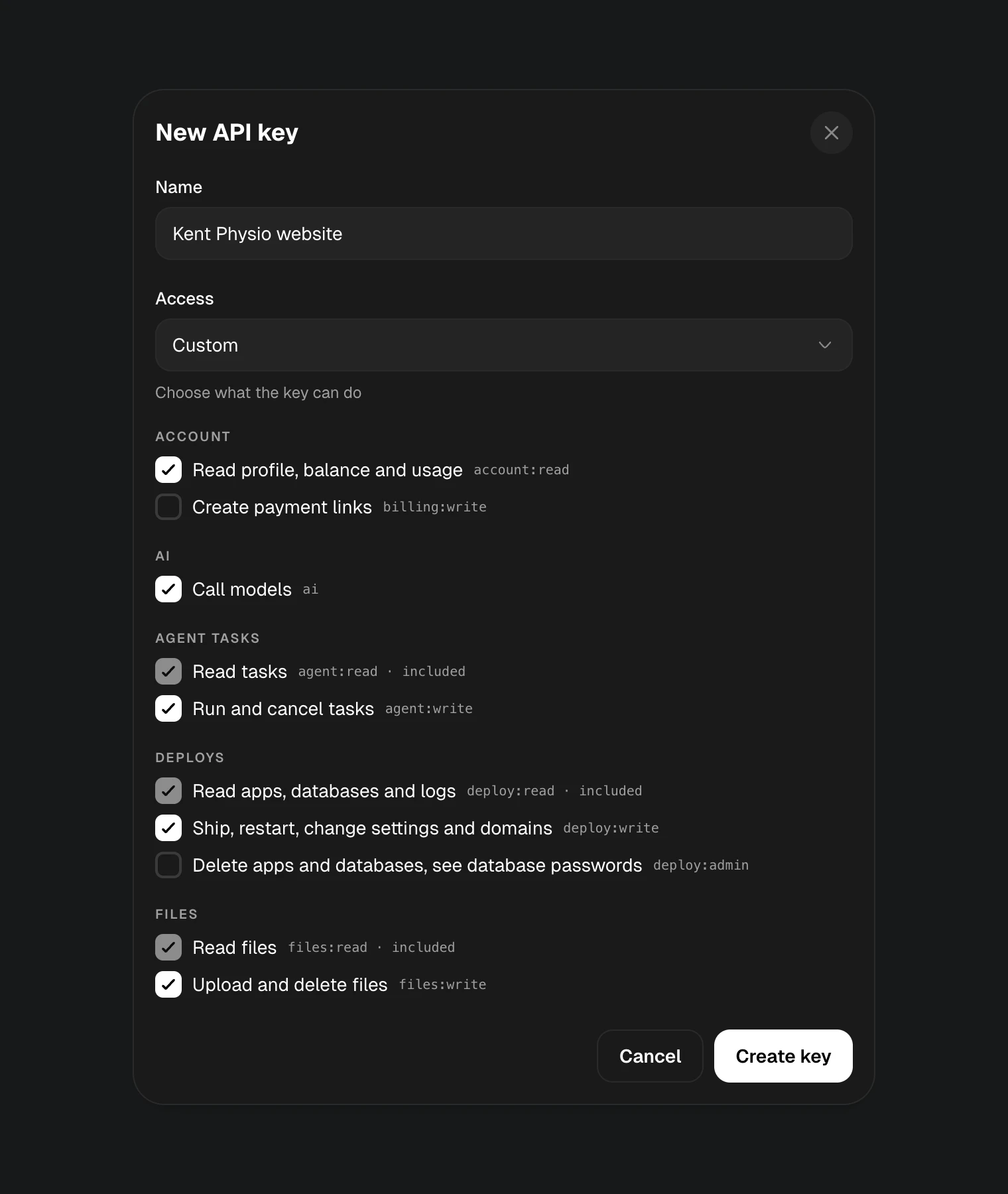
With Custom access you tick permissions by area. A write permission includes its read: when you tick Run and cancel tasks, Read tasks is ticked for you and marked included.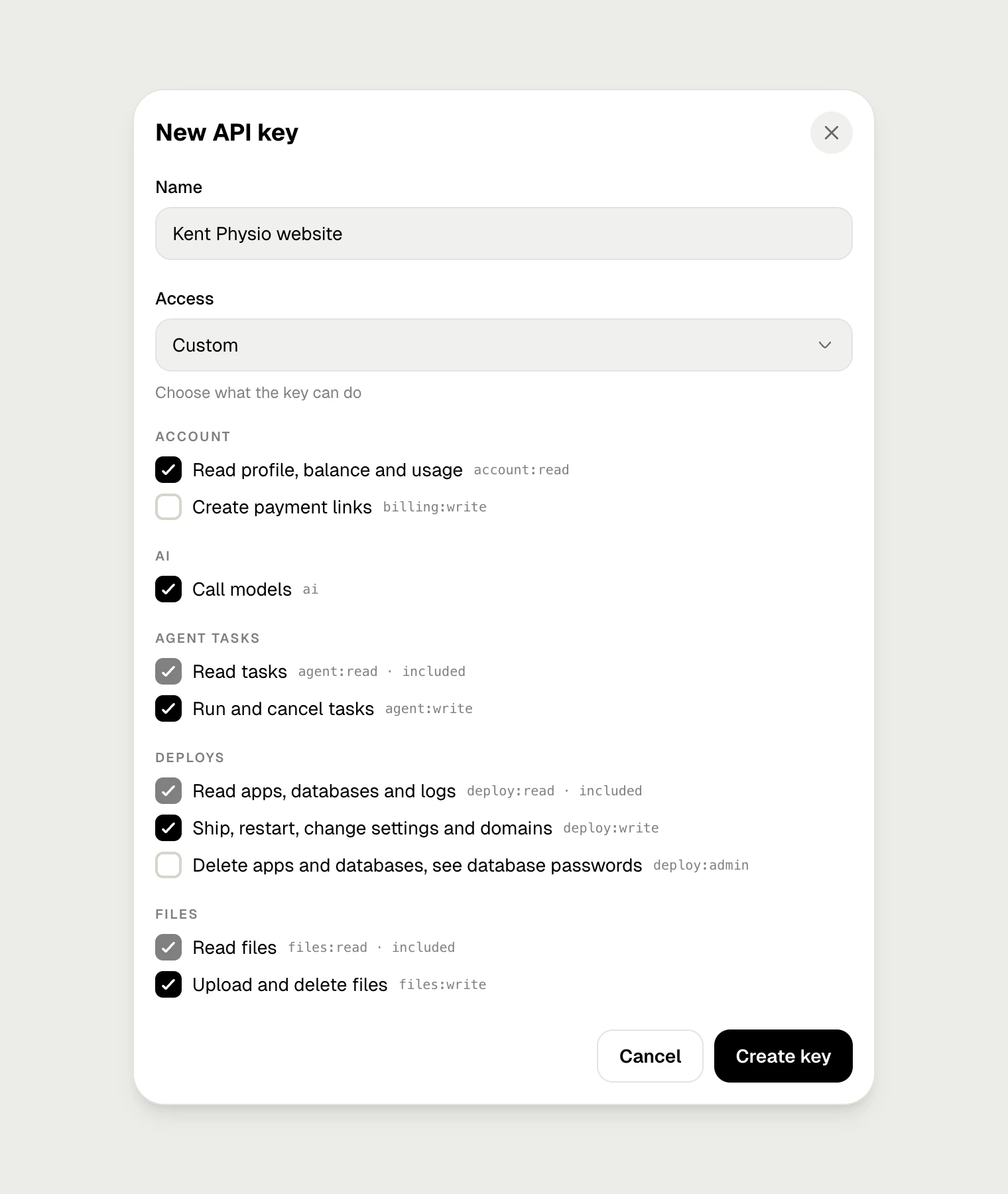
Expiry and limits
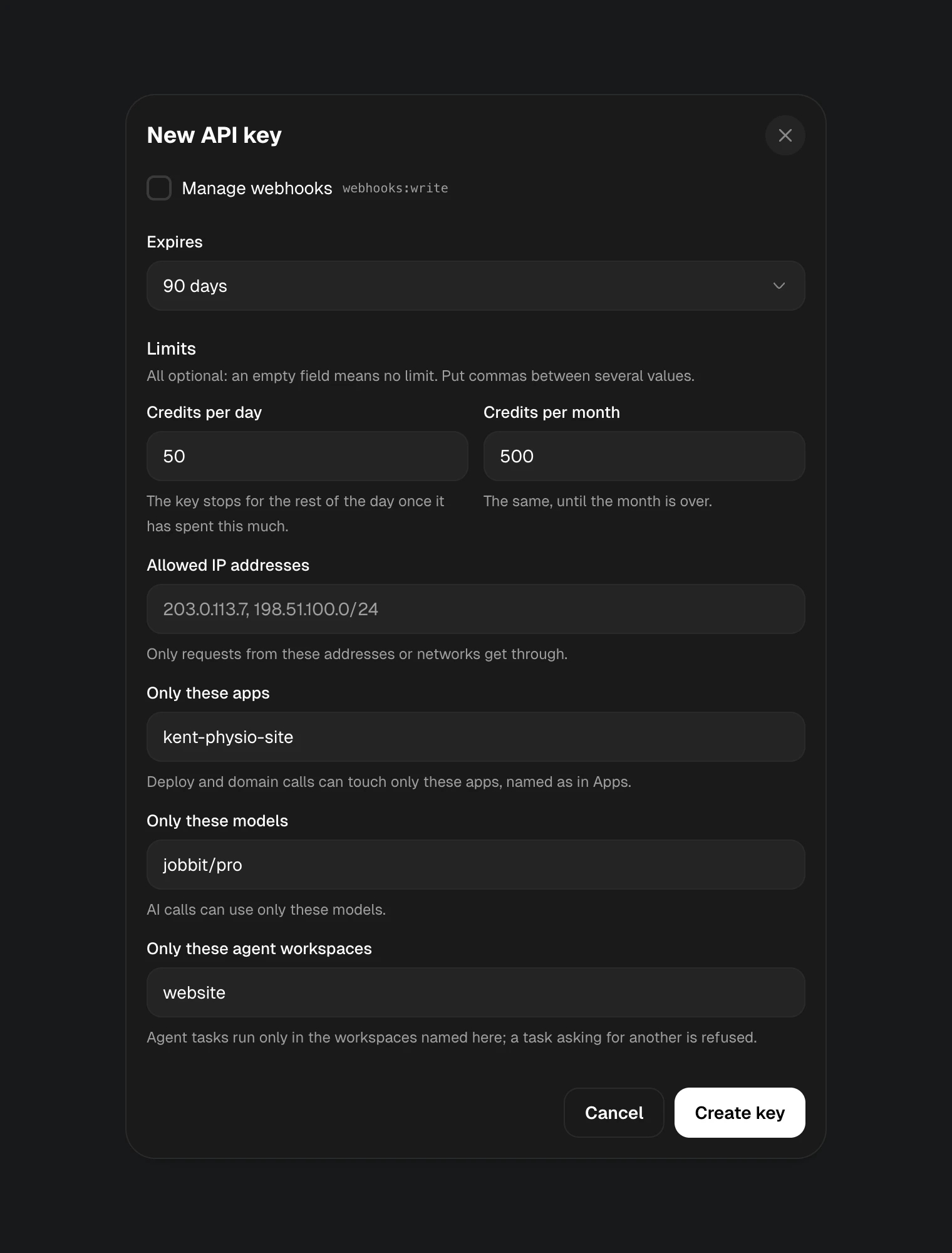
Below the permissions you set when the key expires and what it may do. An empty field means no limit; put commas between several values.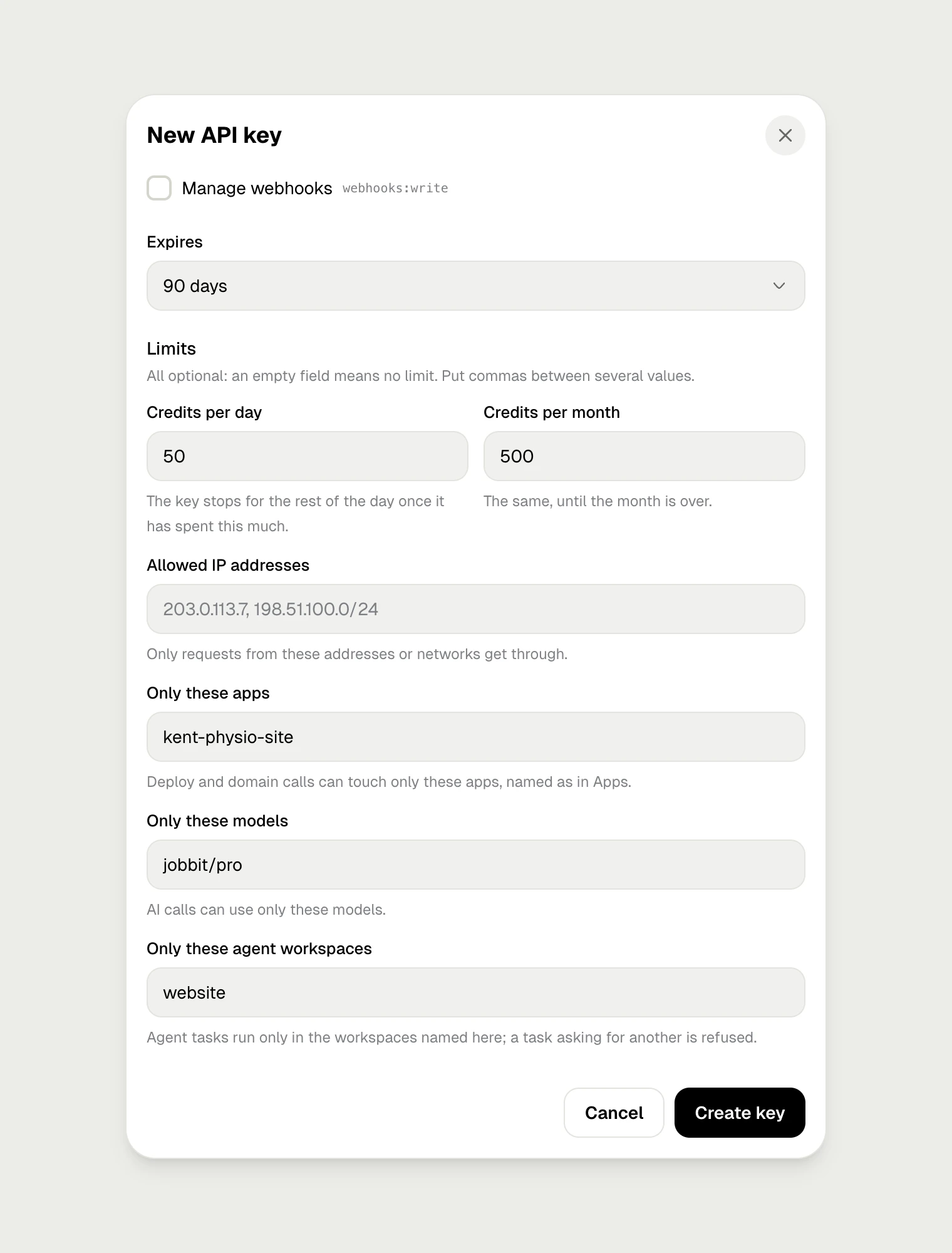
| Limit | What it does |
|---|---|
| Credits per day | The key stops for the rest of the day once it has spent this much |
| Credits per month | The same, until the month is over |
| Allowed IP addresses | Only requests from these addresses or networks get through, for example 203.0.113.7, 198.51.100.0/24 |
| Only these apps | Deploy and domain calls can touch only these apps, named as in Apps. Shown when the key may deploy or manage domains |
| Only these models | Model calls can use only these models, for example jobbit/pro. Shown when the key may call models |
| Only these agent workspaces | Agent tasks run only in the workspaces named here; a task asking for another is refused. Shown when the key may run tasks |
403 key_spend_limit until the day or month is over. An agent task started by a capped key gets a budget no larger than what is left of the cap.
Copy the key
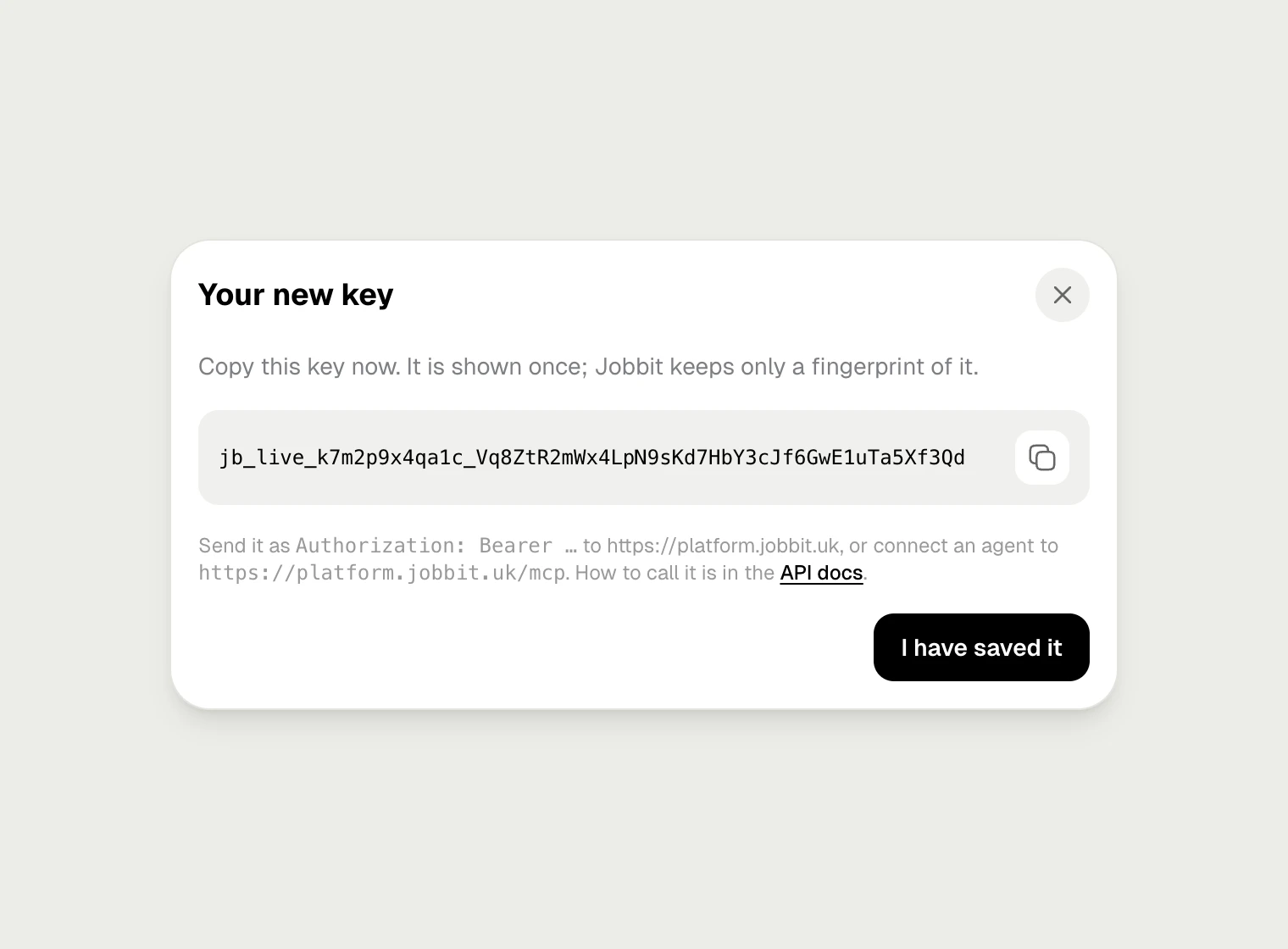
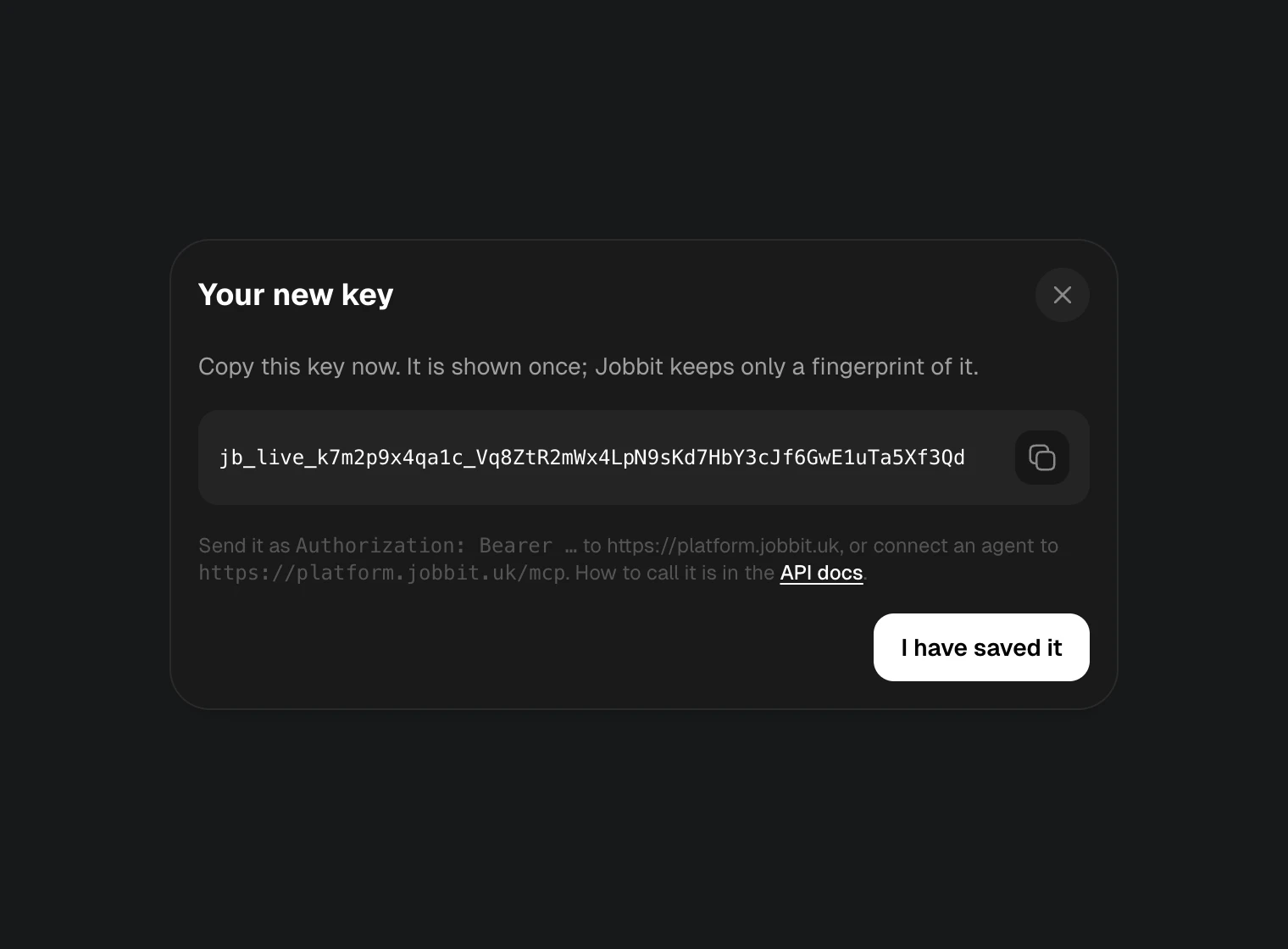
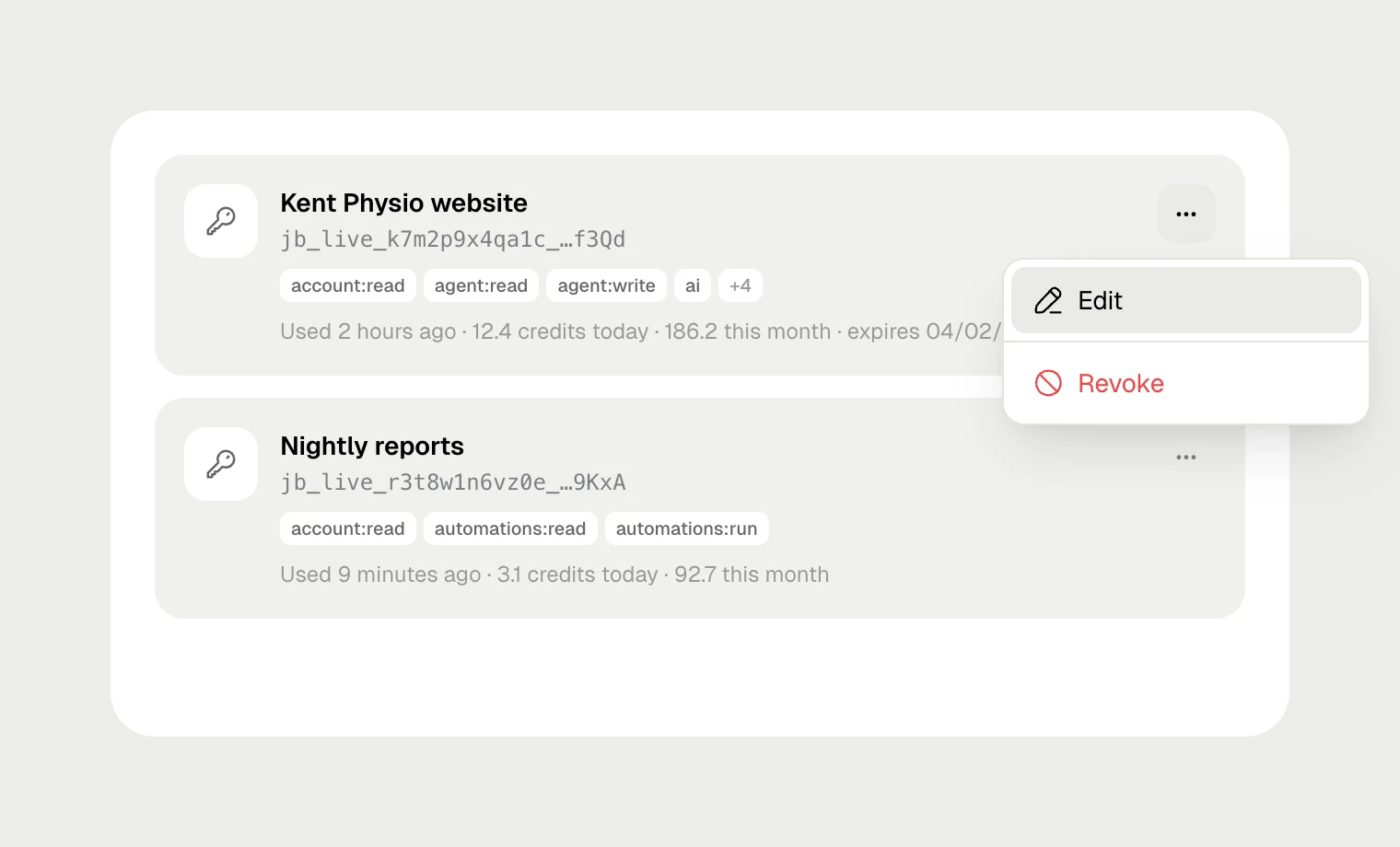
jb_live_<id>_<secret>. The list shows only the start and the last four characters, for example jb_live_k7m2p9x4qa1c_…f3Qd. If you lose a key, create a new one and revoke the old.
Edit or revoke a key
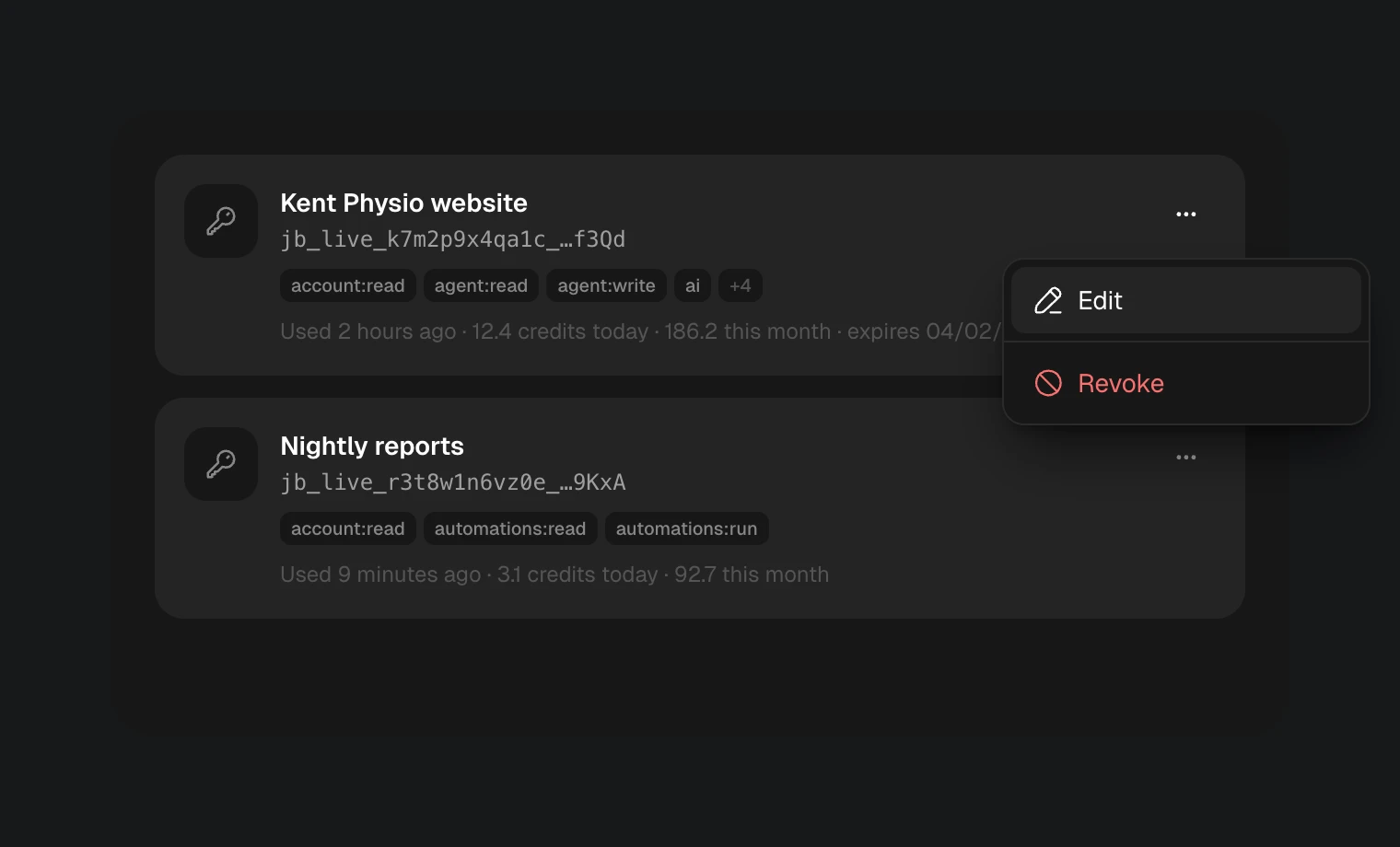
Open the ⋯ menu on a key:- Edit changes its name, permissions, expiry and limits. The key itself stays the same, so nothing that uses it needs updating.
- Revoke stops it at once. Anything using it gets
401from its next request. This cannot be undone.
Keys made by connected apps
When you connect Claude, ChatGPT, Codex or another app over MCP, Jobbit makes a key for that connection, named after the app, such as Claude (OAuth). It appears in your list like any other key. Revoking it disconnects the app; you can also disconnect from Settings → Integrations.Keep keys safe
- Keep keys in environment variables or a secret manager, never in source code, URLs or client-side JavaScript.
- Give each app or integration its own key with only the permissions it needs.
- Set a credit cap on any key that spends credits, and an expiry on keys for short projects.
- Use Allowed IP addresses when the key is only used from a server with a fixed address.
- Revoke a key straight away if it may have leaked, then create a new one.